> ## Documentation Index
> Fetch the complete documentation index at: https://docs.altoura.com/llms.txt
> Use this file to discover all available pages before exploring further.
# Gestures and Interactions
> How to point, select, open hand menus, and manipulate panels and 3D models on the HoloLens 2 in Altoura Frontline.
A lookup reference for operators and authors on the physical interactions Altoura Frontline uses on the HoloLens 2.
## Pointing and Selecting
| Interaction | How to do it | What it does |
| -------------------- | ------------------------------------------------------------------------------------------------- | ---------------------------------------------------------------------------------------------------------------- |
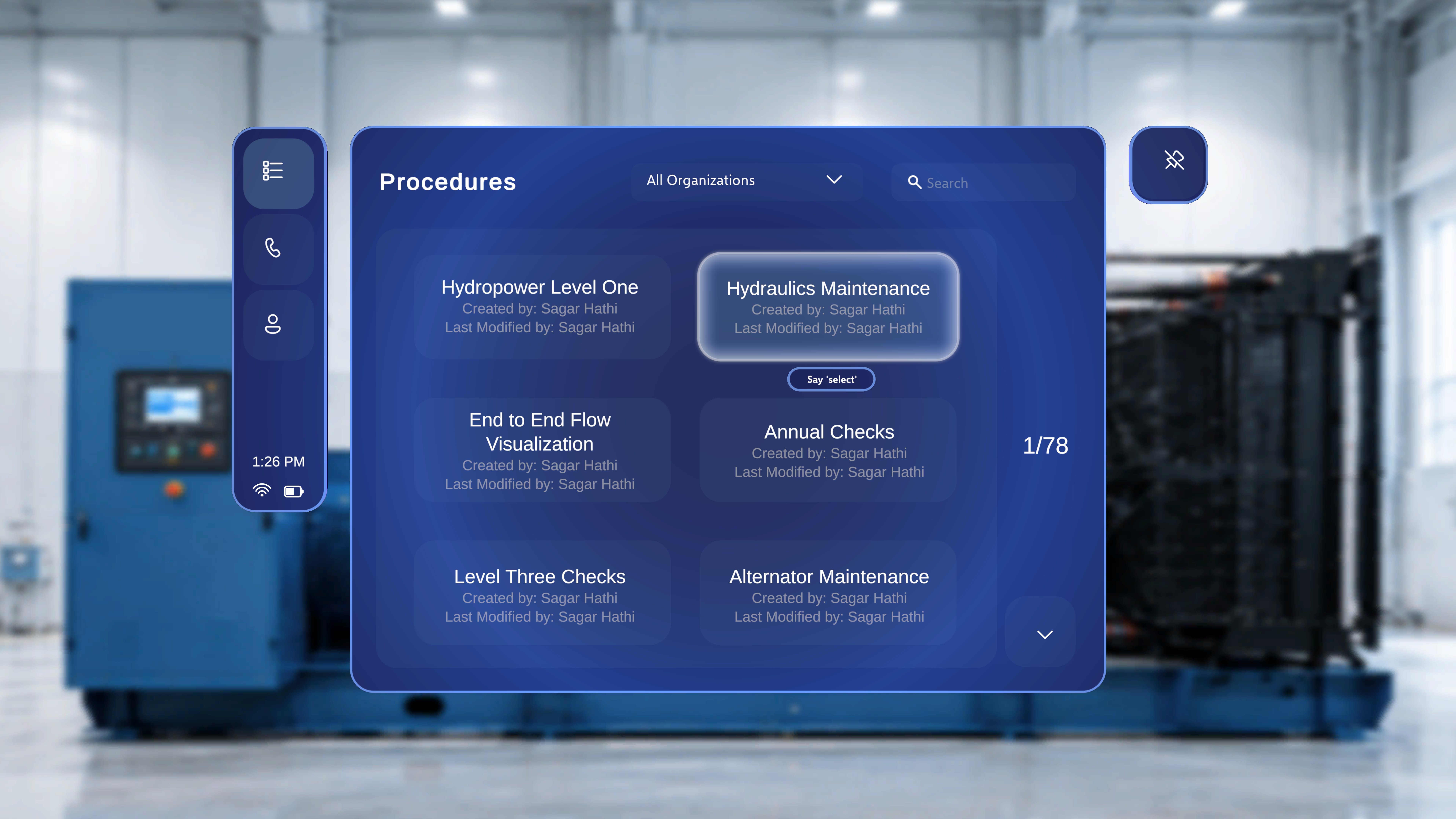
| **Hand ray** | Point your hand at a distant control; a ray extends from your palm. | Puts the control in focus — the **"Say 'select'"** tooltip appears. |
| **Head-gaze cursor** | Turn your head so the gaze cursor rests on a control. | Same as the hand ray: puts the control in focus. |
| **Air-tap** | With the control in focus, pinch your index finger and thumb together. | Activates the control — the standard "click". |
| **Direct touch** | Move close to a panel and touch the control with your finger. | Activates the control, same as an air-tap. |
| **Hover + "Select"** | Focus a control with ray or gaze, wait for the **"Say 'select'"** tooltip, then say **"Select"**. | Activates the control by voice. See the [Voice Command Reference](/frontline/hololens/reference/voice-commands). |
 ***
## Palm-Up Hand Menus
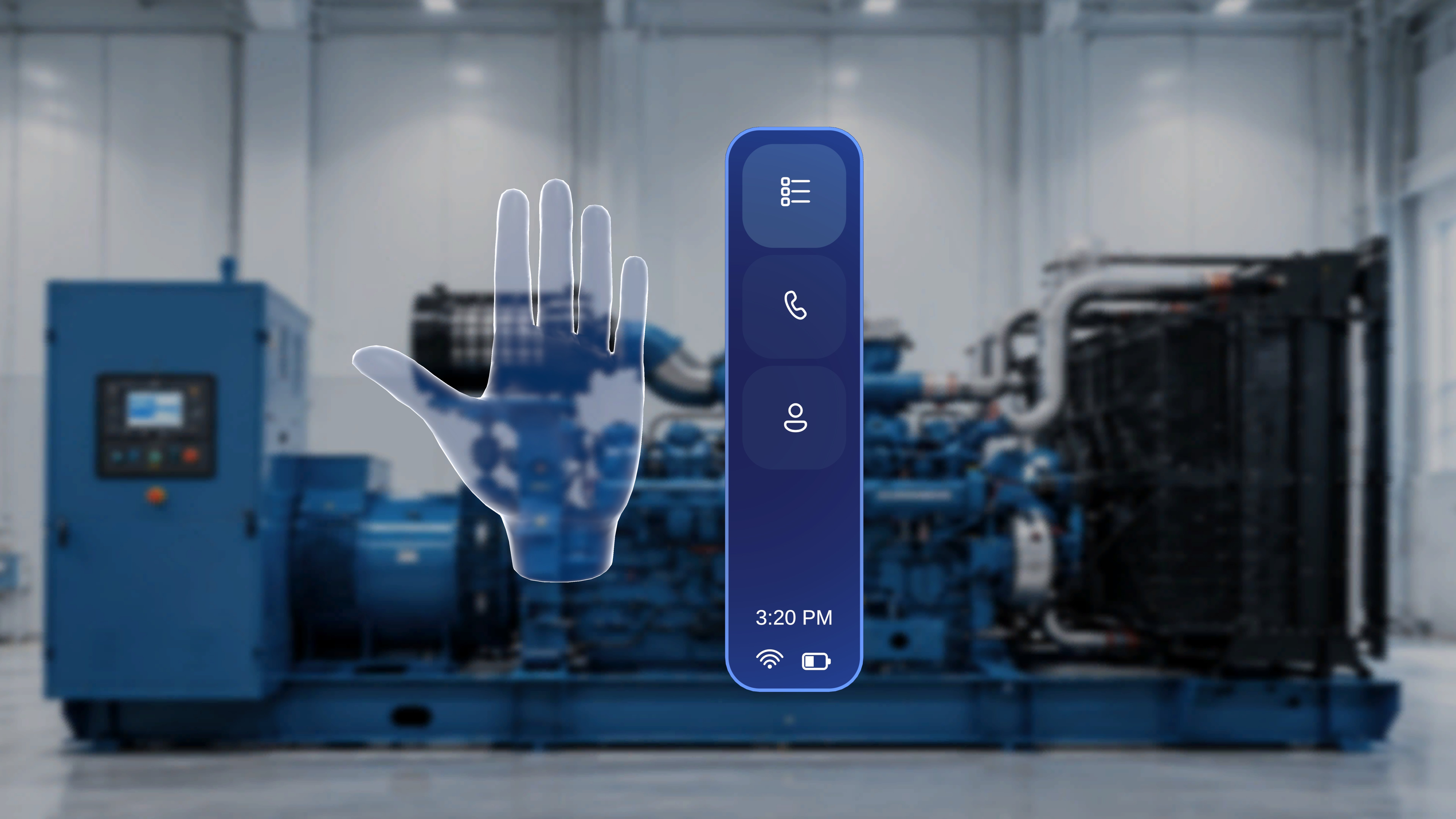
Raising either hand with your **palm facing toward you** opens a hand-anchored menu. Which menu appears depends on where you are:
| Context | Menu that appears | Options |
| -------------------------------------------------- | ------------------------------------ | ----------------------------------------- |
| On the Home screen (not in a procedure or session) | **Floating Side Menu** | Procedures, Remote Expert, Profile |
| Inside a procedure (Operator or Author mode) | **Procedure Side Menu** (contextual) | Rescan, Reposition Panels, Exit Procedure |
***
## Palm-Up Hand Menus
Raising either hand with your **palm facing toward you** opens a hand-anchored menu. Which menu appears depends on where you are:
| Context | Menu that appears | Options |
| -------------------------------------------------- | ------------------------------------ | ----------------------------------------- |
| On the Home screen (not in a procedure or session) | **Floating Side Menu** | Procedures, Remote Expert, Profile |
| Inside a procedure (Operator or Author mode) | **Procedure Side Menu** (contextual) | Rescan, Reposition Panels, Exit Procedure |
 See [Panels and Side Menus](/frontline/hololens/reference/panels-and-side-menu) for what each menu contains, and [First Launch and Navigation](/frontline/hololens/get-started/first-launch-and-navigation) for a guided walkthrough.
***
## Moving Panels and Follow Me
* Panels can be **manually moved** in space; manually moving a panel automatically turns off Follow Me for it.
* Say **"Follow me"** / **"Unfollow me"** to have a supported panel reposition itself in front of you as you move, or stay fixed.
* Use **Reposition Panels** on the in-procedure side menu to bring the step, media, and 3D Model panels back directly in front of your current view.
***
## Working with 3D Models
### In Operator Mode
Model behaviour is set by the author; operators cannot change model settings or spawn new models. See [Work with 3D Models and Media](/frontline/hololens/operate/work-with-3d-models-and-media).
| Interaction | Requires | What happens |
| ------------------------- | -------------------------------------------------- | ------------------------------------------------------------------------------------------- |
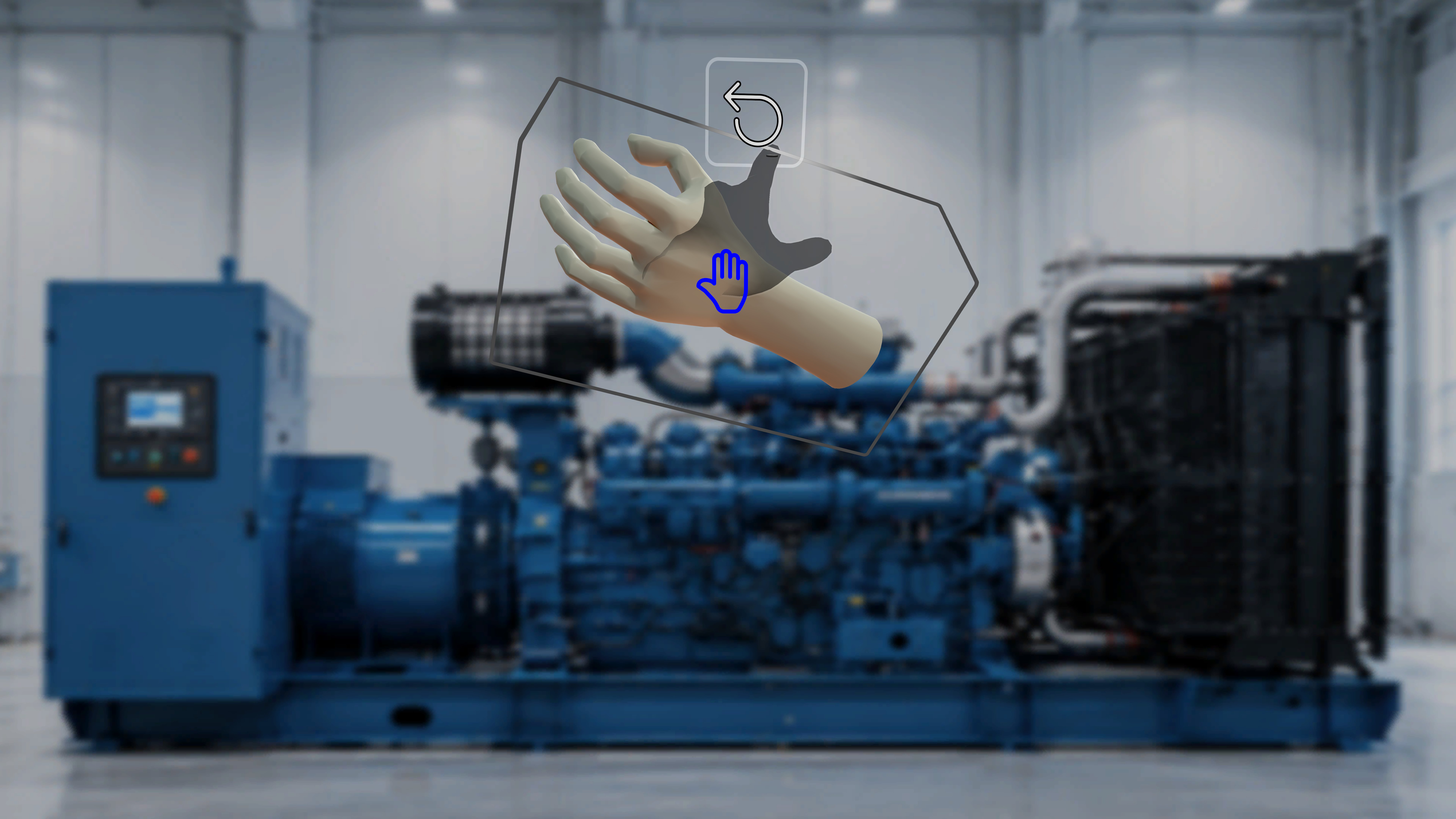
| **Grab and move a model** | The author enabled **Interactable** for that model | The model can be repositioned in physical space. Movement affects only the current session. |
| **Ghost placeholder** | **Interactable Ghost** enabled by the author | When you move the model, a shadow remains at the original authored position for reference. |
| **Reset control** | An interactable model has been moved | A reset control appears to return the model to its authored position. |
| **View only** | **Interactable** disabled | The model is fixed in space and cannot be grabbed or moved. |
See [Panels and Side Menus](/frontline/hololens/reference/panels-and-side-menu) for what each menu contains, and [First Launch and Navigation](/frontline/hololens/get-started/first-launch-and-navigation) for a guided walkthrough.
***
## Moving Panels and Follow Me
* Panels can be **manually moved** in space; manually moving a panel automatically turns off Follow Me for it.
* Say **"Follow me"** / **"Unfollow me"** to have a supported panel reposition itself in front of you as you move, or stay fixed.
* Use **Reposition Panels** on the in-procedure side menu to bring the step, media, and 3D Model panels back directly in front of your current view.
***
## Working with 3D Models
### In Operator Mode
Model behaviour is set by the author; operators cannot change model settings or spawn new models. See [Work with 3D Models and Media](/frontline/hololens/operate/work-with-3d-models-and-media).
| Interaction | Requires | What happens |
| ------------------------- | -------------------------------------------------- | ------------------------------------------------------------------------------------------- |
| **Grab and move a model** | The author enabled **Interactable** for that model | The model can be repositioned in physical space. Movement affects only the current session. |
| **Ghost placeholder** | **Interactable Ghost** enabled by the author | When you move the model, a shadow remains at the original authored position for reference. |
| **Reset control** | An interactable model has been moved | A reset control appears to return the model to its authored position. |
| **View only** | **Interactable** disabled | The model is fixed in space and cannot be grabbed or moved. |
 ### In Author Mode
Authors place and manipulate models directly in the space. See [Add 3D Models and Media](/frontline/hololens/author/add-3d-models-and-media).
| Interaction | How to do it | What happens |
| ------------------------- | --------------------------------------------------------------- | ----------------------------------------------------------------------------------------- |
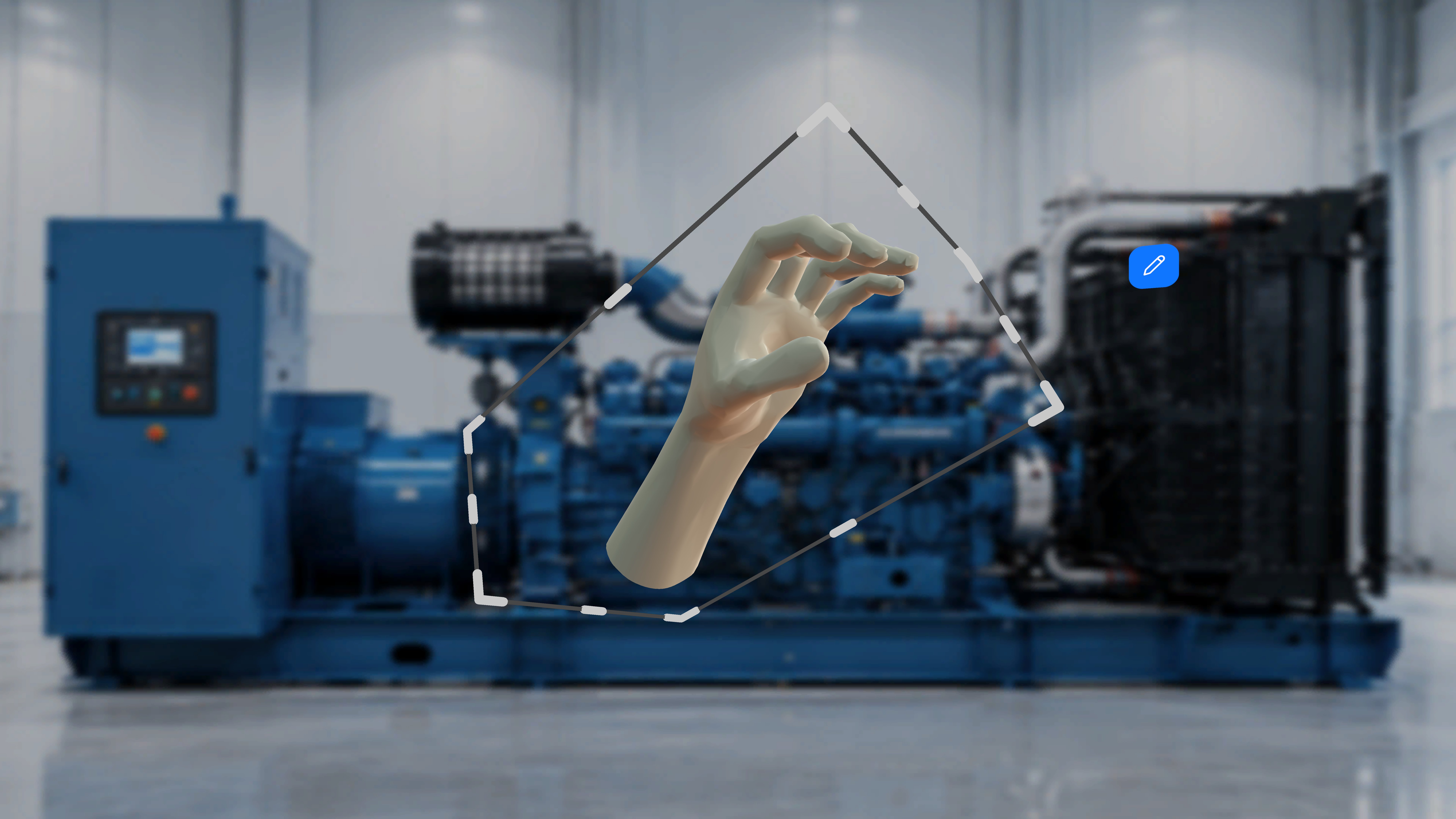
| **Show the bounding box** | Click/tap the placed model once | A bounding box appears; you can **resize** and **rotate** the model using its handles. |
| **Hide the bounding box** | Click/tap the model again | The bounding box disappears. |
| **Open the Edit menu** | Select the **Edit** (pencil) button that appears near the model | Opens options: Interactable, Animation, Duplicate, Copy Position, Paste Position, Delete. |
| **Move a model** | Grab the model and place it where needed | Repositions the model in the physical space. |
### In Author Mode
Authors place and manipulate models directly in the space. See [Add 3D Models and Media](/frontline/hololens/author/add-3d-models-and-media).
| Interaction | How to do it | What happens |
| ------------------------- | --------------------------------------------------------------- | ----------------------------------------------------------------------------------------- |
| **Show the bounding box** | Click/tap the placed model once | A bounding box appears; you can **resize** and **rotate** the model using its handles. |
| **Hide the bounding box** | Click/tap the model again | The bounding box disappears. |
| **Open the Edit menu** | Select the **Edit** (pencil) button that appears near the model | Opens options: Interactable, Animation, Duplicate, Copy Position, Paste Position, Delete. |
| **Move a model** | Grab the model and place it where needed | Repositions the model in the physical space. |
 Every interaction on this page also works by voice: focus the control or tile and say **"Select"**. See the [Voice Command Reference](/frontline/hololens/reference/voice-commands).