> ## Documentation Index
> Fetch the complete documentation index at: https://docs.altoura.com/llms.txt
> Use this file to discover all available pages before exploring further.
# Enter Author Mode
> Choose Author Mode from the Mode Selection screen and get oriented in the authoring workspace.
This page is for **procedure authors** with Author access. By the end of it, you will have opened a procedure in Author Mode and know your way around the authoring workspace, including how to move between steps.
If you are unsure whether you should be authoring or operating, see [Author vs. Operator](/frontline/overview/concepts/author-vs-operator).
## Choose a Mode
The **Mode Selection** screen appears after you select a procedure on **Home** and tap **Start**.
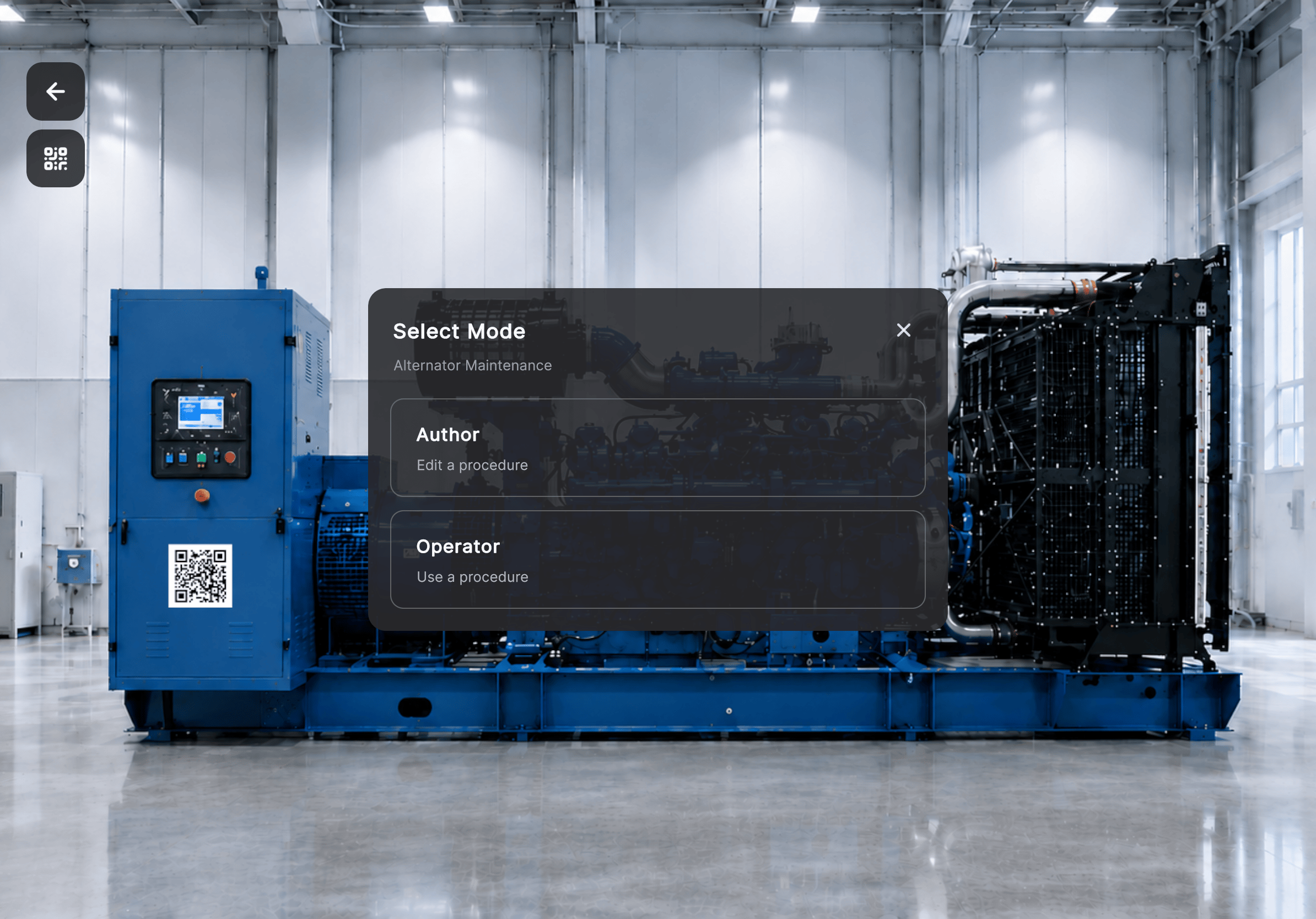 The Mode Selection option is available only to users with Author access. Operators go straight into the procedure.
| Mode | Use this mode to |
| ----------------- | -------------------------------------------------------------------------------------------------- |
| **Author Mode** | Review and modify procedure content, position 3D models, and configure augmented reality elements. |
| **Operator Mode** | Perform a published procedure using guided instructions, media, and augmented reality content. |
Tap the procedure card, then tap **Start**.
Frontline prepares the workspace and opens the procedure for authoring.
## Get Oriented in the Authoring Workspace
The Mode Selection option is available only to users with Author access. Operators go straight into the procedure.
| Mode | Use this mode to |
| ----------------- | -------------------------------------------------------------------------------------------------- |
| **Author Mode** | Review and modify procedure content, position 3D models, and configure augmented reality elements. |
| **Operator Mode** | Perform a published procedure using guided instructions, media, and augmented reality content. |
Tap the procedure card, then tap **Start**.
Frontline prepares the workspace and opens the procedure for authoring.
## Get Oriented in the Authoring Workspace
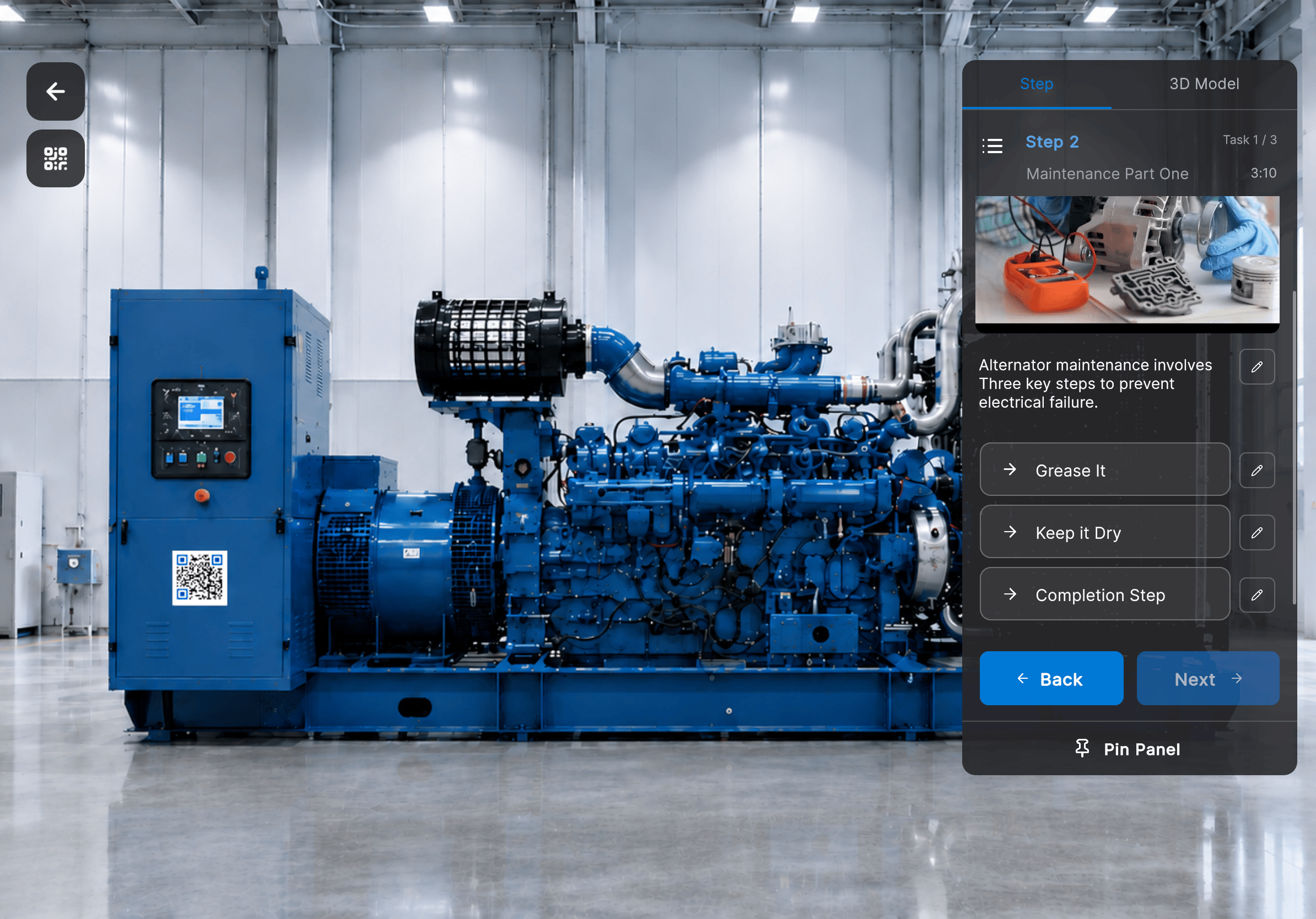
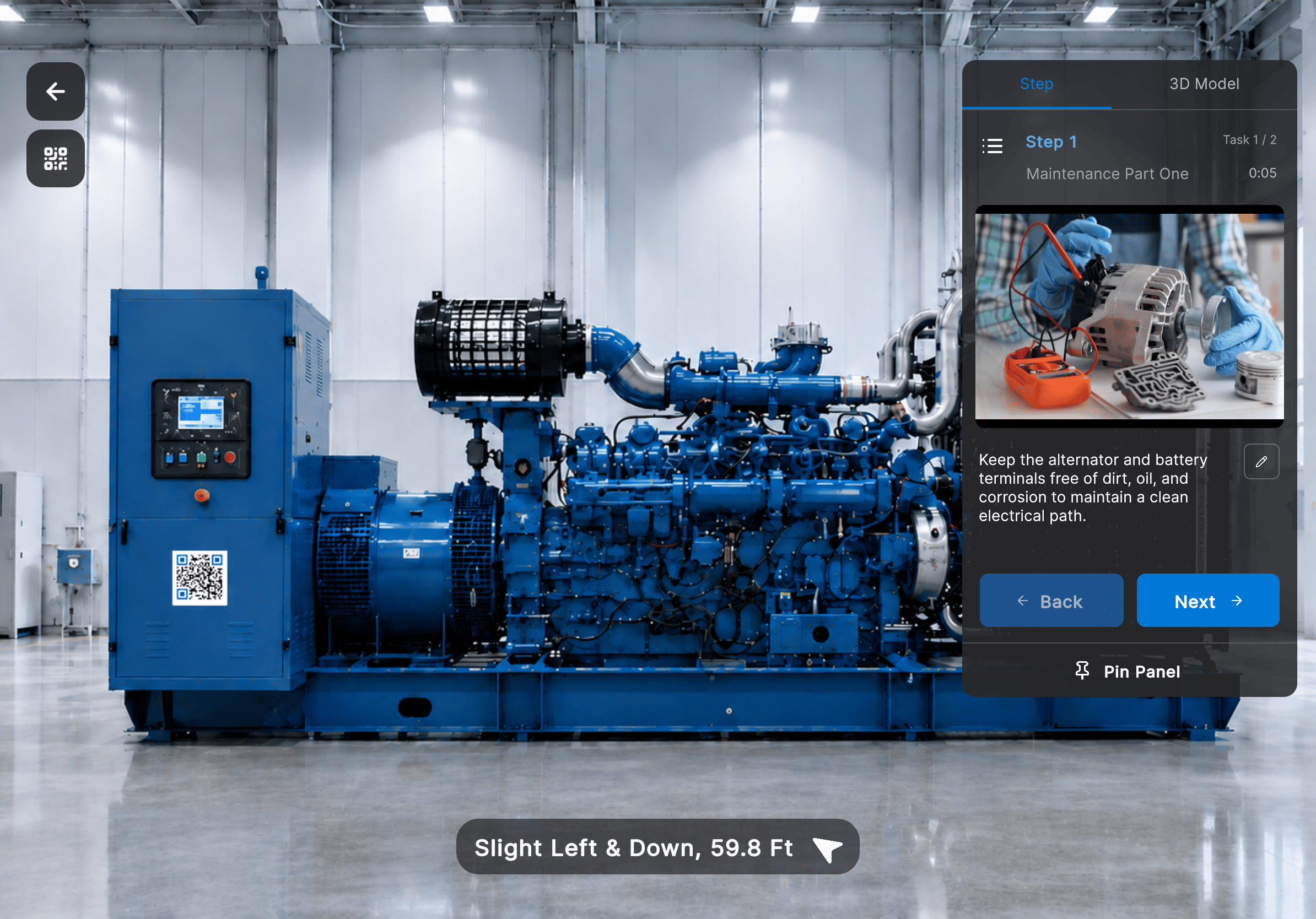 The Author Mode workspace contains:
| Area | Description |
| ----------------------- | ---------------------------------------------------------------------------------------------------- |
| **AR Camera View** | Displays the physical environment together with 3D models and procedure content. |
| **3D Model Panel** | Displays the models assigned to the current procedure step and provides access to the model library. |
| **Navigation Controls** | Move between procedure steps using the Previous and Next buttons. |
| **Step Menu** | Jump directly to any step in the procedure. |
## Move Between Procedure Steps
Use the **Previous** and **Next** controls to move through the procedure one step at a time. To jump directly to another step:
Select the **Steps**
The Author Mode workspace contains:
| Area | Description |
| ----------------------- | ---------------------------------------------------------------------------------------------------- |
| **AR Camera View** | Displays the physical environment together with 3D models and procedure content. |
| **3D Model Panel** | Displays the models assigned to the current procedure step and provides access to the model library. |
| **Navigation Controls** | Move between procedure steps using the Previous and Next buttons. |
| **Step Menu** | Jump directly to any step in the procedure. |
## Move Between Procedure Steps
Use the **Previous** and **Next** controls to move through the procedure one step at a time. To jump directly to another step:
Select the **Steps**  button.
The selected step immediately becomes active.
button.
The selected step immediately becomes active.
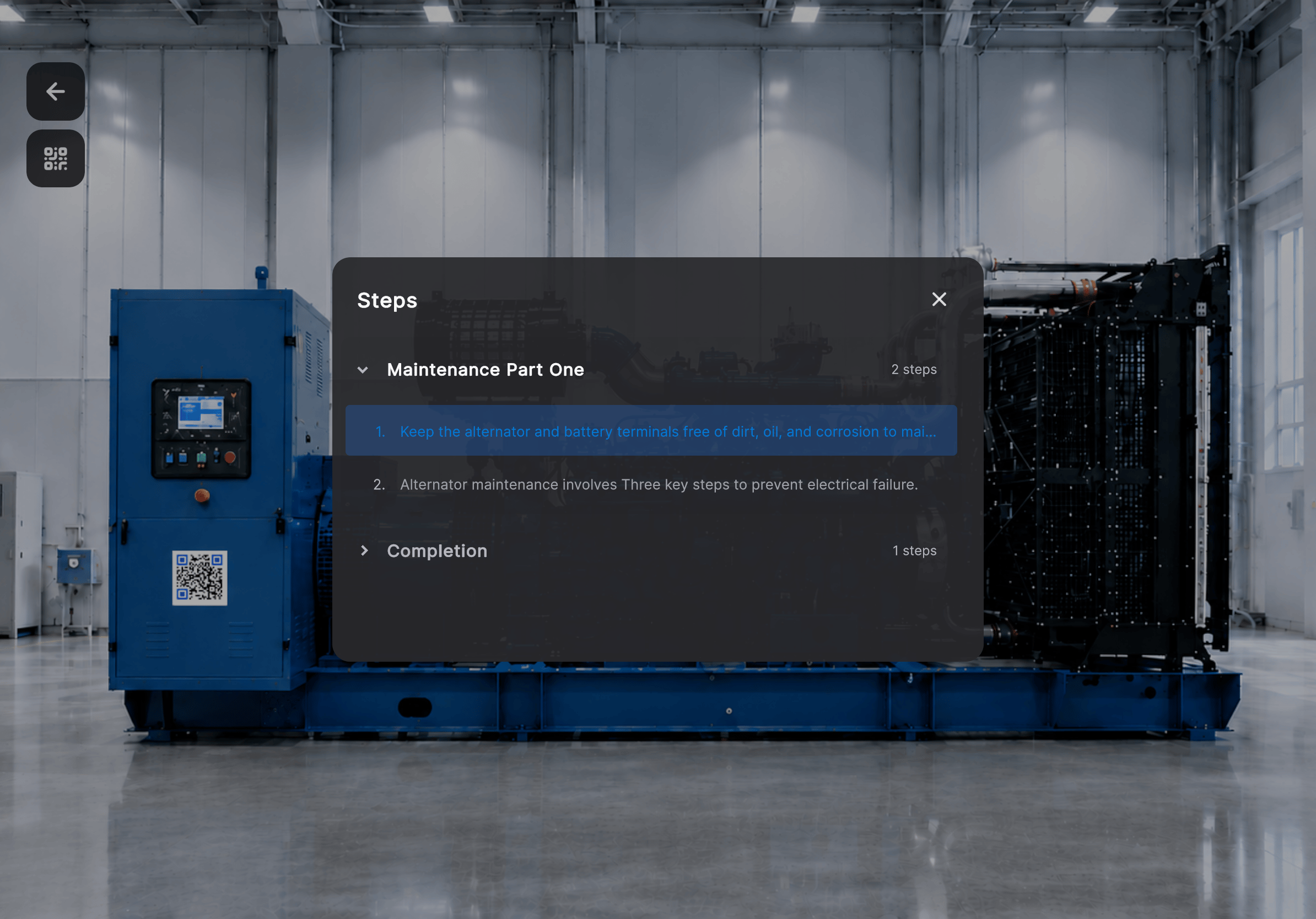 A procedure can contain two types of steps:
* **Regular Step** — Guides the user through a sequence of instructions.
A procedure can contain two types of steps:
* **Regular Step** — Guides the user through a sequence of instructions.
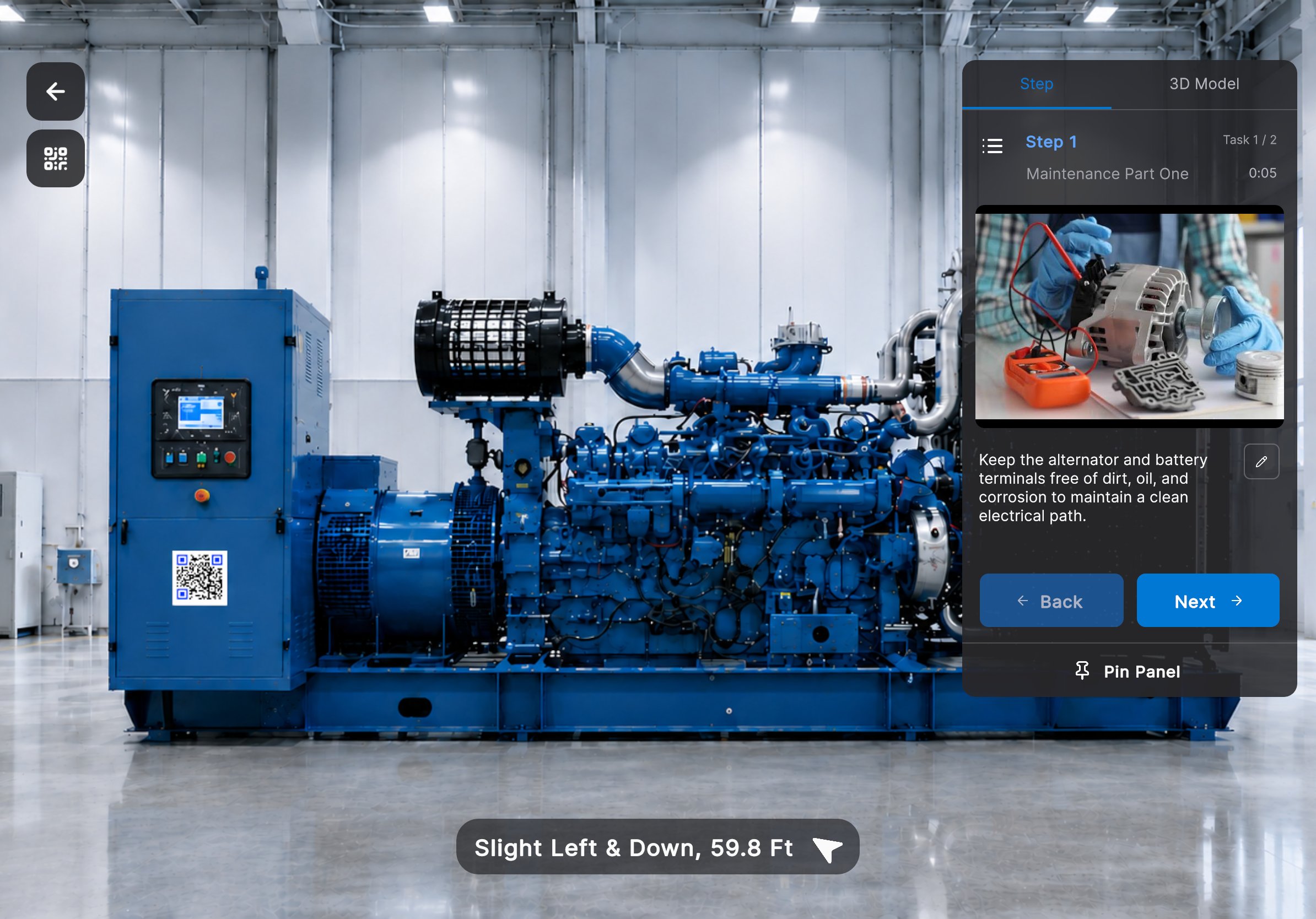 * **Question Step** — Presents a question with multiple answer choices. The selected answer determines the next procedure step.
 ***
**Next:** [Anchor and Set Up the Space](/frontline/ipad/author/anchor-and-set-up-the-space)
***
**Next:** [Anchor and Set Up the Space](/frontline/ipad/author/anchor-and-set-up-the-space)