> ## Documentation Index
> Fetch the complete documentation index at: https://docs.altoura.com/llms.txt
> Use this file to discover all available pages before exploring further.
# Collaborate During a Remote Expert Session
> Use call controls, annotations, PDFs, and 3D models to collaborate during a Remote Expert session on the iPad.
After you start or join a Remote Expert session, your live camera feed is shared with the remote participants so you can collaborate in real time.
Remote Expert uses Microsoft Teams for live audio and video communication. During the session, you can annotate the shared camera feed and work with supported content such as PDF documents and 3D models.
For what the session looks like from the expert's side, see [How Remote Expert Works](/frontline/remote-expert/how-it-works).
## Use the Session Controls
The session controls let you communicate with participants, annotate the shared camera feed, access shared content, and leave the session.
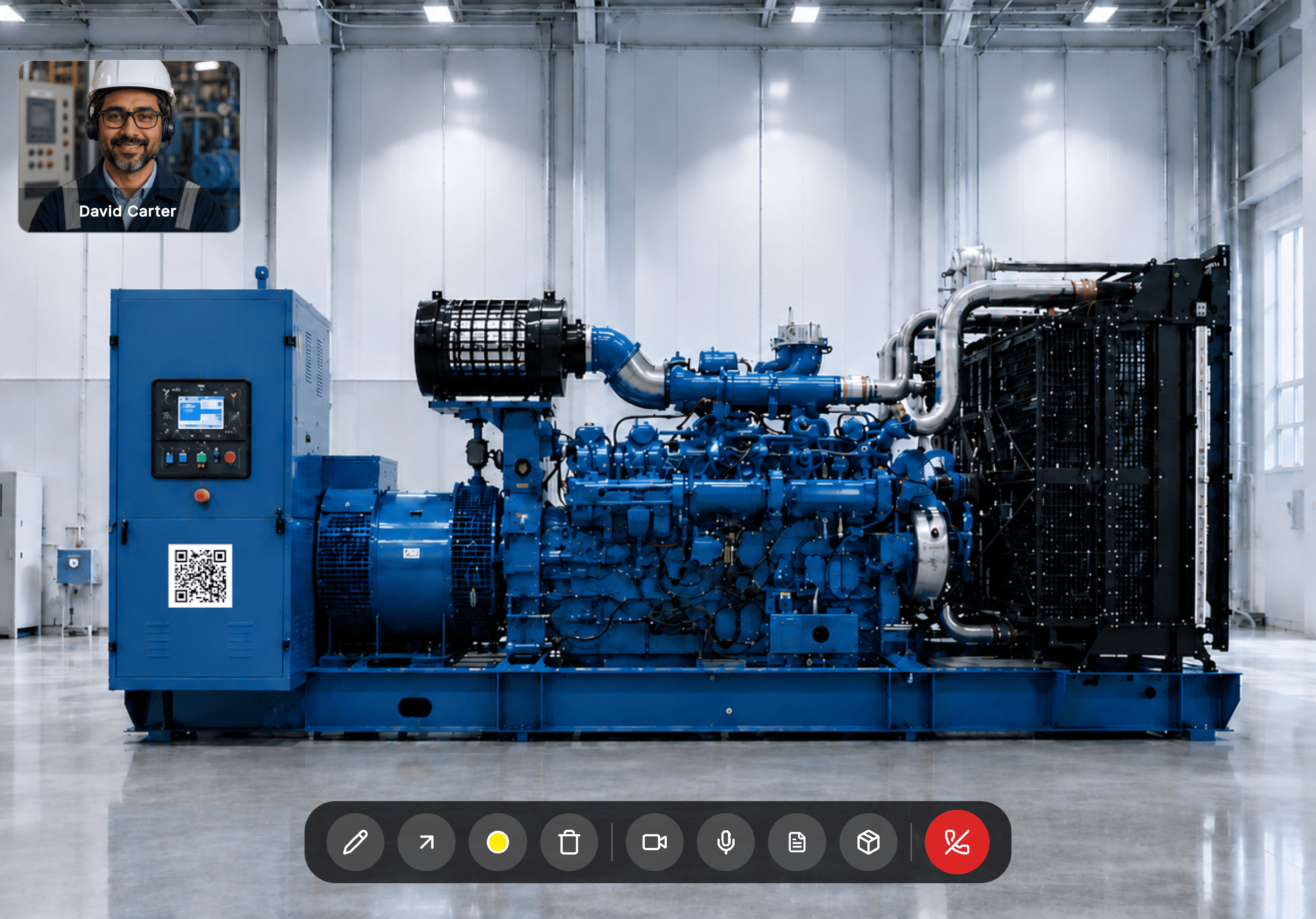 | Control | Description |
| ---------------- | ------------------------------------------------------------------------------------------------------------------------------------------------------------------------ |
| **Annotate** | Draw annotations on the shared camera feed. |
| **Arrow** | Place an arrow on the shared camera feed. While placing it, drag to rotate the arrow in the direction you want it to point, then release your finger to set it in place. |
| **Color Picker** | Select the annotation color. |
| **Delete** | Remove all annotations from the shared view. |
| **Share** | Open the Shared Content panel. |
| **Video** | Turn your camera on or off. |
| **Microphone** | Mute or unmute your microphone. |
| **End Call** | Leave the current Remote Expert session. |
## Annotate the Shared View
Use annotations to highlight equipment, identify areas of interest, or provide visual guidance.
Annotations are synchronized in real time, so all participants see updates instantly.
You can:
* Use **Annotate** to draw on the shared camera feed.
* Use **Arrow** to point to a specific area. Drag to rotate the arrow before releasing your finger to place it.
* Use **Color Picker** to change the annotation color.
* Use **Delete** to remove all annotations from the shared view.
## Work with Shared Content
Participants can share supported content — **PDF documents** and **3D models** — without leaving the session.
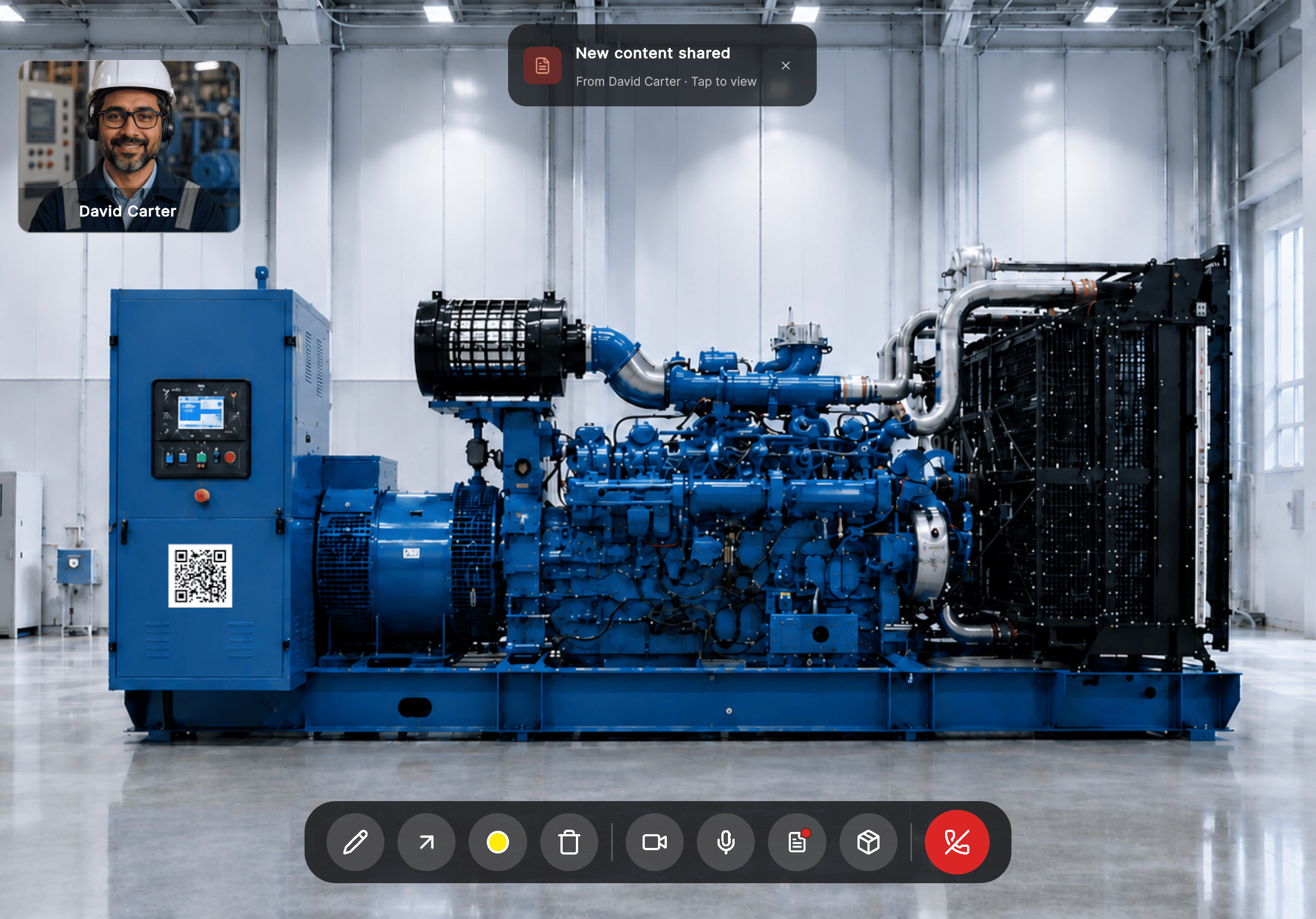
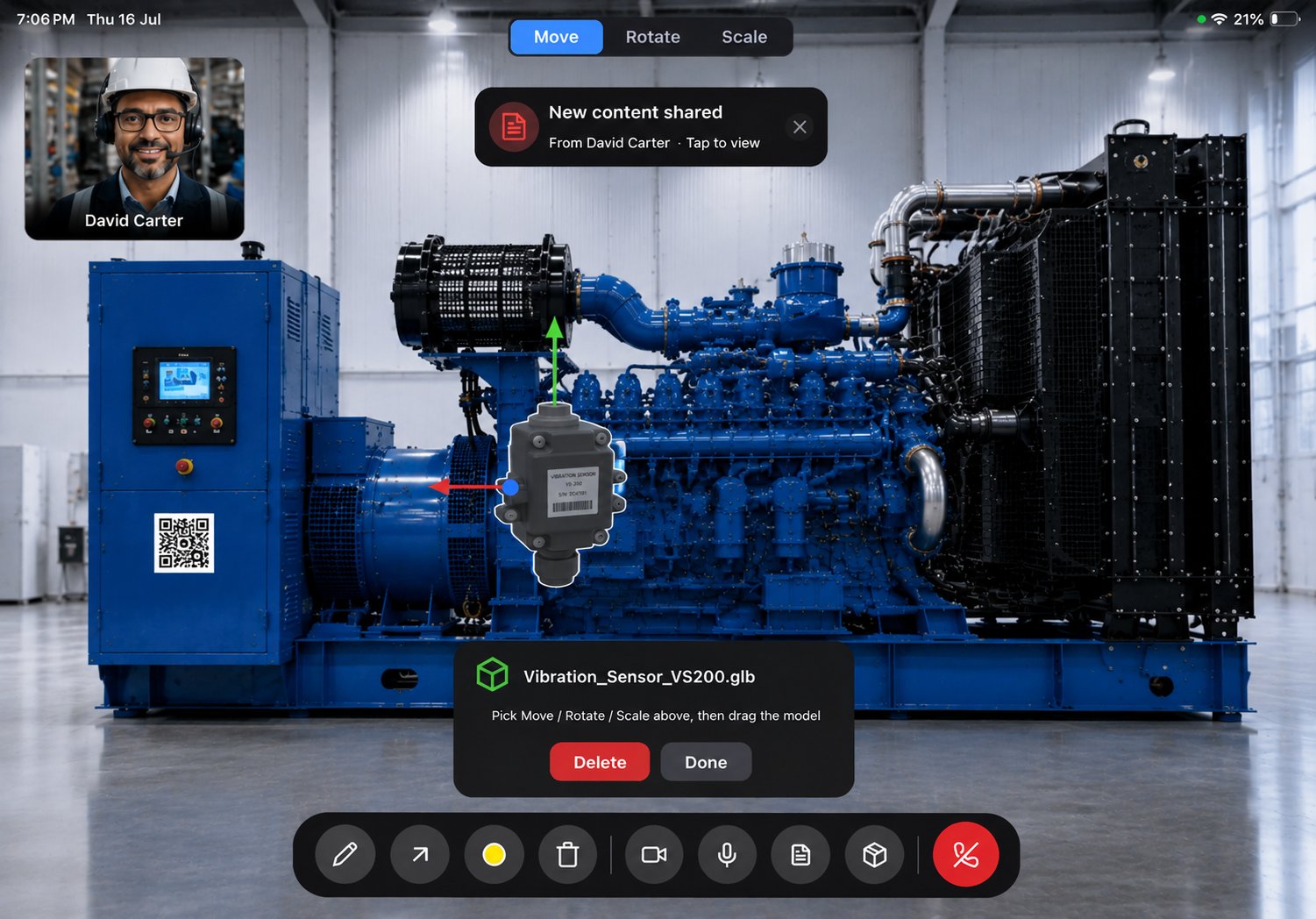
When another participant shares content, a **New Content Shared** notification appears. Select it to open the shared content.
| Control | Description |
| ---------------- | ------------------------------------------------------------------------------------------------------------------------------------------------------------------------ |
| **Annotate** | Draw annotations on the shared camera feed. |
| **Arrow** | Place an arrow on the shared camera feed. While placing it, drag to rotate the arrow in the direction you want it to point, then release your finger to set it in place. |
| **Color Picker** | Select the annotation color. |
| **Delete** | Remove all annotations from the shared view. |
| **Share** | Open the Shared Content panel. |
| **Video** | Turn your camera on or off. |
| **Microphone** | Mute or unmute your microphone. |
| **End Call** | Leave the current Remote Expert session. |
## Annotate the Shared View
Use annotations to highlight equipment, identify areas of interest, or provide visual guidance.
Annotations are synchronized in real time, so all participants see updates instantly.
You can:
* Use **Annotate** to draw on the shared camera feed.
* Use **Arrow** to point to a specific area. Drag to rotate the arrow before releasing your finger to place it.
* Use **Color Picker** to change the annotation color.
* Use **Delete** to remove all annotations from the shared view.
## Work with Shared Content
Participants can share supported content — **PDF documents** and **3D models** — without leaving the session.
When another participant shares content, a **New Content Shared** notification appears. Select it to open the shared content.
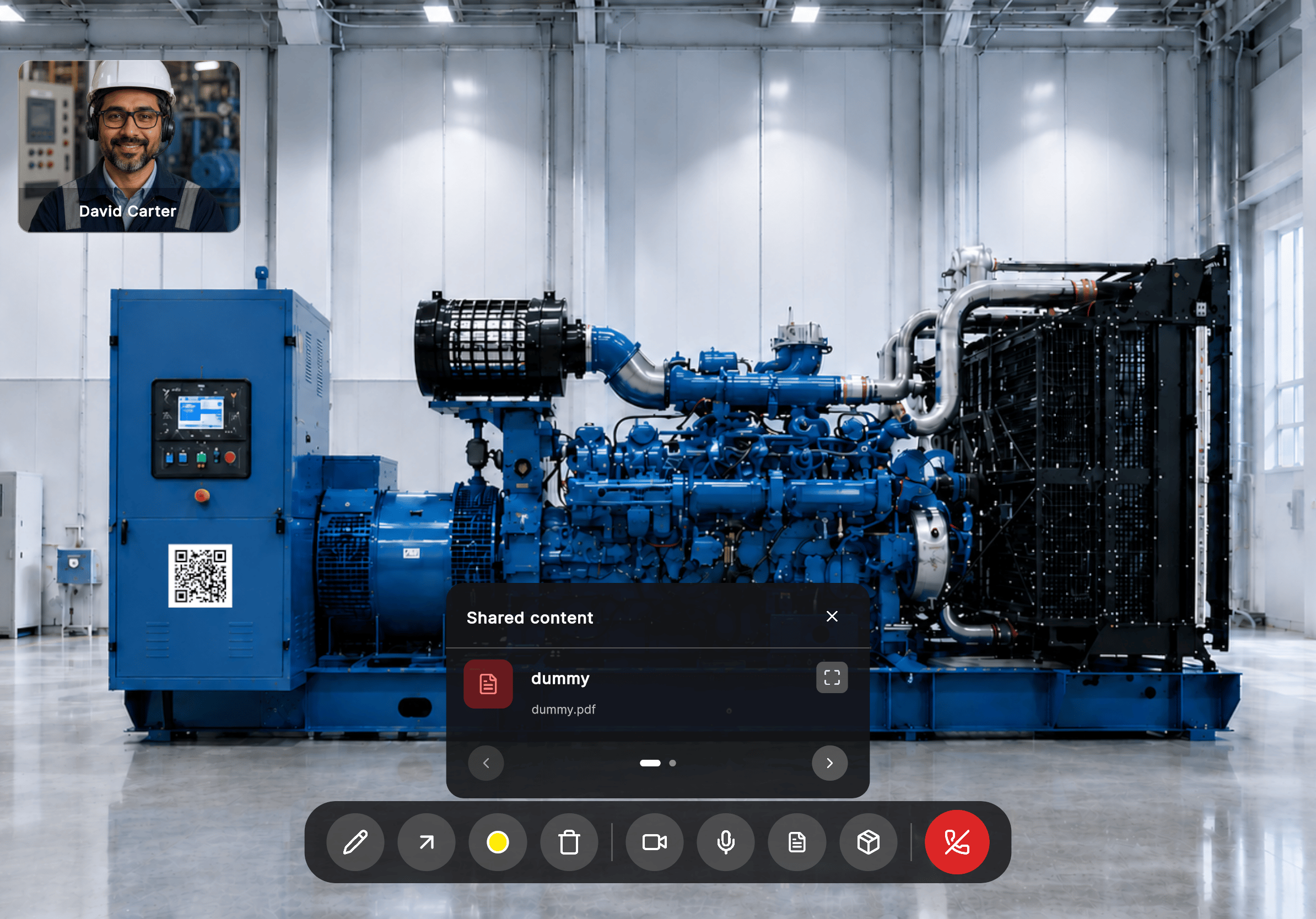
 Select **Share** to open the Shared Content panel. The panel displays all files shared during the current session.
 ## View a Shared PDF
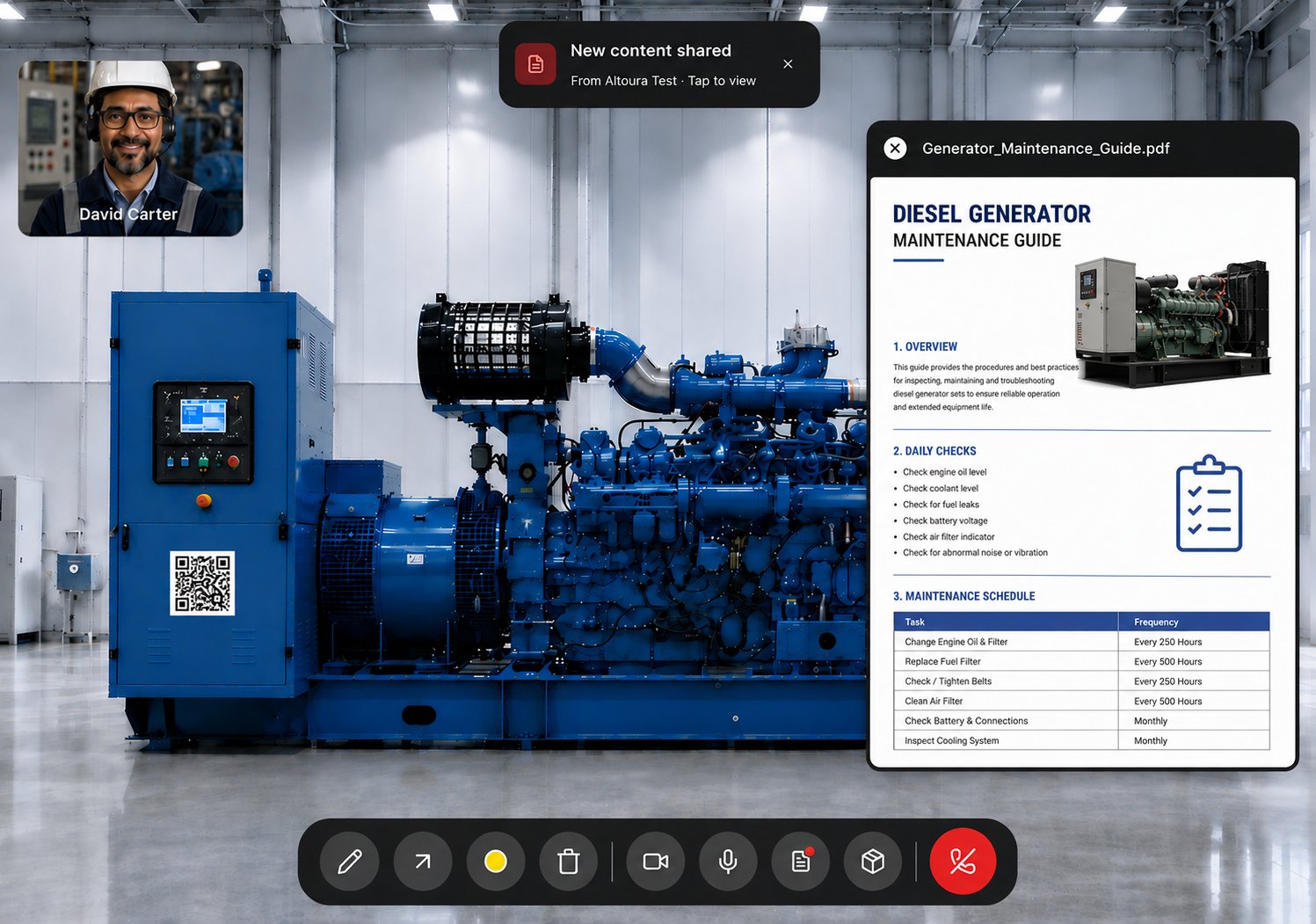
PDF documents open directly within the session, so you can reference them without leaving the call.
## View a Shared PDF
PDF documents open directly within the session, so you can reference them without leaving the call.
 ## Work with a Shared 3D Model
You can position a shared 3D model in the workspace using the **Move**, **Rotate**, and **Scale** transform tools.
The **Rotate** tool supports **Global** and **Local** coordinate modes.
When you are done positioning the model:
* Select **Done** to save the model position.
* Select **Delete** to remove the model from the workspace.
## Work with a Shared 3D Model
You can position a shared 3D model in the workspace using the **Move**, **Rotate**, and **Scale** transform tools.
The **Rotate** tool supports **Global** and **Local** coordinate modes.
When you are done positioning the model:
* Select **Done** to save the model position.
* Select **Delete** to remove the model from the workspace.
 ***
**Next:** [How Remote Expert Works](/frontline/remote-expert/how-it-works) — learn about the expert-side setup and experience.
***
**Next:** [How Remote Expert Works](/frontline/remote-expert/how-it-works) — learn about the expert-side setup and experience.