> ## Documentation Index
> Fetch the complete documentation index at: https://docs.altoura.com/llms.txt
> Use this file to discover all available pages before exploring further.
# Invite an Expert to a Call
> Start a Remote Expert session from the iPad by finding and calling an expert in your organization.
Use Remote Expert when you need live help from a specialist. From the iPad, you can find an expert in your organization and invite them to a Remote Expert session through Microsoft Teams.
If you already have a scheduled meeting, see [Join a Scheduled Meeting](/frontline/ipad/get-help/join-a-scheduled-meeting).
## Find the Right Contact
Open Remote Expert and select the **Contacts** tab. Each contact card shows a profile picture, the contact's name, their organization, and a favorite icon.
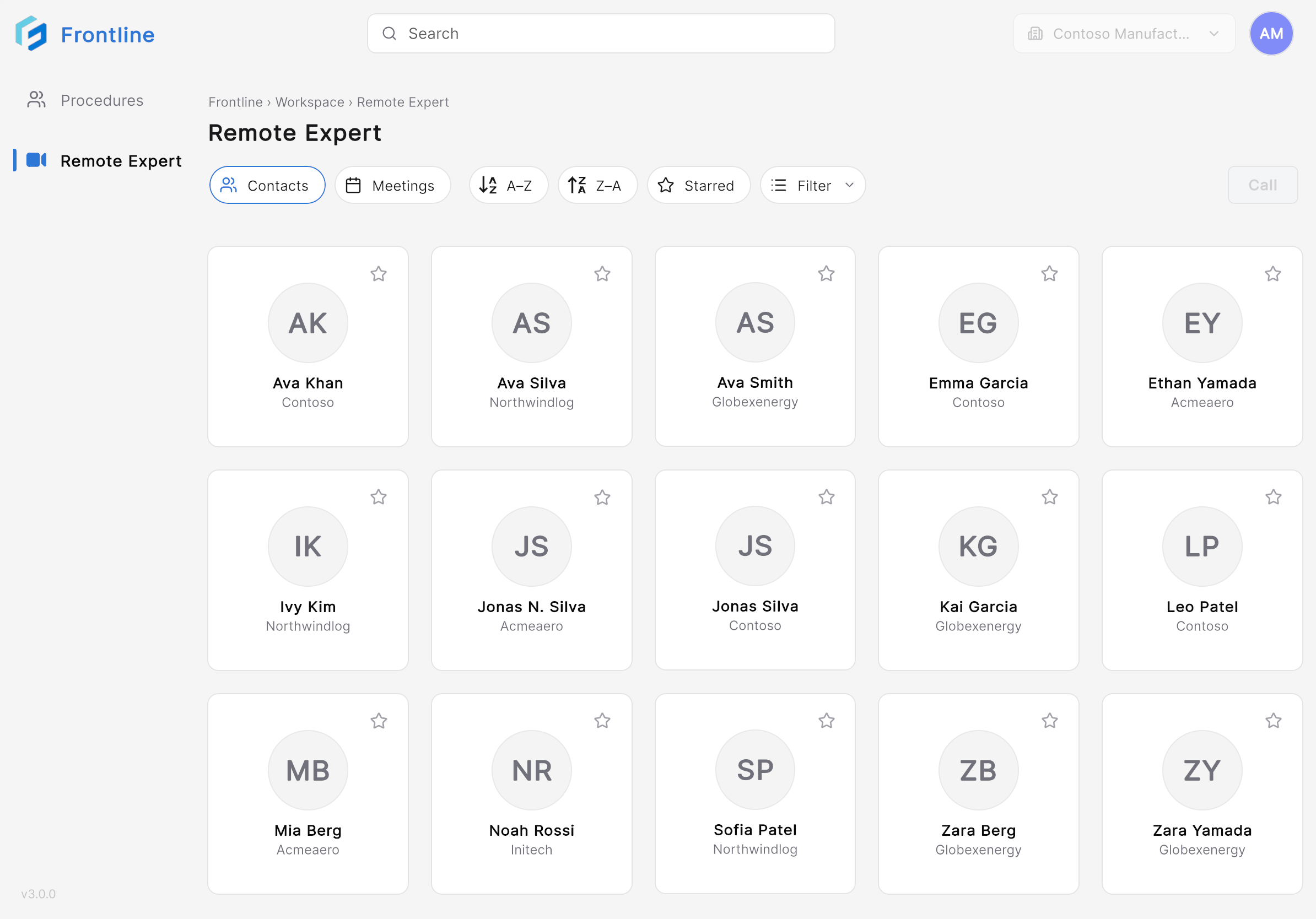 To narrow the list, you can:
* Search for contacts using the search bar.
* Sort contacts alphabetically (A–Z or Z–A).
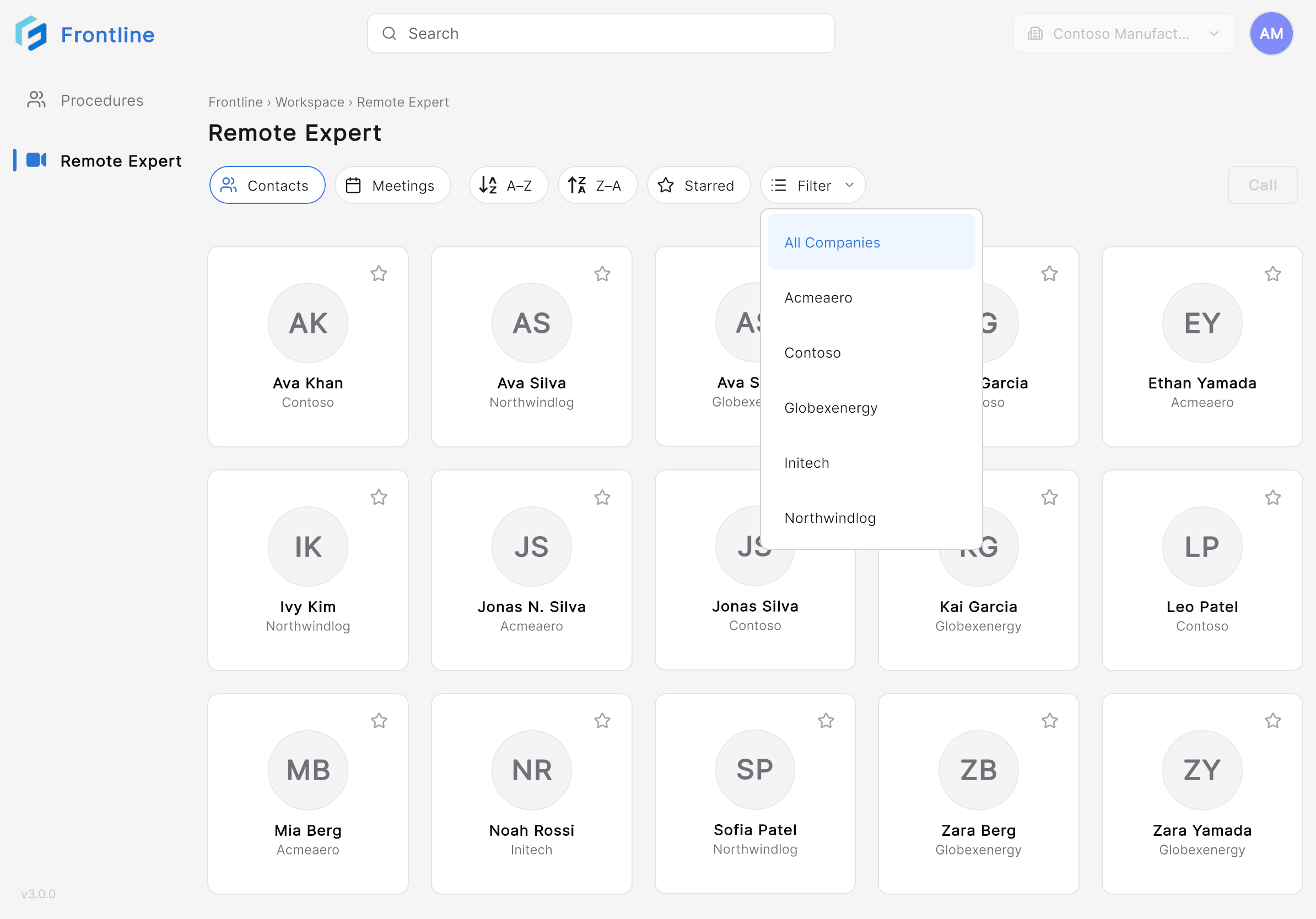
* Filter contacts by organization using the **Filter** menu.
* Mark contacts as favorites — select the **Star** icon on a contact card to add or remove them.
To narrow the list, you can:
* Search for contacts using the search bar.
* Sort contacts alphabetically (A–Z or Z–A).
* Filter contacts by organization using the **Filter** menu.
* Mark contacts as favorites — select the **Star** icon on a contact card to add or remove them.
 ## Invite an Expert
Tap the contact card of the expert you want to call.
## Invite an Expert
Tap the contact card of the expert you want to call.
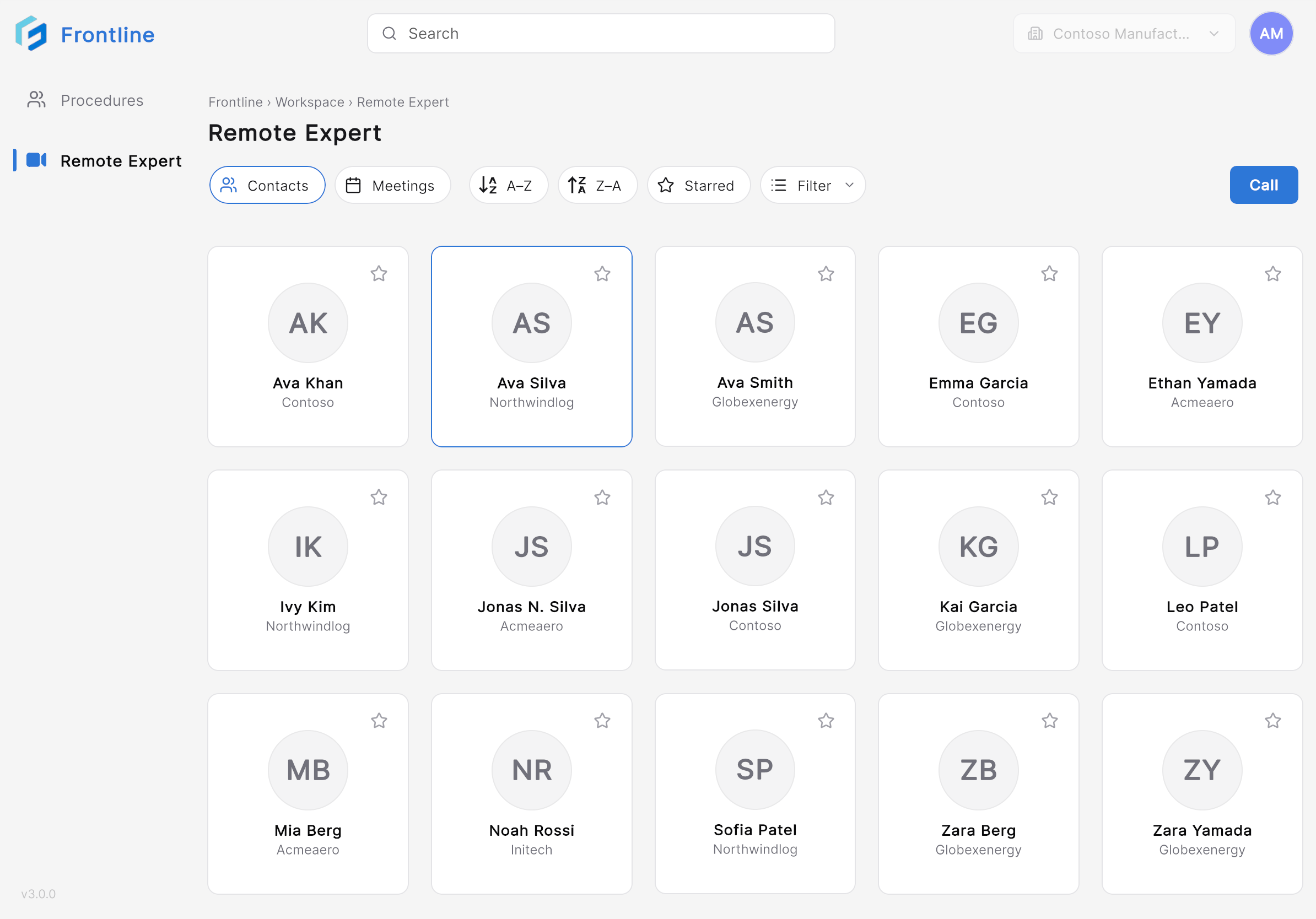 Frontline creates a Microsoft Teams meeting and sends an invitation to the selected contact. A progress screen is displayed while the meeting is being created.
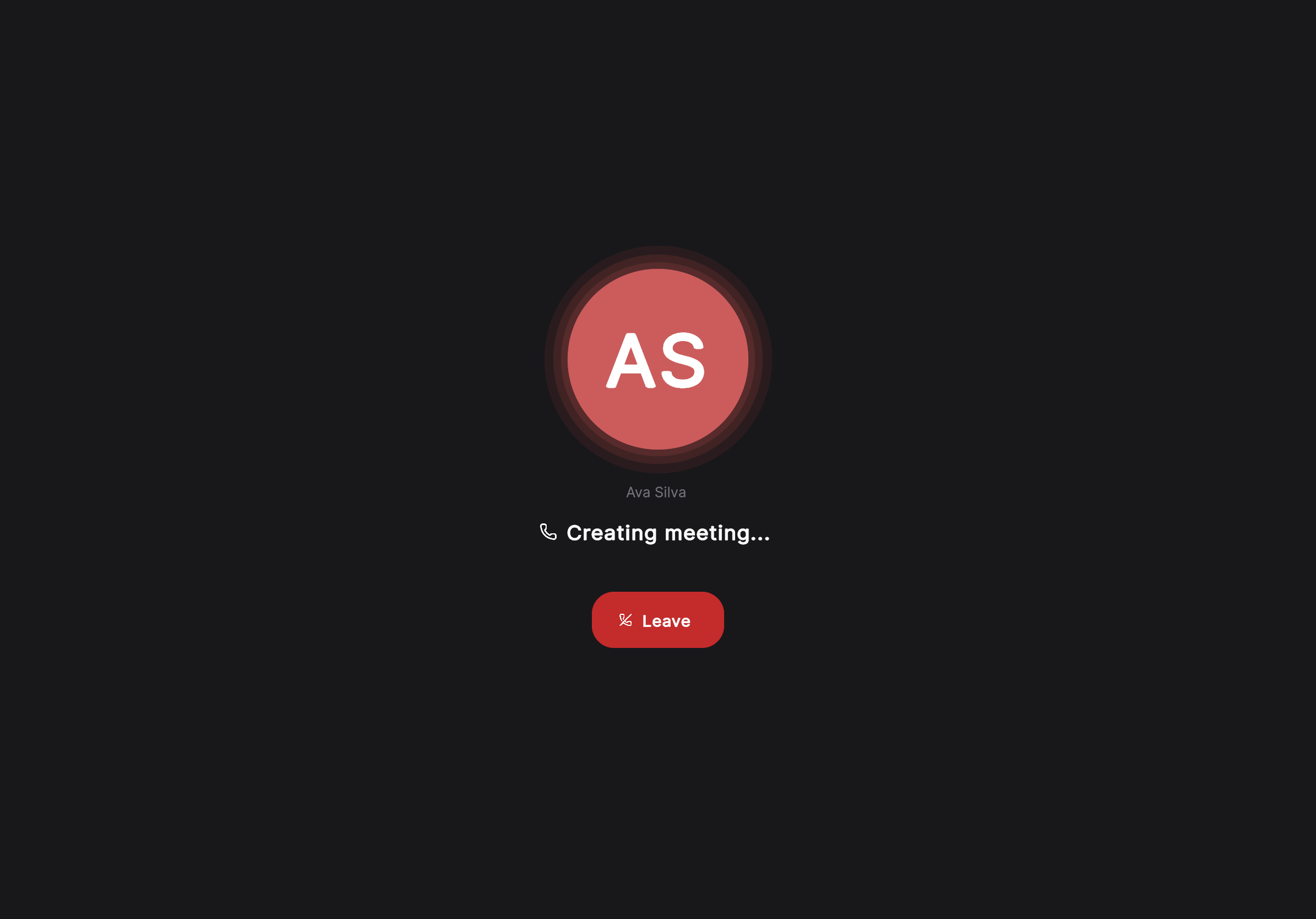 Once the expert answers the call, the Remote Expert session opens.
You can now communicate with the expert using live audio and video and collaborate using annotations and shared content.
***
**Next:** [Collaborate During a Remote Expert Session](/frontline/ipad/get-help/collaborate-during-a-session)
Once the expert answers the call, the Remote Expert session opens.
You can now communicate with the expert using live audio and video and collaborate using annotations and shared content.
***
**Next:** [Collaborate During a Remote Expert Session](/frontline/ipad/get-help/collaborate-during-a-session)