> ## Documentation Index
> Fetch the complete documentation index at: https://docs.altoura.com/llms.txt
> Use this file to discover all available pages before exploring further.
# First Launch and Navigation
> Get oriented on the Home page: switch organizations, read procedure cards, and use the profile menu.
This page is for **first-time users** who have just signed in. By the end of it, you will know your way around the **Home** page — the starting point for everything you do in the Frontline iPad app.
## The Home Page
After you sign in, the application opens the **Home** page. From here you can select an organization, browse the procedures available to it, start a procedure, and manage application settings.
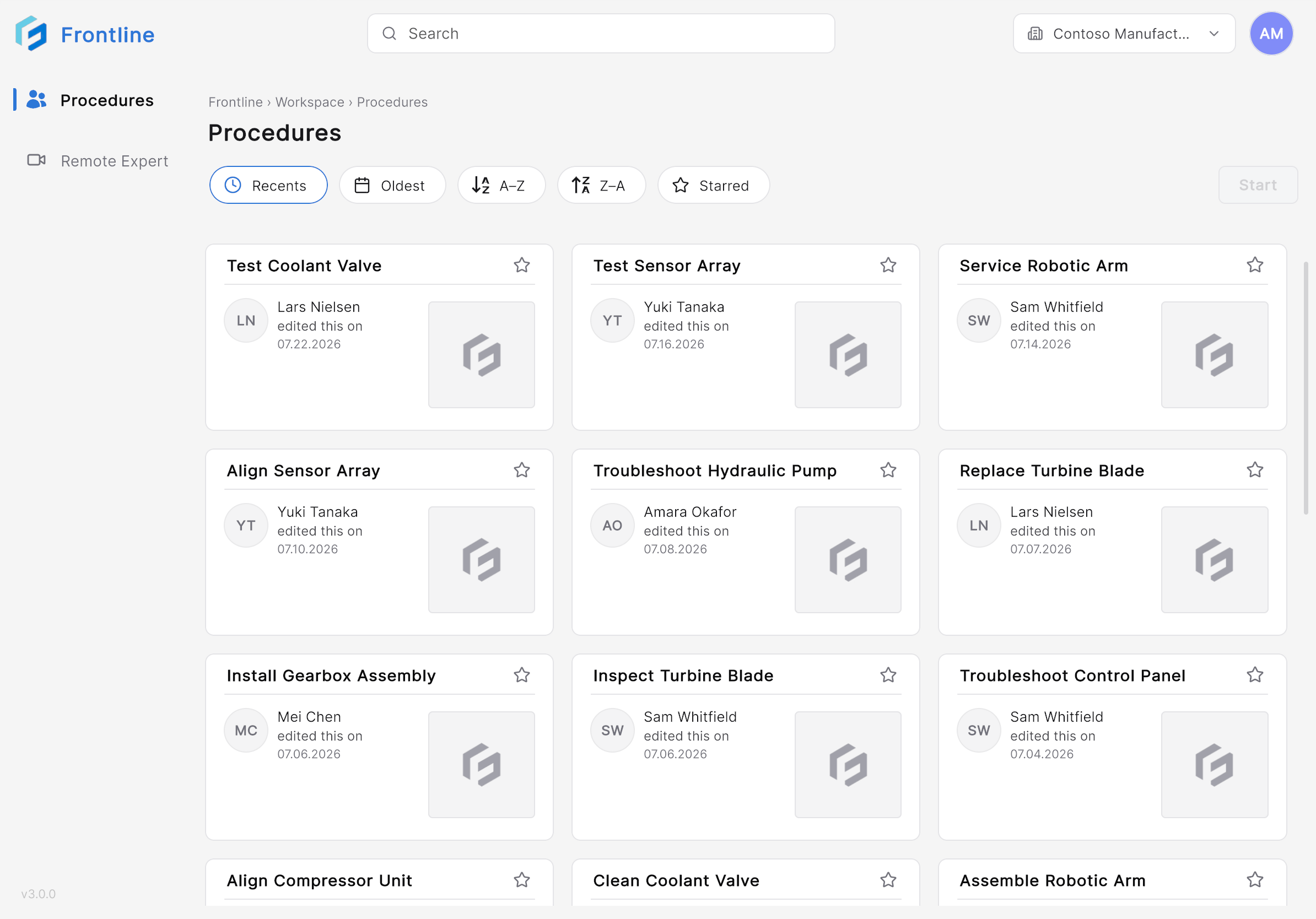 Each procedure appears as a card showing:
* Procedure name
* Last modified by
* Last modified date
* Favorite (star) status
## Switch Organizations
If your account has access to multiple organizations, the organization you select determines which procedures appear on the Home page. Search, sorting, and favorites apply only to the currently selected organization.
Select the **Organization** selector at the top of the Home page.
Each procedure appears as a card showing:
* Procedure name
* Last modified by
* Last modified date
* Favorite (star) status
## Switch Organizations
If your account has access to multiple organizations, the organization you select determines which procedures appear on the Home page. Search, sorting, and favorites apply only to the currently selected organization.
Select the **Organization** selector at the top of the Home page.
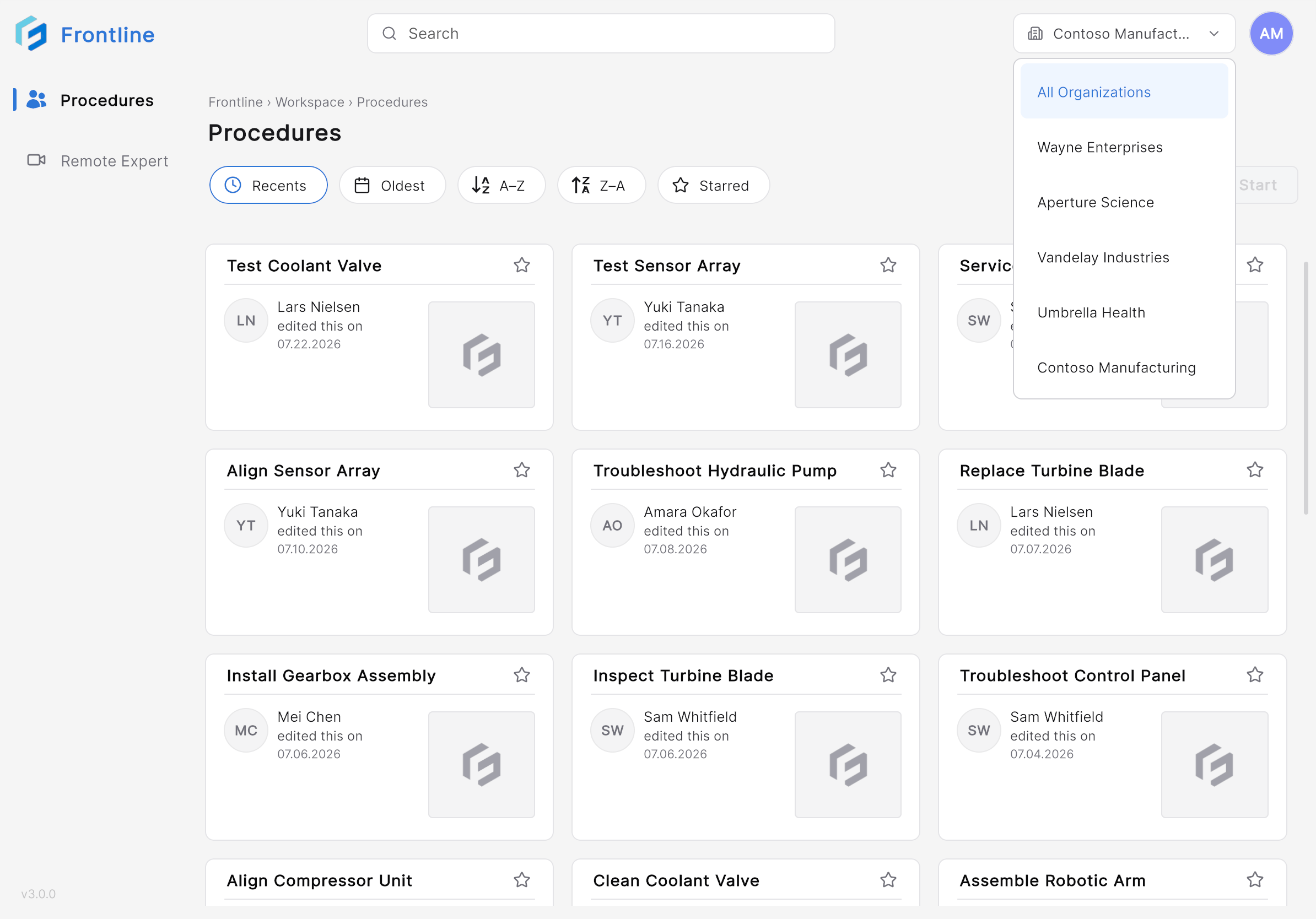 Select the organization you want to work in. The procedure list refreshes to show that organization's procedures.
## Profile and Settings
Select the **Profile** icon to open your account menu.
Select the organization you want to work in. The procedure list refreshes to show that organization's procedures.
## Profile and Settings
Select the **Profile** icon to open your account menu.
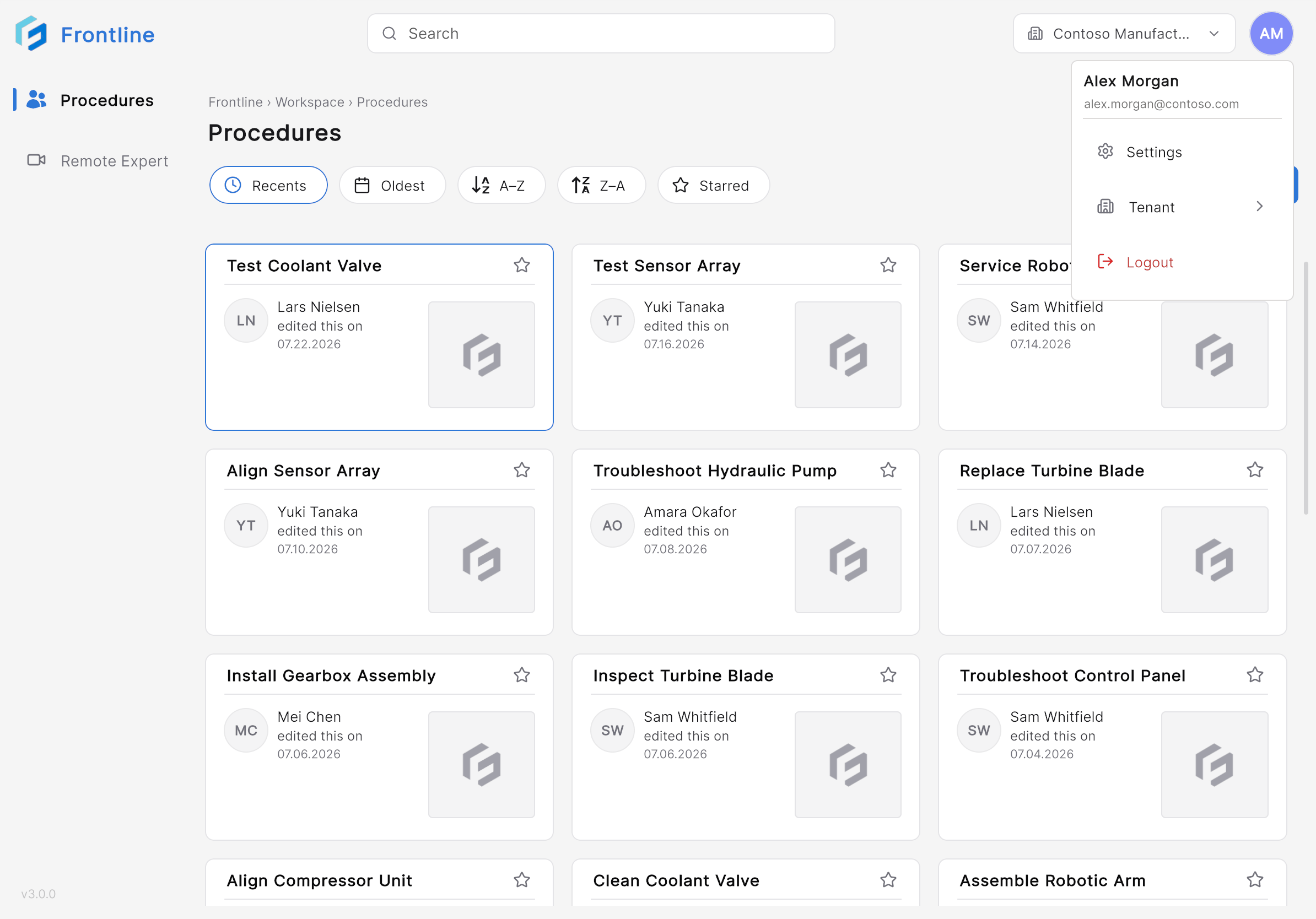 From this menu, you can:
* View your account information.
* Access application settings.
* Configure QR code anchoring — see [Settings](/frontline/ipad/reference/settings).
* Sign out of the application.
Unsure what a term on screen means? Check the [Glossary](/frontline/overview/glossary).
***
**Next:** [Find & Open a Procedure](/frontline/ipad/operate/find-and-open-a-procedure)
From this menu, you can:
* View your account information.
* Access application settings.
* Configure QR code anchoring — see [Settings](/frontline/ipad/reference/settings).
* Sign out of the application.
Unsure what a term on screen means? Check the [Glossary](/frontline/overview/glossary).
***
**Next:** [Find & Open a Procedure](/frontline/ipad/operate/find-and-open-a-procedure)