> ## Documentation Index
> Fetch the complete documentation index at: https://docs.altoura.com/llms.txt
> Use this file to discover all available pages before exploring further.
# Install and Sign In
> Get the Altoura Frontline iPad app and sign in with email and password, Single Sign-On, or PIN Pairing.
This page is for **anyone using Frontline on an iPad for the first time** — field workers, supervisors, and authors alike. By the end of it, you will be signed in and looking at the **Home** page.
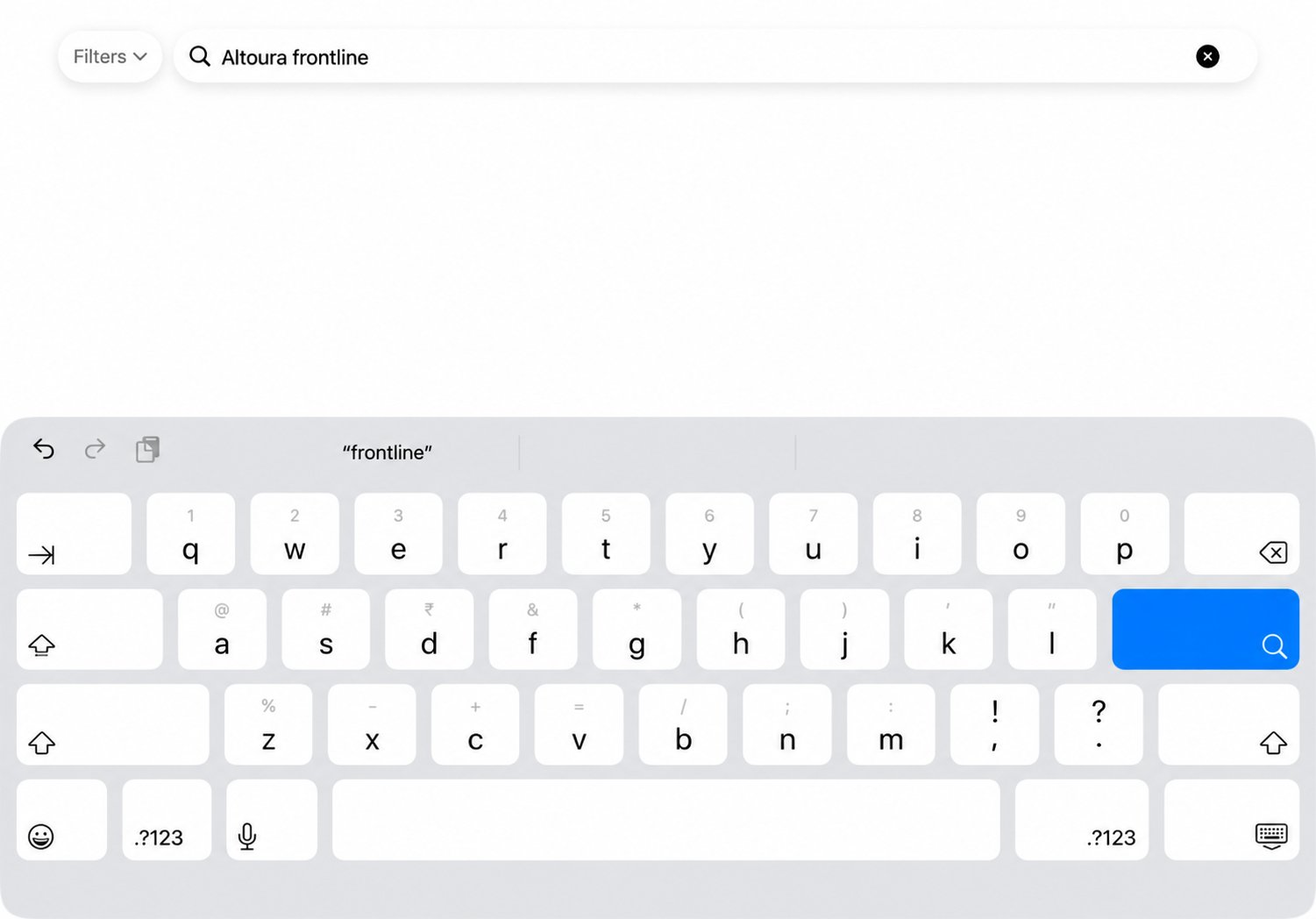
Find **Altoura Frontline** in the App Store.
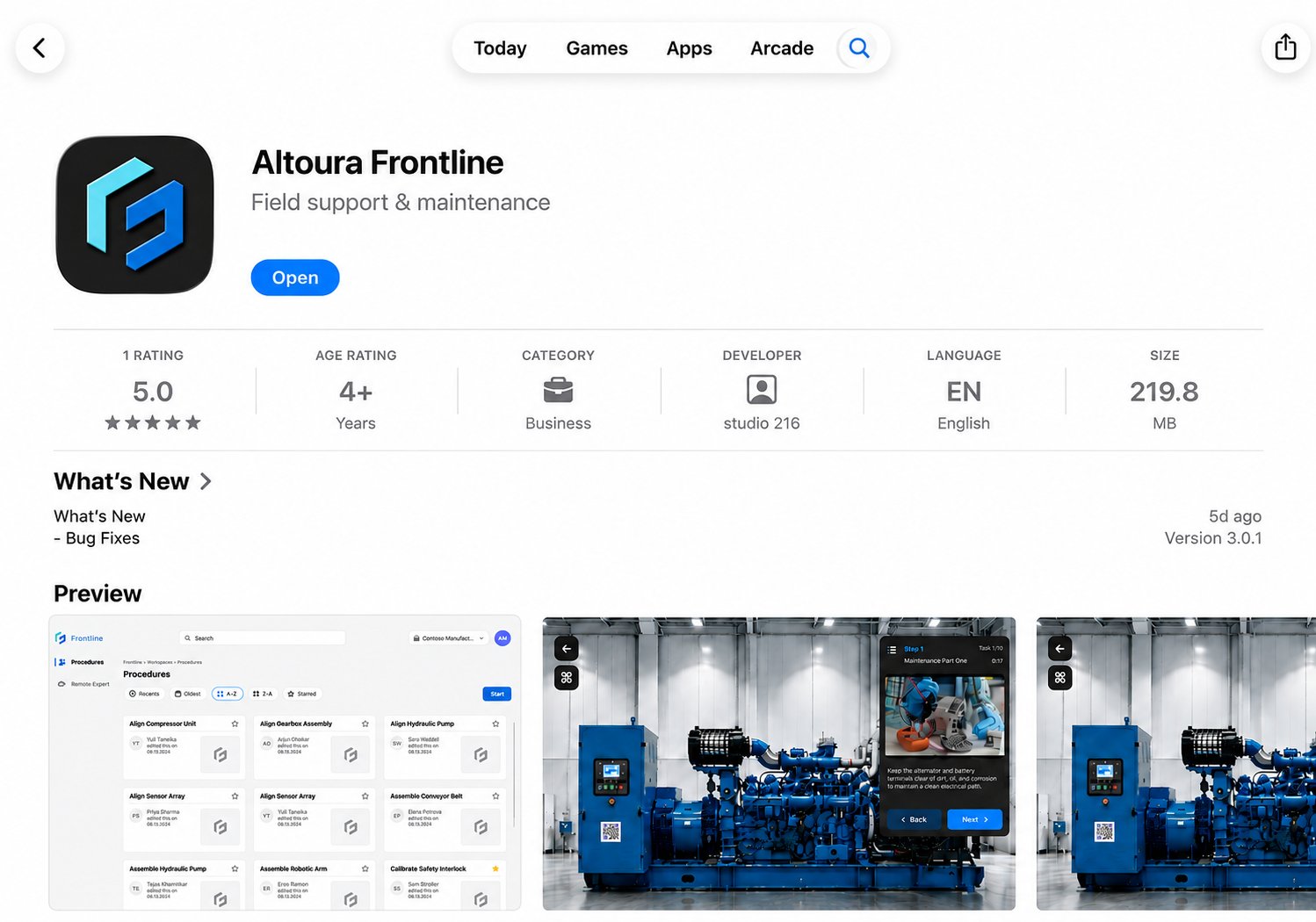
 After installing **Altoura Frontline**, select **Open** to launch the app.
 ## Choose a Sign-In Method
The Sign In screen provides the following authentication methods:
| Method | Description |
| ------------------------ | ------------------------------------------------------------------------------ |
| **Email & Password** | Sign in using your registered email address and password. |
| **Single Sign-On (SSO)** | Authenticate using your organization's identity provider. |
| **PIN Pairing** | Pair the iPad with your account using a temporary PIN generated on the device. |
## Sign In with Email and Password
Enter your registered **email address** to continue.
## Choose a Sign-In Method
The Sign In screen provides the following authentication methods:
| Method | Description |
| ------------------------ | ------------------------------------------------------------------------------ |
| **Email & Password** | Sign in using your registered email address and password. |
| **Single Sign-On (SSO)** | Authenticate using your organization's identity provider. |
| **PIN Pairing** | Pair the iPad with your account using a temporary PIN generated on the device. |
## Sign In with Email and Password
Enter your registered **email address** to continue.
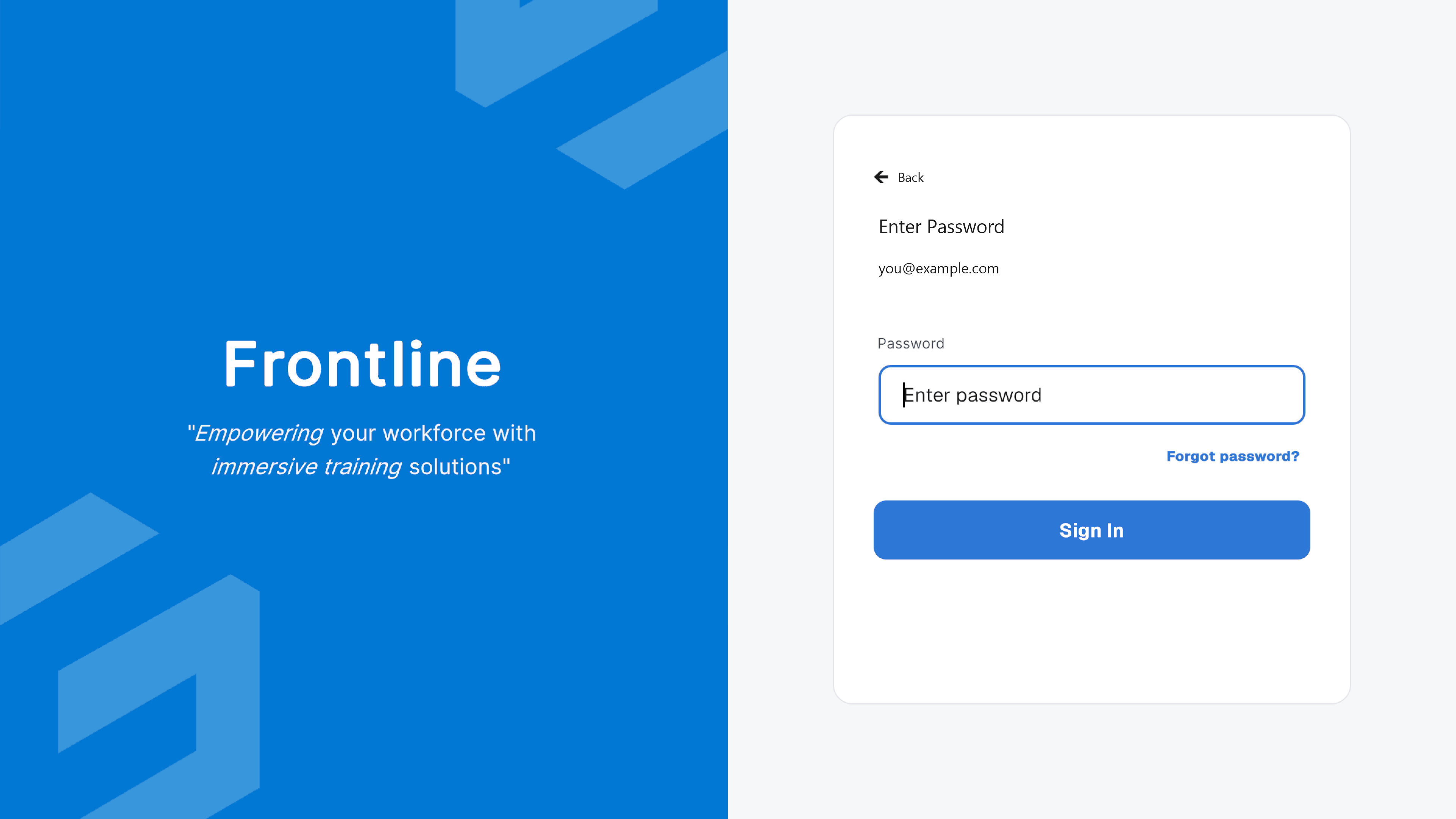
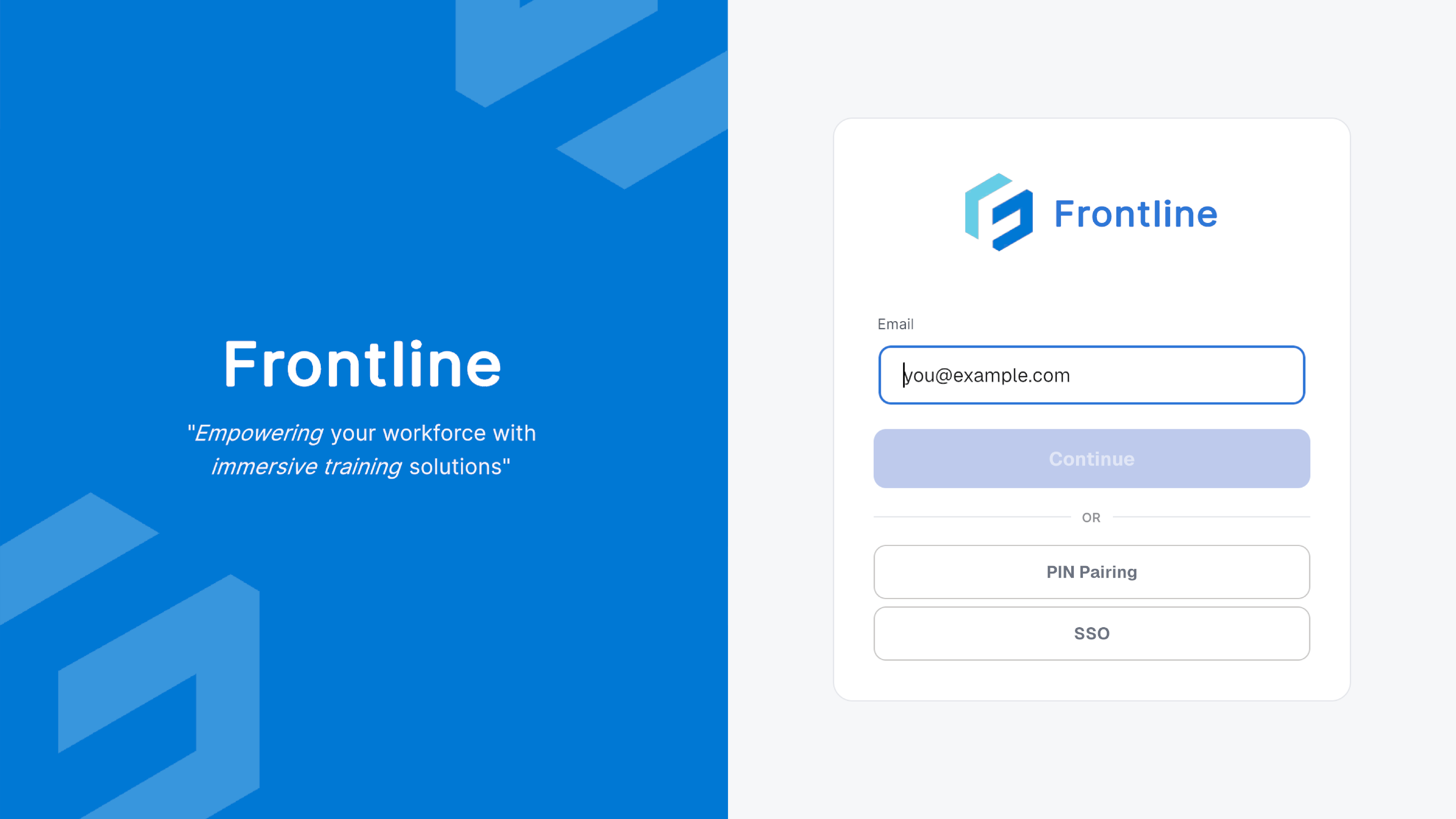 After entering your email address, the password screen appears. Enter your **password** to sign in.
 After successful authentication, the application opens the **Home** page.
### Forgot Your Password?
Enter your registered **email address**.
The **Forgot password?** option appears on the password screen after you enter your email address.
After successful authentication, the application opens the **Home** page.
### Forgot Your Password?
Enter your registered **email address**.
The **Forgot password?** option appears on the password screen after you enter your email address.
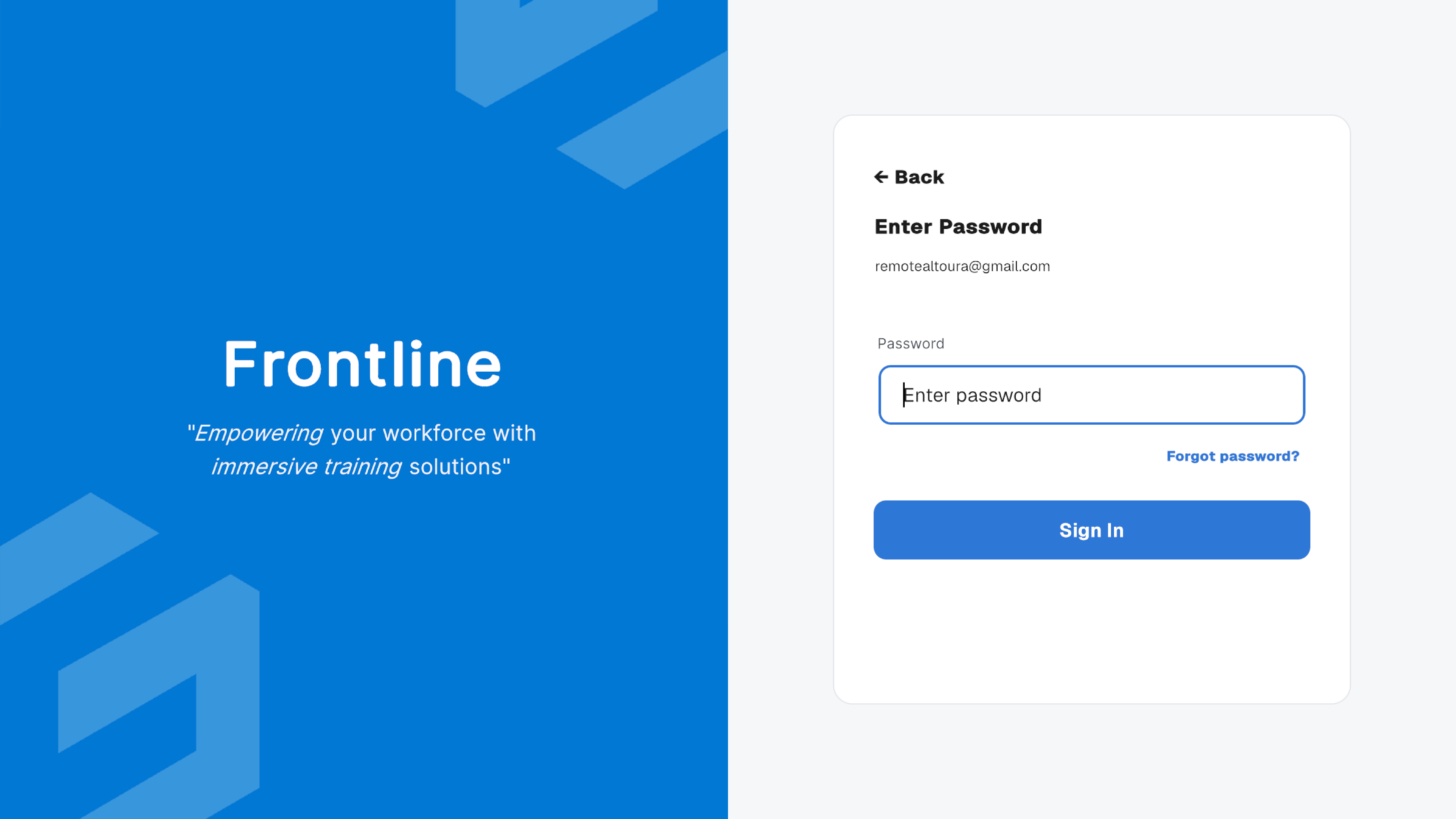 Select **Forgot password?** to request a password reset. A reset email is sent to your registered email address.
The following confirmation appears after the password reset request is submitted.
Select **Forgot password?** to request a password reset. A reset email is sent to your registered email address.
The following confirmation appears after the password reset request is submitted.
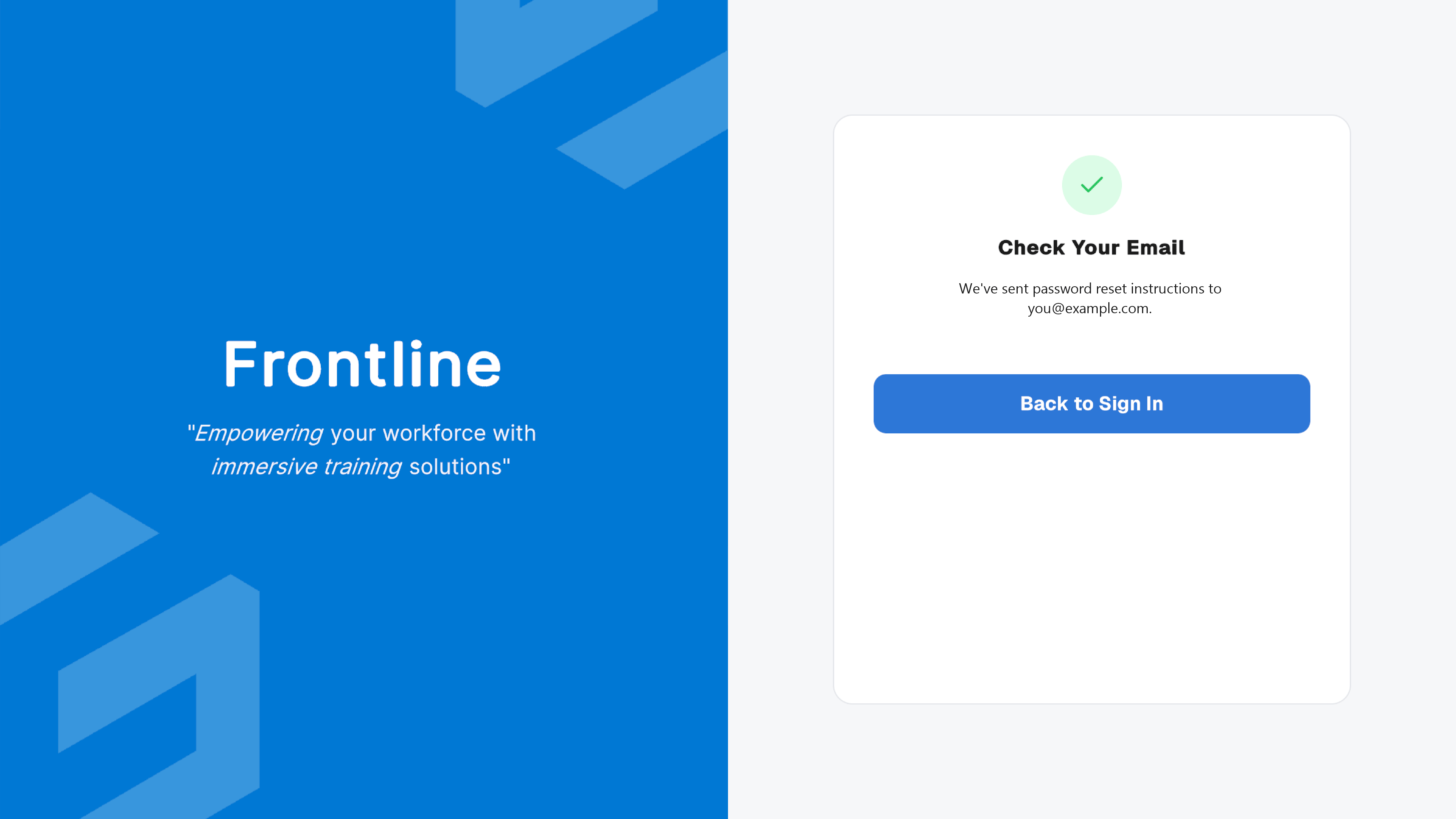 Open the password reset email and follow the instructions to create a new password. Then return to Altoura Frontline and sign in again.
## Sign In with Single Sign-On (SSO)
If your organization uses Single Sign-On, enter your organization's domain to continue with your corporate identity provider.
Open the password reset email and follow the instructions to create a new password. Then return to Altoura Frontline and sign in again.
## Sign In with Single Sign-On (SSO)
If your organization uses Single Sign-On, enter your organization's domain to continue with your corporate identity provider.
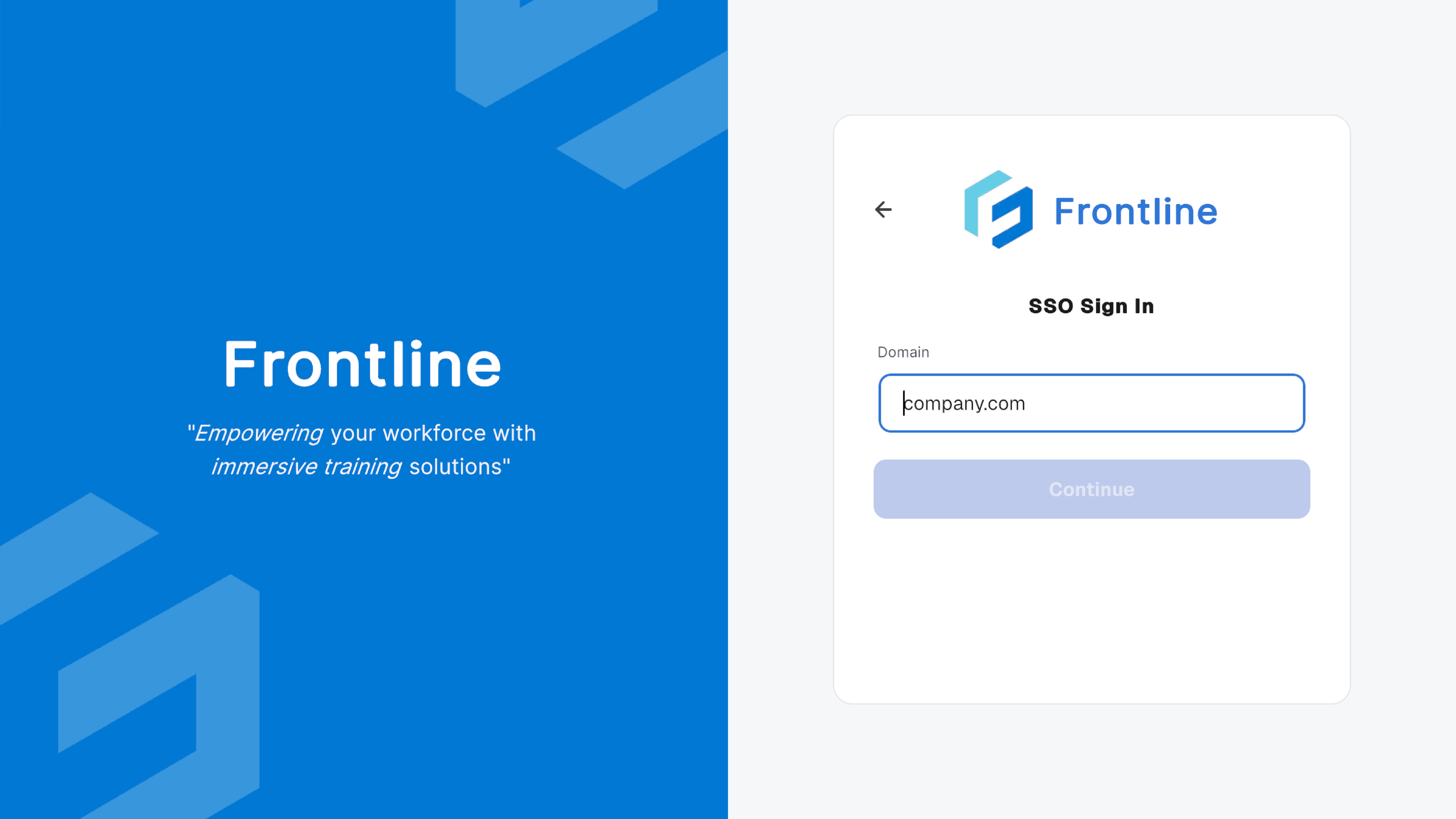 After successful authentication, you're redirected to the **Home** page.
## Sign In with PIN Pairing
PIN Pairing signs the iPad in to your Altoura Frontline account without requiring you to enter your credentials on the device. This is useful when using a shared device.
The PIN Pairing screen displays a temporary six-digit PIN that you can use to pair the iPad with your account.
After successful authentication, you're redirected to the **Home** page.
## Sign In with PIN Pairing
PIN Pairing signs the iPad in to your Altoura Frontline account without requiring you to enter your credentials on the device. This is useful when using a shared device.
The PIN Pairing screen displays a temporary six-digit PIN that you can use to pair the iPad with your account.
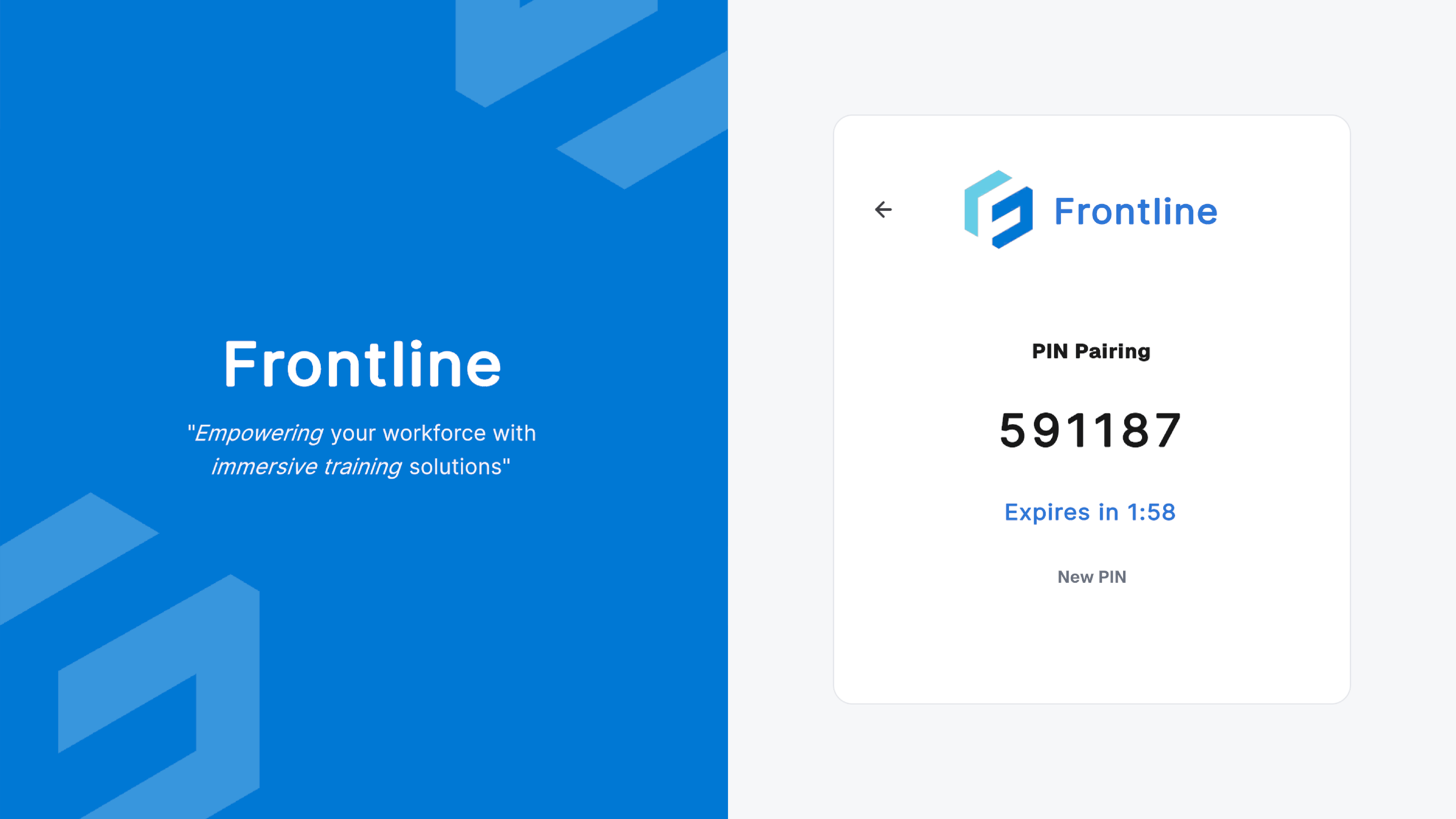 After the PIN is verified, the iPad is automatically signed in.
***
**Next:** [First Launch and Navigation](/frontline/ipad/get-started/first-launch-and-navigation)
After the PIN is verified, the iPad is automatically signed in.
***
**Next:** [First Launch and Navigation](/frontline/ipad/get-started/first-launch-and-navigation)