> ## Documentation Index
> Fetch the complete documentation index at: https://docs.altoura.com/llms.txt
> Use this file to discover all available pages before exploring further.
# Find and Open a Procedure
> Search, sort, and star procedures on the iPad Home page, then start the one you need.
This page is for **field workers** running procedures on the iPad. By the end of it, you will have located the procedure assigned to you and started it, ready to anchor it to your workspace.
If you are new to how procedures are structured (procedures, tasks, and steps), see [Procedures, Tasks & Steps](/frontline/overview/concepts/procedures-tasks-steps).
## Browse Procedures on Home
Procedures available to your currently selected organization are displayed as cards on the **Home** page. Each card shows the procedure name, who last modified it and when, and its favorite status. If you belong to multiple organizations, pick the right one first — see [First Launch and Navigation](/frontline/ipad/get-started/first-launch-and-navigation).
## Search for a Procedure
Enter the procedure's name or a related keyword. Results update as you type and show matching procedures within the currently selected organization.
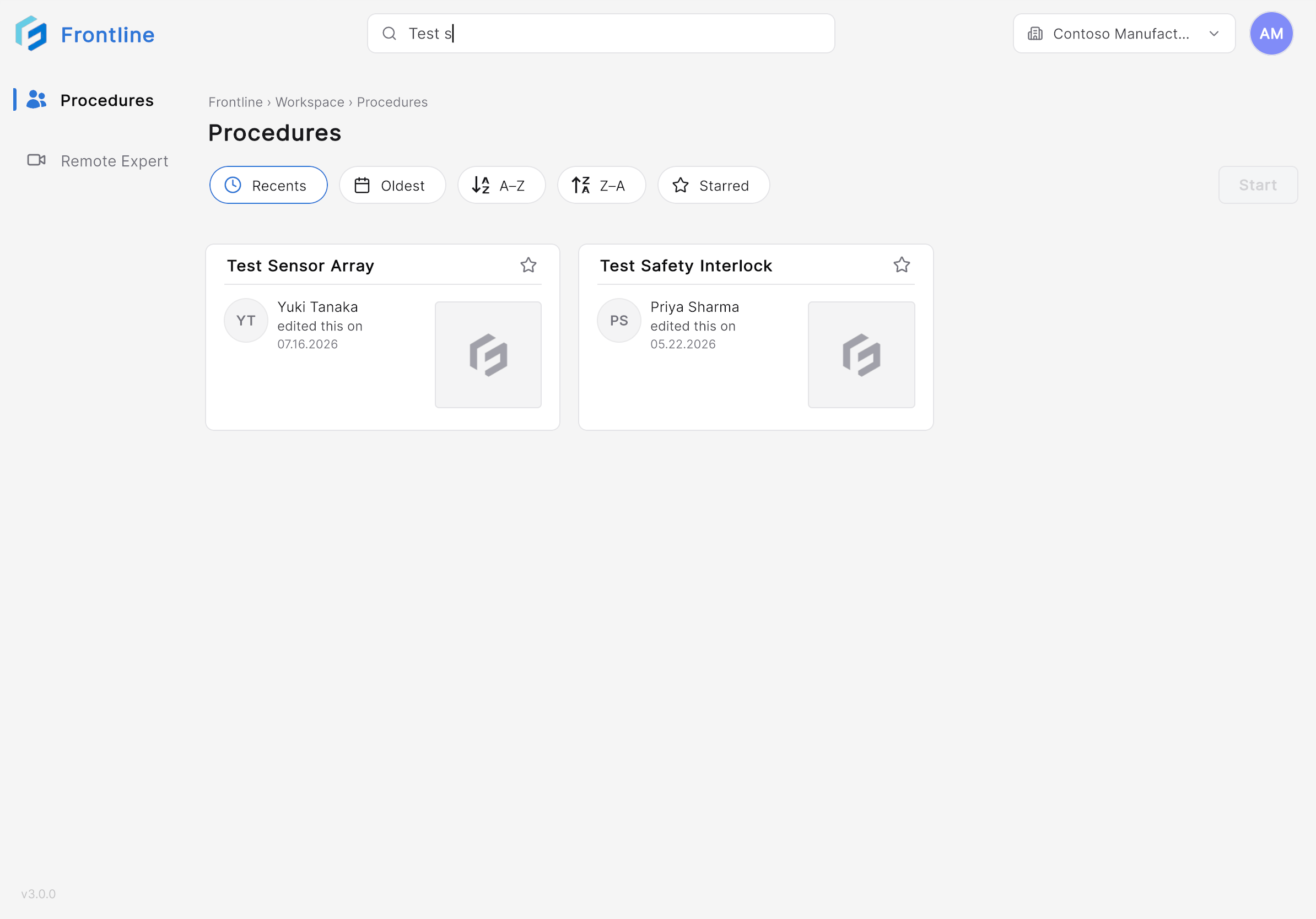 Clear the search field to display the full procedure list.
## Sort and Filter the List
Use the **Sort** menu to change the order of the procedure list or show only starred procedures.
| Option | Description |
| ----------- | ---------------------------------------------------- |
| **Recent** | Displays recently accessed procedures. |
| **Oldest** | Sorts procedures by oldest modification date. |
| **A–Z** | Sorts procedures alphabetically in ascending order. |
| **Z–A** | Sorts procedures alphabetically in descending order. |
| **Starred** | Displays only procedures marked as favorites. |
## Star Your Frequent Procedures
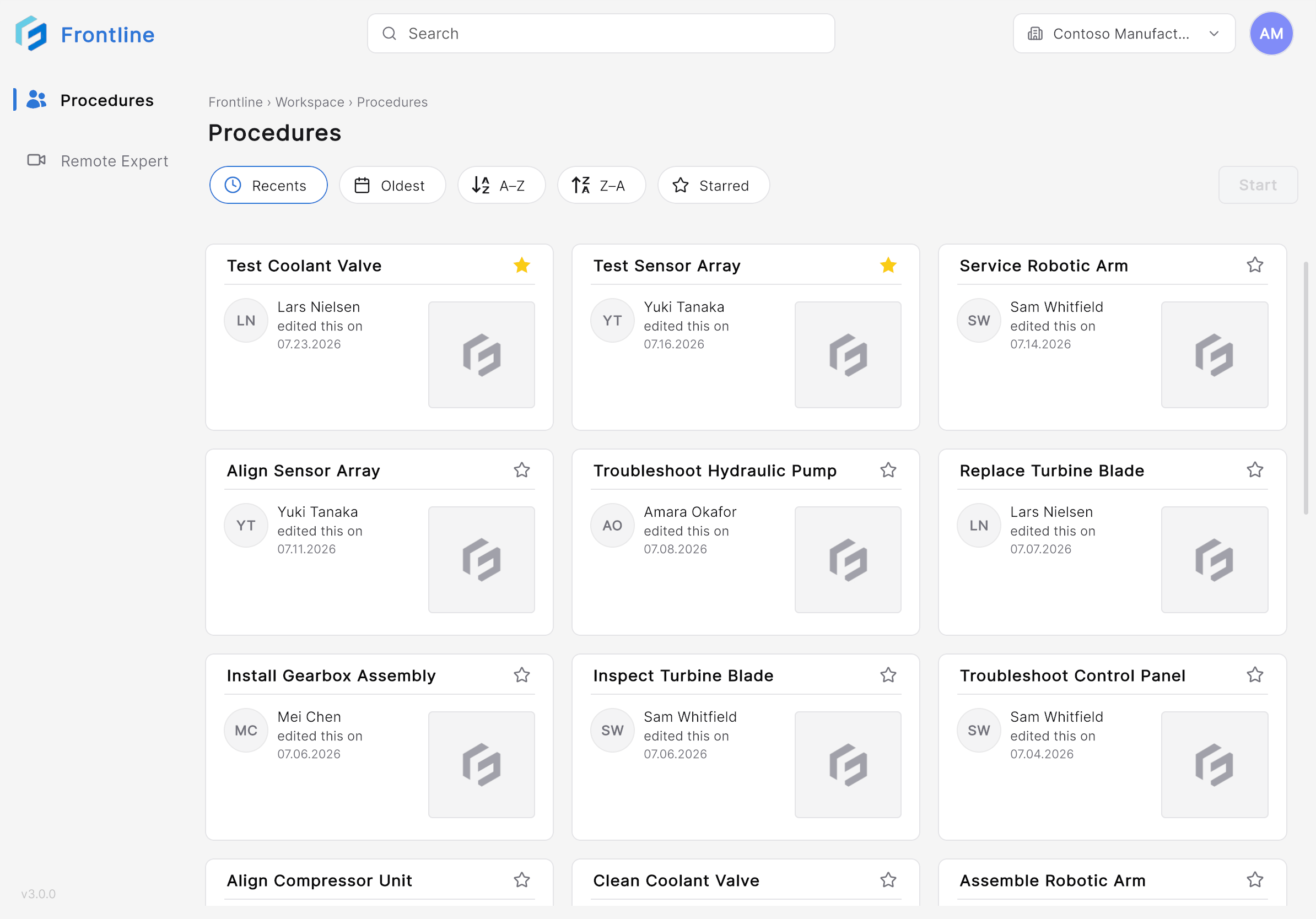
Select the **Star** icon on a procedure card to add or remove it from your favorites. Combine this with the **Starred** sort option for quick access to the procedures you run most.
Clear the search field to display the full procedure list.
## Sort and Filter the List
Use the **Sort** menu to change the order of the procedure list or show only starred procedures.
| Option | Description |
| ----------- | ---------------------------------------------------- |
| **Recent** | Displays recently accessed procedures. |
| **Oldest** | Sorts procedures by oldest modification date. |
| **A–Z** | Sorts procedures alphabetically in ascending order. |
| **Z–A** | Sorts procedures alphabetically in descending order. |
| **Starred** | Displays only procedures marked as favorites. |
## Star Your Frequent Procedures
Select the **Star** icon on a procedure card to add or remove it from your favorites. Combine this with the **Starred** sort option for quick access to the procedures you run most.
 ## Start the Procedure
Tap the card. The **Start** button becomes enabled.
## Start the Procedure
Tap the card. The **Start** button becomes enabled.
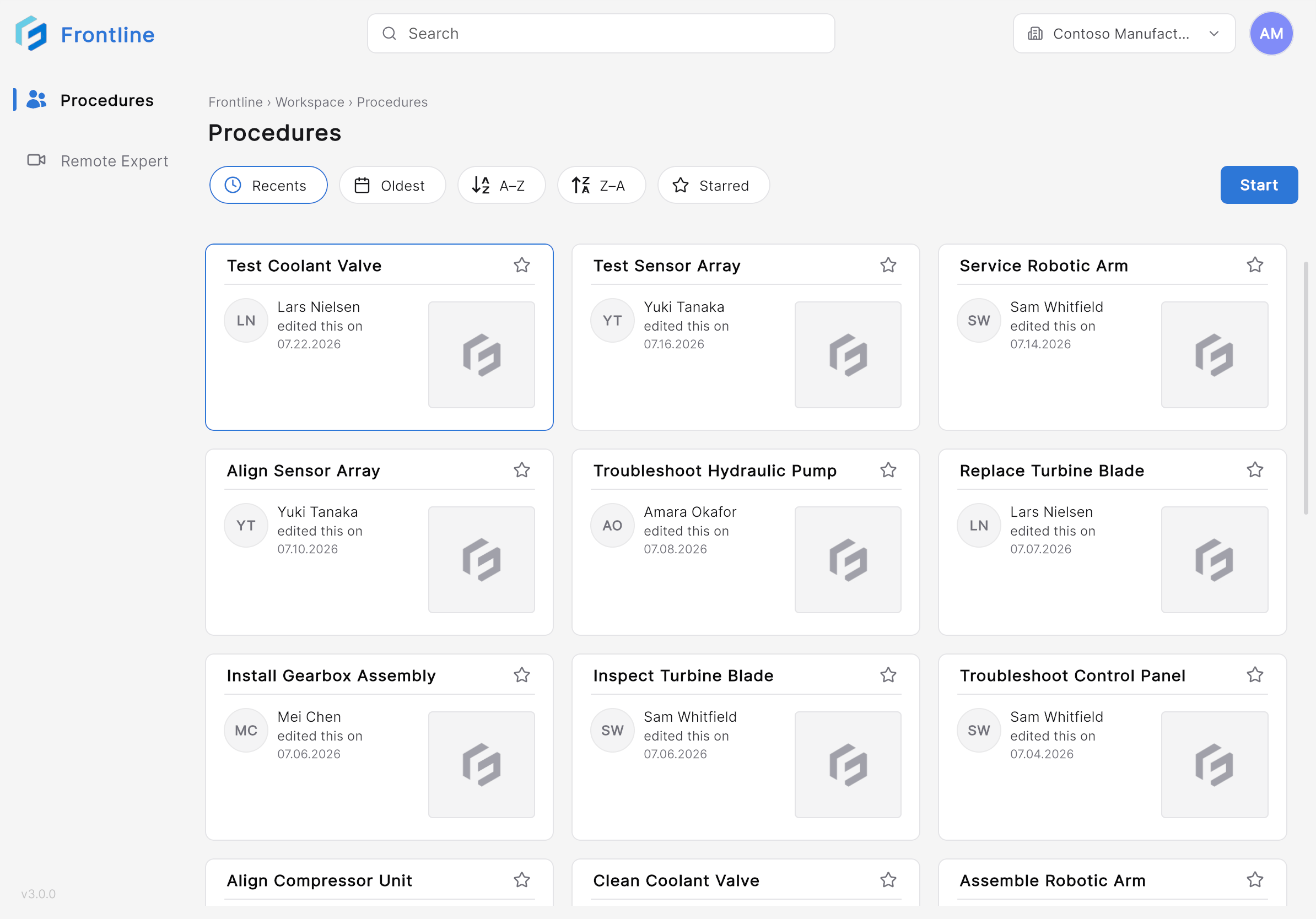 Frontline prepares your workspace and prompts you to scan your environment and the procedure's QR code.
***
**Next:** [Anchor with a QR Code](/frontline/ipad/operate/anchor-with-qr)
Frontline prepares your workspace and prompts you to scan your environment and the procedure's QR code.
***
**Next:** [Anchor with a QR Code](/frontline/ipad/operate/anchor-with-qr)