> ## Documentation Index
> Fetch the complete documentation index at: https://docs.altoura.com/llms.txt
> Use this file to discover all available pages before exploring further.
# Follow Steps
> Work through a procedure on the iPad: read the Step Panel, navigate steps, use media controls and directional guidance, and complete the run.
This page is for **field workers** executing a procedure that is already anchored to the workspace. By the end of it, you will have worked through every step and reached the procedure's completion summary.
For how procedures break down into tasks and steps, see [Procedures, Tasks & Steps](/frontline/overview/concepts/procedures-tasks-steps).
## Read the Step Panel
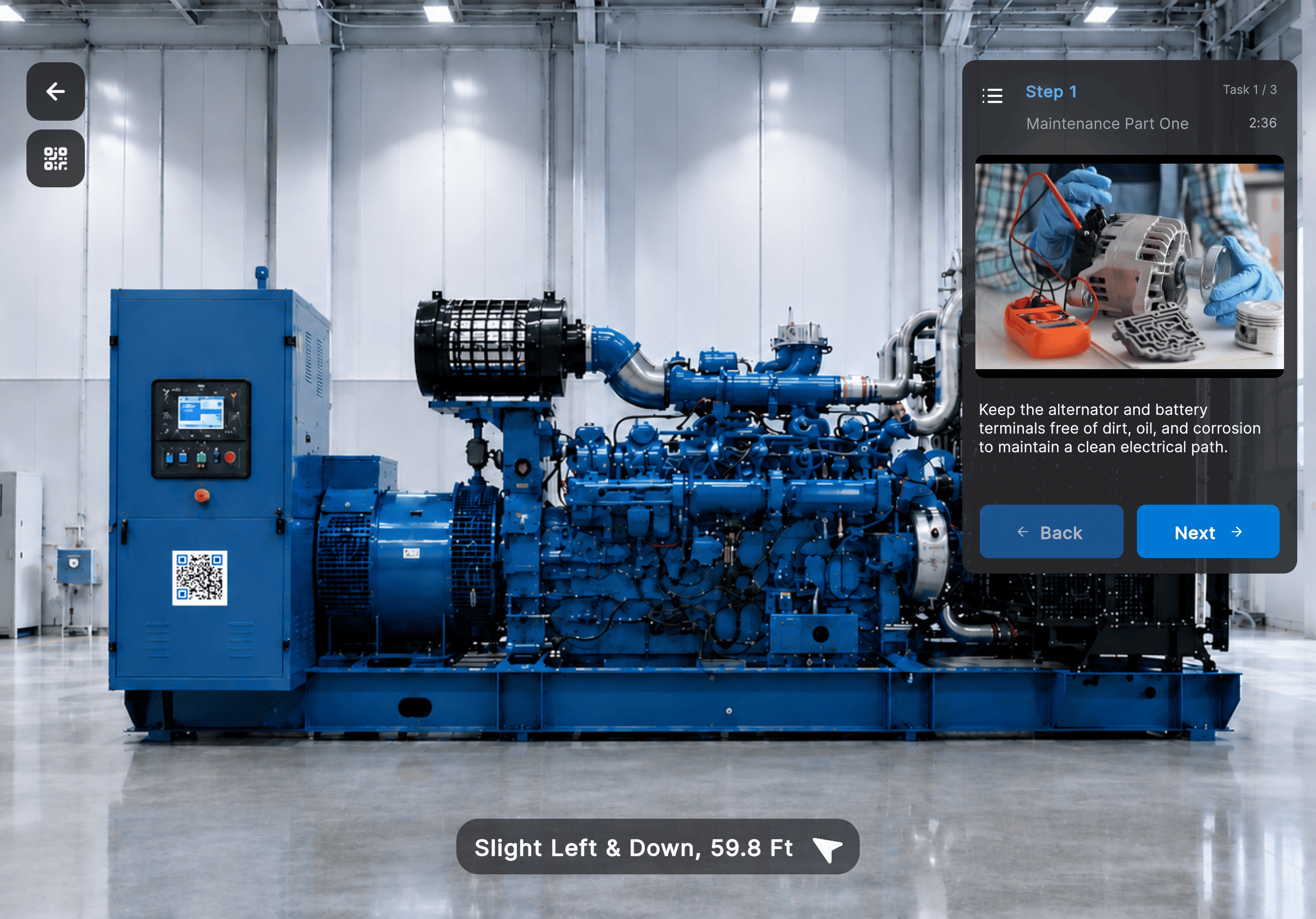
 Each step in the Step Panel displays:
* Step number and task name
* Task progress
* Instructions describing the task to complete
* Supporting media, such as images, videos, or 3D models
Tap the **task list** icon to view all tasks in the procedure.
## Navigate Between Steps
Use the navigation arrows at the bottom of the Step Panel to move through the procedure:
Perform the task described on the panel.
**Next** opens the next step. Tap **Previous** to return to the previous step.
## **Use Media Controls**
Procedure steps can contain video or photo content. You can view the media directly within the current step or expand it for a larger view.
### Video
If the current step contains a video, you can:
* **Play or pause** the video.
* **Expand** the video to open it in a larger media player.
Each step in the Step Panel displays:
* Step number and task name
* Task progress
* Instructions describing the task to complete
* Supporting media, such as images, videos, or 3D models
Tap the **task list** icon to view all tasks in the procedure.
## Navigate Between Steps
Use the navigation arrows at the bottom of the Step Panel to move through the procedure:
Perform the task described on the panel.
**Next** opens the next step. Tap **Previous** to return to the previous step.
## **Use Media Controls**
Procedure steps can contain video or photo content. You can view the media directly within the current step or expand it for a larger view.
### Video
If the current step contains a video, you can:
* **Play or pause** the video.
* **Expand** the video to open it in a larger media player.
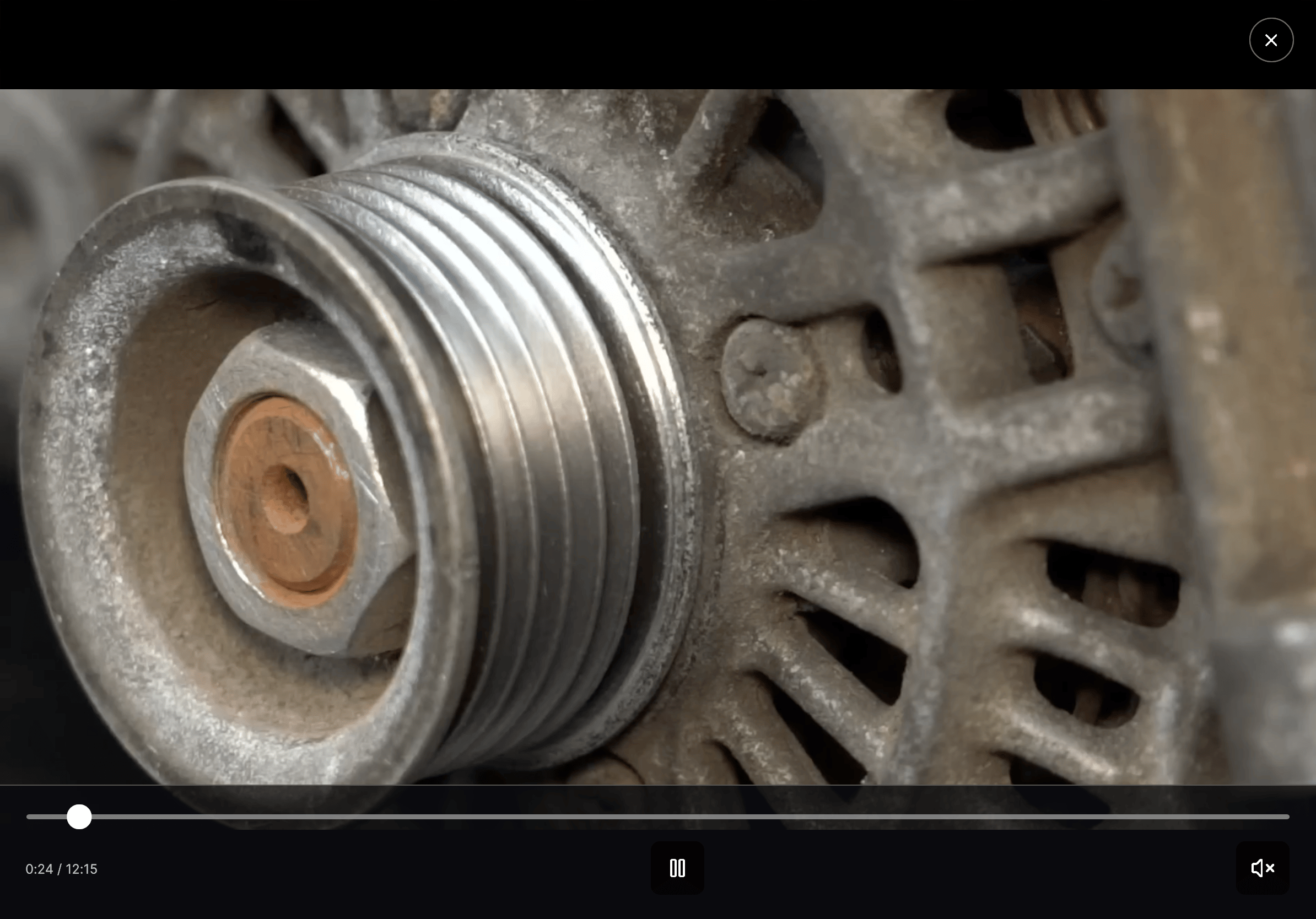
 When the video is expanded, you can:
* **Play or pause** the video.
* **Seek** to a specific position using the progress bar.
* **Mute or unmute** the audio.
* Select **Close** to return to the procedure.
When the video is expanded, you can:
* **Play or pause** the video.
* **Seek** to a specific position using the progress bar.
* **Mute or unmute** the audio.
* Select **Close** to return to the procedure.
 ### Photo
If the current step contains a photo, you can view it directly within the procedure step.
### Photo
If the current step contains a photo, you can view it directly within the procedure step.
 Expand the photo to view it in a larger view. Select **Close** to return to the procedure.
 Media controls are displayed only when the current step supports them.
## Follow Directional Guidance
When the next instruction is outside the current camera view, a directional indicator appears near the bottom of the screen. It shows:
* The direction in which to move or look.
* The approximate distance to the next instruction.
For example, the guidance may display **Slight Left & Down, 59.8 Ft**.
Media controls are displayed only when the current step supports them.
## Follow Directional Guidance
When the next instruction is outside the current camera view, a directional indicator appears near the bottom of the screen. It shows:
* The direction in which to move or look.
* The approximate distance to the next instruction.
For example, the guidance may display **Slight Left & Down, 59.8 Ft**.
 ## Complete the Procedure
Every procedure includes a default completion step. Depending on how the procedure was authored, additional completion steps may appear before the final one.
When you reach the final completion step, the procedure summary displays:
* Number of completed steps
* Total procedure time
* Number of completed tasks
## Complete the Procedure
Every procedure includes a default completion step. Depending on how the procedure was authored, additional completion steps may appear before the final one.
When you reach the final completion step, the procedure summary displays:
* Number of completed steps
* Total procedure time
* Number of completed tasks
 You can then choose to:
* **Restart** the procedure to perform it again.
* **Exit** the procedure.
Stuck on a step? You can bring in a specialist without leaving the device — see [Invite an Expert to a Call](/frontline/ipad/get-help/invite-an-expert-to-a-call).
***
**Next:** [Invite an Expert to a Call](/frontline/ipad/get-help/invite-an-expert-to-a-call)
You can then choose to:
* **Restart** the procedure to perform it again.
* **Exit** the procedure.
Stuck on a step? You can bring in a specialist without leaving the device — see [Invite an Expert to a Call](/frontline/ipad/get-help/invite-an-expert-to-a-call).
***
**Next:** [Invite an Expert to a Call](/frontline/ipad/get-help/invite-an-expert-to-a-call)