> ## Documentation Index
> Fetch the complete documentation index at: https://docs.altoura.com/llms.txt
> Use this file to discover all available pages before exploring further.
# Import from Dynamics 365 Guides
> Import existing Microsoft Dynamics 365 Guides and convert them into Altoura Frontline procedures, retaining steps, media, and 3D data.
## Overview
Altoura Frontline allows you to import existing **Microsoft Dynamics 365 Guides** and convert them into [Procedures](/frontline/procedures-portal/landing-page). This enables teams to migrate content seamlessly without rebuilding steps, media, or 3D assets from scratch.
Importing requires a one-time connection between Altoura and your Dynamics 365 environment, set up by an IT administrator. See [Dynamics 365 Guides Configuration](/frontline/administration/dynamics-guides-configuration).
Imports run **asynchronously in the background**, so you can continue working in the Procedures Portal while migration is in progress.
Imports are scoped to the **currently selected organization**. Always confirm the correct organization is active before importing.
***
## What Gets Imported
When a guide is imported, Altoura brings the following data over (as available in the source guide):
* Guide structure and name
* Steps and step instructions
* Images and videos
* 3D / GLB-related data and associated content
***
## How to Import a Guide
The end-to-end import flow consists of three stages: starting the import, selecting the guides, and submitting them for processing.
### Step 1: Start the Import
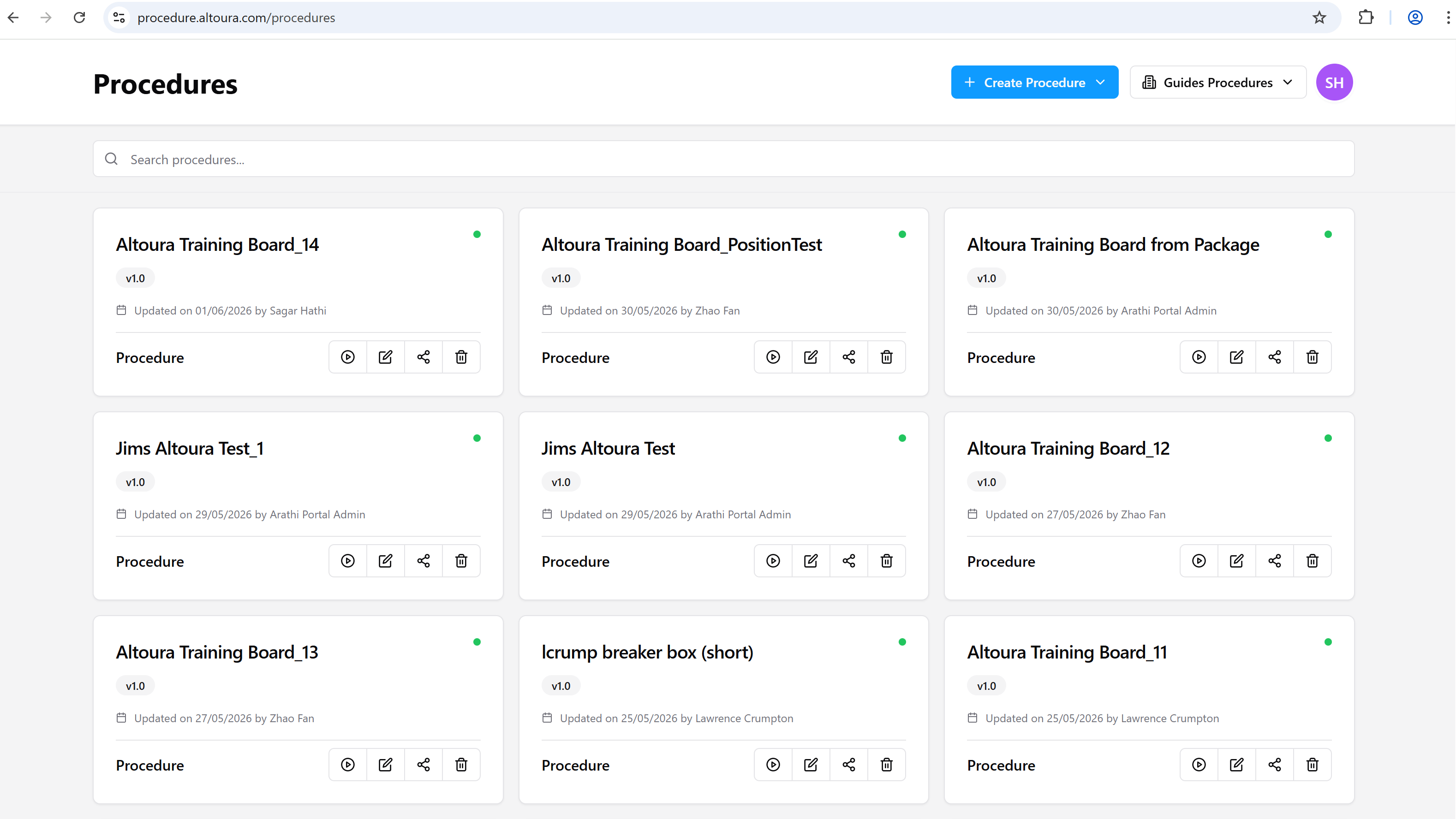
Navigate to the **Procedures** page in the Procedures Portal.
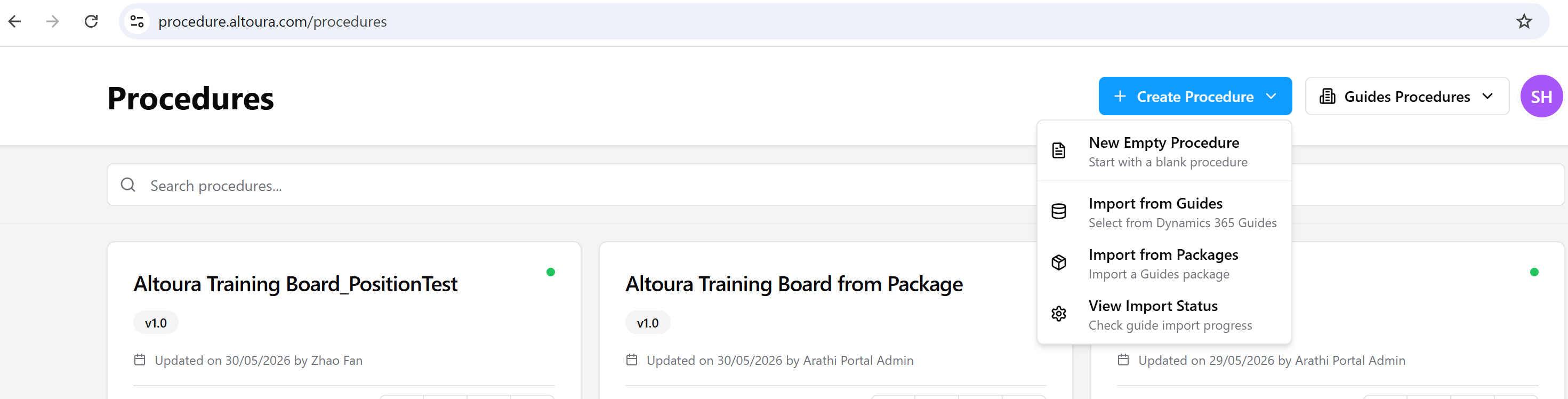
 Select **Create Procedure** in the top-right, then choose **Import from Guides** from the dropdown.
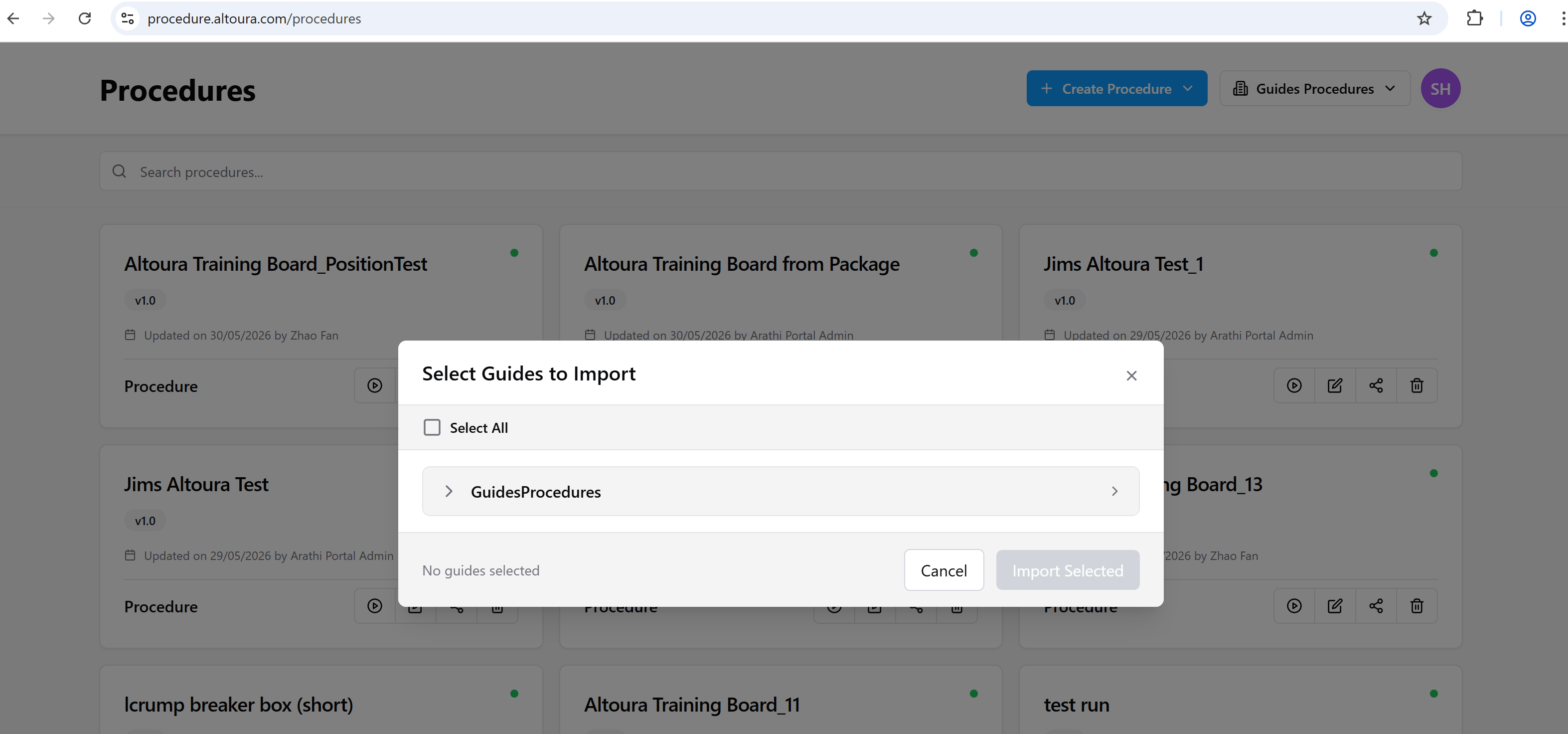
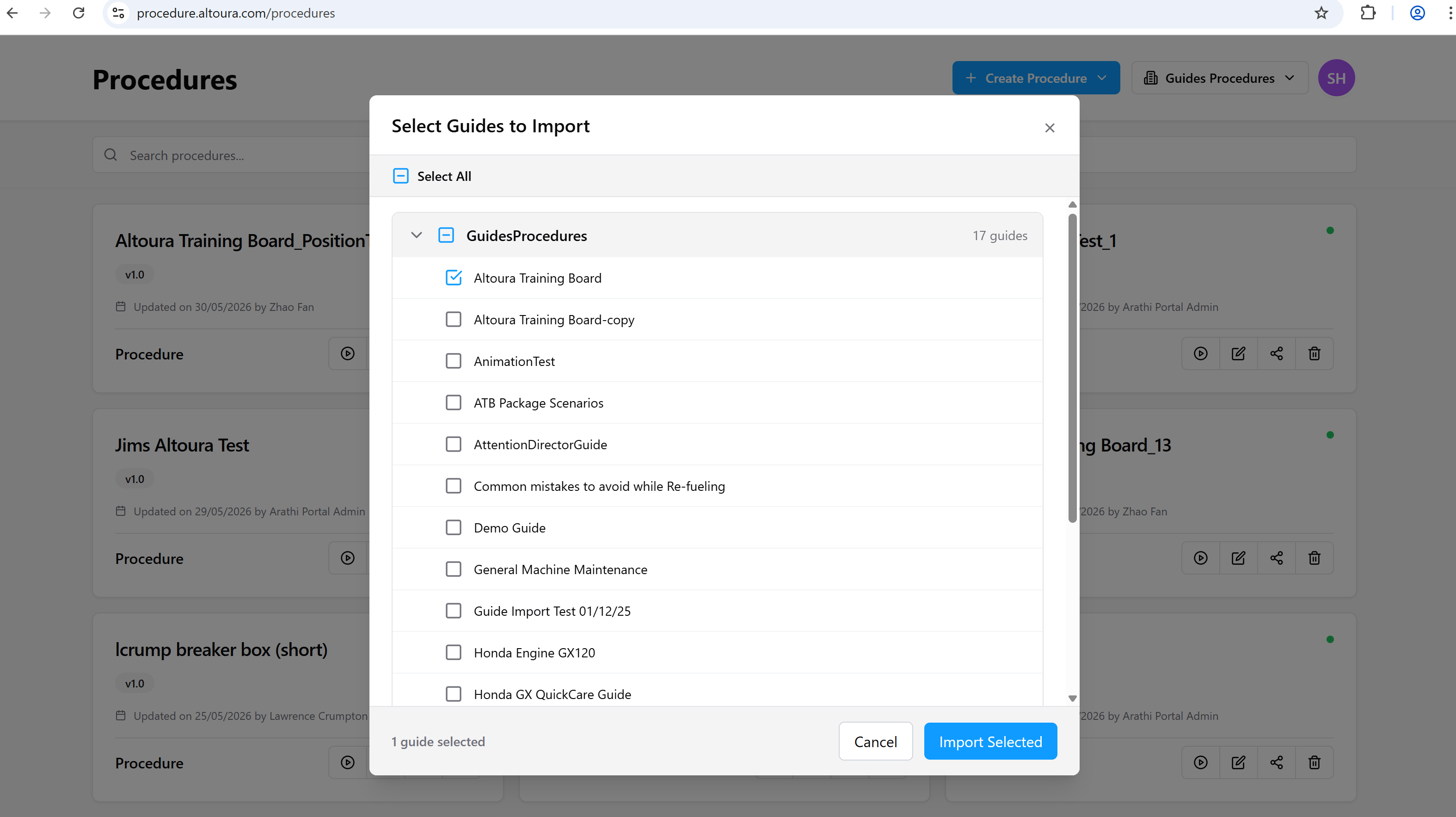
 The **Select Guides to Import** window opens.
 ### Step 2: Select Guides
1. Expand the required instance / environment (for example, **GuidesProcedures**).
2. Select one or more guides using the checkboxes, or use **Select All** to pick everything in the list.
### Step 2: Select Guides
1. Expand the required instance / environment (for example, **GuidesProcedures**).
2. Select one or more guides using the checkboxes, or use **Select All** to pick everything in the list.
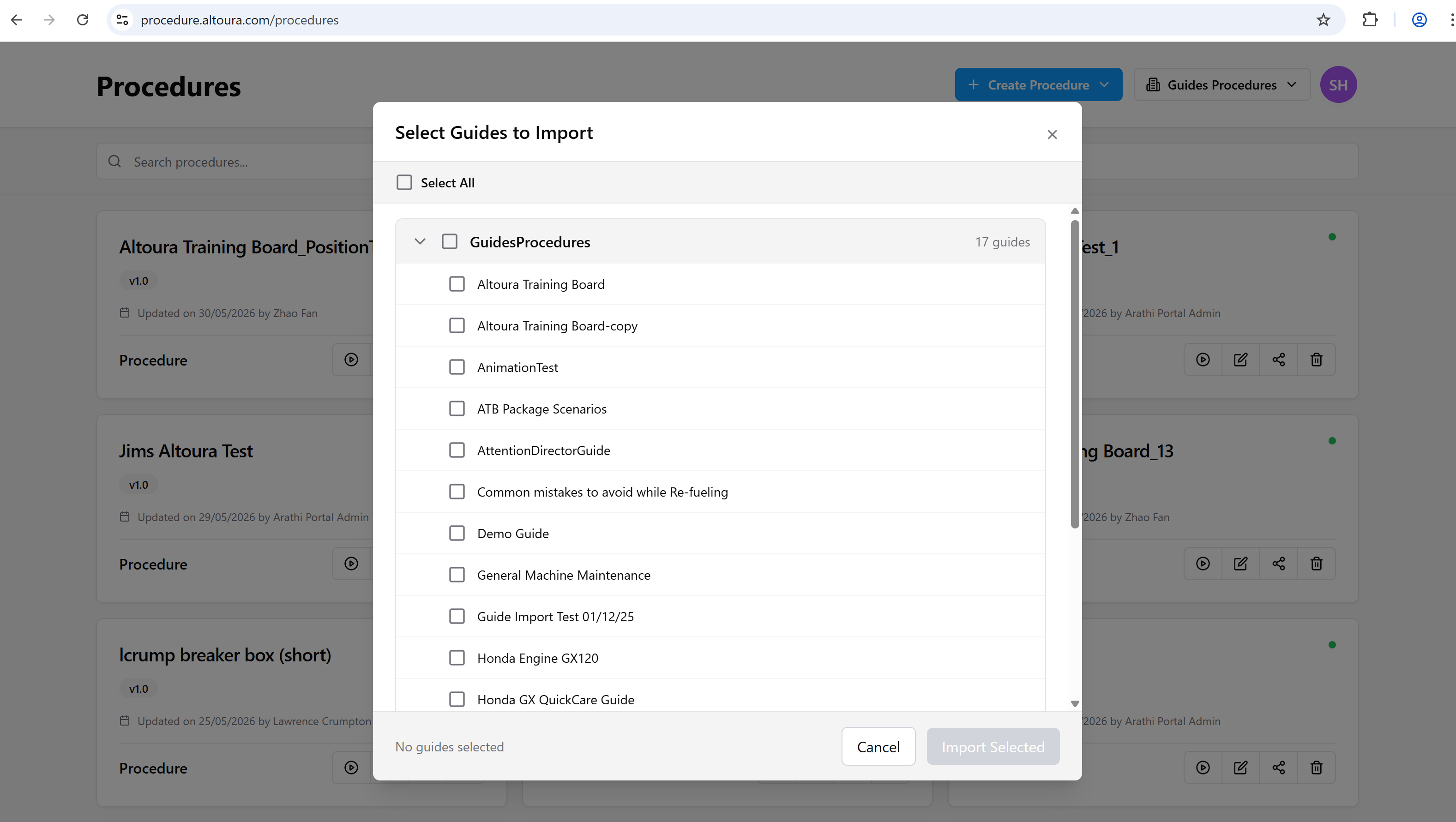 As soon as at least one guide is selected:
* The **Import Selected** button becomes active
* The dialog footer shows the number of guides currently selected
As soon as at least one guide is selected:
* The **Import Selected** button becomes active
* The dialog footer shows the number of guides currently selected
 ### Step 3: Submit the Import
Select **Import Selected** to begin the import.
Once submitted:
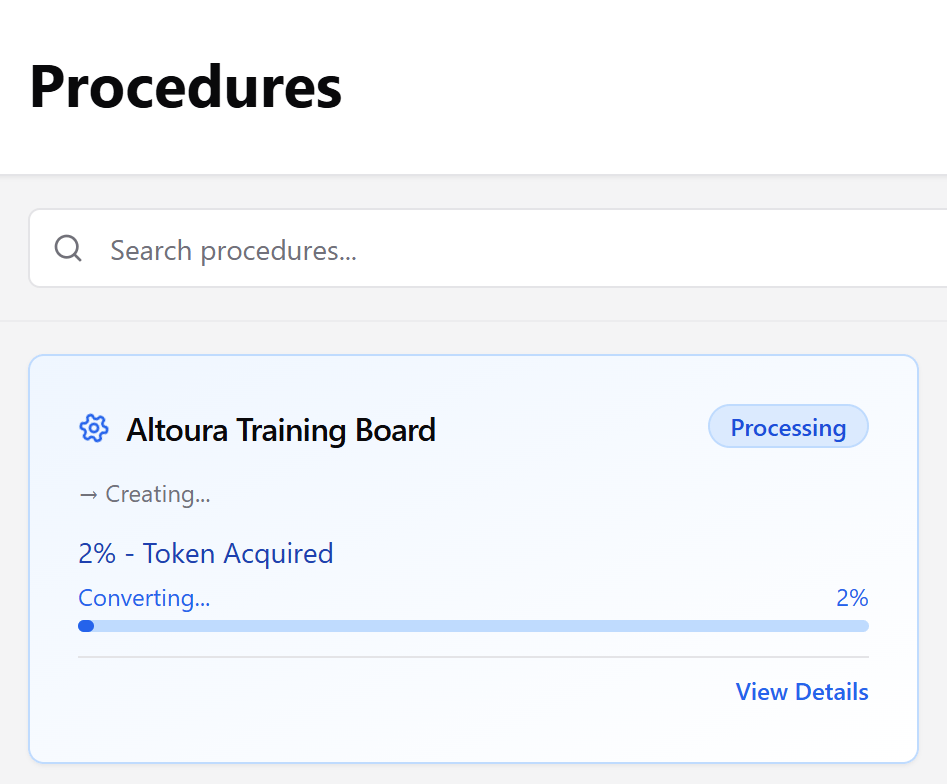
* An **Importing…** indicator appears on the Procedures page
* Imports run in the background
* You can continue working while imports are in progress
### Step 3: Submit the Import
Select **Import Selected** to begin the import.
Once submitted:
* An **Importing…** indicator appears on the Procedures page
* Imports run in the background
* You can continue working while imports are in progress
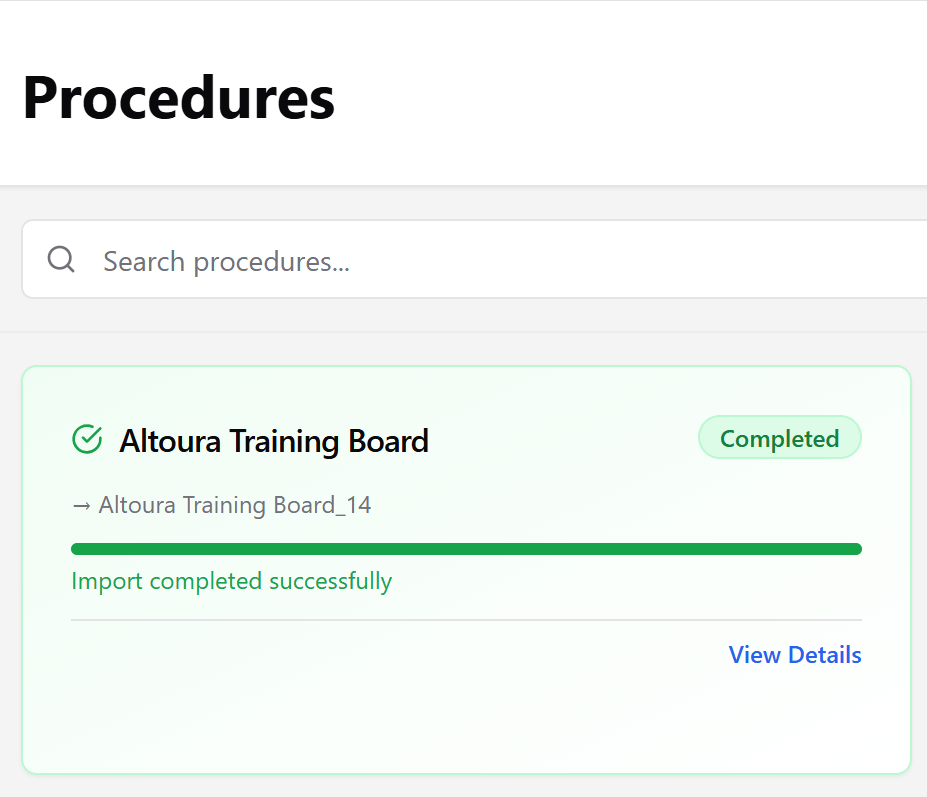
 When an import finishes successfully, the card switches to a green **Completed** state with an *Import completed successfully* message and the final procedure name.
 ***
## How Imported Procedures Appear
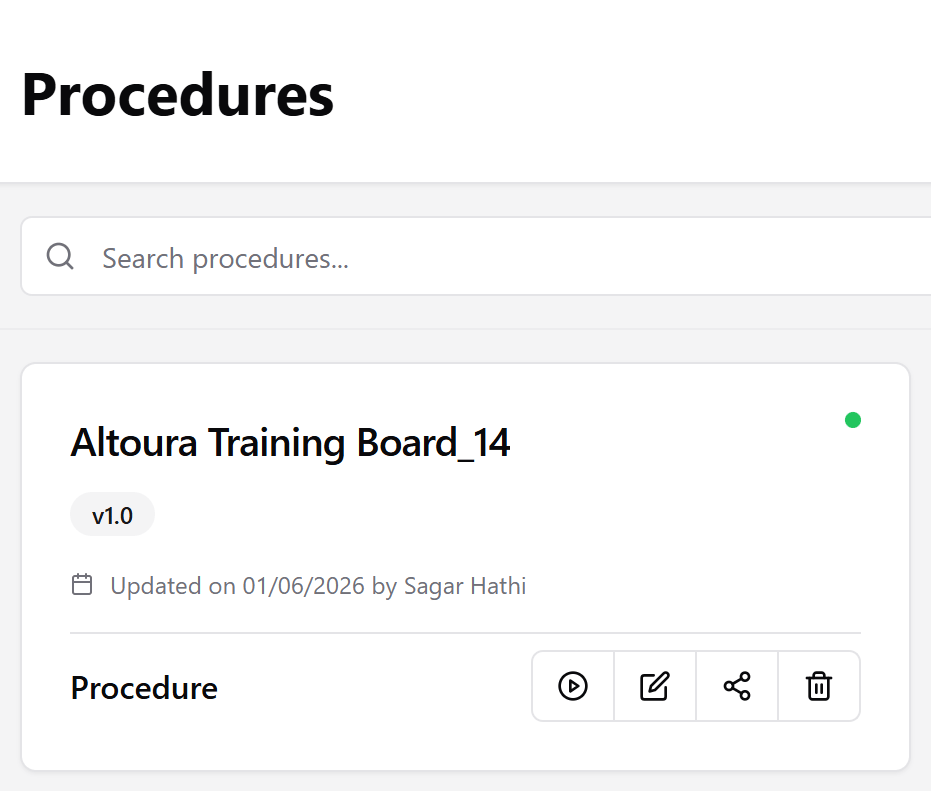
After completion, the imported guide is created as a standard procedure and added to the Procedures list. From that point it behaves exactly like any other procedure. It can be opened, edited, shared, or deleted.
***
## How Imported Procedures Appear
After completion, the imported guide is created as a standard procedure and added to the Procedures list. From that point it behaves exactly like any other procedure. It can be opened, edited, shared, or deleted.
 ### Importing the Same Guide Multiple Times
If the same guide is imported more than once, Altoura automatically appends a numeric suffix to the procedure name so existing procedures are never overwritten:
* `Guide Name`
* `Guide Name_1`
* `Guide Name_2`
***
## Checking Import Status
To review the history of guide imports, including completed, older, and failed runs:
1. Select **Create Procedure**.
2. Choose **View Import Status**.
The **Import Status** window opens. Make sure the **Guides** tab is selected at the top of the dialog.
### Importing the Same Guide Multiple Times
If the same guide is imported more than once, Altoura automatically appends a numeric suffix to the procedure name so existing procedures are never overwritten:
* `Guide Name`
* `Guide Name_1`
* `Guide Name_2`
***
## Checking Import Status
To review the history of guide imports, including completed, older, and failed runs:
1. Select **Create Procedure**.
2. Choose **View Import Status**.
The **Import Status** window opens. Make sure the **Guides** tab is selected at the top of the dialog.
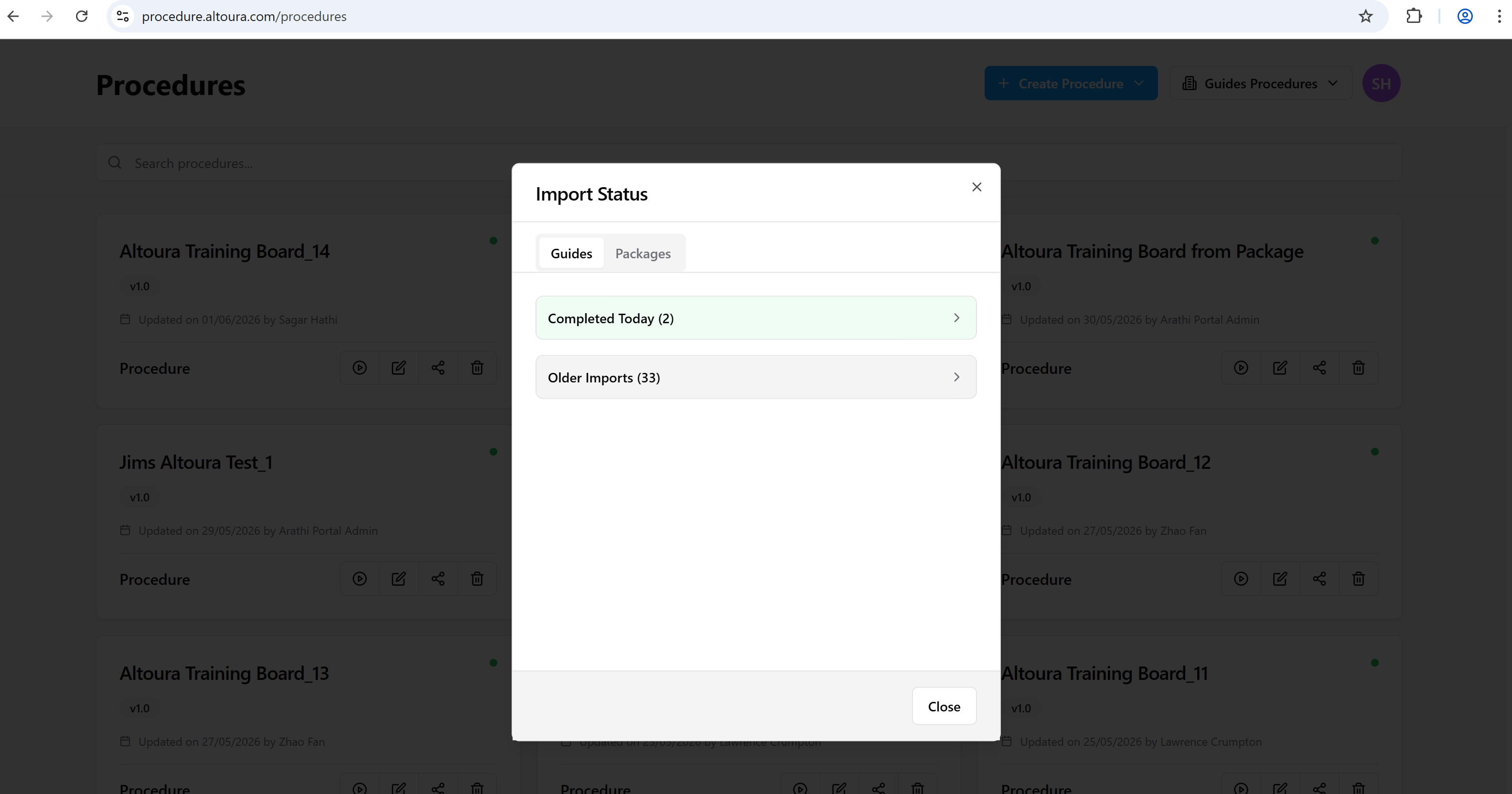 Imports are organized into collapsible sections that appear only when they contain entries:
| Section | Description |
| ------------------- | -------------------------------------------------------------------- |
| **Completed Today** | Imports that finished successfully during the current day |
| **Older Imports** | Successfully completed imports from previous days |
| **Failed** | Imports that did not complete successfully (only shown if any exist) |
Expand a section to view individual entries. Each entry displays:
* The source **guide name**
* The resulting **procedure name** (for example, `Altoura Training Board_14`) or a status message if the source guide no longer exists
* The **date and time** the import completed
* A status icon indicating success or failure
Imports are organized into collapsible sections that appear only when they contain entries:
| Section | Description |
| ------------------- | -------------------------------------------------------------------- |
| **Completed Today** | Imports that finished successfully during the current day |
| **Older Imports** | Successfully completed imports from previous days |
| **Failed** | Imports that did not complete successfully (only shown if any exist) |
Expand a section to view individual entries. Each entry displays:
* The source **guide name**
* The resulting **procedure name** (for example, `Altoura Training Board_14`) or a status message if the source guide no longer exists
* The **date and time** the import completed
* A status icon indicating success or failure
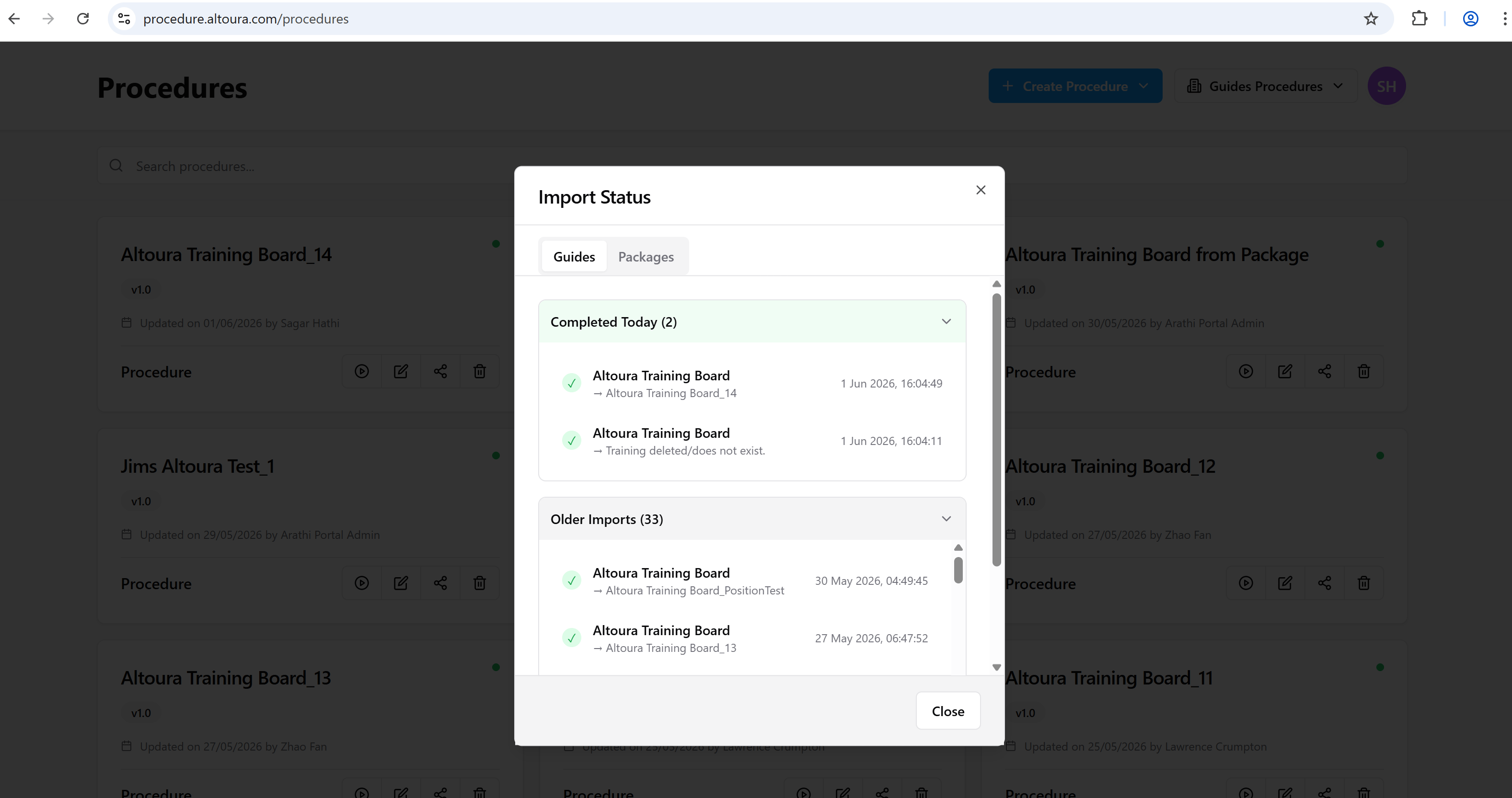 Use the **Guides** tab to track Dynamics 365 Guide imports specifically. Other import types (such as Packages) are tracked under their own tabs and are documented separately.
***
## If an Import Fails
If a guide import fails, it appears under a **Failed** section in the Import Status window. No procedure is created or partially updated. The operation is fully rolled back.
To retry:
1. Open **Create Procedure → Import from Guides**.
2. Select the failed guide.
3. Submit the import again.
Each retry is treated as a brand-new import. If the second attempt succeeds, a new procedure is created. It does not resume the failed attempt.
***
## Key Points to Remember
* Imports run asynchronously in the background
* Imported procedures are scoped to the **selected organization**
* Re-importing never overwrites existing procedures; a numeric suffix is added instead
* Failed imports must be retried manually using the same flow
* Imported procedures appear in the standard Procedures list and behave like any other procedure
Use the **Guides** tab to track Dynamics 365 Guide imports specifically. Other import types (such as Packages) are tracked under their own tabs and are documented separately.
***
## If an Import Fails
If a guide import fails, it appears under a **Failed** section in the Import Status window. No procedure is created or partially updated. The operation is fully rolled back.
To retry:
1. Open **Create Procedure → Import from Guides**.
2. Select the failed guide.
3. Submit the import again.
Each retry is treated as a brand-new import. If the second attempt succeeds, a new procedure is created. It does not resume the failed attempt.
***
## Key Points to Remember
* Imports run asynchronously in the background
* Imported procedures are scoped to the **selected organization**
* Re-importing never overwrites existing procedures; a numeric suffix is added instead
* Failed imports must be retried manually using the same flow
* Imported procedures appear in the standard Procedures list and behave like any other procedure