> ## Documentation Index
> Fetch the complete documentation index at: https://docs.altoura.com/llms.txt
> Use this file to discover all available pages before exploring further.
# Run Mode (Web)
> Preview how a procedure will execute in a read-only web view.
## Overview
**Run Mode** lets you preview how a procedure will execute in a read-only view.
It shows the procedure exactly as it will appear during execution, without allowing any edits.
***
## When to Use Run Mode
Use Run Mode to:
* Review the execution flow of a procedure
* Validate step order and instructions
* Preview the experience before checking the same in HMD
***
## How to Enter Run Mode
There are two ways to launch Run Mode for a procedure.
### From the Procedures Page
1. Open the **Procedures** page.
2. Find the procedure you want to preview.
3. Hover over the procedure card and select the **Run** icon.
The procedure opens in Run Mode in the browser.
### From the Step Editor
While [editing a procedure](/frontline/procedures-portal/manage-procedures#editing-a-procedure), select the **Run** button in the top-right of the Step Editor.
This launches Run Mode immediately, useful for testing changes without leaving the editor and returning to the Procedures list.
***
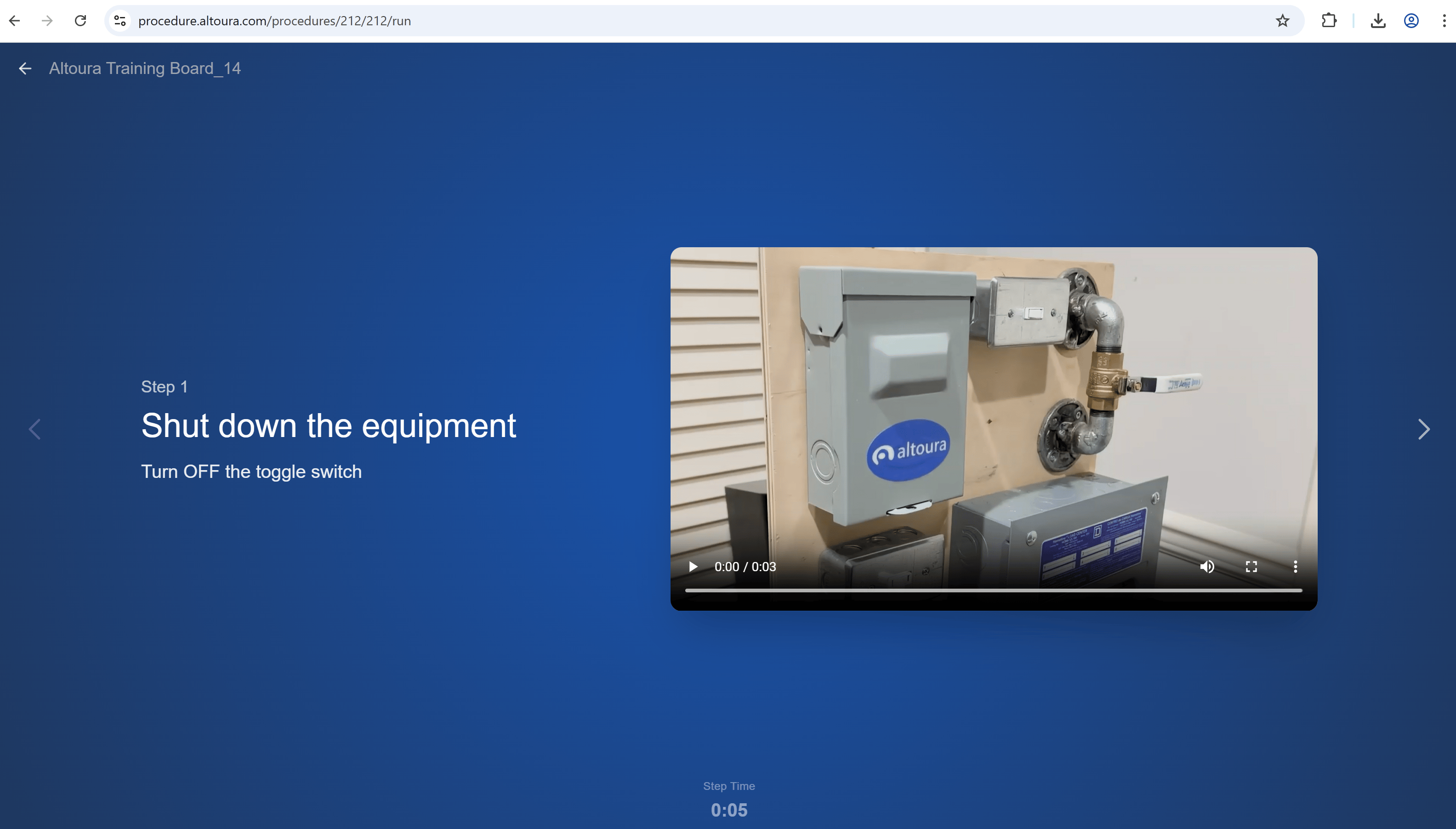
## What You See in Run Mode
Run Mode displays only execution-related information, no editing tools, no panels, no settings:
* **Procedure name** in the top-left, with a back arrow to exit
* **Step number** and **Step title**
* **Step instructions**
* **Images or videos** associated with the step (if available)
* **Navigation chevrons** (left and right) for moving to the previous or next step
* **Step Time** counter at the bottom showing how long the current step has been visible
 ***
## Choice Steps and Options
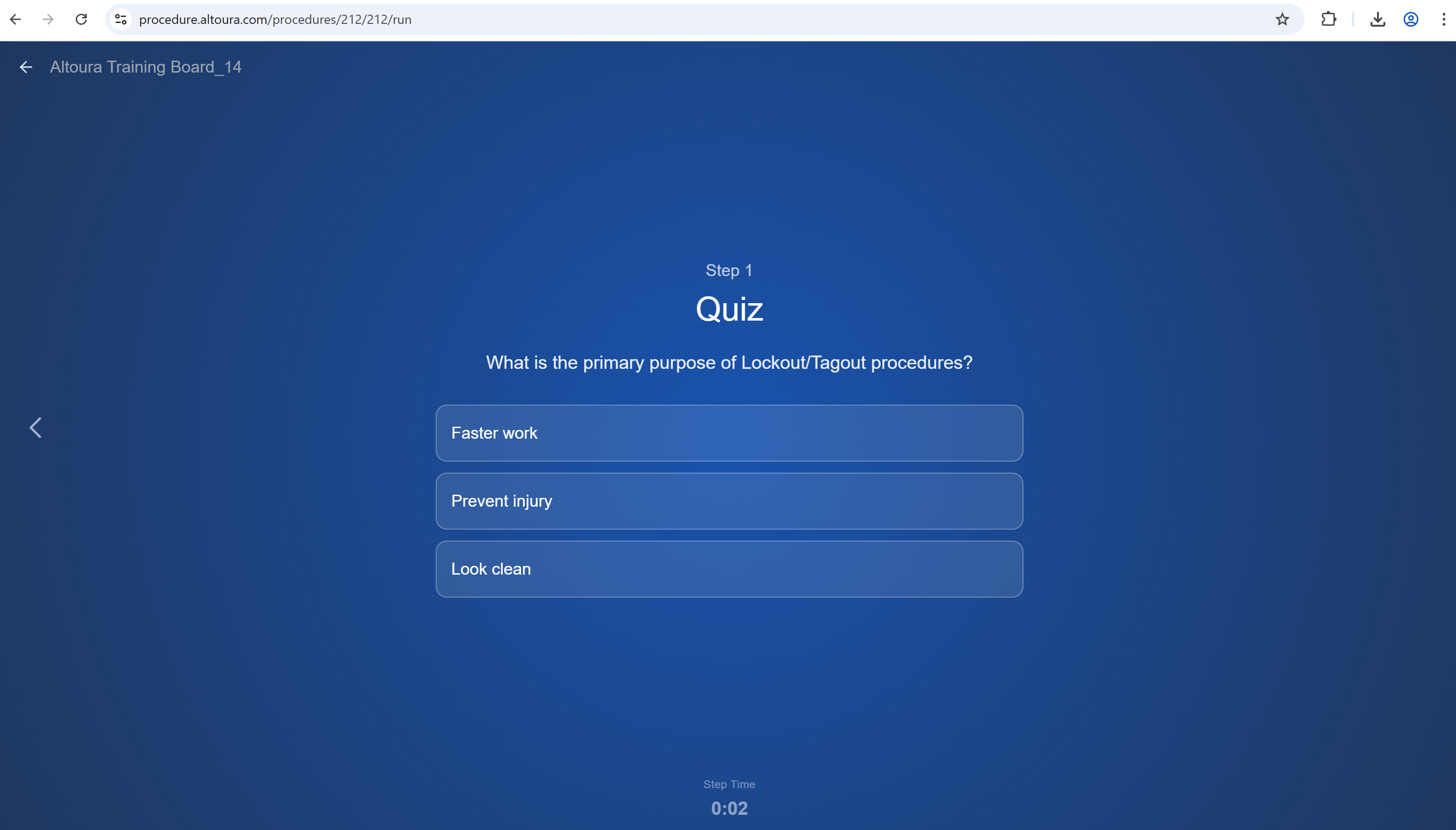
Some procedures include **Choice Steps** that allow the user to select between multiple paths; for example, a quiz question or a branching decision.
In Run Mode:
* Choice options are displayed within the step as selectable buttons
* Selecting an option navigates directly to the configured next step
* The procedure continues from the selected step
This allows procedures to adapt to different scenarios while maintaining a guided experience.
***
## Choice Steps and Options
Some procedures include **Choice Steps** that allow the user to select between multiple paths; for example, a quiz question or a branching decision.
In Run Mode:
* Choice options are displayed within the step as selectable buttons
* Selecting an option navigates directly to the configured next step
* The procedure continues from the selected step
This allows procedures to adapt to different scenarios while maintaining a guided experience.
 ***
## Procedure Completion
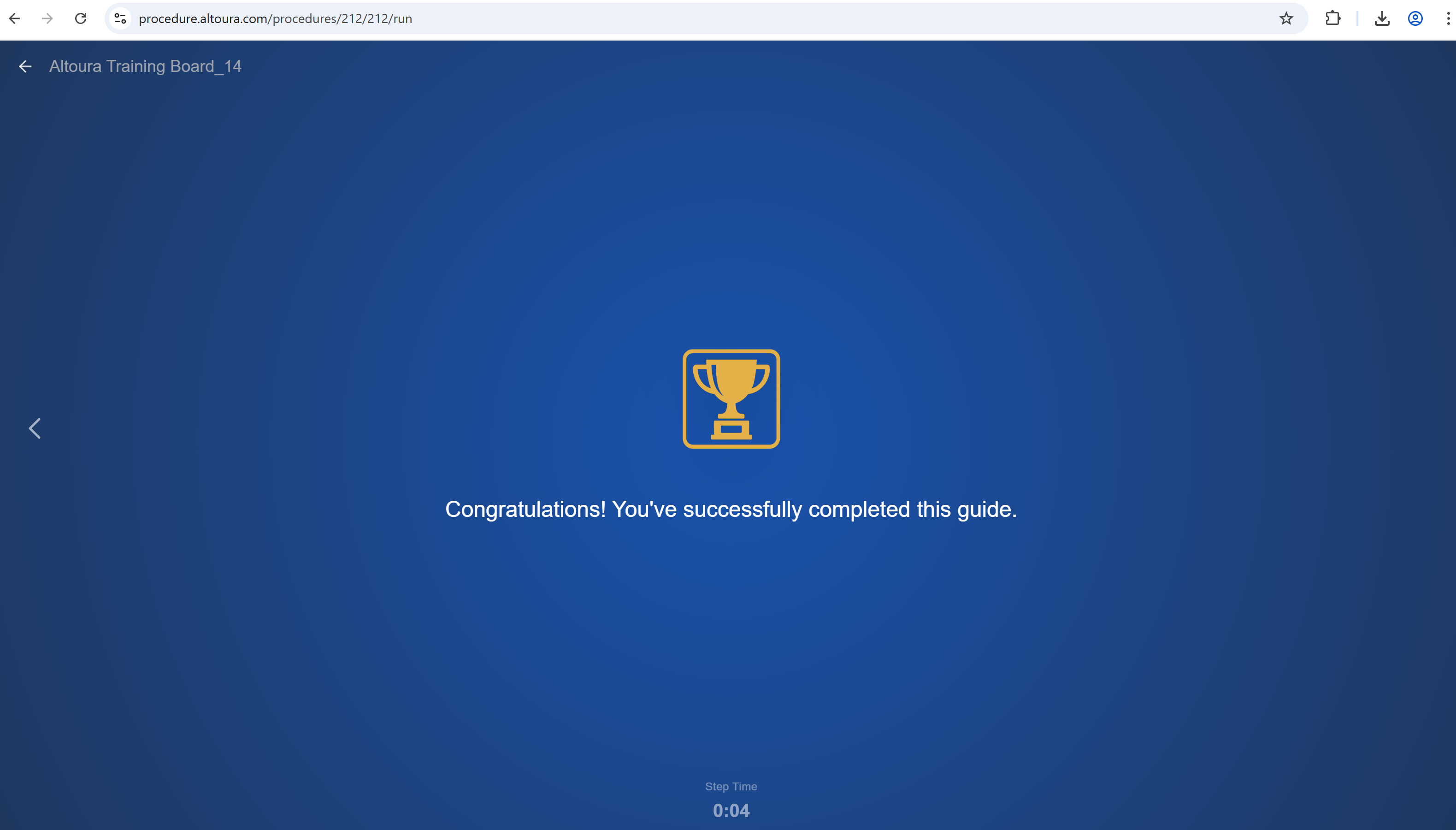
When you reach the end of a procedure, Run Mode displays a **completion screen** confirming the procedure was completed.
The completion screen includes:
* A trophy icon
* A success message (for example, *Congratulations! You've successfully completed this guide.*)
* The final **Step Time** for the closing step
***
## Procedure Completion
When you reach the end of a procedure, Run Mode displays a **completion screen** confirming the procedure was completed.
The completion screen includes:
* A trophy icon
* A success message (for example, *Congratulations! You've successfully completed this guide.*)
* The final **Step Time** for the closing step
 From the completion screen, exit Run Mode using the back arrow in the top-left.
***
## Exiting Run Mode
To leave Run Mode at any time, select the **back arrow** (or the procedure name) in the top-left of the screen.
You are returned to the Procedures page, where the procedure remains in its existing state. Run Mode never modifies the underlying procedure.
***
## What You Can and Cannot Do
**You can:**
* Move through steps using the navigation chevrons
* Review instructions and content
* Select options on Choice Steps
* Watch images and videos associated with each step
* Exit at any time using the back arrow
**You cannot:**
* Edit steps or content
* Save changes
* Modify procedure structure
To make updates, exit Run Mode and open the procedure in [Edit Mode](/frontline/procedures-portal/authoring).
From the completion screen, exit Run Mode using the back arrow in the top-left.
***
## Exiting Run Mode
To leave Run Mode at any time, select the **back arrow** (or the procedure name) in the top-left of the screen.
You are returned to the Procedures page, where the procedure remains in its existing state. Run Mode never modifies the underlying procedure.
***
## What You Can and Cannot Do
**You can:**
* Move through steps using the navigation chevrons
* Review instructions and content
* Select options on Choice Steps
* Watch images and videos associated with each step
* Exit at any time using the back arrow
**You cannot:**
* Edit steps or content
* Save changes
* Modify procedure structure
To make updates, exit Run Mode and open the procedure in [Edit Mode](/frontline/procedures-portal/authoring).