> ## Documentation Index
> Fetch the complete documentation index at: https://docs.altoura.com/llms.txt
> Use this file to discover all available pages before exploring further.
# 3D Model Authoring in Author Mode
## Overview
In **Author** mode, when you place a 3D model into the physical space, you can edit its behavior, animation, and position.
Each model can be configured individually. All changes apply only to the selected model instance.
***
# Select a Model for Editing
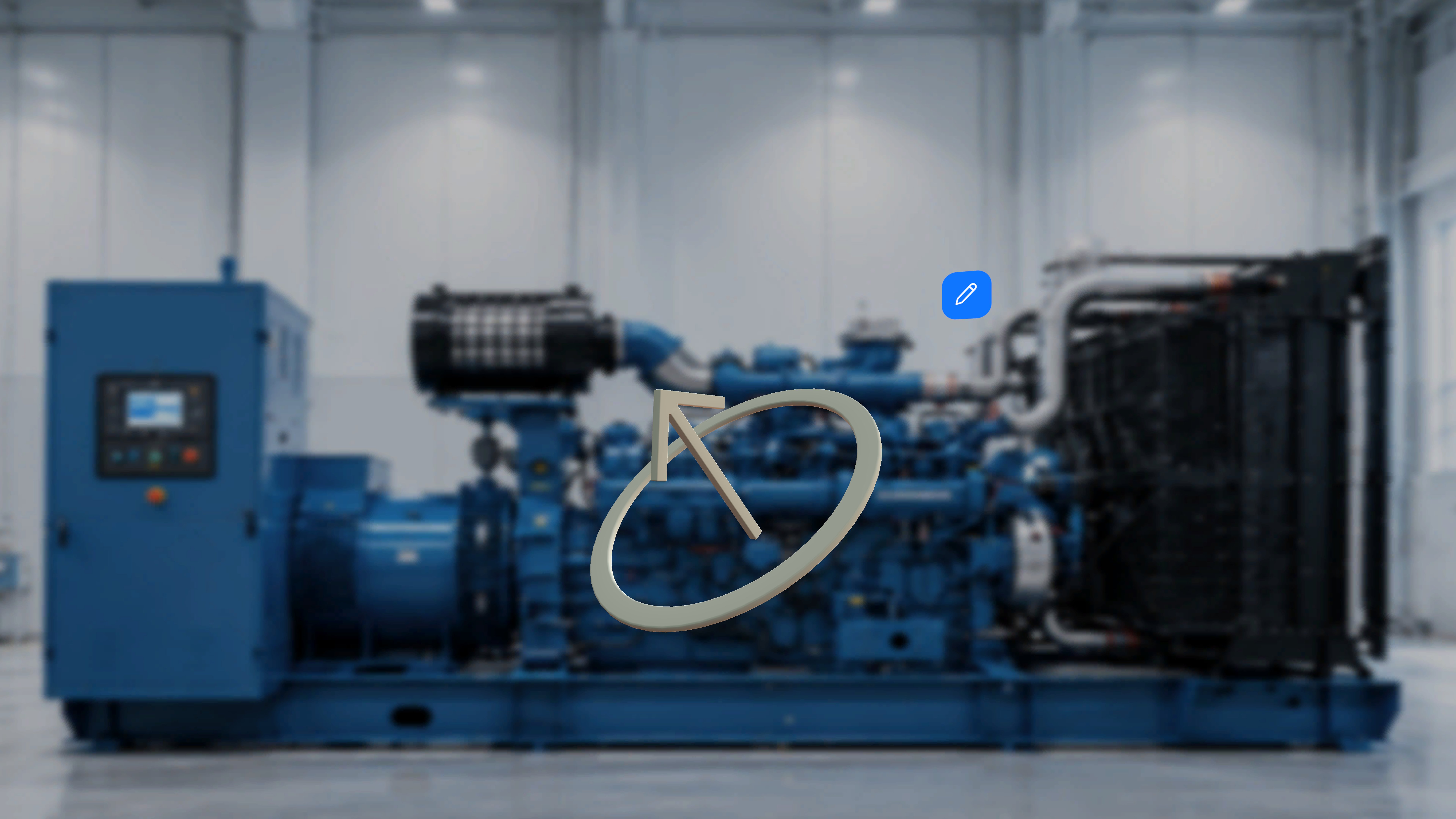 When a model is placed in the environment:
* An **Edit** button (pencil icon) appears near the model.
* Selecting the model displays a visible **bounding box**.
***
## Showing the Bounding Box
When a model is placed in the environment:
* An **Edit** button (pencil icon) appears near the model.
* Selecting the model displays a visible **bounding box**.
***
## Showing the Bounding Box
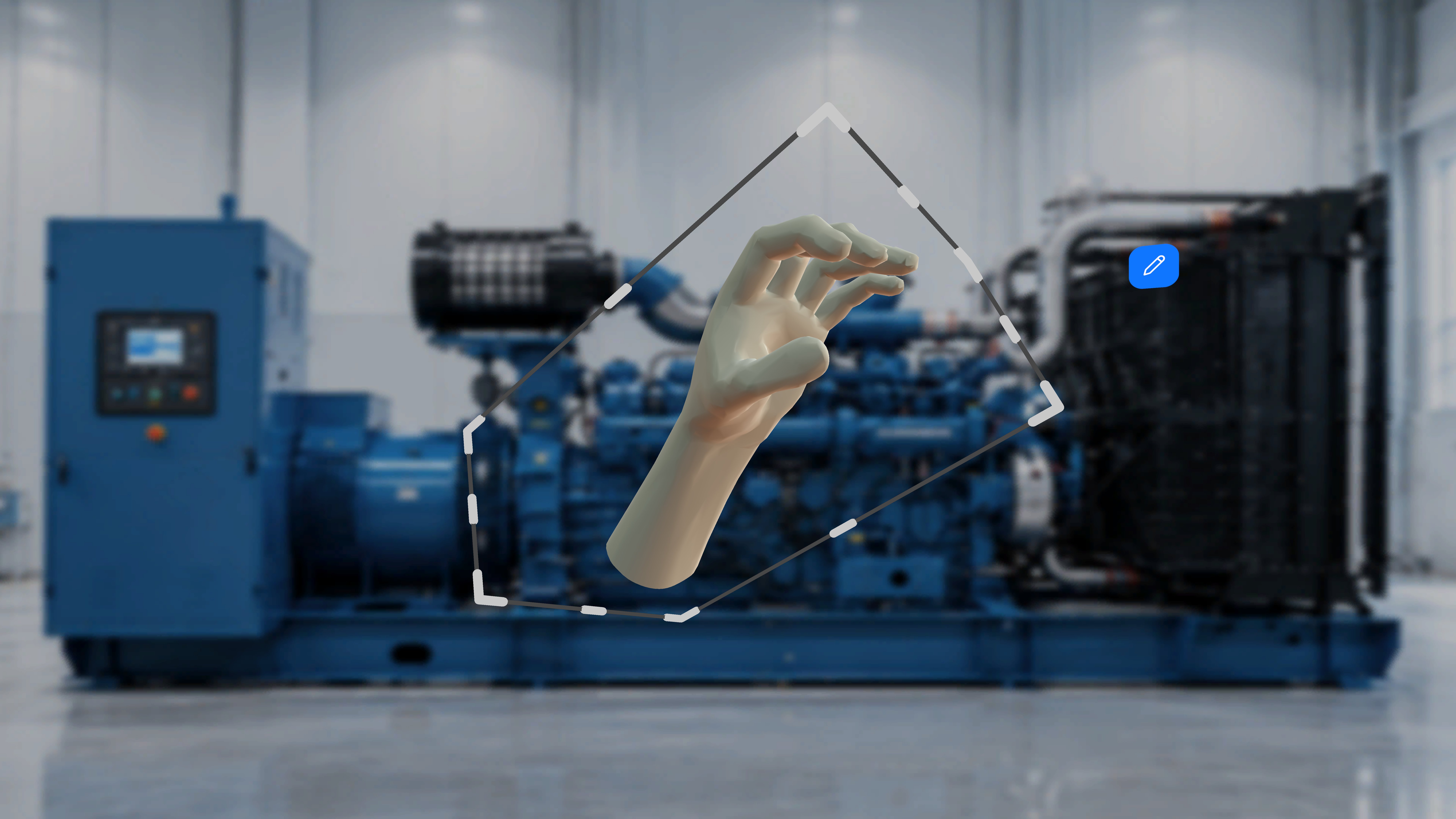 1. Click/Tap the 3D model.
### What Happens Next
A bounding box appears around the model.
You can:
* Resize the model
* Rotate the model
To remove the bounding box:
1. Click the model again.
The bounding box disappears.
***
# Open the Edit Menu
Each model has an **Edit** button (pencil icon).
1. Click/Tap the 3D model.
### What Happens Next
A bounding box appears around the model.
You can:
* Resize the model
* Rotate the model
To remove the bounding box:
1. Click the model again.
The bounding box disappears.
***
# Open the Edit Menu
Each model has an **Edit** button (pencil icon).
 ### Step-by-Step Instructions
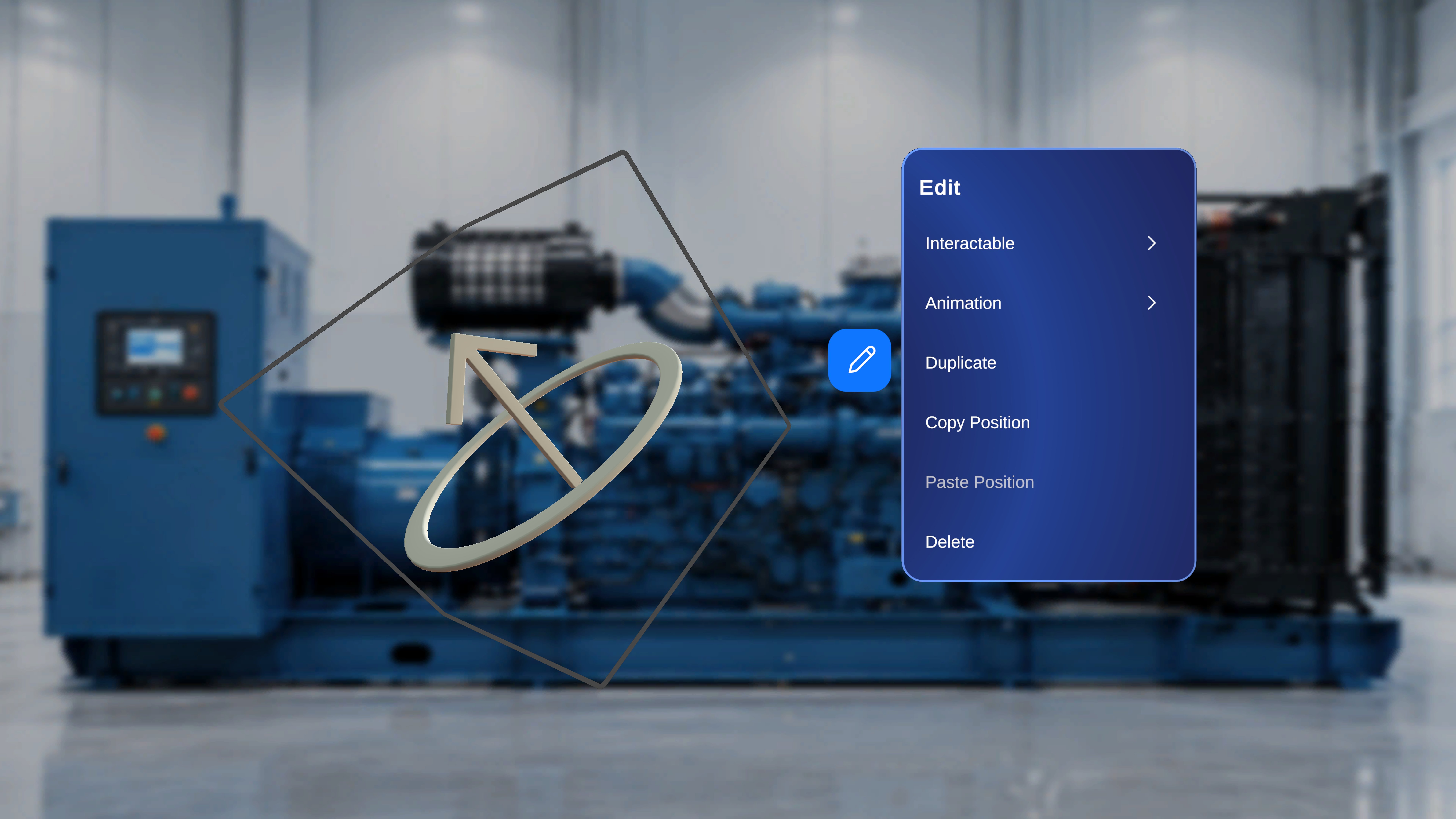
1. Click the **Edit** button.
### What Happens Next
An **Edit** panel opens with the following options:
* **Interactable**
* **Animation**
* **Duplicate**
* **Copy Position**
* **Paste Position**
* **Delete**
All options apply only to the selected model.
***
# Interactable Settings
Select **Interactable** from the Edit menu to configure operator interaction behavior.
### Step-by-Step Instructions
1. Click the **Edit** button.
### What Happens Next
An **Edit** panel opens with the following options:
* **Interactable**
* **Animation**
* **Duplicate**
* **Copy Position**
* **Paste Position**
* **Delete**
All options apply only to the selected model.
***
# Interactable Settings
Select **Interactable** from the Edit menu to configure operator interaction behavior.
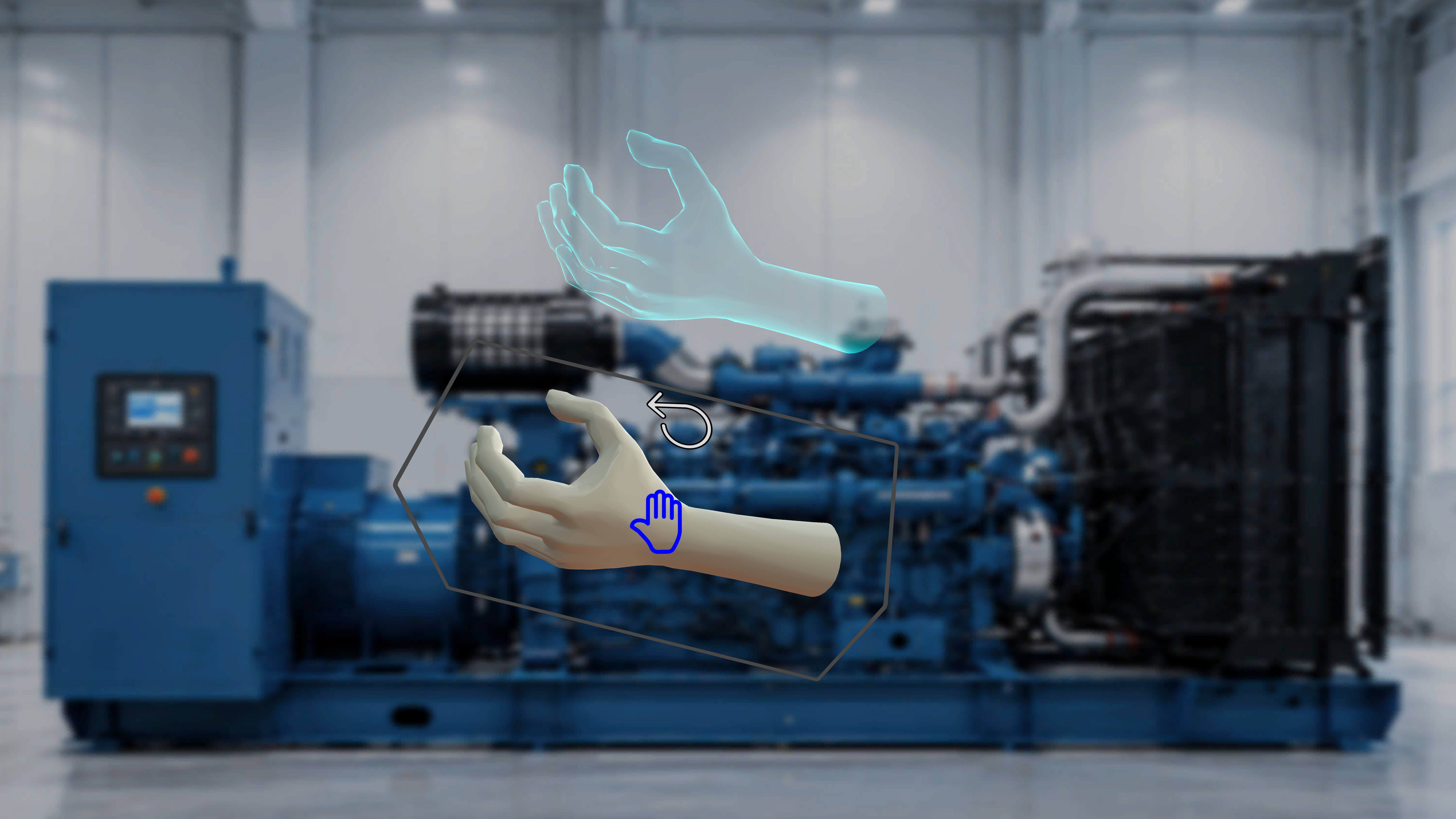
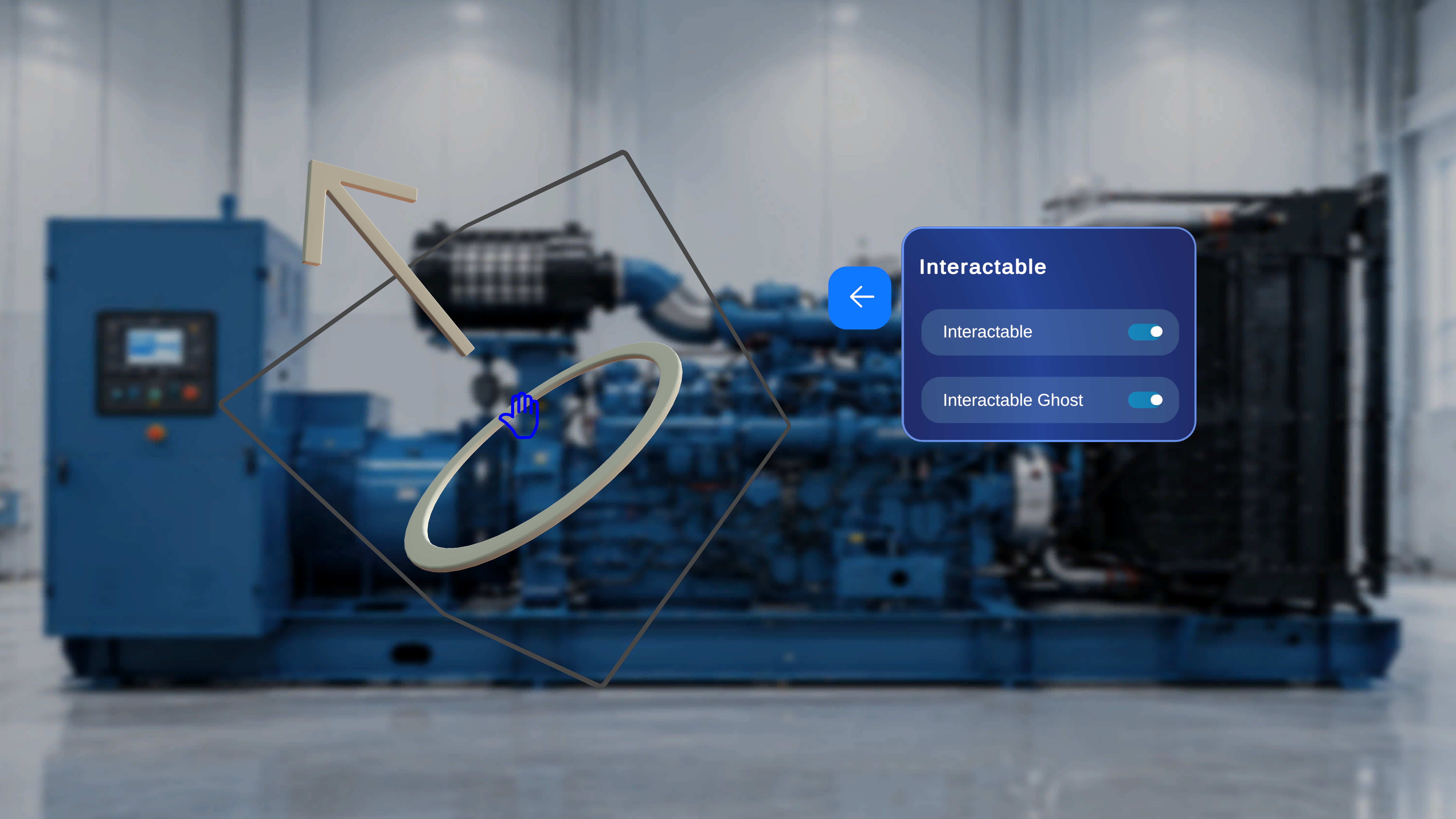 The Interactable panel includes:
* **Interactable** (toggle)
* **Interactable Ghost** (toggle)
***
## Enable Interactable
When **Interactable** is enabled:
The Interactable panel includes:
* **Interactable** (toggle)
* **Interactable Ghost** (toggle)
***
## Enable Interactable
When **Interactable** is enabled:
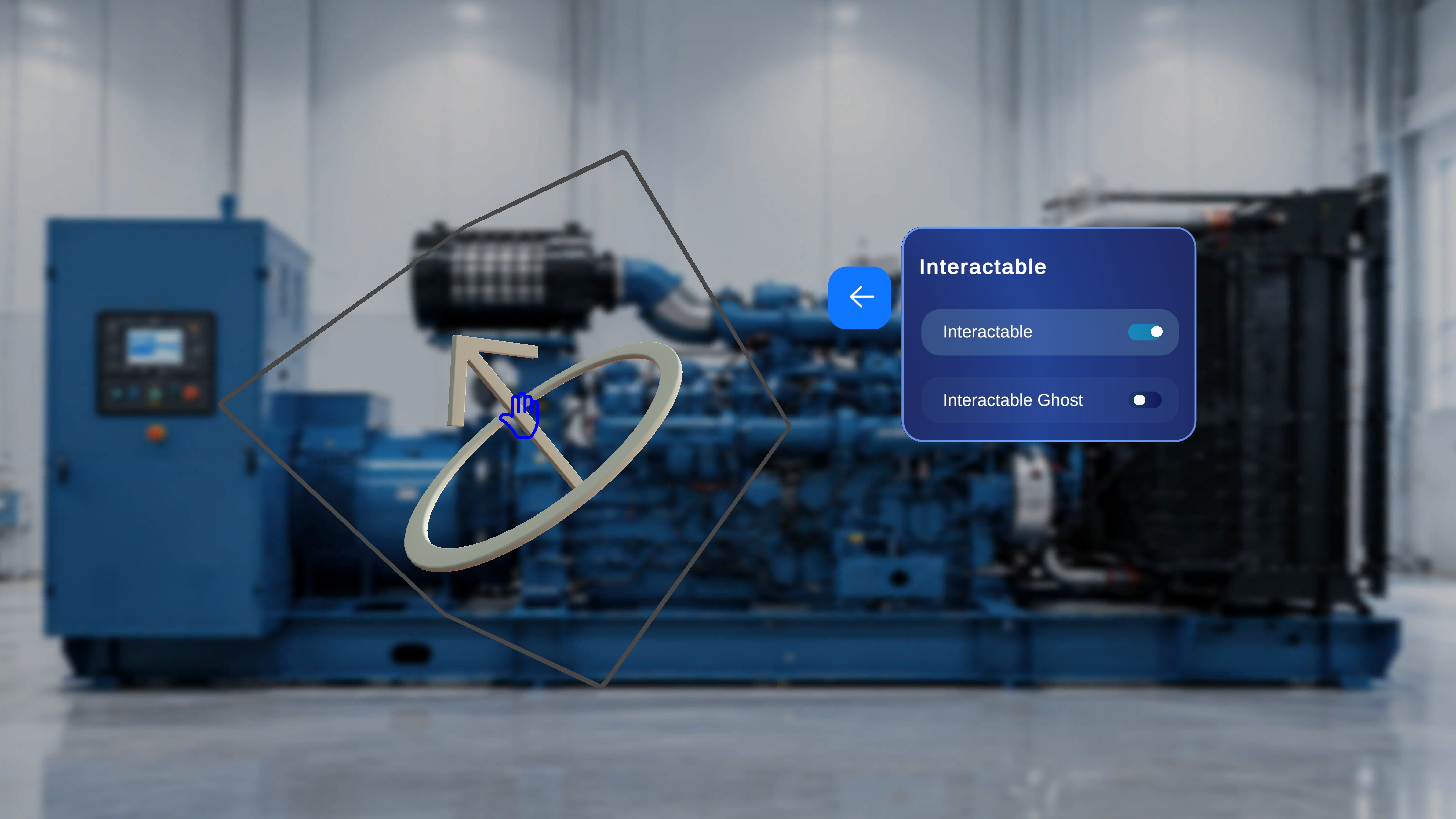 * The model becomes interactive in **Operator** mode.
* When an operator reaches the same step, they can move or interact with the model.
If **Interactable** is turned off:
* The model is not interactive in Operator mode.
* The **Interactable Ghost** toggle becomes disabled.
***
## Enable Interactable Ghost
* The model becomes interactive in **Operator** mode.
* When an operator reaches the same step, they can move or interact with the model.
If **Interactable** is turned off:
* The model is not interactive in Operator mode.
* The **Interactable Ghost** toggle becomes disabled.
***
## Enable Interactable Ghost
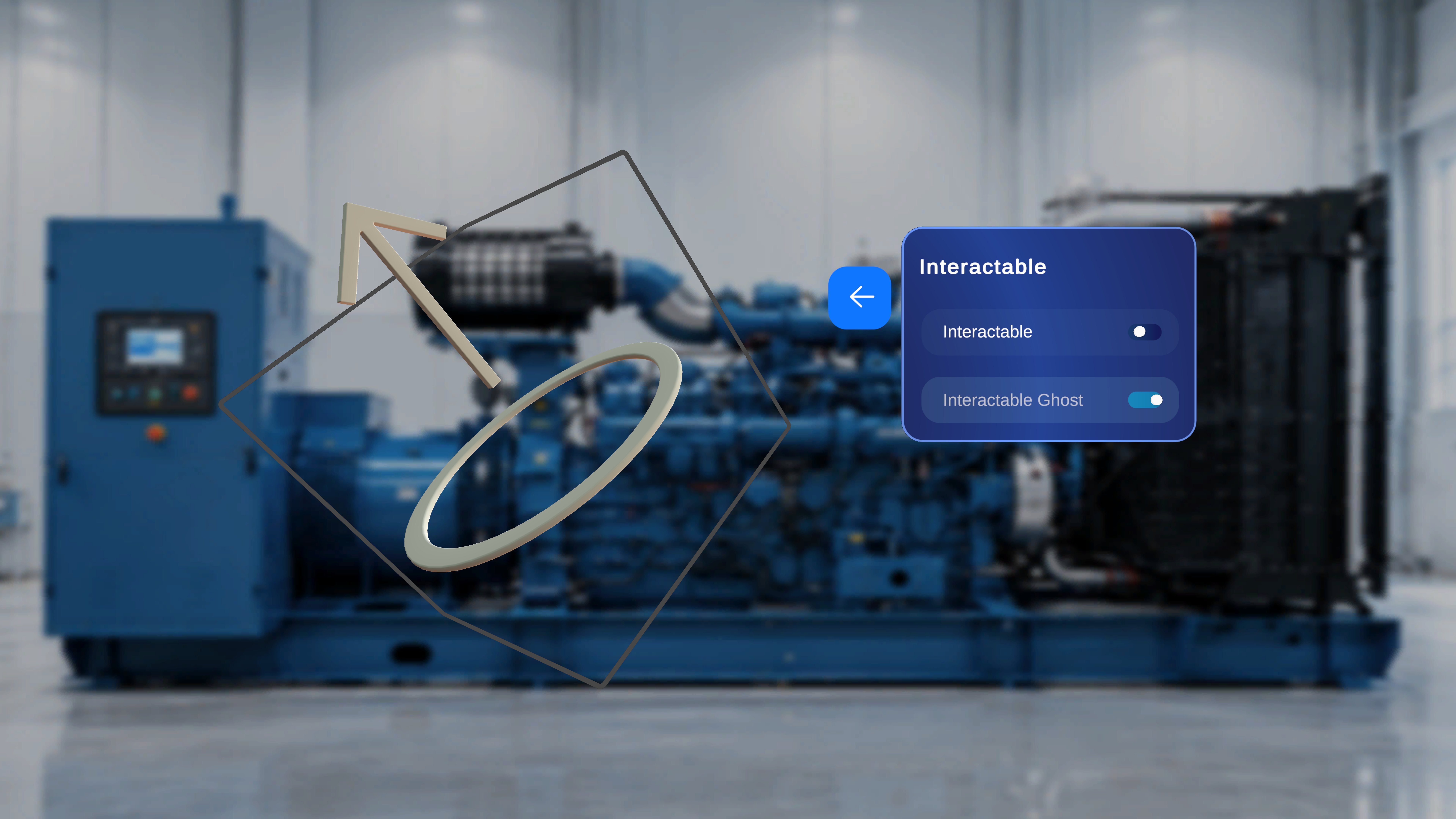 **Interactable Ghost** depends on **Interactable** being enabled.
When **Interactable Ghost** is turned on:
* If the operator moves the model in Operator mode,
* A visual ghost (shadow) remains at the model’s original position.
This helps indicate where the model was originally placed before being moved.
If **Interactable** is off, this option cannot be enabled.
***
# Animation Settings
**Interactable Ghost** depends on **Interactable** being enabled.
When **Interactable Ghost** is turned on:
* If the operator moves the model in Operator mode,
* A visual ghost (shadow) remains at the model’s original position.
This helps indicate where the model was originally placed before being moved.
If **Interactable** is off, this option cannot be enabled.
***
# Animation Settings
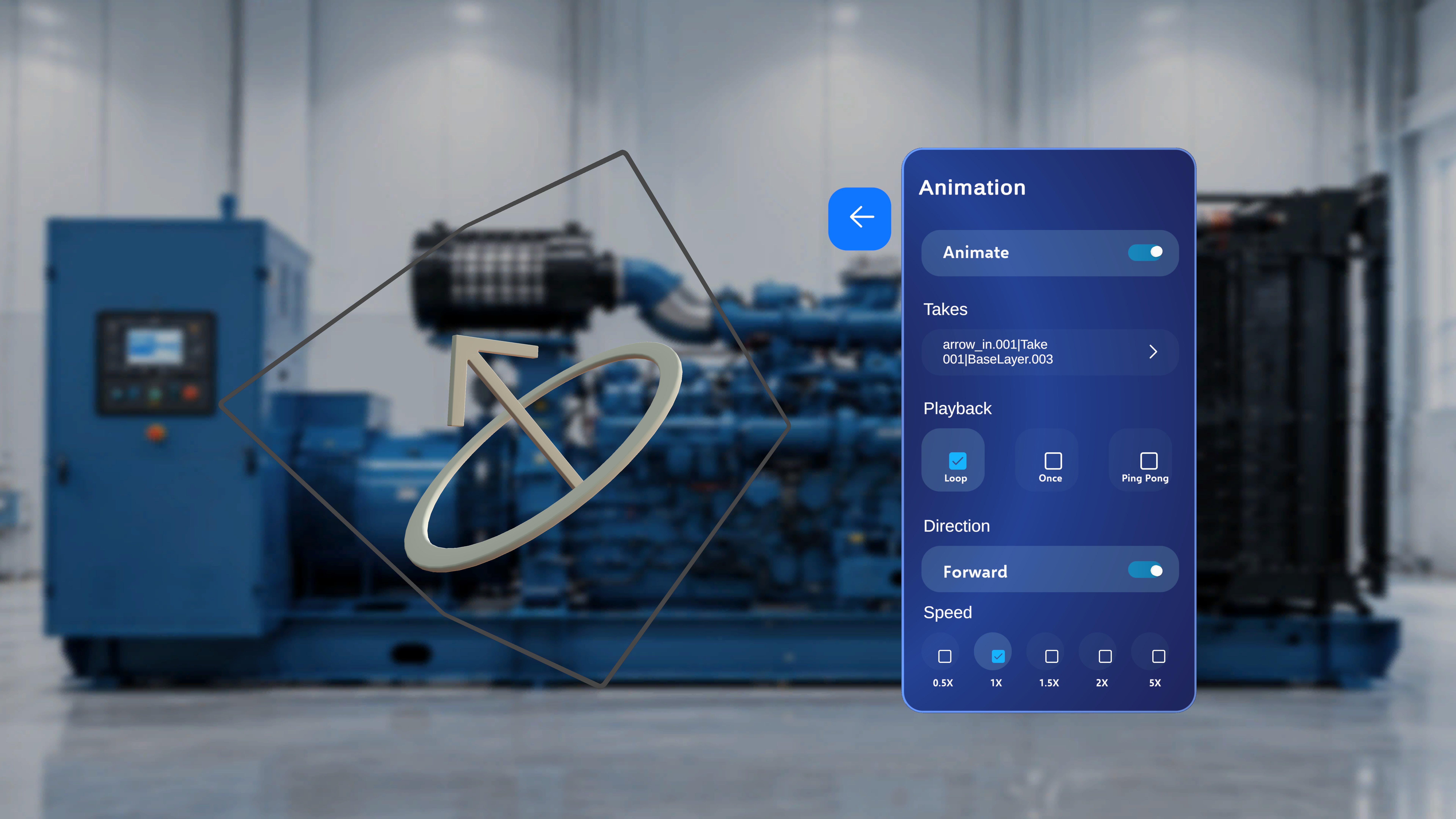 If the model contains animation data, the Edit menu includes an **Animation** option.
Select **Animation** to configure model animation behavior.
***
## Takes
If the model contains animation data, the Edit menu includes an **Animation** option.
Select **Animation** to configure model animation behavior.
***
## Takes
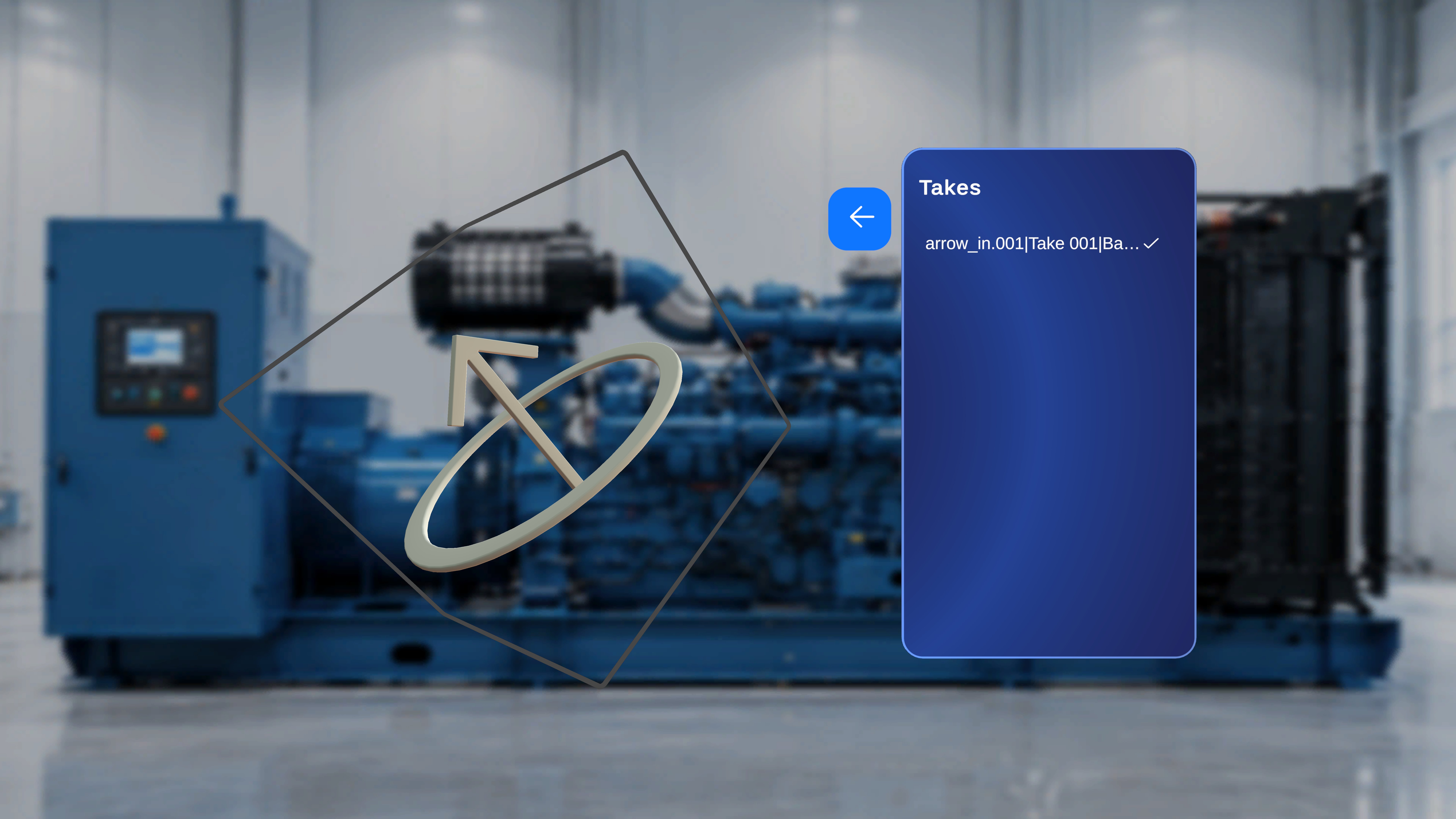 Under **Takes**, you can select from available animation takes associated with the model.
If no animation takes exist, this section may not be available.
***
## Animate Toggle
* Enable **Animate** to activate animation.
* Disable **Animate** to stop animation playback.
***
## Playback Options
You can control how the animation plays:
* **Loop**
* **Once**
* **Ping Pong**
***
## Direction
You can control animation direction:
* **Forward**
(Reverse direction behavior is not shown and may need confirmation.)
***
## Speed
Speed options include:
* 0.5x
* 1x
* 1.5x
* 2x
* 5x
Select a speed to control how fast the animation plays.
***
# Duplicate a Model
Under **Takes**, you can select from available animation takes associated with the model.
If no animation takes exist, this section may not be available.
***
## Animate Toggle
* Enable **Animate** to activate animation.
* Disable **Animate** to stop animation playback.
***
## Playback Options
You can control how the animation plays:
* **Loop**
* **Once**
* **Ping Pong**
***
## Direction
You can control animation direction:
* **Forward**
(Reverse direction behavior is not shown and may need confirmation.)
***
## Speed
Speed options include:
* 0.5x
* 1x
* 1.5x
* 2x
* 5x
Select a speed to control how fast the animation plays.
***
# Duplicate a Model
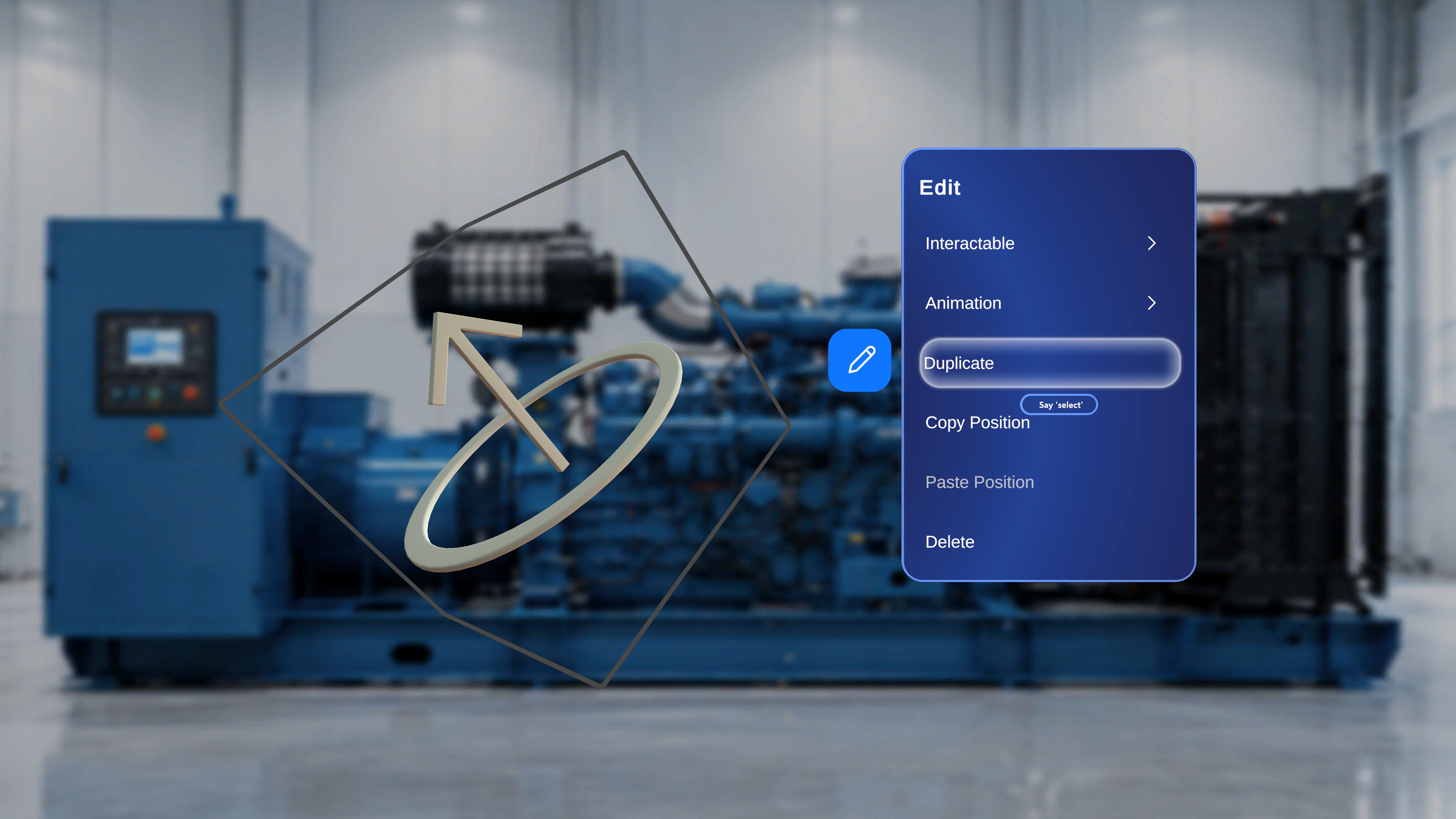
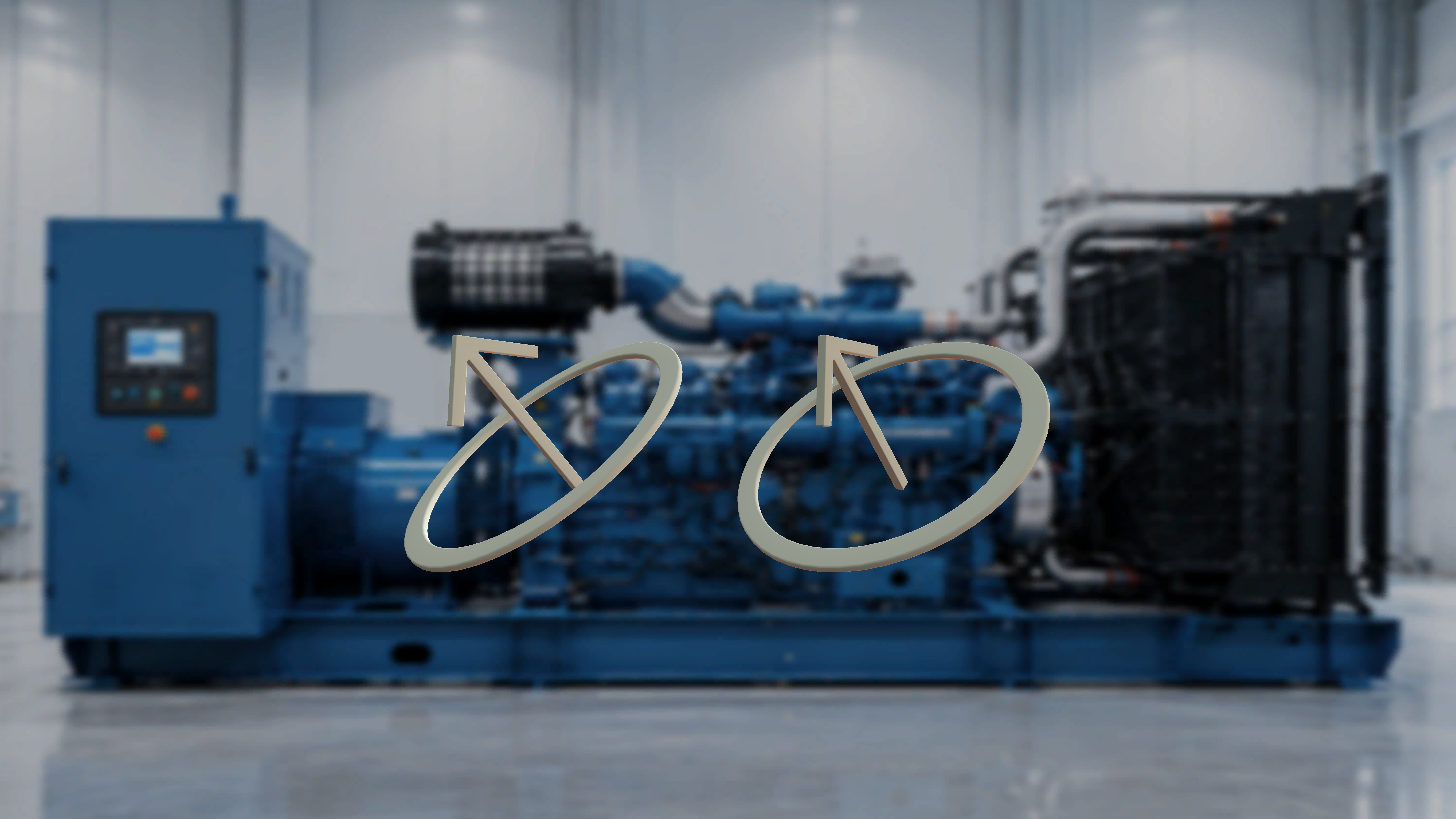 1. Open the **Edit** menu.
2. Select **Duplicate**.
### What Happens Next
A copy of the selected model is created in the scene.
***
# Copy and Paste Position
Use position controls to match placement between models.
### Copy Position
1. Open the **Edit** menu.
2. Select **Duplicate**.
### What Happens Next
A copy of the selected model is created in the scene.
***
# Copy and Paste Position
Use position controls to match placement between models.
### Copy Position
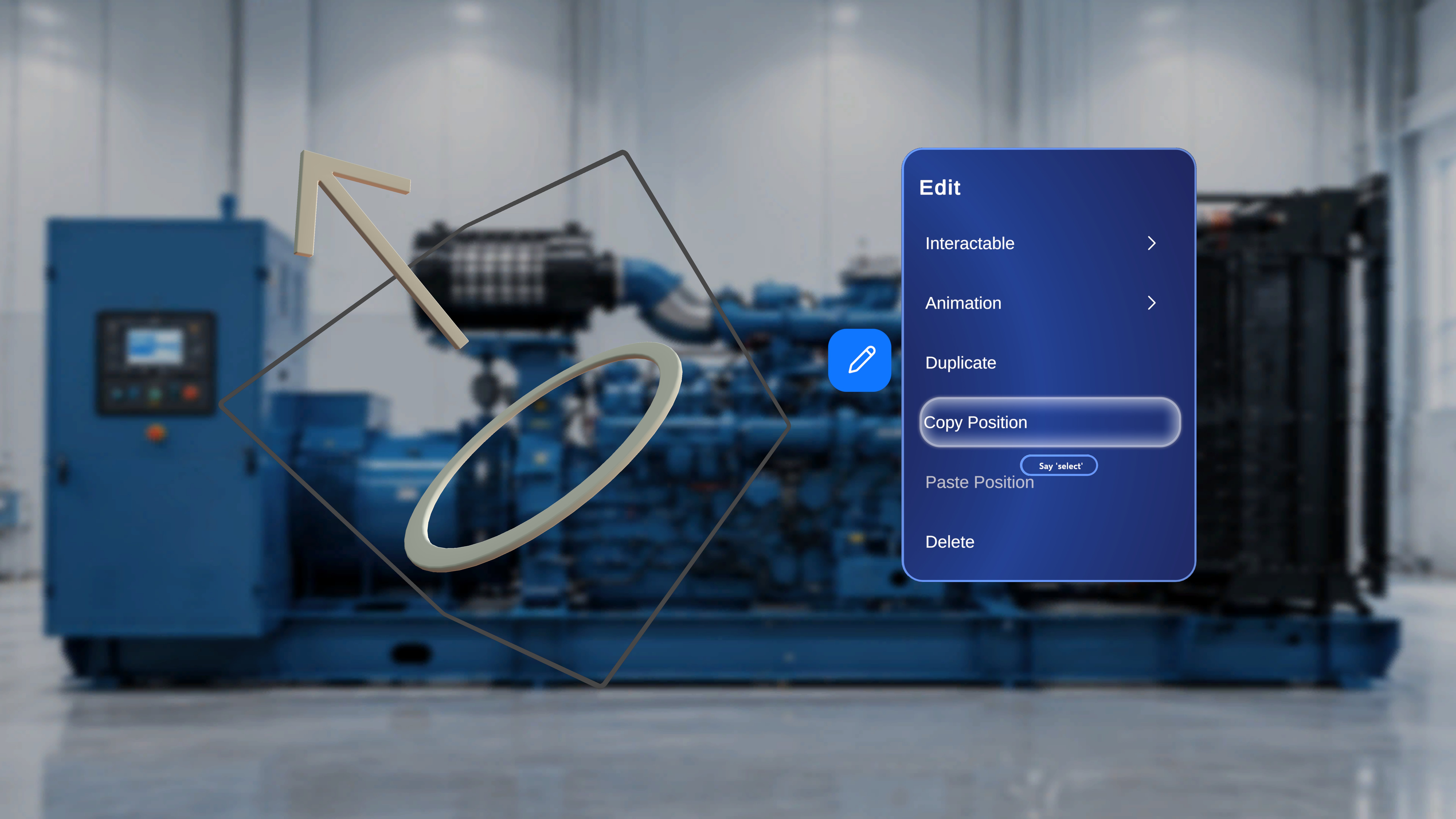 1. Open the **Edit** menu.
2. Select **Copy Position**.
### Paste Position
1. Open the **Edit** menu.
2. Select **Copy Position**.
### Paste Position
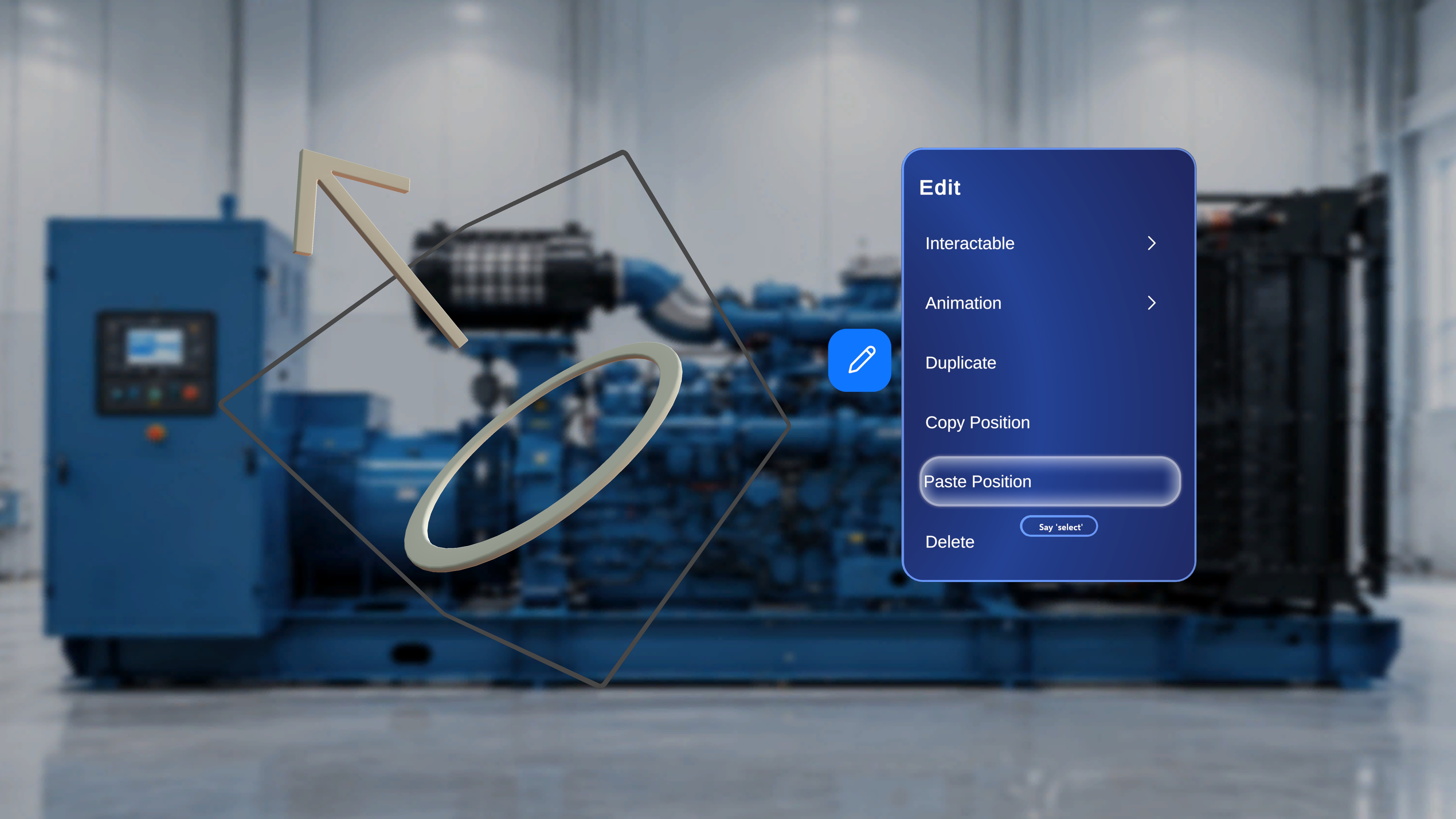 1. Select another model.
2. Open its **Edit** menu.
3. Select **Paste Position**.
The second model moves to the copied position.
***
# Delete a Model
1. Select another model.
2. Open its **Edit** menu.
3. Select **Paste Position**.
The second model moves to the copied position.
***
# Delete a Model
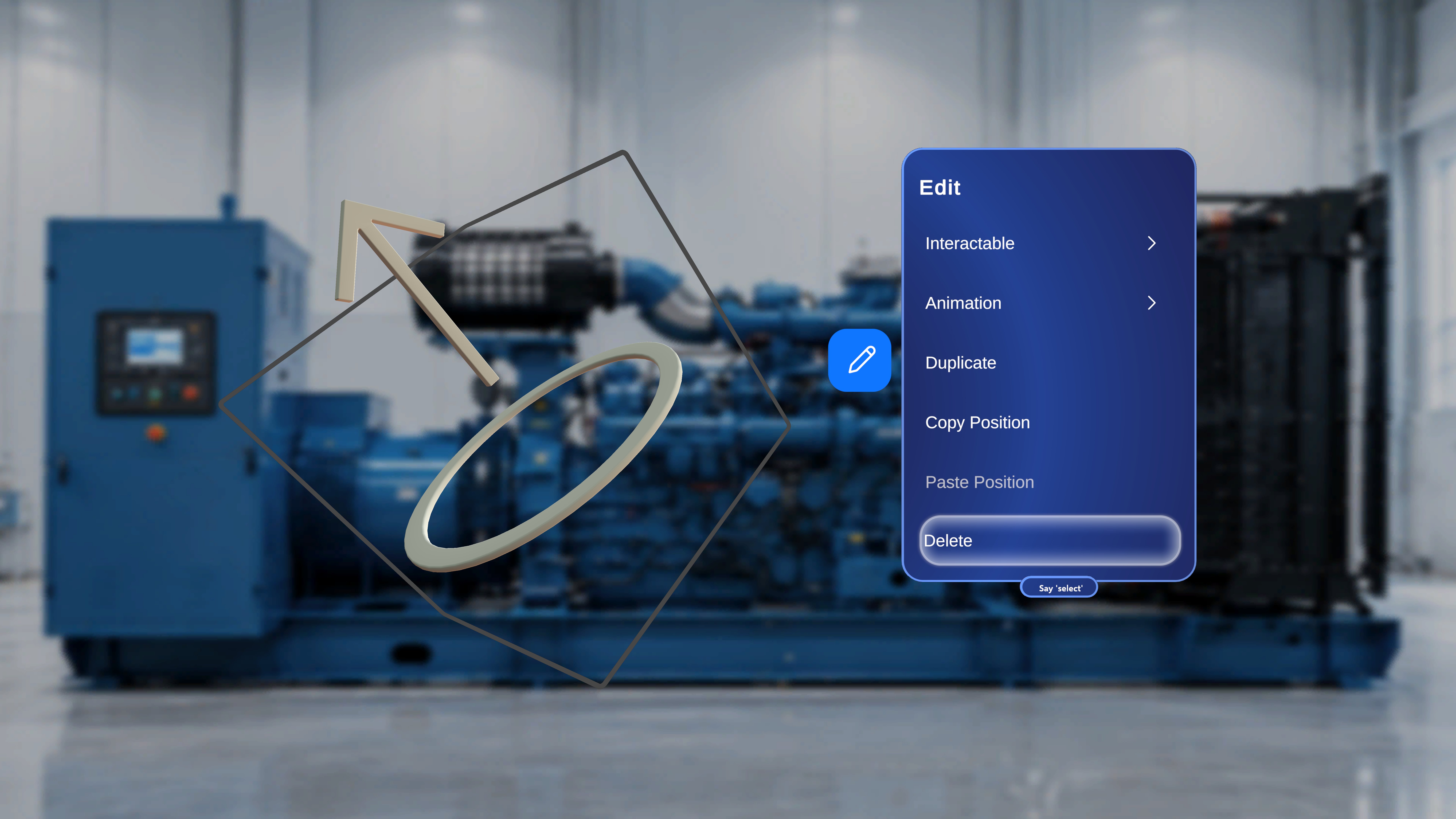 1. Open the **Edit** menu.
2. Select **Delete**.
### What Happens Next
The selected model is removed from the scene.
1. Open the **Edit** menu.
2. Select **Delete**.
### What Happens Next
The selected model is removed from the scene.