> ## Documentation Index
> Fetch the complete documentation index at: https://docs.altoura.com/llms.txt
> Use this file to discover all available pages before exploring further.
# Gem Placement in Author Mode
 ## Overview
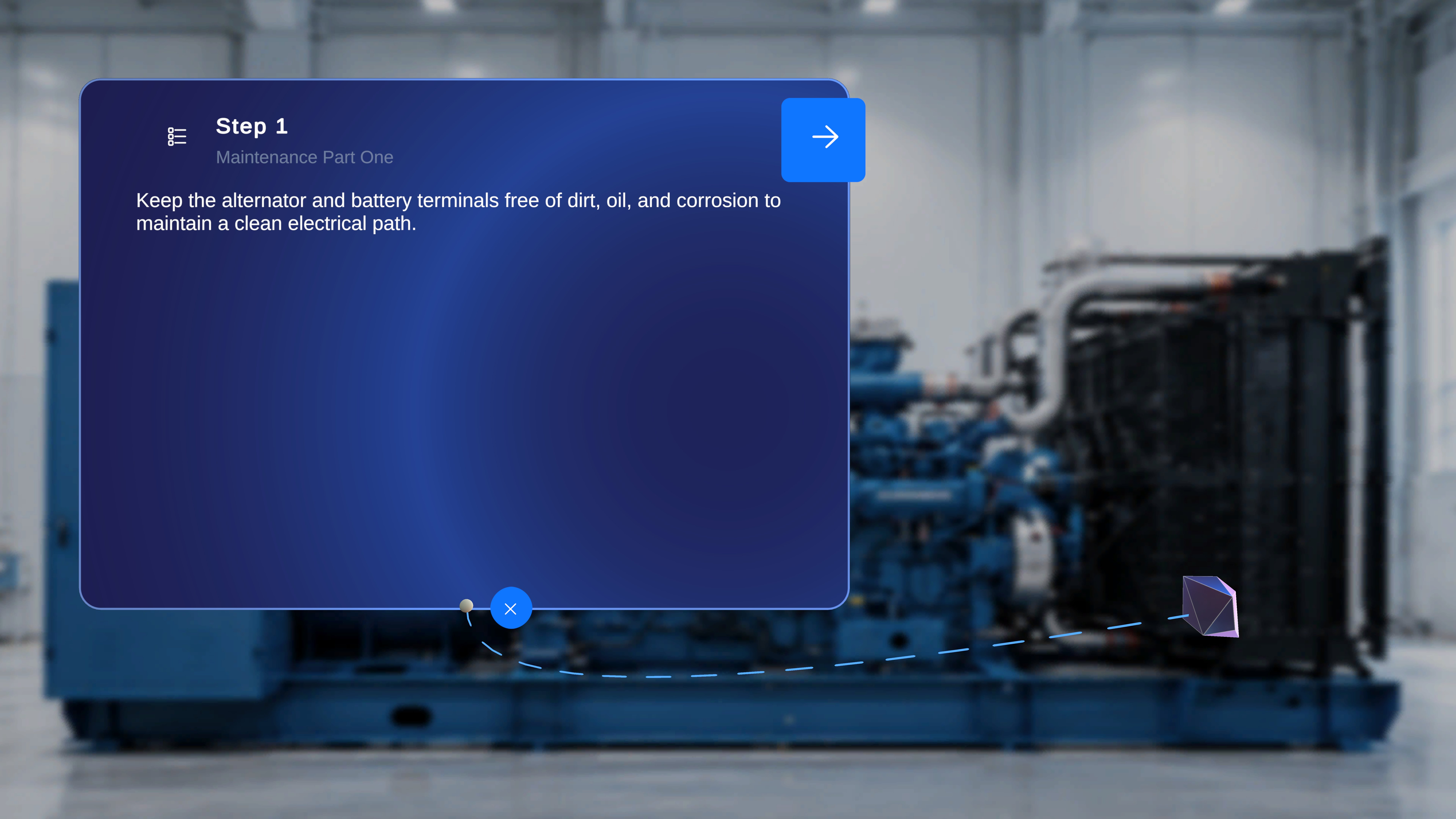
In **Author** mode, each step includes a diamond-shaped **gem icon** at the bottom of the main step panel.
This gem allows you to place a step-level anchor into the physical space.
When placed, a visible tethered line connects the step panel to the anchor location. This visual link is also shown in **Operator** mode.
The gem placement applies only to the current step.
***
## When to Use This Feature
Use the gem placement to:
* Visually link a step to a specific physical location
* Guide operators to a precise point in the environment
* Provide spatial context for step instructions
Each step can have its own anchor placement.
***
# Place the Step Anchor (Author Mode)
### Step-by-Step Instructions
1. Locate the **gem icon** at the bottom of the step panel.
2. Click the gem icon.
3. Move your pointer to the desired location in the physical space.
4. Click to place the anchor.
### What Happens Next
* The gem is placed at the selected physical location.
* A visible **tethered line** connects the step panel to the placed anchor.
* The step is now spatially linked to that location.
***
# Tethered Line Behavior
Once placed:
* A thread-like line remains visible between the step panel and the anchor.
* This same tethered line is shown when the procedure is accessed in **Operator** mode.
* The tether helps users visually identify where the step applies in the environment.
***
# Step-Level Behavior
Gem placement is configured per step.
* A step may have a placed anchor.
* Another step may not have one.
* When navigating forward or backward, the tether updates based on that step’s configuration.
If no anchor was placed for a step:
* No tethered line appears.
## Overview
In **Author** mode, each step includes a diamond-shaped **gem icon** at the bottom of the main step panel.
This gem allows you to place a step-level anchor into the physical space.
When placed, a visible tethered line connects the step panel to the anchor location. This visual link is also shown in **Operator** mode.
The gem placement applies only to the current step.
***
## When to Use This Feature
Use the gem placement to:
* Visually link a step to a specific physical location
* Guide operators to a precise point in the environment
* Provide spatial context for step instructions
Each step can have its own anchor placement.
***
# Place the Step Anchor (Author Mode)
### Step-by-Step Instructions
1. Locate the **gem icon** at the bottom of the step panel.
2. Click the gem icon.
3. Move your pointer to the desired location in the physical space.
4. Click to place the anchor.
### What Happens Next
* The gem is placed at the selected physical location.
* A visible **tethered line** connects the step panel to the placed anchor.
* The step is now spatially linked to that location.
***
# Tethered Line Behavior
Once placed:
* A thread-like line remains visible between the step panel and the anchor.
* This same tethered line is shown when the procedure is accessed in **Operator** mode.
* The tether helps users visually identify where the step applies in the environment.
***
# Step-Level Behavior
Gem placement is configured per step.
* A step may have a placed anchor.
* Another step may not have one.
* When navigating forward or backward, the tether updates based on that step’s configuration.
If no anchor was placed for a step:
* No tethered line appears.