> ## Documentation Index
> Fetch the complete documentation index at: https://docs.altoura.com/llms.txt
> Use this file to discover all available pages before exploring further.
# Mode Selection
 ## Overview
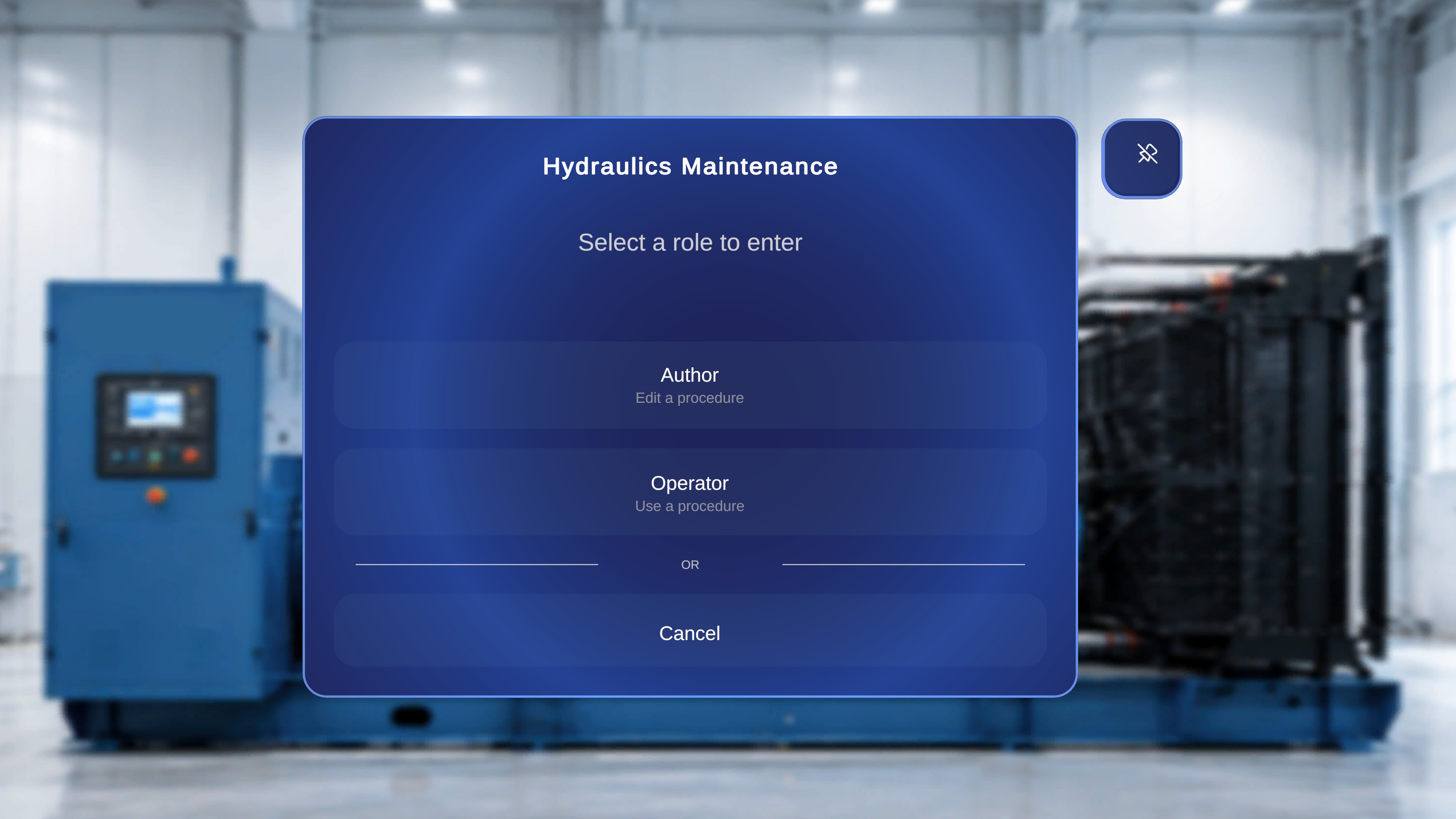
The **Select Mode** dialog appears after you choose a procedure from the **Procedures** page. It allows you to select how you want to interact with the selected procedure.
You can enter the procedure in one of two roles:
* **Author** – Edit a procedure
* **Operator** – Use a procedure
This ensures you access the procedure with the appropriate level of interaction, The below details would be covered for Author Modes.
## When to Use This Feature
Use the **Author** **Mode** when you need to:
* Modify or update an existing procedure.
### What Happens Next, user will be taken to the QR Anchoring Flow
After selecting **Author** mode, you must scan a QR code to anchor and enter the procedure.
The system first displays a QR scan instruction panel. Once scanning is initiated, the camera interface appears. After a QR code is detected, you must confirm the anchor before proceeding.
Access to the procedure is granted only after successful confirmation.
## Overview
The **Select Mode** dialog appears after you choose a procedure from the **Procedures** page. It allows you to select how you want to interact with the selected procedure.
You can enter the procedure in one of two roles:
* **Author** – Edit a procedure
* **Operator** – Use a procedure
This ensures you access the procedure with the appropriate level of interaction, The below details would be covered for Author Modes.
## When to Use This Feature
Use the **Author** **Mode** when you need to:
* Modify or update an existing procedure.
### What Happens Next, user will be taken to the QR Anchoring Flow
After selecting **Author** mode, you must scan a QR code to anchor and enter the procedure.
The system first displays a QR scan instruction panel. Once scanning is initiated, the camera interface appears. After a QR code is detected, you must confirm the anchor before proceeding.
Access to the procedure is granted only after successful confirmation.