> ## Documentation Index
> Fetch the complete documentation index at: https://docs.altoura.com/llms.txt
> Use this file to discover all available pages before exploring further.
# Procedure Side Menu in Author Mode (Contextual)
 ## Overview
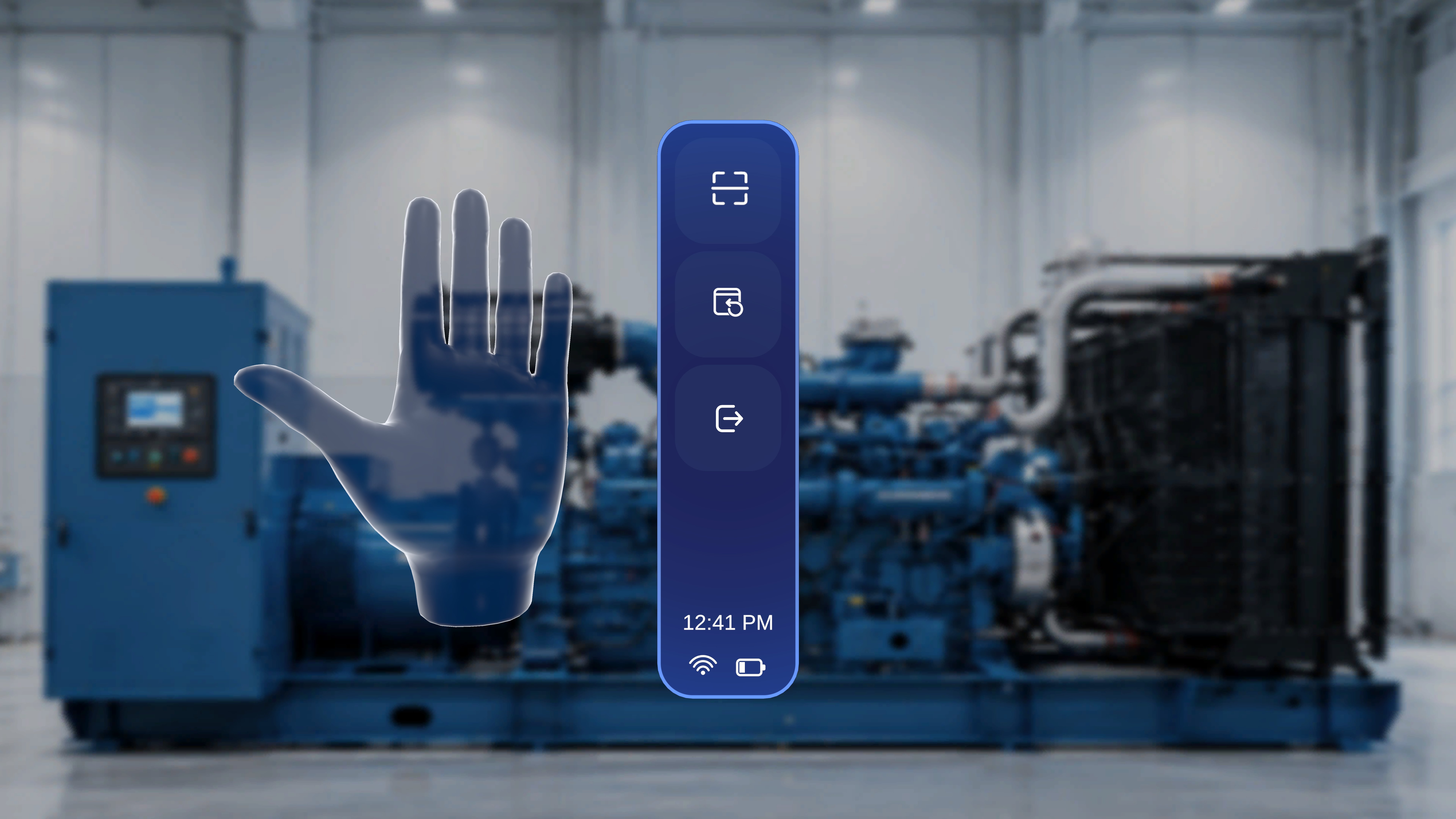
The side menu is available only while you are inside a procedure.
It is accessible in both **Author** mode and **Operator** mode.
To open the menu, raise either hand with your palm facing toward you. The vertical menu appears with three control buttons.
***
## When to Use This Feature
Use the side menu to:
* Rescan the QR anchor
* Reposition panels in front of you
* Exit the current procedure
These controls are available at any step while the procedure is active.
***
# Open the Side Menu
### Step-by-Step Instructions
1. Lift either hand.
2. Face your palm toward yourself.
### What Happens Next
The side menu appears with three vertically arranged buttons.
The current time and system status indicators are displayed at the bottom of the menu.
***
# Button 1: Rescan
## Overview
The side menu is available only while you are inside a procedure.
It is accessible in both **Author** mode and **Operator** mode.
To open the menu, raise either hand with your palm facing toward you. The vertical menu appears with three control buttons.
***
## When to Use This Feature
Use the side menu to:
* Rescan the QR anchor
* Reposition panels in front of you
* Exit the current procedure
These controls are available at any step while the procedure is active.
***
# Open the Side Menu
### Step-by-Step Instructions
1. Lift either hand.
2. Face your palm toward yourself.
### What Happens Next
The side menu appears with three vertically arranged buttons.
The current time and system status indicators are displayed at the bottom of the menu.
***
# Button 1: Rescan
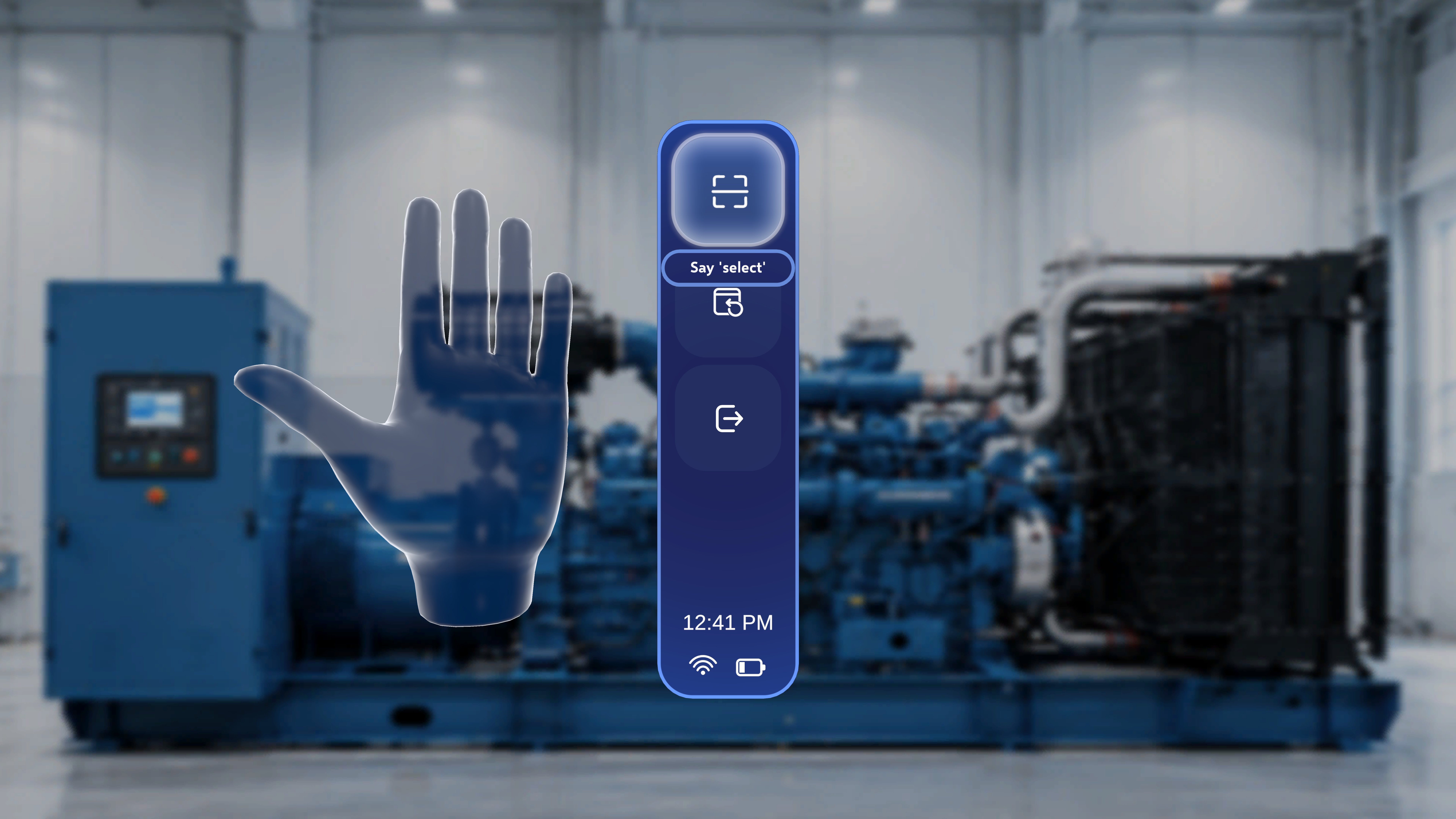 Use this option if the QR anchor was positioned incorrectly or if alignment needs to be redone.
### Step-by-Step Instructions
1. Open the side menu.
2. Select the **Rescan** button (top icon).
### What Happens Next
* The system exits the current anchor alignment.
* The QR scanning interface opens again.
* You can realign and confirm the QR code.
After confirming, the procedure reloads relative to the updated anchor position.
***
# Button 2: Reposition Panels
Use this option if the QR anchor was positioned incorrectly or if alignment needs to be redone.
### Step-by-Step Instructions
1. Open the side menu.
2. Select the **Rescan** button (top icon).
### What Happens Next
* The system exits the current anchor alignment.
* The QR scanning interface opens again.
* You can realign and confirm the QR code.
After confirming, the procedure reloads relative to the updated anchor position.
***
# Button 2: Reposition Panels
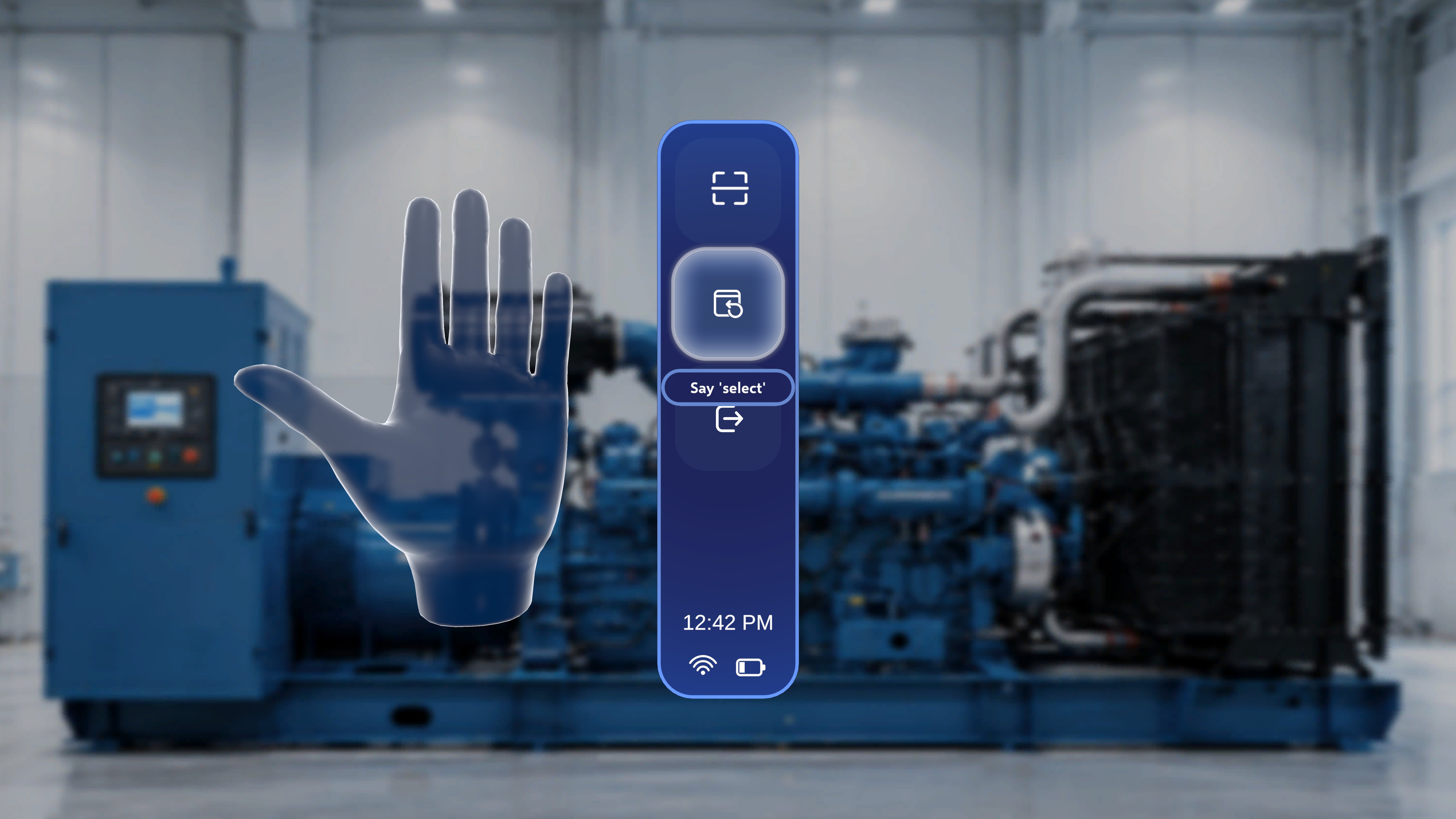 Use this option to bring all panels back in front of you.
This applies to:
* The main step panel
* The Media panel
* The 3D Model panel
### Step-by-Step Instructions
1. Open the side menu.
2. Select the **Reposition** button (middle icon).
### What Happens Next
All active panels reposition directly in front of your current view.
This works the same in Author mode and Operator mode.
***
# Button 3: Exit Procedure
Use this option to bring all panels back in front of you.
This applies to:
* The main step panel
* The Media panel
* The 3D Model panel
### Step-by-Step Instructions
1. Open the side menu.
2. Select the **Reposition** button (middle icon).
### What Happens Next
All active panels reposition directly in front of your current view.
This works the same in Author mode and Operator mode.
***
# Button 3: Exit Procedure
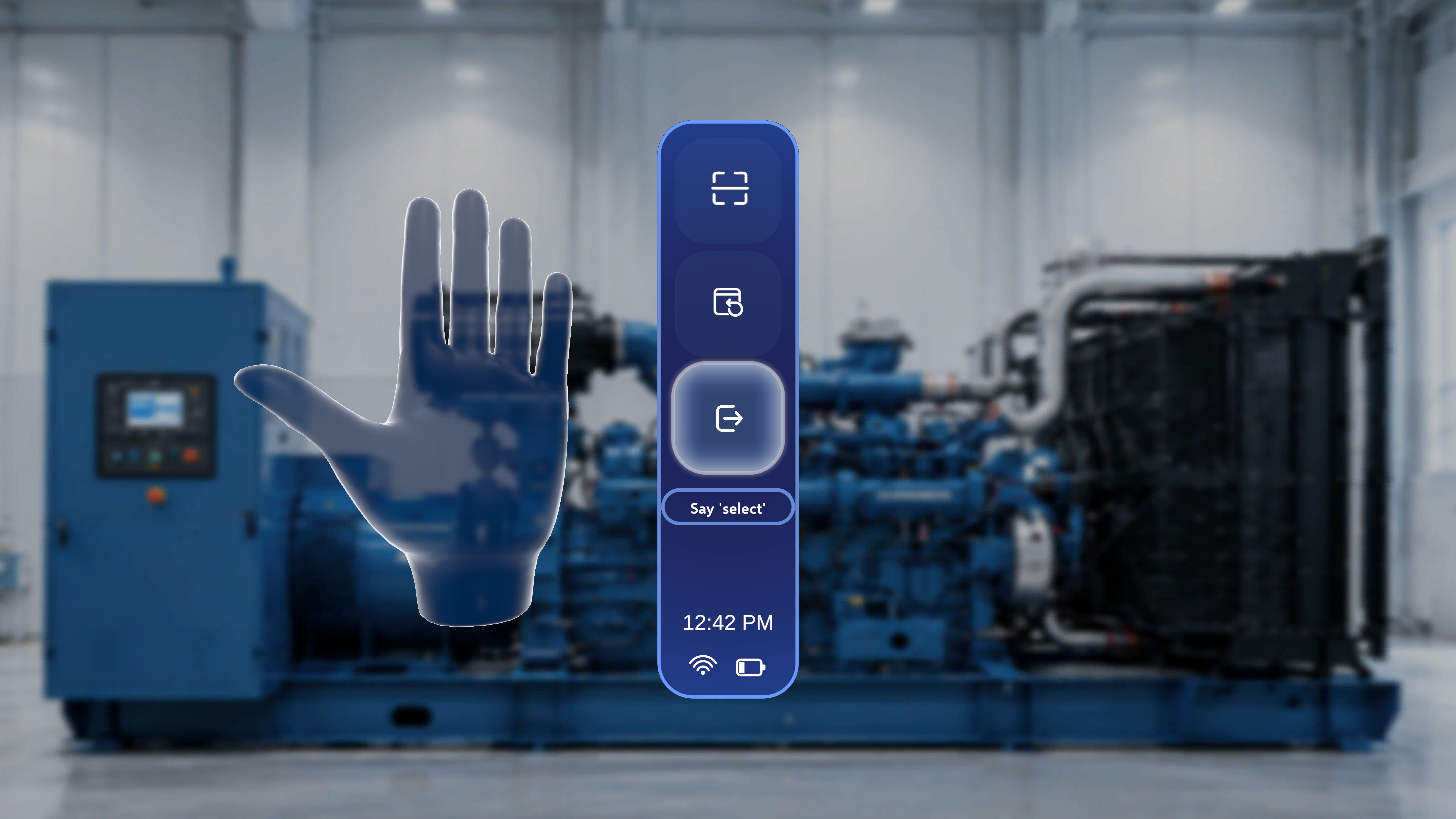 Use this option to leave the current procedure.
### Step-by-Step Instructions
1. Open the side menu.
2. Select the **Exit** button (bottom icon).
### What Happens Next
An **Exit Procedure** confirmation panel appears with the message:
"You are about to exit this procedure"
Two options are displayed:
* **Resume**
* **Exit Procedure**
***
## Resume
Select **Resume** to close the confirmation panel and continue the procedure from the current step.
***
## Exit Procedure
Use this option to leave the current procedure.
### Step-by-Step Instructions
1. Open the side menu.
2. Select the **Exit** button (bottom icon).
### What Happens Next
An **Exit Procedure** confirmation panel appears with the message:
"You are about to exit this procedure"
Two options are displayed:
* **Resume**
* **Exit Procedure**
***
## Resume
Select **Resume** to close the confirmation panel and continue the procedure from the current step.
***
## Exit Procedure
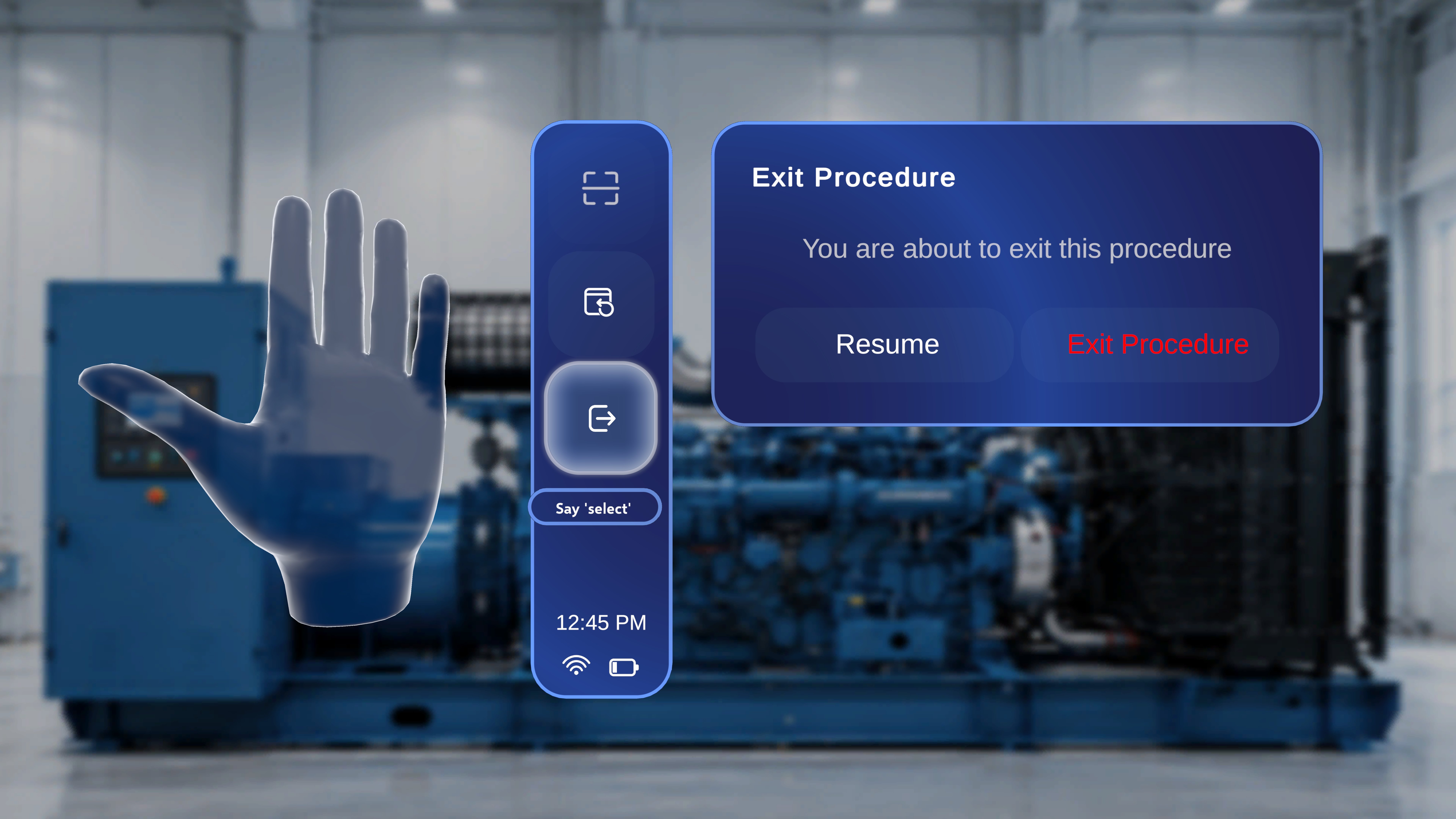 Select **Exit Procedure** to leave the procedure.
The system returns you to the Procedure page.
Select **Exit Procedure** to leave the procedure.
The system returns you to the Procedure page.