> ## Documentation Index
> Fetch the complete documentation index at: https://docs.altoura.com/llms.txt
> Use this file to discover all available pages before exploring further.
# List of Tasks/Steps in Author Mode
 # Step List Panel (Task & Step Navigator)
## Overview
In both **Author Mode** and **Operator Mode**, a **List Icon** appears in the Step Main Panel.
### Location
* Top-left of the Step Panel
* Positioned before the Back button
* Represented by a list-style icon
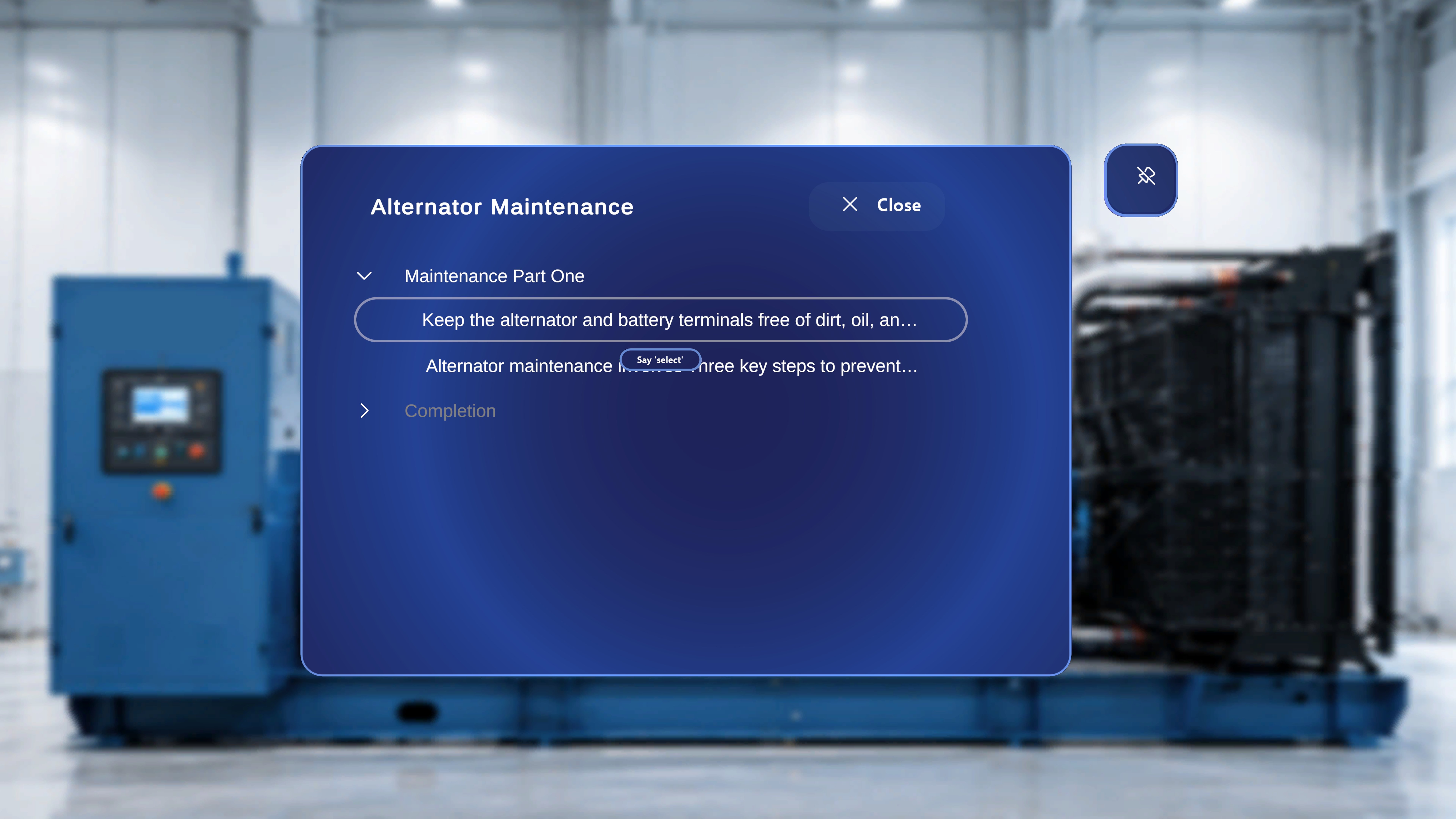
Selecting this icon opens the **Step List Panel**, which provides full navigation across the entire procedure.
***
## What Happens When Selected
Selecting the List Icon opens a panel that displays:
* The **Procedure Name** (for example, *Air Filter Replacement*)
* All **Tasks**
* All **Steps under each Task**
* All **Completion Steps**, including:
* Completion steps manually added within tasks
* The system-generated default Completion Task and Step
This panel functions as a complete procedure navigator.
***
## Navigation Capabilities
From the Step List Panel, the user can:
* Jump to any Task
* Jump to any Step within any Task
* Jump to any manually added Completion Step
* Jump to the default system-generated Completion Task and Step
* Skip forward without sequential navigation
* Move backward without using the Back button
This navigation can be performed from anywhere within the active procedure.
There is no requirement to follow the Next/Back sequence when using the Step List Panel.
***
## Behavior After Jumping to a Step
After selecting a step from the list:
* The selected step becomes active immediately.
* The Step Panel updates.
* Media and 3D content load according to that step’s configuration.
* All step-level behaviors remain consistent with normal navigation.
The system treats this as if the user had reached that step sequentially.
***
## Behavior in Author Mode
When jumping to a step in Author Mode:
* The Step Panel loads.
* The Media Panel appears if media is attached.
* The 3D Model Panel is visible.
* Attached GLB models are available in the 3D Model Panel.
* Previously placed models for that step appear in their saved positions.
* Authors can spawn additional models.
* Authors can reposition, edit, or configure models.
* Interactable and Ghost behaviors follow their configuration.
* The Thread/Gem anchor appears if configured for that step.
All authoring capabilities remain fully functional.
***
## Behavior in Operator Mode
When jumping to a step in Operator Mode:
* The Step Panel loads.
* The Media Panel appears only if media is attached.
* The 3D Model Panel is not displayed.
* Any 3D models placed during authoring appear at their saved positions.
* Interactable behavior follows configuration:
* If disabled, models cannot be manipulated.
* If Ghost is disabled, no original-position shadow is shown.
* The Thread/Gem anchor appears if configured for that step.
Operators cannot spawn or edit models.
***
## Behavior When Jumping to a Choice Step
If the selected step is a **Choice Step**:
* The Choice Step loads normally.
* No forward navigation button is available.
* The user must select a choice option to proceed.
* Branching behavior remains identical to sequential navigation.
The only difference is that the user has skipped directly to that step instead of reaching it through Next navigation.
***
## Step-Level State
Each step maintains its own saved configuration, including:
* Media attachments
* 3D models placed
* Interactable settings
* Animation settings
* Thread/Gem anchor placement
Jumping to a step loads that step exactly as authored.
***
## Close Behavior
The Step List Panel includes a **Close (X)** button.
Selecting Close returns the user to the currently active step without changing the procedure state.
# Step List Panel (Task & Step Navigator)
## Overview
In both **Author Mode** and **Operator Mode**, a **List Icon** appears in the Step Main Panel.
### Location
* Top-left of the Step Panel
* Positioned before the Back button
* Represented by a list-style icon
Selecting this icon opens the **Step List Panel**, which provides full navigation across the entire procedure.
***
## What Happens When Selected
Selecting the List Icon opens a panel that displays:
* The **Procedure Name** (for example, *Air Filter Replacement*)
* All **Tasks**
* All **Steps under each Task**
* All **Completion Steps**, including:
* Completion steps manually added within tasks
* The system-generated default Completion Task and Step
This panel functions as a complete procedure navigator.
***
## Navigation Capabilities
From the Step List Panel, the user can:
* Jump to any Task
* Jump to any Step within any Task
* Jump to any manually added Completion Step
* Jump to the default system-generated Completion Task and Step
* Skip forward without sequential navigation
* Move backward without using the Back button
This navigation can be performed from anywhere within the active procedure.
There is no requirement to follow the Next/Back sequence when using the Step List Panel.
***
## Behavior After Jumping to a Step
After selecting a step from the list:
* The selected step becomes active immediately.
* The Step Panel updates.
* Media and 3D content load according to that step’s configuration.
* All step-level behaviors remain consistent with normal navigation.
The system treats this as if the user had reached that step sequentially.
***
## Behavior in Author Mode
When jumping to a step in Author Mode:
* The Step Panel loads.
* The Media Panel appears if media is attached.
* The 3D Model Panel is visible.
* Attached GLB models are available in the 3D Model Panel.
* Previously placed models for that step appear in their saved positions.
* Authors can spawn additional models.
* Authors can reposition, edit, or configure models.
* Interactable and Ghost behaviors follow their configuration.
* The Thread/Gem anchor appears if configured for that step.
All authoring capabilities remain fully functional.
***
## Behavior in Operator Mode
When jumping to a step in Operator Mode:
* The Step Panel loads.
* The Media Panel appears only if media is attached.
* The 3D Model Panel is not displayed.
* Any 3D models placed during authoring appear at their saved positions.
* Interactable behavior follows configuration:
* If disabled, models cannot be manipulated.
* If Ghost is disabled, no original-position shadow is shown.
* The Thread/Gem anchor appears if configured for that step.
Operators cannot spawn or edit models.
***
## Behavior When Jumping to a Choice Step
If the selected step is a **Choice Step**:
* The Choice Step loads normally.
* No forward navigation button is available.
* The user must select a choice option to proceed.
* Branching behavior remains identical to sequential navigation.
The only difference is that the user has skipped directly to that step instead of reaching it through Next navigation.
***
## Step-Level State
Each step maintains its own saved configuration, including:
* Media attachments
* 3D models placed
* Interactable settings
* Animation settings
* Thread/Gem anchor placement
Jumping to a step loads that step exactly as authored.
***
## Close Behavior
The Step List Panel includes a **Close (X)** button.
Selecting Close returns the user to the currently active step without changing the procedure state.