> ## Documentation Index
> Fetch the complete documentation index at: https://docs.altoura.com/llms.txt
> Use this file to discover all available pages before exploring further.
# Completion Task & Step in Operator Mode
 ## Overview
The **Completion Step** indicates that the operator has successfully reached the end of a procedure path.
In Operator Mode, the Completion Step is execution-only. Operators cannot modify its content or configuration.
A Completion Step may appear:
* As the default system-generated final step
* As a manually added completion step within a task
* At the end of a branch created using a Choice Step
All Completion Steps behave consistently in Operator Mode.
***
## When This Appears
A Completion Step is displayed when the operator:
* Reaches the final step of a linear procedure
* Reaches the end of a branch selected through a Choice Step
* Navigates directly to a Completion Step using the Step List Panel
In branching procedures, each branch may have its own Completion Step. The operator sees the Completion Step corresponding to the path taken.
***
## Screen Elements
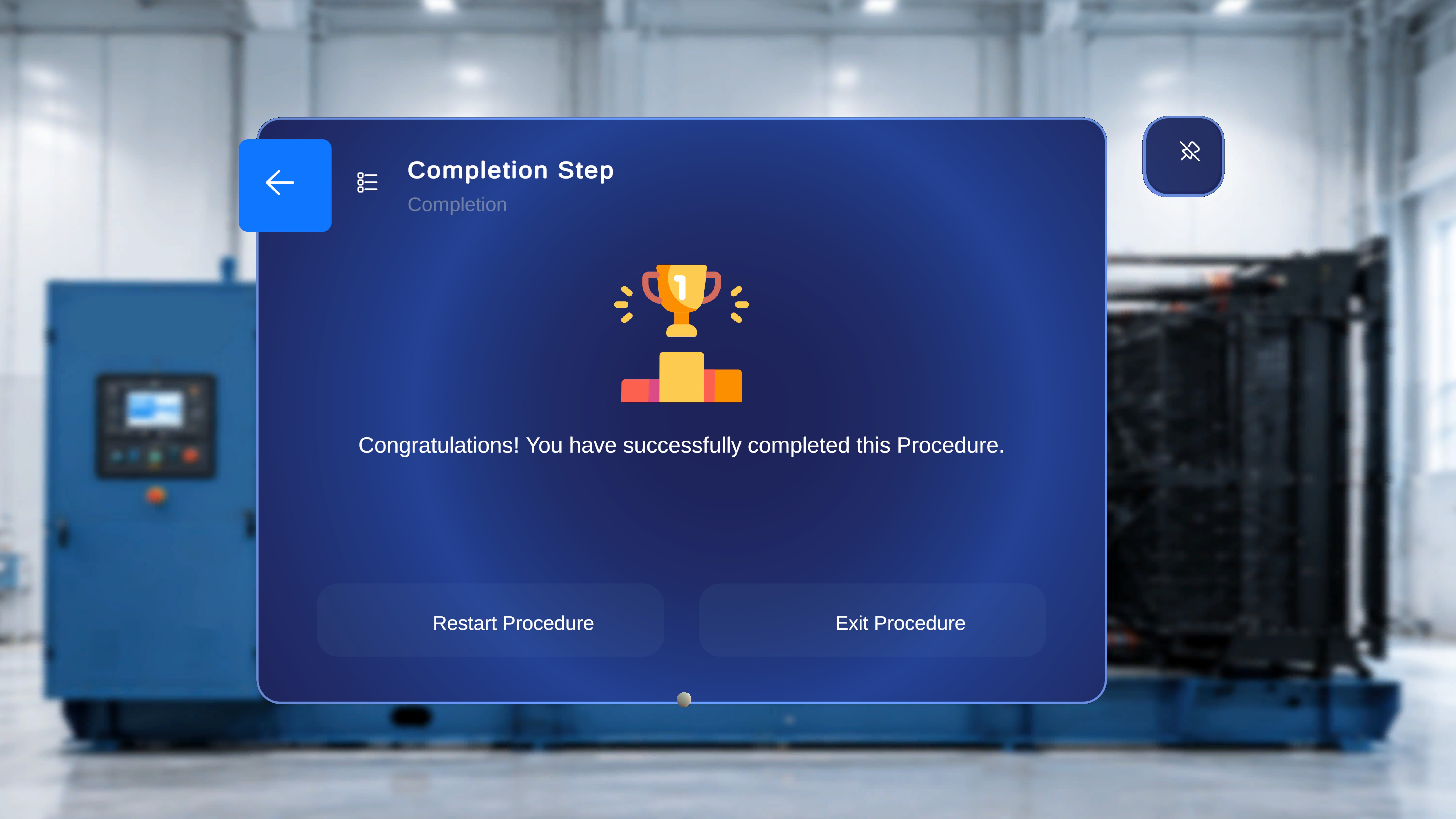
The Completion Step panel includes:
* Step Title: **Completion Step**
* Task name
* Confirmation message:
**"Congratulations! You have successfully completed this Procedure."**
* Two action buttons:
* **Restart Procedure**
* **Exit Procedure**
* A back arrow in the top-left corner
No editing or configuration controls are available in Operator Mode.
***
# Restart Procedure
Use this option to begin the procedure again from the start.
## Step-by-Step Instructions
1. Select **Restart Procedure**.
## What Happens Next
* The procedure resets.
* The first step becomes active.
* Any in-session progress is cleared.
* Anchored models and step states return to their authored configuration.
***
# Exit Procedure
Use this option to leave the current procedure session.
## Step-by-Step Instructions
1. Select **Exit Procedure**.
## What Happens Next
* The procedure closes.
* The user returns to the Home environment.
***
# Navigate Back
A back arrow appears in the top-left corner of the panel.
## Step-by-Step Instructions
1. Select the back arrow.
## What Happens Next
* The system navigates to the previous step within the active path.
* In branching procedures, the previous step corresponds to the selected branch.
***
# Behavior in Branching Procedures
If the operator reaches a Completion Step through a Choice Step:
* The Completion Step reflects the selected branch.
* It does not automatically redirect to the default system-generated Completion Task.
* Each branch-specific Completion Step functions independently.
This ensures that every valid workflow path ends with an appropriate completion confirmation.
## Overview
The **Completion Step** indicates that the operator has successfully reached the end of a procedure path.
In Operator Mode, the Completion Step is execution-only. Operators cannot modify its content or configuration.
A Completion Step may appear:
* As the default system-generated final step
* As a manually added completion step within a task
* At the end of a branch created using a Choice Step
All Completion Steps behave consistently in Operator Mode.
***
## When This Appears
A Completion Step is displayed when the operator:
* Reaches the final step of a linear procedure
* Reaches the end of a branch selected through a Choice Step
* Navigates directly to a Completion Step using the Step List Panel
In branching procedures, each branch may have its own Completion Step. The operator sees the Completion Step corresponding to the path taken.
***
## Screen Elements
The Completion Step panel includes:
* Step Title: **Completion Step**
* Task name
* Confirmation message:
**"Congratulations! You have successfully completed this Procedure."**
* Two action buttons:
* **Restart Procedure**
* **Exit Procedure**
* A back arrow in the top-left corner
No editing or configuration controls are available in Operator Mode.
***
# Restart Procedure
Use this option to begin the procedure again from the start.
## Step-by-Step Instructions
1. Select **Restart Procedure**.
## What Happens Next
* The procedure resets.
* The first step becomes active.
* Any in-session progress is cleared.
* Anchored models and step states return to their authored configuration.
***
# Exit Procedure
Use this option to leave the current procedure session.
## Step-by-Step Instructions
1. Select **Exit Procedure**.
## What Happens Next
* The procedure closes.
* The user returns to the Home environment.
***
# Navigate Back
A back arrow appears in the top-left corner of the panel.
## Step-by-Step Instructions
1. Select the back arrow.
## What Happens Next
* The system navigates to the previous step within the active path.
* In branching procedures, the previous step corresponds to the selected branch.
***
# Behavior in Branching Procedures
If the operator reaches a Completion Step through a Choice Step:
* The Completion Step reflects the selected branch.
* It does not automatically redirect to the default system-generated Completion Task.
* Each branch-specific Completion Step functions independently.
This ensures that every valid workflow path ends with an appropriate completion confirmation.