> ## Documentation Index
> Fetch the complete documentation index at: https://docs.altoura.com/llms.txt
> Use this file to discover all available pages before exploring further.
# Follow Me in Operator Mode
> Keep supported panels floating in front of you as you move around while executing a procedure. Learn how to toggle Follow Me by button or voice, and where it applies in Operator mode.
## Overview
**Follow Me** is a panel behaviour that keeps a supported panel positioned in front of you as you walk or turn — so instructions stay within easy reach while you execute a procedure hands-free.
* By default, **Follow Me is OFF**. Panels remain fixed where you left them.
* When **Follow Me is ON**, the panel repositions itself in front of you as you move.
* The toggle is available as a **pin-shaped button** in the top-right corner of every panel that supports it.
* Not every panel supports Follow Me. Only panels where the behaviour is useful expose the button.
Follow Me is currently supported on selected **Procedures** panels (both Author and Operator modes) and on the global side-menu panels (Procedures, Remote Expert, Profile). Panels inside a Remote Expert session do not yet support this feature.
***
## Recognise the Follow Me Button
The Follow Me toggle is always the small **pin icon** at the top-right corner of a panel. Its appearance reflects the current state:
| State | Icon | Meaning |
| ----------------- | --------------------------- | ------------------------------- |
| **OFF** (default) | Pin with a slash through it | Panel stays where you place it. |
| **ON** | Pin without a slash | Panel follows you as you move. |
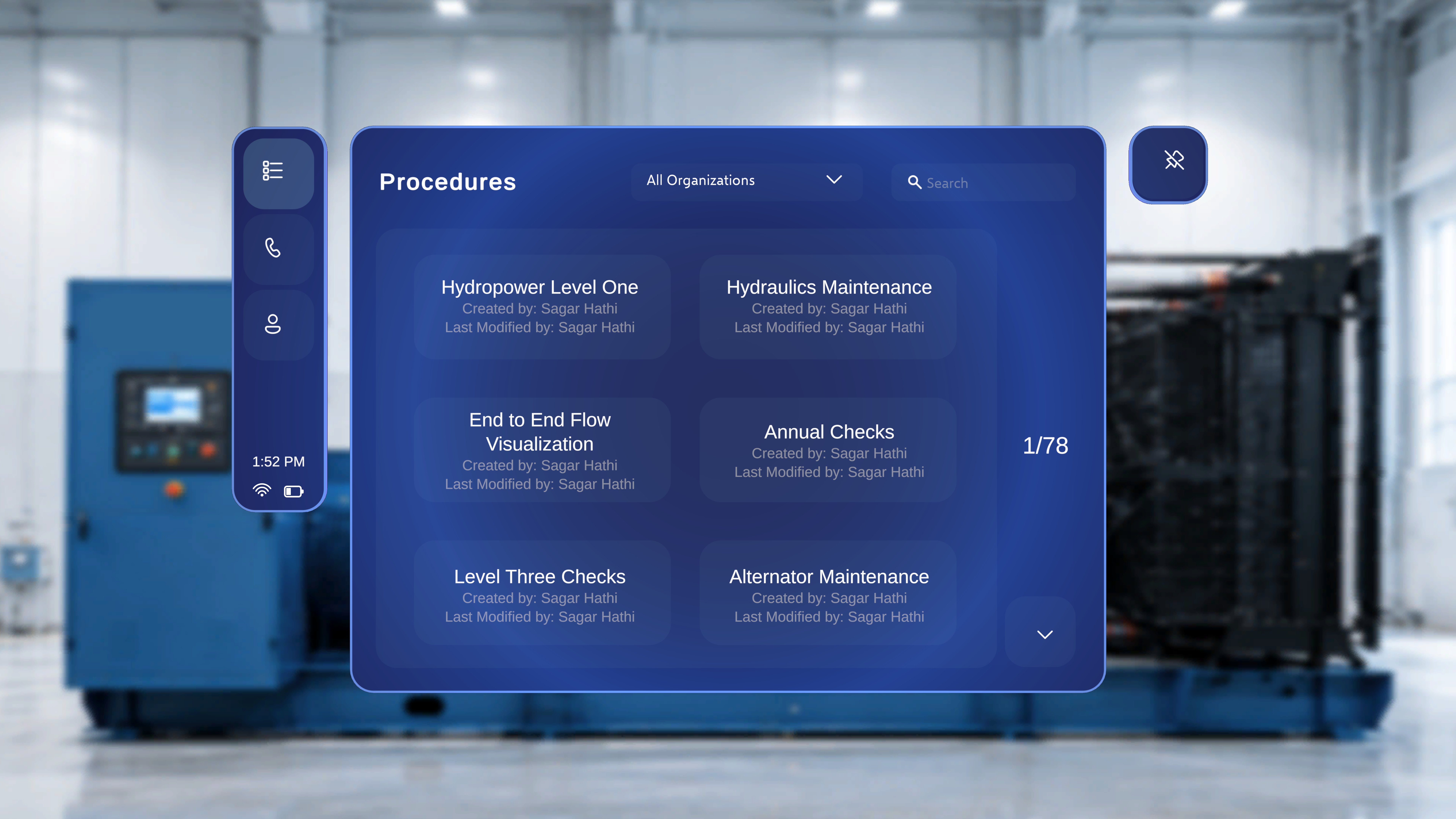 *Above: the pin button on the top-right shows a slash, indicating **Follow Me is OFF**.*
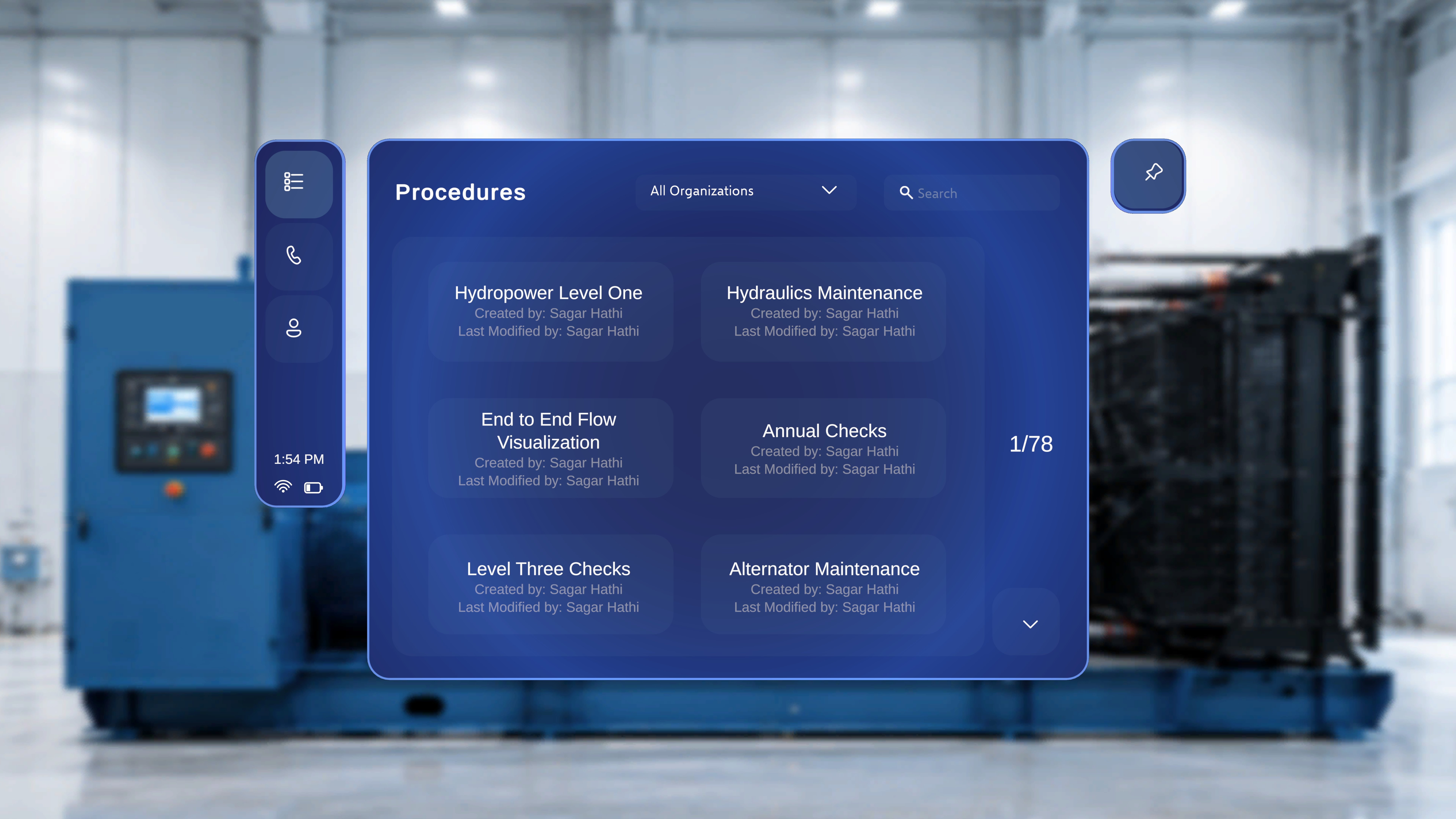 *Above: the pin button no longer shows a slash, indicating **Follow Me is ON**. The panel will now stay in front of you as you move.*
When you focus the pin button with the ray or head-gaze cursor, it lights up and shows the **"Say 'select'"** voice hint — ready to be activated by an air-tap or by saying **"Select"**.
*Above: the pin button no longer shows a slash, indicating **Follow Me is ON**. The panel will now stay in front of you as you move.*
When you focus the pin button with the ray or head-gaze cursor, it lights up and shows the **"Say 'select'"** voice hint — ready to be activated by an air-tap or by saying **"Select"**.
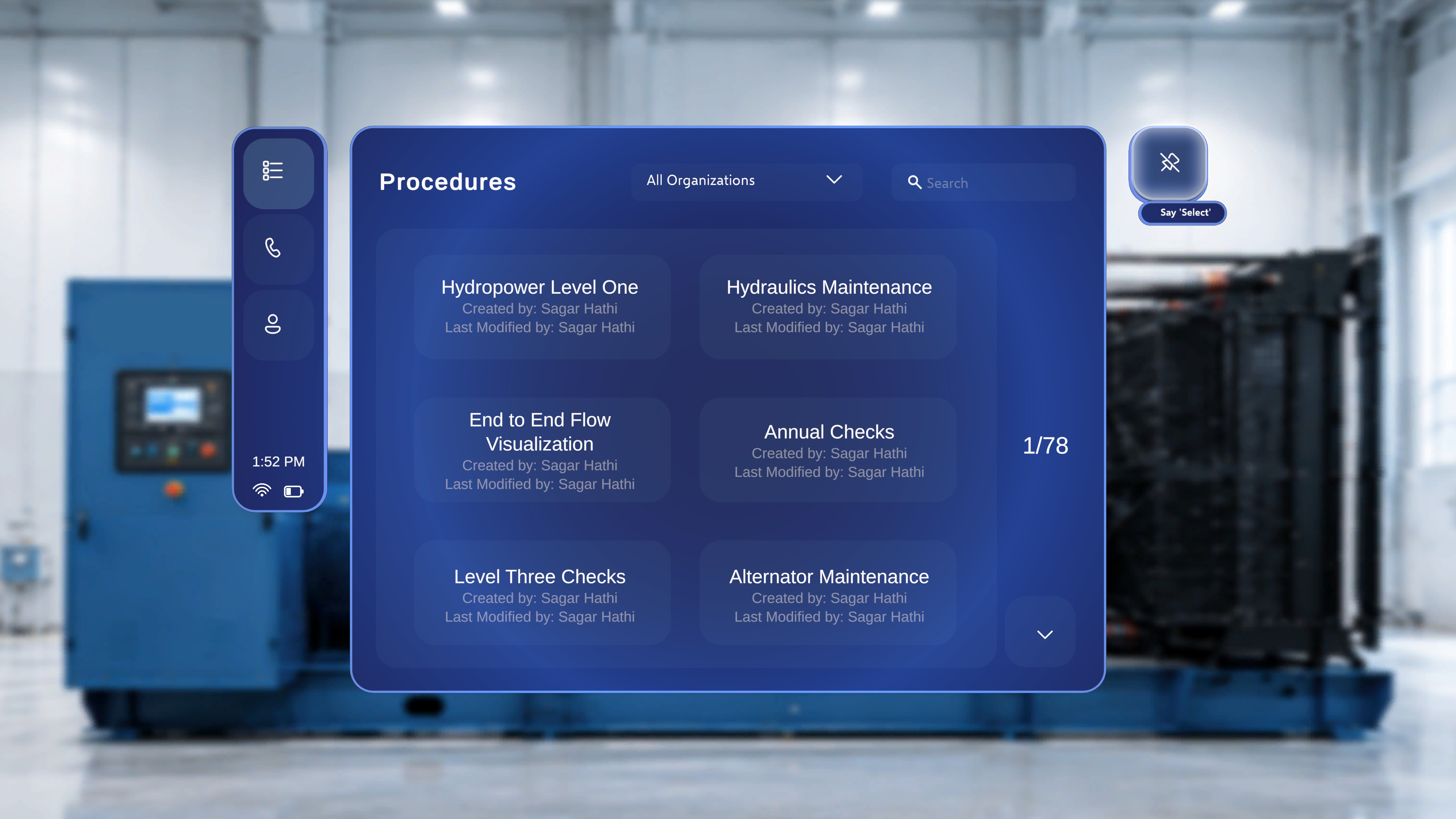 *Above: the toggle in its **focused / highlighted** state. The same visual cue appears wherever the Follow Me button exists — on the outer side-menu panels and on the panels inside a procedure.*
***
## Turn Follow Me On
You can enable Follow Me on any supporting panel using either an air-tap or a voice command.
### Using the Button
1. Look at the **pin button** in the top-right corner of the panel.
2. Air-tap the button.
### Using Voice
1. Say **"Follow me"** — you do not need to be looking at the panel. The supported panel will move in front of you automatically.
### What Happens Next
* The pin icon updates from **crossed-out** to **solid**, confirming the change.
* The panel begins to reposition itself in front of you as you move or turn — ideal when you need both hands free to work while consulting instructions.
***
## Turn Follow Me Off
You can disable Follow Me in three ways.
### Using the Button
1. Air-tap the **pin button** again.
### Using Voice
1. Say **"Unfollow me"** — you do not need to be looking at the panel; the command applies to the supported panel.
### By Moving the Panel Manually
1. Grab the panel using the standard panel move handle and drag it to a new position.
Manually repositioning a panel automatically disables Follow Me for that panel. This lets you "park" instructions in a specific location — for example, next to the equipment you are working on — without having to remember to toggle the button afterwards.
### What Happens Next
* The pin icon returns to the **crossed-out** state.
* The panel stays fixed wherever it is until you enable Follow Me again.
***
## Where Follow Me Applies in Operator Mode
Inside a procedure being executed, Follow Me is enabled on the panels where a moving reference is most helpful while you carry out the work.
### Procedures Landing Panel (Global Side Menu)
The top-level **Procedures** panel — the one you open from the global side menu — supports Follow Me. This is also where the setting is **shared** with **Remote Expert** and **Profile** panels: toggling Follow Me on any one of them affects the others.
### Main Step / Instruction Panel
*Above: the toggle in its **focused / highlighted** state. The same visual cue appears wherever the Follow Me button exists — on the outer side-menu panels and on the panels inside a procedure.*
***
## Turn Follow Me On
You can enable Follow Me on any supporting panel using either an air-tap or a voice command.
### Using the Button
1. Look at the **pin button** in the top-right corner of the panel.
2. Air-tap the button.
### Using Voice
1. Say **"Follow me"** — you do not need to be looking at the panel. The supported panel will move in front of you automatically.
### What Happens Next
* The pin icon updates from **crossed-out** to **solid**, confirming the change.
* The panel begins to reposition itself in front of you as you move or turn — ideal when you need both hands free to work while consulting instructions.
***
## Turn Follow Me Off
You can disable Follow Me in three ways.
### Using the Button
1. Air-tap the **pin button** again.
### Using Voice
1. Say **"Unfollow me"** — you do not need to be looking at the panel; the command applies to the supported panel.
### By Moving the Panel Manually
1. Grab the panel using the standard panel move handle and drag it to a new position.
Manually repositioning a panel automatically disables Follow Me for that panel. This lets you "park" instructions in a specific location — for example, next to the equipment you are working on — without having to remember to toggle the button afterwards.
### What Happens Next
* The pin icon returns to the **crossed-out** state.
* The panel stays fixed wherever it is until you enable Follow Me again.
***
## Where Follow Me Applies in Operator Mode
Inside a procedure being executed, Follow Me is enabled on the panels where a moving reference is most helpful while you carry out the work.
### Procedures Landing Panel (Global Side Menu)
The top-level **Procedures** panel — the one you open from the global side menu — supports Follow Me. This is also where the setting is **shared** with **Remote Expert** and **Profile** panels: toggling Follow Me on any one of them affects the others.
### Main Step / Instruction Panel
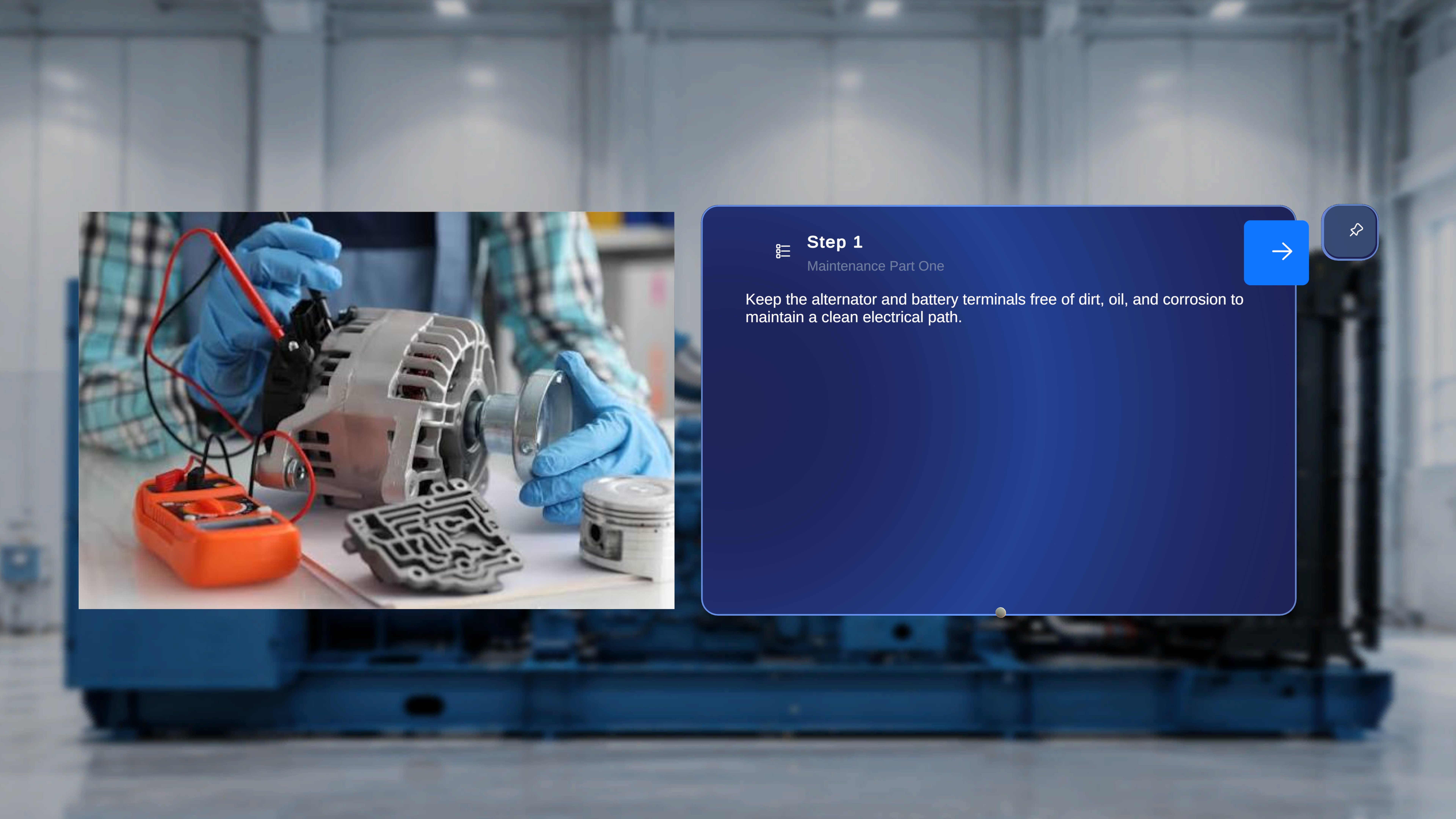
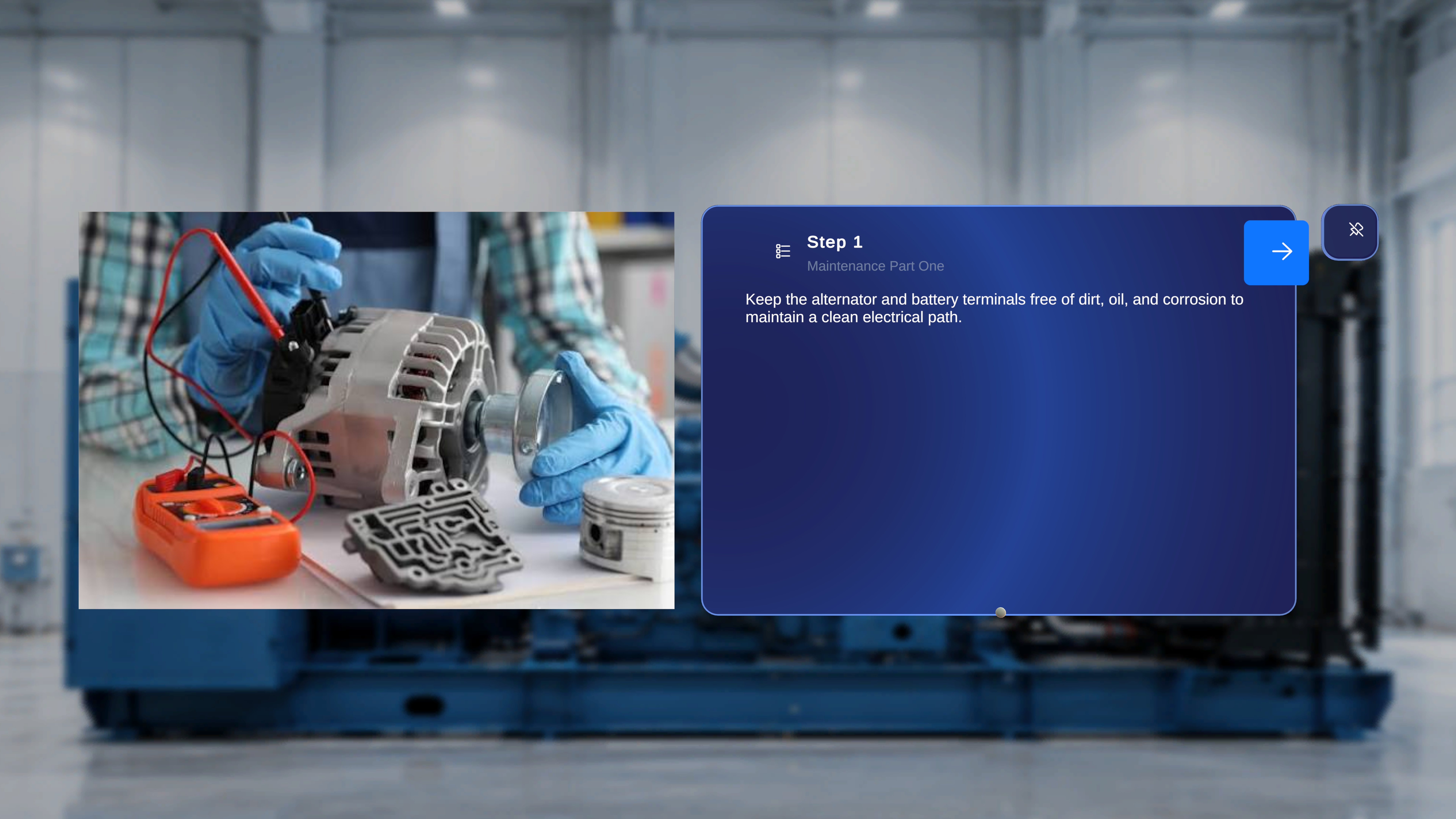 *Above: **Follow Me OFF** on the operator main step panel.*
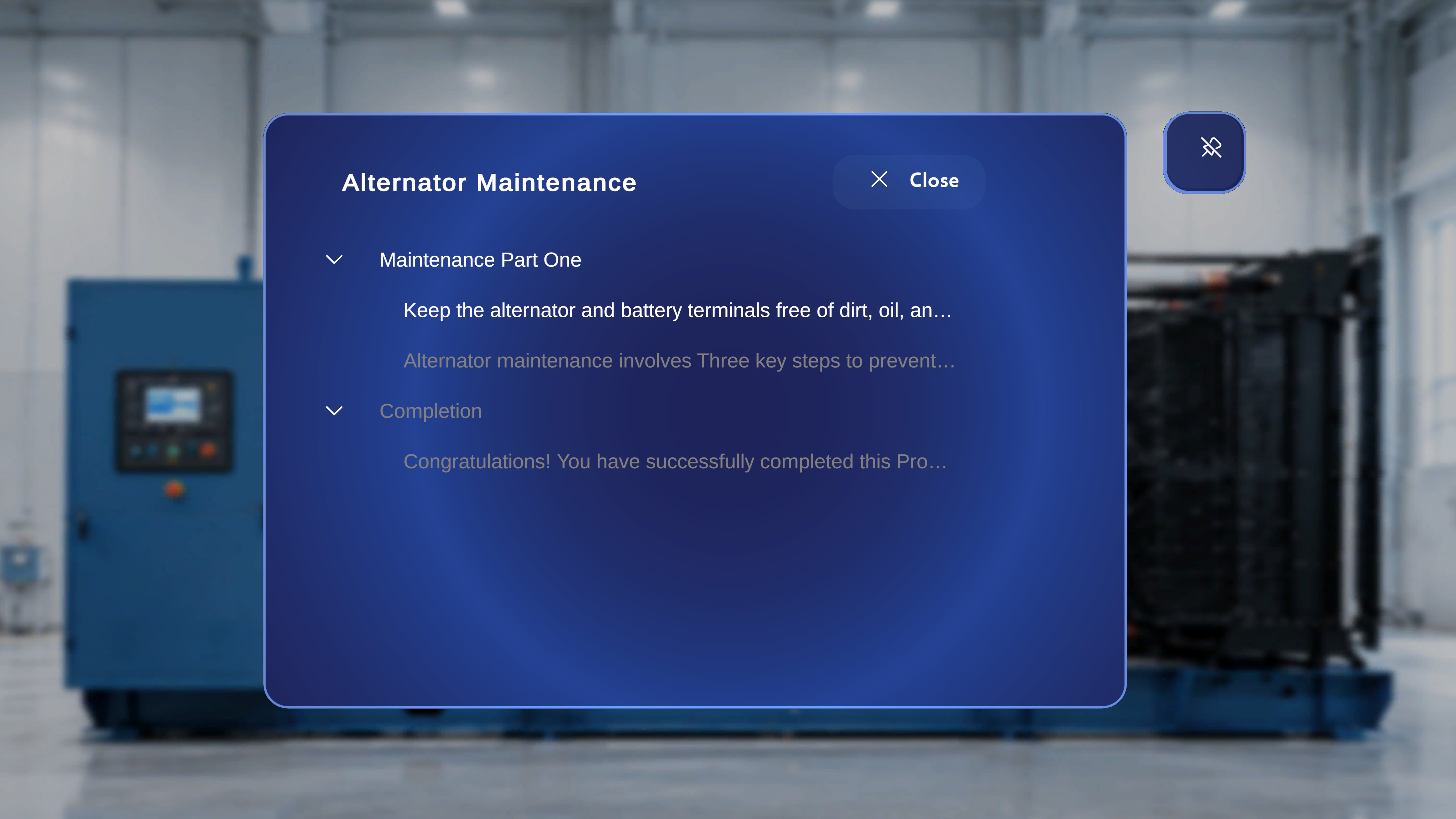
 *Above: **Follow Me ON** — the main step panel now follows the operator as they walk around a machine or move between stations.*
 *Above: the toggle **in focus** — the same highlight and **"Say 'select'"** hint appear when the Follow Me button on the operator main step panel is focused with the ray or head-gaze cursor.*
In Operator mode, the main center panel — the one showing the current **Step** title, task name, and instruction text — exposes its own Follow Me button in the top-right corner. This is the primary place operators use Follow Me: keeping instructions in view while walking around a machine, moving between stations, or handling tools with both hands.
Operator mode does **not** have a 3D Model panel — that panel exists only in Author mode. In Operator mode, Follow Me is instead available on the **main step panel**, because that is where operators need instructions to keep up with them as they work.
Related: see [Step Navigation in Operator Mode](/frontline/procedures/operator/step-navigation) and [Procedure Panel View in Operator Mode](/frontline/procedures/operator/panel-view).
### Task / Step List Panel
The **Task / Step List** panel — which lists the available steps in the procedure and lets you jump directly to any of them — also supports Follow Me. Keeping it in view while moving around your work area makes it easy to navigate between steps without walking back to a fixed panel position.
Related: see [List of Tasks/Steps in Operator Mode](/frontline/procedures/operator/task-list).
### Other Panels
Some panels intentionally **do not** show the Follow Me button — typically dialogs, transient popups, media popups, and the QR anchor flow, where a fixed position is essential to the workflow. If you do not see the pin icon, the panel does not support Follow Me by design.
***
## Behaviour Notes
* **Per-panel state.** Follow Me is remembered per panel; enabling it on the main step panel does not automatically enable it elsewhere. The **exception** is the global side-menu group (Procedures / Remote Expert / Profile), where the state is shared.
* **Auto-disable on move.** Manually moving a panel is treated as an explicit "park here" gesture and switches Follow Me off for that panel.
* **Voice commands.** **"Follow me"** and **"Unfollow me"** work hands-free — you do not need to look at the panel. Saying the command triggers the supported panel to come to you (or to stop following).
* **State on step change.** Advancing through steps does not reset Follow Me — if the main step panel is set to follow, it will continue to follow as you progress.
*Above: the toggle **in focus** — the same highlight and **"Say 'select'"** hint appear when the Follow Me button on the operator main step panel is focused with the ray or head-gaze cursor.*
In Operator mode, the main center panel — the one showing the current **Step** title, task name, and instruction text — exposes its own Follow Me button in the top-right corner. This is the primary place operators use Follow Me: keeping instructions in view while walking around a machine, moving between stations, or handling tools with both hands.
Operator mode does **not** have a 3D Model panel — that panel exists only in Author mode. In Operator mode, Follow Me is instead available on the **main step panel**, because that is where operators need instructions to keep up with them as they work.
Related: see [Step Navigation in Operator Mode](/frontline/procedures/operator/step-navigation) and [Procedure Panel View in Operator Mode](/frontline/procedures/operator/panel-view).
### Task / Step List Panel
The **Task / Step List** panel — which lists the available steps in the procedure and lets you jump directly to any of them — also supports Follow Me. Keeping it in view while moving around your work area makes it easy to navigate between steps without walking back to a fixed panel position.
Related: see [List of Tasks/Steps in Operator Mode](/frontline/procedures/operator/task-list).
### Other Panels
Some panels intentionally **do not** show the Follow Me button — typically dialogs, transient popups, media popups, and the QR anchor flow, where a fixed position is essential to the workflow. If you do not see the pin icon, the panel does not support Follow Me by design.
***
## Behaviour Notes
* **Per-panel state.** Follow Me is remembered per panel; enabling it on the main step panel does not automatically enable it elsewhere. The **exception** is the global side-menu group (Procedures / Remote Expert / Profile), where the state is shared.
* **Auto-disable on move.** Manually moving a panel is treated as an explicit "park here" gesture and switches Follow Me off for that panel.
* **Voice commands.** **"Follow me"** and **"Unfollow me"** work hands-free — you do not need to look at the panel. Saying the command triggers the supported panel to come to you (or to stop following).
* **State on step change.** Advancing through steps does not reset Follow Me — if the main step panel is set to follow, it will continue to follow as you progress.