> ## Documentation Index
> Fetch the complete documentation index at: https://docs.altoura.com/llms.txt
> Use this file to discover all available pages before exploring further.
# Procedure Panel View in Operator Mode
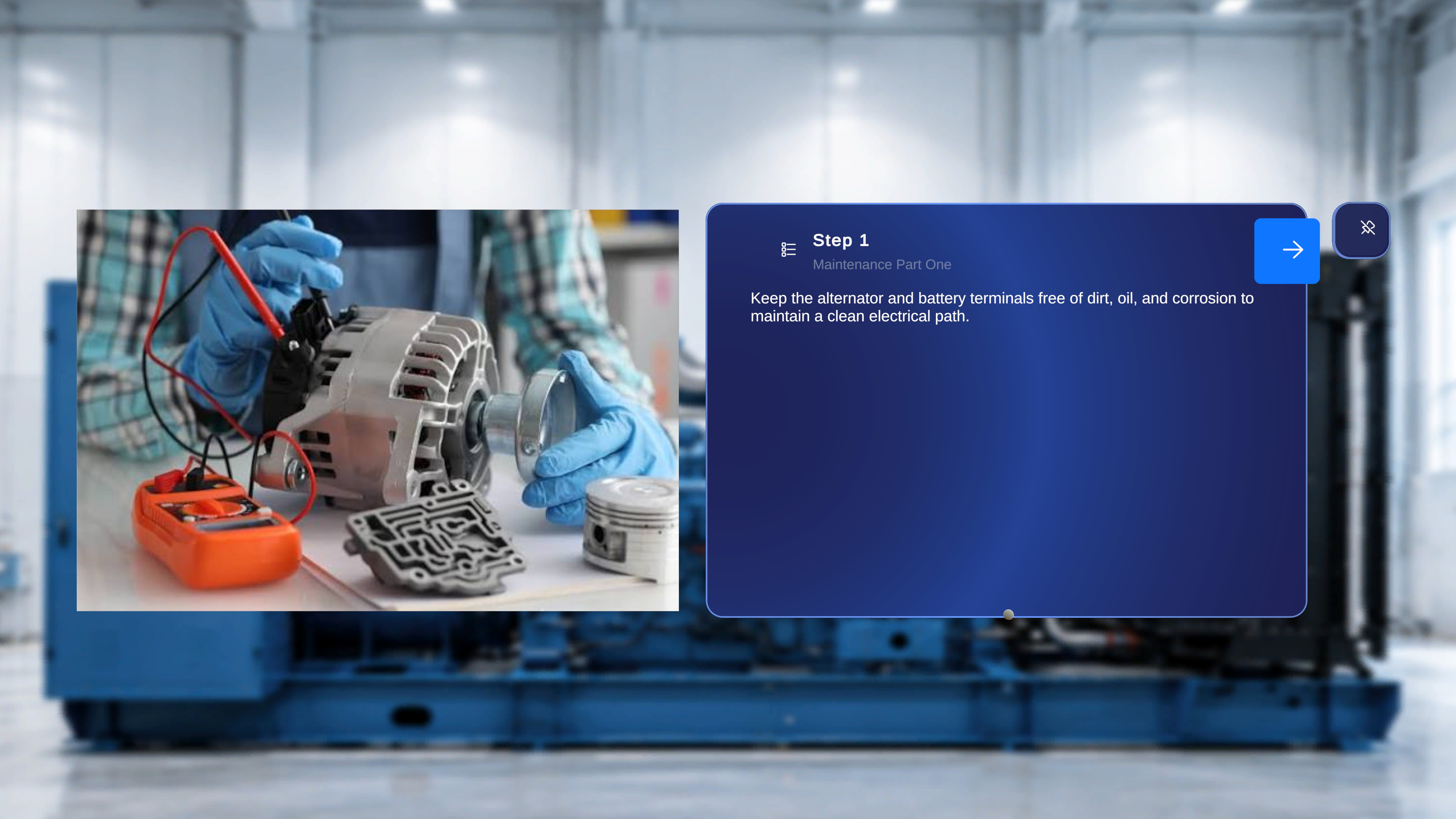 ## Overview
**Operator Mode** is designed for executing procedures exactly as authored.
It provides a simplified interface focused on task completion. Editing capabilities, model configuration, and structural controls are not available in this mode.
Operator Mode ensures that procedures are followed consistently and without modification.
***
# Panels in Operator Mode
When inside a procedure in Operator Mode, the interface consists of two primary panels:
1. Step Main Panel
2. Media Panel (Conditional)
The 3D Model Panel is not available in Operator Mode.
***
## 1. Step Main Panel
## Overview
**Operator Mode** is designed for executing procedures exactly as authored.
It provides a simplified interface focused on task completion. Editing capabilities, model configuration, and structural controls are not available in this mode.
Operator Mode ensures that procedures are followed consistently and without modification.
***
# Panels in Operator Mode
When inside a procedure in Operator Mode, the interface consists of two primary panels:
1. Step Main Panel
2. Media Panel (Conditional)
The 3D Model Panel is not available in Operator Mode.
***
## 1. Step Main Panel
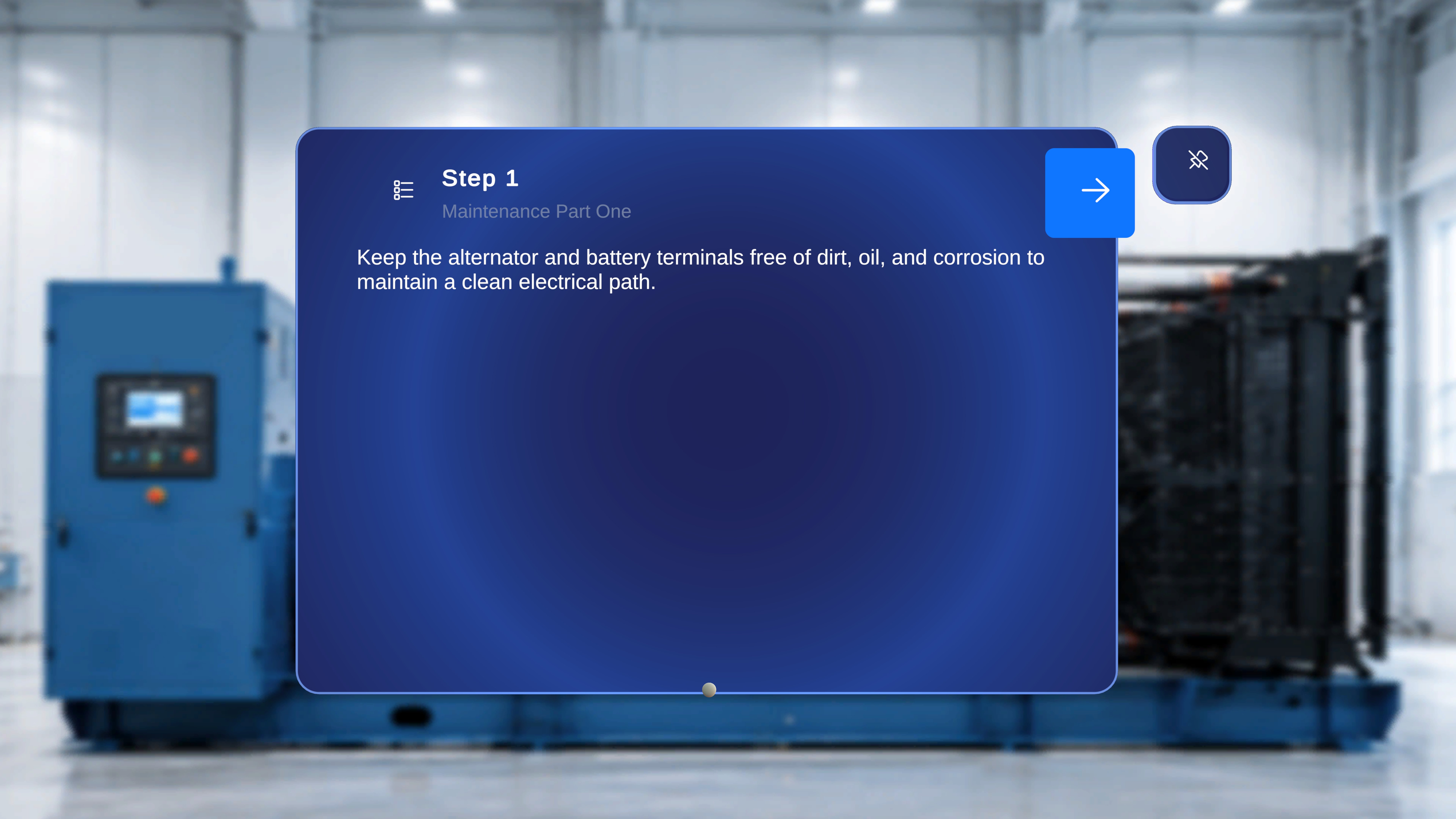 The Step Main Panel is always visible.
It displays:
* Step number
* Task title
* Step description
* Navigation controls (Next / Back, if applicable)
* Step List icon for direct navigation
* Thread anchor indicator (if configured for that step)
This panel guides the operator through the workflow. If a thread (gem anchor) was placed during authoring, the tethered line is visible for spatial reference.
The panel supports:
* Sequential navigation
* Direct step navigation through the Step List
* Branching behavior in Choice Steps
* Completion confirmation when reaching a Completion Step
***
## 2. Media Panel (Conditional)
The Step Main Panel is always visible.
It displays:
* Step number
* Task title
* Step description
* Navigation controls (Next / Back, if applicable)
* Step List icon for direct navigation
* Thread anchor indicator (if configured for that step)
This panel guides the operator through the workflow. If a thread (gem anchor) was placed during authoring, the tethered line is visible for spatial reference.
The panel supports:
* Sequential navigation
* Direct step navigation through the Step List
* Branching behavior in Choice Steps
* Completion confirmation when reaching a Completion Step
***
## 2. Media Panel (Conditional)
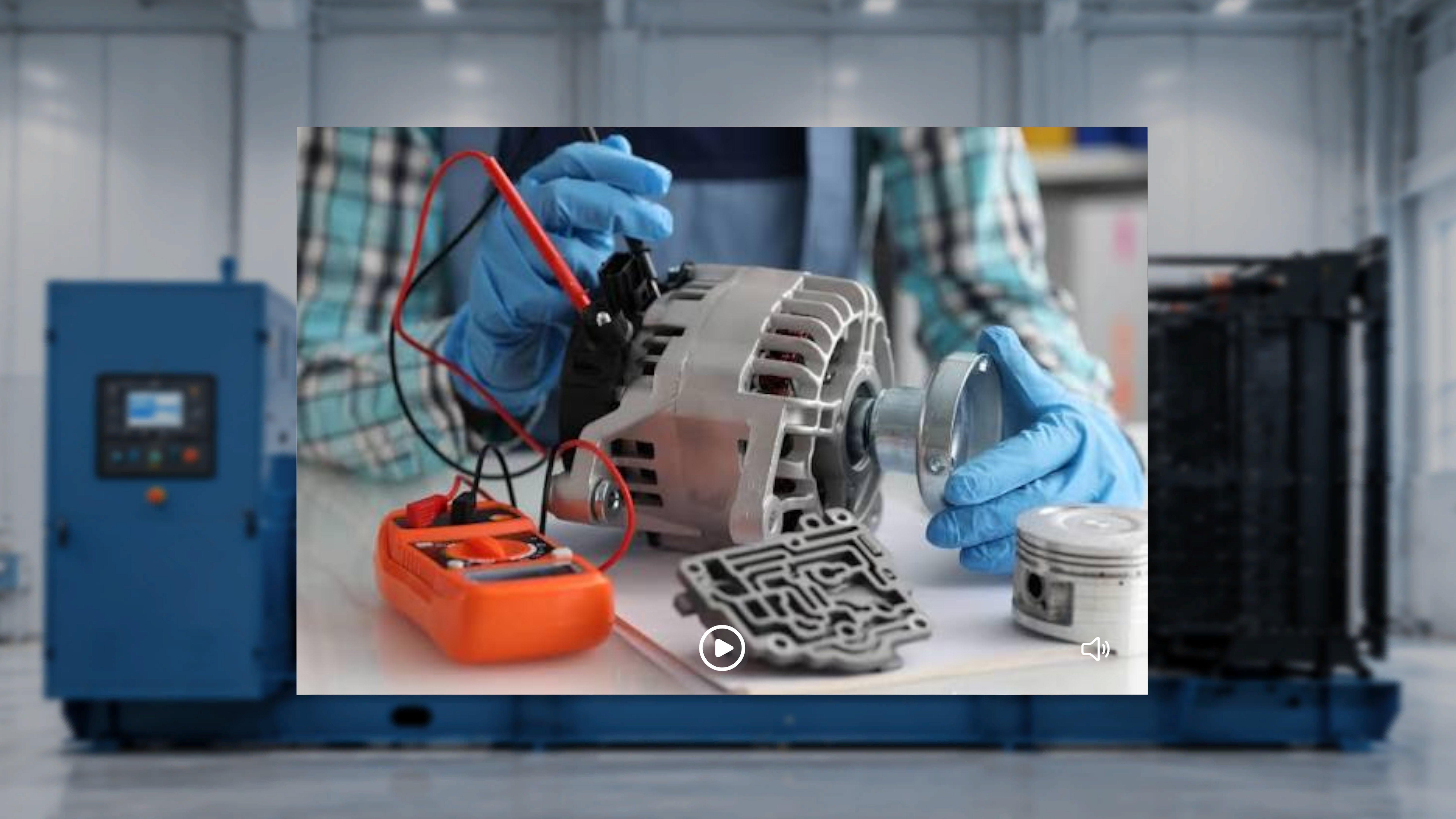 The Media Panel appears only if media was attached to the step during authoring.
If an image is attached:
* The image is displayed.
If a video is attached:
* The video auto-plays when the step is entered.
* The video plays in a loop.
* The operator can pause, resume, mute, or unmute playback.
If no media is attached:
* The Media Panel does not appear.
The Media Panel provides visual guidance to support step execution.
***
# 3D Models in Operator Mode
The Media Panel appears only if media was attached to the step during authoring.
If an image is attached:
* The image is displayed.
If a video is attached:
* The video auto-plays when the step is entered.
* The video plays in a loop.
* The operator can pause, resume, mute, or unmute playback.
If no media is attached:
* The Media Panel does not appear.
The Media Panel provides visual guidance to support step execution.
***
# 3D Models in Operator Mode
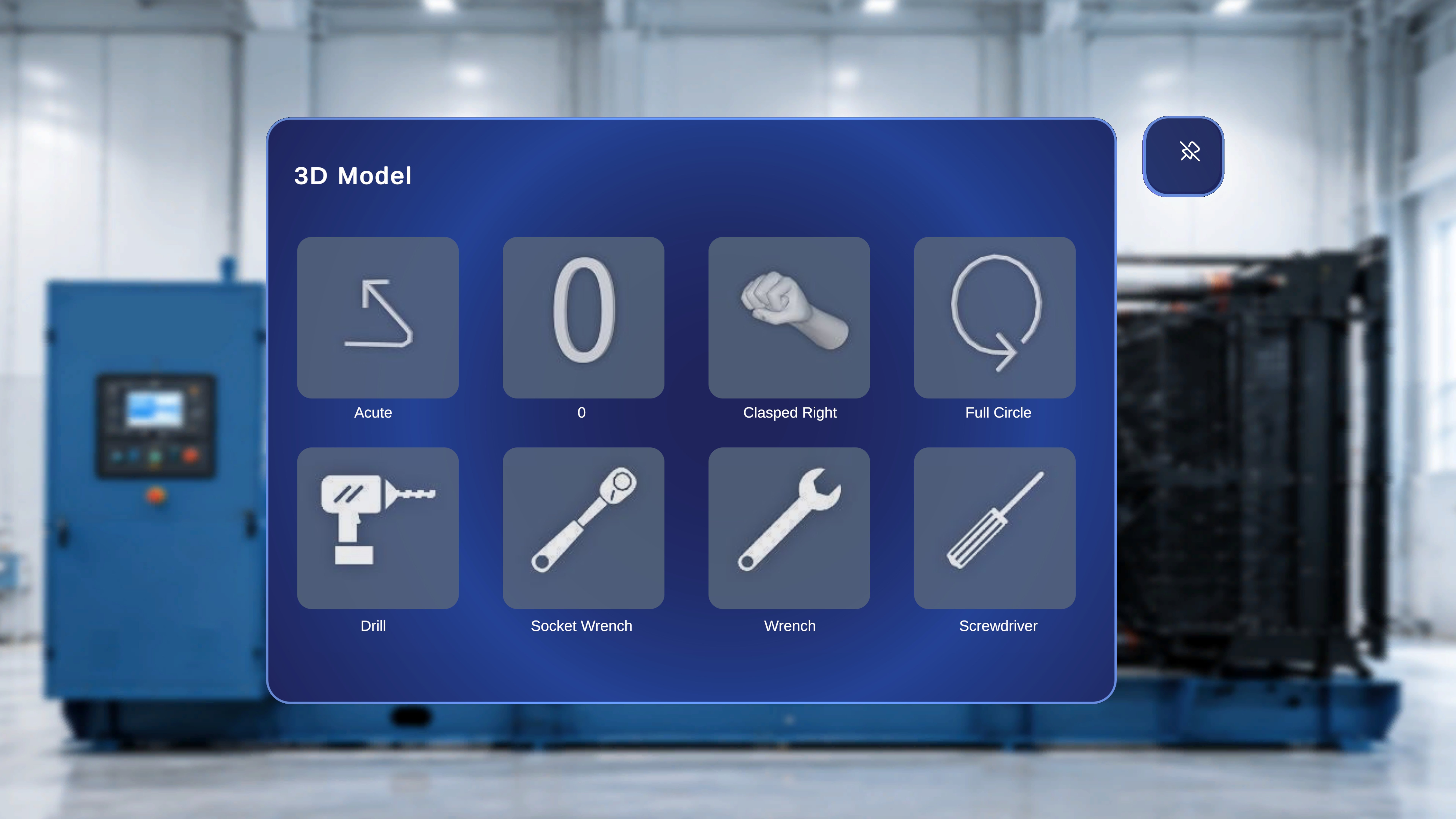 Although the 3D Model Panel is not shown:
* Any 3D models placed during authoring appear in their saved positions.
* Interaction depends on author configuration:
* If Interactable is disabled, the model is view-only.
* If Interactable is enabled, the operator can reposition the model.
* If Ghost is enabled, a shadow remains at the original position when moved.
* Animation plays according to author-defined settings.
Operators cannot spawn new models or modify model settings.
Although the 3D Model Panel is not shown:
* Any 3D models placed during authoring appear in their saved positions.
* Interaction depends on author configuration:
* If Interactable is disabled, the model is view-only.
* If Interactable is enabled, the operator can reposition the model.
* If Ghost is enabled, a shadow remains at the original position when moved.
* Animation plays according to author-defined settings.
Operators cannot spawn new models or modify model settings.