> ## Documentation Index
> Fetch the complete documentation index at: https://docs.altoura.com/llms.txt
> Use this file to discover all available pages before exploring further.
# Voice Commands in Operator Mode
> Execute procedures hands-free on the HoloLens. Use "Select" to click any button, plus a set of global voice commands unique to Procedures.
## Overview
Altoura Frontline on the HoloLens is fully voice-enabled. While executing a procedure in Operator mode, you can navigate steps, respond to choice steps, and toggle Follow Me — all without touching a control. This lets operators keep both hands on tools, parts, or the machine they are servicing.
There are two types of voice interactions in Operator mode:
1. **Universal voice selection** — hover a button with the ray or head-gaze cursor, then say **"Select"** to click it. This works on **every** interactive control in Procedures, Remote Expert, and Profile.
2. **Global voice commands** — a small set of dedicated phrases that trigger actions **without any hover required**. These are specific to Procedures.
Voice commands are always available alongside standard input. Any button you can activate with voice can also be activated by air-tap or by getting close and touching the control directly.
***
## Universal Voice Selection: "Select"
Every interactive control on the HoloLens exposes a **"Say 'select'"** hint when it is in focus.
### Step-by-Step Instructions
1. Point the **ray** or move your **head-gaze cursor** onto the button or icon you want to activate.
2. Wait for the **"Say 'select'"** tooltip to appear beneath the control.
3. Say **"Select"**.
### What Happens Next
* The focused control activates just as it would with an air-tap.
* The tooltip disappears; the associated action runs.
### Examples
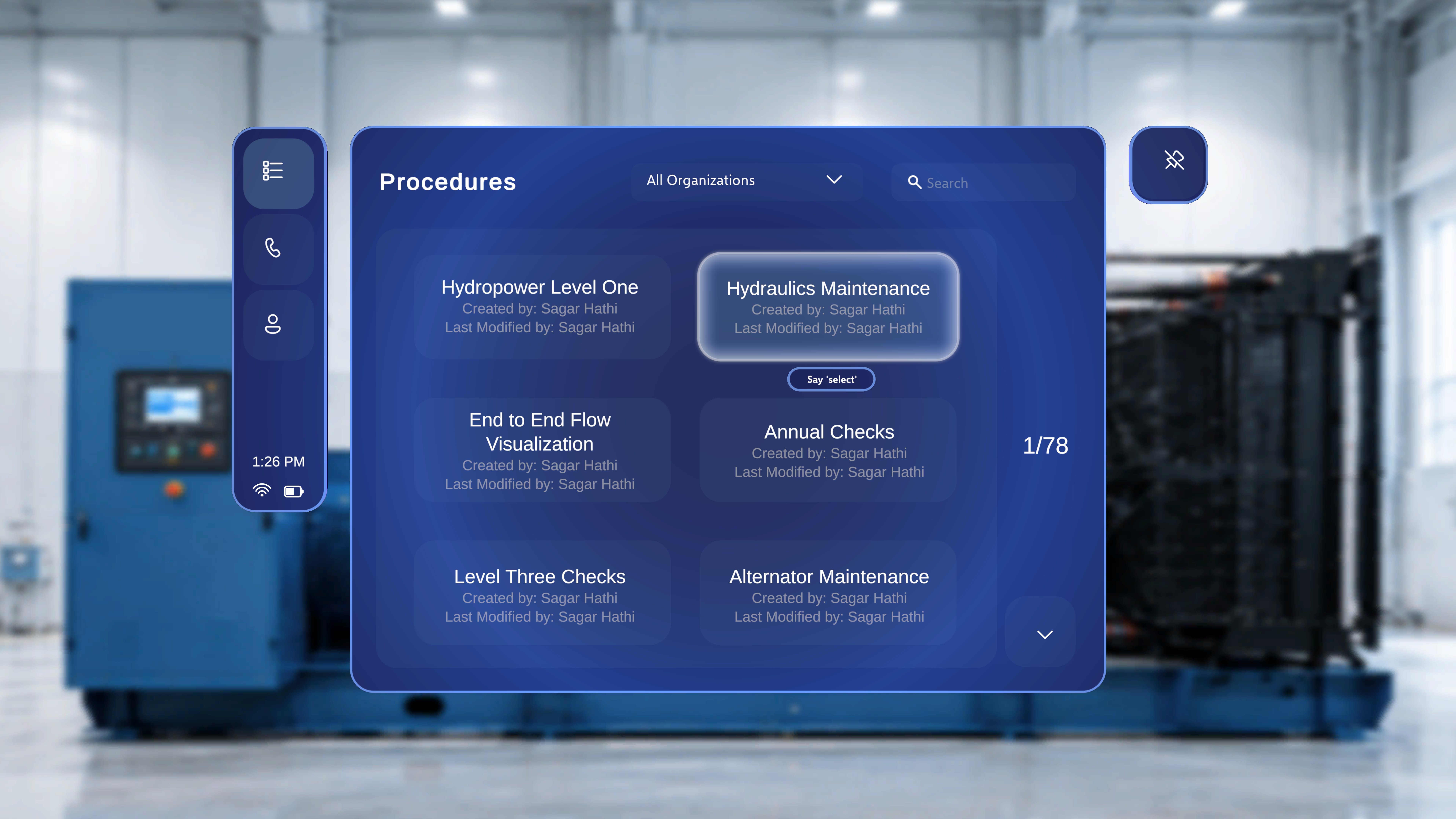
On the **Procedures** landing page, focus a procedure card and the tooltip appears beneath it — say "Select" to open that procedure:
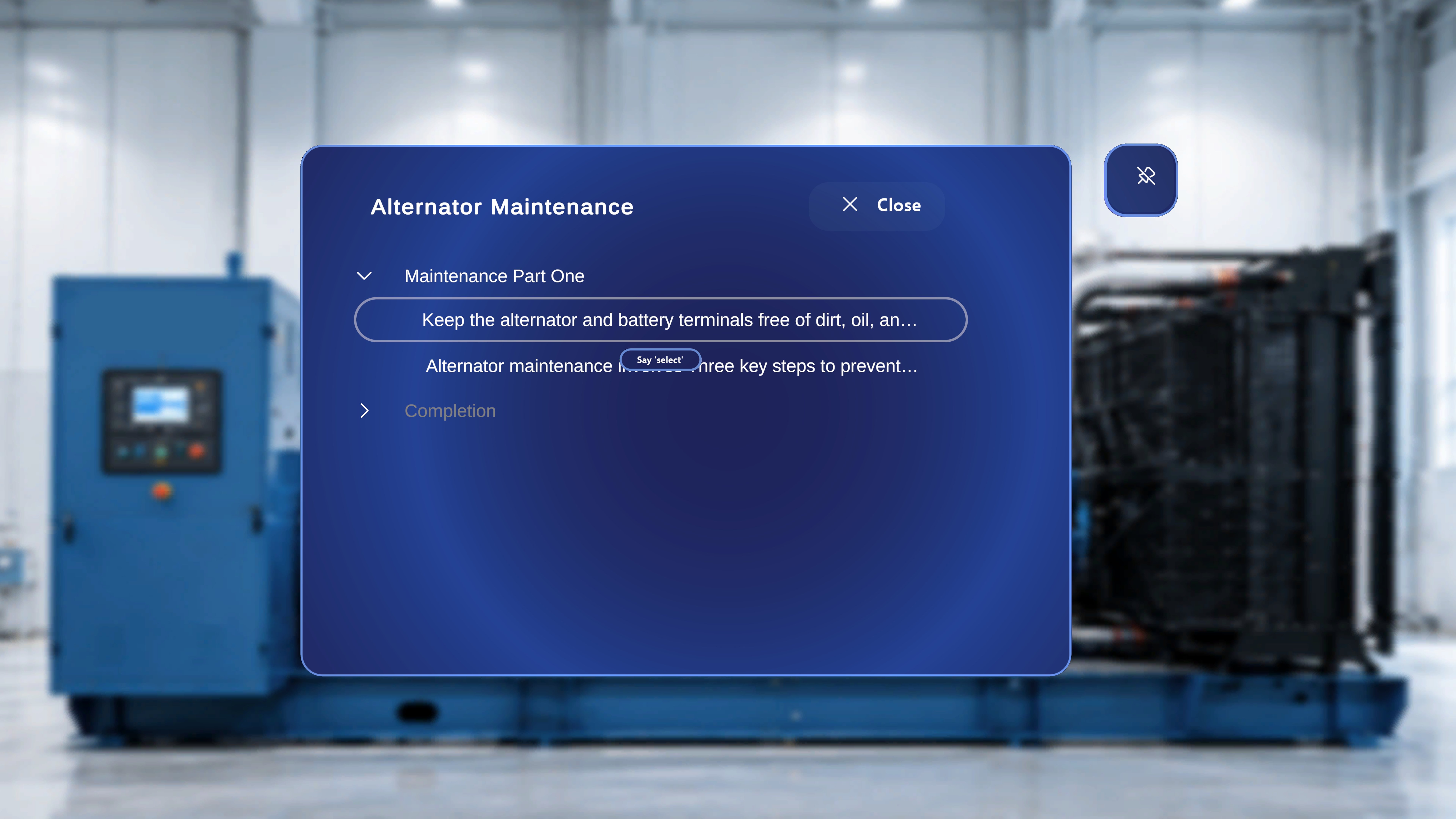
 Inside a procedure, the same behaviour applies to individual steps in the **Task / Step List** panel — say "Select" while a step is focused to jump directly to it:
 "Select" works on **every** interactive control across the app — including the Task/Step List, dialog buttons, the QR scan flow, and controls in Remote Expert and Profile panels — with **one exception**: the **Next** and **Previous** buttons on the main step panel. See below.
***
## Global Voice Commands (Procedures)
Global voice commands are hands-free phrases that trigger their action **without needing to hover** the button first. They are specific to Procedures.
### Follow Me / Unfollow Me
| Command | Effect |
| ----------------- | -------------------------------------------------------------------------------------------------------------- |
| **"Follow me"** | Turns on Follow Me for the supported panel. The panel begins to reposition itself in front of you as you move. |
| **"Unfollow me"** | Turns off Follow Me for the supported panel. The panel stays fixed where it is. |
You do **not** need to look at the panel. See [Follow Me in Operator Mode](/frontline/procedures/operator/follow-me) for the full behaviour, including auto-disable when a panel is manually moved.
### Next / Previous (Step Navigation)
"Select" works on **every** interactive control across the app — including the Task/Step List, dialog buttons, the QR scan flow, and controls in Remote Expert and Profile panels — with **one exception**: the **Next** and **Previous** buttons on the main step panel. See below.
***
## Global Voice Commands (Procedures)
Global voice commands are hands-free phrases that trigger their action **without needing to hover** the button first. They are specific to Procedures.
### Follow Me / Unfollow Me
| Command | Effect |
| ----------------- | -------------------------------------------------------------------------------------------------------------- |
| **"Follow me"** | Turns on Follow Me for the supported panel. The panel begins to reposition itself in front of you as you move. |
| **"Unfollow me"** | Turns off Follow Me for the supported panel. The panel stays fixed where it is. |
You do **not** need to look at the panel. See [Follow Me in Operator Mode](/frontline/procedures/operator/follow-me) for the full behaviour, including auto-disable when a panel is manually moved.
### Next / Previous (Step Navigation)
 | Command | Effect |
| -------------- | ------------------------------------------------- |
| **"Next"** | Advances the main step panel to the next step. |
| **"Previous"** | Returns the main step panel to the previous step. |
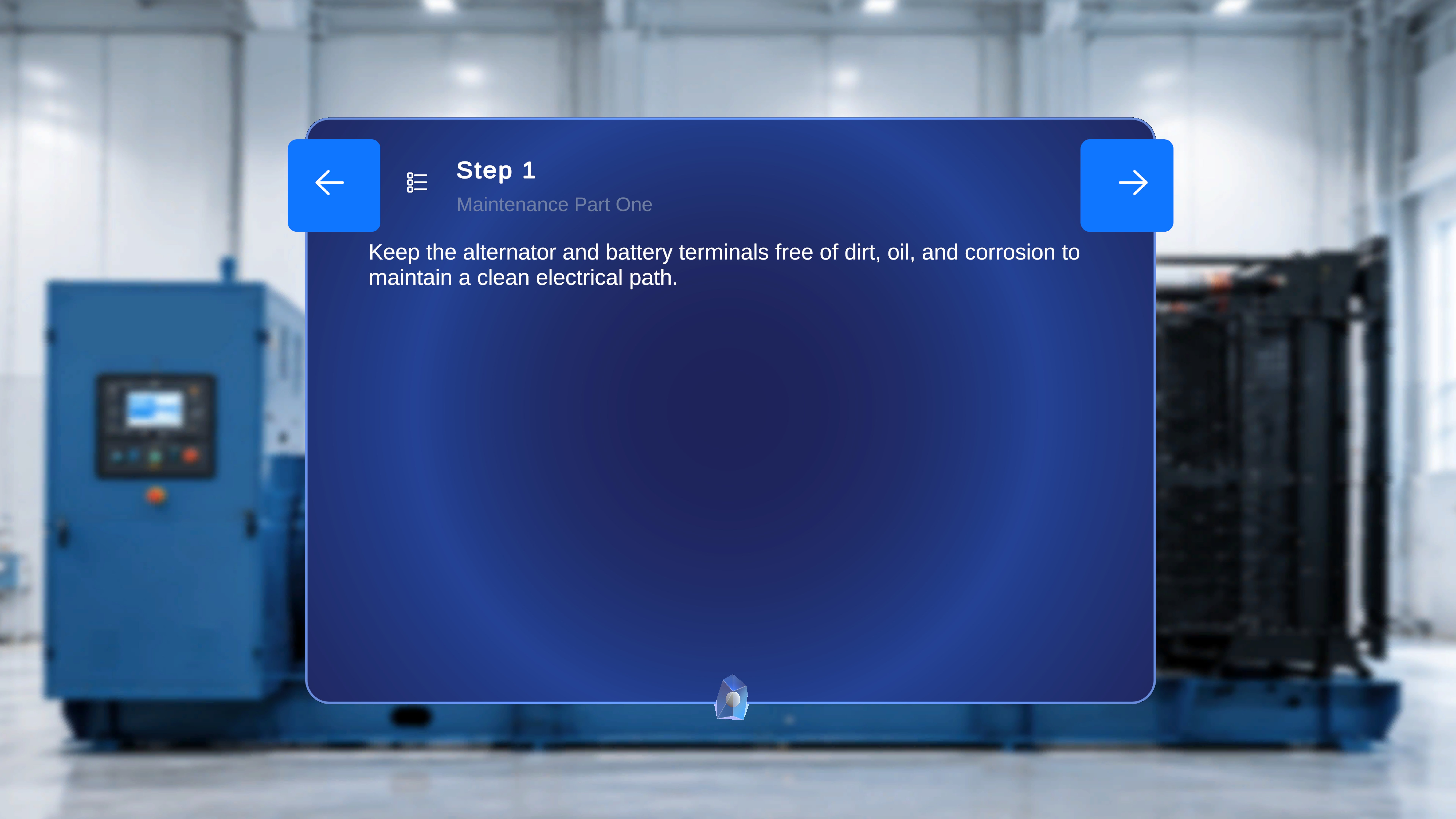
The **Next** and **Previous** arrows on the main step panel are the **only** controls that do **not** respond to hover + "Select". You **must** use the voice commands **"Next"** and **"Previous"** (or air-tap the arrows directly) to change steps by voice.
### Choice Option Labels
| Command | Effect |
| -------------- | ------------------------------------------------- |
| **"Next"** | Advances the main step panel to the next step. |
| **"Previous"** | Returns the main step panel to the previous step. |
The **Next** and **Previous** arrows on the main step panel are the **only** controls that do **not** respond to hover + "Select". You **must** use the voice commands **"Next"** and **"Previous"** (or air-tap the arrows directly) to change steps by voice.
### Choice Option Labels
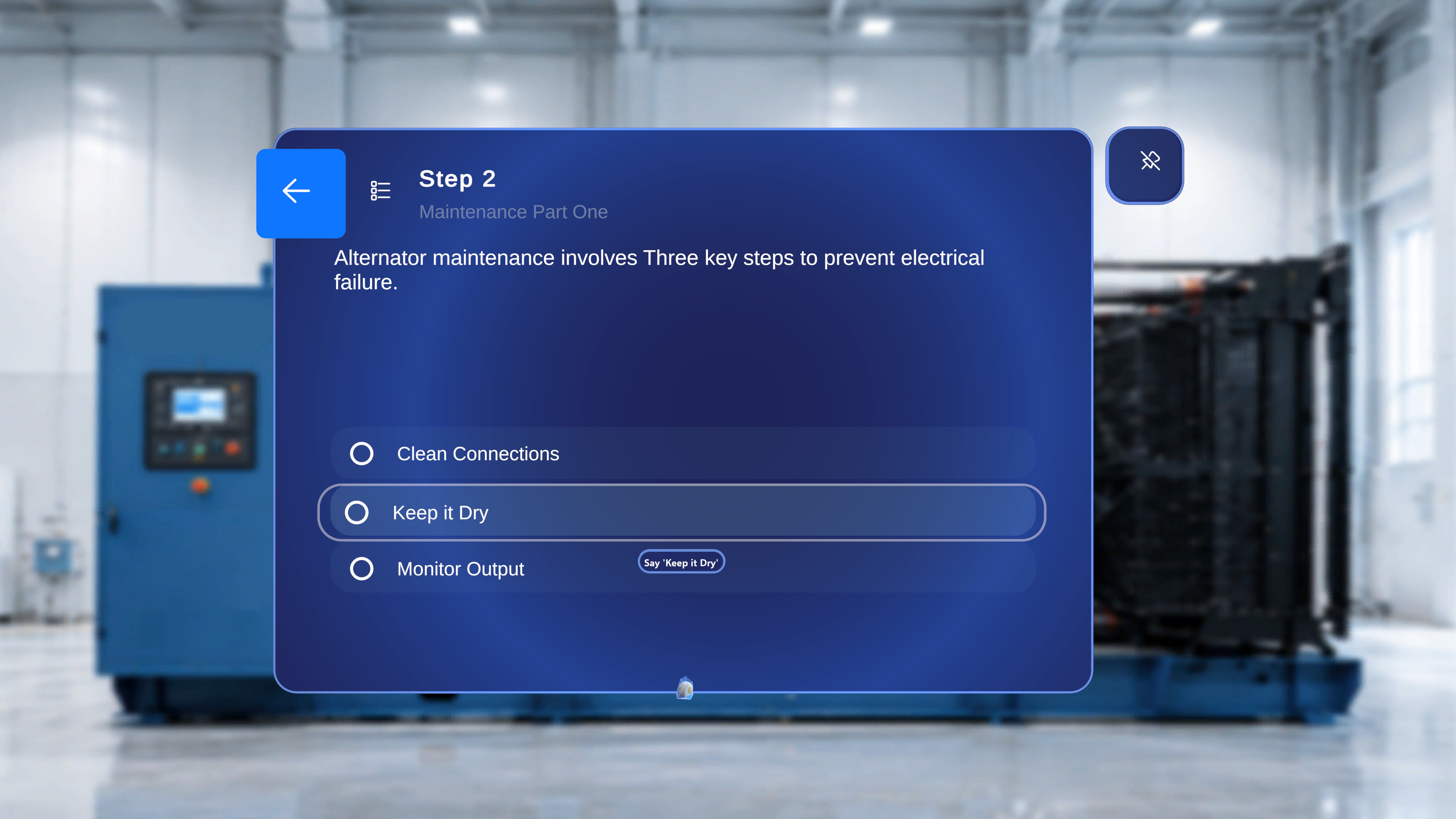 When you reach a **Choice Step**, each option is labelled with text. That text itself acts as a voice command.
**Example:** if a choice option is labelled *"Start with the alternator"*, saying **"Start with the alternator"** activates that option — no hover, no "Select" required.
### Step-by-Step Instructions
1. Position yourself within a comfortable speaking distance of the Choice Step panel.
2. Read the label of the option you want.
3. Say the label exactly as written.
### What Happens Next
* The matching choice option is selected.
* The procedure branches down that path, just as if you had air-tapped the option.
If a choice label is long or awkward to speak, you can always fall back to hover + "Select" or an air-tap on the option.
***
## Quick Reference
| Command | Requires Hover? | Where It Works |
| --------------------- | --------------- | ------------------------------------------------------------------------- |
| **"Select"** | Yes | Every interactive control **except** Next/Previous on the main step panel |
| **"Follow me"** | No | Any panel that supports Follow Me |
| **"Unfollow me"** | No | Any panel that supports Follow Me |
| **"Next"** | No | Main step panel |
| **"Previous"** | No | Main step panel |
| *Choice option label* | No | Choice Steps |
***
## Tips
* **Combine with Follow Me.** Enable Follow Me on the main step panel by voice, then use "Next" / "Previous" hands-free while working — instructions come to you and advance on command.
* **Speak clearly.** In noisy work environments, speak at a slightly slower pace and use the full command phrase.
* **Fall back to "Select".** If a global command isn't recognised (for example, an ambiguous choice label), you can always fall back to hover + "Select" or an air-tap.
When you reach a **Choice Step**, each option is labelled with text. That text itself acts as a voice command.
**Example:** if a choice option is labelled *"Start with the alternator"*, saying **"Start with the alternator"** activates that option — no hover, no "Select" required.
### Step-by-Step Instructions
1. Position yourself within a comfortable speaking distance of the Choice Step panel.
2. Read the label of the option you want.
3. Say the label exactly as written.
### What Happens Next
* The matching choice option is selected.
* The procedure branches down that path, just as if you had air-tapped the option.
If a choice label is long or awkward to speak, you can always fall back to hover + "Select" or an air-tap on the option.
***
## Quick Reference
| Command | Requires Hover? | Where It Works |
| --------------------- | --------------- | ------------------------------------------------------------------------- |
| **"Select"** | Yes | Every interactive control **except** Next/Previous on the main step panel |
| **"Follow me"** | No | Any panel that supports Follow Me |
| **"Unfollow me"** | No | Any panel that supports Follow Me |
| **"Next"** | No | Main step panel |
| **"Previous"** | No | Main step panel |
| *Choice option label* | No | Choice Steps |
***
## Tips
* **Combine with Follow Me.** Enable Follow Me on the main step panel by voice, then use "Next" / "Previous" hands-free while working — instructions come to you and advance on command.
* **Speak clearly.** In noisy work environments, speak at a slightly slower pace and use the full command phrase.
* **Fall back to "Select".** If a global command isn't recognised (for example, an ambiguous choice label), you can always fall back to hover + "Select" or an air-tap.