> ## Documentation Index
> Fetch the complete documentation index at: https://docs.altoura.com/llms.txt
> Use this file to discover all available pages before exploring further.
# Add the Remote Expert App (Microsoft Teams)
### Overview
This guide is for the **remote expert** working in Microsoft Teams on desktop. By the end, you will have added the Altoura Remote Expert app to the live meeting, unlocking annotation and file sharing.
After you click **Join Meeting**, Microsoft Teams opens the meeting interface. Once connected, you can communicate with the on-site HMD user through live audio and video.
To enable visual guidance and annotations, you must add the **Altoura Remote Expert** app to the meeting.
***
## Join the Meeting
1. Review your audio settings (for example, **Computer audio**).
2. Turn your microphone and camera on or off as needed.
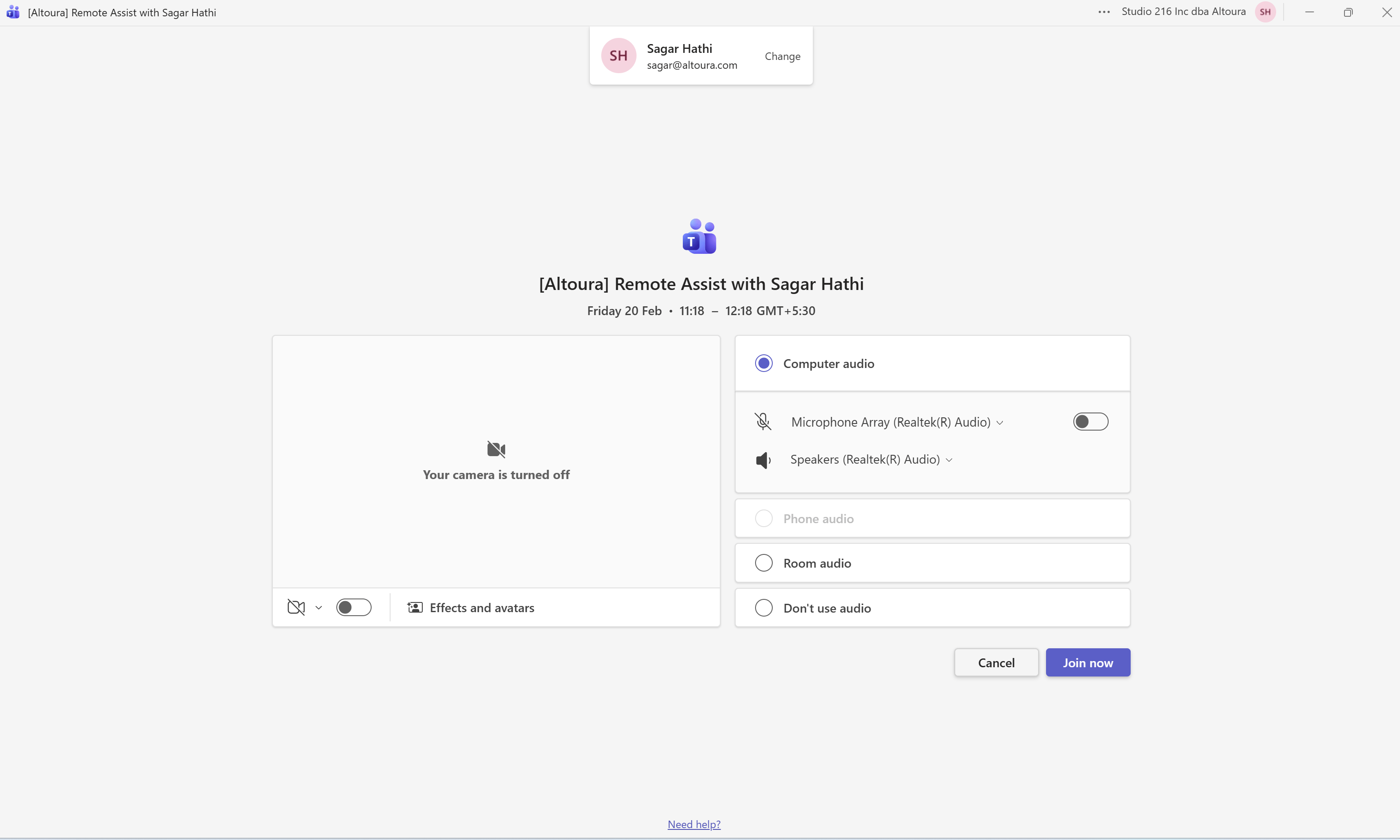 1. Click **Join now**.
### What Happens Next
* You enter the Teams meeting.
* The session becomes active.
* If the HMD user’s camera is enabled, their video feed is visible.
* If their microphone is enabled, you can hear them.
You are now connected and ready to enable annotation tools.
***
## Add the Altoura Remote Expert App
1. Click **Join now**.
### What Happens Next
* You enter the Teams meeting.
* The session becomes active.
* If the HMD user’s camera is enabled, their video feed is visible.
* If their microphone is enabled, you can hear them.
You are now connected and ready to enable annotation tools.
***
## Add the Altoura Remote Expert App
 ### Open the Apps Panel
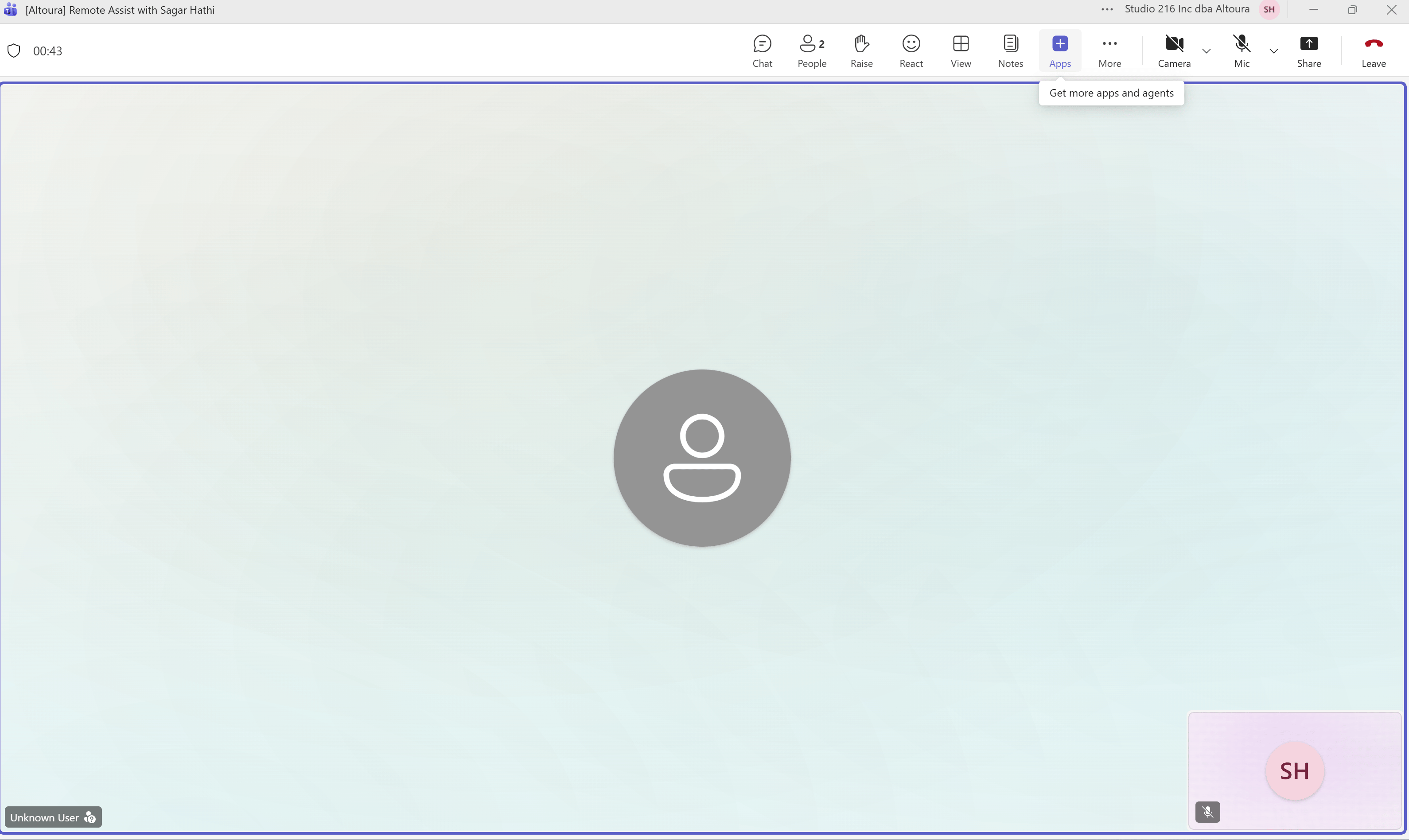
1. In the meeting toolbar, click **Apps**.
***
### Search for the App
### Open the Apps Panel
1. In the meeting toolbar, click **Apps**.
***
### Search for the App
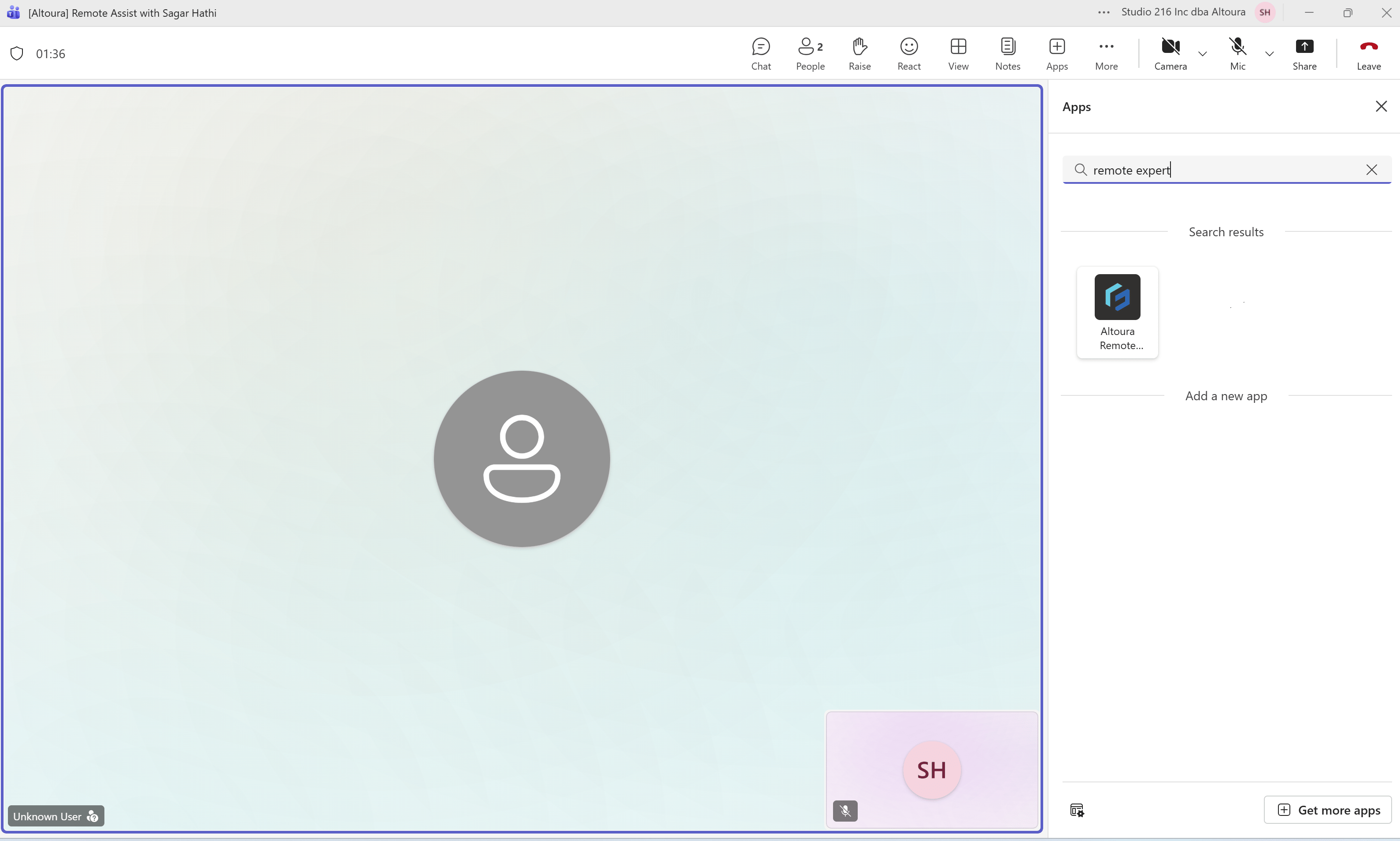 1. In the Apps panel, use the search field.
2. Type **remote expert**.
3. Select **Altoura Remote Expert** from the results.
***
### Add the App to the Meeting
1. In the Apps panel, use the search field.
2. Type **remote expert**.
3. Select **Altoura Remote Expert** from the results.
***
### Add the App to the Meeting
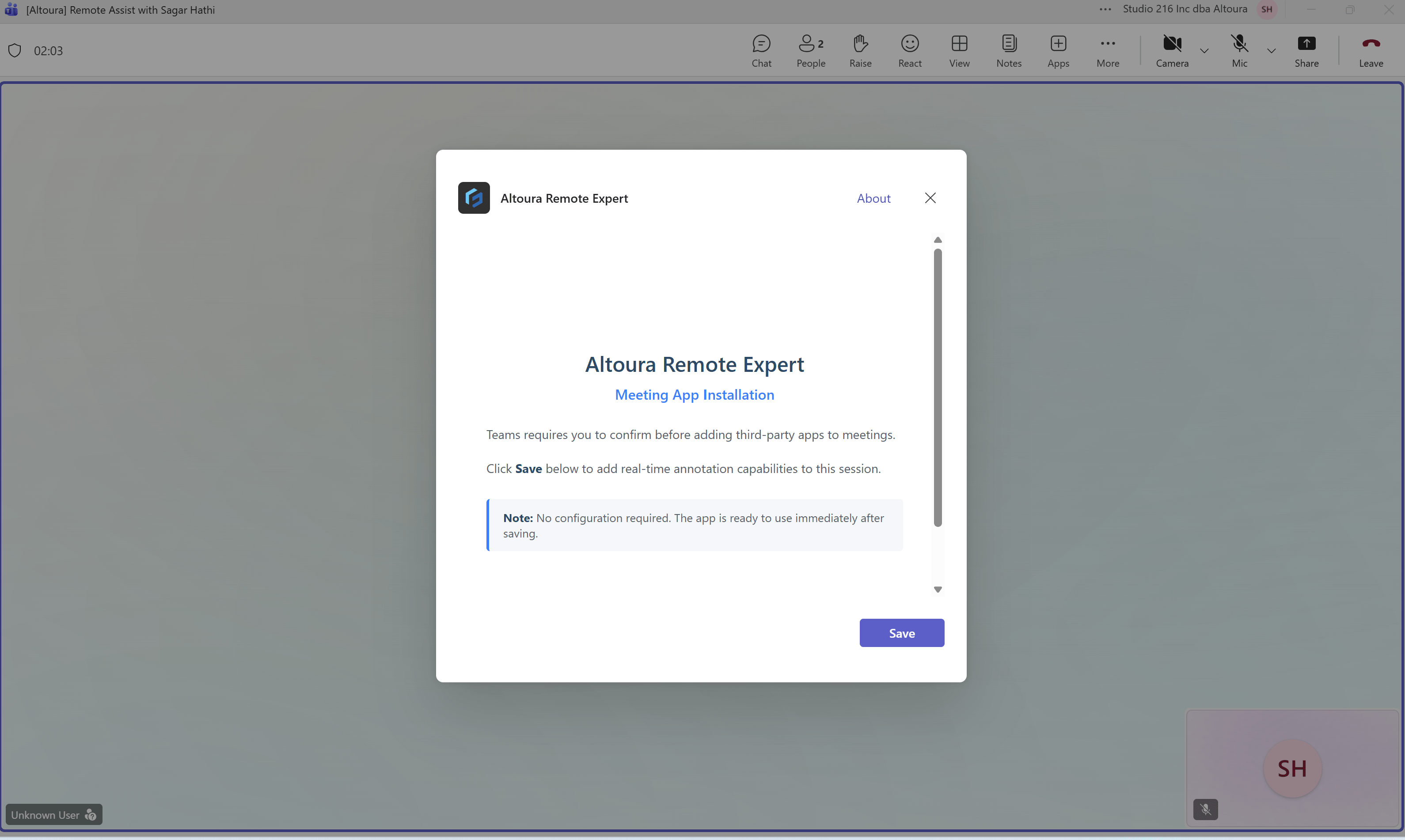 1. Click **Add**.
2. When prompted, click **Save**.
The confirmation window indicates that no additional configuration is required.
***
### What Happens Next
* The **Altoura Remote Expert** app is added to the meeting.
* A tab labeled **Altoura Rem...** appears in the meeting toolbar.
* Selecting this tab opens the Remote Expert panel on the right side of the meeting interface.
* The panel displays:
* **Start Annotating**: Capture the HMD user's view and draw annotations.
* **Share Files**: Drop 3D models (`.glb`) or PDFs (`.pdf`) to share with the HMD user.
***
Next: [Annotate and Share](/frontline/remote-expert/annotate-hmd-view)
1. Click **Add**.
2. When prompted, click **Save**.
The confirmation window indicates that no additional configuration is required.
***
### What Happens Next
* The **Altoura Remote Expert** app is added to the meeting.
* A tab labeled **Altoura Rem...** appears in the meeting toolbar.
* Selecting this tab opens the Remote Expert panel on the right side of the meeting interface.
* The panel displays:
* **Start Annotating**: Capture the HMD user's view and draw annotations.
* **Share Files**: Drop 3D models (`.glb`) or PDFs (`.pdf`) to share with the HMD user.
***
Next: [Annotate and Share](/frontline/remote-expert/annotate-hmd-view)