> ## Documentation Index
> Fetch the complete documentation index at: https://docs.altoura.com/llms.txt
> Use this file to discover all available pages before exploring further.
# Remote Expert Hand Menu
 ### Overview
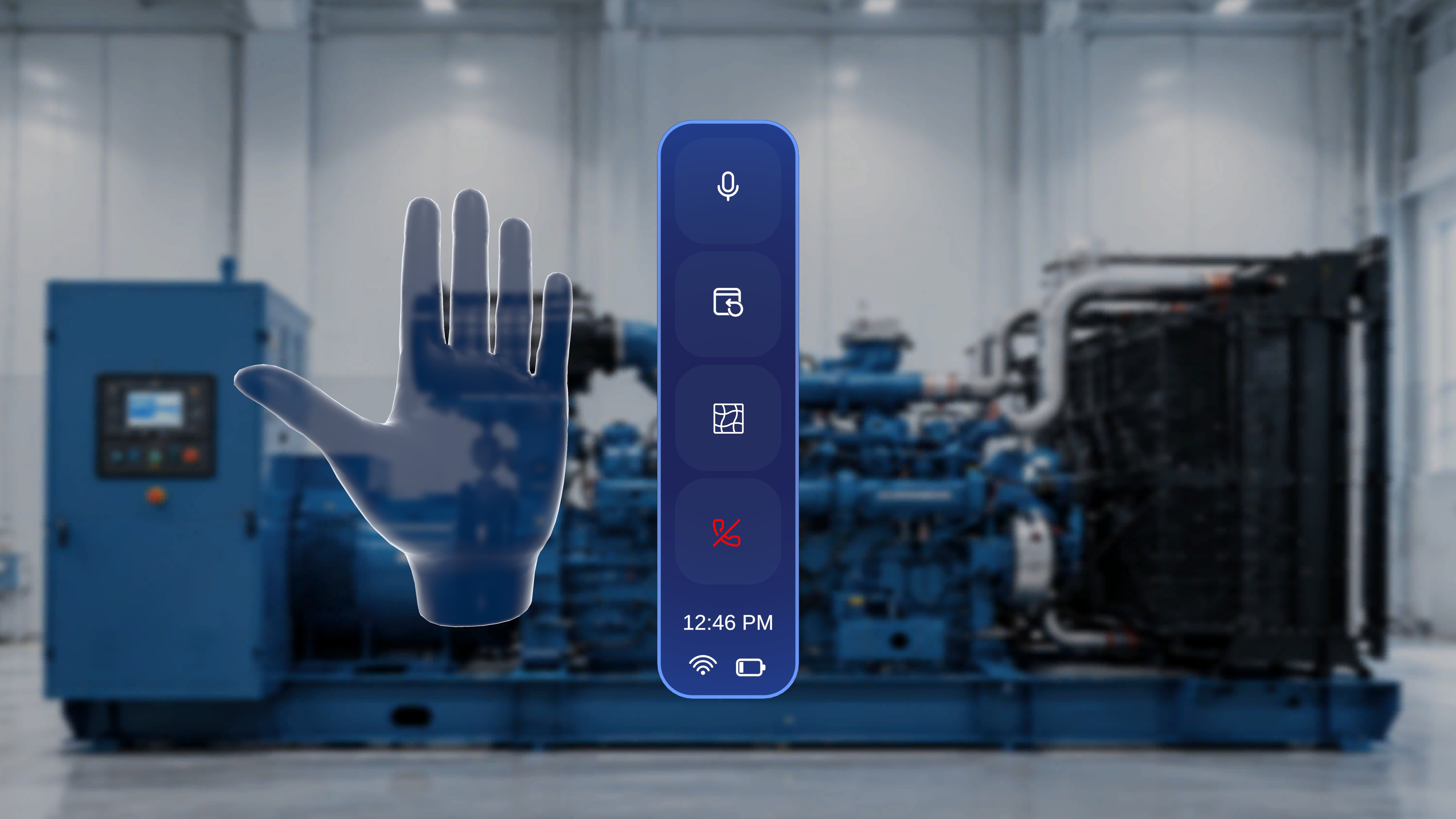
During an active Remote Expert session, a contextual side menu becomes available on the HMD. This menu provides quick access to essential call controls — muting your microphone, repositioning the call panel, toggling the spatial mesh overlay, and exiting the session.
The menu appears only while a Remote Expert call is in progress.
***
## Open the Quick Menu
1. Raise your left palm and face it toward yourself.
### Overview
During an active Remote Expert session, a contextual side menu becomes available on the HMD. This menu provides quick access to essential call controls — muting your microphone, repositioning the call panel, toggling the spatial mesh overlay, and exiting the session.
The menu appears only while a Remote Expert call is in progress.
***
## Open the Quick Menu
1. Raise your left palm and face it toward yourself.
 ### What Happens Next
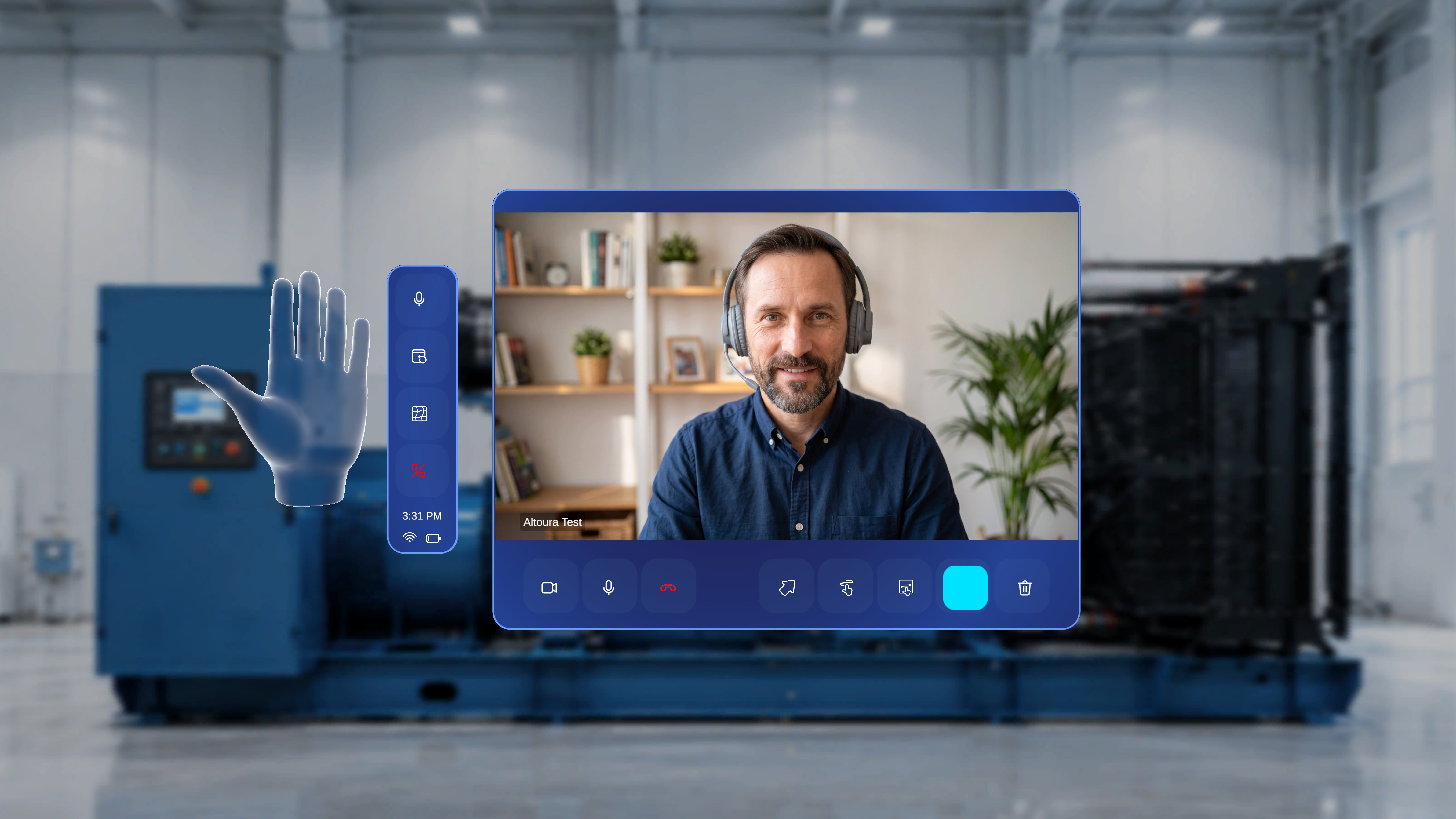
* A vertical control panel appears beside your hand.
* The menu remains visible while your palm is raised and facing you.
* The controls are specific to the active Remote Expert session.
***
## Available Controls
The quick menu includes the following options, from top to bottom:
### Microphone
### What Happens Next
* A vertical control panel appears beside your hand.
* The menu remains visible while your palm is raised and facing you.
* The controls are specific to the active Remote Expert session.
***
## Available Controls
The quick menu includes the following options, from top to bottom:
### Microphone
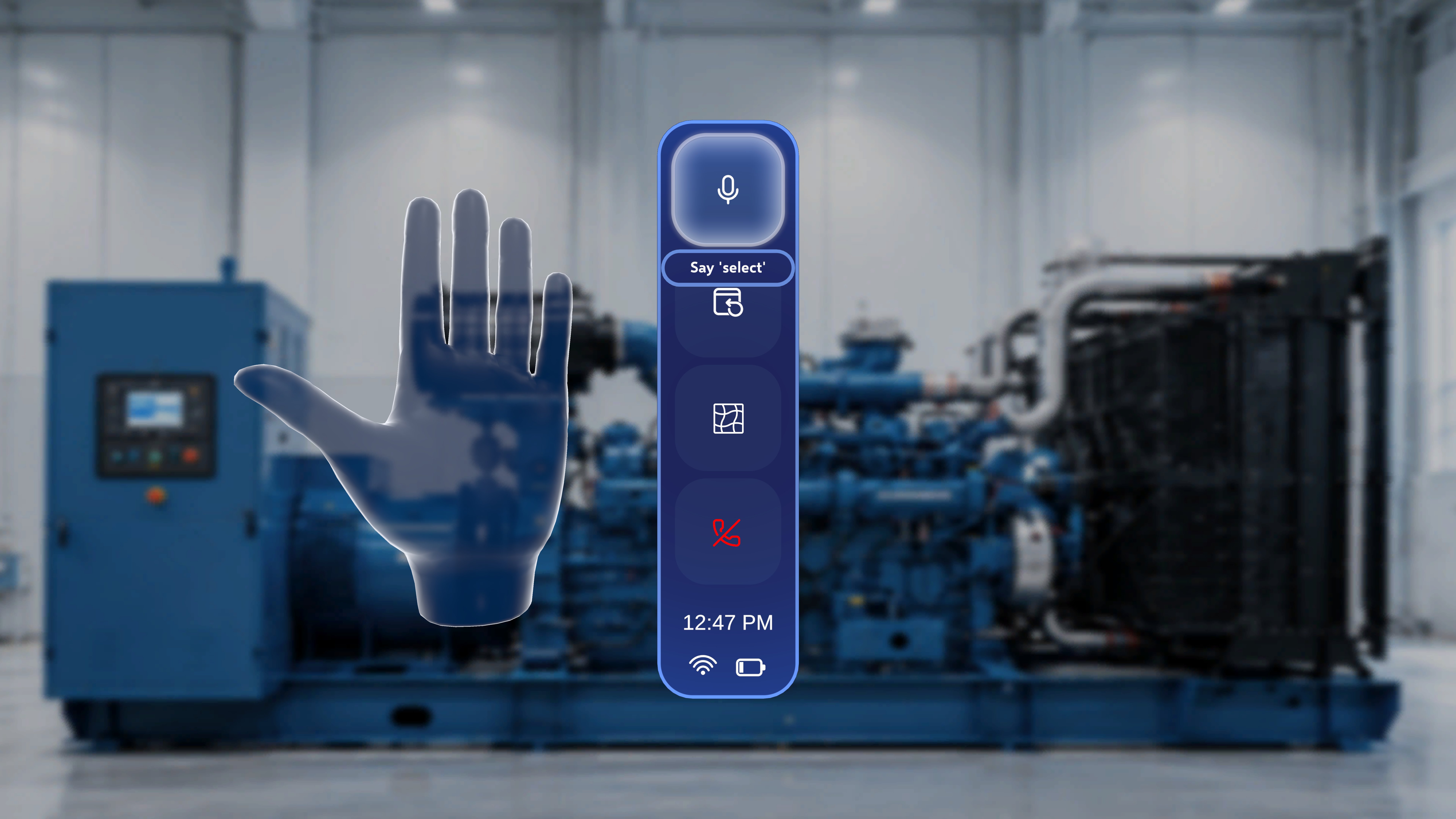 * Tap the **Microphone** icon (top of the menu) to mute or unmute your audio.
* When muted, the remote expert cannot hear you.
***
### Reposition Call Panel
* Tap the **Microphone** icon (top of the menu) to mute or unmute your audio.
* When muted, the remote expert cannot hear you.
***
### Reposition Call Panel
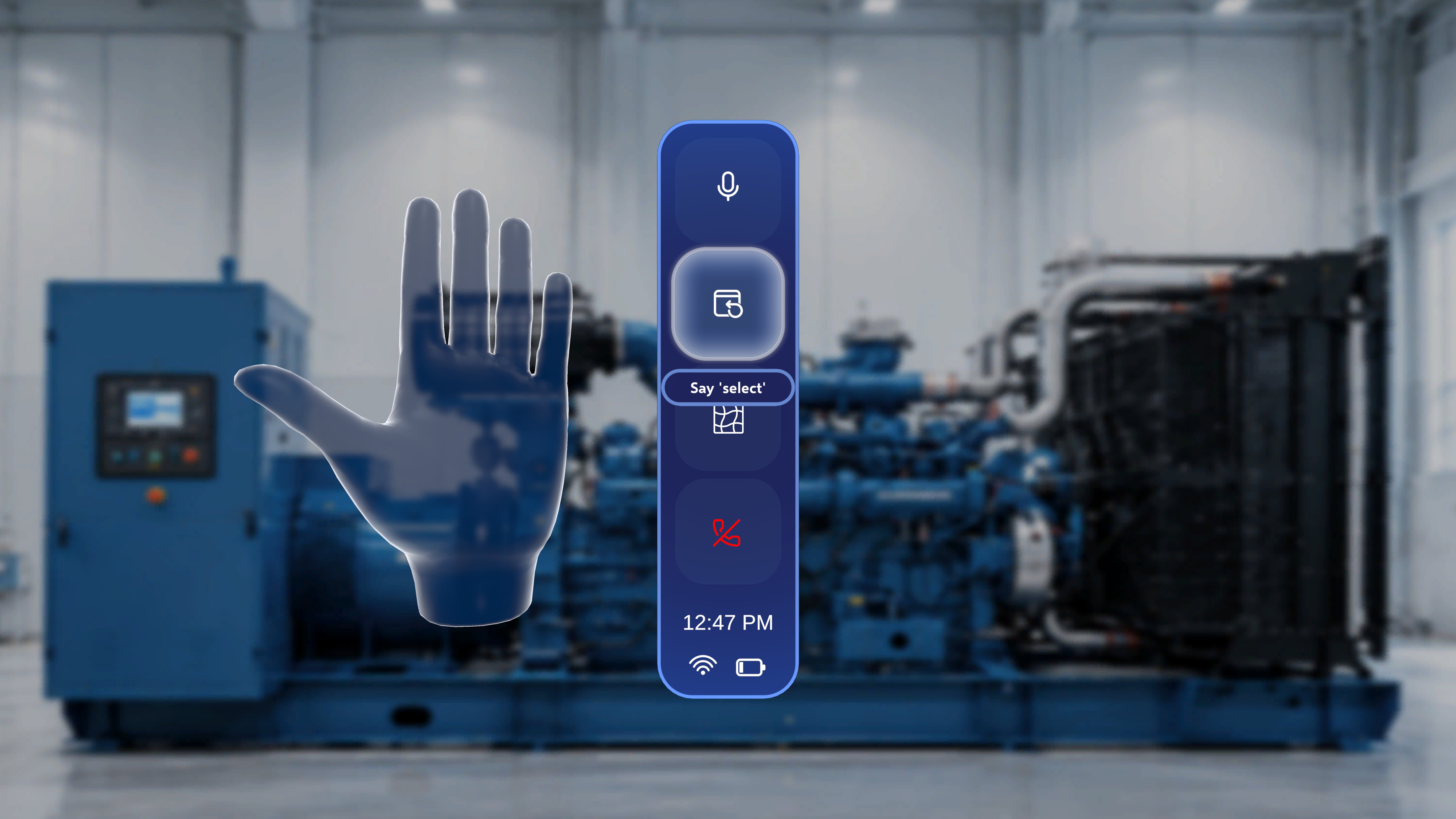 * Tap the **Reposition** icon (second from top) to bring the call panel directly in front of you.
* This is useful if the call window has moved out of view or is no longer comfortably positioned.
***
### Mesh
* Tap the **Reposition** icon (second from top) to bring the call panel directly in front of you.
* This is useful if the call window has moved out of view or is no longer comfortably positioned.
***
### Mesh
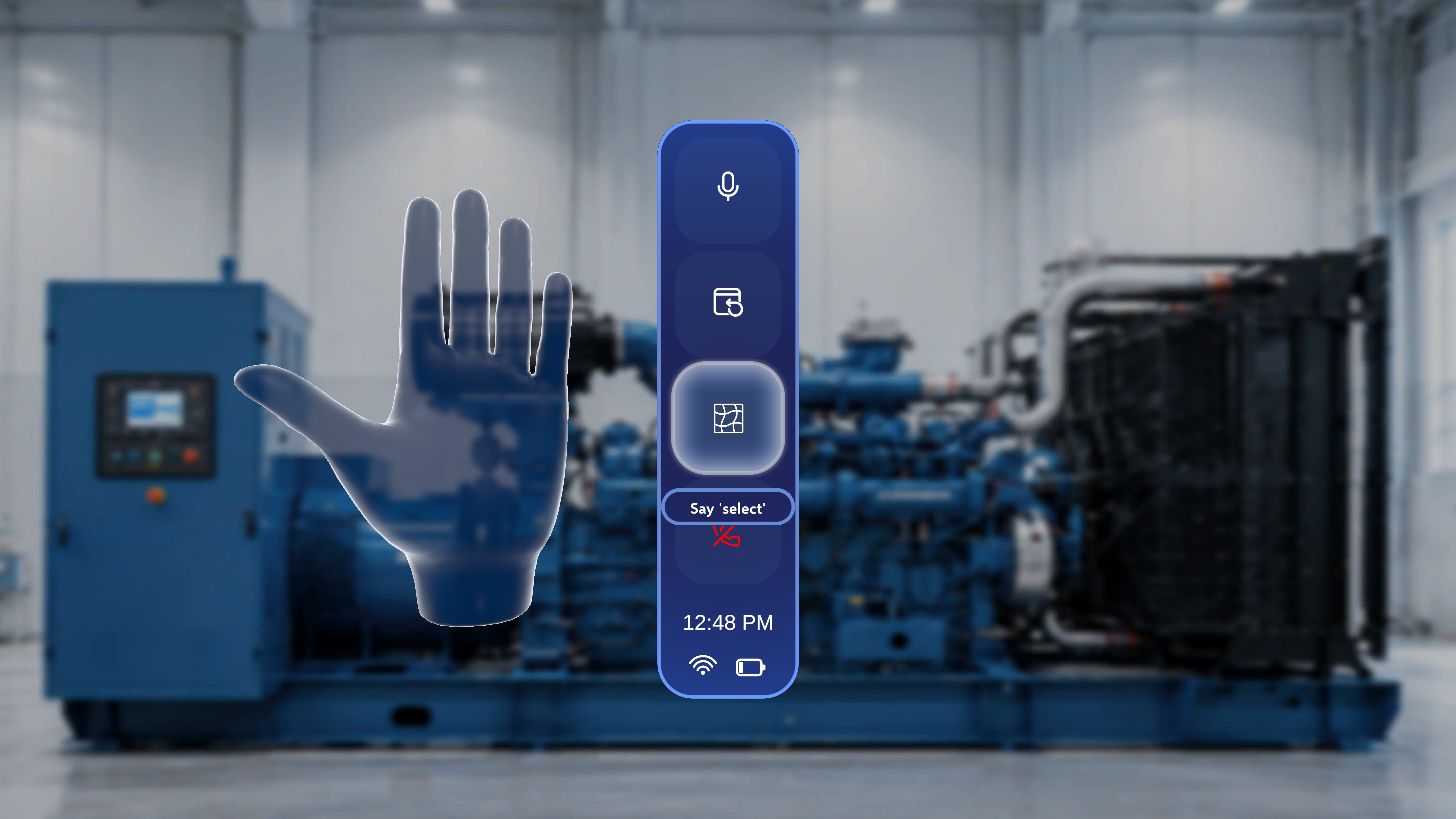 * Tap the **Mesh** icon (third from top) to toggle the **spatial mesh overlay** on or off.
* When **on**, a wireframe grid is drawn over every surface the HoloLens has mapped in your environment. This shows you at a glance where the system has (and hasn't) detected surfaces it can anchor annotations to.
* When **off**, the mesh is hidden so your view stays clean during normal work.
By default, the mesh is **off**.
#### Voice commands
The Mesh button also responds to two global voice commands — no need to gaze at the button first:
| Command | Effect |
| --------------- | --------------------------- |
| **"Show mesh"** | Turns the mesh overlay on. |
| **"Hide mesh"** | Turns the mesh overlay off. |
See [Voice Commands in Remote Expert](/frontline/remote-expert/voice-commands) for the full voice-interaction reference.
If annotations aren't landing where you expect, turn Mesh on to see which surfaces the HoloLens has mapped. Gaps in the mesh usually mean the system hasn't fully scanned that area yet — look around the target surface for a few seconds so the HoloLens can complete spatial mapping, then try again.
***
### Exit Remote Expert
* Tap the **Exit** icon (bottom of the menu) to end the session.
When selected, a confirmation dialog appears:
* Tap the **Mesh** icon (third from top) to toggle the **spatial mesh overlay** on or off.
* When **on**, a wireframe grid is drawn over every surface the HoloLens has mapped in your environment. This shows you at a glance where the system has (and hasn't) detected surfaces it can anchor annotations to.
* When **off**, the mesh is hidden so your view stays clean during normal work.
By default, the mesh is **off**.
#### Voice commands
The Mesh button also responds to two global voice commands — no need to gaze at the button first:
| Command | Effect |
| --------------- | --------------------------- |
| **"Show mesh"** | Turns the mesh overlay on. |
| **"Hide mesh"** | Turns the mesh overlay off. |
See [Voice Commands in Remote Expert](/frontline/remote-expert/voice-commands) for the full voice-interaction reference.
If annotations aren't landing where you expect, turn Mesh on to see which surfaces the HoloLens has mapped. Gaps in the mesh usually mean the system hasn't fully scanned that area yet — look around the target surface for a few seconds so the HoloLens can complete spatial mapping, then try again.
***
### Exit Remote Expert
* Tap the **Exit** icon (bottom of the menu) to end the session.
When selected, a confirmation dialog appears:
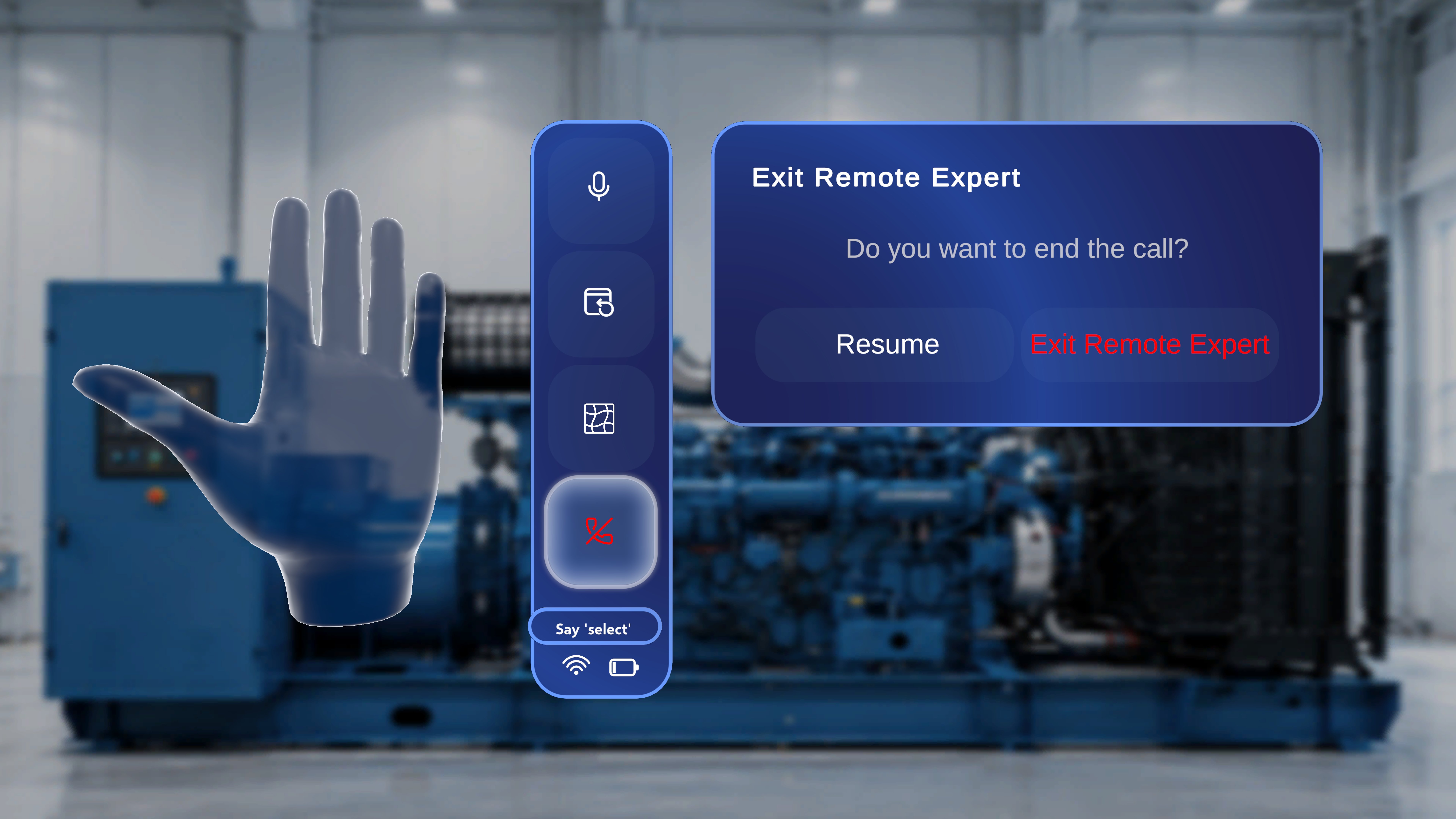 The dialog shows:
**Exit Remote Expert** — *Do you want to end the call?*
You can then choose:
* **Resume** – Return to the active session.
* **Exit Remote Expert** – End the call.
***
### What Happens When You Exit
* The Remote Expert session ends.
* The call interface closes.
* You return to the previous application state.
This quick menu allows you to control your session efficiently without interrupting your workflow.
The dialog shows:
**Exit Remote Expert** — *Do you want to end the call?*
You can then choose:
* **Resume** – Return to the active session.
* **Exit Remote Expert** – End the call.
***
### What Happens When You Exit
* The Remote Expert session ends.
* The call interface closes.
* You return to the previous application state.
This quick menu allows you to control your session efficiently without interrupting your workflow.