> ## Documentation Index
> Fetch the complete documentation index at: https://docs.altoura.com/llms.txt
> Use this file to discover all available pages before exploring further.
# How Remote Expert Works
> What the remote expert sees and does in Microsoft Teams — the two ways a session starts, live annotation into the worker's space, and file sharing.
This page is for the **remote expert** — the person who helps from Microsoft Teams on desktop and never wears the device. Read it to understand how a Remote Expert session works end to end, then follow the guides below to get set up, join your first session, and guide the worker.
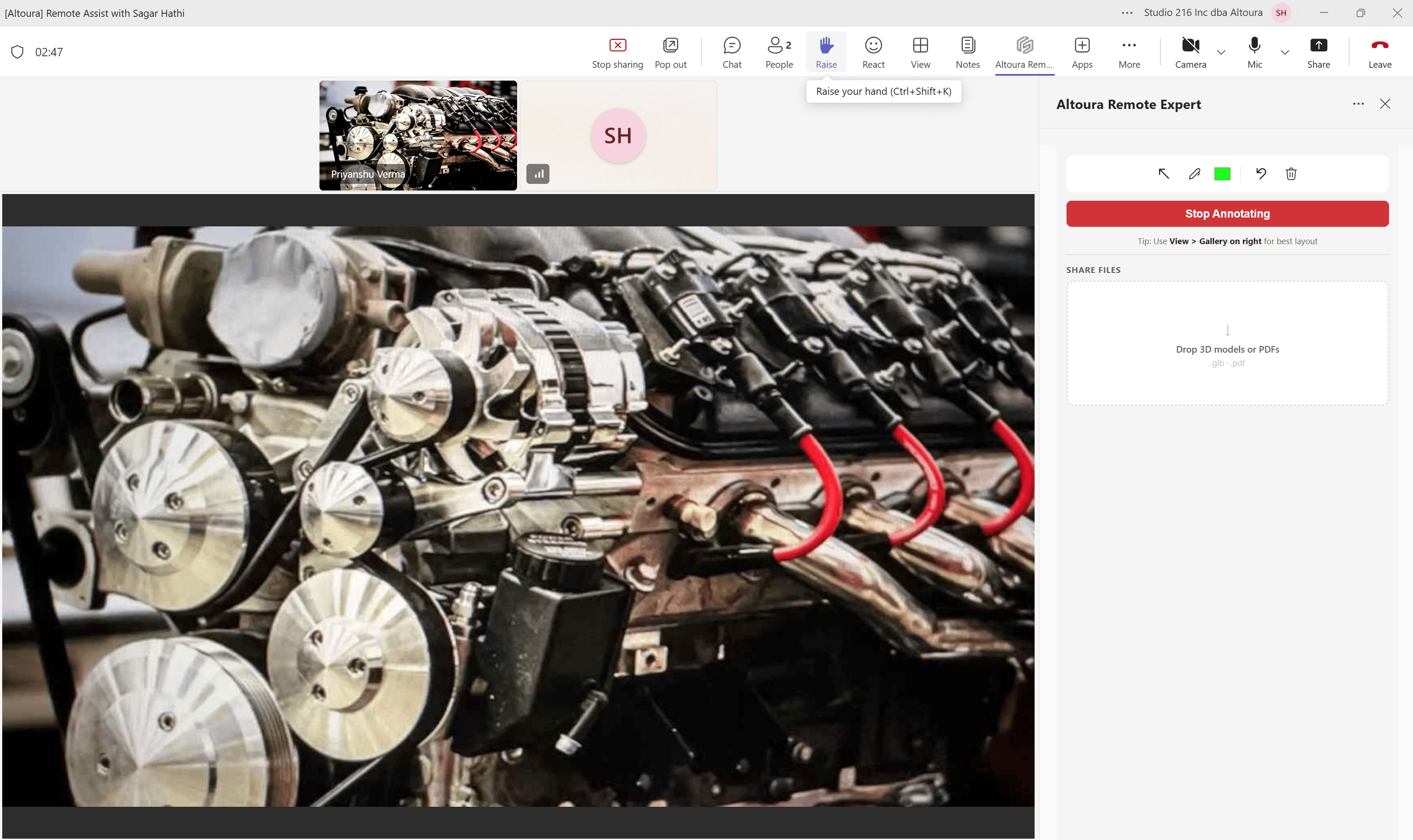
**Remote Expert** turns the worker's headset into a live window between the field and you. The worker calls out from their device; you see exactly what they see inside a standard Teams meeting, draw annotations that appear anchored in their physical space, and share files they can view on the headset. You don't install anything new — you join from the Teams client you already use.
 ***
## What happens in a session
Three things happen when a Remote Expert session is active:
1. **You see what the worker sees.** The device's camera feed streams into the Teams meeting.
2. **You draw annotations** — arrows and freehand drawing — that appear anchored in the worker's physical space, in real time. If the worker looks away and back, your annotations stay where you drew them on the real equipment.
3. **You share content** — PDFs and `.glb` 3D models — that the worker can view and interact with on the headset.
All of this happens inside a standard Teams meeting, so audio, video, screen share, and chat work exactly the way your organization already expects.
***
## Two ways a session starts: Contacts vs. Meetings
The worker's device supports two complementary flows for reaching you. Which one they use changes how you get into the call.
The worker searches for you by name on their device and sends an invitation. You receive an **Adaptive Card** titled *Frontline Remote Expert Request* in your Teams chat, with a **Join Meeting** button.
A standard Teams meeting is scheduled in advance with both you and the worker invited. The worker joins from their device's calendar; you join from your Teams calendar. **No notification is sent.**
### When each flow is used
| Situation | Flow |
| --------------------------------------------------------------- | ------------------------------------------------------ |
| "The worker is stuck right now and needs any available expert." | **Contacts** — you get an Adaptive Card in Teams chat. |
| "There's a weekly triage meeting at 10:00 with Engineering." | **Meetings** — you both join the same calendar invite. |
| "The worker needs one specific person on a specific machine." | **Contacts** — the worker picks you by name. |
| "You pre-scheduled a troubleshooting window." | **Meetings** — join from your Teams calendar. |
Once the call is active, the in-meeting experience is identical in both flows: you add the **Altoura Remote Expert** app to the meeting, and the panel opens.
***
## What you can do inside the meeting
Once the Altoura Remote Expert app is added to the meeting, a panel opens in the Teams meeting toolbar with two independent capabilities:
* **Start Annotating** — captures the worker's live camera feed into the main meeting canvas, with an annotation toolbar: **Arrow** (directional arrows you can rotate to aim before releasing), **Pen** (freehand drawing), **Color**, **Undo**, and **Delete** (clear all).
* **Share Files** — drag-and-drop `.pdf` documents or `.glb` 3D models to push to the headset. PDFs are delivered for the worker to view; `.glb` models are rendered in the worker's space for inspection.
Annotation and sharing are **independent** — you can share a file without ever entering annotation mode, and annotate without ever sharing a file.
***
## A typical session, end to end
Running a procedure on the device, the worker encounters a part that doesn't match the expected state and switches to Remote Expert.
An Adaptive Card titled *Frontline Remote Expert Request* appears in your Teams chat with a **Join Meeting** button. (In the Meetings flow, you simply join the scheduled meeting from your calendar instead.)
You click **Join now**, then open **Apps** in the Teams meeting toolbar, search for *Altoura Remote Expert*, and **Add** it.
You click **Start Annotating**, the worker's video feed fills the Teams canvas, and you draw arrows pointing at the correct component — anchored in the worker's physical space.
You drag the service manual PDF into the **Share Files** area. The worker can now view it on the headset.
With the situation resolved, the worker ends the session from their device and returns to their procedure.
***
## What you need
* **Microsoft Teams on desktop** — the same client you already run all day. No new app to install.
* **The Altoura Remote Expert Teams app deployed in your tenant** — a one-time setup by your Teams administrator. If it isn't deployed yet, point your admin at the [IT Admin Guide](/frontline/administration/remote-expert-it-admin/overview-and-prerequisites).
Before your first live call, verify the app is available in your Teams client so you don't discover a deployment gap mid-call. The [Get Set Up](/frontline/remote-expert/verify-teams-app) guide walks you through it in four steps.
***
## Your guides
Work through these in order — they form the full expert-side path from setup to a live session.
Confirm the Altoura Remote Expert app is deployed in your tenant and add it to your Teams client before the first call.
Receive the Adaptive Card notification in Teams and join the live call (Contacts flow).
Add the app to the live meeting, then [annotate and share files](/frontline/remote-expert/annotate-hmd-view) into the worker's space.
Curious what the session looks like from the other side? See [what the worker does](/frontline/remote-expert/overview) — the worker-side walkthroughs (accessing Remote Expert, inviting an expert, joining a meeting, hand menu, voice commands) live in each device's tab.
Next: [Get Set Up — verify the Teams app](/frontline/remote-expert/verify-teams-app)
***
## What happens in a session
Three things happen when a Remote Expert session is active:
1. **You see what the worker sees.** The device's camera feed streams into the Teams meeting.
2. **You draw annotations** — arrows and freehand drawing — that appear anchored in the worker's physical space, in real time. If the worker looks away and back, your annotations stay where you drew them on the real equipment.
3. **You share content** — PDFs and `.glb` 3D models — that the worker can view and interact with on the headset.
All of this happens inside a standard Teams meeting, so audio, video, screen share, and chat work exactly the way your organization already expects.
***
## Two ways a session starts: Contacts vs. Meetings
The worker's device supports two complementary flows for reaching you. Which one they use changes how you get into the call.
The worker searches for you by name on their device and sends an invitation. You receive an **Adaptive Card** titled *Frontline Remote Expert Request* in your Teams chat, with a **Join Meeting** button.
A standard Teams meeting is scheduled in advance with both you and the worker invited. The worker joins from their device's calendar; you join from your Teams calendar. **No notification is sent.**
### When each flow is used
| Situation | Flow |
| --------------------------------------------------------------- | ------------------------------------------------------ |
| "The worker is stuck right now and needs any available expert." | **Contacts** — you get an Adaptive Card in Teams chat. |
| "There's a weekly triage meeting at 10:00 with Engineering." | **Meetings** — you both join the same calendar invite. |
| "The worker needs one specific person on a specific machine." | **Contacts** — the worker picks you by name. |
| "You pre-scheduled a troubleshooting window." | **Meetings** — join from your Teams calendar. |
Once the call is active, the in-meeting experience is identical in both flows: you add the **Altoura Remote Expert** app to the meeting, and the panel opens.
***
## What you can do inside the meeting
Once the Altoura Remote Expert app is added to the meeting, a panel opens in the Teams meeting toolbar with two independent capabilities:
* **Start Annotating** — captures the worker's live camera feed into the main meeting canvas, with an annotation toolbar: **Arrow** (directional arrows you can rotate to aim before releasing), **Pen** (freehand drawing), **Color**, **Undo**, and **Delete** (clear all).
* **Share Files** — drag-and-drop `.pdf` documents or `.glb` 3D models to push to the headset. PDFs are delivered for the worker to view; `.glb` models are rendered in the worker's space for inspection.
Annotation and sharing are **independent** — you can share a file without ever entering annotation mode, and annotate without ever sharing a file.
***
## A typical session, end to end
Running a procedure on the device, the worker encounters a part that doesn't match the expected state and switches to Remote Expert.
An Adaptive Card titled *Frontline Remote Expert Request* appears in your Teams chat with a **Join Meeting** button. (In the Meetings flow, you simply join the scheduled meeting from your calendar instead.)
You click **Join now**, then open **Apps** in the Teams meeting toolbar, search for *Altoura Remote Expert*, and **Add** it.
You click **Start Annotating**, the worker's video feed fills the Teams canvas, and you draw arrows pointing at the correct component — anchored in the worker's physical space.
You drag the service manual PDF into the **Share Files** area. The worker can now view it on the headset.
With the situation resolved, the worker ends the session from their device and returns to their procedure.
***
## What you need
* **Microsoft Teams on desktop** — the same client you already run all day. No new app to install.
* **The Altoura Remote Expert Teams app deployed in your tenant** — a one-time setup by your Teams administrator. If it isn't deployed yet, point your admin at the [IT Admin Guide](/frontline/administration/remote-expert-it-admin/overview-and-prerequisites).
Before your first live call, verify the app is available in your Teams client so you don't discover a deployment gap mid-call. The [Get Set Up](/frontline/remote-expert/verify-teams-app) guide walks you through it in four steps.
***
## Your guides
Work through these in order — they form the full expert-side path from setup to a live session.
Confirm the Altoura Remote Expert app is deployed in your tenant and add it to your Teams client before the first call.
Receive the Adaptive Card notification in Teams and join the live call (Contacts flow).
Add the app to the live meeting, then [annotate and share files](/frontline/remote-expert/annotate-hmd-view) into the worker's space.
Curious what the session looks like from the other side? See [what the worker does](/frontline/remote-expert/overview) — the worker-side walkthroughs (accessing Remote Expert, inviting an expert, joining a meeting, hand menu, voice commands) live in each device's tab.
Next: [Get Set Up — verify the Teams app](/frontline/remote-expert/verify-teams-app)