> ## Documentation Index
> Fetch the complete documentation index at: https://docs.altoura.com/llms.txt
> Use this file to discover all available pages before exploring further.
# Meetings: Join a Scheduled Call
> How to view and join your scheduled Microsoft Teams meetings directly from the HoloLens using Remote Expert.
 ### Overview
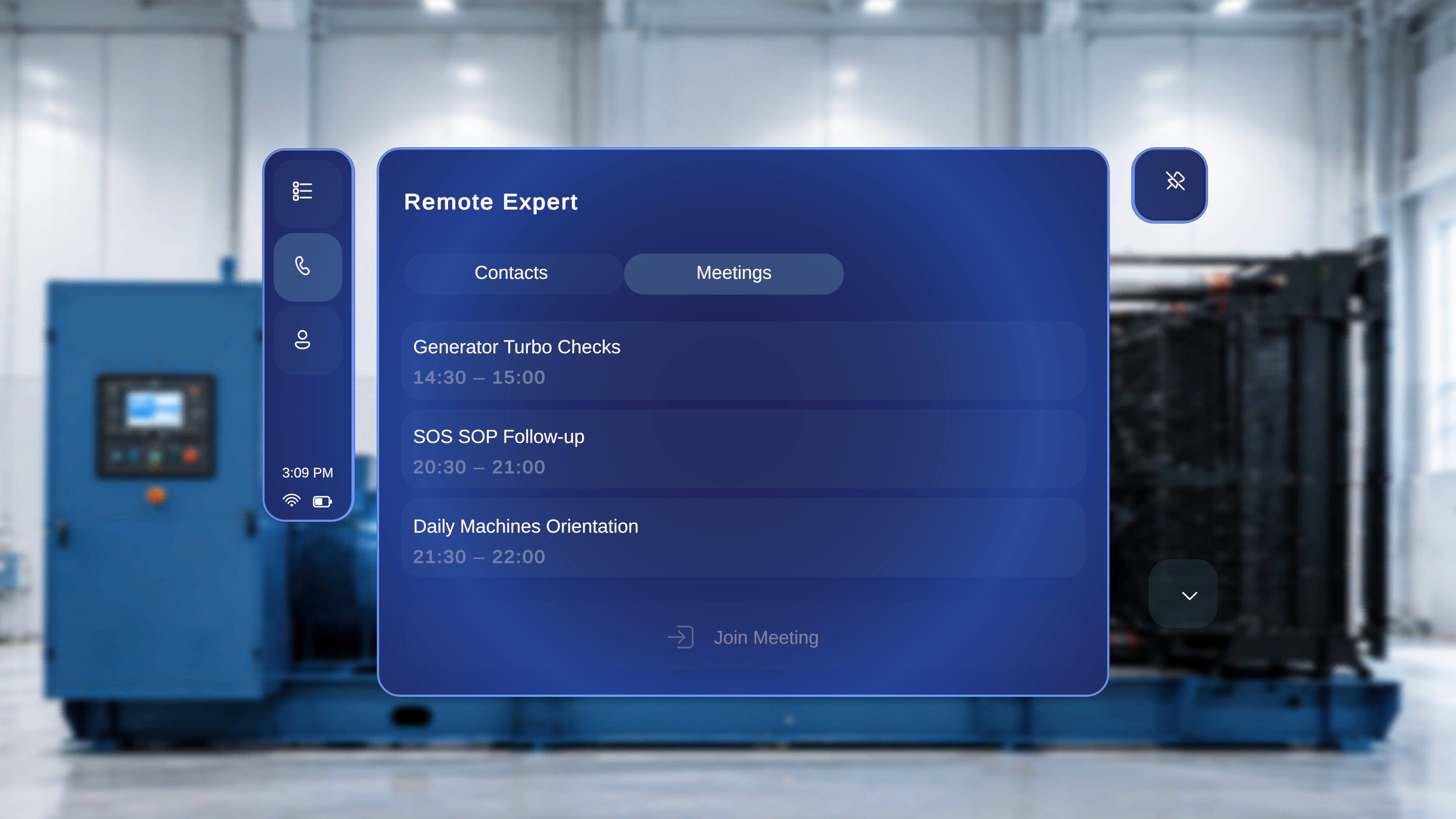
The **Meetings** tab in Remote Expert displays your scheduled Microsoft Teams meetings. You can browse your upcoming meetings and join any of them directly from the HoloLens without needing to search for a contact or send an invitation.
Unlike the [Contacts flow](/frontline/remote-expert/search-and-invite), no notification is sent to the expert. You are joining an existing scheduled meeting, and the other participants are expected to join the same meeting from their Teams client.
***
## View Scheduled Meetings
1. In the **Remote Expert** screen, select the **Meetings** tab.
### What You See
* A list of your scheduled Microsoft Teams meetings.
* Each meeting displays:
* The **meeting title** (for example, *Inline/Straight Engines Discussion*)
* The **scheduled time** (for example, *13:30 – 14:00*)
* The **Join Meeting** button appears at the bottom of the panel.
***
## Select a Meeting
1. Tap on the meeting you want to join from the list.
### Overview
The **Meetings** tab in Remote Expert displays your scheduled Microsoft Teams meetings. You can browse your upcoming meetings and join any of them directly from the HoloLens without needing to search for a contact or send an invitation.
Unlike the [Contacts flow](/frontline/remote-expert/search-and-invite), no notification is sent to the expert. You are joining an existing scheduled meeting, and the other participants are expected to join the same meeting from their Teams client.
***
## View Scheduled Meetings
1. In the **Remote Expert** screen, select the **Meetings** tab.
### What You See
* A list of your scheduled Microsoft Teams meetings.
* Each meeting displays:
* The **meeting title** (for example, *Inline/Straight Engines Discussion*)
* The **scheduled time** (for example, *13:30 – 14:00*)
* The **Join Meeting** button appears at the bottom of the panel.
***
## Select a Meeting
1. Tap on the meeting you want to join from the list.
 ### What Happens Next
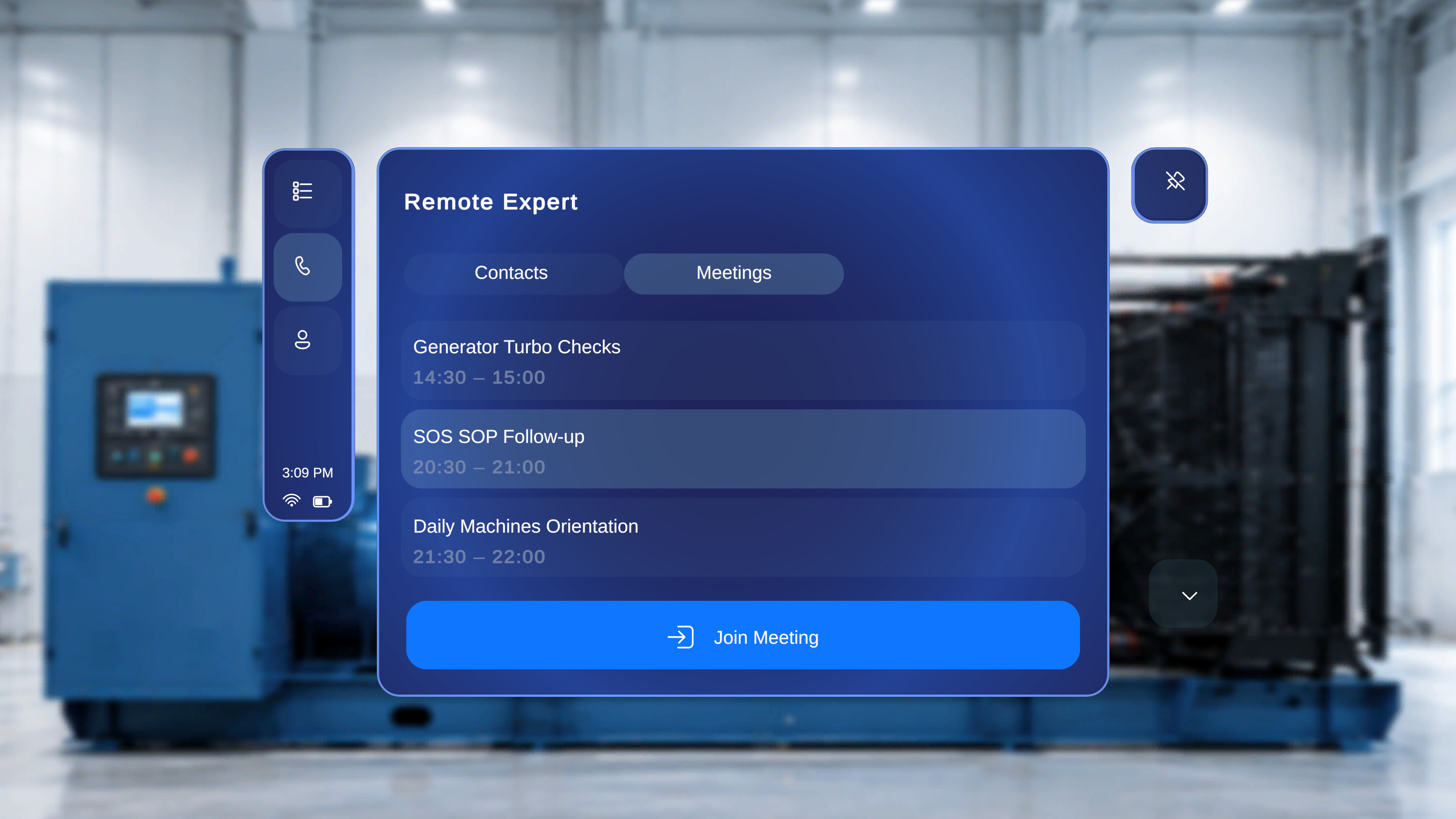
* The selected meeting is highlighted.
* The **Join Meeting** button becomes active (enabled).
***
## Join the Meeting
1. Click **Join Meeting**.
### What Happens Next
* The HoloLens connects to the selected Microsoft Teams meeting.
* The call interface opens and you are placed in the live session.
* If the meeting has other participants already connected, you can see and hear them.
* The session is ready for live collaboration and annotation.
***
## Available Controls During the Call
The call control bar is displayed at the bottom of the screen. The following controls are available:
* **Camera** – Turn your video on or off.
* **Microphone** – Mute or unmute your audio.
* **End Call** – Leave the meeting.
For additional controls, see [Remote Expert Hand Menu](/frontline/remote-expert/hand-menu).
This page covers the **HMD side** of the Meetings flow. Once the call is active, the Teams-side experience is the same as the Contacts flow. The expert adds the Altoura Remote Expert app to annotate and share content. See [Add the Remote Expert App](/frontline/remote-expert/add-teams-app) for the Teams-side steps.
### What Happens Next
* The selected meeting is highlighted.
* The **Join Meeting** button becomes active (enabled).
***
## Join the Meeting
1. Click **Join Meeting**.
### What Happens Next
* The HoloLens connects to the selected Microsoft Teams meeting.
* The call interface opens and you are placed in the live session.
* If the meeting has other participants already connected, you can see and hear them.
* The session is ready for live collaboration and annotation.
***
## Available Controls During the Call
The call control bar is displayed at the bottom of the screen. The following controls are available:
* **Camera** – Turn your video on or off.
* **Microphone** – Mute or unmute your audio.
* **End Call** – Leave the meeting.
For additional controls, see [Remote Expert Hand Menu](/frontline/remote-expert/hand-menu).
This page covers the **HMD side** of the Meetings flow. Once the call is active, the Teams-side experience is the same as the Contacts flow. The expert adds the Altoura Remote Expert app to annotate and share content. See [Add the Remote Expert App](/frontline/remote-expert/add-teams-app) for the Teams-side steps.