> ## Documentation Index
> Fetch the complete documentation index at: https://docs.altoura.com/llms.txt
> Use this file to discover all available pages before exploring further.
# Join a Remote Expert Session (Microsoft Teams)
 ### Overview
This guide is for the **remote expert** working in Microsoft Teams on desktop. By the end, you will have received a Remote Expert invitation in Teams and joined the live session with the on-site worker.
This page applies to the **Contacts flow**, where an HMD user searches for an expert and sends an invitation. If the HMD user joins via the **Meetings** tab, there is no notification. The expert joins the same scheduled Teams meeting directly.
When an on-site user sends a request from **Remote Expert**, you receive a session invitation in Microsoft Teams. The invitation appears as a meeting card in the relevant chat and allows you to join the live session.
***
### When This Appears
You receive this request when:
* An HMD user selects your name in **Remote Expert**
* The user clicks **Invite Expert**
* A session invitation is generated and delivered to you in Microsoft Teams
***
### What You See in Teams
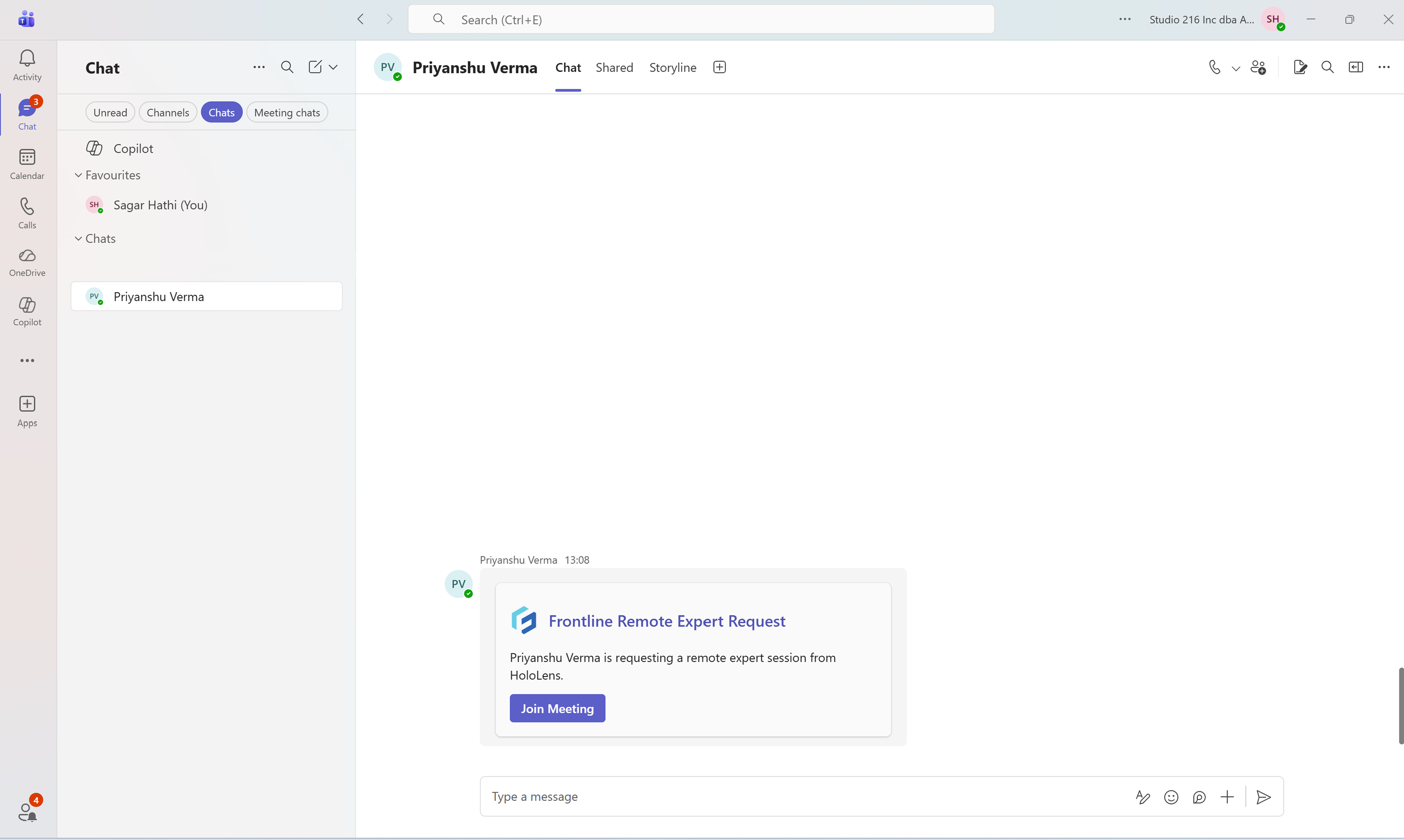
In the chat window, a meeting card appears with:
* The title: **Frontline Remote Expert Request**
* A message indicating that a Remote Expert session has been requested from HoloLens
* A primary action button: **Join Meeting**
This card confirms that a live Remote Expert session is waiting for you to join.
***
### Join the Remote Session
1. Open **Microsoft Teams**.
2. Navigate to the chat where the request appears.
3. Locate the **Frontline Remote Expert Request** card.
4. Click **Join Meeting**.
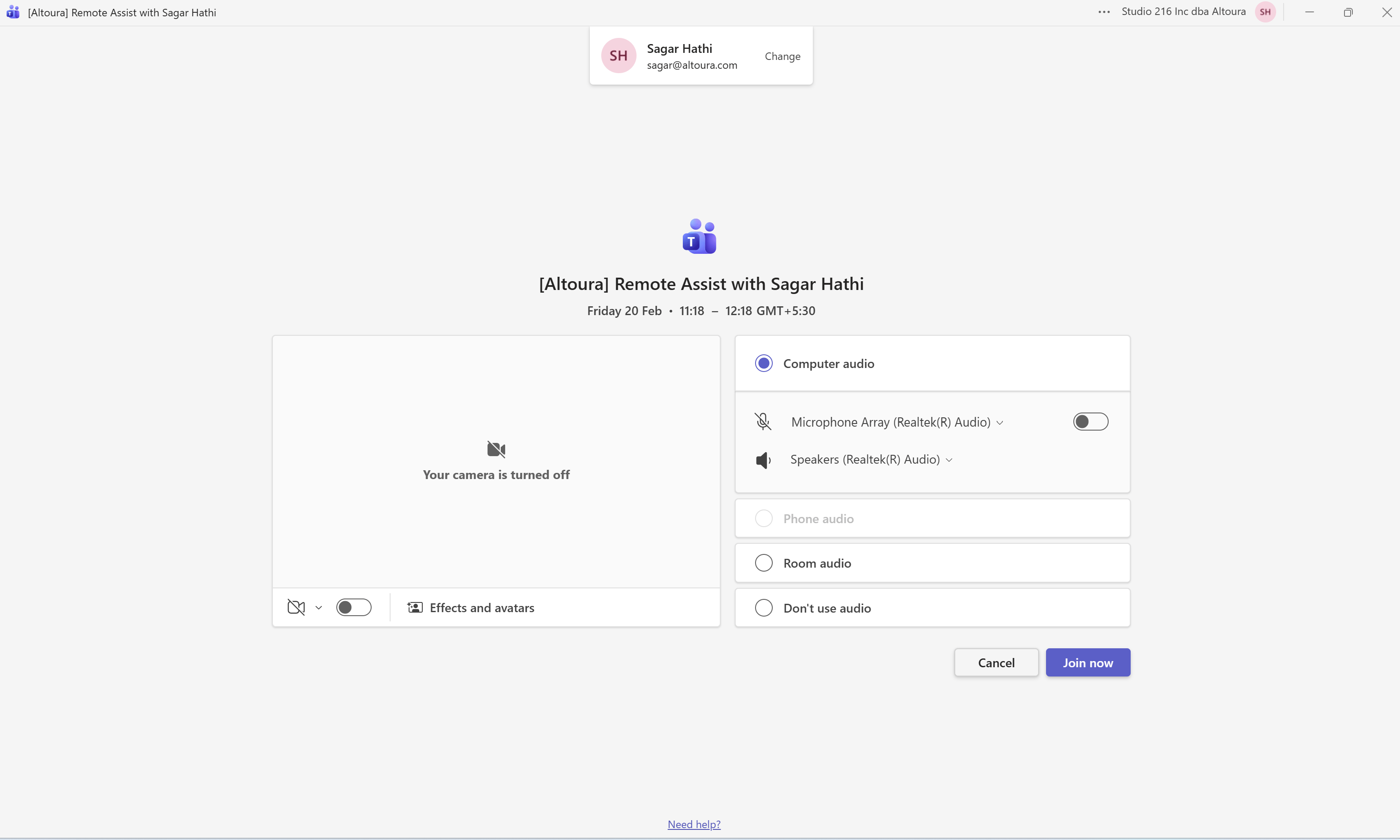
5. Review your audio and video settings.
6. Click **Join now**.
***
### What Happens Next
### Overview
This guide is for the **remote expert** working in Microsoft Teams on desktop. By the end, you will have received a Remote Expert invitation in Teams and joined the live session with the on-site worker.
This page applies to the **Contacts flow**, where an HMD user searches for an expert and sends an invitation. If the HMD user joins via the **Meetings** tab, there is no notification. The expert joins the same scheduled Teams meeting directly.
When an on-site user sends a request from **Remote Expert**, you receive a session invitation in Microsoft Teams. The invitation appears as a meeting card in the relevant chat and allows you to join the live session.
***
### When This Appears
You receive this request when:
* An HMD user selects your name in **Remote Expert**
* The user clicks **Invite Expert**
* A session invitation is generated and delivered to you in Microsoft Teams
***
### What You See in Teams
In the chat window, a meeting card appears with:
* The title: **Frontline Remote Expert Request**
* A message indicating that a Remote Expert session has been requested from HoloLens
* A primary action button: **Join Meeting**
This card confirms that a live Remote Expert session is waiting for you to join.
***
### Join the Remote Session
1. Open **Microsoft Teams**.
2. Navigate to the chat where the request appears.
3. Locate the **Frontline Remote Expert Request** card.
4. Click **Join Meeting**.
5. Review your audio and video settings.
6. Click **Join now**.
***
### What Happens Next
 * The Teams meeting interface opens.
* You are connected to the live session initiated by the HMD user.
* If the HMD user’s camera and microphone are enabled, you can see and hear them.
* You can now proceed to add and use the **Altoura Remote Expert** meeting app to enable annotations and sharing.
***
Next: [Add the Remote Expert App (Microsoft Teams)](/frontline/remote-expert/add-teams-app)
* The Teams meeting interface opens.
* You are connected to the live session initiated by the HMD user.
* If the HMD user’s camera and microphone are enabled, you can see and hear them.
* You can now proceed to add and use the **Altoura Remote Expert** meeting app to enable annotations and sharing.
***
Next: [Add the Remote Expert App (Microsoft Teams)](/frontline/remote-expert/add-teams-app)