> ## Documentation Index
> Fetch the complete documentation index at: https://docs.altoura.com/llms.txt
> Use this file to discover all available pages before exploring further.
# How to Access Remote Expert?
 ### Overview
Remote Expert enables on-site users to connect with a remote specialist for live audio, video, and visual guidance.
After signing in to **Altoura Frontline**, the application opens to the **Procedures** page by default. To start a live remote session, you must switch to the **Remote Expert** section.
***
### When to Use Remote Expert
Use Remote Expert when:
* You require real-time assistance from a remote expert
* You need help diagnosing or resolving an issue on-site
* You want live visual guidance using annotations
***
### Switch from Procedures to Remote Expert
1. Log in to **Altoura Frontline**.
2. Locate the vertical navigation menu beside the main workspace.
3. Select the **phone icon** (second option in the side menu).
***
### What Happens Next
* The main workspace switches to the **Remote Expert** screen.
* The Remote Expert panel has two tabs: **Contacts** and **Meetings**.
### Overview
Remote Expert enables on-site users to connect with a remote specialist for live audio, video, and visual guidance.
After signing in to **Altoura Frontline**, the application opens to the **Procedures** page by default. To start a live remote session, you must switch to the **Remote Expert** section.
***
### When to Use Remote Expert
Use Remote Expert when:
* You require real-time assistance from a remote expert
* You need help diagnosing or resolving an issue on-site
* You want live visual guidance using annotations
***
### Switch from Procedures to Remote Expert
1. Log in to **Altoura Frontline**.
2. Locate the vertical navigation menu beside the main workspace.
3. Select the **phone icon** (second option in the side menu).
***
### What Happens Next
* The main workspace switches to the **Remote Expert** screen.
* The Remote Expert panel has two tabs: **Contacts** and **Meetings**.
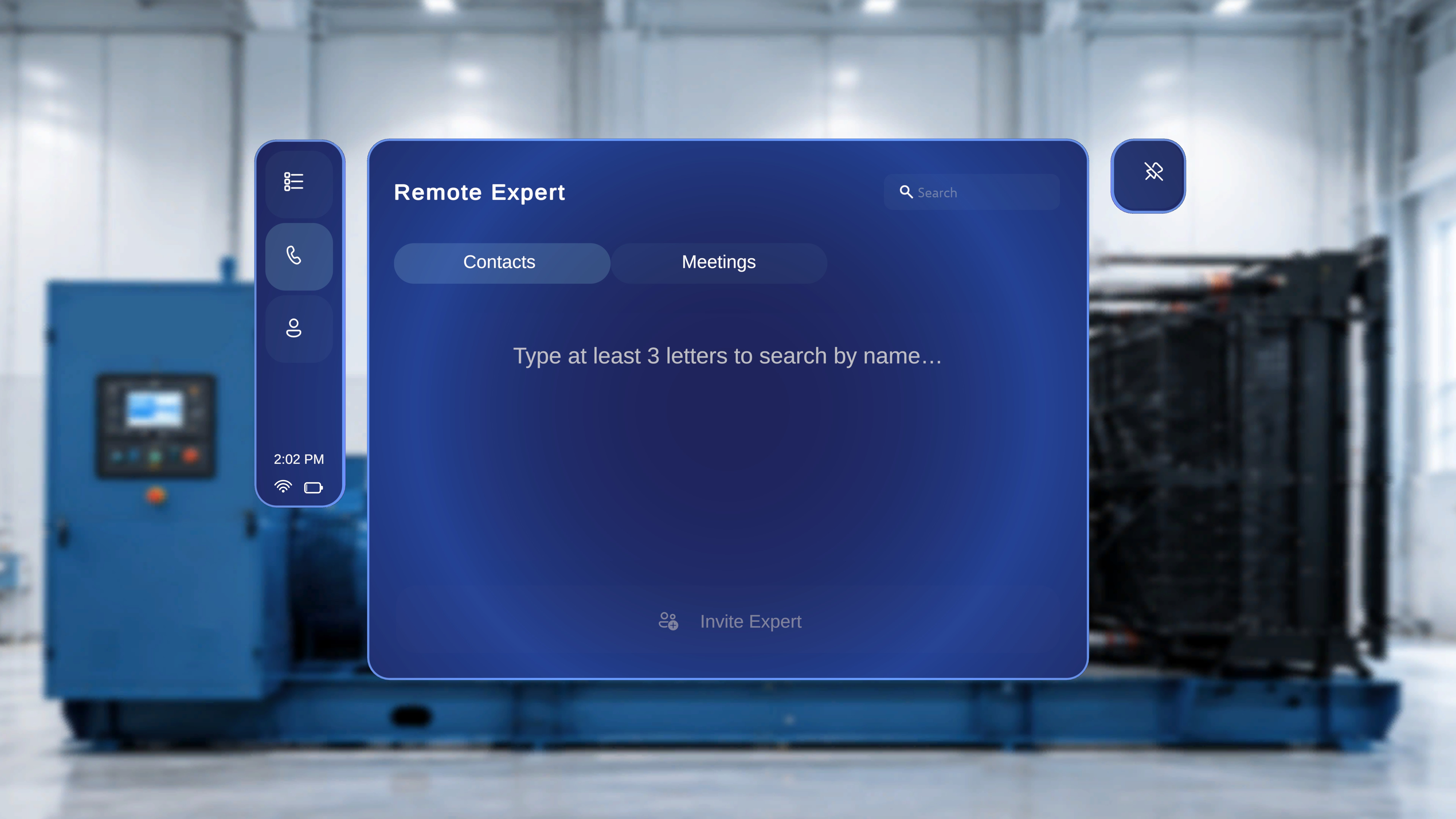 ### Contacts (Invite an Expert)
Use the **Contacts** tab when you need to reach a specific expert who is not already in a scheduled call. You search for them by name, send an invitation, and a new session is created.
**HMD flow:** Search → Select expert → Invite Expert → Wait for expert to join
**Teams flow:** Expert receives a notification → Joins the meeting → Adds the Altoura Remote Expert app
See [Search and Invite](/frontline/remote-expert/search-and-invite) for the full HMD-side walkthrough.
### Meetings (Join a Scheduled Call)
Use the **Meetings** tab when you want to join an existing Microsoft Teams meeting that has already been scheduled. The meeting appears in your list. You select it and join directly.
**HMD flow:** Select Meetings tab → Choose a meeting → Join Meeting → Session starts
The Teams-side experience is the same once the call is active. The expert adds the Altoura Remote Expert app and can annotate and share content.
See [Join a Scheduled Meeting](/frontline/remote-expert/join-meeting) for the full HMD-side walkthrough.
### Contacts (Invite an Expert)
Use the **Contacts** tab when you need to reach a specific expert who is not already in a scheduled call. You search for them by name, send an invitation, and a new session is created.
**HMD flow:** Search → Select expert → Invite Expert → Wait for expert to join
**Teams flow:** Expert receives a notification → Joins the meeting → Adds the Altoura Remote Expert app
See [Search and Invite](/frontline/remote-expert/search-and-invite) for the full HMD-side walkthrough.
### Meetings (Join a Scheduled Call)
Use the **Meetings** tab when you want to join an existing Microsoft Teams meeting that has already been scheduled. The meeting appears in your list. You select it and join directly.
**HMD flow:** Select Meetings tab → Choose a meeting → Join Meeting → Session starts
The Teams-side experience is the same once the call is active. The expert adds the Altoura Remote Expert app and can annotate and share content.
See [Join a Scheduled Meeting](/frontline/remote-expert/join-meeting) for the full HMD-side walkthrough.