> ## Documentation Index
> Fetch the complete documentation index at: https://docs.altoura.com/llms.txt
> Use this file to discover all available pages before exploring further.
# Contacts: Search and Invite an Expert
 ### Overview
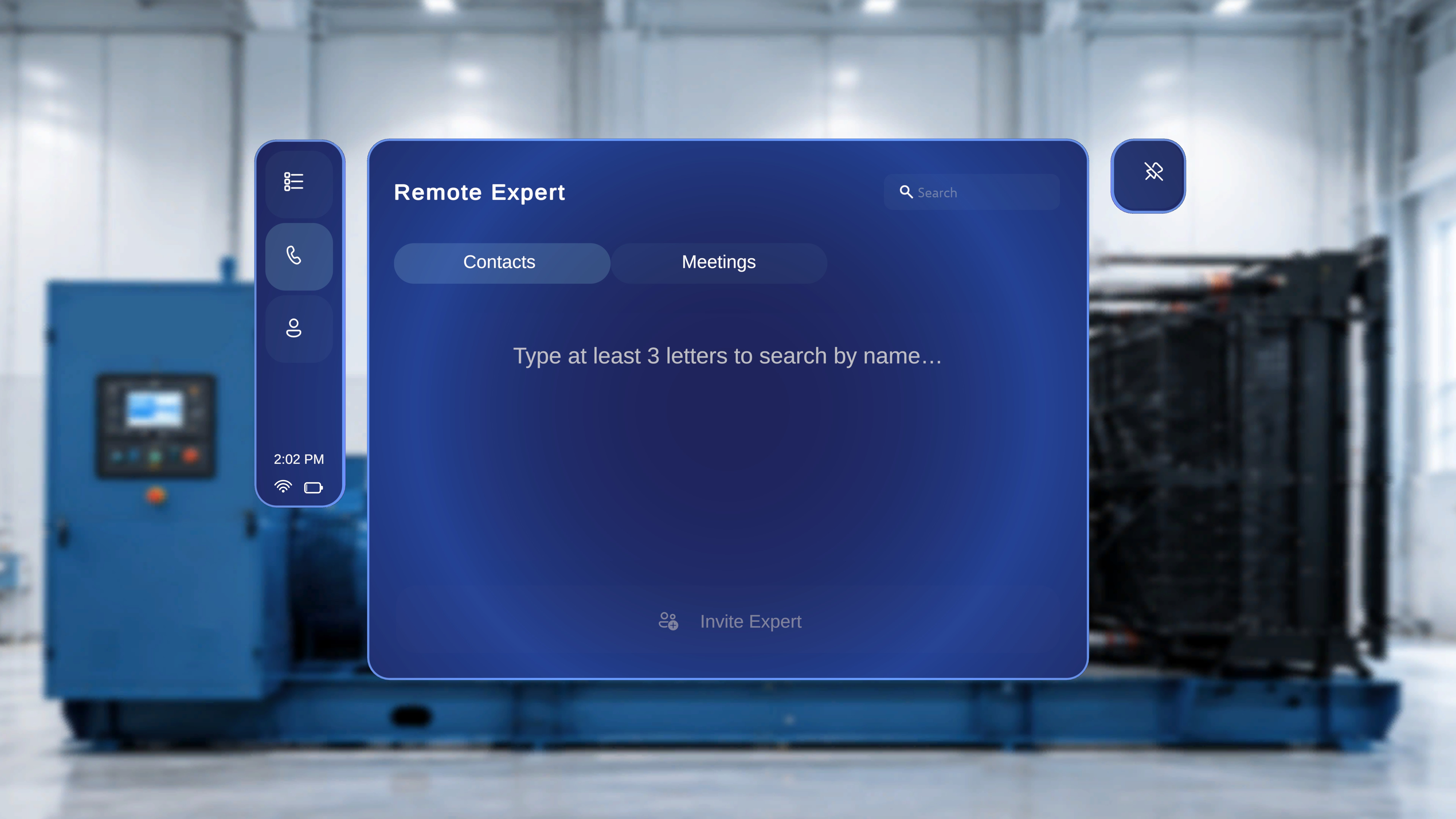
From the **Remote Expert** screen, under the **Contacts** tab, you can search for an expert by name and send a session request. Once the invitation is sent, a live session is created and you are placed in a waiting state until the expert joins.
***
## Search for an Expert
### Search by Name
1. In the **Remote Expert** screen, ensure the **Contacts** tab is selected.
2. Select the **Search** field in the top-right corner.
3. Enter at least three letters of the expert's name.
### Overview
From the **Remote Expert** screen, under the **Contacts** tab, you can search for an expert by name and send a session request. Once the invitation is sent, a live session is created and you are placed in a waiting state until the expert joins.
***
## Search for an Expert
### Search by Name
1. In the **Remote Expert** screen, ensure the **Contacts** tab is selected.
2. Select the **Search** field in the top-right corner.
3. Enter at least three letters of the expert's name.
 ### What Happens Next
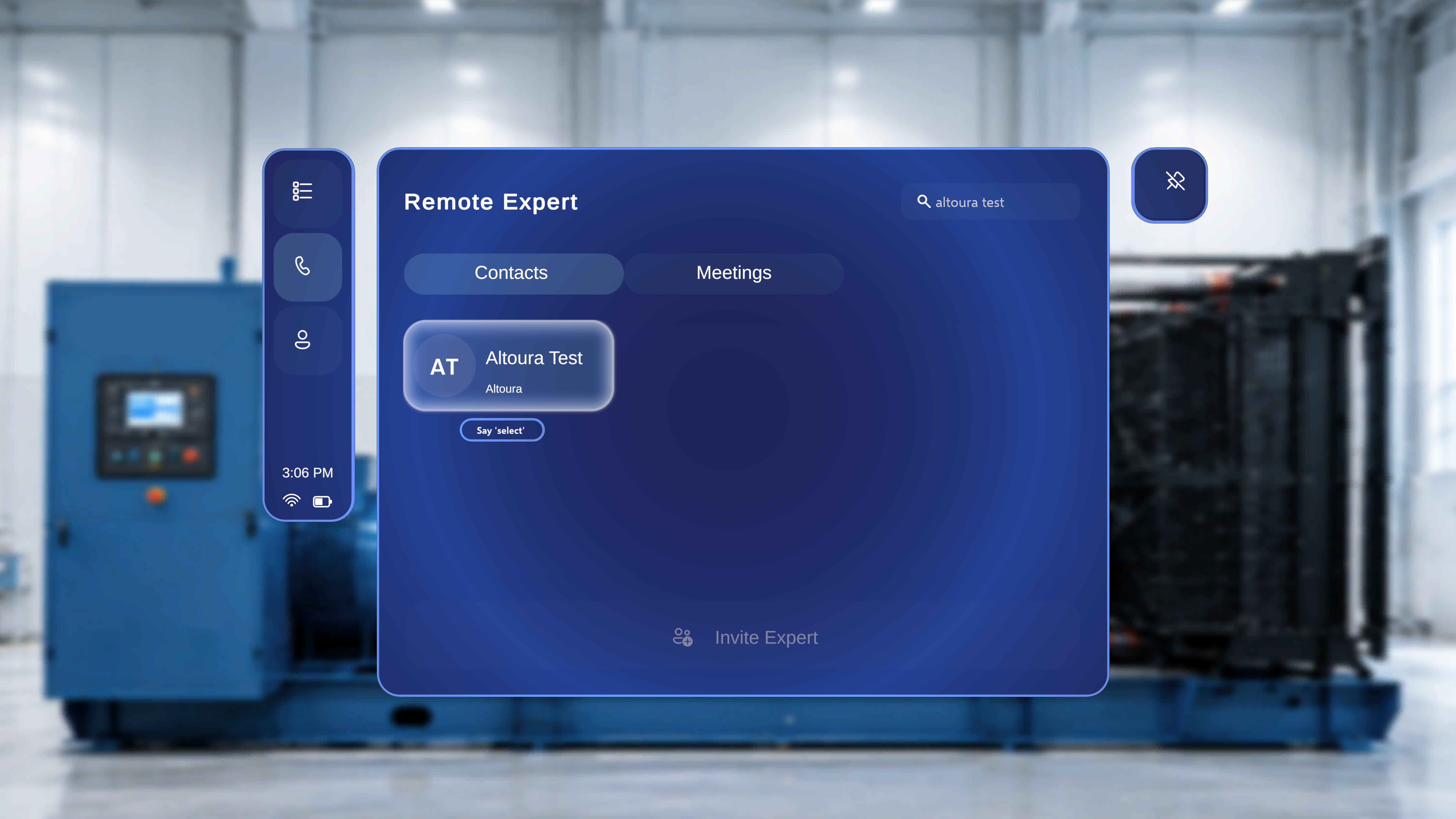
* Matching results appear in the main panel.
* Each result is displayed as a name card.
* The name card includes:
* The expert's initials (for example, **SH**)
* The expert's full name (for example, **Sagar Hathi**)
If multiple users match your search, they appear as a list of selectable name cards.
***
## Send an Invitation
1. Select the expert's name card.
### What Happens Next
* Matching results appear in the main panel.
* Each result is displayed as a name card.
* The name card includes:
* The expert's initials (for example, **SH**)
* The expert's full name (for example, **Sagar Hathi**)
If multiple users match your search, they appear as a list of selectable name cards.
***
## Send an Invitation
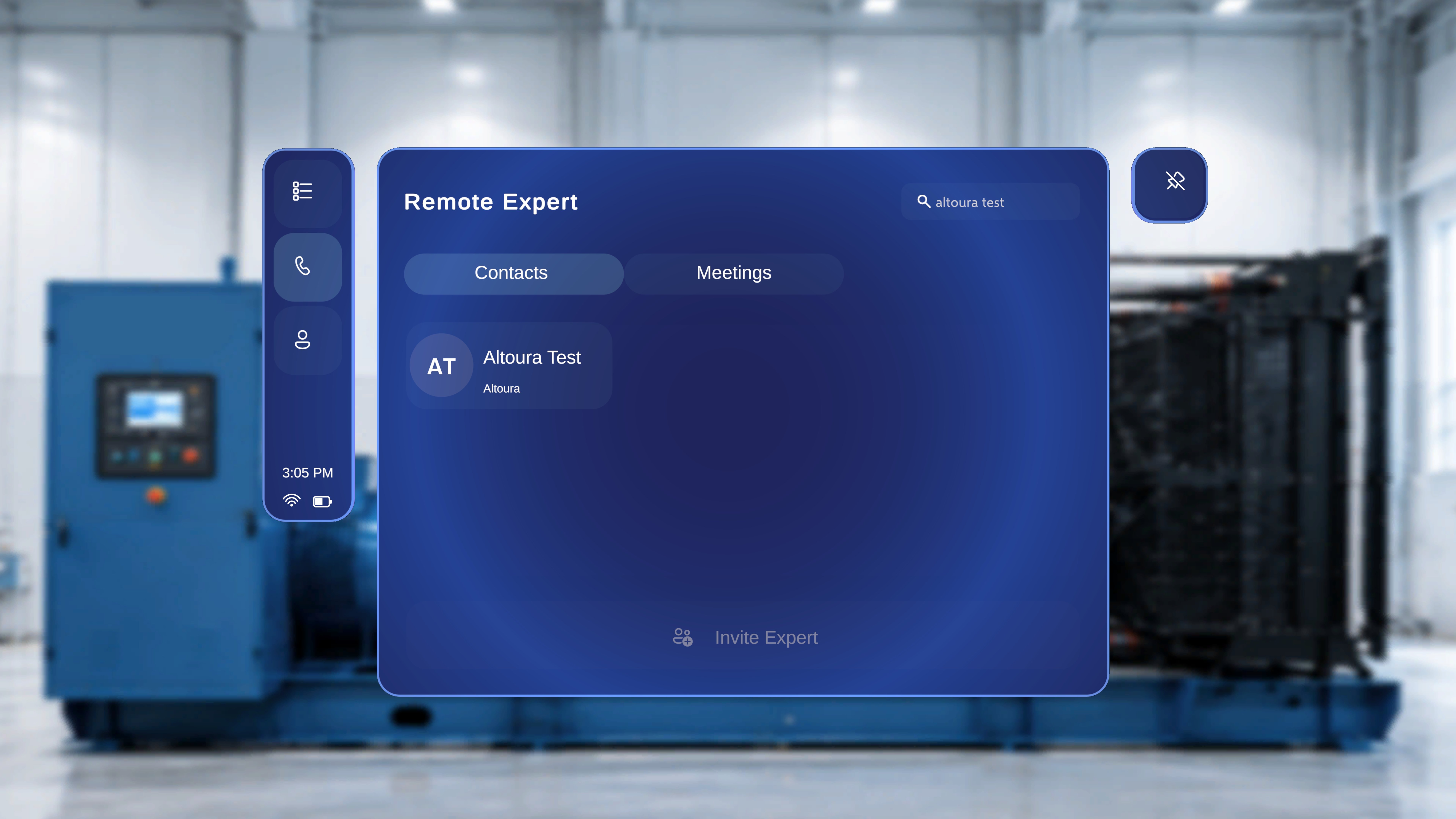
1. Select the expert's name card.
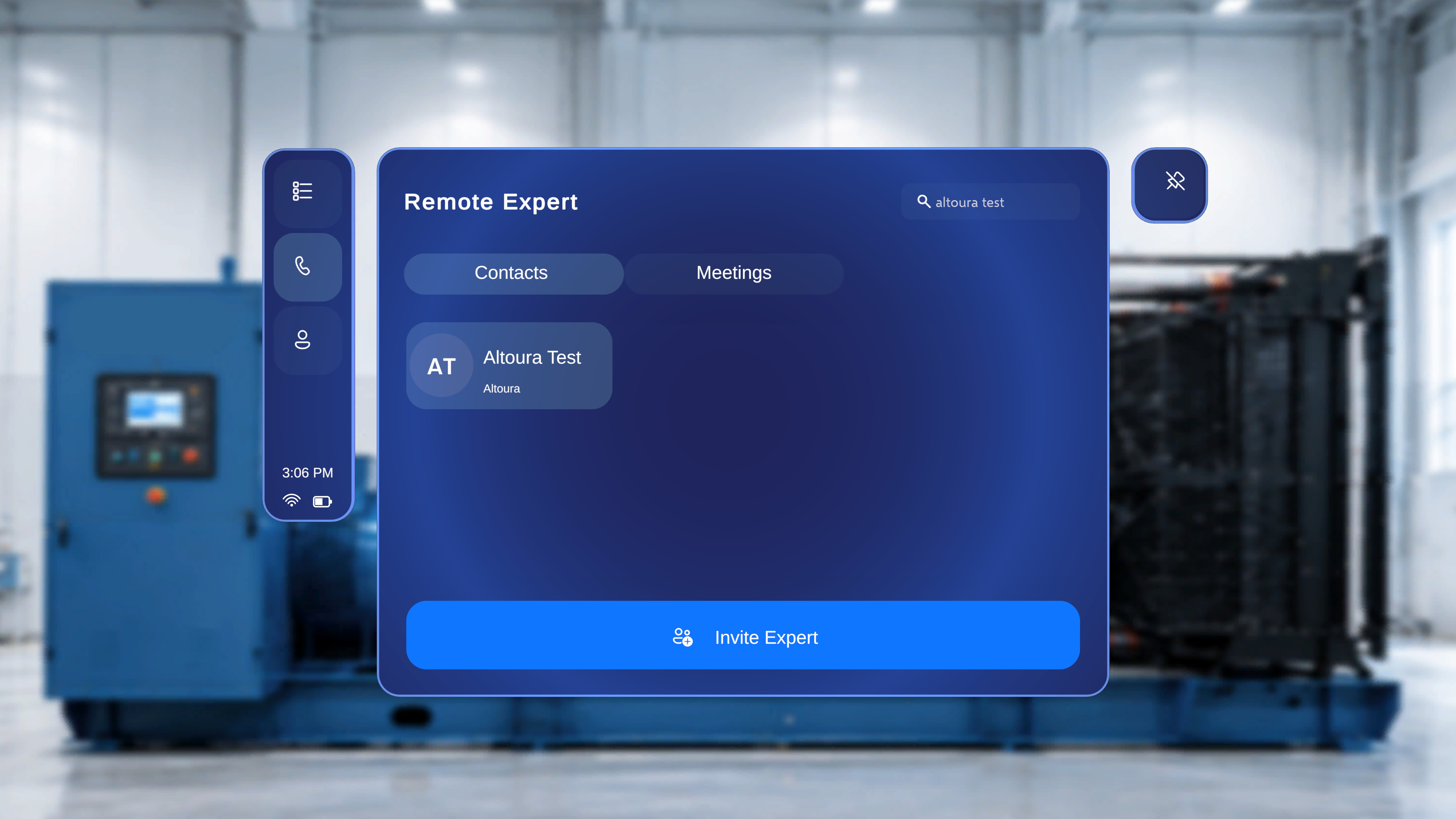 2. The **Invite Expert** button at the bottom becomes active once a name is selected.
3. Click **Invite Expert**.
### What Happens Next
* When you click **Invite Expert**, a session invitation is sent to the selected expert.
* The expert receives a meeting request in Microsoft Teams.
* The call interface opens automatically on your device.
***
## Waiting for the Expert to Join
2. The **Invite Expert** button at the bottom becomes active once a name is selected.
3. Click **Invite Expert**.
### What Happens Next
* When you click **Invite Expert**, a session invitation is sent to the selected expert.
* The expert receives a meeting request in Microsoft Teams.
* The call interface opens automatically on your device.
***
## Waiting for the Expert to Join
 ### Overview
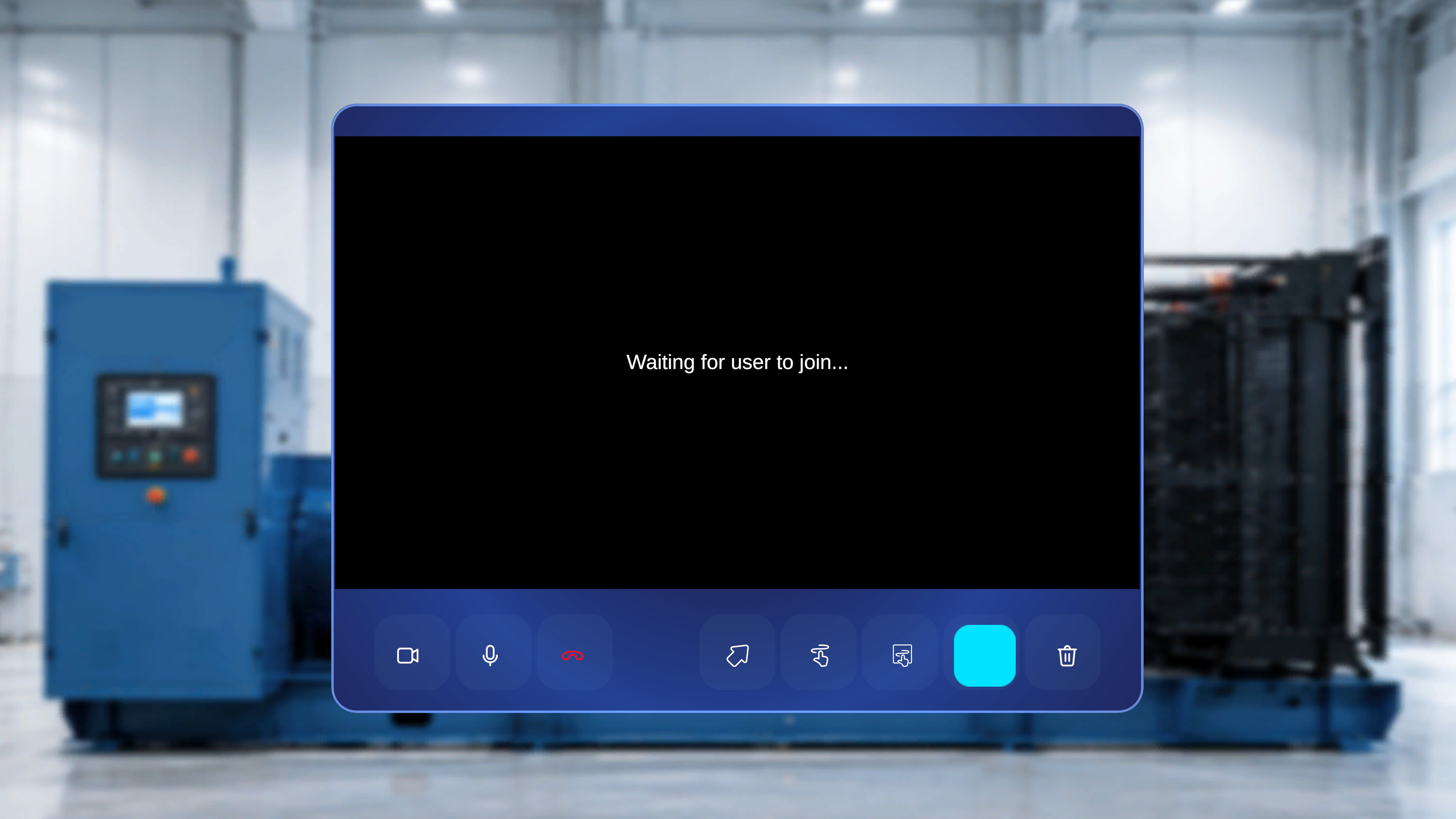
After sending the invitation, the session is created and you enter the call interface. At this stage, you are connected and waiting for the expert to join.
### What You See
* A video display area.
* The message: **"Waiting for user to join…"**
This confirms that the session is active and awaiting the expert's connection.
***
## Available Controls While Waiting
The call control bar is displayed at the bottom of the screen. The following controls are available:
* **Camera** – Turn your video on or off.
* **Microphone** – Mute or unmute your audio.
* **End Call** – End the session.
***
### What Happens Next
* When the expert joins the meeting, the waiting message is replaced by the live session view.
* If your camera and microphone are enabled, the expert can see and hear you.
* The session is then ready for live collaboration and annotation.
***
## When the Expert Joins
### Overview
After sending the invitation, the session is created and you enter the call interface. At this stage, you are connected and waiting for the expert to join.
### What You See
* A video display area.
* The message: **"Waiting for user to join…"**
This confirms that the session is active and awaiting the expert's connection.
***
## Available Controls While Waiting
The call control bar is displayed at the bottom of the screen. The following controls are available:
* **Camera** – Turn your video on or off.
* **Microphone** – Mute or unmute your audio.
* **End Call** – End the session.
***
### What Happens Next
* When the expert joins the meeting, the waiting message is replaced by the live session view.
* If your camera and microphone are enabled, the expert can see and hear you.
* The session is then ready for live collaboration and annotation.
***
## When the Expert Joins
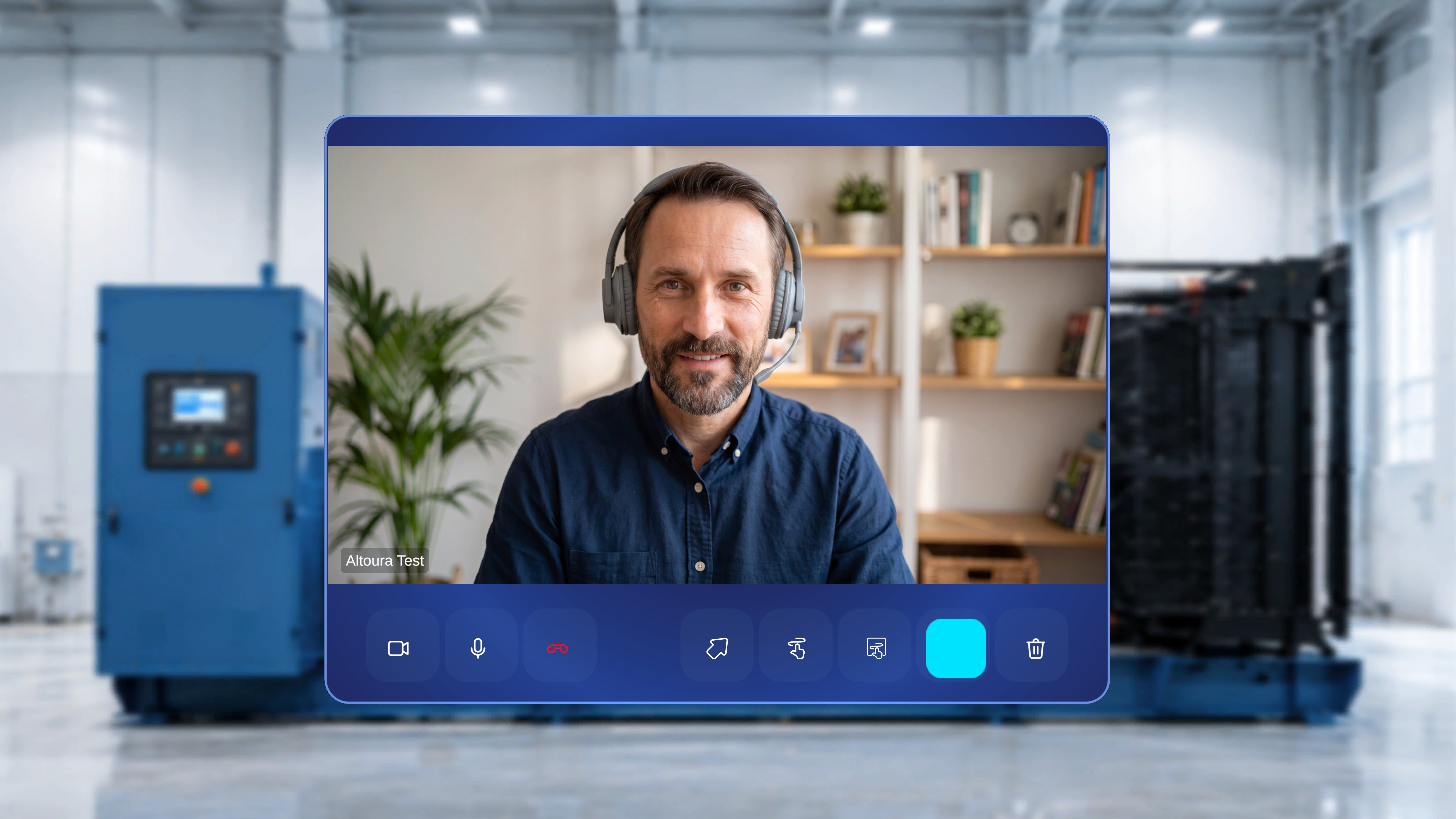 Once the expert accepts the invitation and joins from Microsoft Teams, the **"Waiting for user…"** placeholder is replaced by the live session view on the HoloLens:
* The expert's **video feed** appears in the main call panel — this is the person who joined from Teams.
* The **call control bar** (Camera, Microphone, End Call) remains at the bottom of the panel.
* If your camera and microphone are on, the expert can see and hear you.
* The session is now ready for live collaboration and annotation.
From here you can use the [Remote Expert Hand Menu](/frontline/remote-expert/hand-menu) to mute, reposition the call panel, toggle the spatial mesh, or exit the session.
This page covers the **HMD side** of the Contacts flow. To see how the expert receives and joins the session from **Microsoft Teams**, see [Join a Remote Expert Session (Microsoft Teams)](/frontline/remote-expert/join-session).
Once the expert accepts the invitation and joins from Microsoft Teams, the **"Waiting for user…"** placeholder is replaced by the live session view on the HoloLens:
* The expert's **video feed** appears in the main call panel — this is the person who joined from Teams.
* The **call control bar** (Camera, Microphone, End Call) remains at the bottom of the panel.
* If your camera and microphone are on, the expert can see and hear you.
* The session is now ready for live collaboration and annotation.
From here you can use the [Remote Expert Hand Menu](/frontline/remote-expert/hand-menu) to mute, reposition the call panel, toggle the spatial mesh, or exit the session.
This page covers the **HMD side** of the Contacts flow. To see how the expert receives and joins the session from **Microsoft Teams**, see [Join a Remote Expert Session (Microsoft Teams)](/frontline/remote-expert/join-session).