> ## Documentation Index
> Fetch the complete documentation index at: https://docs.altoura.com/llms.txt
> Use this file to discover all available pages before exploring further.
# Voice Commands in Remote Expert
> Use voice to activate any button, tab, or icon during a Remote Expert session on the HoloLens. Hover with the ray or head-gaze and say "Select".
## Overview
Altoura Frontline on the HoloLens supports **hands-free voice interaction** across the app, including inside the Remote Expert experience. When your hands are busy with tools or the work at hand, you can control every Remote Expert panel — Contacts, Meetings, in-call actions, and the hand menu — by voice.
There are two types of voice interactions in Remote Expert:
1. **Universal voice selection** — hover a button with the ray or head-gaze cursor, then say **"Select"** to click it. This works on **every** interactive control.
2. **Global voice commands** — a small set of dedicated phrases that trigger an action **without any hover required**.
Global voice commands in Remote Expert are still limited compared to Procedures — today, only the **spatial mesh toggle** has global commands. See [Voice Commands in Author Mode](/frontline/procedures/author/voice-commands) or [Voice Commands in Operator Mode](/frontline/procedures/operator/voice-commands) for the fuller Procedures global-command set.
***
## Universal Voice Selection: "Select"
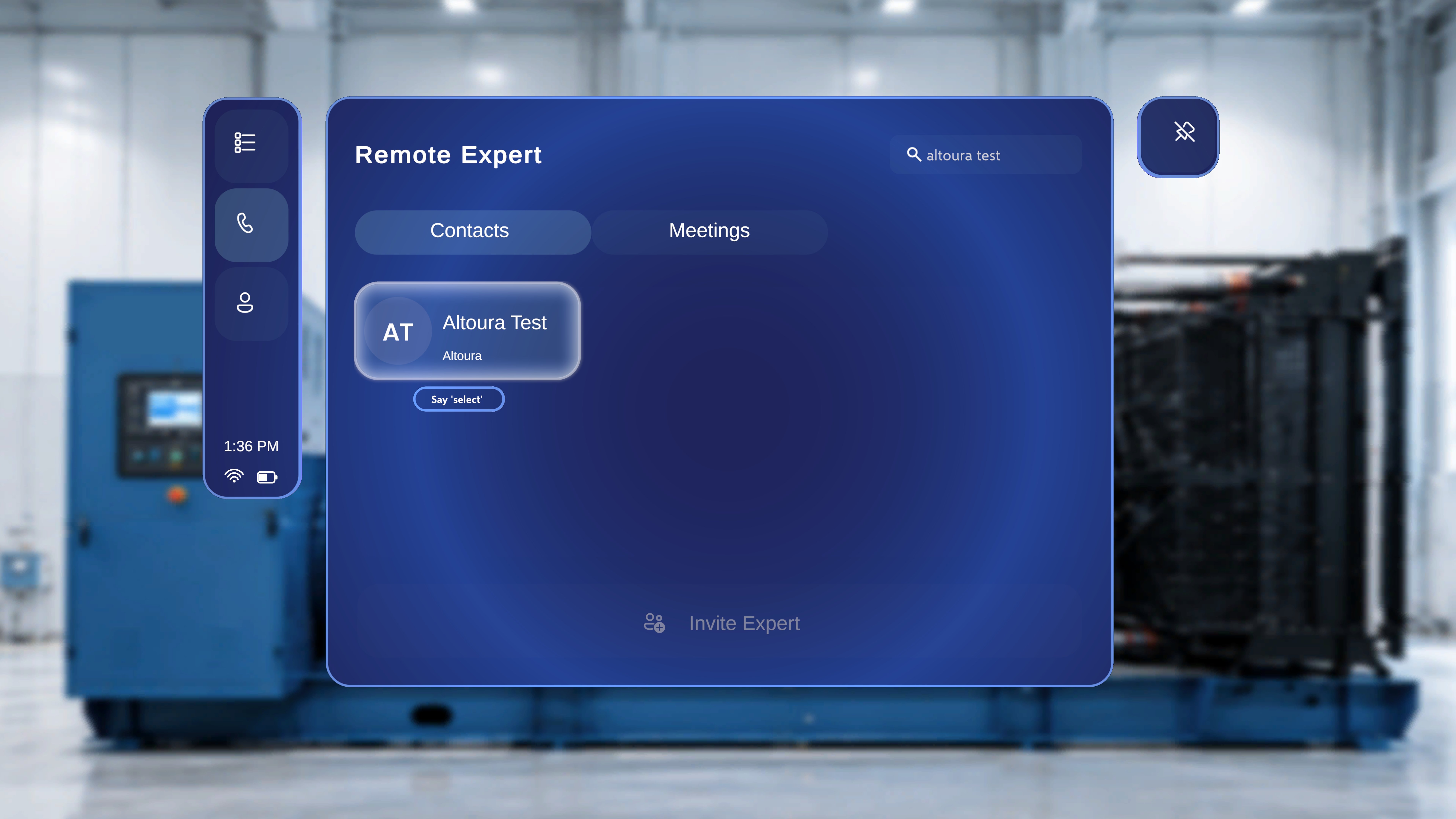 Every interactive control in Remote Expert exposes a **"Say 'select'"** hint when it is in focus.
### Step-by-Step Instructions
1. Point the **ray** or move your **head-gaze cursor** onto the button, tab, contact, or icon you want to activate.
2. Wait for the **"Say 'select'"** tooltip to appear beneath the control.
3. Say **"Select"**.
### What Happens Next
* The focused control activates just as it would with an air-tap.
* The tooltip disappears; the associated action runs.
***
## Where "Select" Works
The same hover + "Select" pattern applies everywhere in Remote Expert. Common examples include:
* **Contacts tab** — focus a contact card and say "Select" to open its details or start a call.
* **Meetings tab** — focus a scheduled meeting and say "Select" to join.
* **Invite Expert** — focus the **Invite Expert** button and say "Select".
* **In-call actions** — focus **Mute**, **End Call**, **Share**, or any annotation control and say "Select".
* **Hand menu** — focus a hand-menu button and say "Select".
* **Notifications and dialogs** — focus **Accept**, **Decline**, or any dialog button and say "Select".
"Select" also works everywhere else in Altoura Frontline — including the **Procedures**, **Remote Expert**, and **Profile** panels of the global side menu — with only one exception, the **Next** and **Previous** arrows on the main step panel in Procedures. That exception does not apply inside a Remote Expert session.
***
## Global Voice Commands (Remote Expert)
Global voice commands are hands-free phrases that trigger their action **without needing to hover** the button first. In Remote Expert, they currently apply to the **spatial mesh toggle** in the hand menu.
### Show / Hide Mesh
| Command | Effect |
| --------------- | ---------------------------------------------------------------------------------------------------- |
| **"Show mesh"** | Turns the spatial mesh overlay on — a wireframe grid is drawn over surfaces the HoloLens has mapped. |
| **"Hide mesh"** | Turns the spatial mesh overlay off. |
You do **not** need to raise your palm or look at the button. Just say the command while in an active Remote Expert session.
See [Remote Expert Hand Menu → Mesh](/frontline/remote-expert/hand-menu#mesh) for the full behaviour and when to use it.
***
## Quick Reference
| Command | Requires Hover? | Where It Works |
| --------------- | --------------- | ------------------------------------------ |
| **"Select"** | Yes | Every interactive control in Remote Expert |
| **"Show mesh"** | No | Toggles the spatial mesh overlay on |
| **"Hide mesh"** | No | Toggles the spatial mesh overlay off |
***
## Tips
* **Watch for the tooltip.** If the "Say 'select'" hint does not appear, the ray or head-gaze isn't fully on the control. Adjust slightly until the tooltip becomes visible.
* **Speak clearly.** In noisy environments, speak the word "Select" at a slightly slower pace.
* **Fall back to air-tap.** If a voice command isn't picked up, you can always tap the control with a normal air-tap or by moving close and touching it directly.
Every interactive control in Remote Expert exposes a **"Say 'select'"** hint when it is in focus.
### Step-by-Step Instructions
1. Point the **ray** or move your **head-gaze cursor** onto the button, tab, contact, or icon you want to activate.
2. Wait for the **"Say 'select'"** tooltip to appear beneath the control.
3. Say **"Select"**.
### What Happens Next
* The focused control activates just as it would with an air-tap.
* The tooltip disappears; the associated action runs.
***
## Where "Select" Works
The same hover + "Select" pattern applies everywhere in Remote Expert. Common examples include:
* **Contacts tab** — focus a contact card and say "Select" to open its details or start a call.
* **Meetings tab** — focus a scheduled meeting and say "Select" to join.
* **Invite Expert** — focus the **Invite Expert** button and say "Select".
* **In-call actions** — focus **Mute**, **End Call**, **Share**, or any annotation control and say "Select".
* **Hand menu** — focus a hand-menu button and say "Select".
* **Notifications and dialogs** — focus **Accept**, **Decline**, or any dialog button and say "Select".
"Select" also works everywhere else in Altoura Frontline — including the **Procedures**, **Remote Expert**, and **Profile** panels of the global side menu — with only one exception, the **Next** and **Previous** arrows on the main step panel in Procedures. That exception does not apply inside a Remote Expert session.
***
## Global Voice Commands (Remote Expert)
Global voice commands are hands-free phrases that trigger their action **without needing to hover** the button first. In Remote Expert, they currently apply to the **spatial mesh toggle** in the hand menu.
### Show / Hide Mesh
| Command | Effect |
| --------------- | ---------------------------------------------------------------------------------------------------- |
| **"Show mesh"** | Turns the spatial mesh overlay on — a wireframe grid is drawn over surfaces the HoloLens has mapped. |
| **"Hide mesh"** | Turns the spatial mesh overlay off. |
You do **not** need to raise your palm or look at the button. Just say the command while in an active Remote Expert session.
See [Remote Expert Hand Menu → Mesh](/frontline/remote-expert/hand-menu#mesh) for the full behaviour and when to use it.
***
## Quick Reference
| Command | Requires Hover? | Where It Works |
| --------------- | --------------- | ------------------------------------------ |
| **"Select"** | Yes | Every interactive control in Remote Expert |
| **"Show mesh"** | No | Toggles the spatial mesh overlay on |
| **"Hide mesh"** | No | Toggles the spatial mesh overlay off |
***
## Tips
* **Watch for the tooltip.** If the "Say 'select'" hint does not appear, the ray or head-gaze isn't fully on the control. Adjust slightly until the tooltip becomes visible.
* **Speak clearly.** In noisy environments, speak the word "Select" at a slightly slower pace.
* **Fall back to air-tap.** If a voice command isn't picked up, you can always tap the control with a normal air-tap or by moving close and touching it directly.