Steps to connect Altoura to Dynamics 365 using OAuth 2.0
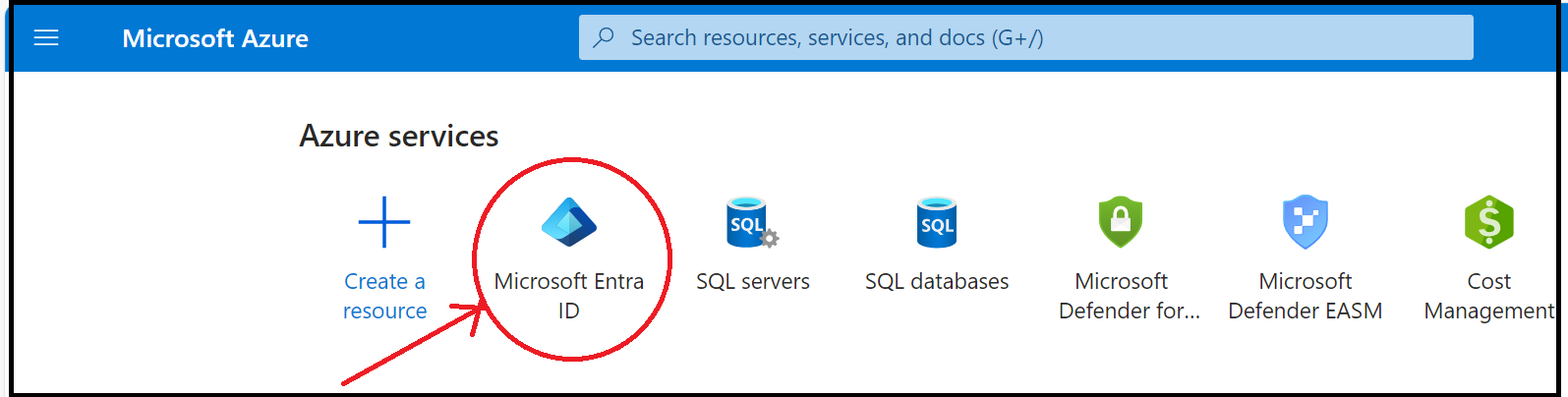
- Log in to Azure Admin Portal -> https://portal.azure.com and go to Microsoft Entra ID.
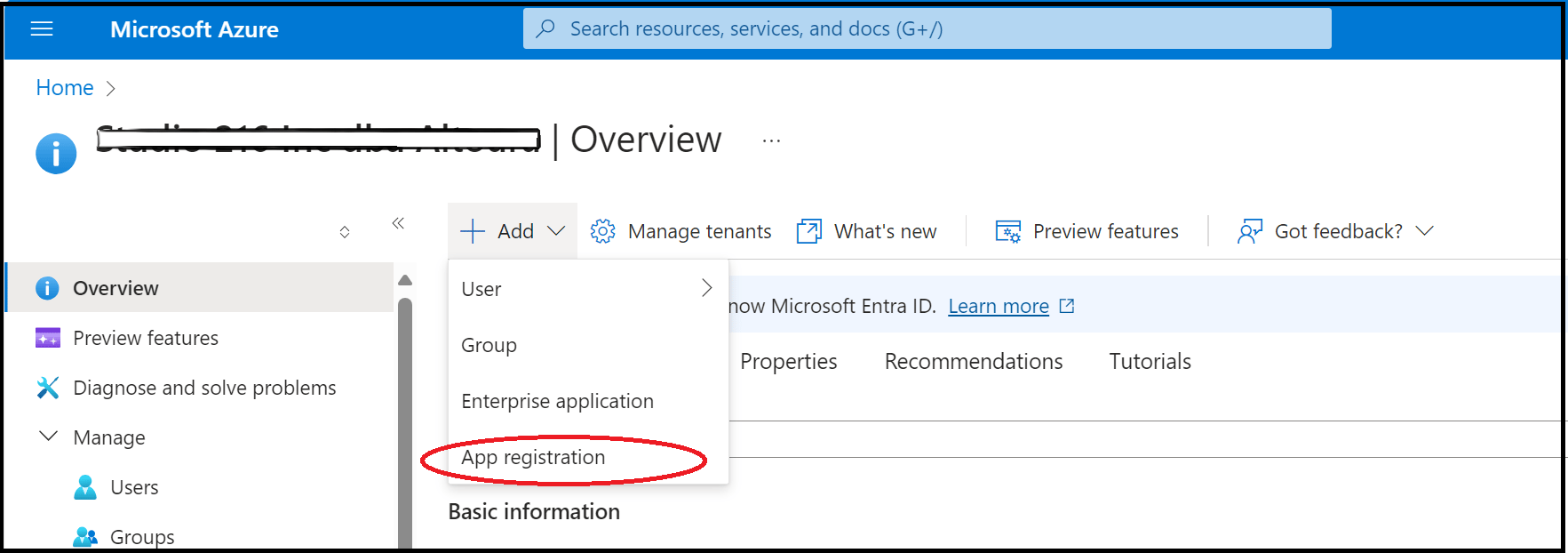
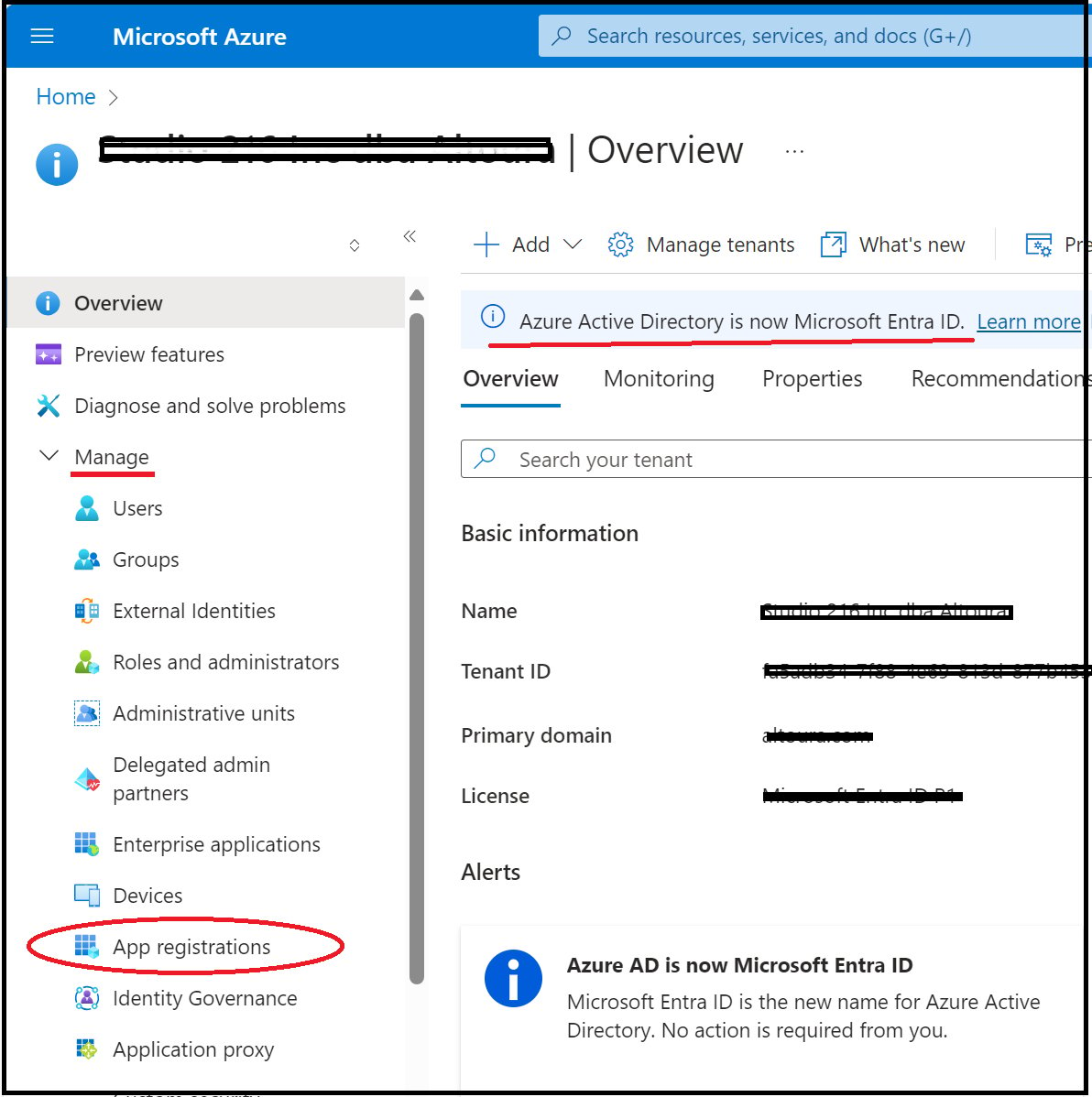
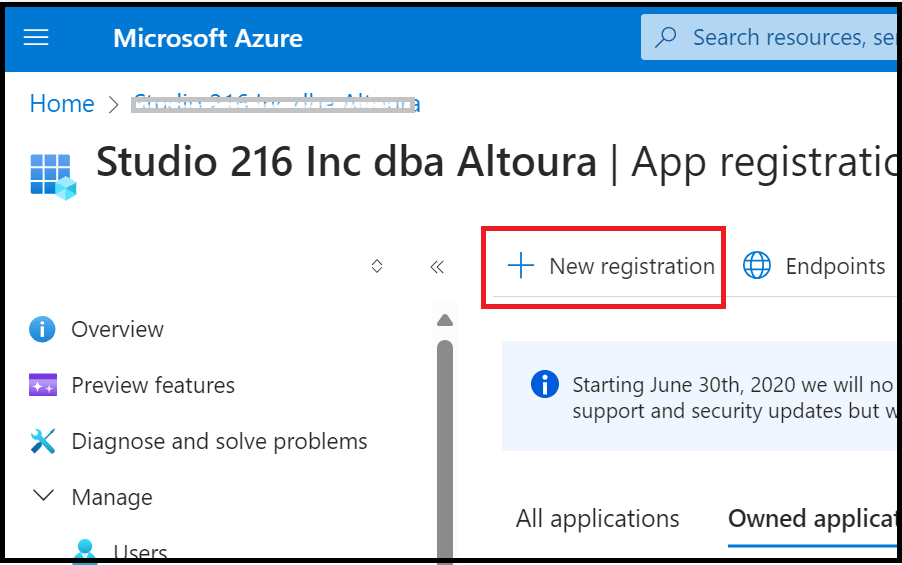
- Here, click on Add and select App registration or select App registrations under Manage and click on the New Registration button.
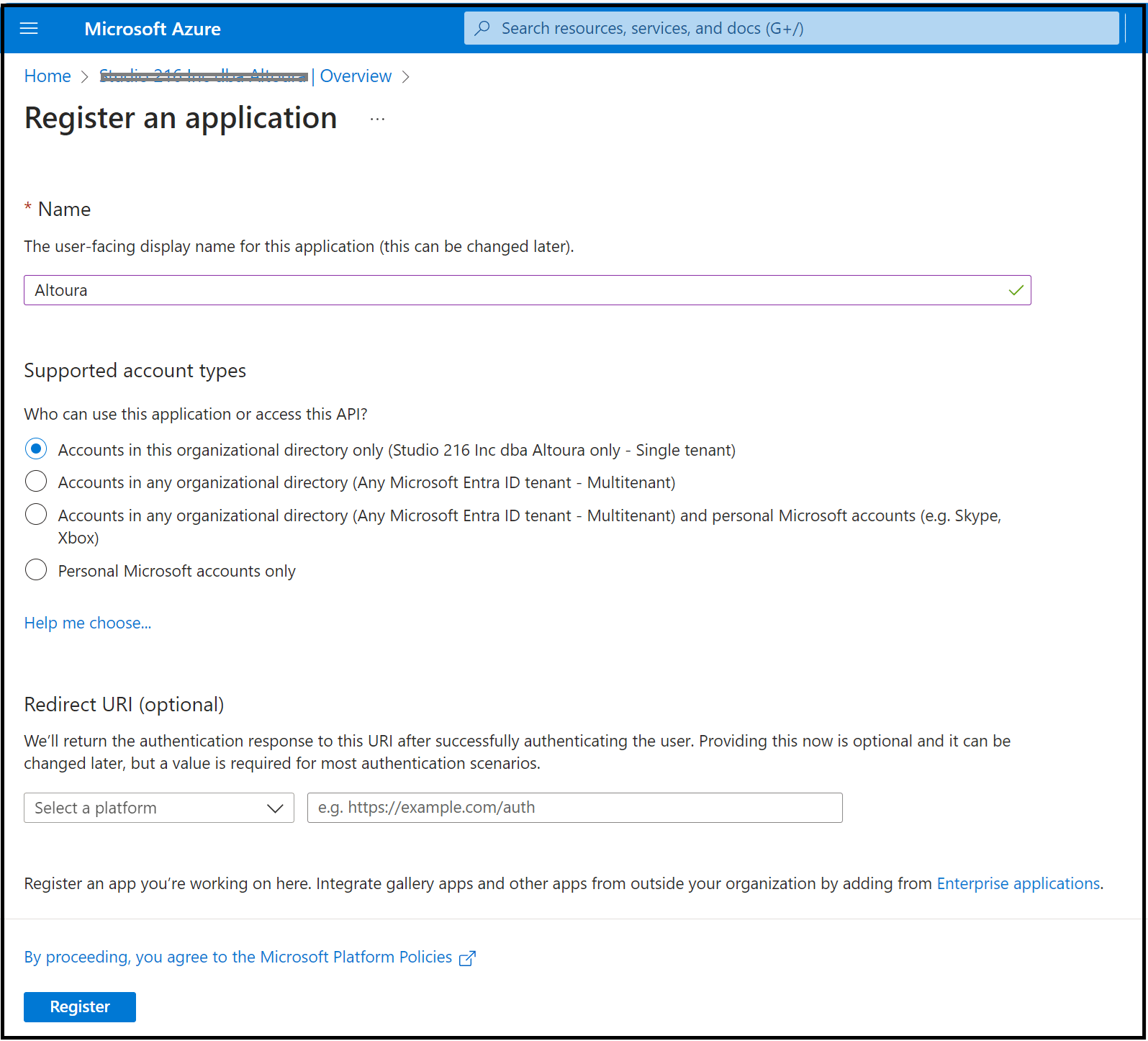
- The following page is displayed, here, enter a name for the application and click on the Register button.
- The application gets created and the following page is displayed.
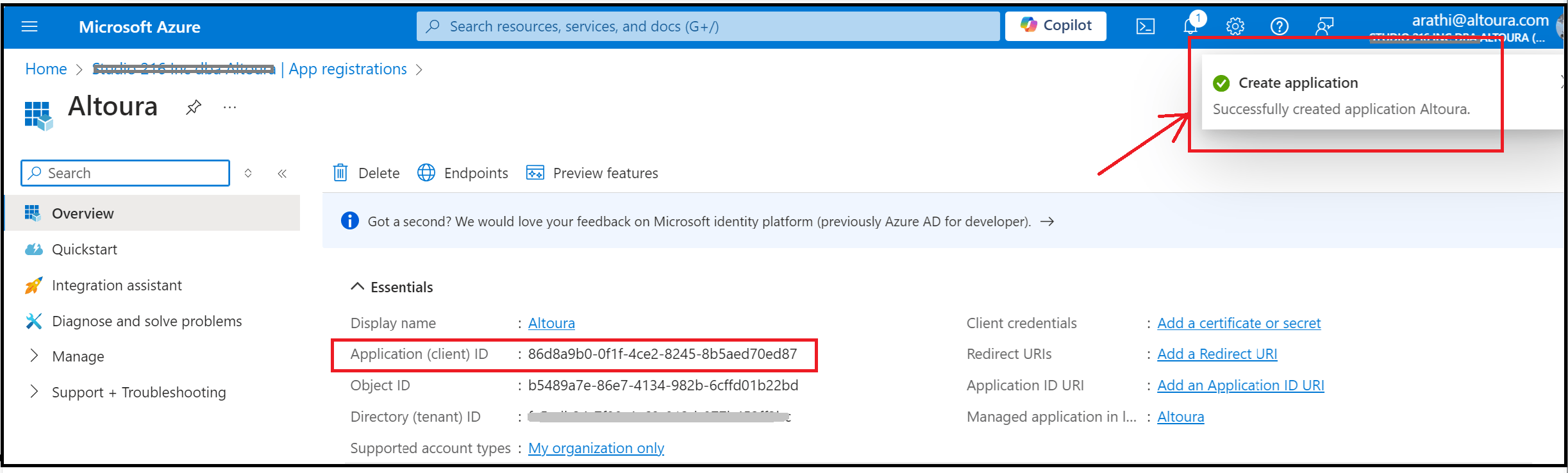
<<Share Value 01>>
- Next, click on Endpoints on the page
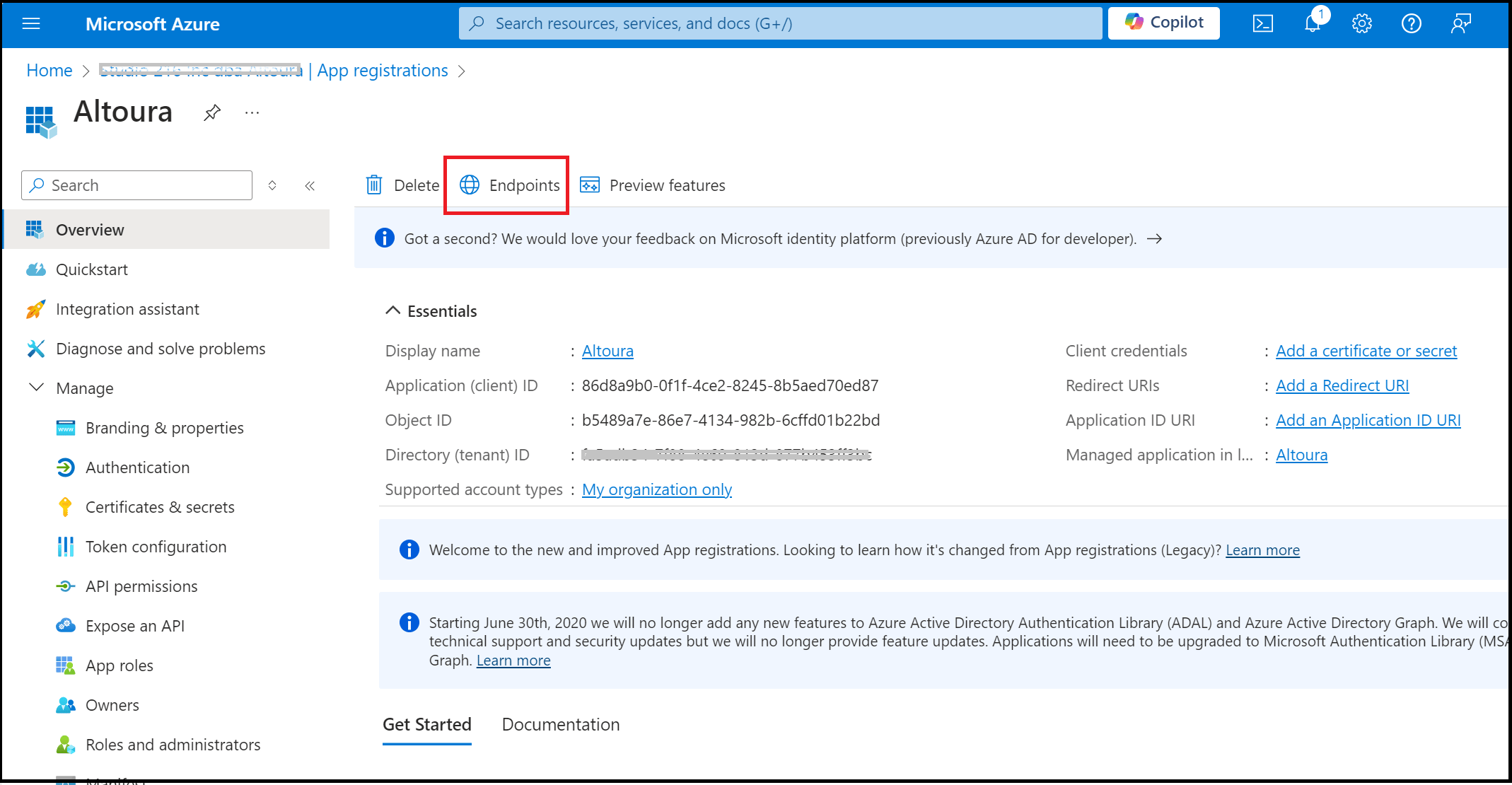
- Endpoints window appears to the right.
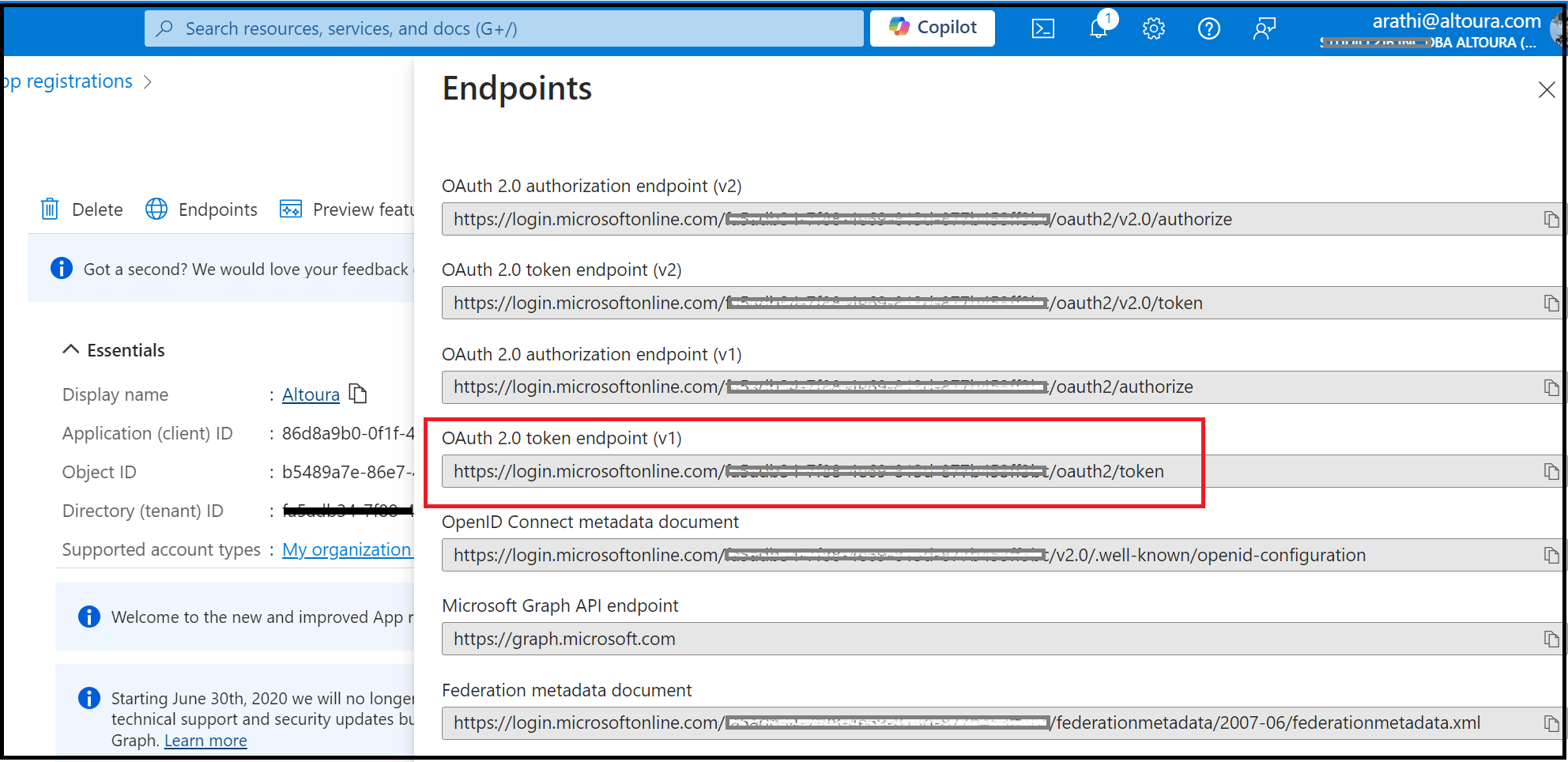
<<Share Value 02>>
- Close the Endpoints window and on the main page, click on Certificates and Secrets.
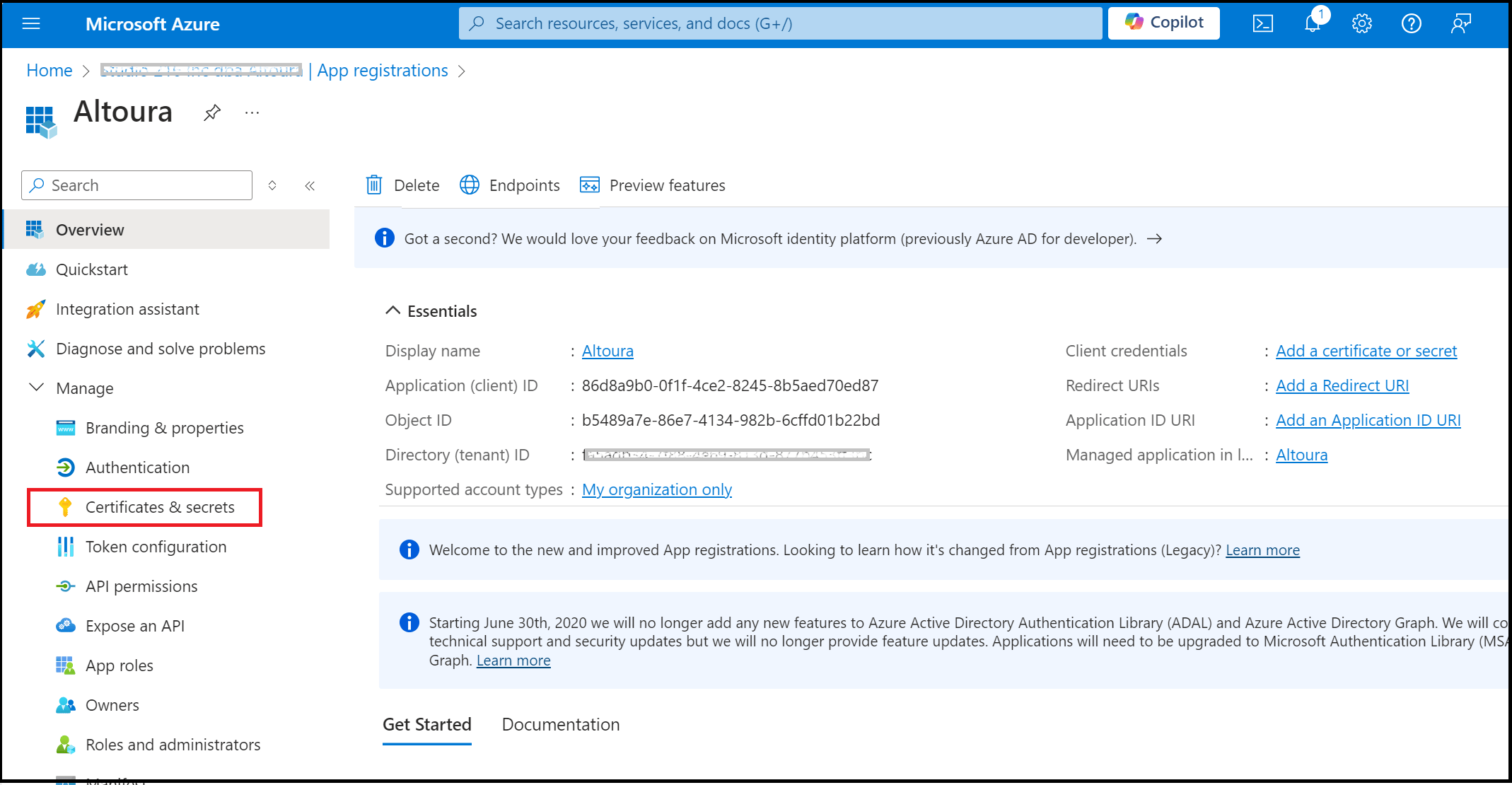
- The following page is displayed, here click on New client secret
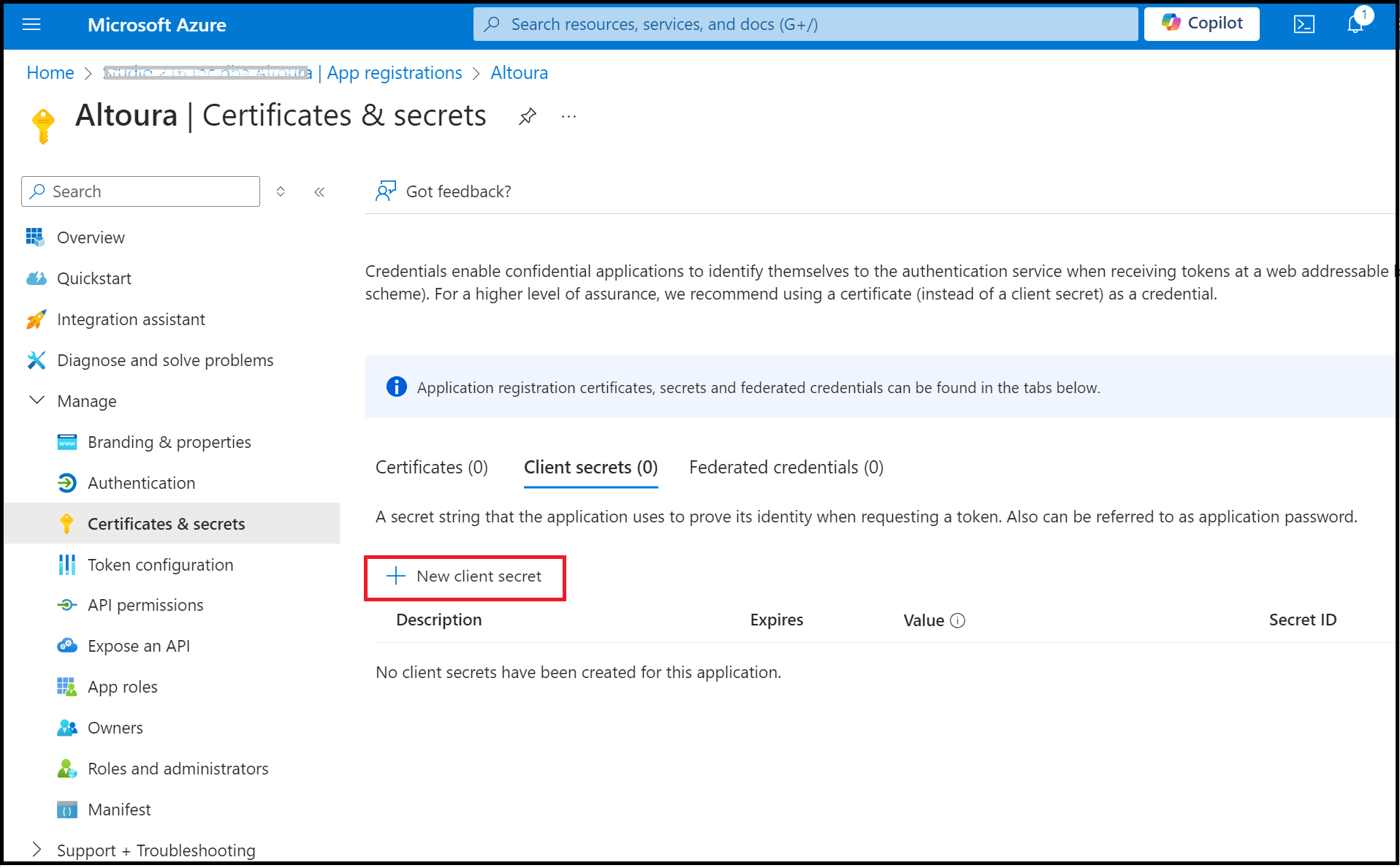
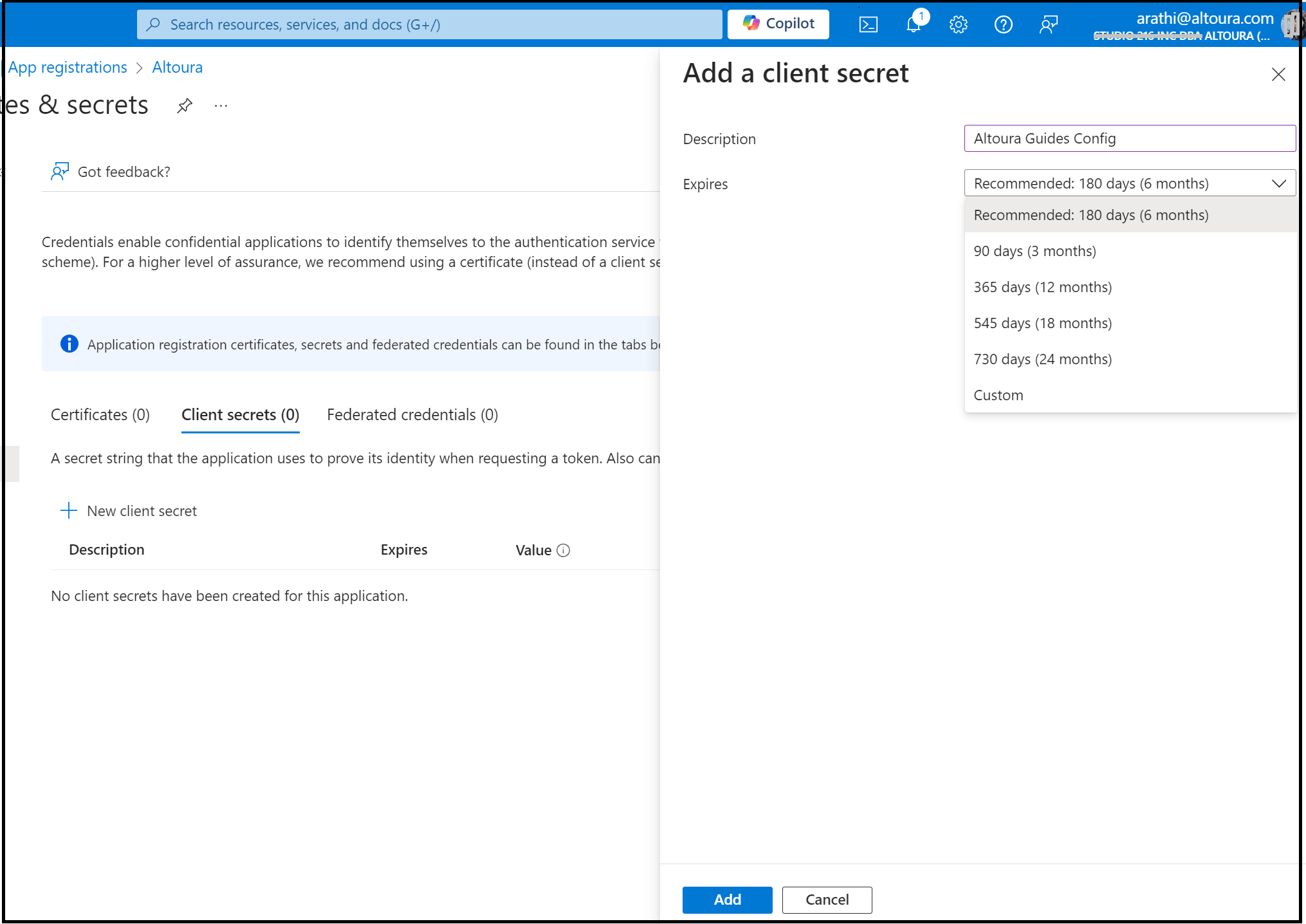
- Add a client secret window appears to the right. Here enter a Description and select the Expiry period and click on the Add button.
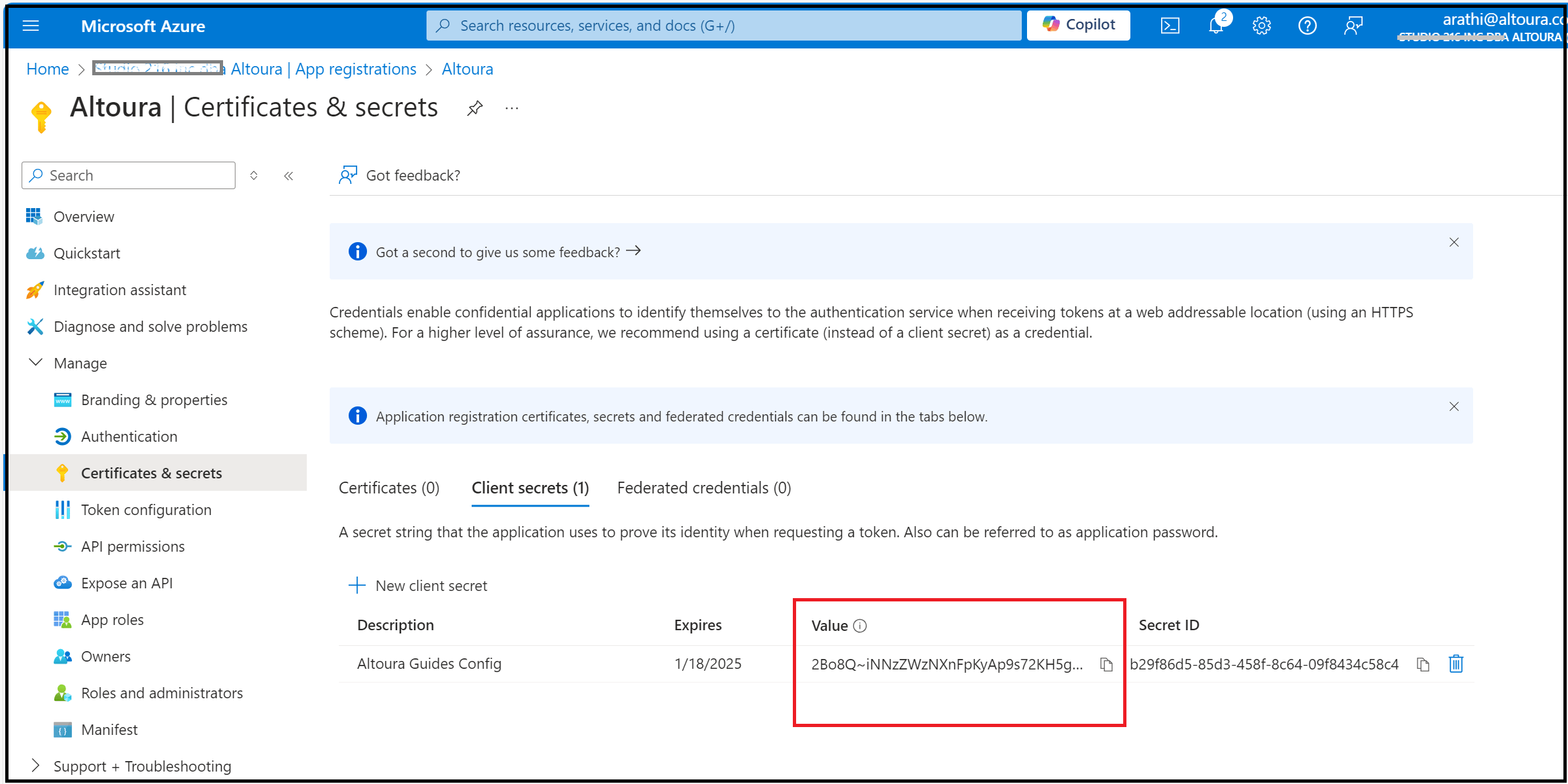
- The Client Secret value is generated. Copy this value and save it immediately. This value needs to be shared with the Altoura team.
<<Share Value 03>>
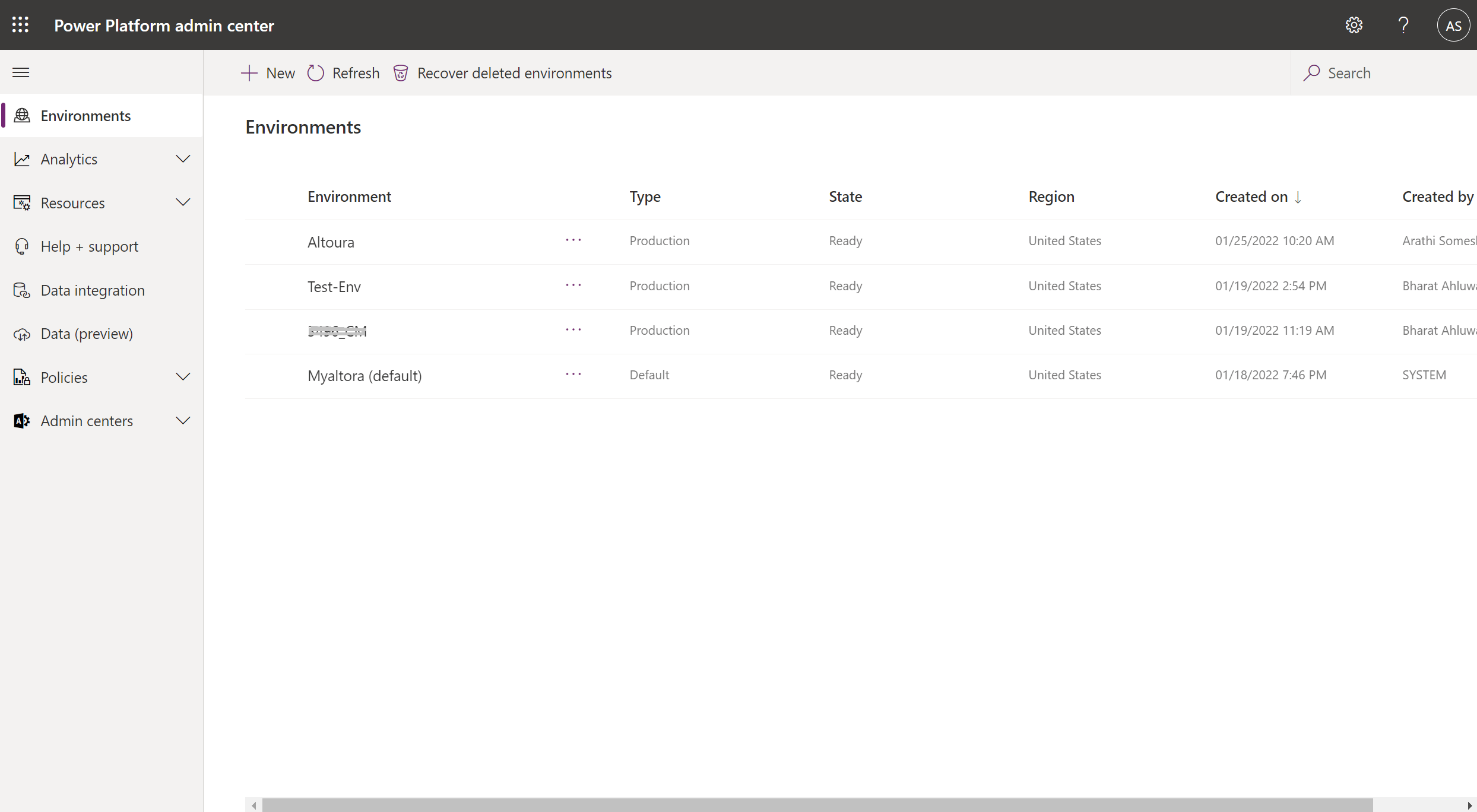
Microsoft Power Platform Admin Center
- Log in to the Microsoft Power Platform Admin Center. https://admin.powerplatform.microsoft.com A list of Environments will be displayed.
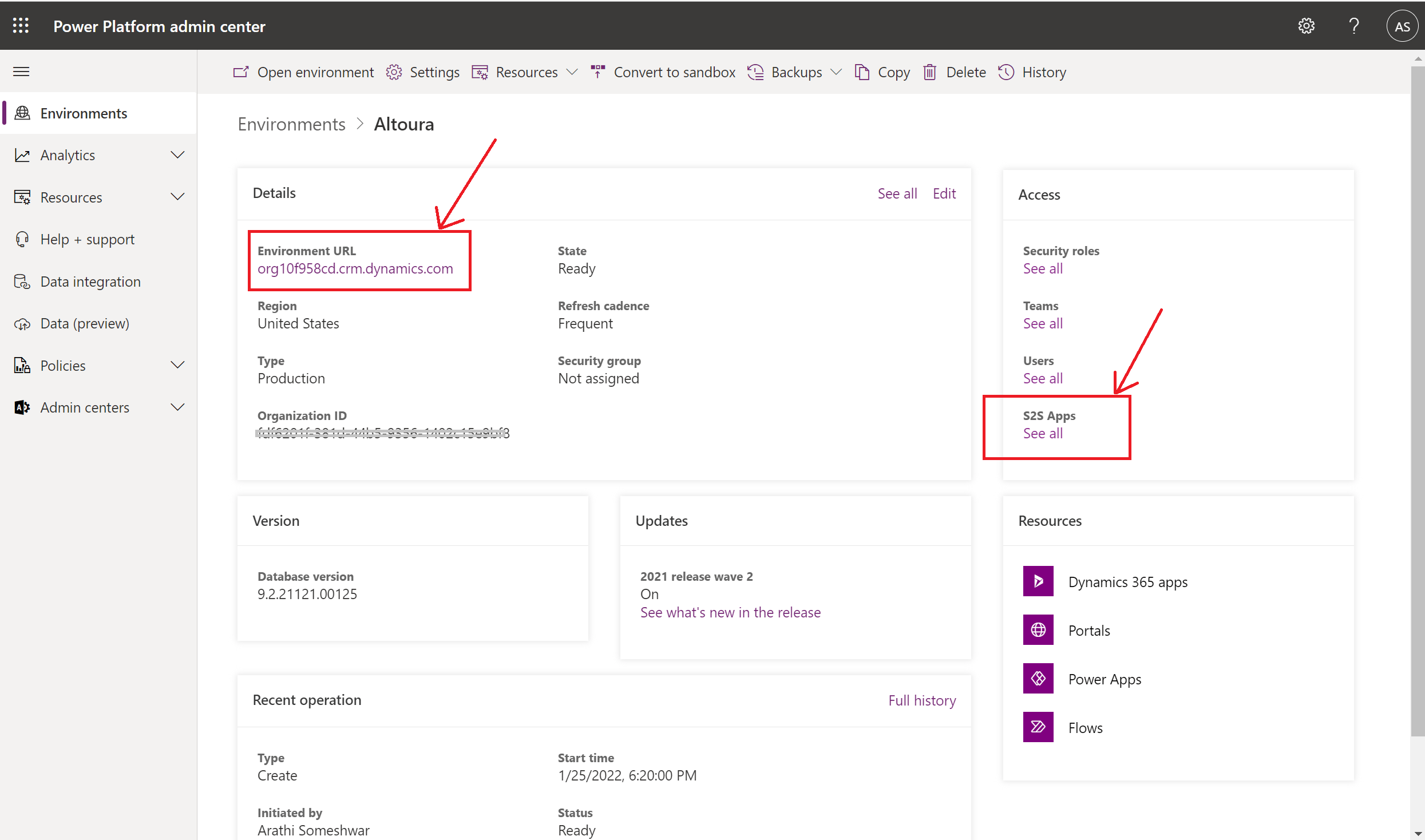
- Select the required Environment. The details page is displayed. Copy the Environment URL. This value needs to be shared with the Altoura team.
<<Share Value 04>>Click on the S2S Apps link under the Access tile.
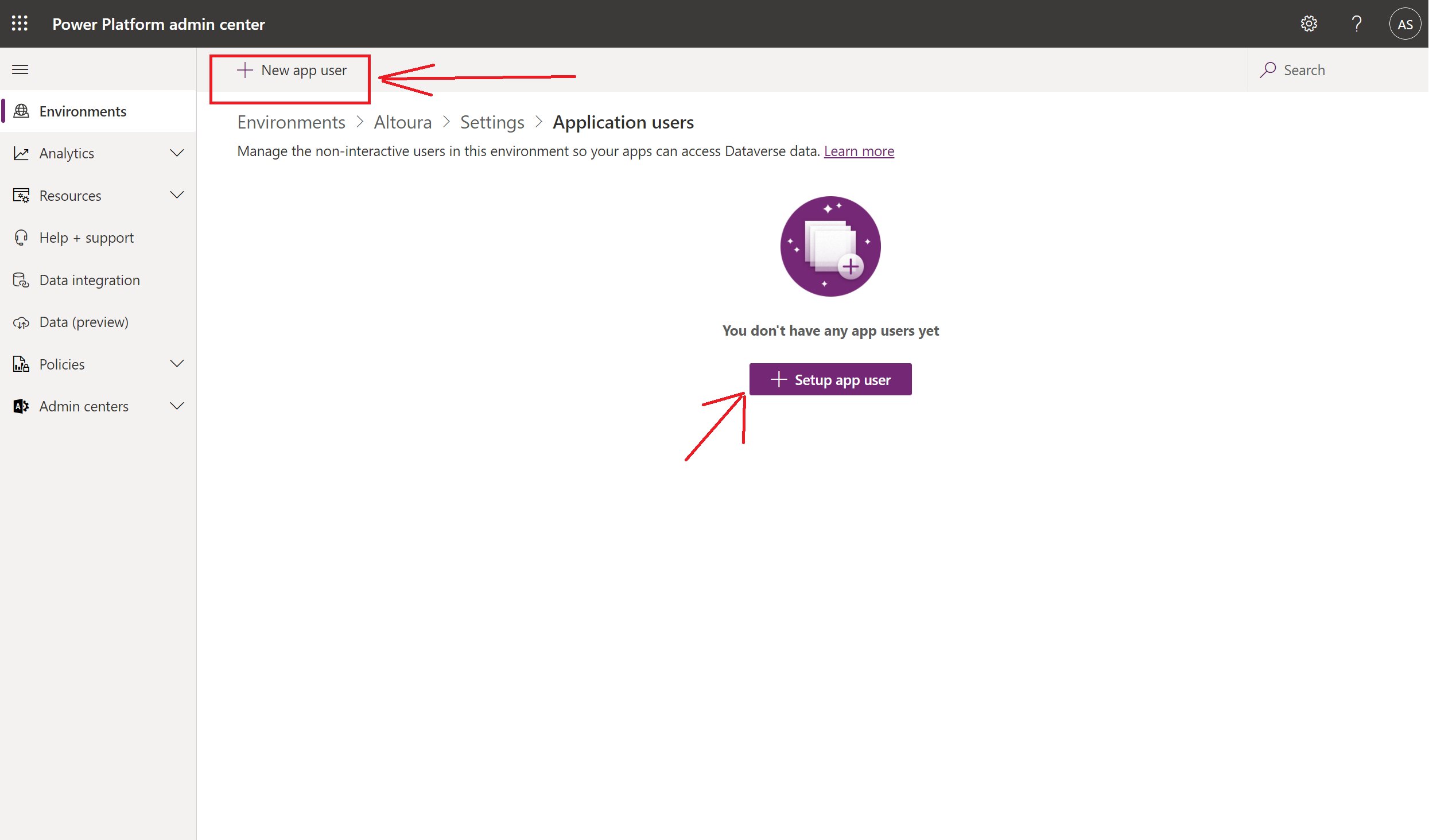
- The following page is displayed. Here click on the Setup app user button if there are no existing users or click on the New app user button.
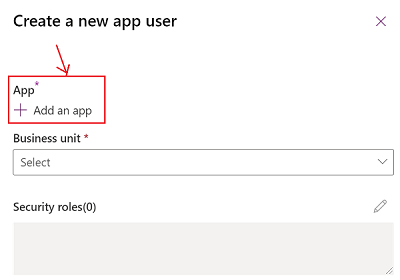
- The following window is displayed. Click on the Add an app link.
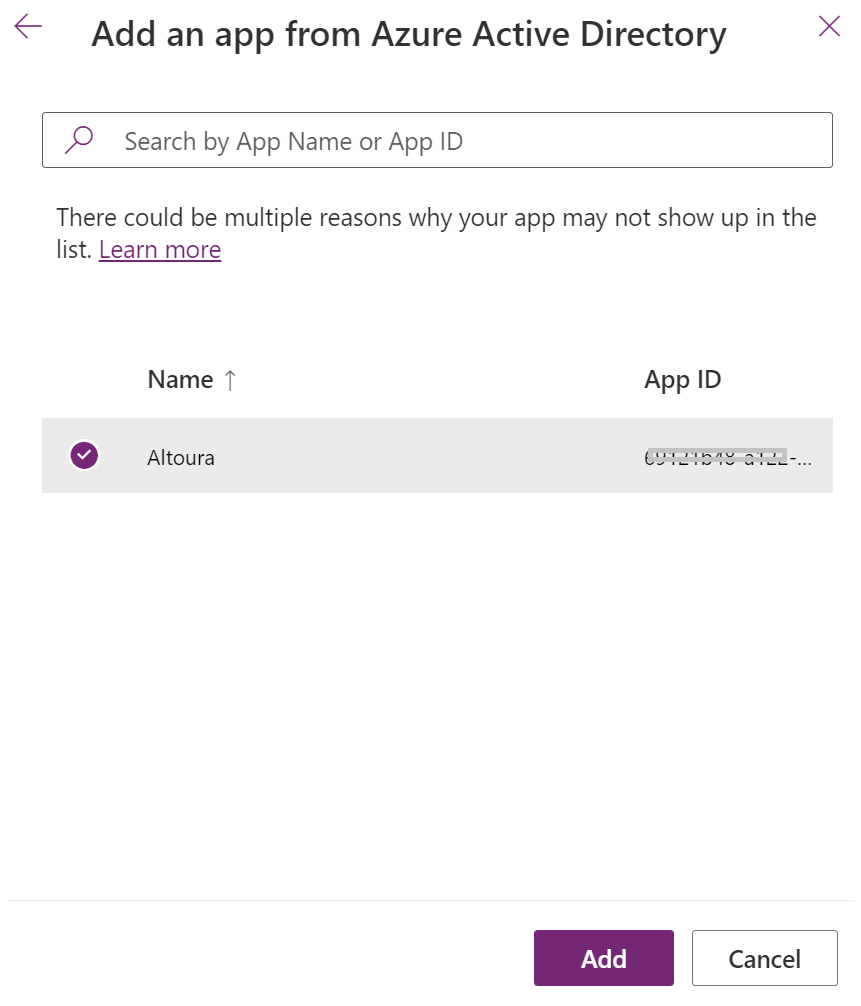
- In the window displayed, search for the app that was registered and click on the Add button.
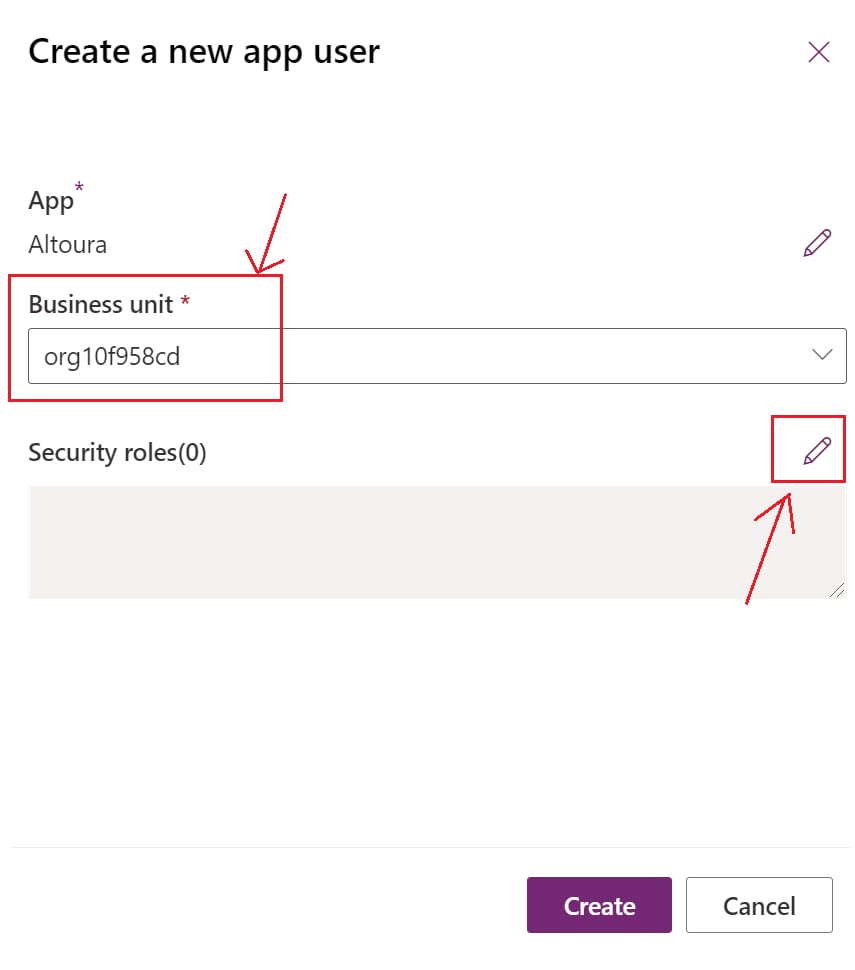
- The app is added, and the user is taken back to the Create a new app user window. Here select the business unit. Click on the edit icon against the Security roles.
- Add security roles page is displayed.
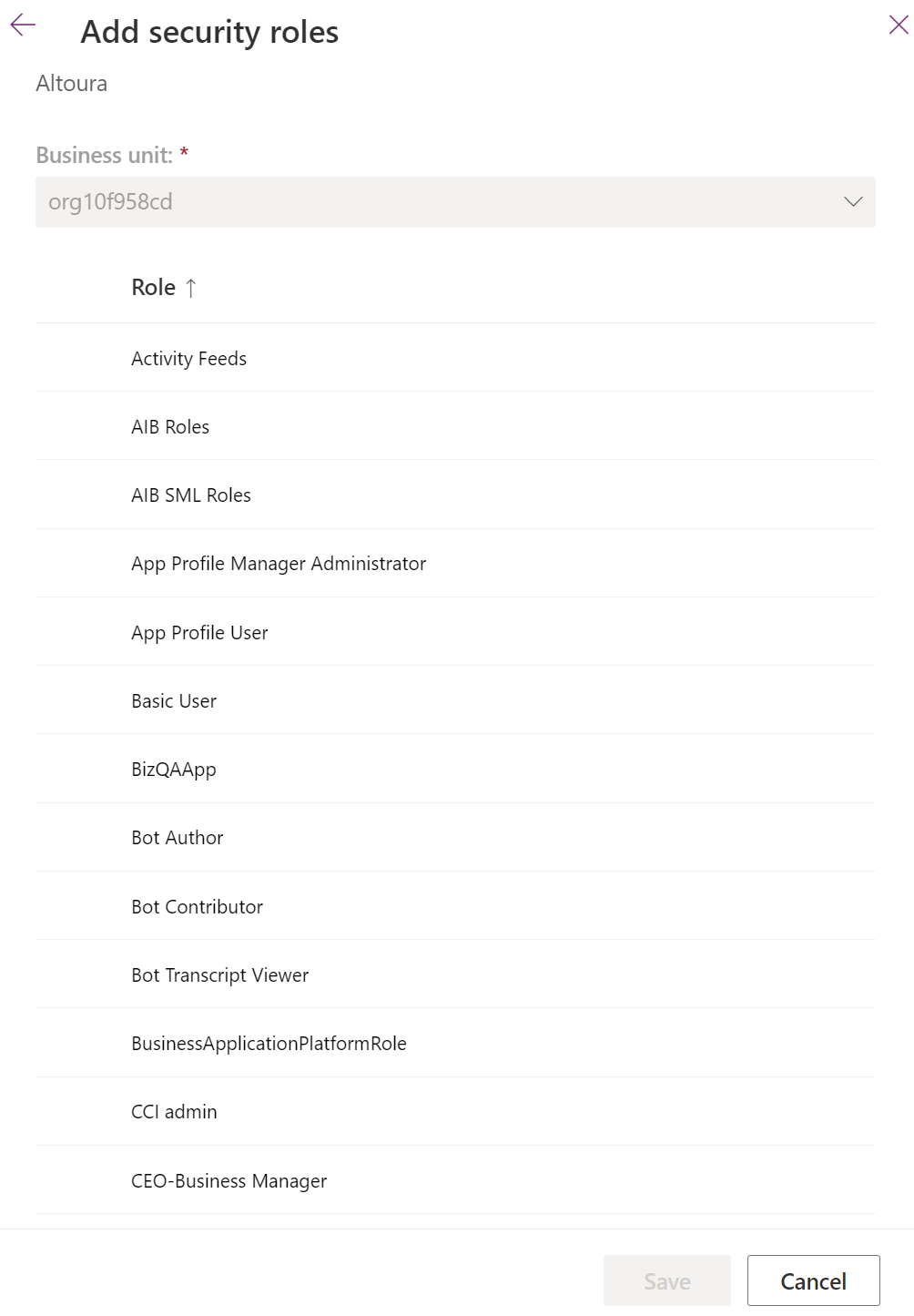
- Scroll down and select the role Dynamics 365 Guides Operator.
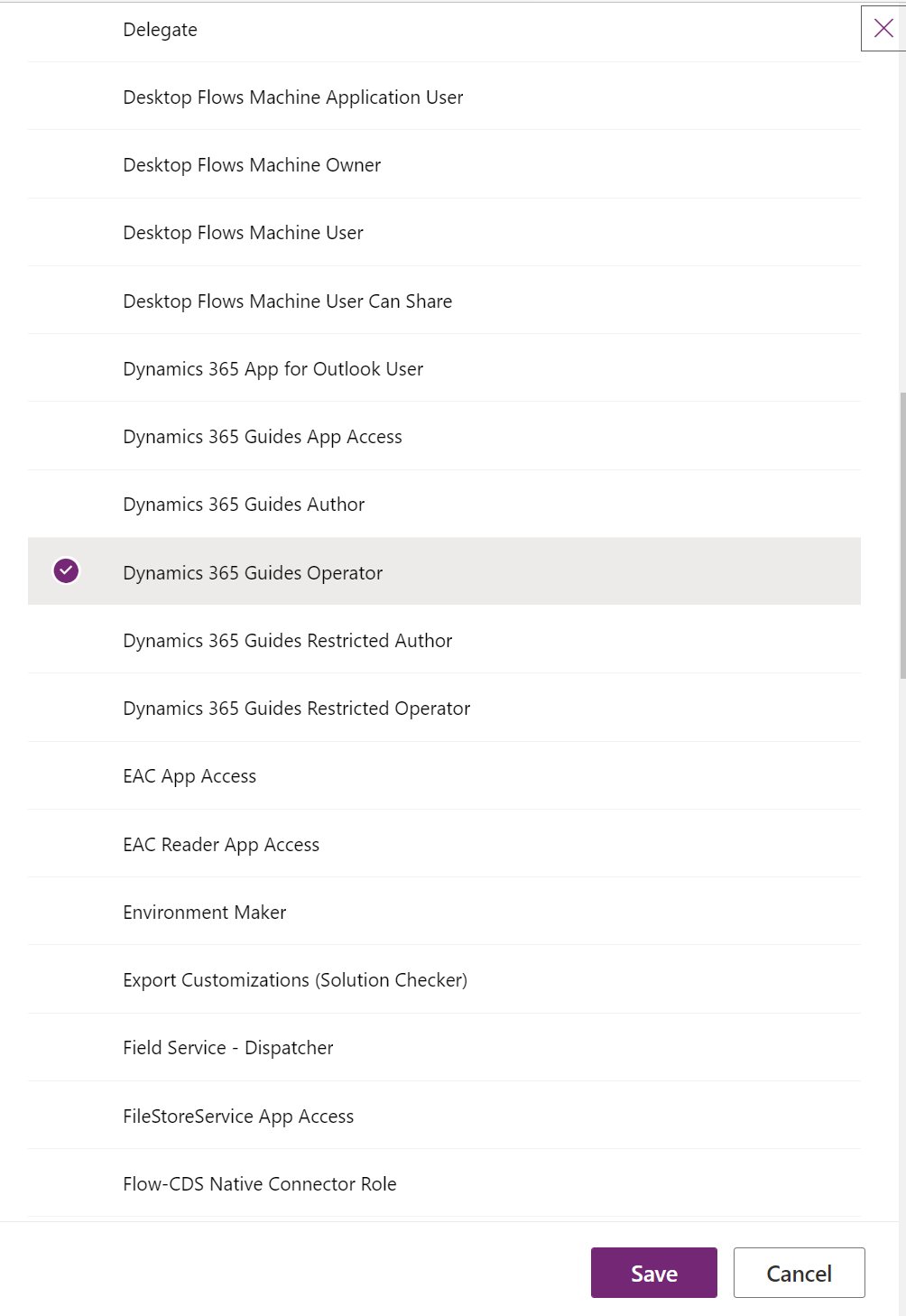
- If you want to export your experiences created in Altoura to Dynamics 365 Guides, then select the role Dynamics 365 Guides Author.
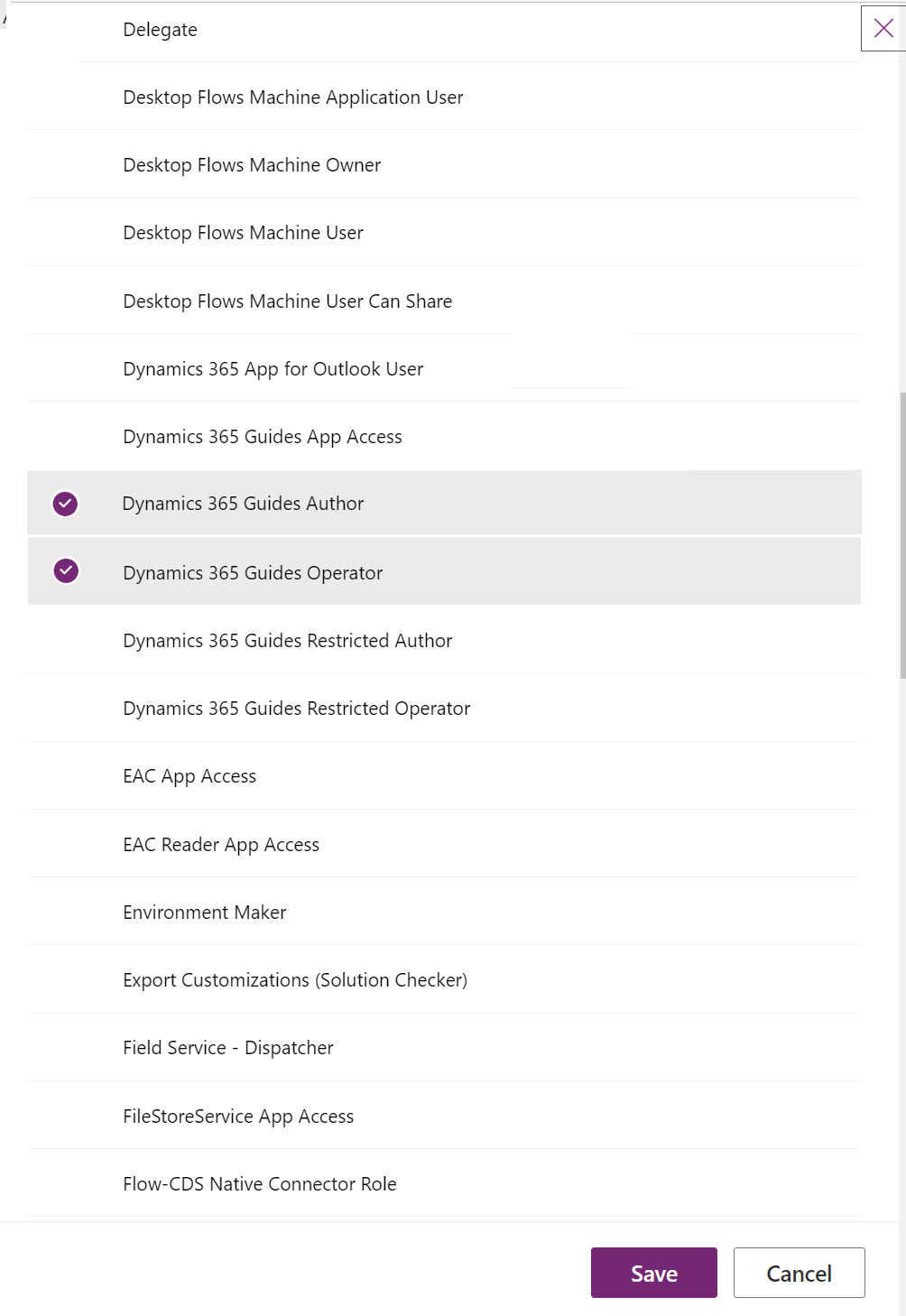
- Click on the Save button.
- The roles are added, and the user is taken back to the Create a new app user window. Here click on the Create button.
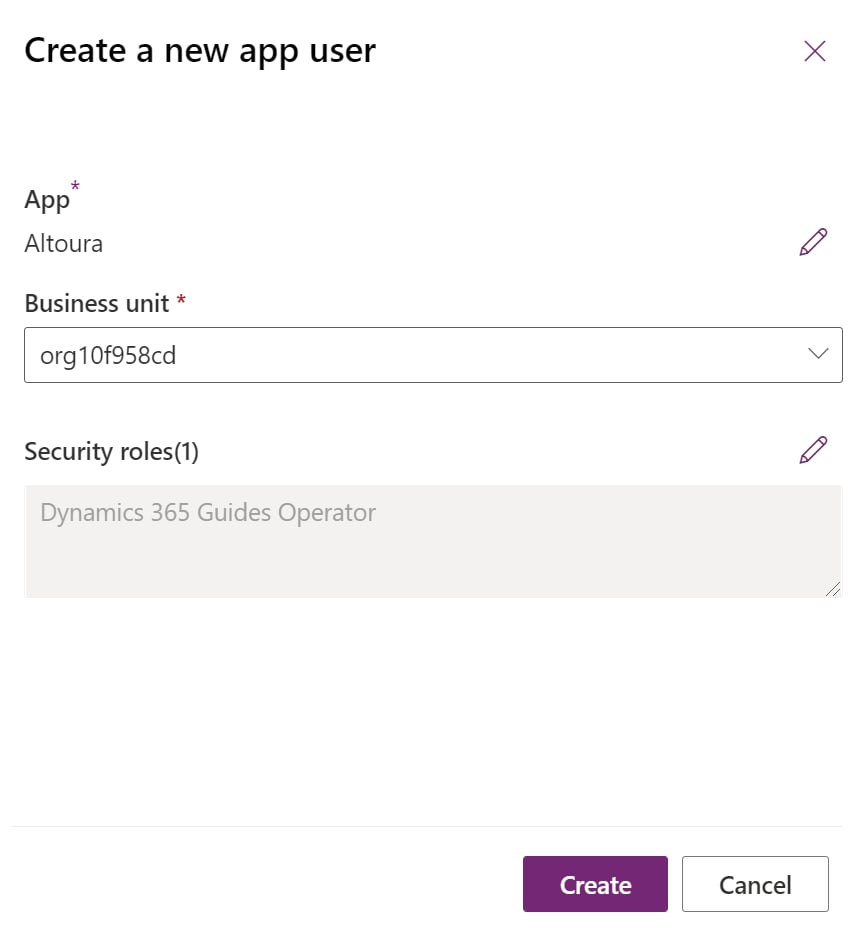
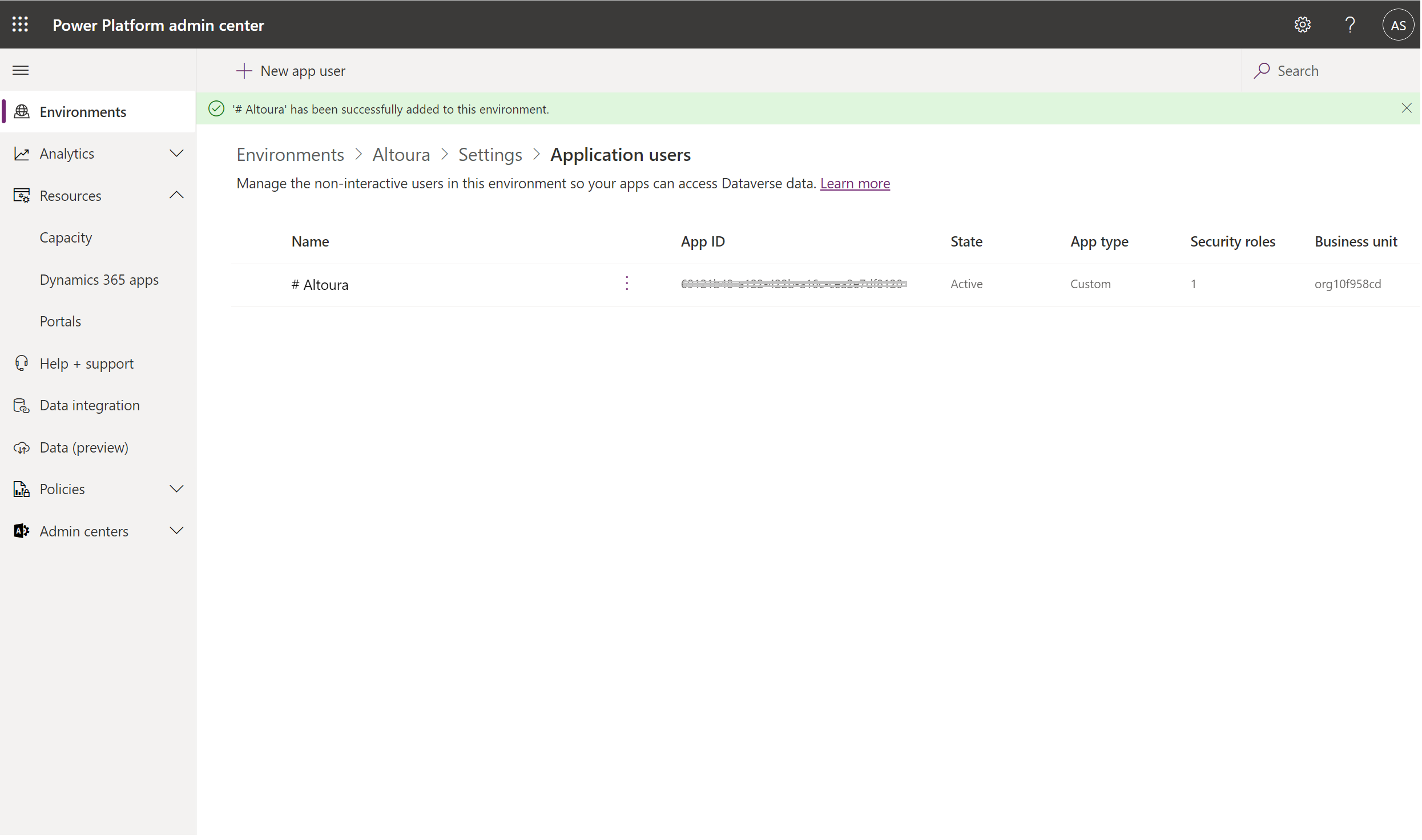
- The Application user is added to the environment with the right role.