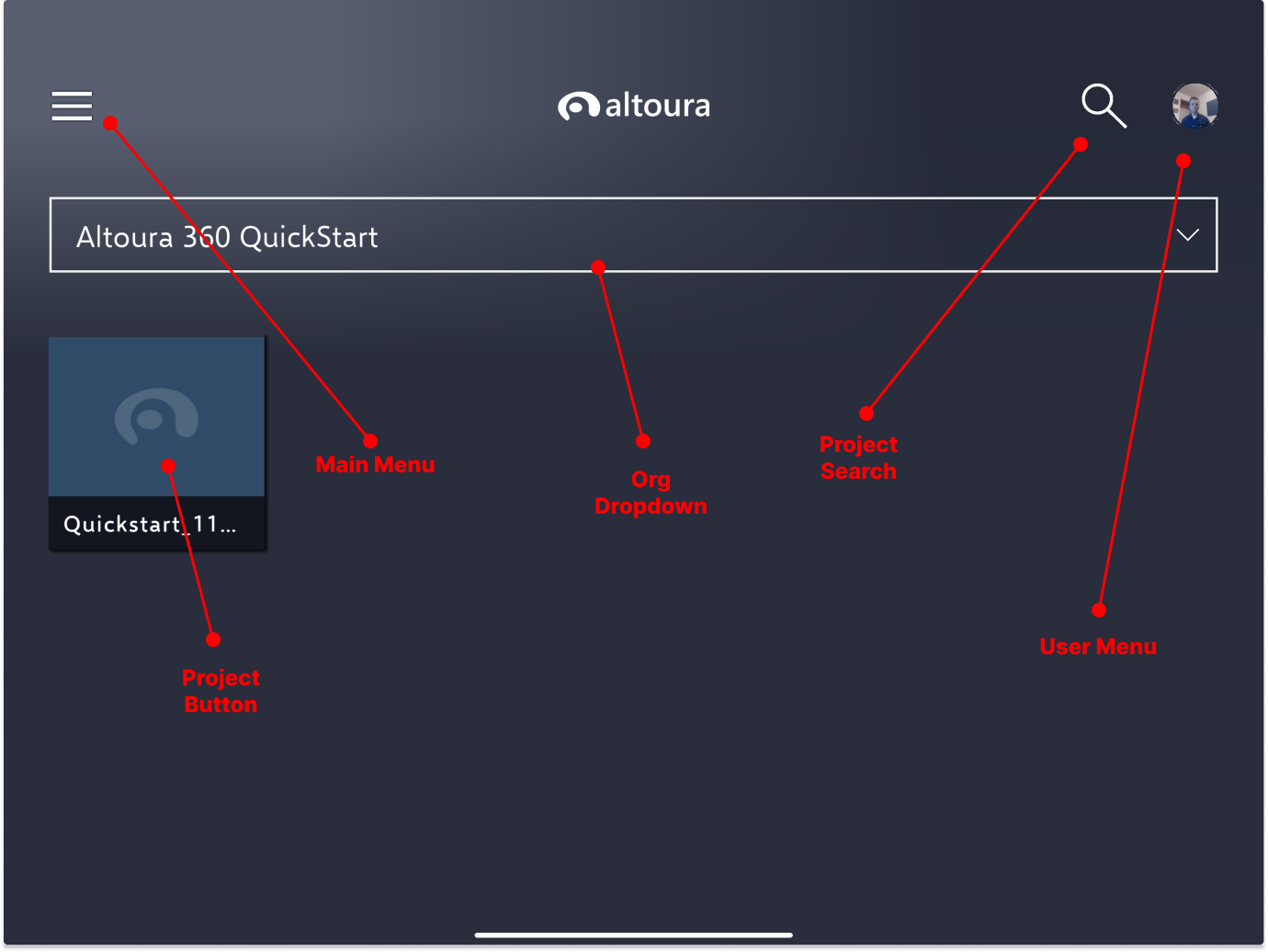
The Altoura 360 App can be installed on a number of platorms-Mac/Windows, Hololens 2, Quest 2 and 3, HTC Vive, Android and iOS mobile devices. In the Altoura 360 app, users on any platform can run Experiences and explore 3D environments either alone or in collaboration. On Win/Mac platforms, users can also create Projects and build Spaces and Experiences. In short, the app is where the end user experiences what has been built in Altoura 360, but it’s also where creators on PC platforms can build these. There’s a high degree of overlap between what can be done in the Portal and the app.

Altoura Home Screen

When logged in to the Altoura 360 app, the first thing one sees is the Altoura Home Screen. This is the high level menu where users can manage their projects and settings.
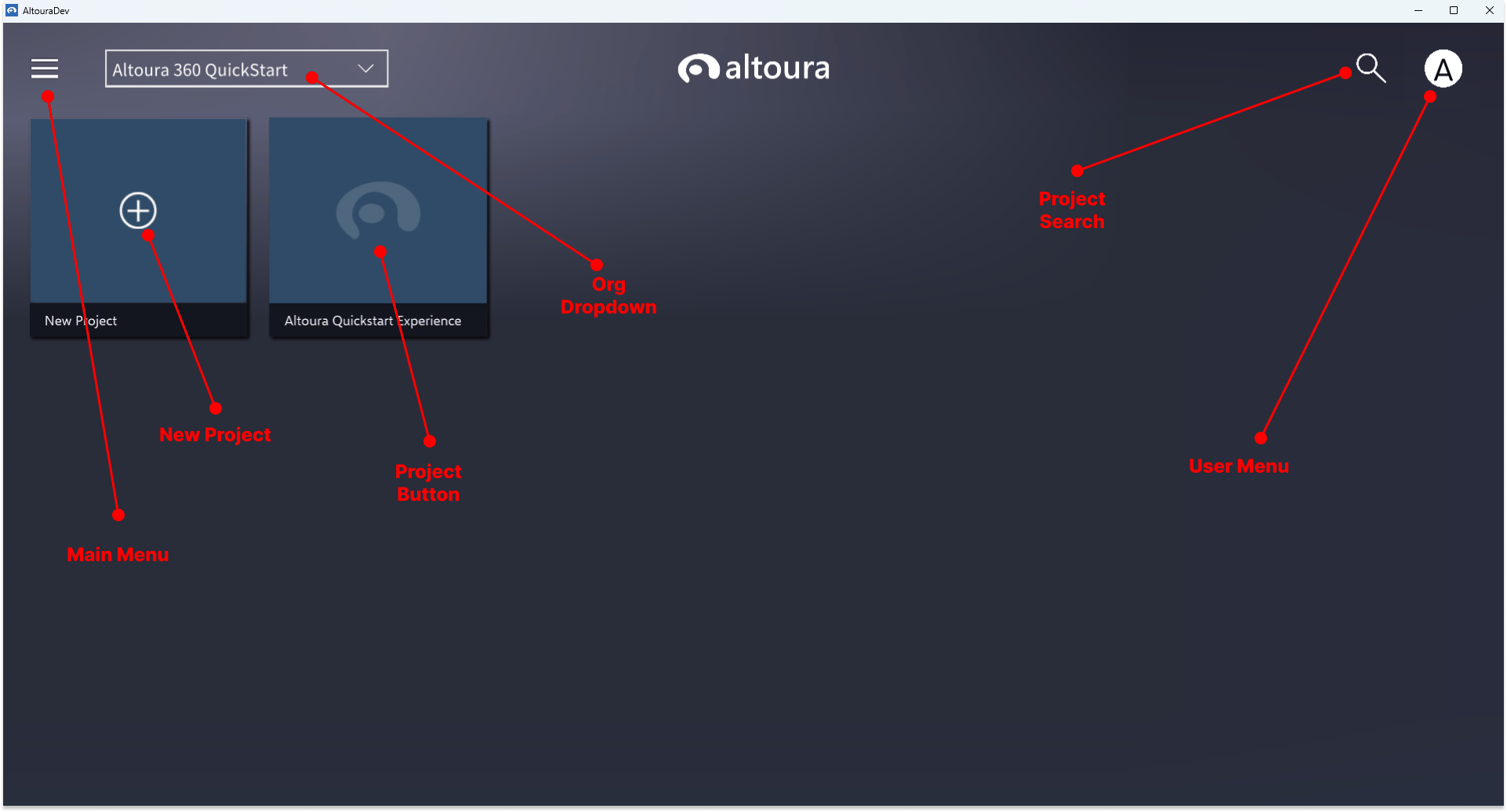
Users can access settings(language, app info, virtual joystick, cache clearing) from this menu.

New Project(PC/Mac only)

Pressing the New Project button will begin the process of creating a new Project.

Project Button

Left clicking this button will launch the Project, right clicking(PC/Mac) will bring up a menu to either edit the project properties or launch the project.

Org Dropdown

This is a dropdown list where users can choose from all the organizations they have access to. This is a filter for searching for projects.

User Menu

This is the menu where users can set their avatar, pair devices, create and enter/exit meetings(collaborative sessions) and log in and out.