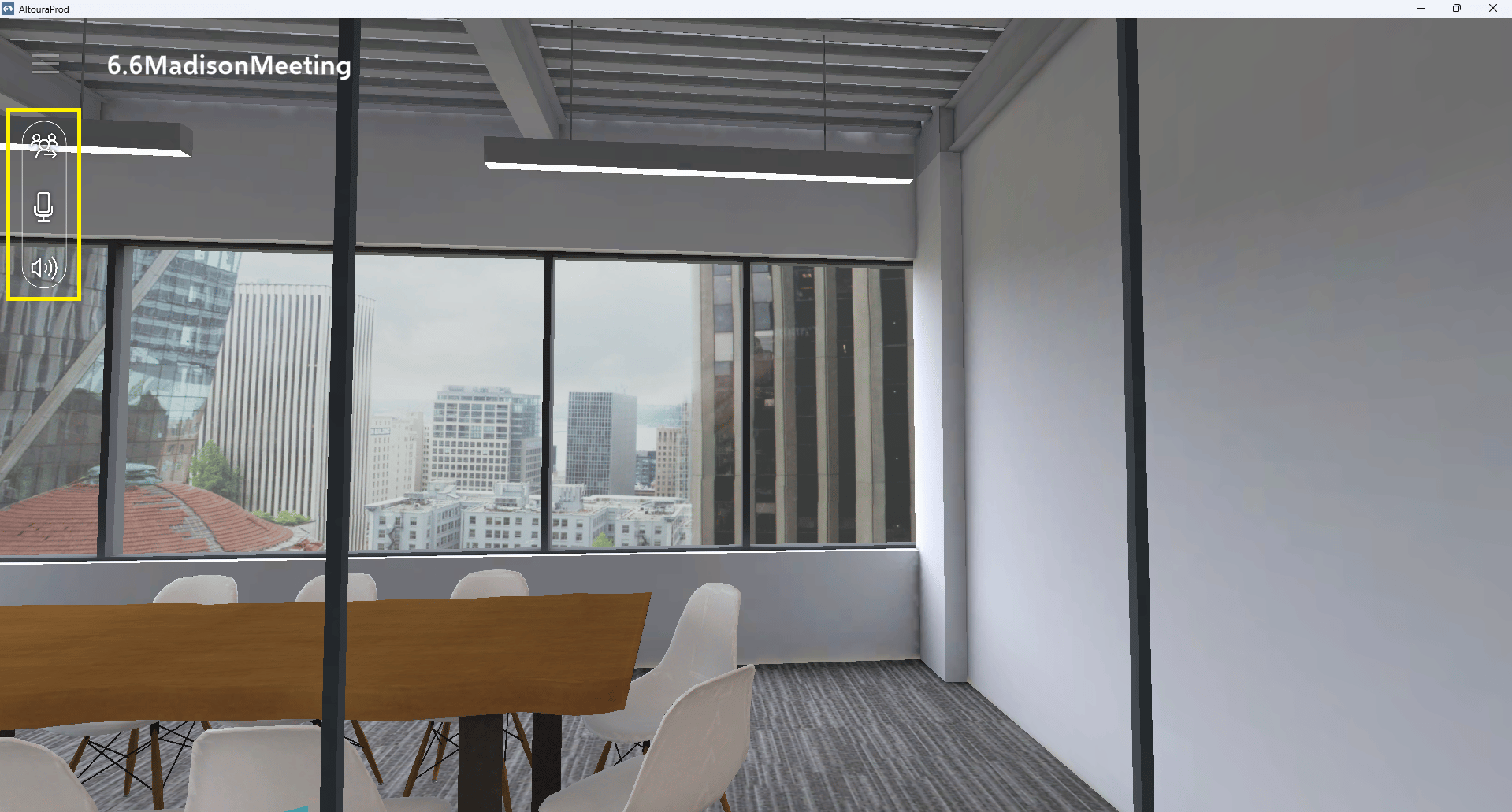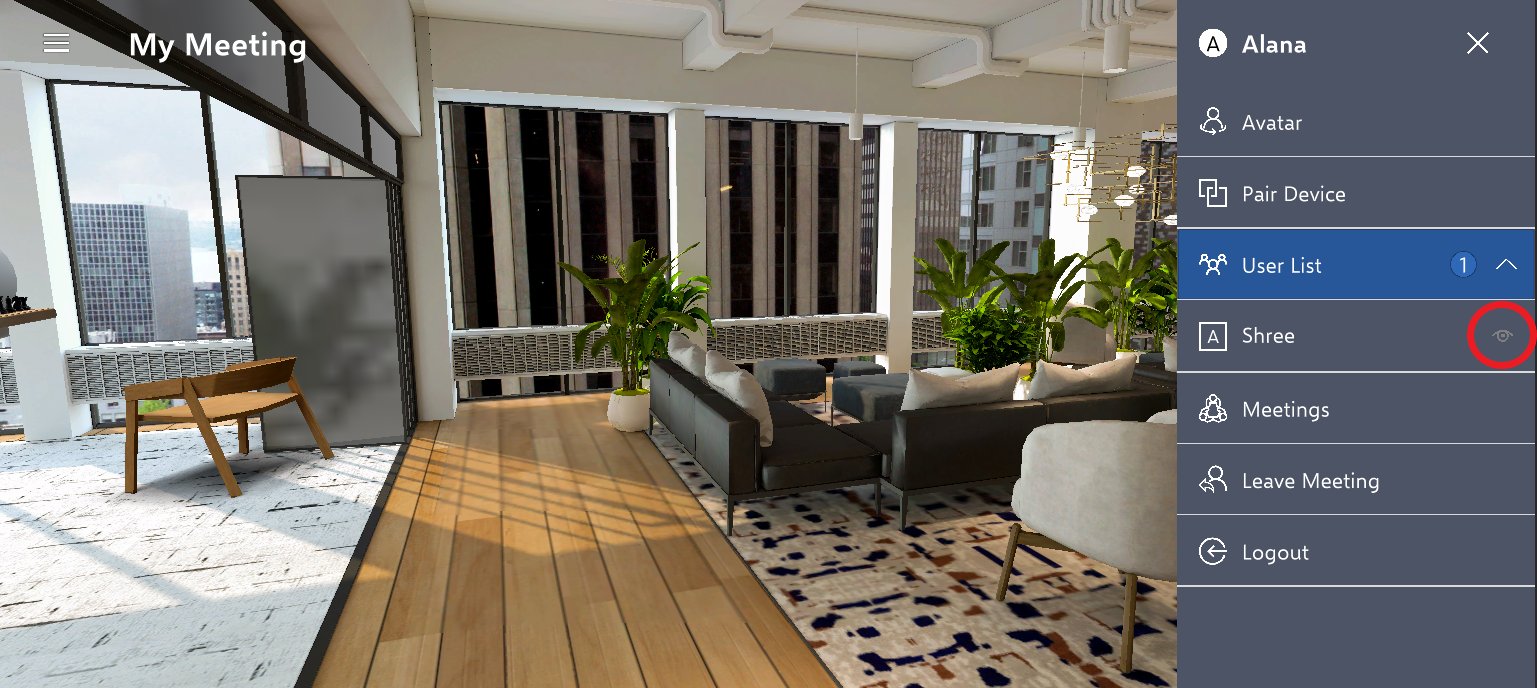
Previously, participants in a meeting could see another attendee’s screen by choosing an option depicted in the image below, without needing explicit consent from the owner of the screen. However, due to privacy and consent issues, this feature has been modified. Now, the individual wanting to share their screen must actively choose to do so, guaranteeing that screen sharing happens only with the screen owner’s approval. ‘Share My View’ feature allows User to project the real time content displayed on his/her device (Smartphone, Tablet, PC or HMD’s) to all the other participants of the Meeting. This mimics the Training session in classroom mode where Trainer decides and controls the training content that needs to be seen by all other participants in the training session. When ‘Share My View’ is selected by User, all the other participants in that Meeting will start seeing exact mirror view of the User who has shared their view.

Sharing User View

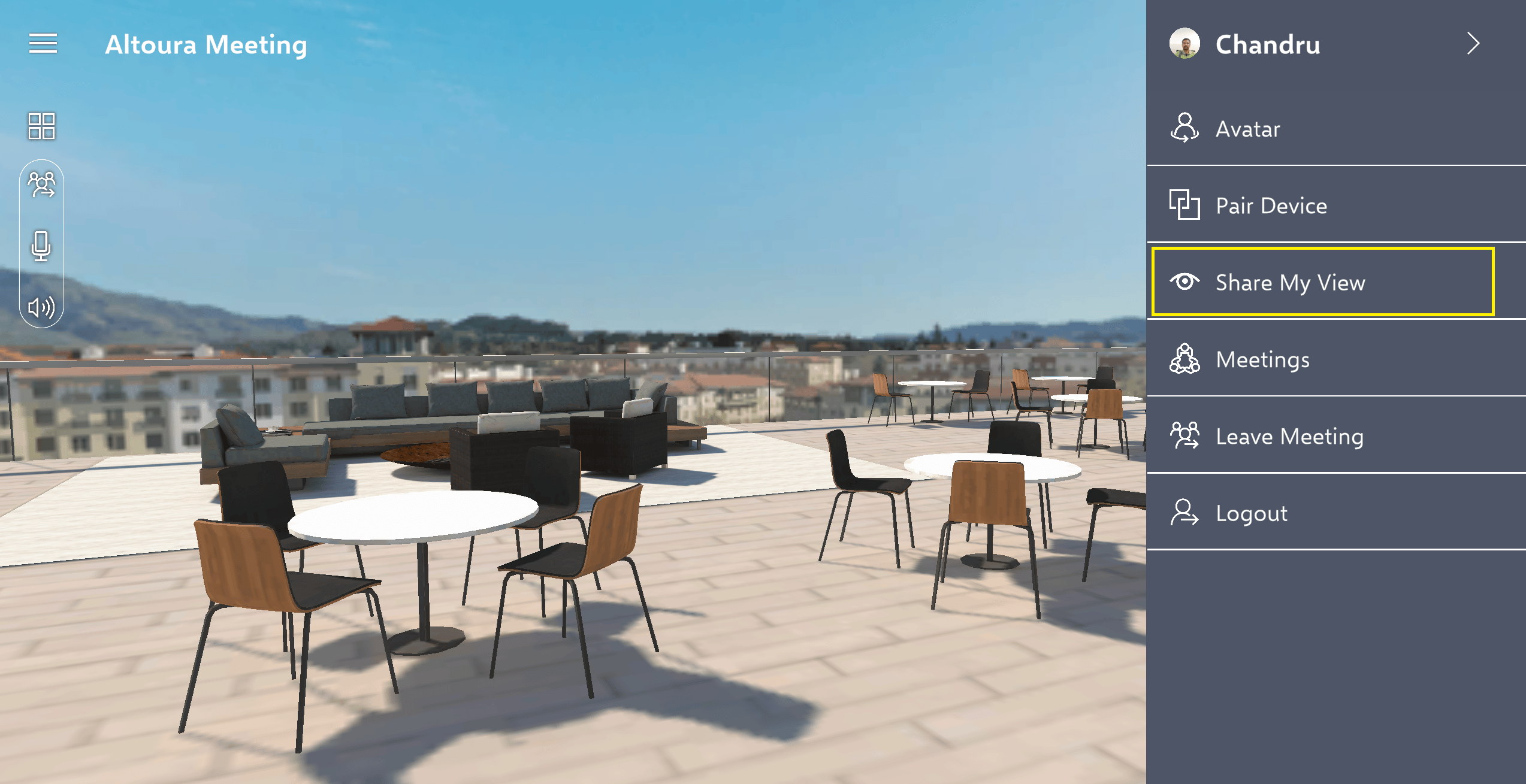
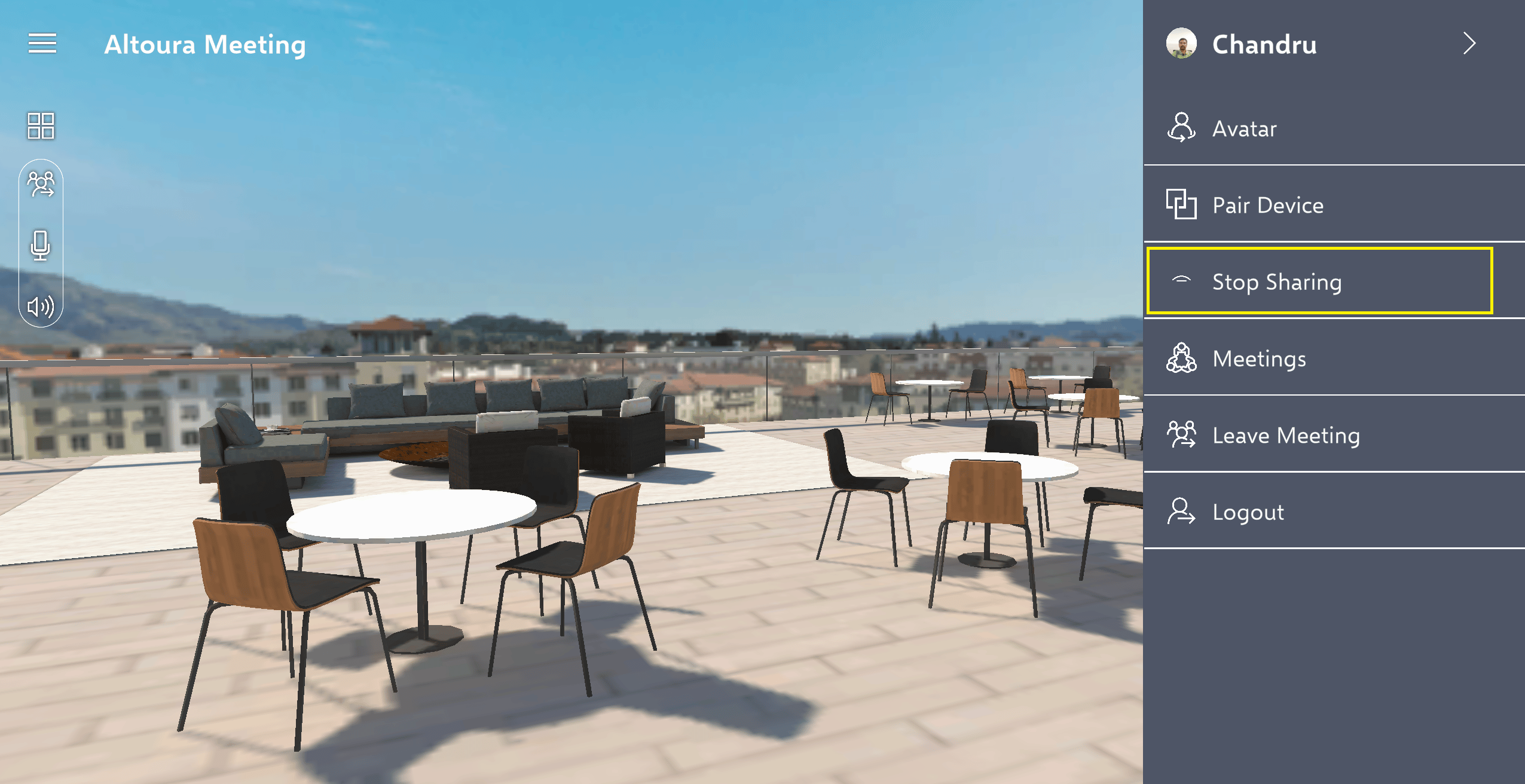
When participating in a meeting, User has the ability to share their screen with others by selecting the ‘Share My View’ option. All participants of the Meeting will instantly start seeing the User’s screen. Once ‘Share My View’ session is active, any User who joins the Meeting will automatically be included to the shared session Meeting. To stop screen sharing, User can select the ‘Stop Sharing’ option, which will discontinue the sharing / mirroring of their screen to all other participants. If any of the participants want to leave the meeting which is shared, they can use the ‘Leave Meeting’ option available to them on their screen. Note: Participants in the Meeting in the ‘Share My View’ Meeting session can perform limited actions mentioned below:
  • Mute/Unmute Microphone
  • Enable/Disable Speaker
  • Leave Meeting