

Requirement Details
Some of the clients may want their Users to be able to go through training in Hololens (HL) seamlessly once they are on the LMS website. The LMS website will be accessed by the Users from their PC or Mobile device. When a User selects any of the training from the LMS website, it is required that they should be able to undergo that training using Hololens seamlessly. Requirement is to map the User based on their SSO login credentials and once the User selects a training on their LMS site they should be able to run the same on Hololens without seamlessly.Implementation Details
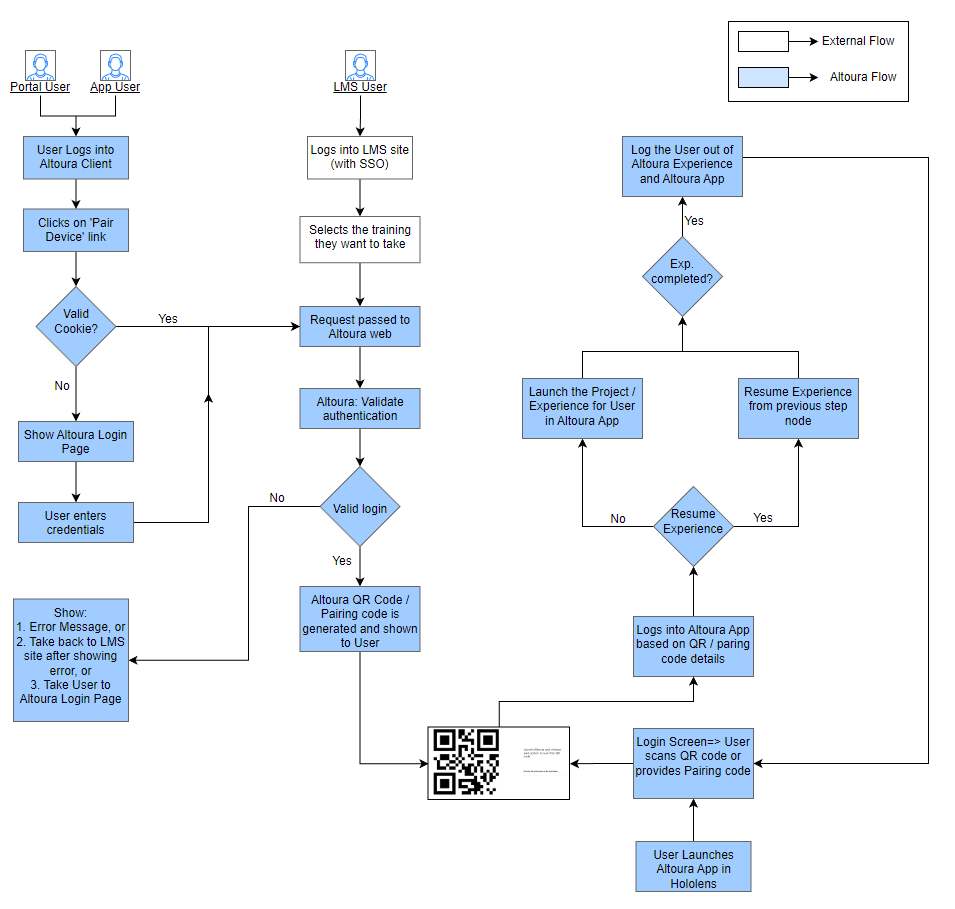
The User scenario based on the workflow is detailed below. The same is supported as part of the platform release:- User accesses the LMS site Using either SSO or Normal User credentials to view all his trainings.
- User browses through the training list and selects the training that they want to undertake
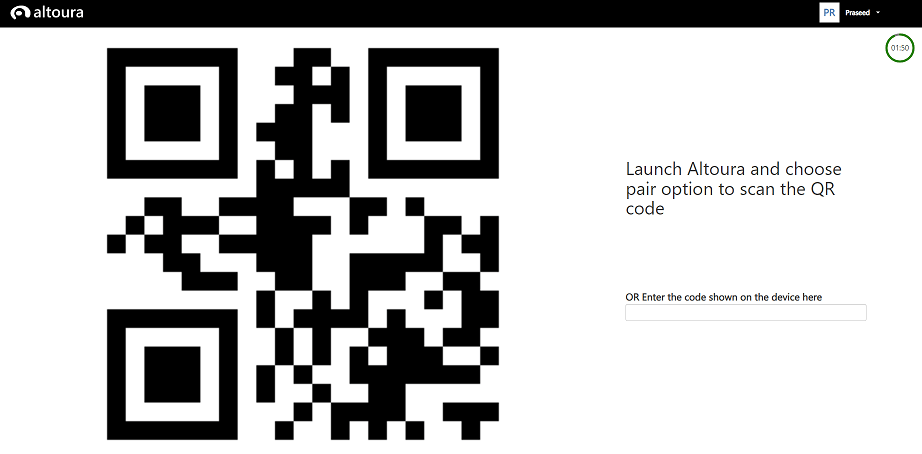
- A new page containing QR code and Pairing Pin details is shown to the User
- The User takes his Hololens headset, launches Altoura app in Hololens and performs one of the actions: o Scans the QR code generated on the LMS site, or o Generates Pairing Pin on the HL and enters the Pin number on the LMS site
- On successful scan / pairing of pin User is taken directly to the Altoura Project / Experience mapped to the training link
- If the User starts a new session, the Experience will start from beginning. However, if they had not completed the experience earlier run, it will prompt the User checking if they want to ‘Resume Experience’. The flow will continue based on User selection appropriately.
- The User completes the training and clicks on the ‘Exit’ button on last Step Node
- On click of ‘Exit’ button, User will be logged out of the Altoura App and taken back to the Hololens Altoura Login screen
- User logs into Altoura Client (from either desktop or mobile)
- User clicks on the ‘Pair Device’ link from the ‘Profile’ menu
- User is redirected to the Web Page which has the QR Code / Pairing Pin details.
Hololens (HMD) changes
‘Pair Device’ login option under Hololens will have new UI as shown below: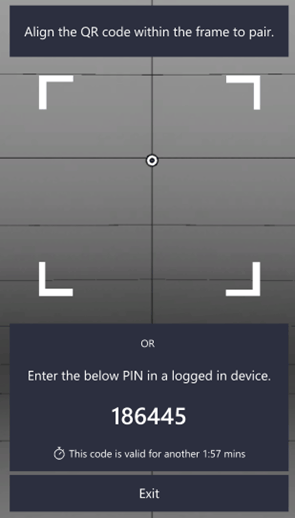
- Scan the QR Code for login to Hololens Altoura App
- Enter Pin in Altoura QR Code / Pair Pin page
Altoura PC / Mobile client changes
The ‘Pair Device’ option under Altoura PC / Mobile clients is changed to ‘Link’. On clicking the ‘Pair Device’ button User will be redirected to Altoura QR Code / Pain Pin site.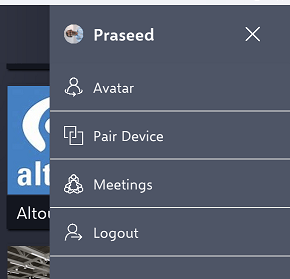
Configuration changes to log User out once Experience is completed
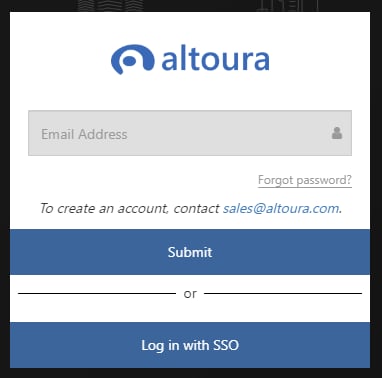
Altoura provides flexibility for User to be logged out of Altoura platform once the Experience has been completed (i.e when User clicks on the last Training Panel which has ‘Exit’ button, they would be logged out of Altoura Experience and taken to the Login page. The configuration to Logout the User on completion of an Experience is available in Altoura Portal as JSON string. User needs to follow the below steps to enable this option:- Login to Altoura Portal
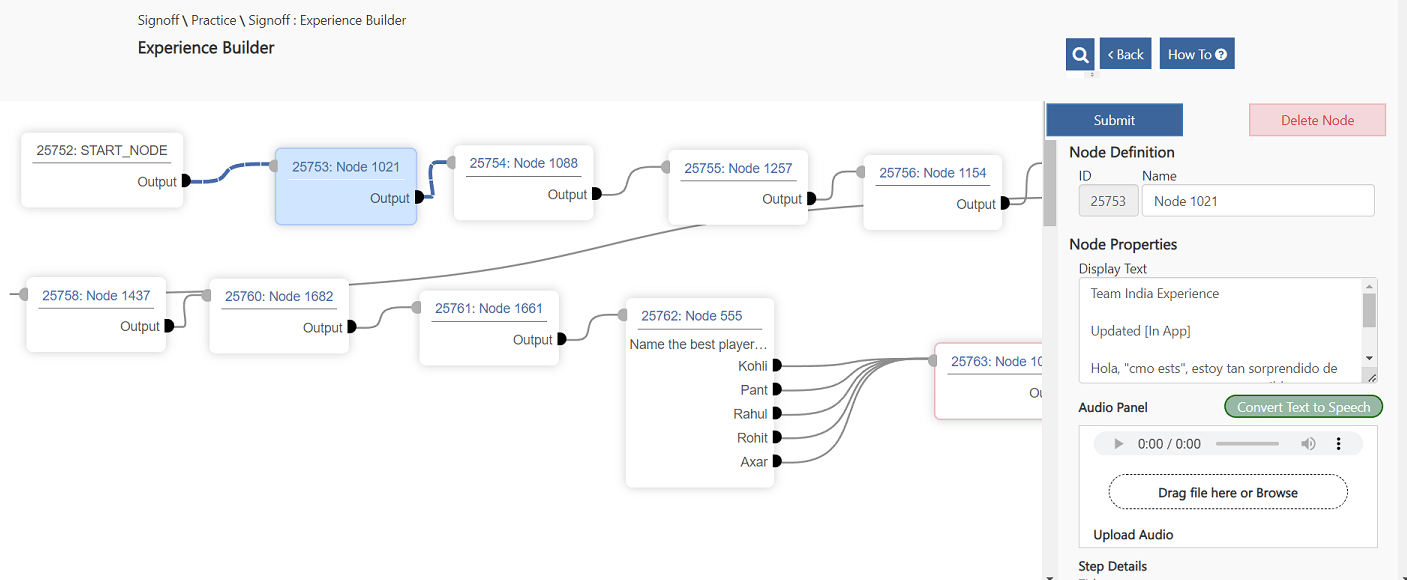
- Go to the Experience and click on the Step Node for which the ‘Back’ button needs to be disabledora:
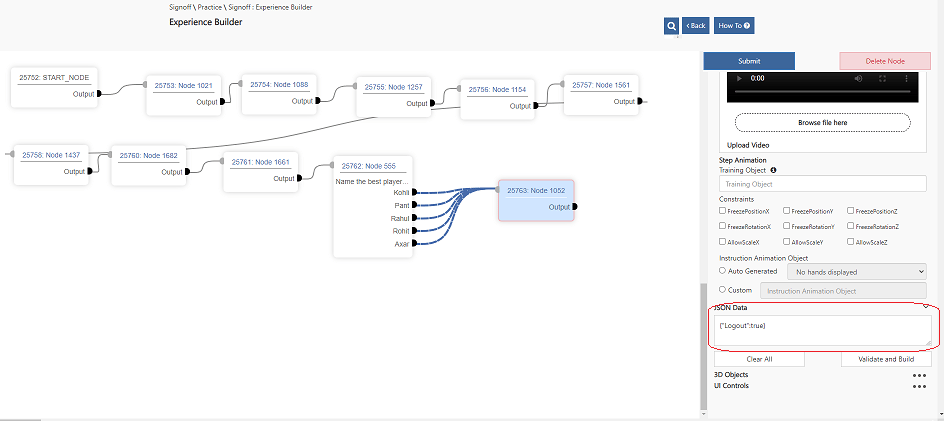
- Scroll down on the Step Node properties window till you see ‘JSON Data’ section (as shown in the screenshot below):
- Expand the section and enter following JSON string: {“Logout”:true}
- Click on the ‘Submit’ button to save changes
- Once the above changes are done, login to client and check the Experience flow. On click of ‘Exit’ button from Altoura Client in the last panel, the User should be logged out of Altoura App
- If the User wants to remove the logout option on click of ‘Exit’ button in last Panel, they need to go back to Altoura Portal => JSON Data section and remove the {“Logout”:true}string from the section.