

Requirement Details
Metadata information to an object involves attaching additional descriptive information to the object that provides more context about its properties or characteristics. This information is typically not part of the object’s primary data or functionality, but rather provides additional insights into how the object can be used or interpreted. Metadata information can take many forms, depending on the type of object and the intended use of the metadata. For example, a photo might have metadata such as the date it was taken, the camera settings used, and the location where it was shot. A web page might have metadata such as its title, description, and keywords, which can help search engines index the page more effectively. The process of adding metadata to an object typically involves defining the metadata structure, creating a method for attaching the metadata to the object, and developing a system for storing and accessing the metadata. Within Altoura, adding meta ata to an object can be a powerful way to enhance its usefulness and provide more context and insights to users.Steps to add Metadata for any Object within Altoura
A new Key / Value pair has been added to support the two enhancements mentioned above. Details of the required configuration to enable this functionality is provided below:- Login to Altoura Portal
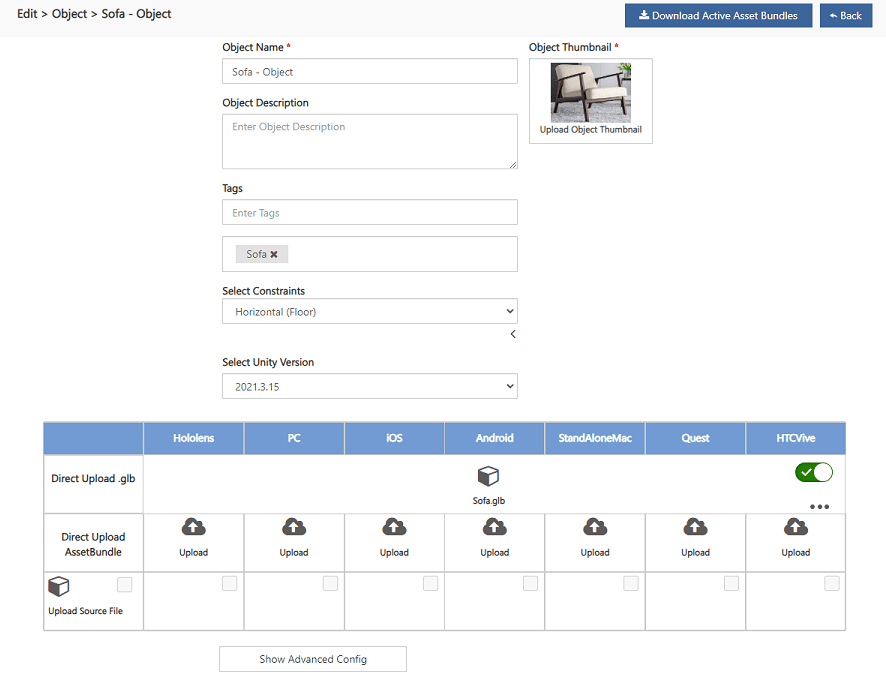
- Click (go to) Objects menu
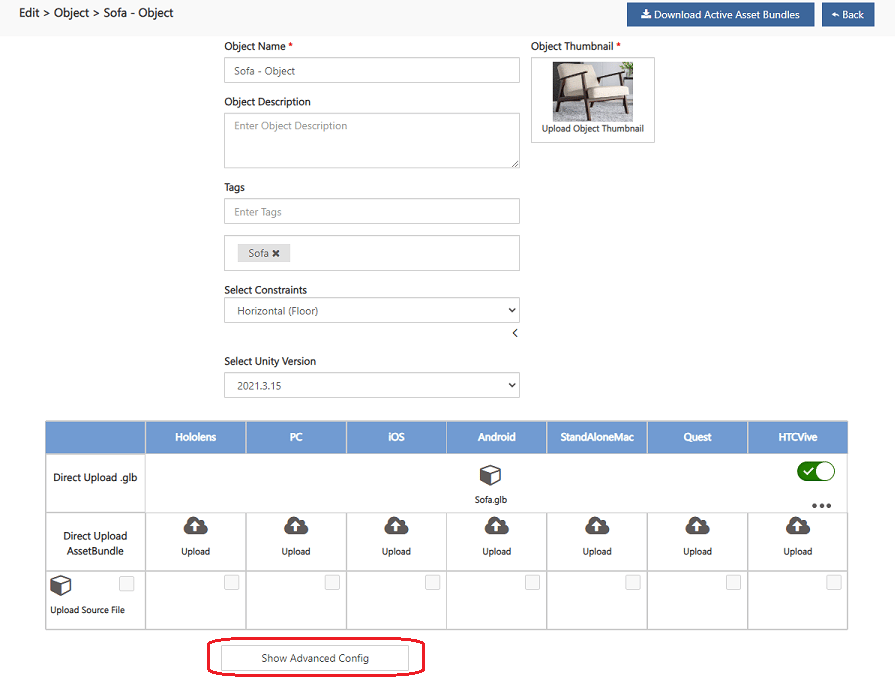
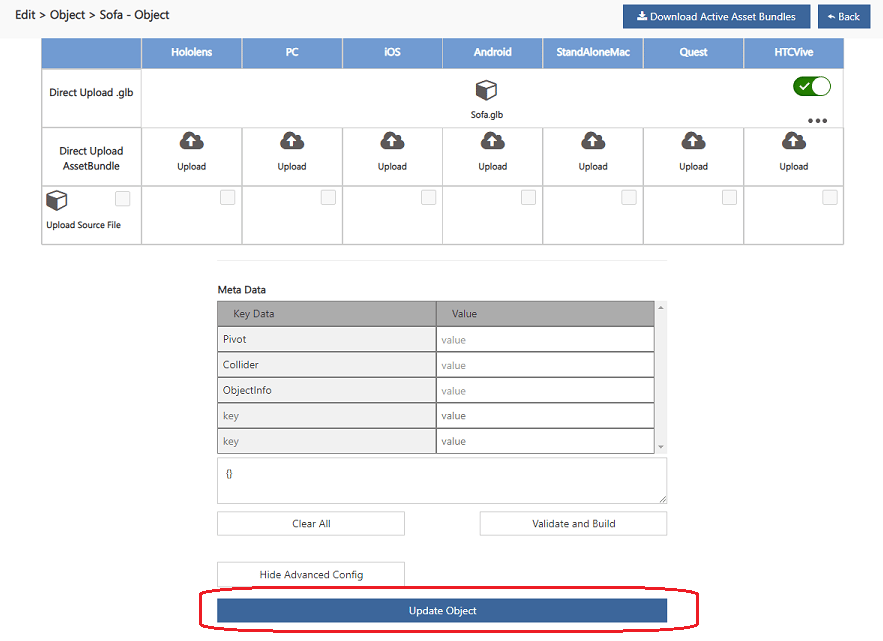
- Click on ‘Show Advanced Config’ button
- This will open the Object Meta Data page as shown below:
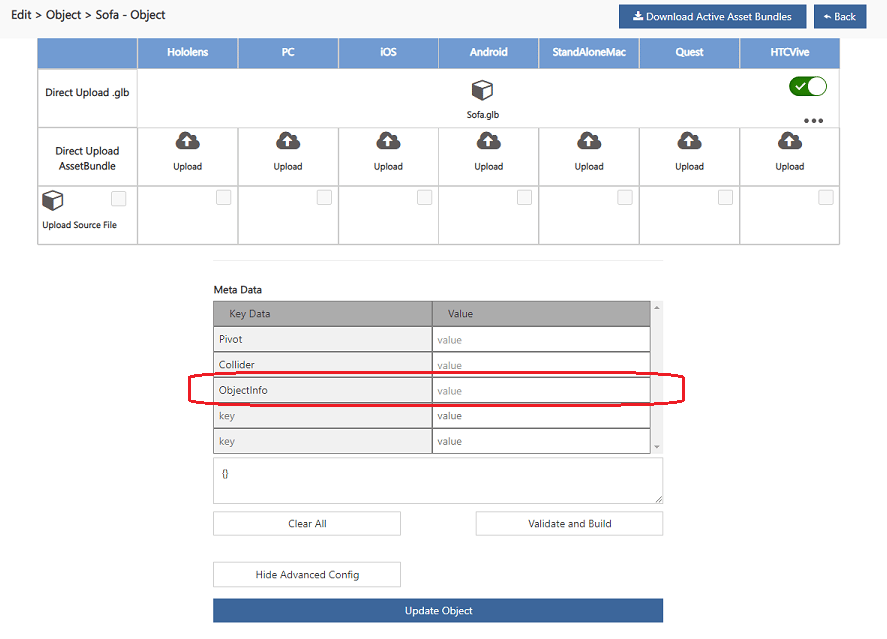
- Update the ‘ObjectInfo’ with required information that needs to be shown as part of hte Object Metadata at client side. Details of all the Tags that can be used for Objects is provided below:
<exportdata> - To export object metadata information to PowerApp, specify the data to be exported using the following format. In case there is no <exportdata> tag specified, no data will be exported for the object. <exportdata>ThisDataWillBeSentToPowerApps</exportdata>
g) Refresh Rate for Dynamic Content The content of Metadata can be refreshed at periodical interval. This can be done for all the dynamic content (media / image etc). The same can be configured using the “refresh rate” within the Portal. This refresh rate can be defined as part of the tag configuration.
To specify the refresh rate, one can utilize a special attribute in conjunction with the <image>, <video>, and <externalcontent> tags. Here’s an example of how this can be done:
<image refreshInterval=“10”>ImageUrl</image> <video refreshInterval=“10”>VideoUrl</video> <externalcontent refreshInterval=“10”>SampleUrl</externalcontent>
If the refreshInterval attribute is not defined, the data will not be automatically refreshed. However, if dynamic content needs to be periodically refreshed, the refreshInterval attribute can be updated with the desired refresh rate, specified in seconds. This allows the system to process the information and ensure that the metadata for the corresponding objects is refreshed accordingly.
During meetings, when the refreshInterval is provided, the data will be updated based on the joining times of each individual. This enables real-time updates and ensures that the information displayed remains current throughout the meetings.
Note: Only the tags mentioned above are currently supported as part of the Metadata, and any other HTML tags or unsupported syntax will not be rendered correctly and appropriate message will be shown.
- Save the changes made by clicking on ‘Update Space’ button
- Once the above changes are done, User can login to Altoura Client and check the Metadata for the Object defined.
- If the User wants to change any of the Metadata for the Object, they can go to Altoura Portal and change / update the ObjectInfo meta.