The Meetings Tab
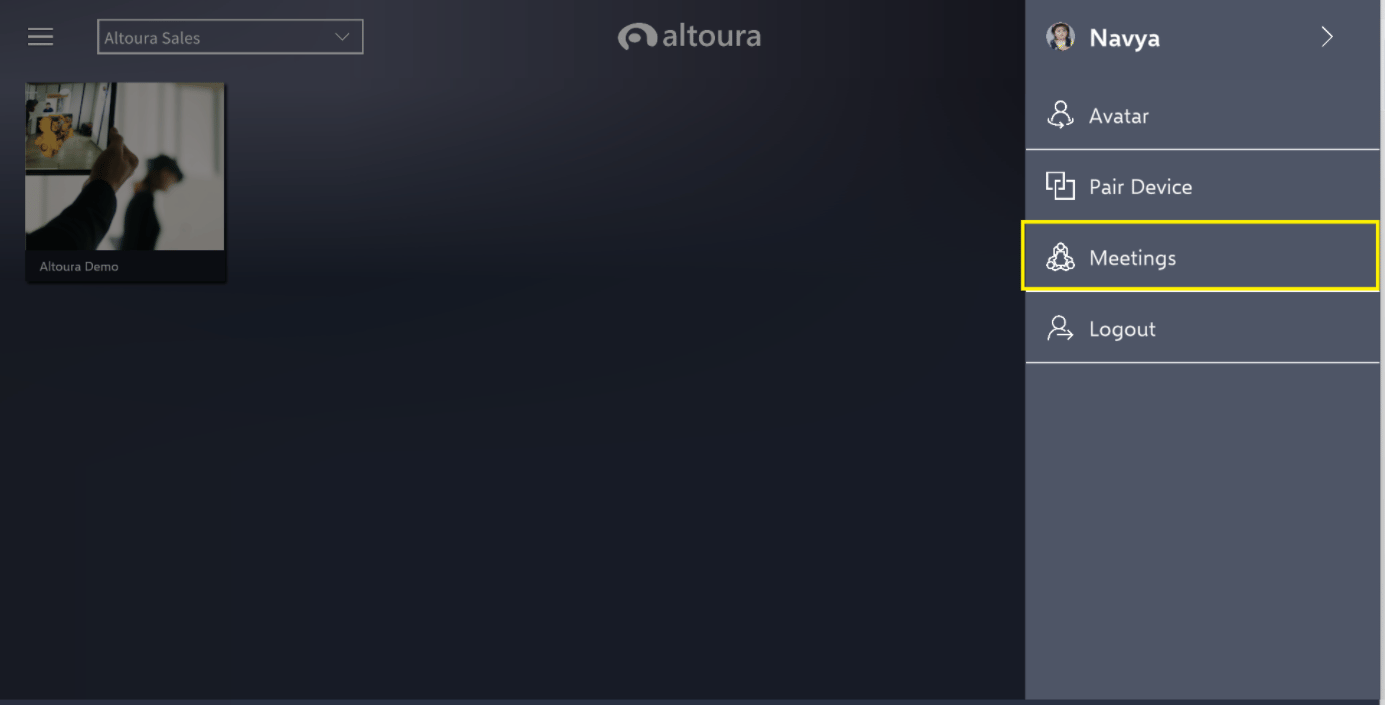
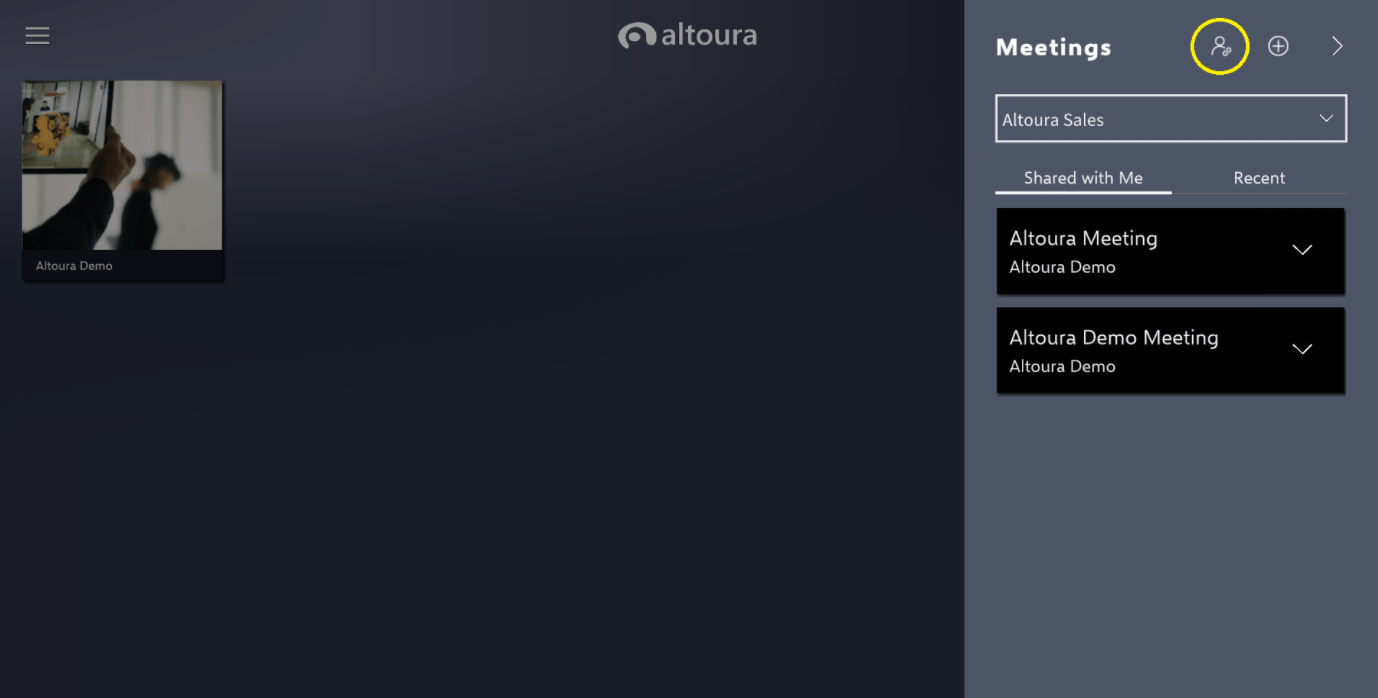
To access the Meetings tab, go to the user menu in the top right corner of your screen.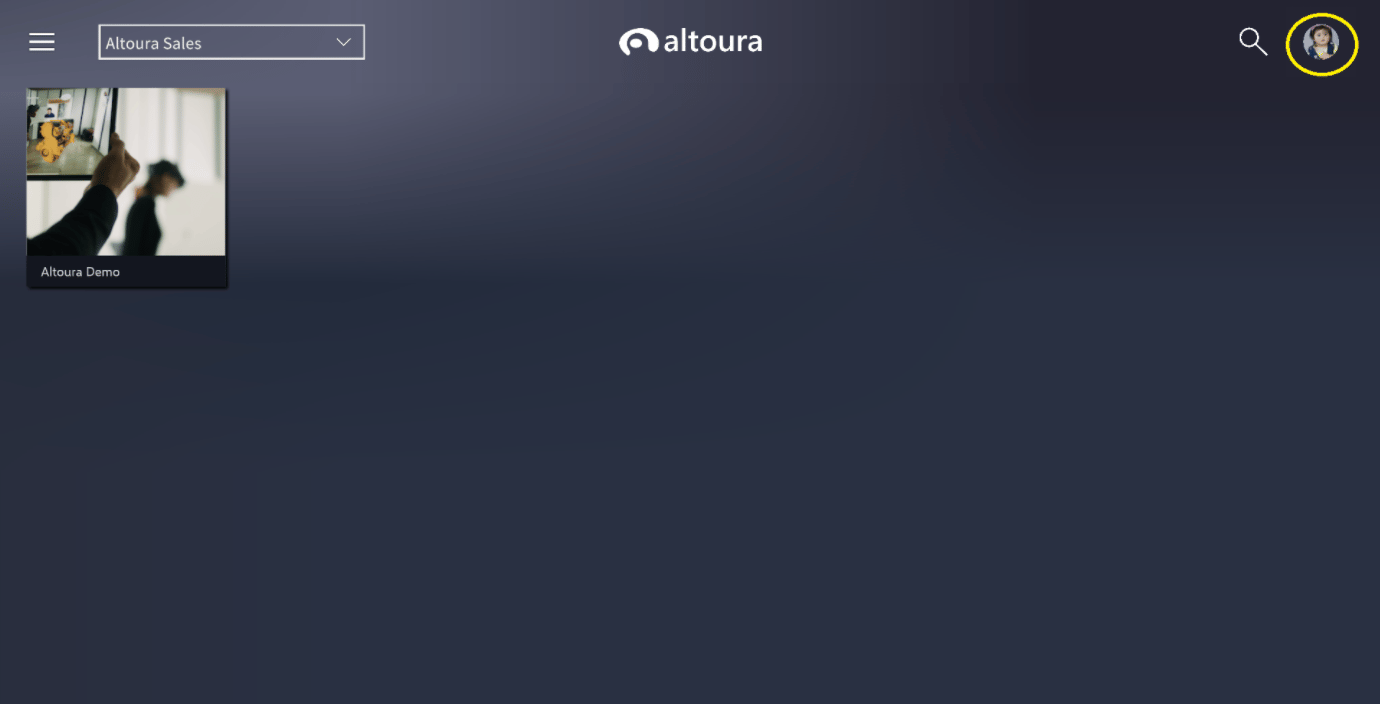
Create Meeting
To create a Meeting, click the plus icon in the top right corner of the Meetings menu.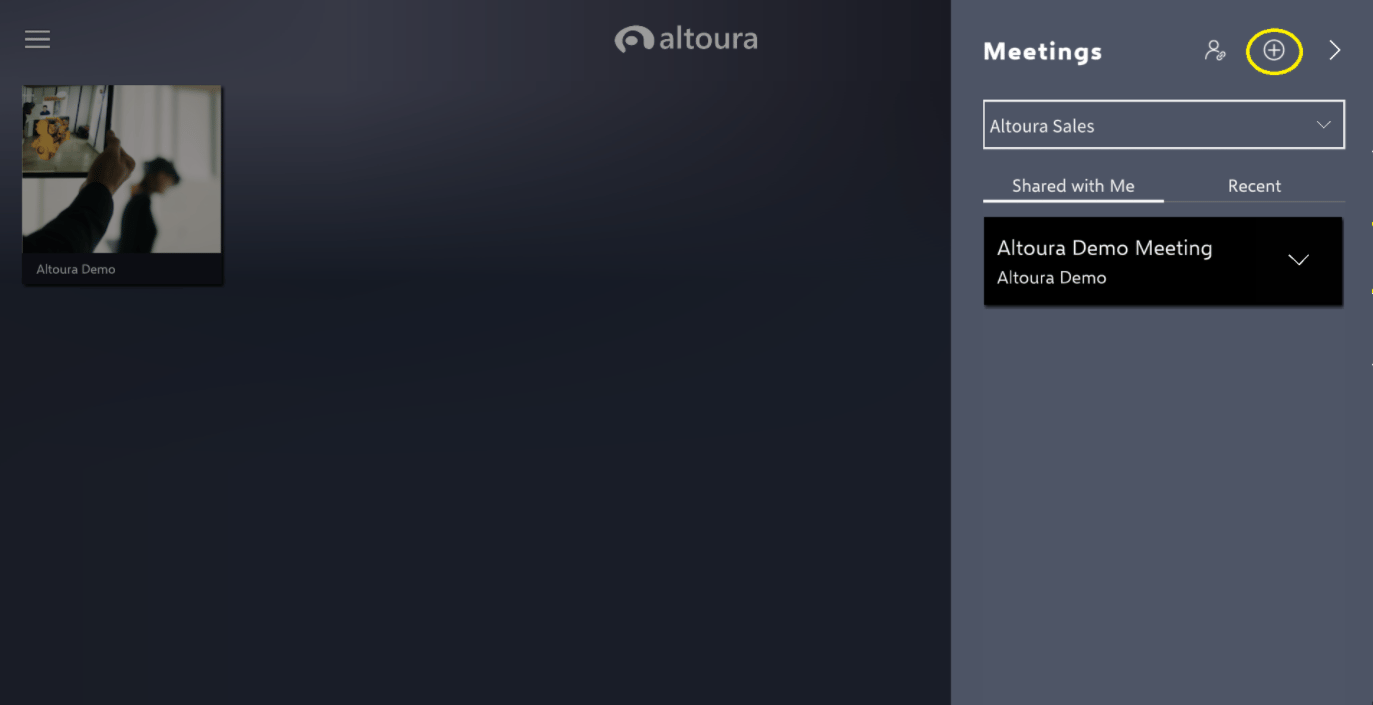
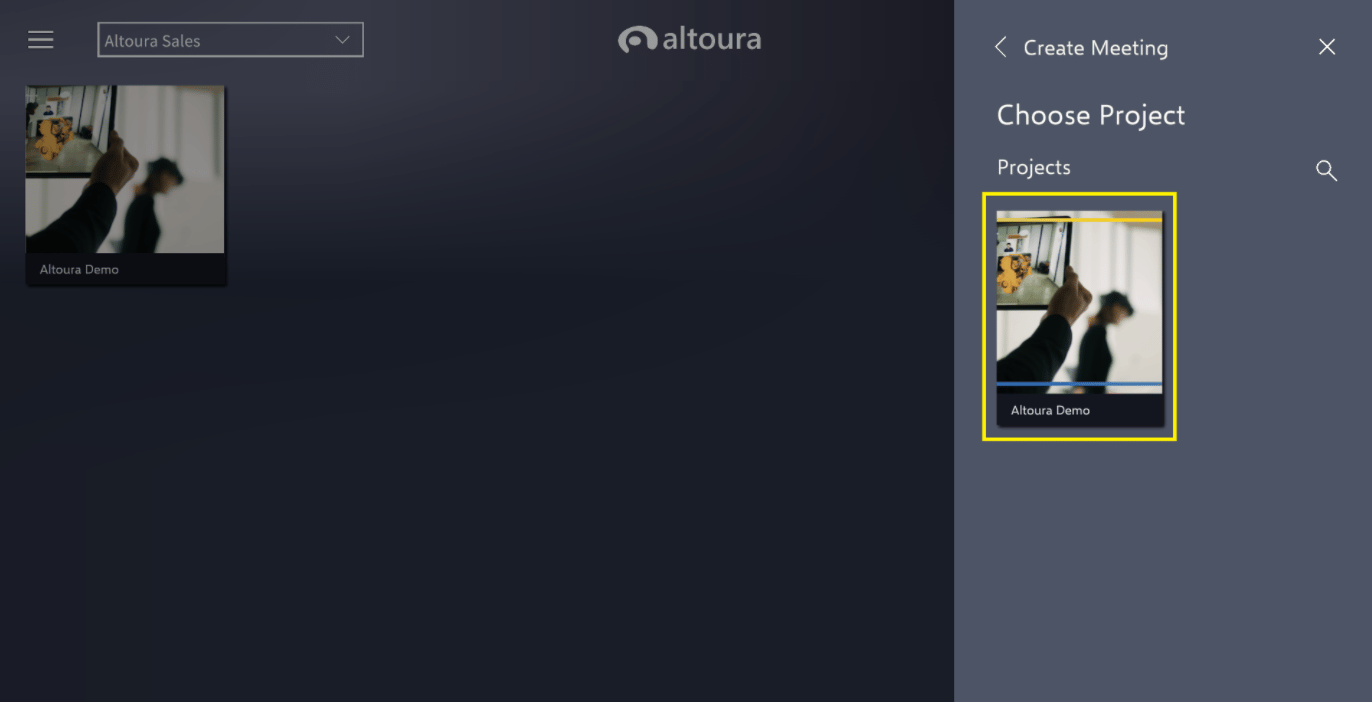
- Below table highlights the difference between Collaboration and Classroom type of Meeting:
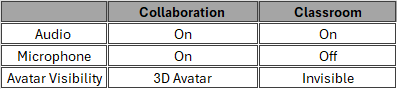
- The above option are the default selection based on the Type of Meeting created. The User will still have the option to change these default setting from the ‘Join Meeting’ menu if required.
Share Project Toggle
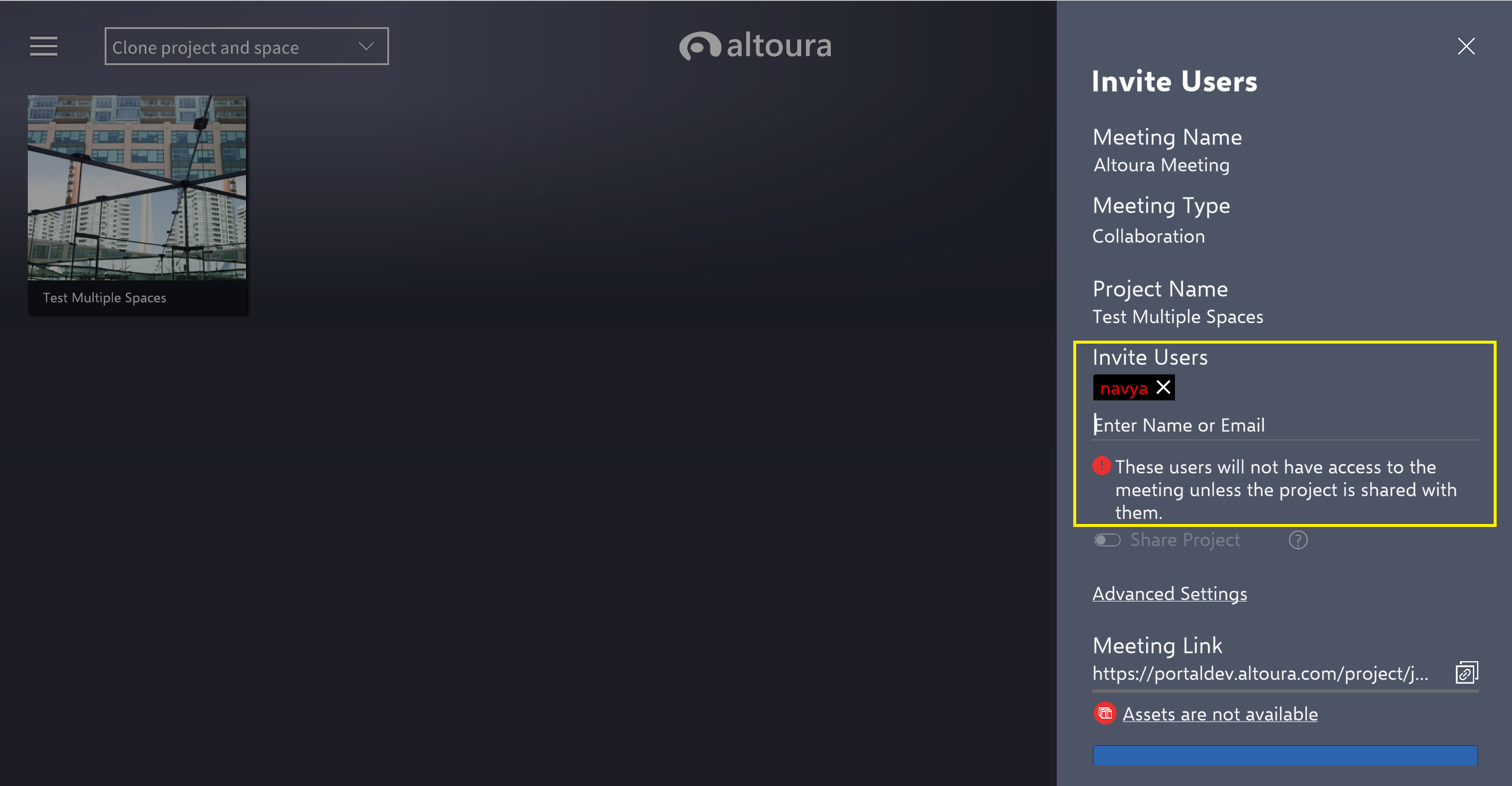
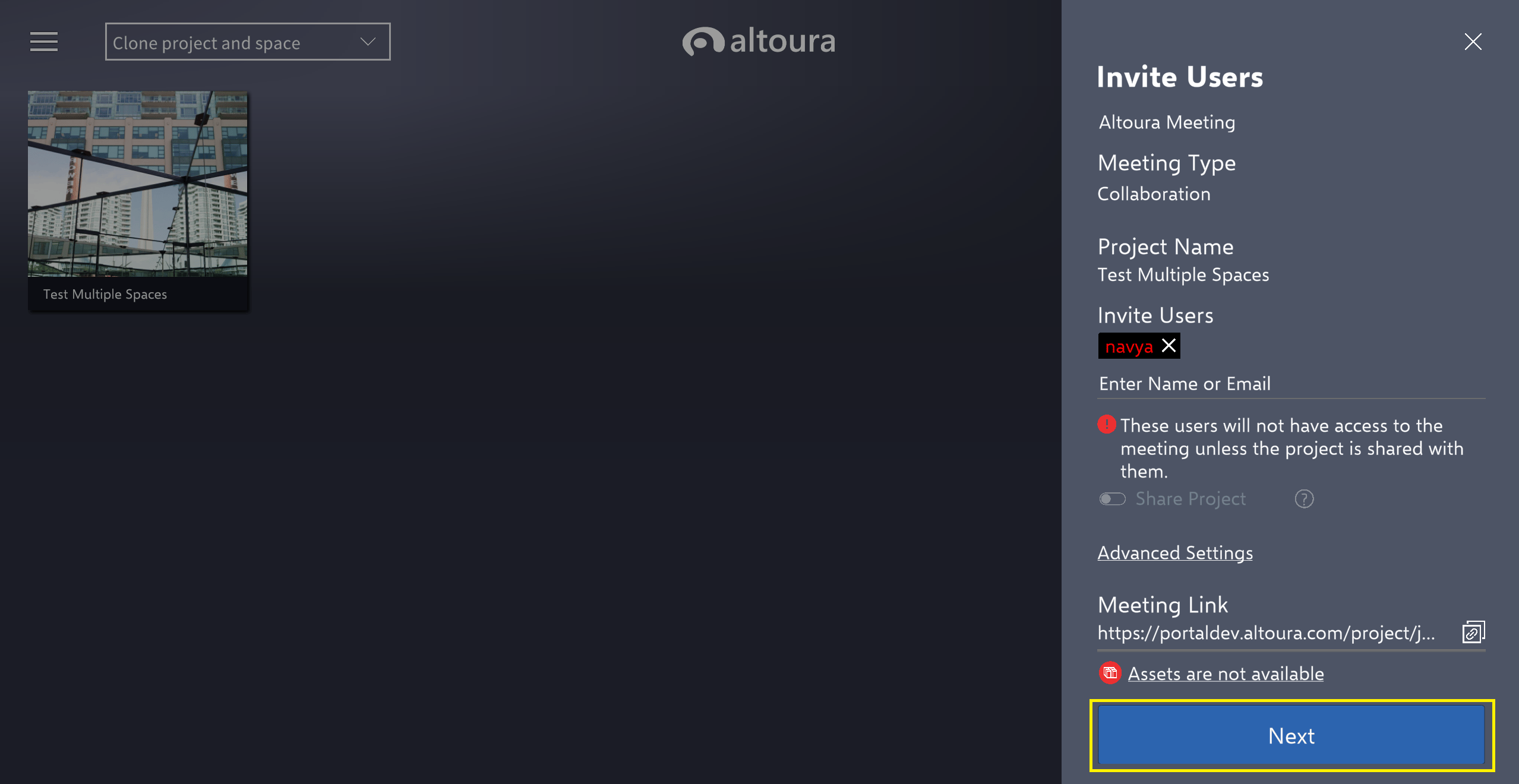
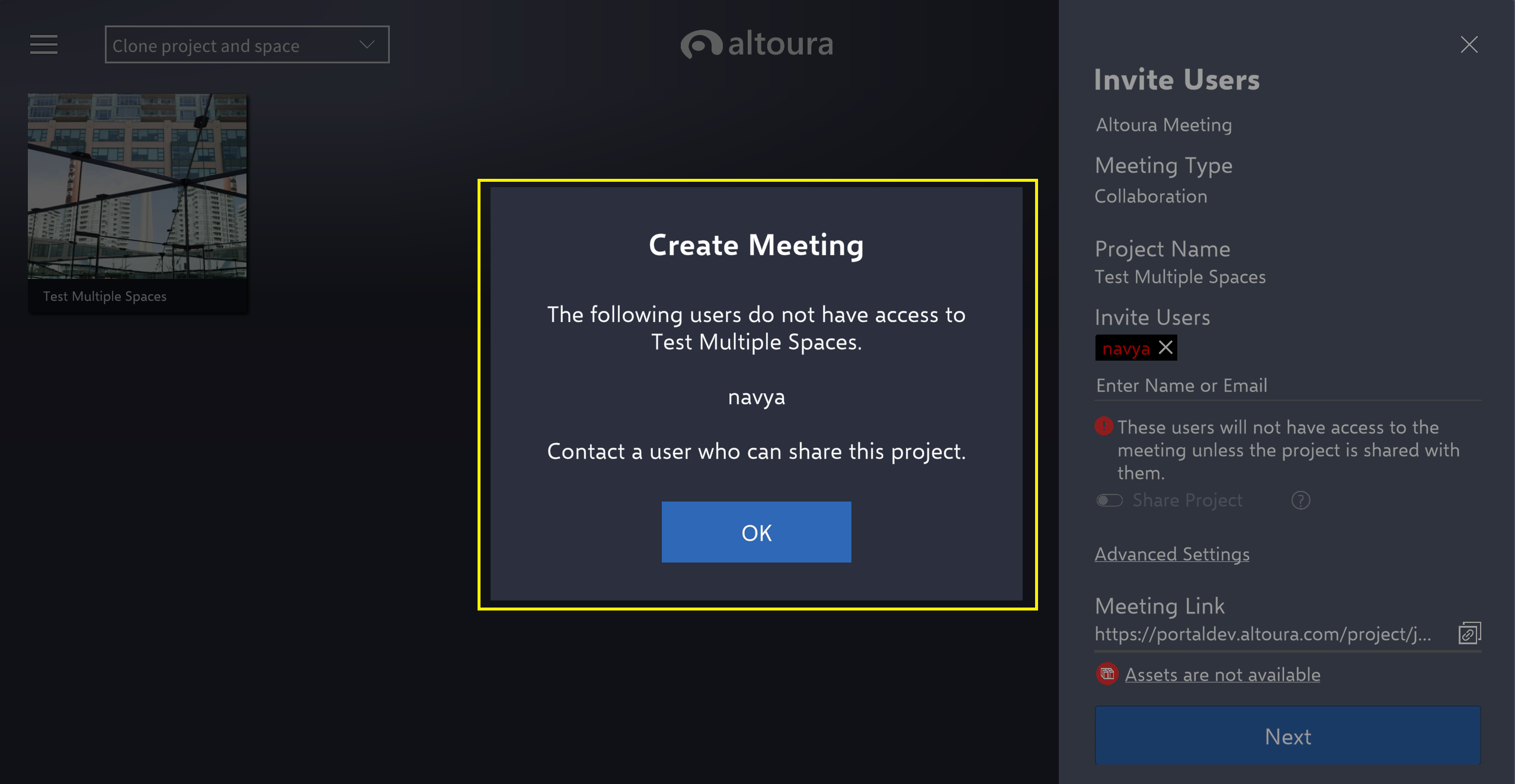
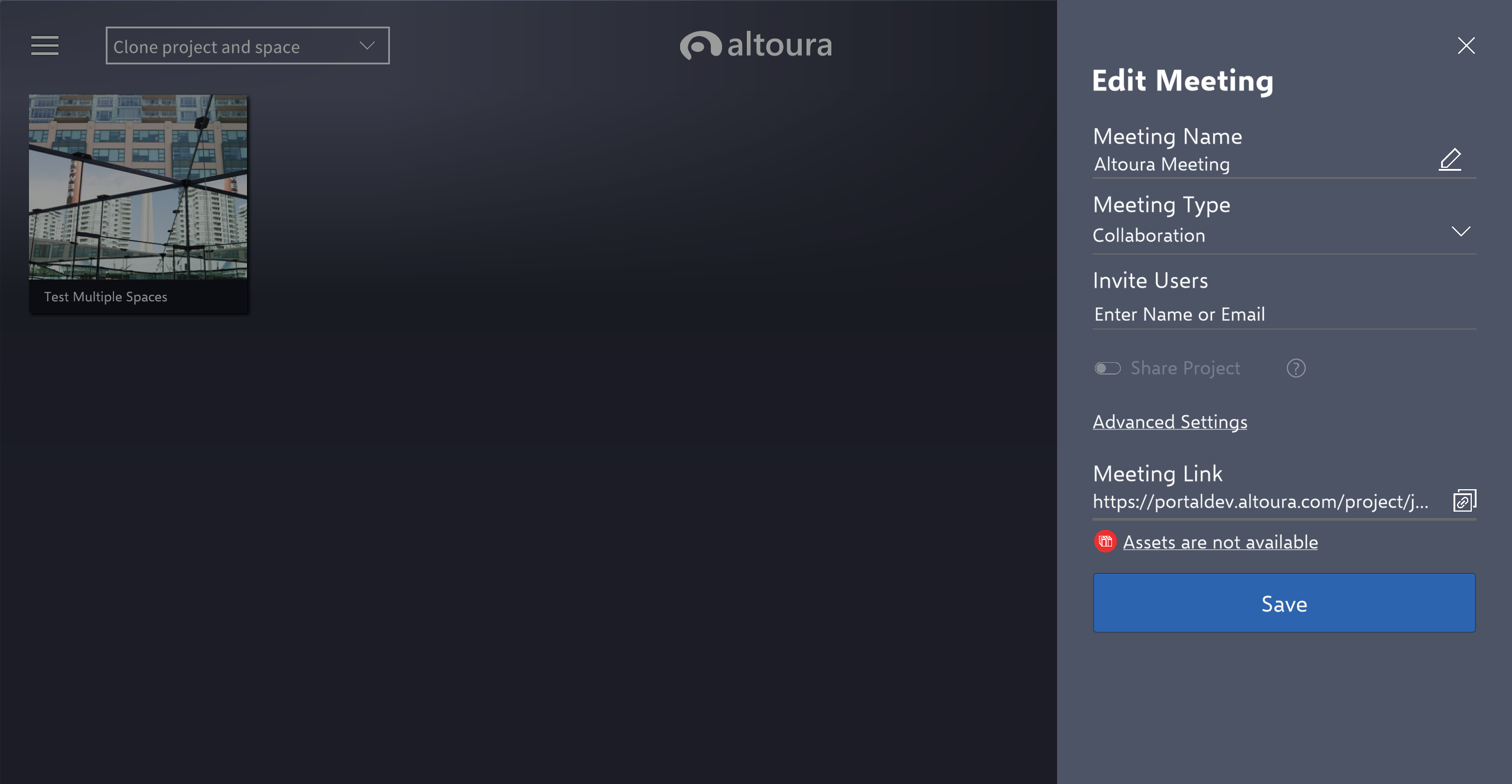
The Share Project toggle will share the Project that your Meeting is Based on with the users that you invite to the Meeting. If the share toggle isn’t enabled, please reach out to Altoura support team for assistance. You will only have access to this toggle if you are an App Access Altoura User.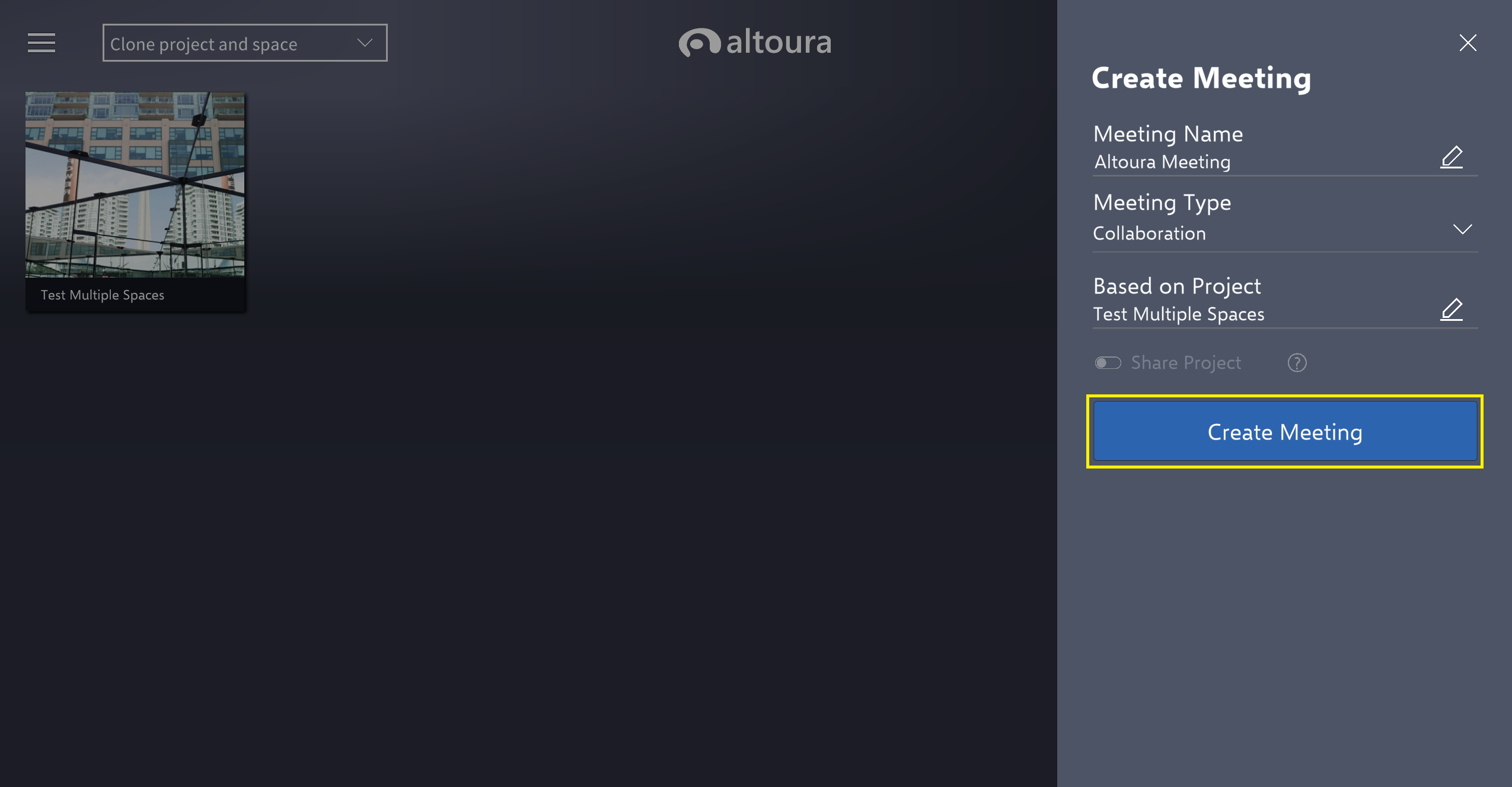
Inviting Users to a Meeting
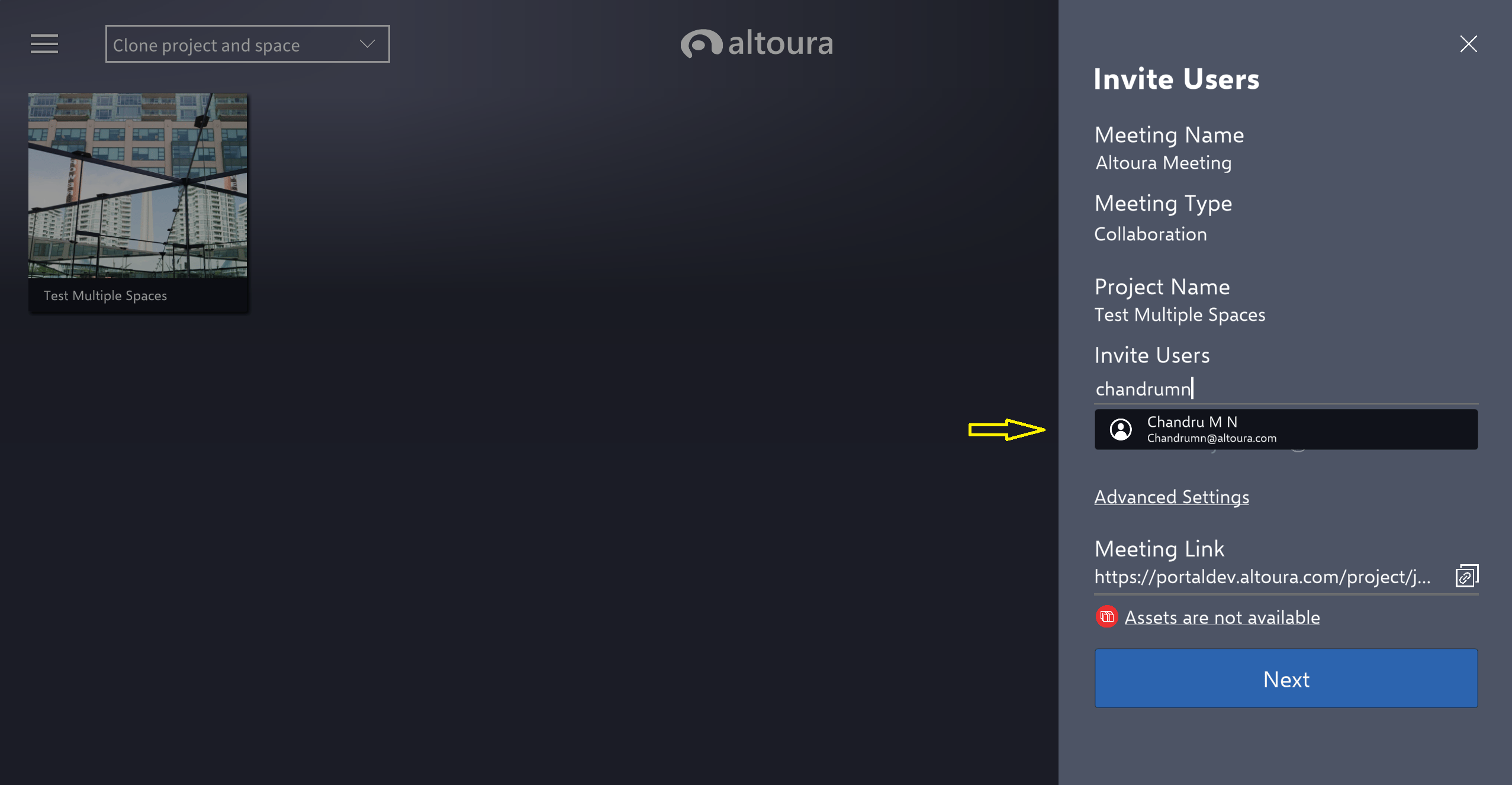
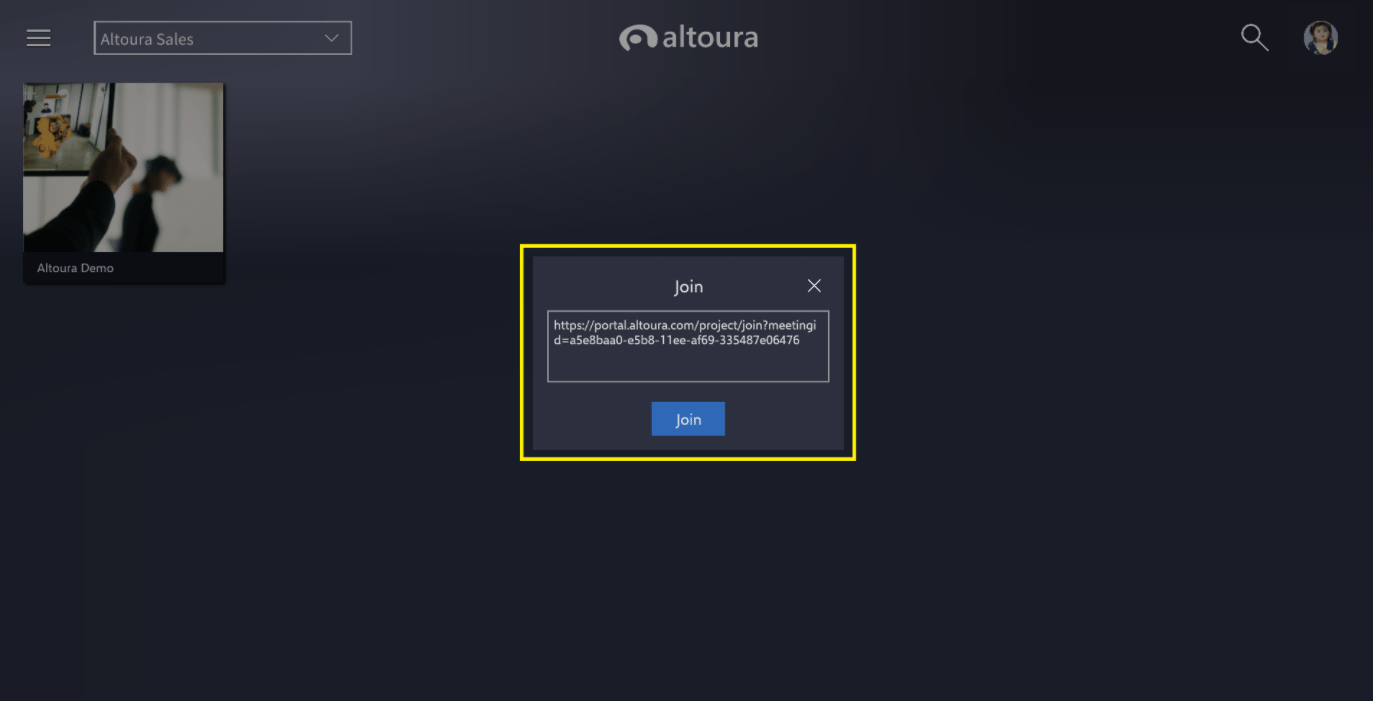
There are a few ways to invite users to a Meeting- while editing a Meeting, sending a user the Meeting Link, or inviting them after the Create Meeting prompts. If following the prompts after initially creating the Meeting, you can immediately invite users. Enter a name or an email into the Invite Users field.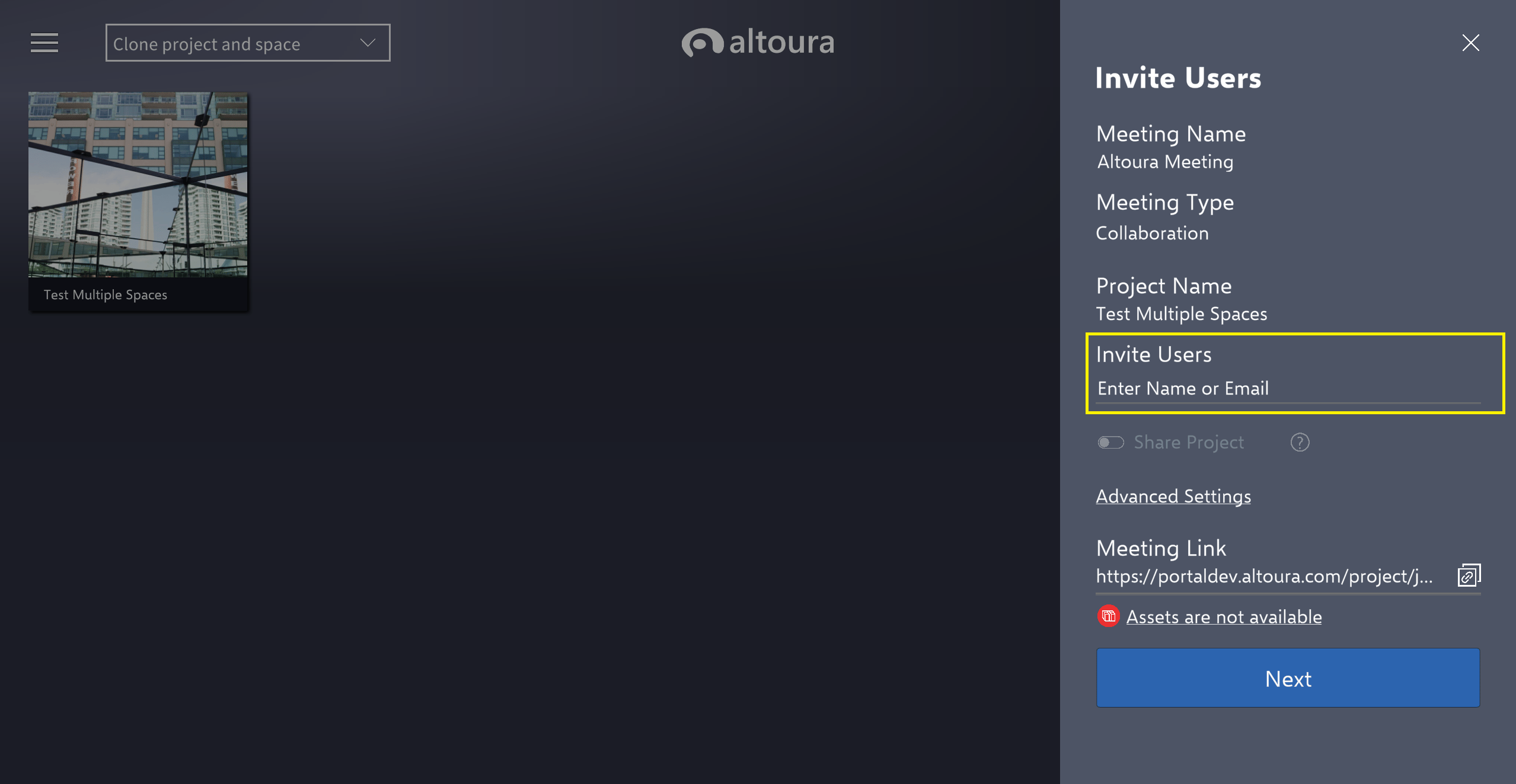
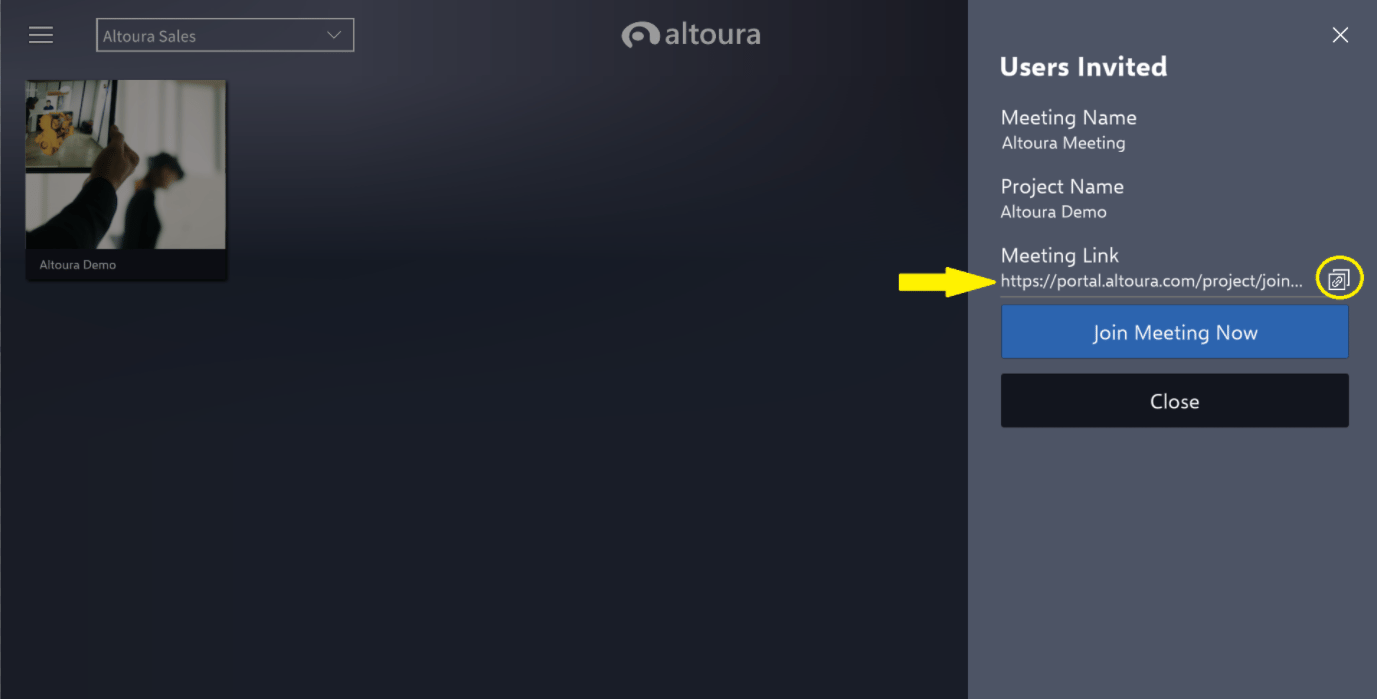
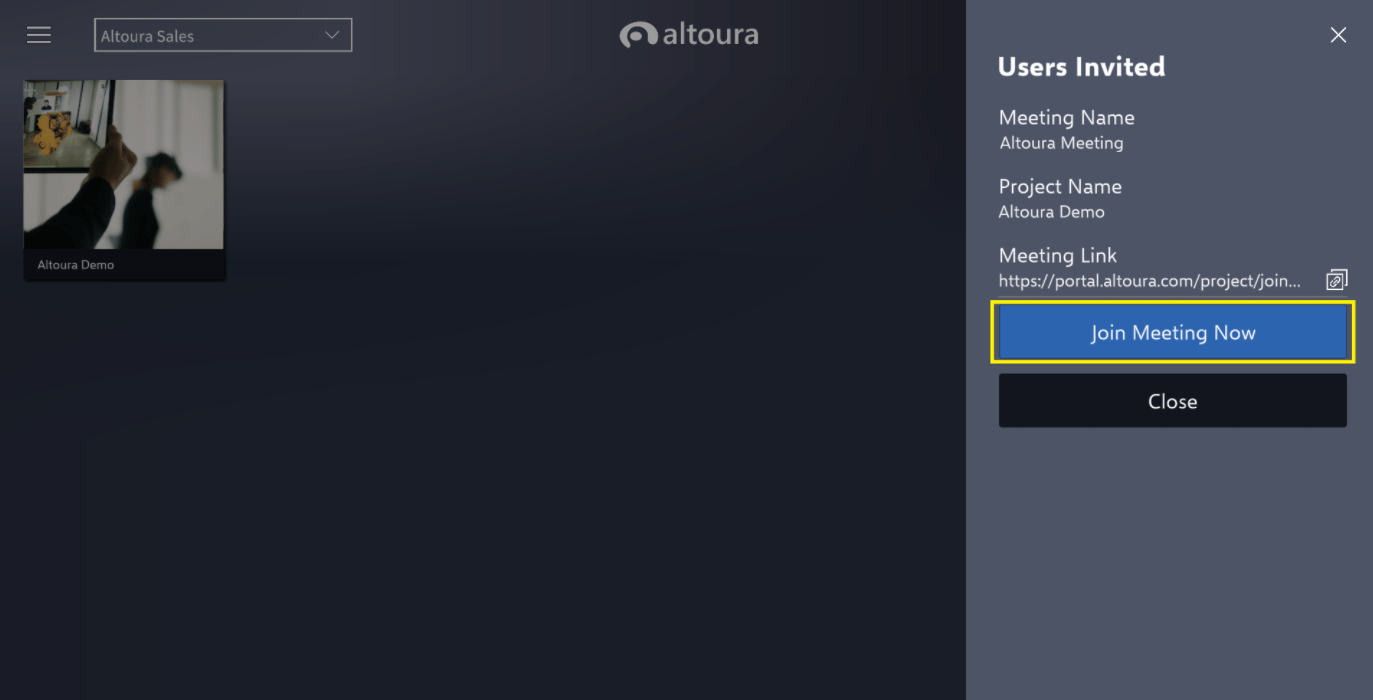
Joining a Meeting
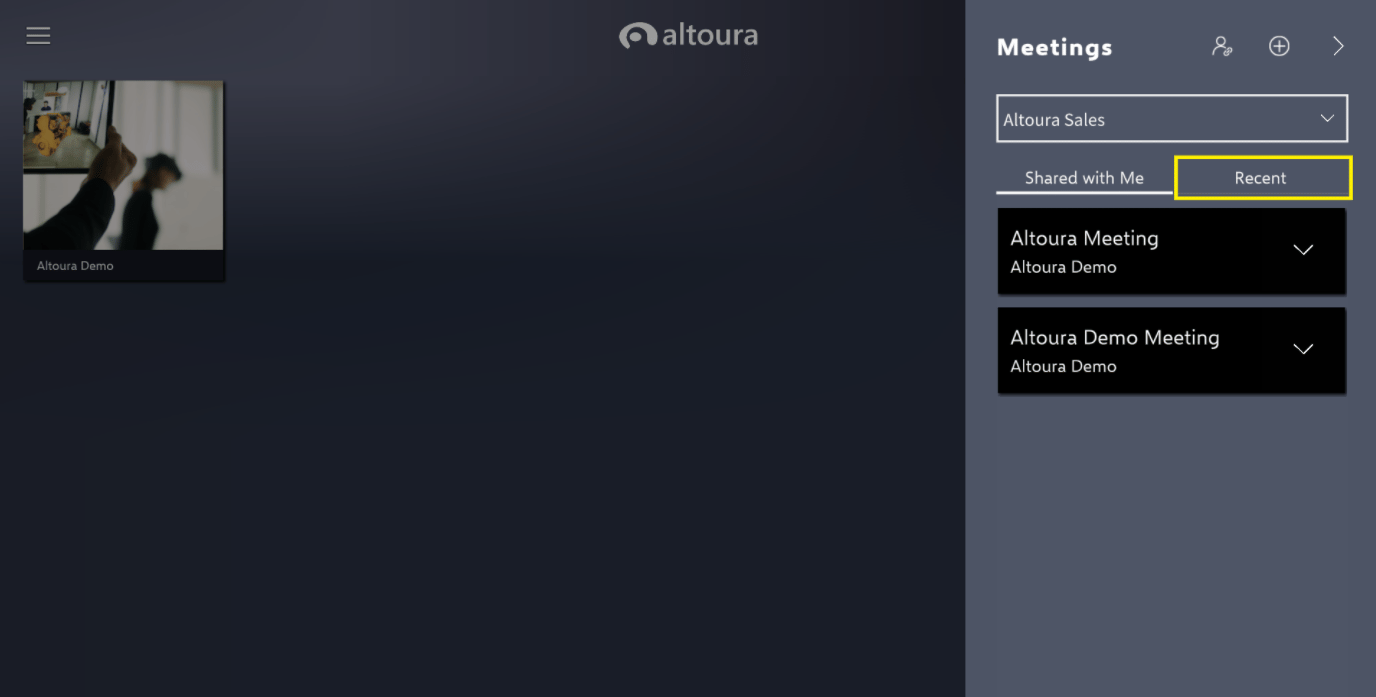
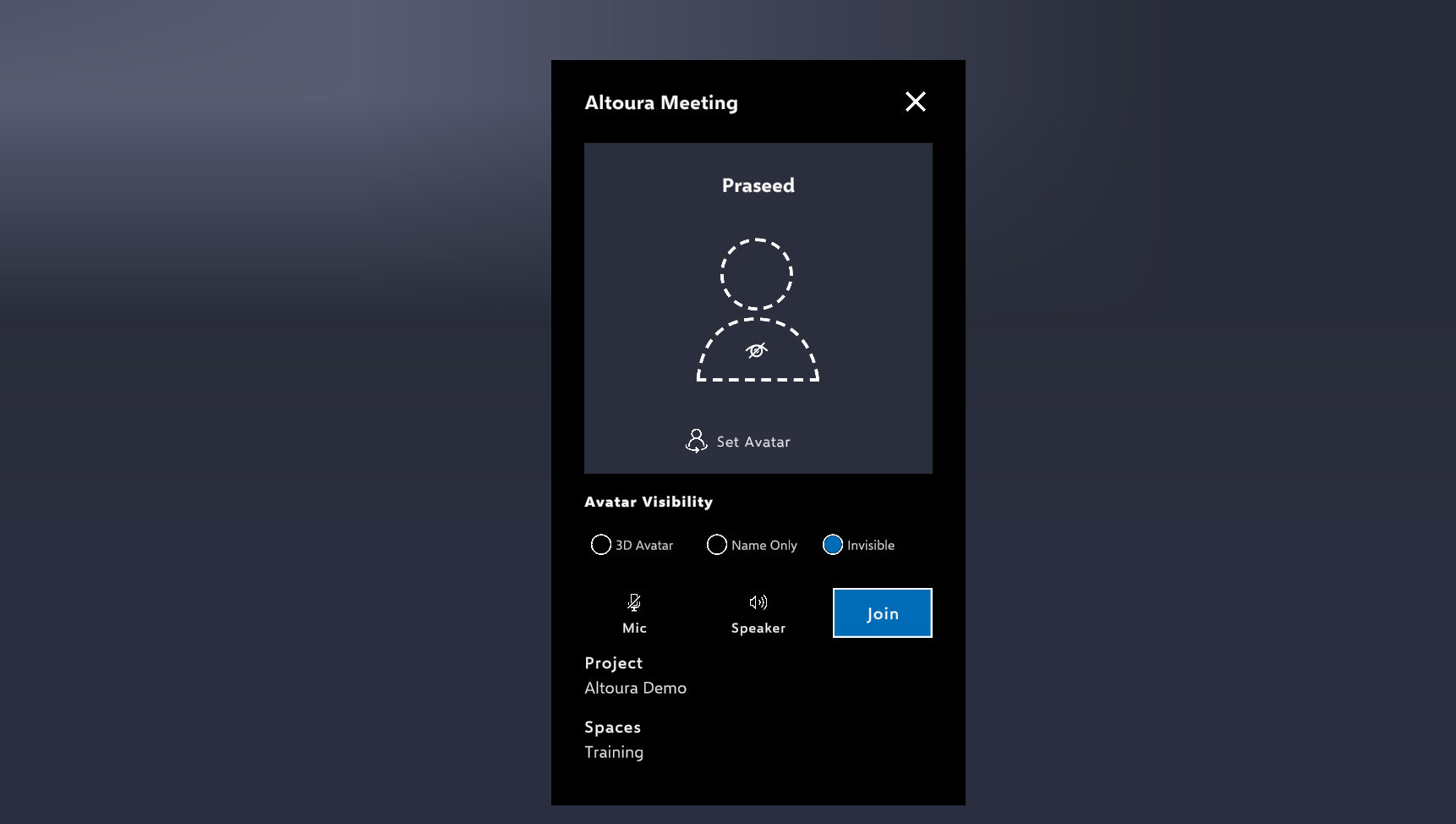
Your existing Meetings are organized by Shared with Me and Recent. The Shared with Me tab will be all of the Meetings that other users have invited you to.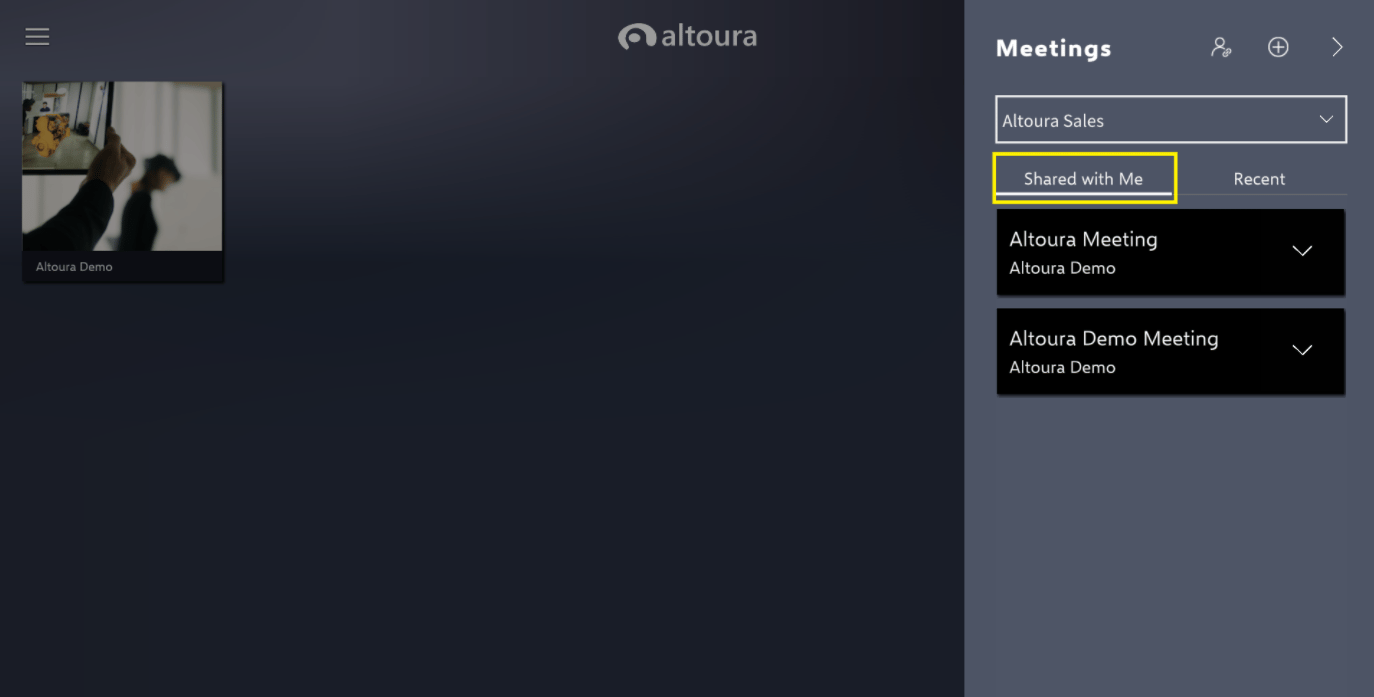
Editing a Meeting
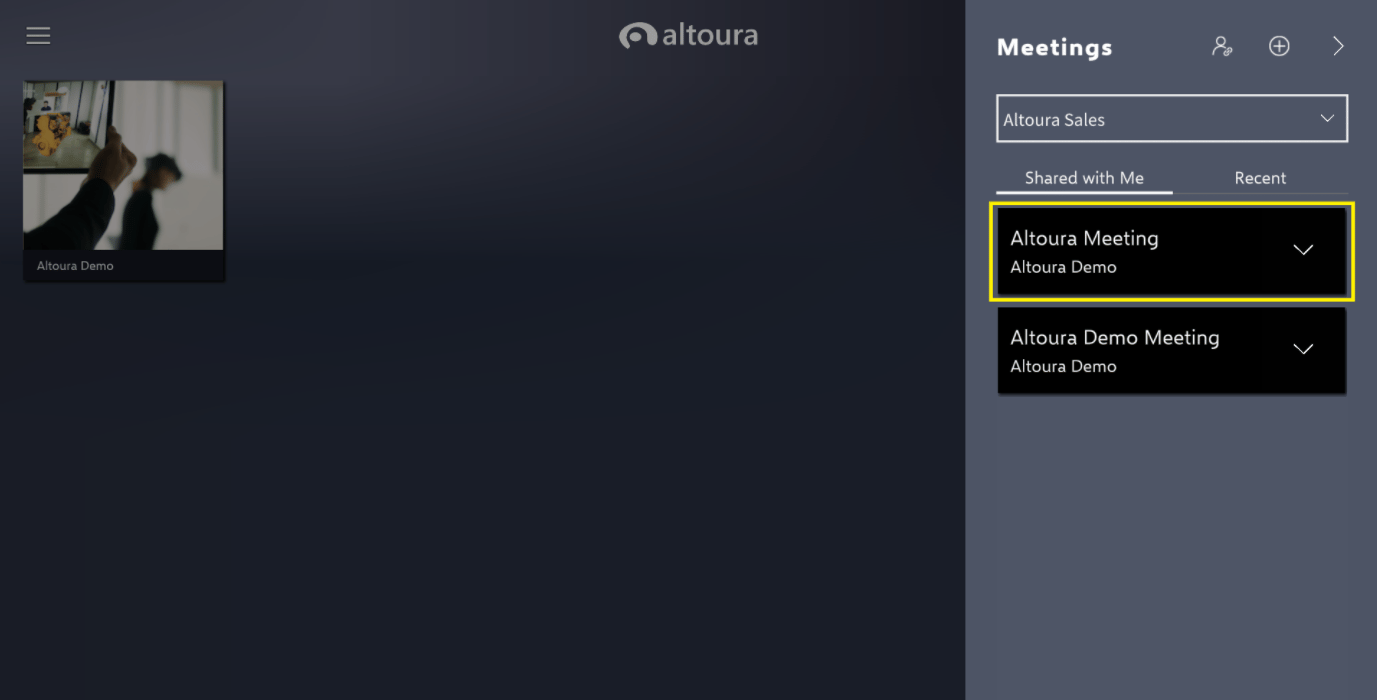
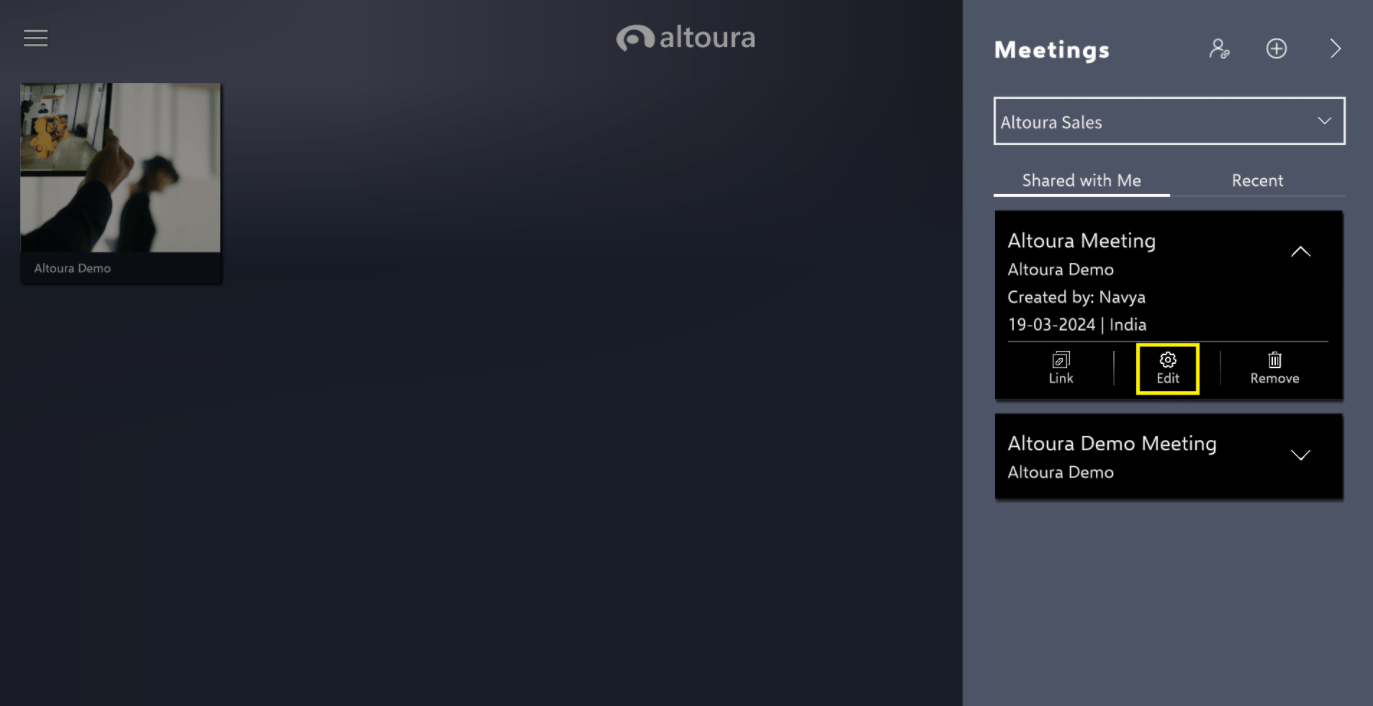
To edit an existing Meeting, choose the caret on the far right of the black Meeting rectangle.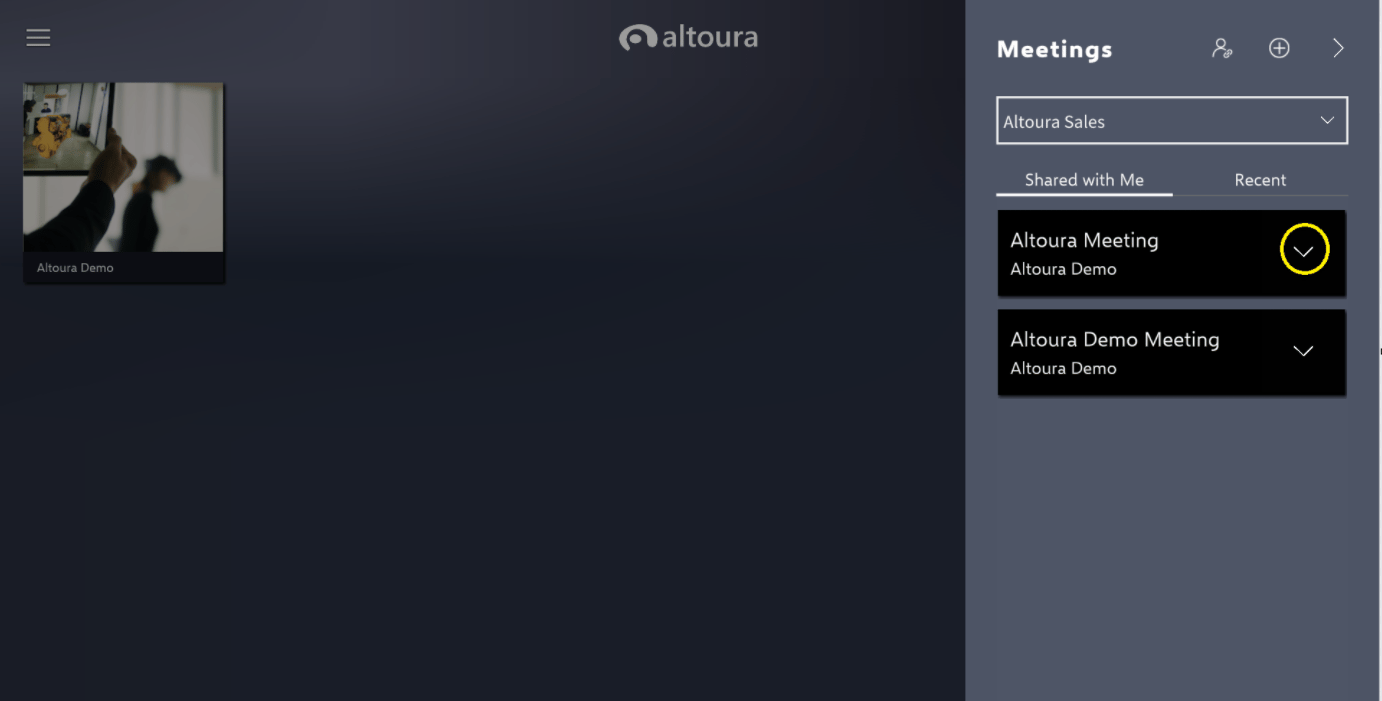
During a Meeting
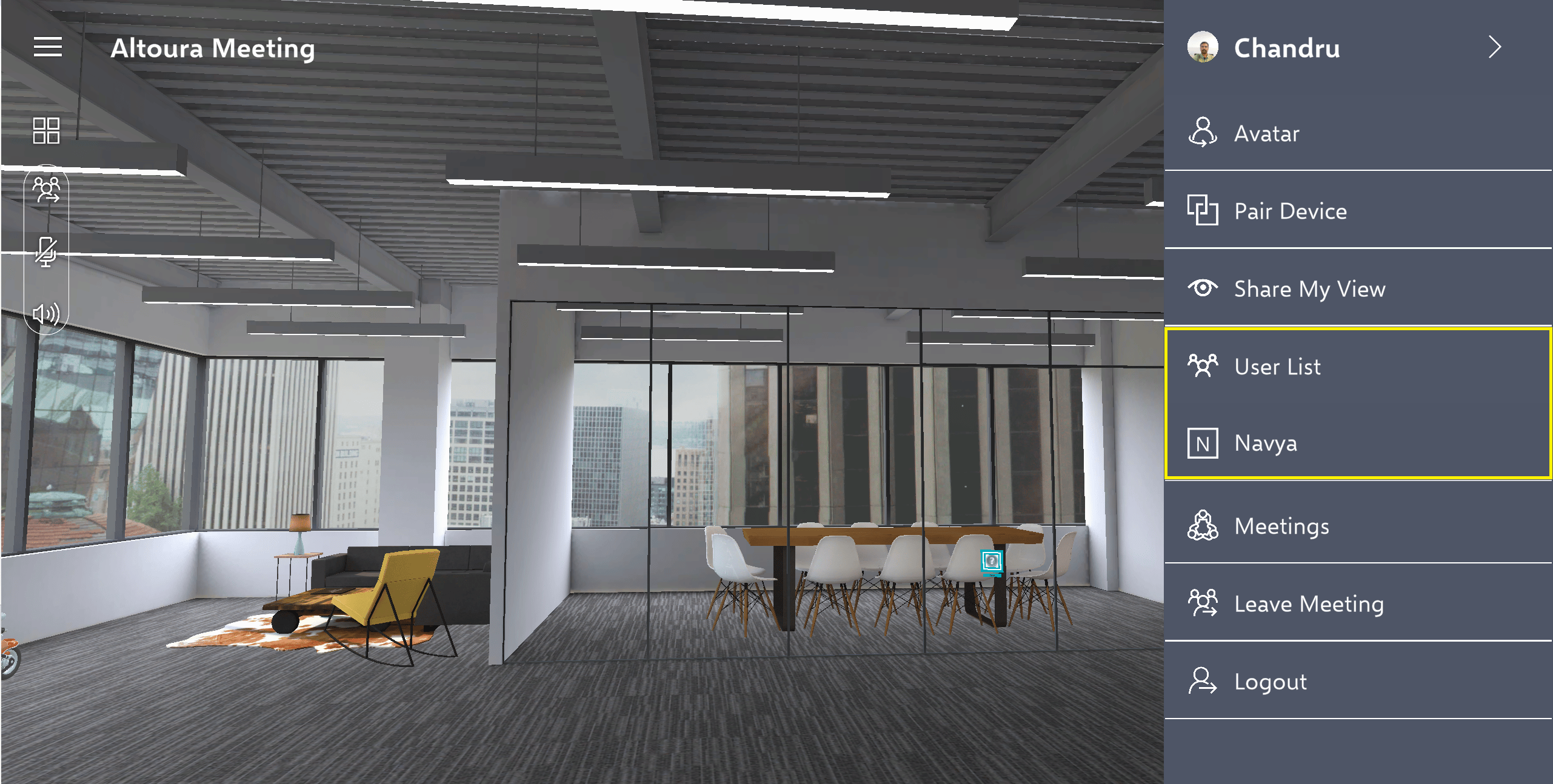
To see all the users during a meeting, drop down the User List caret. You will be notified as people enter and leave the session.