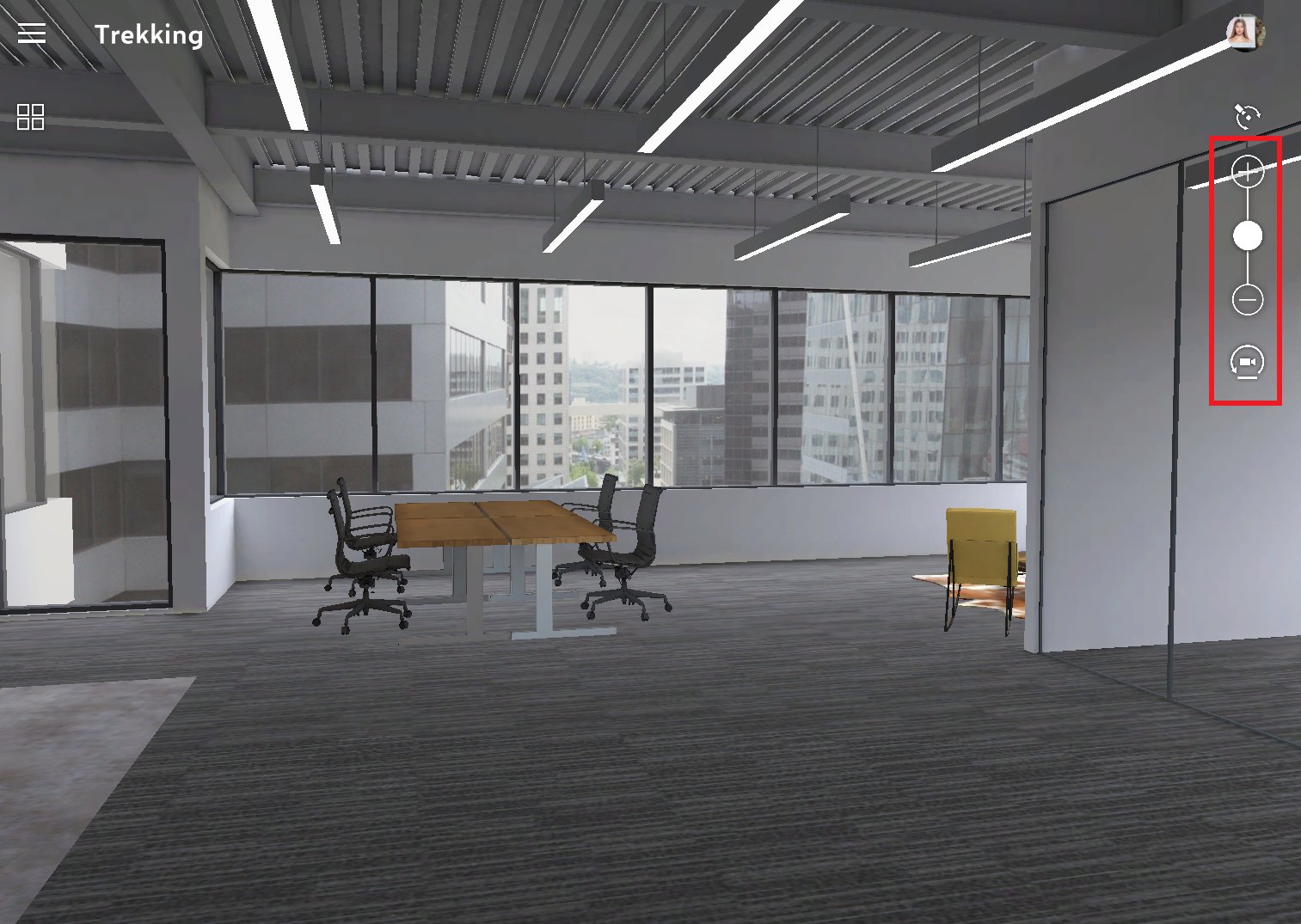
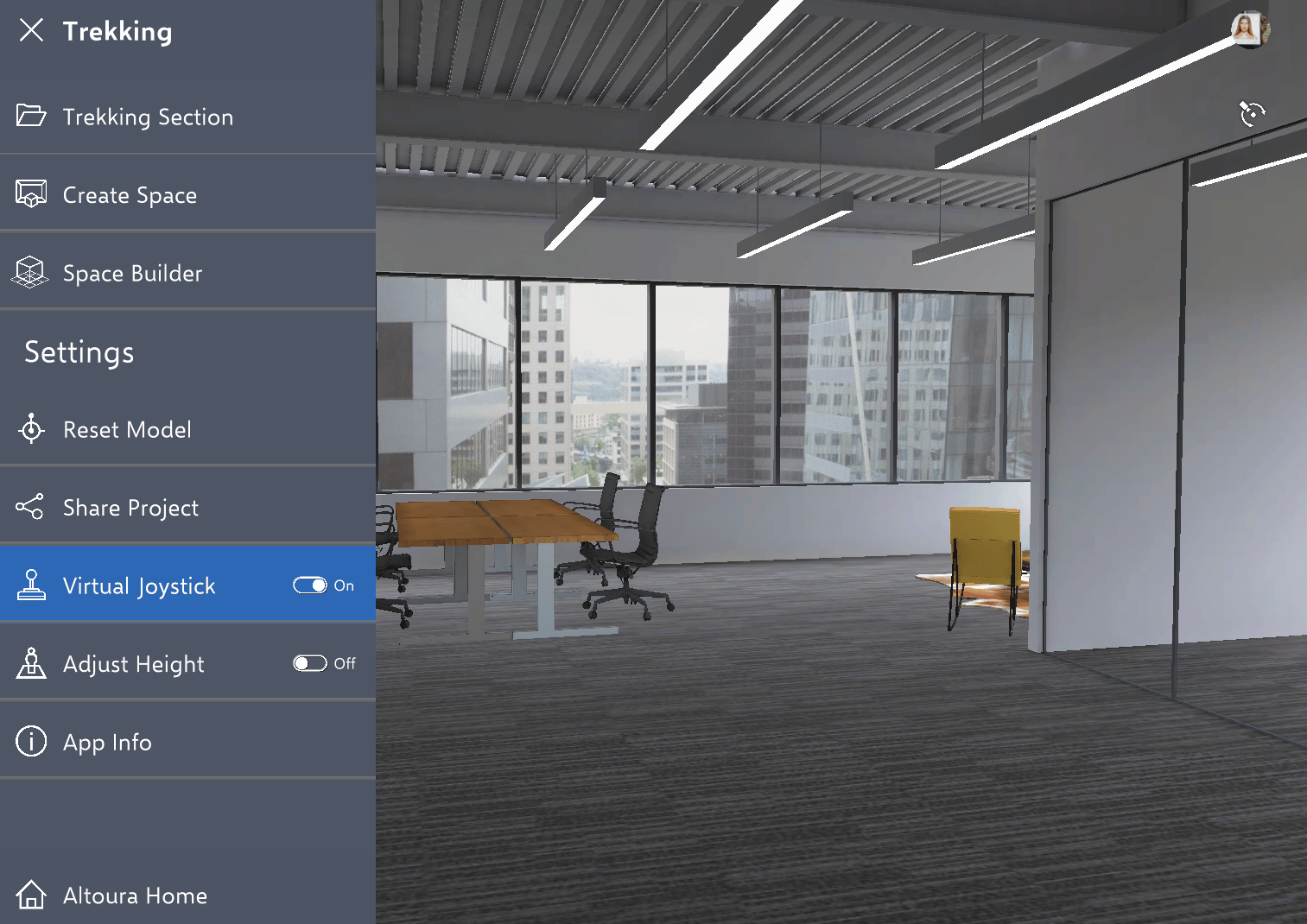
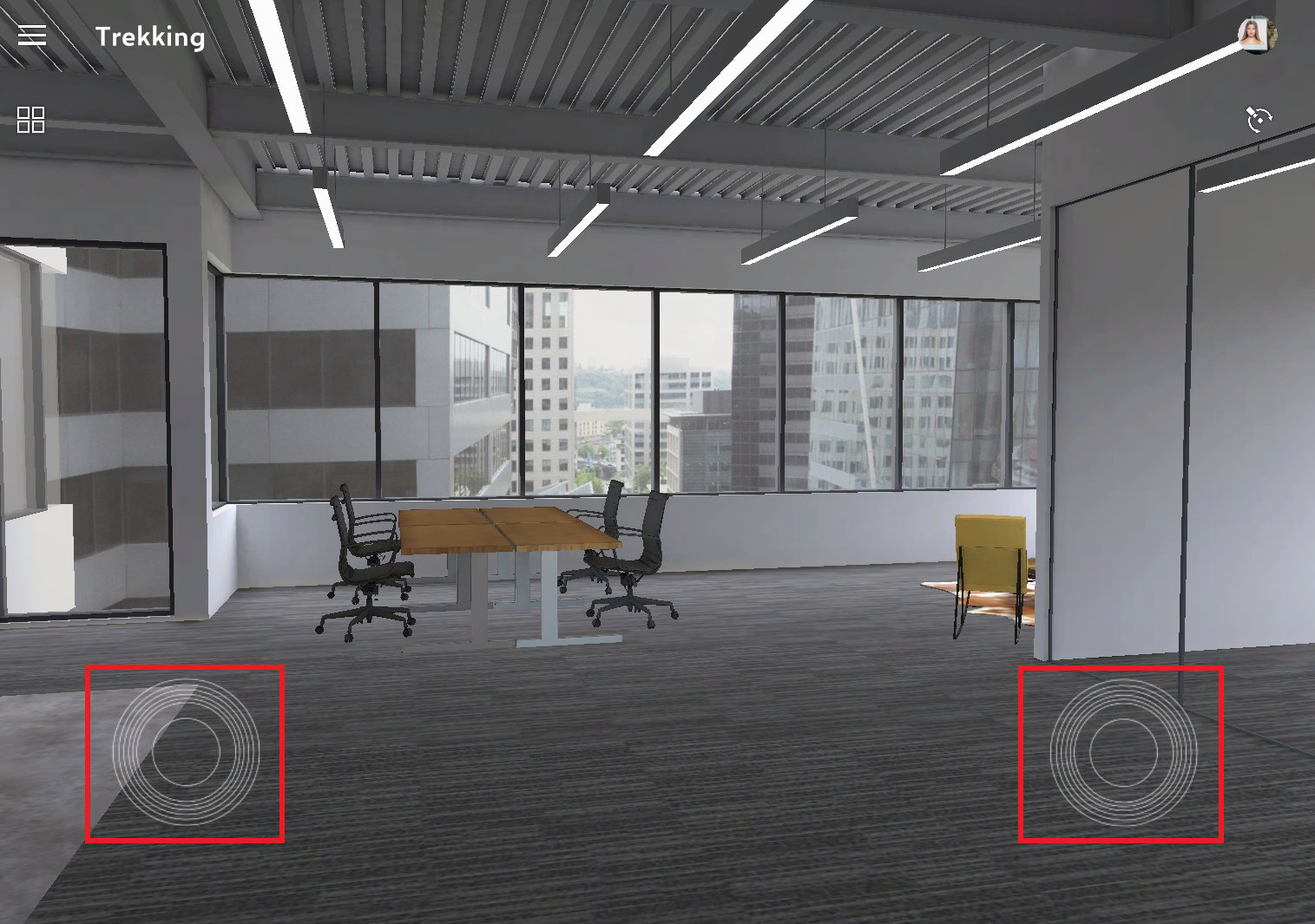
Using ASWD keys to pan the camera:
  1. Start by pressing the “W” key to move the camera forward. This will move the camera closer to the object.
  2. To move the camera backward, press the “S” key. This will move the camera away from the object
  3. To pan the camera to the left, press the “A” key. This will move the camera to the left of the object.
  4. To pan the camera to the right, press the “D” key. This will move the camera to the right of the object.
  5. Shift + ASWD any key combination will 3x the camera move speed.
  6. CTRL + ASWD any key combination will 1/3x the camera move speed.
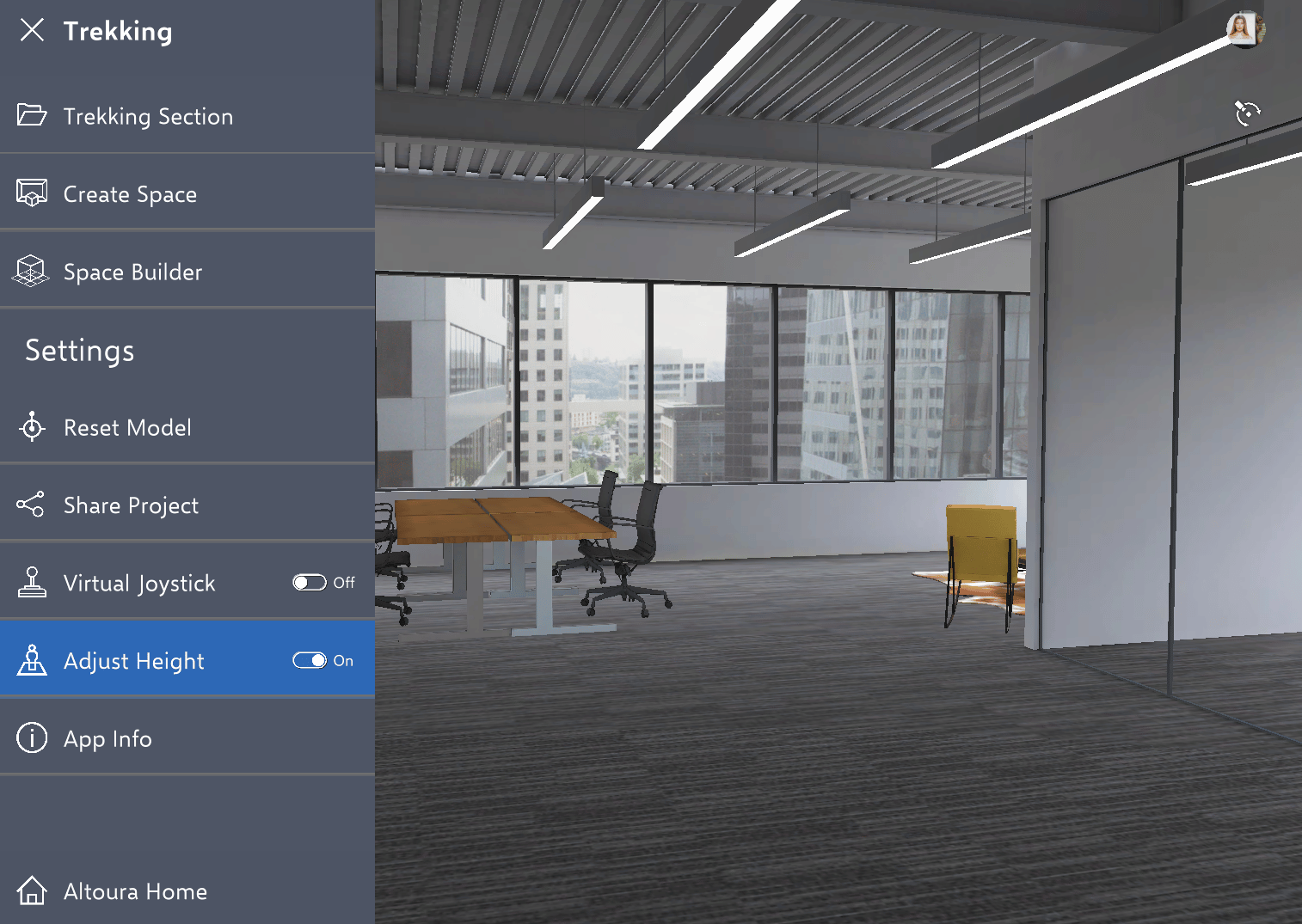
User can use single finger swipe also to pan the camera in touch devices. Using Left virtual joystick to pan the camera: To use the virtual joystick to pan the camera, user first need to enable the virtual joystick option.The joystick is typically a circular object with a smaller circle inside it. Place your finger or mouse on the smaller circle inside the joystick and drag it in the direction you want to move the camera.If you want to move the camera to the left, drag the joystick to the left. If you want to move the camera to the right, drag the joystick to the right.To move the camera up, drag the joystick upwards. To move the camera down, drag the joystick downwards. Using fingers on touch devices:- Place two fingers on the screen, spaced apart slightly. Pinch your fingers together slowly to move in to the object. The closer your fingers get together, the more the camera will zoom in. To zoom out, spread your fingers apart slowly. The further apart your fingers get, the more the camera will zoom out. Using mouse scroll or Touch pad in and out:- Scroll the mouse wheel up to move closer the objects. The more you scroll the wheel up, the more the camera will move in. To zoom out, scroll the mouse wheel down. The more you scroll the wheel down, the more the camera will move out. Adjust Height Via “Q” and “E” To adjust the camera’s view up, press the “Q” key. This will tilt the camera upward, giving you a higher view of the object or scene you are viewing. To adjust the camera’s view down, press the “E” key. This will tilt the camera downward, giving you a lower view of the object or scene you are viewing. 1514 Using Adjust Height UI:- Enable the Adjust Height toggle from the menu. Now user will able the see the Adjust Height UI on the right top. To adjust the camera user can drag up and down in the UI. 1513 Finally, to rotate the camera, you can use the mouse/finger to click and drag the camera in the desired direction. This will give you a 360-degree view of the object or scene you are viewing and User can use the right virtual joystick to rotate the camera as well. 1513 1515