

- Single Anchoring
- Two-Step Anchoring
- QR Anchoring
Metadata - Anchoring Matrix
1. Single Point Anchoring
Single Point Anchoring Helps you to place the space with single step1.1 Video Demo
1.2 Setup
This is the default behaviour and we dont need to do any special setup1.3 How to Use
Single Point Anchoring happens in One Step- Place the anchor at the required ground level and orientation of the space is taken by the direction at which the user is facing while placing this anchor
2. Two Point Anchoring
Single Point Anchoring Helps you to place the space with two steps2.2 Setup
- Use the space metadata IsRealWorldAligned and set it to true for the space

2.3 How to Use
Single Point Anchoring happens in Two Steps- Place the first anchor at the required ground level
- Place the second anchor in the direction in which you want the space to be aligned
3. Qr Anchoring
2.1 Video Demo
This feature allow you to place anchor with help of QR code.3.1 Video Demo
3.2 Setup
There are a few things you need to do to add QR Code Anchoring to your space.- Use the space metadata IsQRAnchoring and set it to true for the space
- Use the space metadata QrWidth to set the width of the QrCode
- Make sure the Y axis of DefaultMeeplePosition in your space points up
- Print the QR code given below on an A4 sheet or above
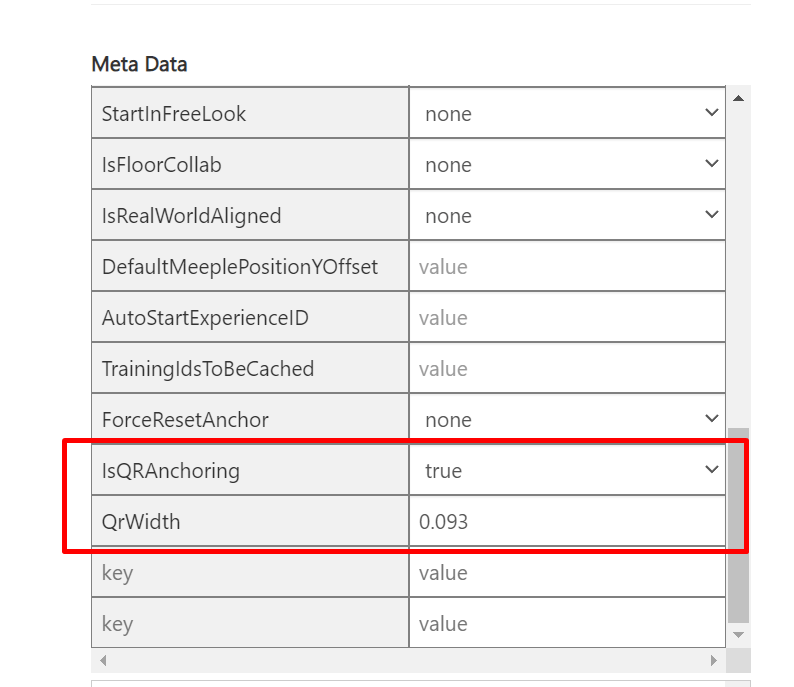
3.3 How to Use
Once you’ve set up your space to allow QR anchoring, follow these steps to use the QR code in the app:- Place the QR Code print out on the ground
- Load the project
- When it asks to look for the QR code, look at the QR code on the ground
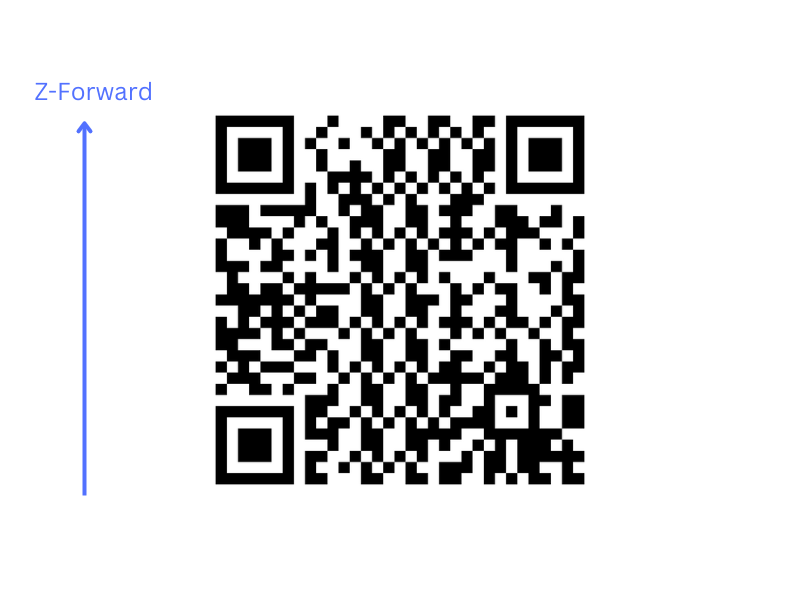
3.4 Download the QR Code
Low Accuracy QR Code — works on both HoloLens and Mobile Download Low Accuracy QR Code
High Accuracy QR Code — works only on Mobile
Download Low Accuracy QR Code
High Accuracy QR Code — works only on Mobile
 Download High Accuracy QR Code
3.5 Custom QR Codes
Custom QR Codes can be achieved in three Steps- Add Metadata in the space to fill in the details of the game object to be overlapped on the QR Code id - Any 10-digit number with “q_” prefix in the beginning GameobjectName - Name of the Gameobject you want to align the QR code with OffsetPosX - Position Offset in X Direction from the Gameobject OffsetPosY - Position Offset in Y Direction from the Gameobject OffsetPosZ - Position Offset in Z Direction from the Gameobject OffsetRotX - Rotation Offset Along X-Axis of the Gameobject OffsetRotY - Rotation Offset Along Y-Axis of the Gameobject OffsetRotZ - Rotation Offset Along Z-Axis of the Gameobject
- Create a Qr code with the same id given in the above JSON (without q_) with the following JSON structure Qrcode - 10-digit number without “q_” prefix defined in the previous step Weight - Random string just to increase the complexity of QR to get better Tracking
- Print the Qr code and measure the width of the QR code in meters and update it in the space meta
