

Requirement Details
User has to wait for the Audio content to be played completely to click on the ‘Next’ button when they are in Altoura Client and the Step Node has ‘Text to Audio’ enabled. The User does not have any option to bypass the nodes if he wants to move faster through the Training Panel which has ‘Text to Audio’ enabled. As a Admin / designer, when the Experience is being designed, they may want to be able to move through the Nodes without having to wait for the Audio Playback to be completed. This helps them to complete the design work faster, which otherwise may take longer time having to wait at each node for completion of Audio Playback (especially when they have high number of Step Nodes in the Experience). The request is to provide an option which will allow Admin to do the following: a) Enable the ‘Next’ button for Panels across the Experience even though the nodes have ‘Text to Audio’ / Audio content (even before the Audio Playback is completed) b) Disable the Audio on the Text PanelSteps to enable the requirement
A new Key / Value pair has been added to support the two enhancements mentioned above. Details of the required configuration to enable this functionality is provided below:- Login to Altoura Portal
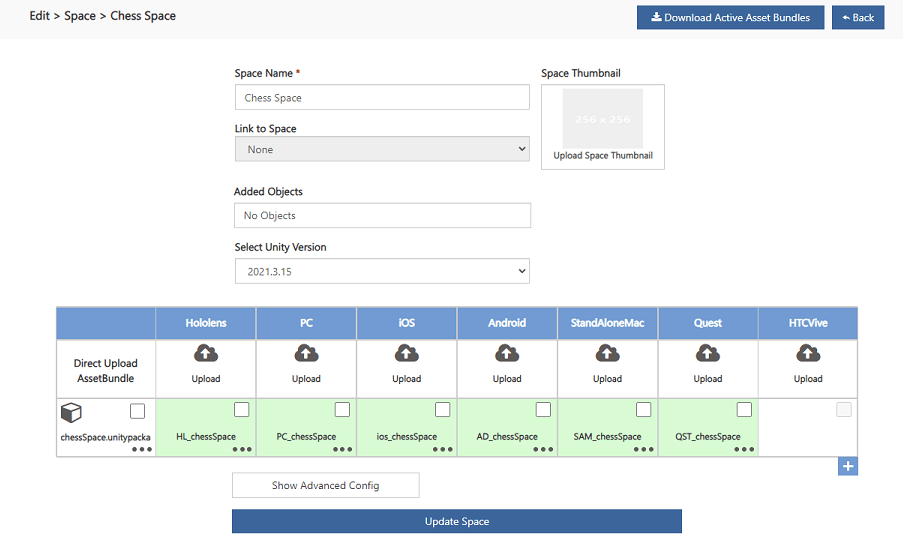
- Go to Project => Space
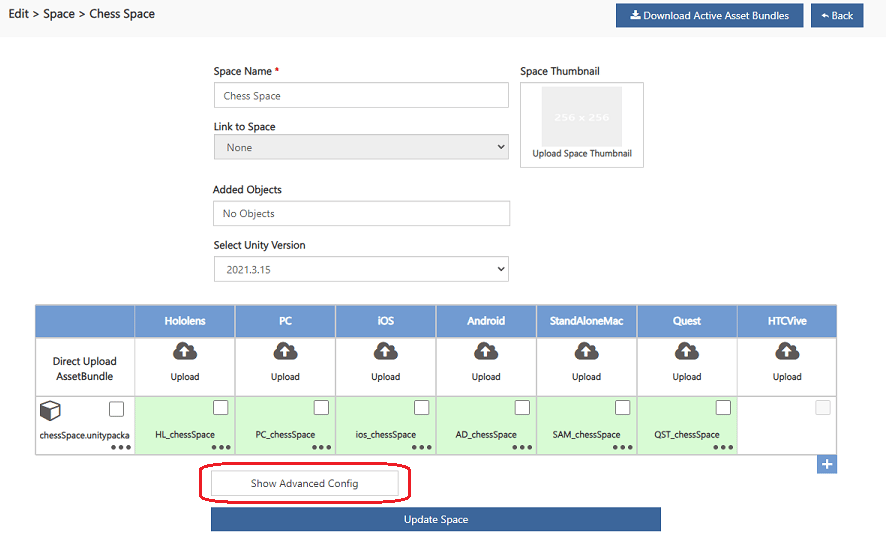
- Click on ‘Show Advanced Config’ button
- This will open the Project Meta Data page as shown below:
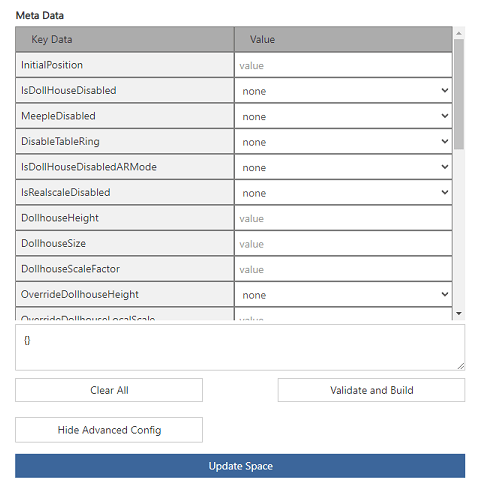
- Scroll to the bottom of the Meta Data section and add the following Key/Value as shown below:
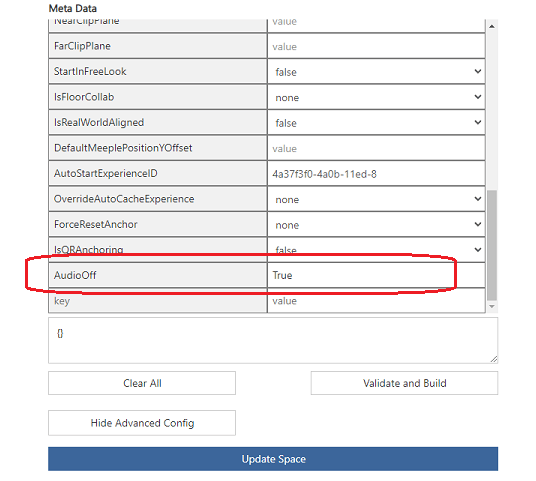
- Save the changes made by clicking on ‘Update Space’ button
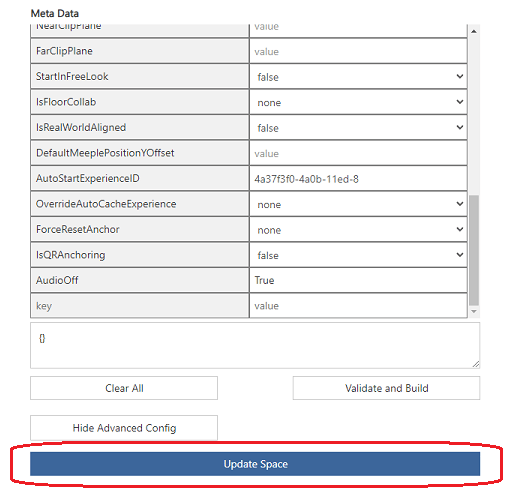
- Once the above changes are done, all Audio content from the Training Panel will be disabled for that Experience. Additionally, the ‘Next’ button will be enabled instantly when the User moves from one Panel to the other Panel from Altoura Client (PC / HMD / Mobile).
- If the User wants to enable the Audio back, they just need to go back to Portal => Meta Data sheet for the project (as shown above) and remove the Key / Value pair (i.e AudioOff).