

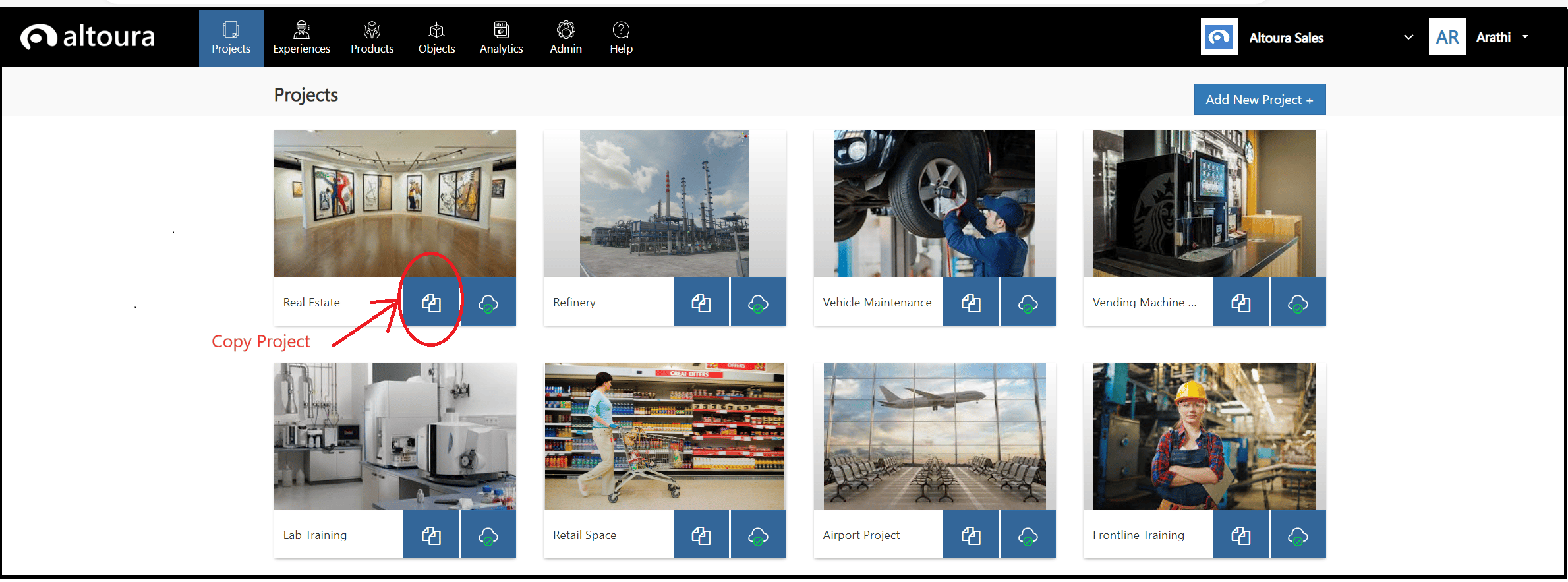
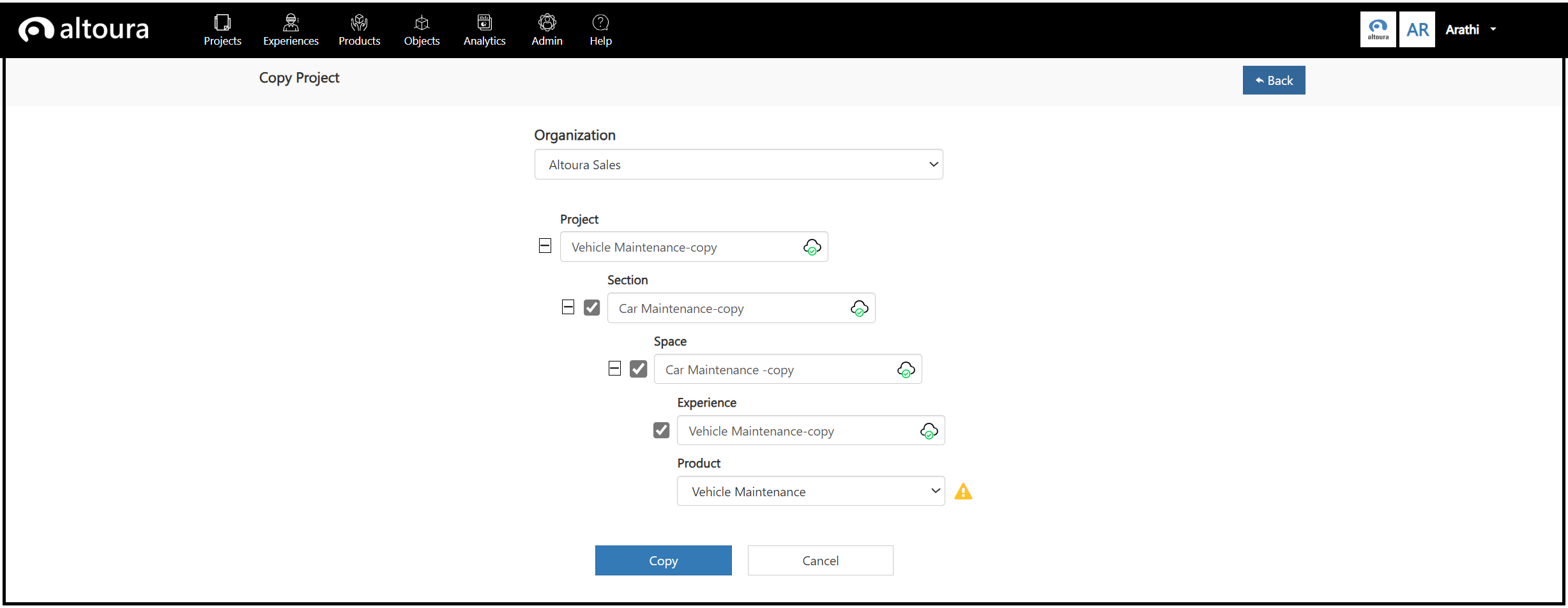
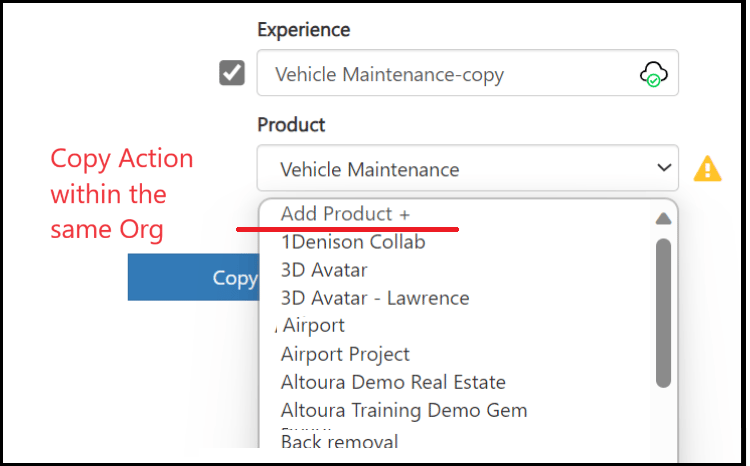
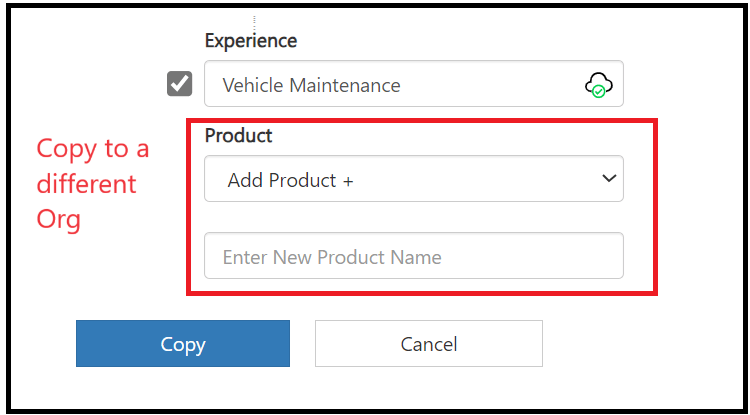
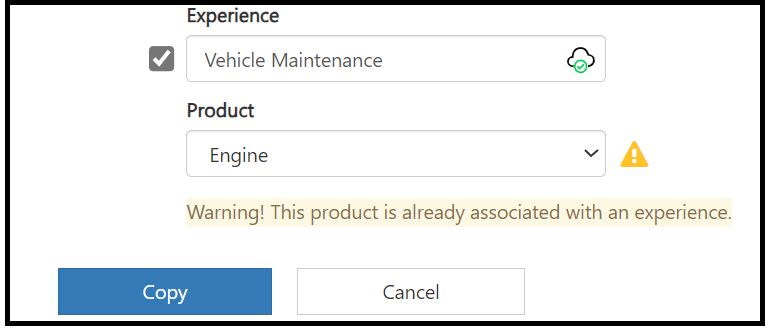
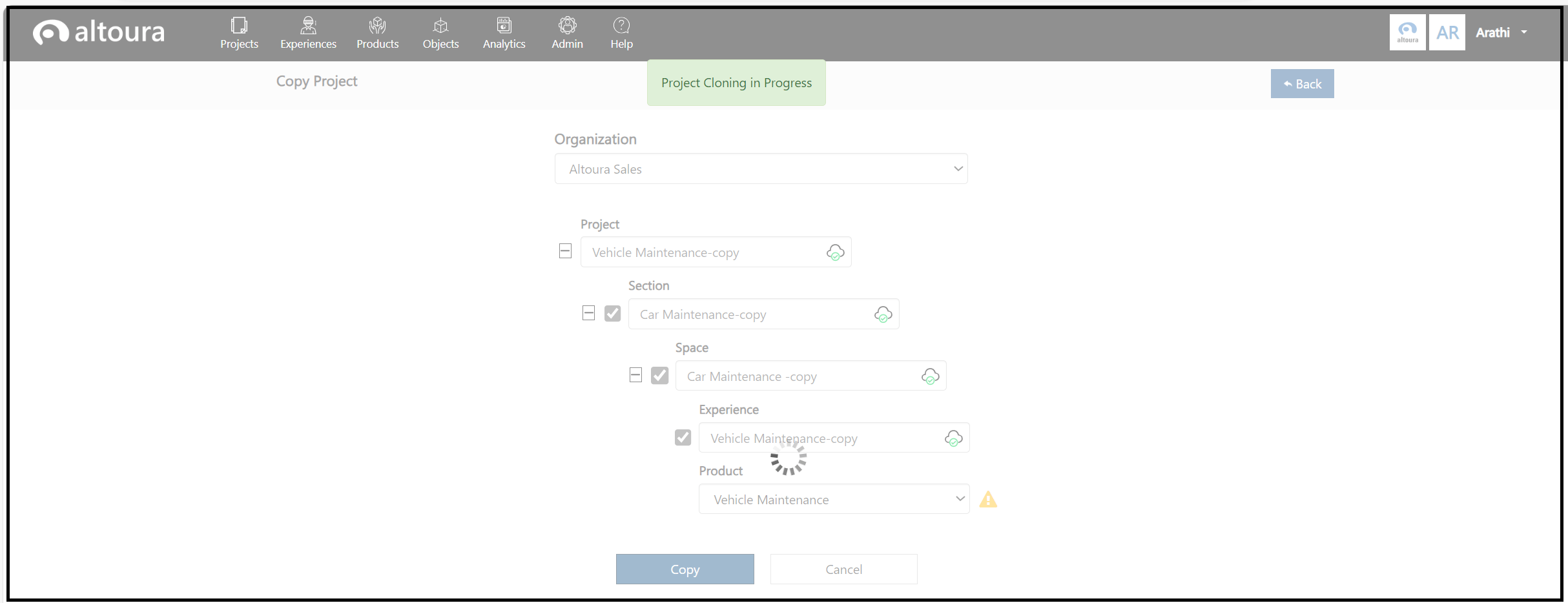
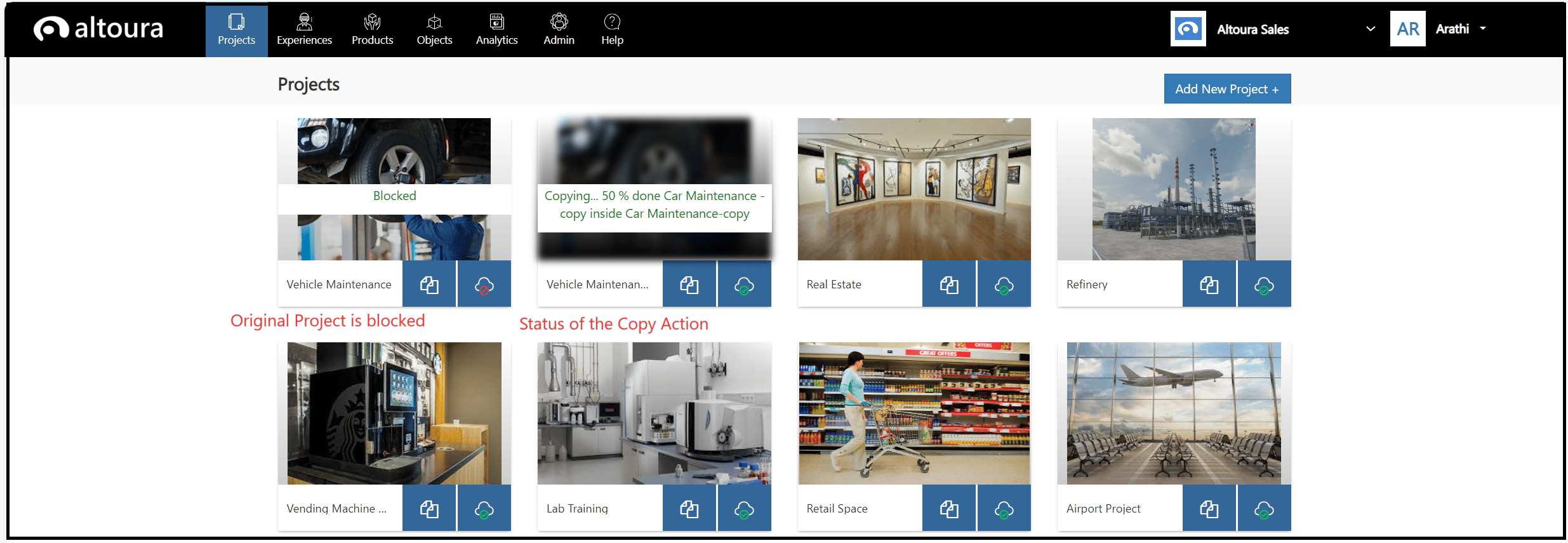
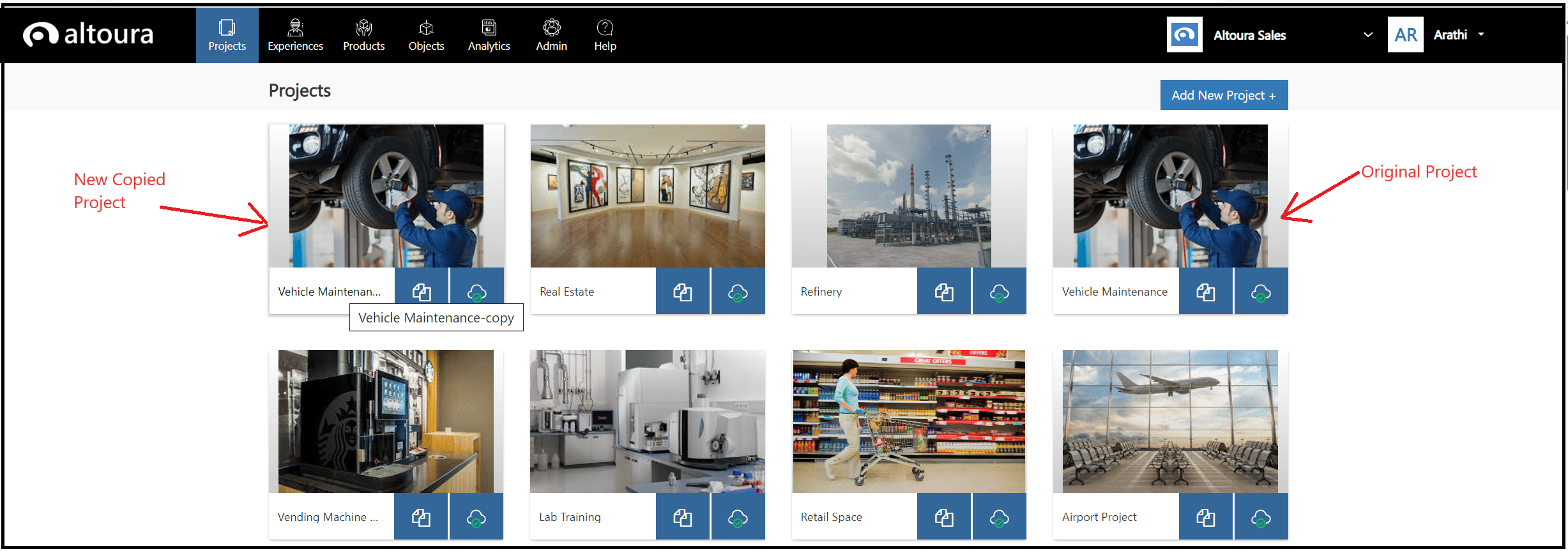
Log in to the Altoura Portal, you will land in the Projects page. Here, click on the Copy Project icon as shown in the image above. Copy Project page is displayed as shown below. Here, all the 3D Sections, Spaces and Experiences that are part of the Project are displayed. The user can then choose to copy all the entities, which is the default option or select any specific entity/entities that need to be copied. The user can select the same Organization to make a copy of the Project or click on the dropdown to choose a different Organization. All the Organizations the user has access to will be listed in the dropdown. If the user selects the same Organization, the -copy suffix is added to all the fields. If the user changes the Organization, the original names are retained. The user can choose to change the names of the entities. If the user chooses to copy the associated Experiences as well, the to be copied experience needs to be associated with a Product that is already existing in the Org or the user can click on the Add New Product + option and a new product will be added to the Organization and the copied experience will be associated with the newly created Product. When the user selects this option, the Product Name must be added by the user. If the selected Product is already associated with another Experience, then a warning message is displayed as shown below. When all the required fields are selected/edited etc., the user can click on the Copy button. The Copy Action is initiated, the page is greyed out and a message stating Project Cloning in progress is displayed briefly and the user is taken back to the Projects Dashboard page. When the user is taken back to the Dashboard page, the following page is displayed: The original project (the project being copied) is blocked to avoid any user updates to the project while it is being copied. The status of the new project getting created will be displayed. When the user refreshes the page, the current status of the Copy Action will be displayed. If the action is completed, then the newly created project will be displayed on the top of the list and the original project will be available in the same position it was before the copy was initiated. If the Copy action fails, the Original project is unblocked and the new Project is set to failed state and an error message is displayed against the project.

Copy Experience

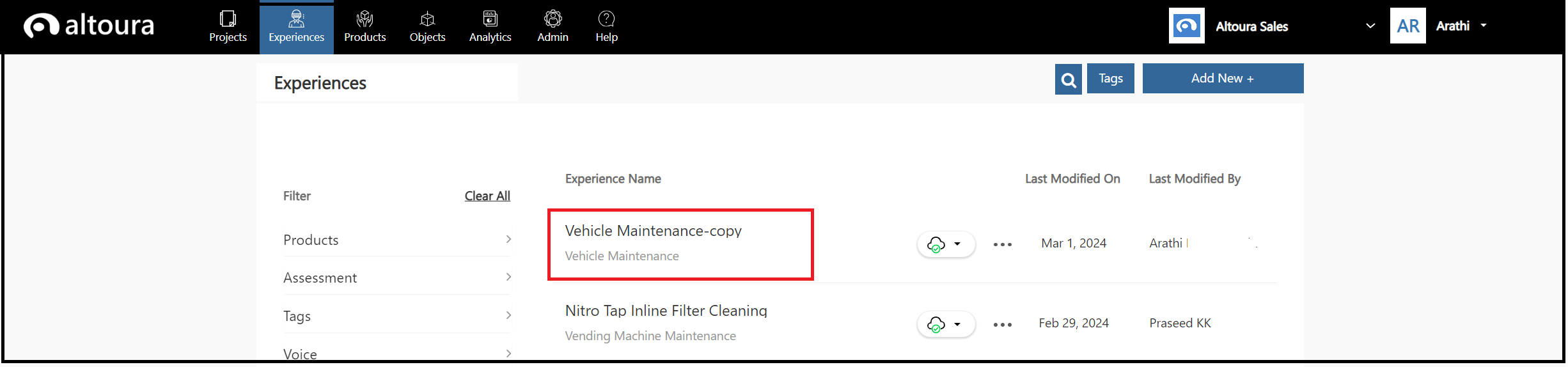
If the user navigates to the Experiences tab, the newly created experience will be displayed on the top of the list.
Limitations

Newly copied projects will not function as intended when opened in Altoura versions prior to Altoura 6.6