

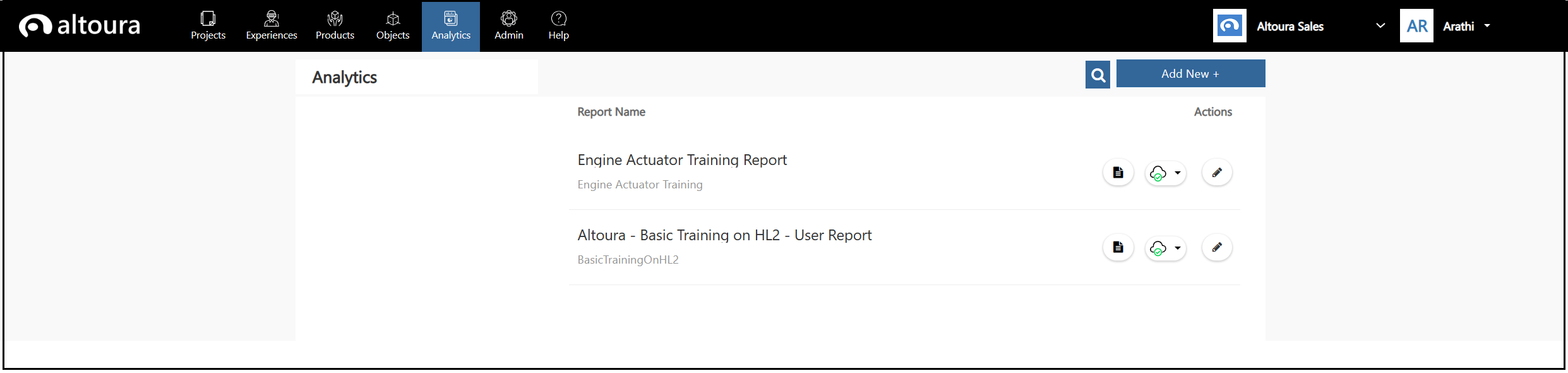
Add Reports

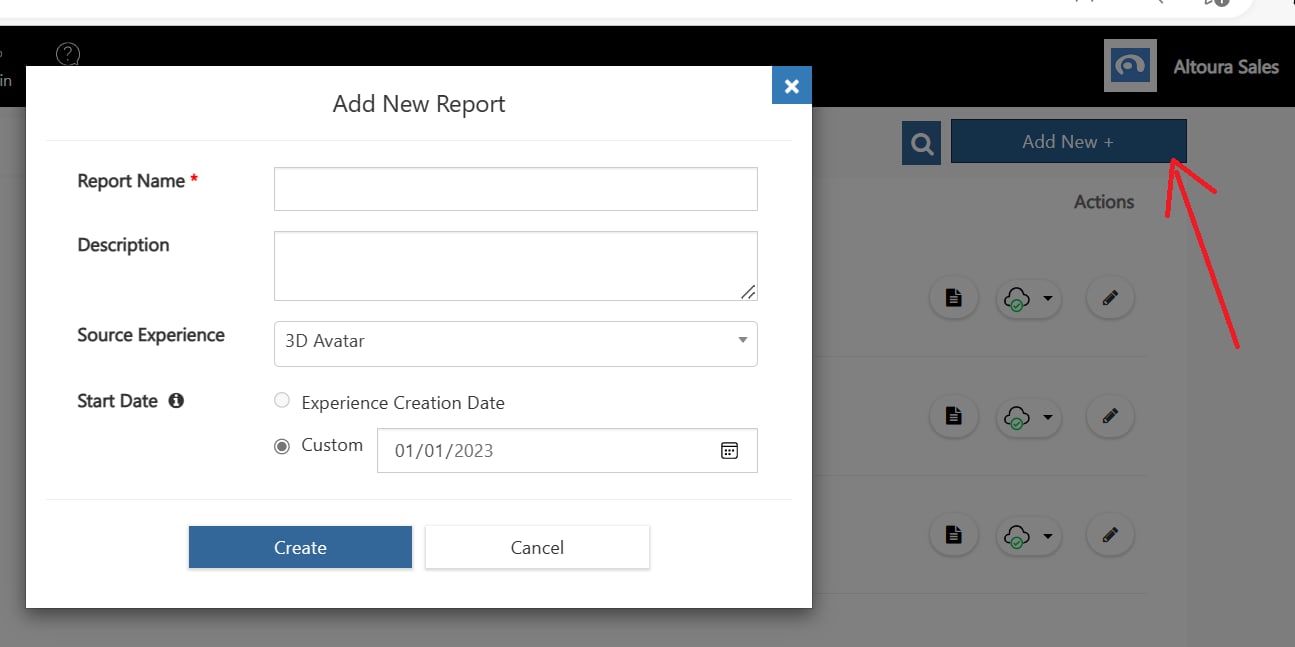
Click on the Add New + button, the Add New Report page is displayed. Report Name - Enter a unique Report Name Description - Enter Description Source Experience - Select from the list of Active Experiences in your Organization. Start Date - Select a date from which the report has to be generated. Choose between Experience Creation Date or a Custom Date. If the Experience Creation Date is before 1-Jan-2023, this field is disabled, and the Custom Date is set to 1-Jan-2023. This is because Altoura Analytics can only report data from 1-Jan-2023 Click on the Create button. The report is created. Click on the report link in the list page, a message stating “Report is being generated and will be ready in a few minutes.” may be displayed. Once the report data is fetched, the Analytics Report for the selected experience from the selected date will be displayed. The Training Dates displayed in the report will be from 1-Jan-2023 to 31-Dec-2023. However, data will be retrieved from the date specified in the Start Date field during Report creation.
Edit Reports

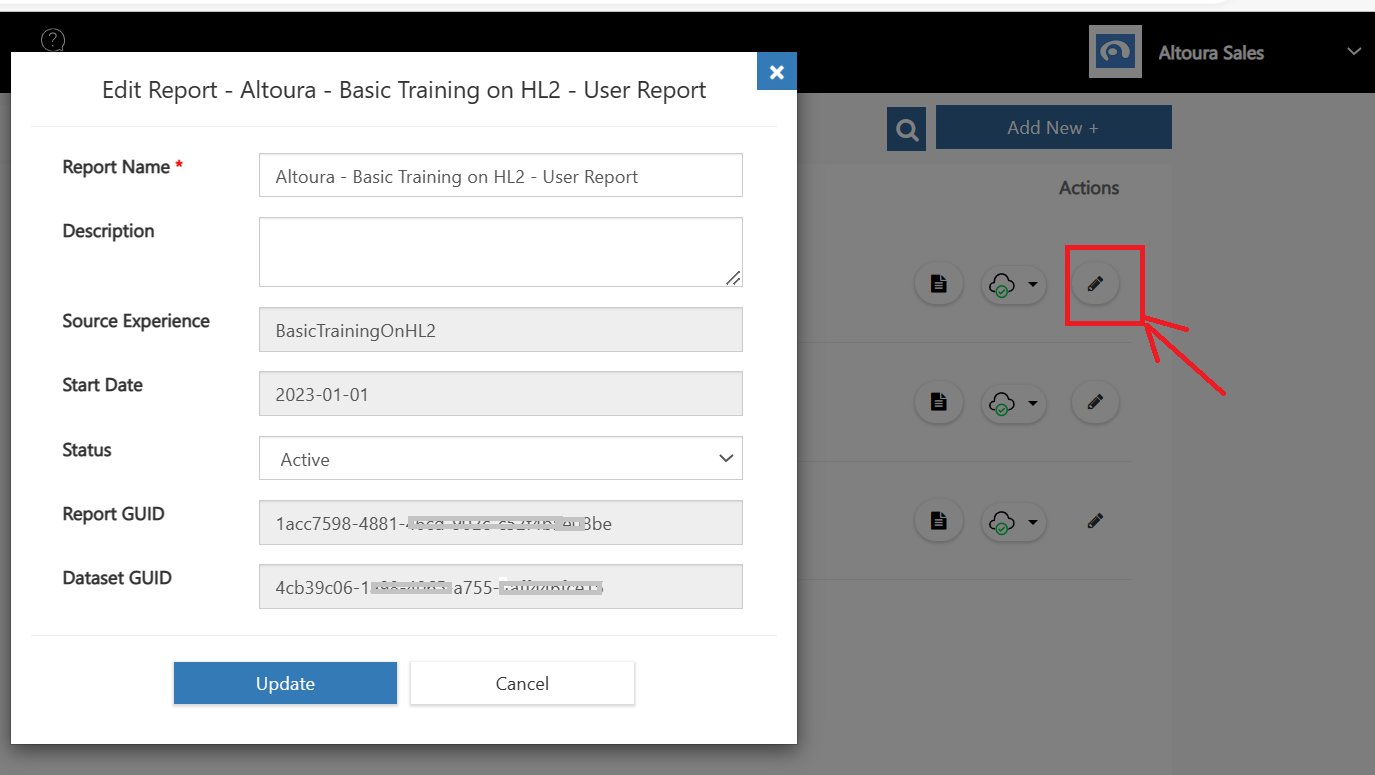
Click on the Edit Report icon in the list page. Edit Report page is displayed. Here, the user can edit the name and description of the report. The Status of the report can also be swapped between Active/Inactive. The Experience the report is based on, the Start Date from which the report is generated are also displayed as read-only fields. Other information like the Report GUID and the Dataset GUID generated by Power BI are available as read-only fields.
Report Status and Refresh

Altoura Reports are scheduled to be refreshed on a daily basis during the night. So, all the experiences run on the previous day will be reflected in the report the following day. This provides a comprehensive overview of the most recent data available. When a report is created, data will be retrieved from the Start Date to the current date. Beyond that, data will be refreshed on a daily basis. In the list page, a report can be set to Active or Inactive. When the status of a report is Active, the report will be refreshed on a daily basis. If the report is set to Inactive, the daily refresh of data for the report will be stopped. When the status is set to Active again, all data from the last refreshed date will be retrieved.

Limitations

Linked Experiences are not supported in Altoura 6.0 release. Collab Sessions are not supported in Altoura 6.0 release.