

Create Project
- Login to your Altoura portal account: portal.altoura.com
- Select the Project tab then select “Add New Project”
- Enter a project name “Hello World”.
- Leave Project Type as “Private”.
- Scroll down to the “Thumbnail Landscape” dialog box and upload a small image of your choice for the project thumbnail.
- Select “Create Project” at the bottom of the screen.
Add a Section
- Select “Add New Section”.
- Name it “Section 1”.
- Leave “Section Description” blank.
- Leave “Section Type” set as “3D Section”.
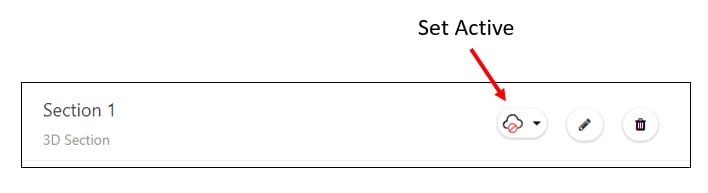
- Set the Section “Active” by selecting the “Cloud Icon” within the Section Row.
Add a Space
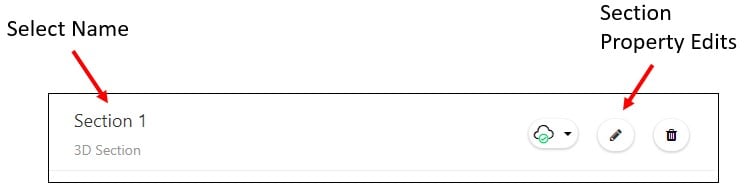
- Left click on the “Section Name” in order to create or edit a Space. NOTE: The “Pencil Edit Icon” is for editing the “Properties” of the Section.
- Select “Add New” and choose “Asset Bundle”.
- Enter “Space 1” for the Space Name.
- Scroll down and click on “Upload for PC” or “Upload for StandAloneMac”.
- Browse to “c:\Altoura\Hello World Tutorial\Altoura Hello World\Assets\AssetBundles\StandaloneWindows” (or \StandaloneOSX) and select “samplebundle” i.e., which will typically be the largest file in the folder.
- NOTE: You can leave the “Button Thumbnail” blank… i.e, since we will only be creating a single space.
- Select “Create Space”.