

Overview
This guide is for the remote expert working in Microsoft Teams on desktop. By the end, you will have received a Remote Expert invitation in Teams and joined the live session with the on-site worker.This page applies to the Contacts flow, where an HMD user searches for an expert and sends an invitation. If the HMD user joins via the Meetings tab, there is no notification. The expert joins the same scheduled Teams meeting directly.
When This Appears
You receive this request when:- An HMD user selects your name in Remote Expert
- The user clicks Invite Expert
- A session invitation is generated and delivered to you in Microsoft Teams
What You See in Teams
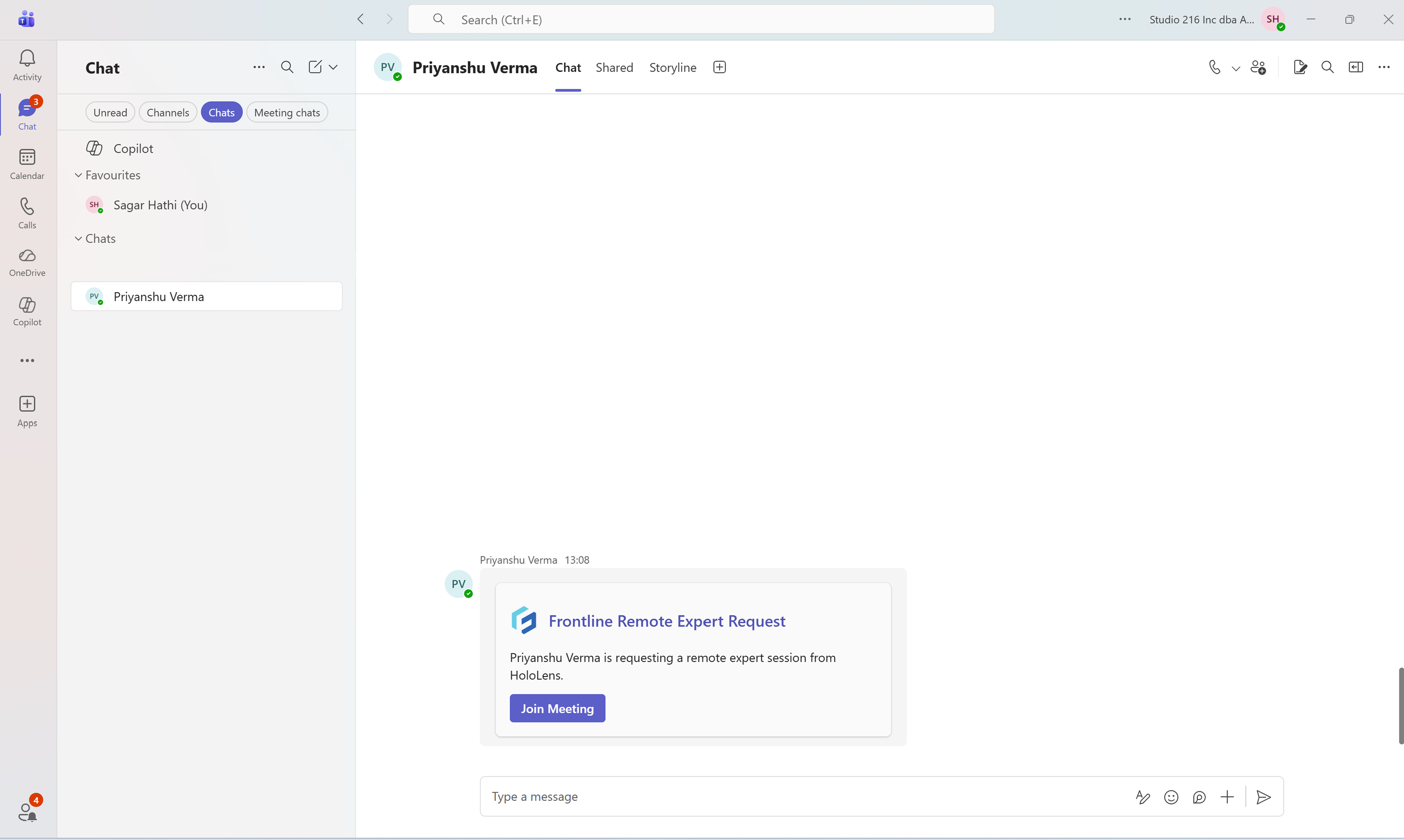
In the chat window, a meeting card appears with:- The title: Frontline Remote Expert Request
- A message indicating that a Remote Expert session has been requested from HoloLens
- A primary action button: Join Meeting
Join the Remote Session
- Open Microsoft Teams.
- Navigate to the chat where the request appears.
- Locate the Frontline Remote Expert Request card.
- Click Join Meeting.
- Review your audio and video settings.
- Click Join now.
What Happens Next
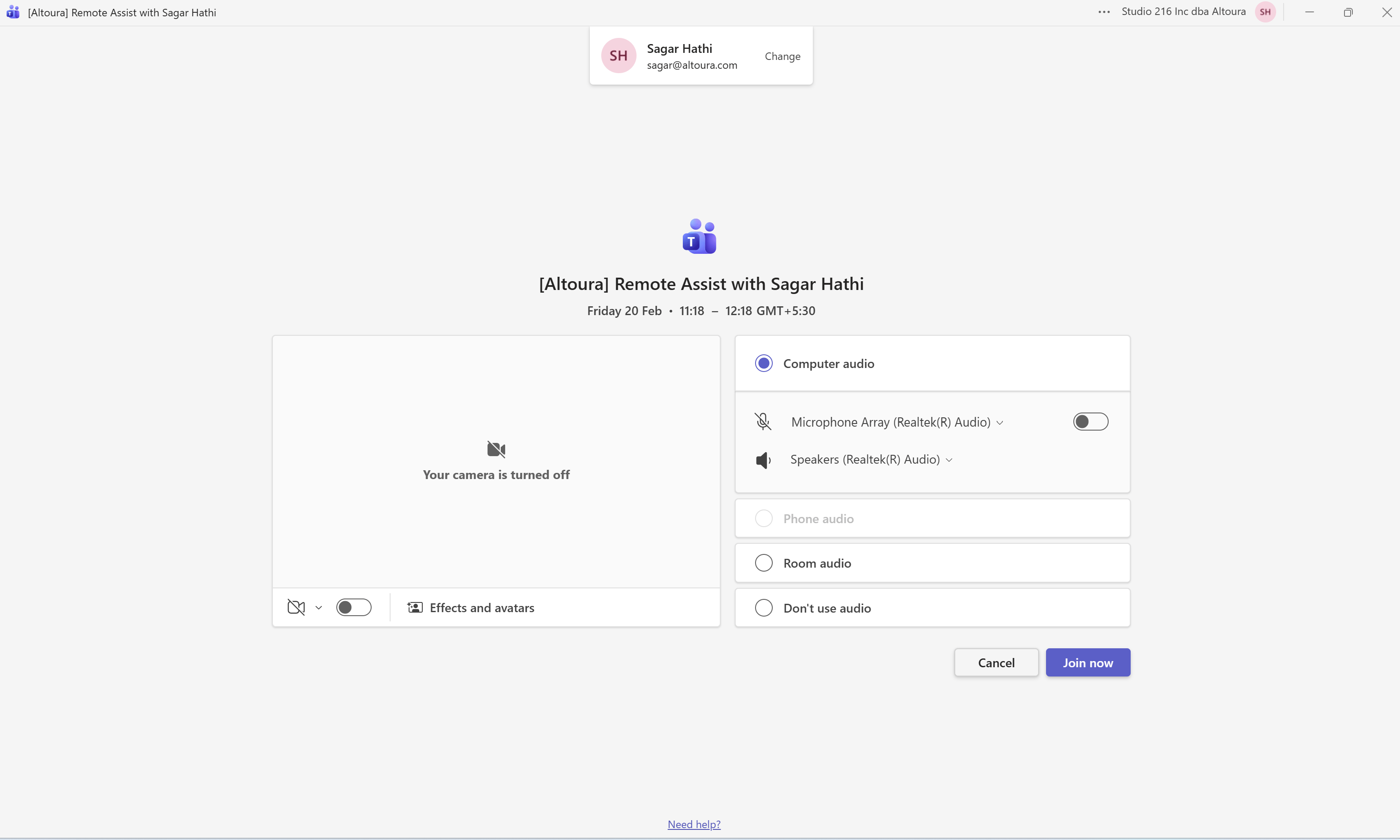
- The Teams meeting interface opens.
- You are connected to the live session initiated by the HMD user.
- If the HMD user’s camera and microphone are enabled, you can see and hear them.
- You can now proceed to add and use the Altoura Remote Expert meeting app to enable annotations and sharing.
Next: Add the Remote Expert App (Microsoft Teams)