

Why This Matters
When you join a Remote Expert call, you need to add the Altoura Remote Expert app to the meeting to enable annotations and visual guidance. If the app has not been configured by your Teams administrator, it will not appear in the app search, and you will only discover this mid-call. By verifying and adding the app ahead of time, you confirm that:- Your Teams administrator has deployed the Altoura Remote Expert app to your organization.
- The app is accessible from your Teams account.
- You are ready to use it when you join a Remote Expert session.
Adding the app here does not replace the step of adding it during a live call. You will still need to add the app to each meeting individually. This is a pre-call readiness check.
Step 1: Open Microsoft Teams Apps
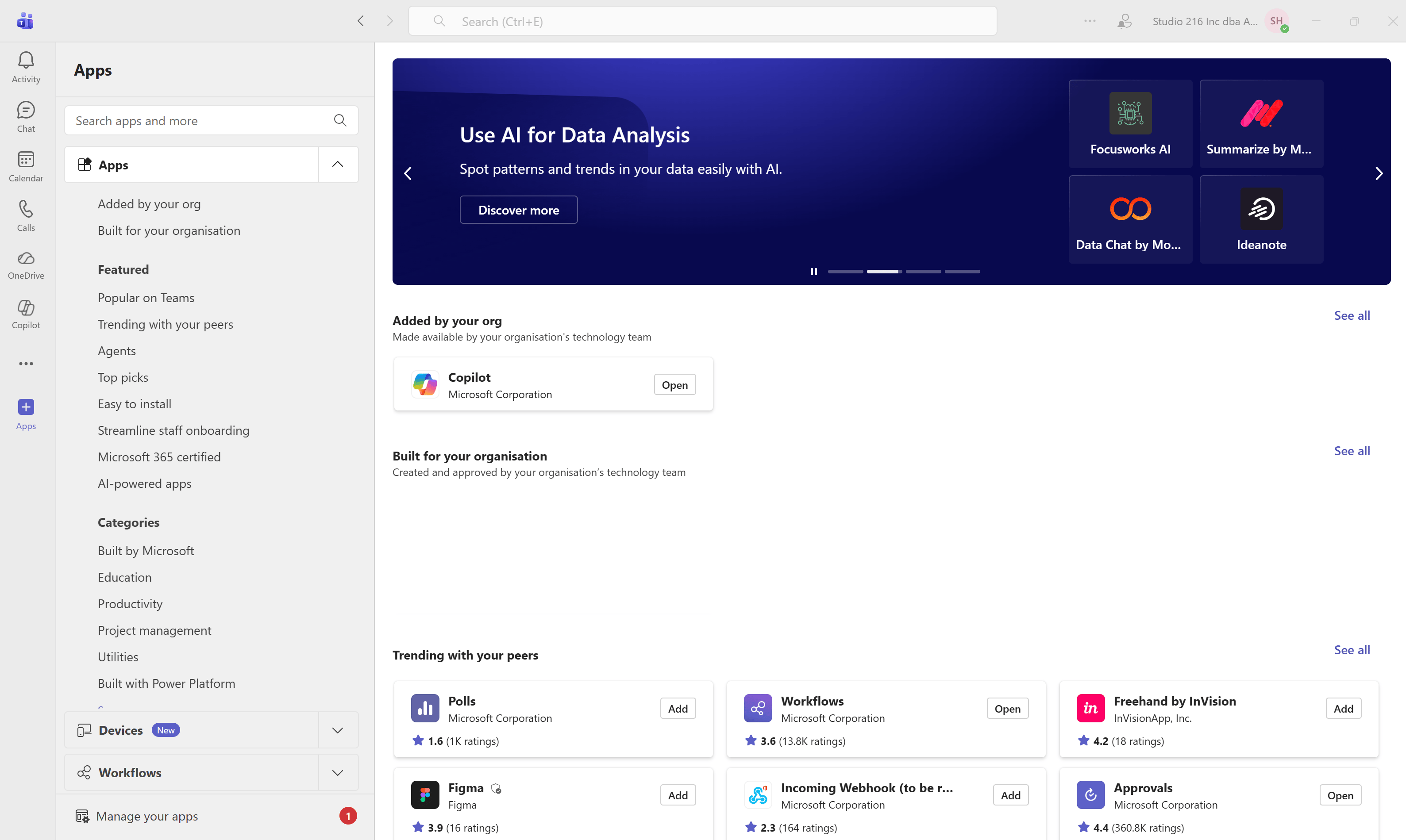
- Open Microsoft Teams on your desktop.
- In the left sidebar, click Apps.
Step 2: Search for Altoura Remote Expert
- In the Apps search bar, type Altoura Remote Expert.
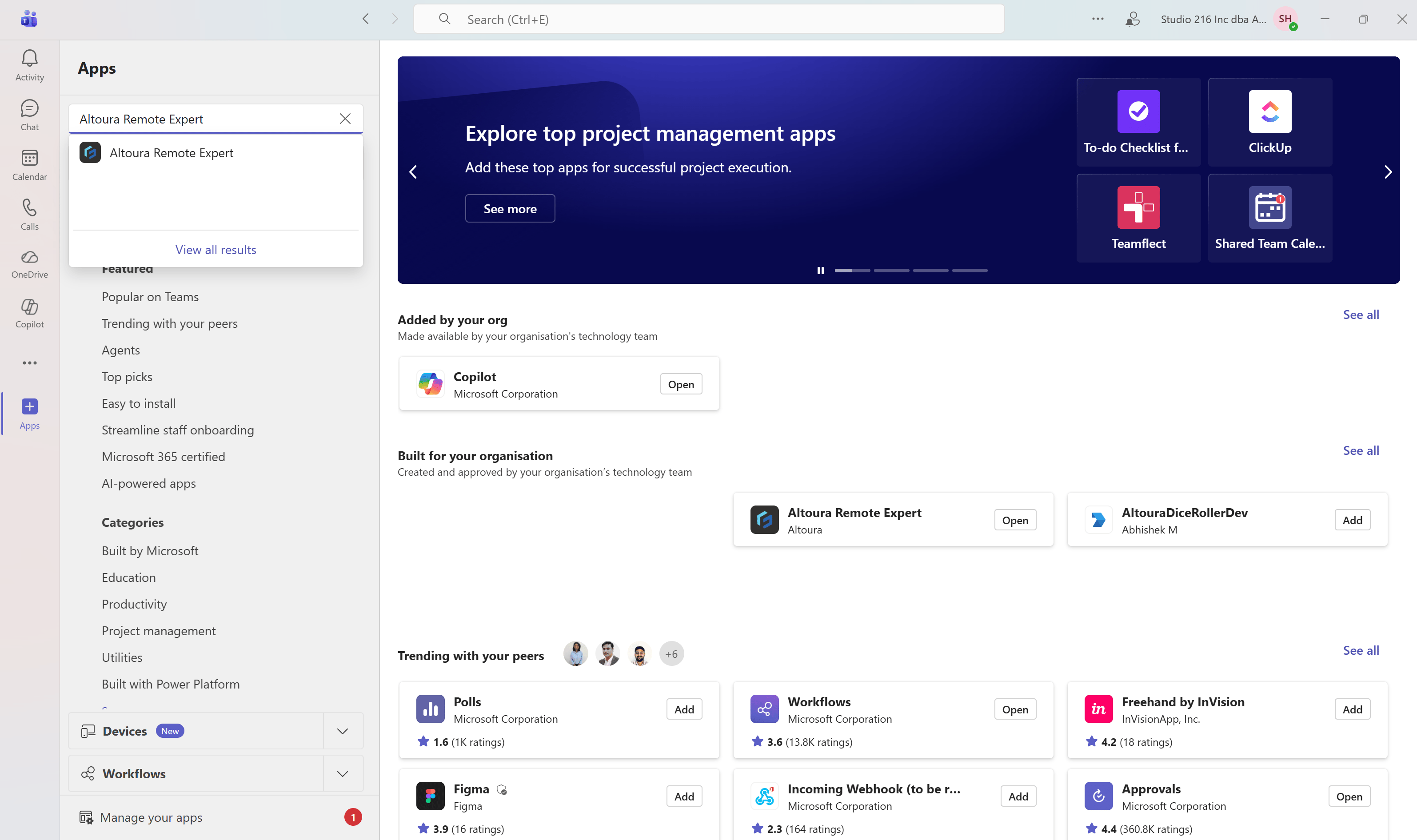
- Look for Altoura Remote Expert in the search results dropdown.
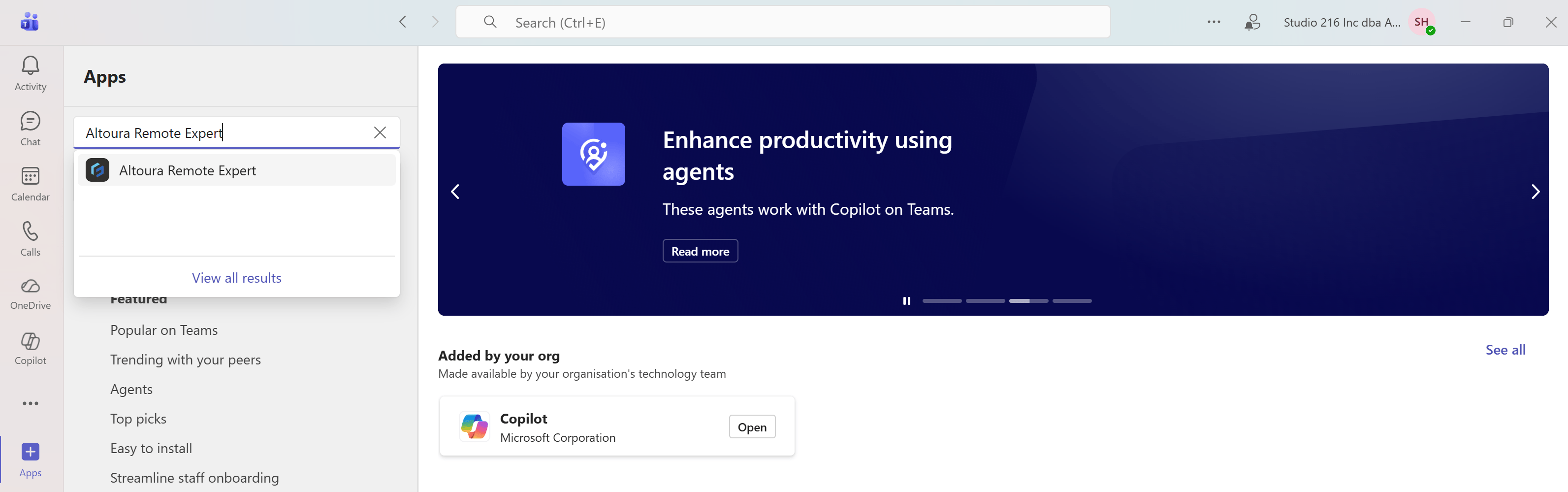
- Click on Altoura Remote Expert from the search dropdown to open the app details.
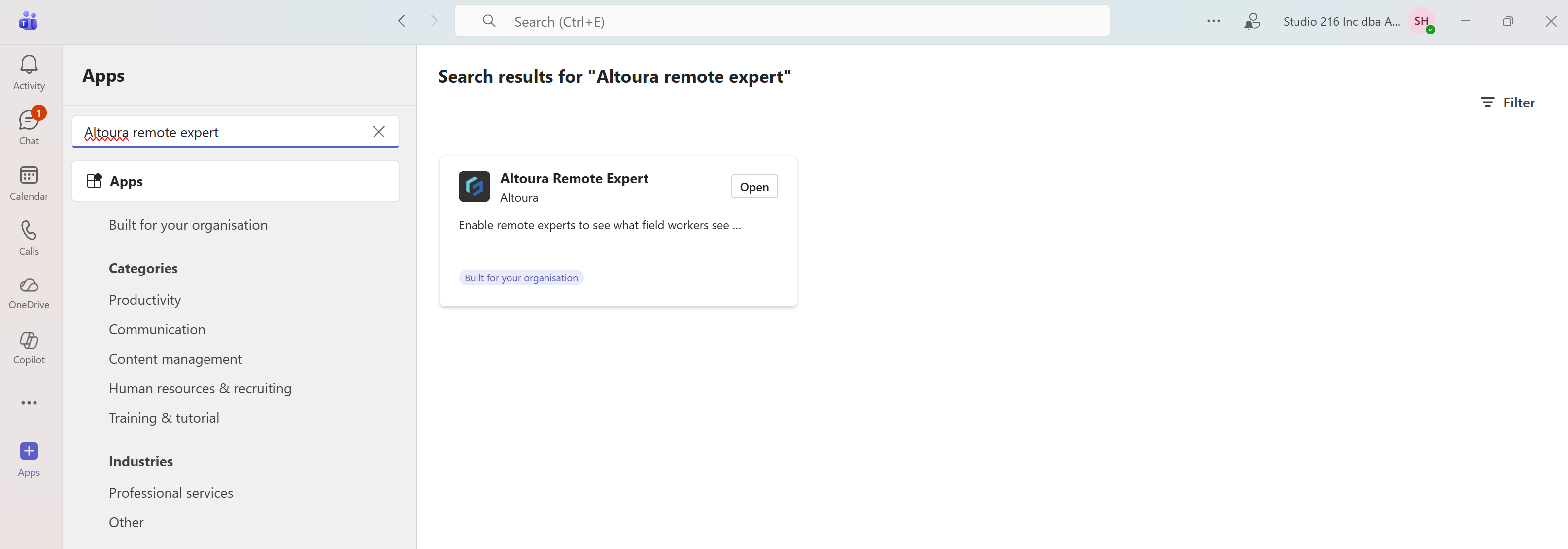
If the app appears
The app is configured and available. Your Teams administrator has successfully deployed it. Proceed to Step 3 below.If the app does not appear
The app has not been configured for your organization. Contact your Teams administrator.Step 3: Open the App Details
- Click on Altoura Remote Expert from the search results.
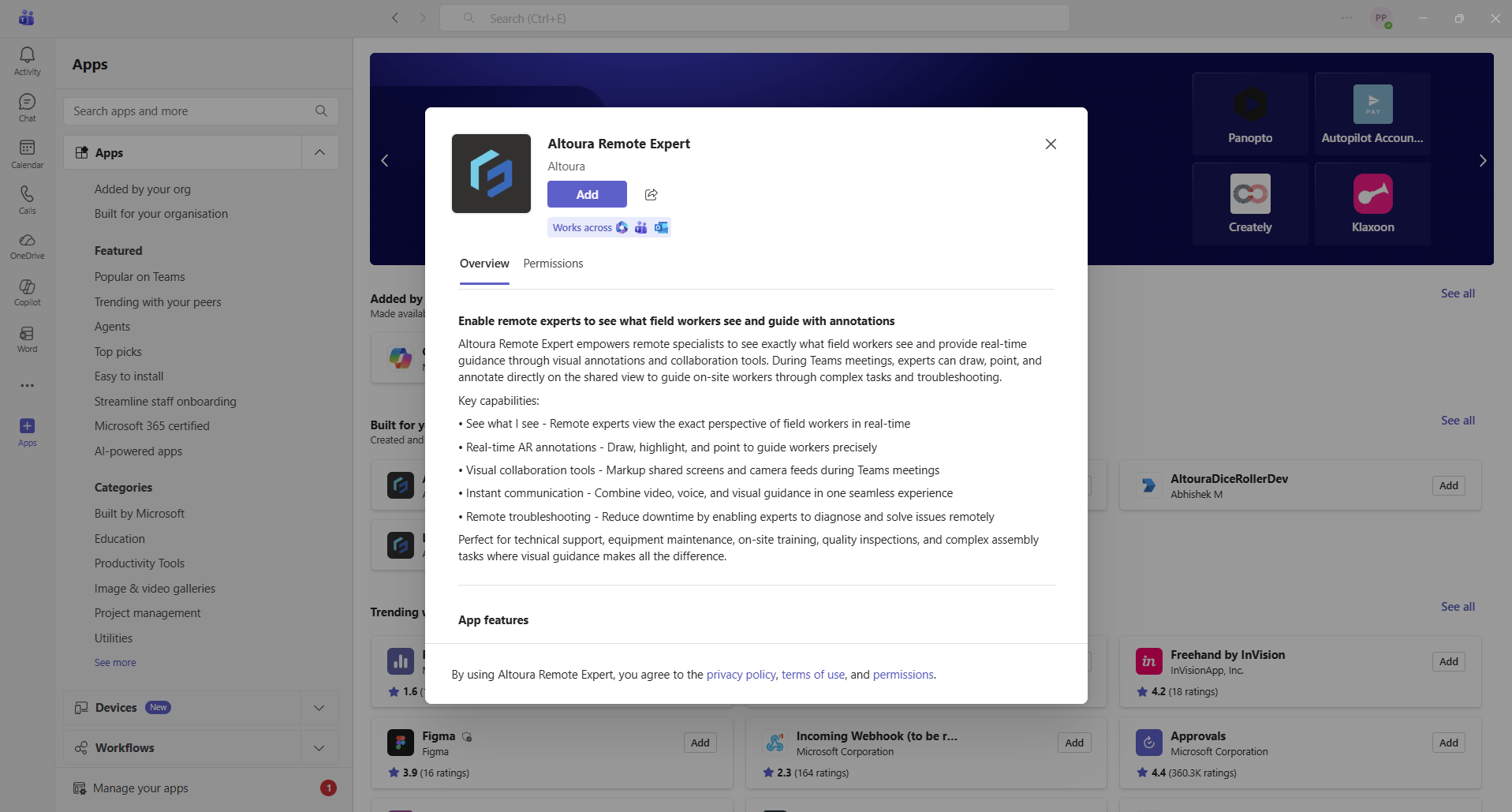
- The app detail page opens, showing:
- The app name and publisher (Altoura)
- An Add button
- The Overview tab with a description of the app’s capabilities
- The Permissions tab
Step 4: Add the App
- Click Add.
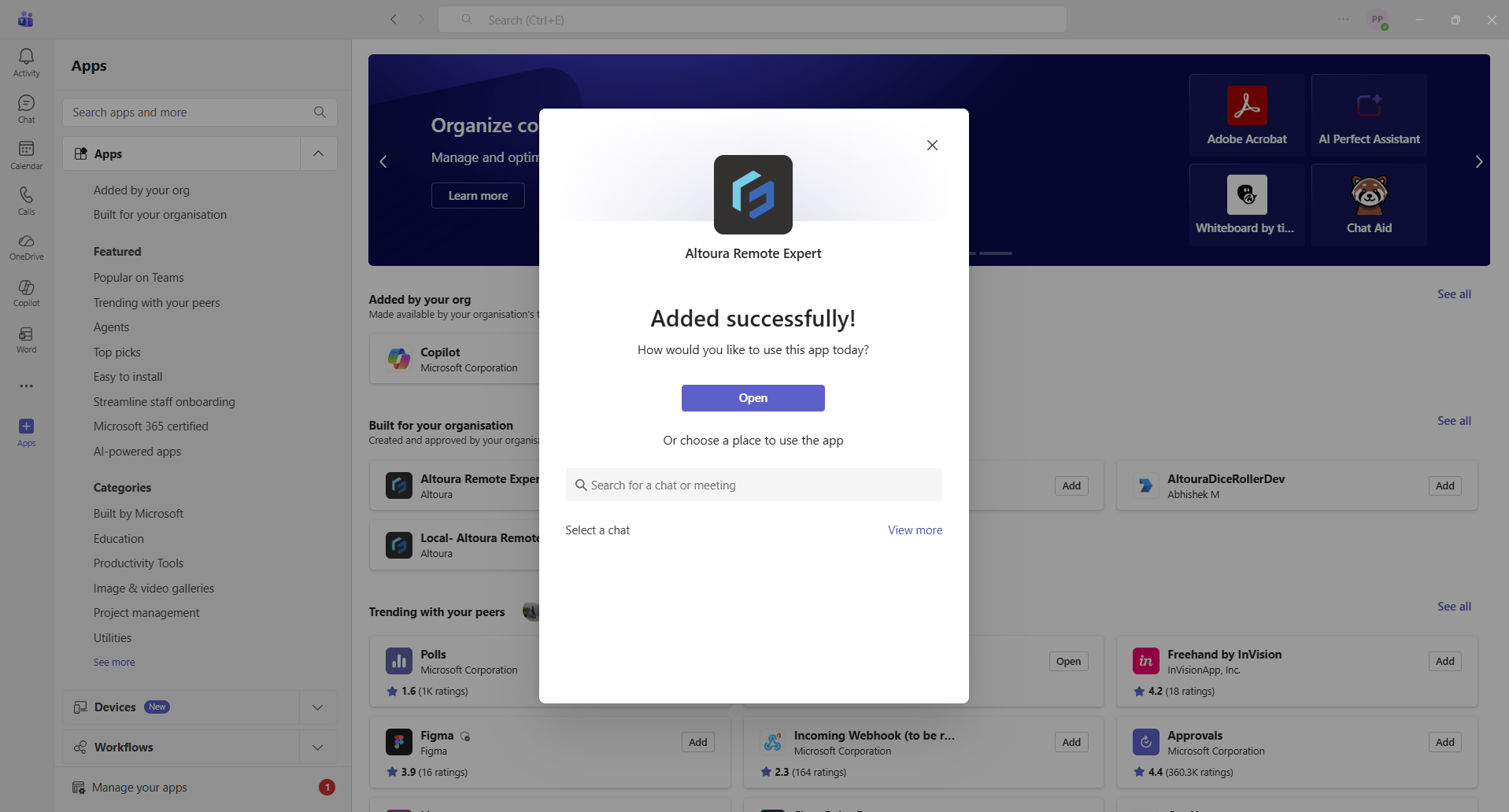
- A confirmation dialog appears with the message “Added successfully!”.
- You can choose to Open the app or close the dialog.
What This Means
- The app is confirmed to be available and configured for your organization.
- When you join a Remote Expert call and need to add the app to the meeting, it will appear in the app search.
- You are ready for a Remote Expert session.
Troubleshooting
- App not found in search: The Altoura Remote Expert app has not been deployed to your Teams tenant. Contact your IT or Teams administrator.
- Add button not available: Your organization’s app permission policies may restrict adding third-party or custom apps. Contact your Teams administrator to review the app setup policies.
- App was added but does not appear in calls: Adding the app to Teams does not add it to individual meetings. You must add it manually within each Remote Expert meeting session.
Next: Join a Remote Expert Session (Microsoft Teams)