

Overview

The Altoura Frontline iPad app brings procedural guidance and Remote Expert collaboration to a handheld form factor. Field workers and supervisors can follow step-by-step procedures with augmented reality overlays, view 3D models anchored to real-world positions, and connect with remote experts — all from an iPad. The iPad experience mirrors the core capabilities of the HoloLens version while adapting the interface for touch-based interaction on a tablet screen.

Key Capabilities

  • Procedures — Browse, search, and execute step-by-step procedures with AR-anchored 3D models and media guidance.
  • Remote Expert — Connect with remote specialists via Microsoft Teams for live audio, video, and annotation support.
  • Author & Operator Modes — Choose between Author mode to edit procedures or Operator mode to follow them in the field.
  • AR & 3D Models — View and interact with 3D models placed in the physical environment using iPad’s AR capabilities.

Getting Started

Follow these pages to get up and running with Frontline on iPad:
  1. Sign In — Launch the app and sign in using your email, SSO, or PIN Pairing.
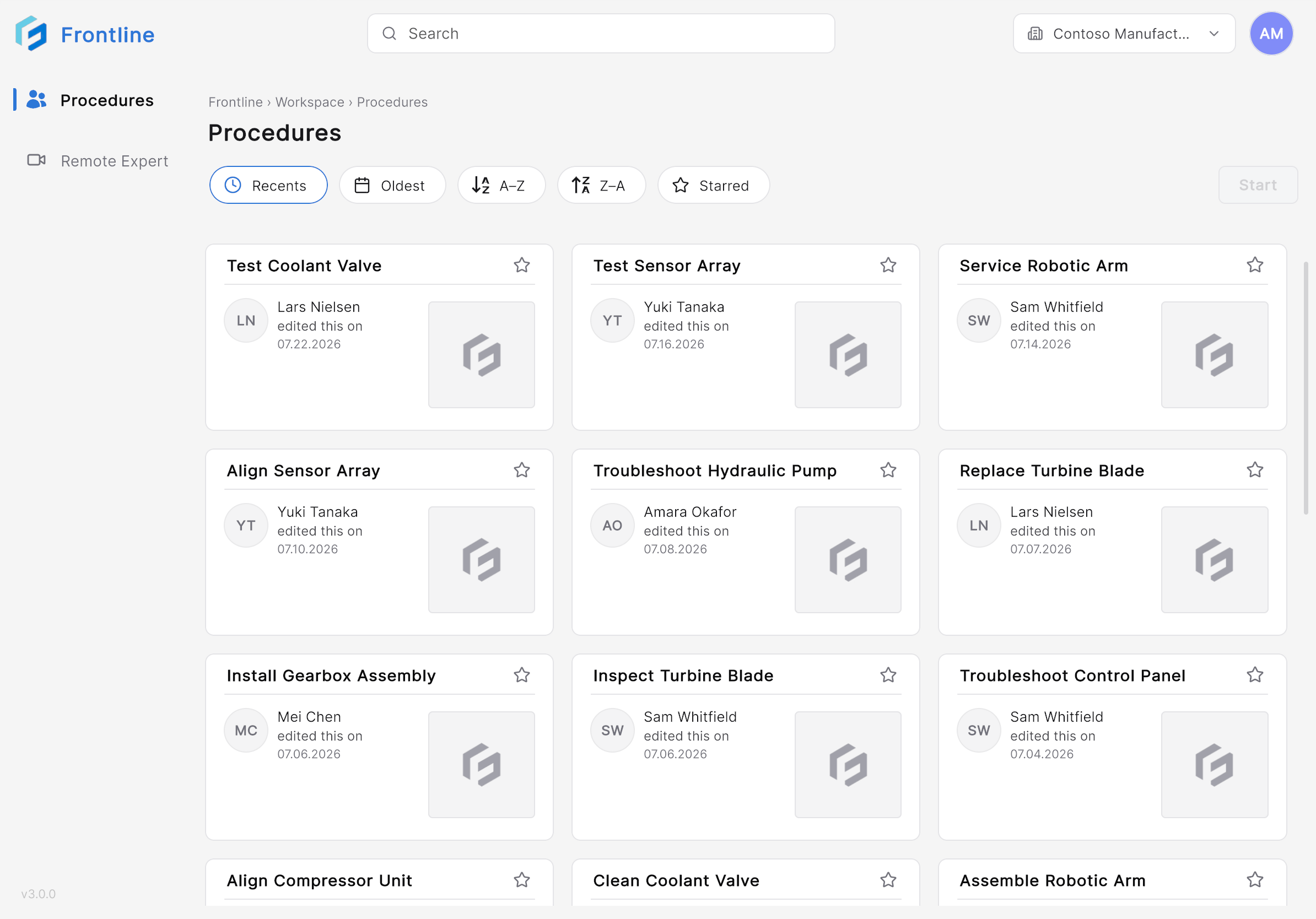
  2. Procedures Landing Page — View and search available procedures from the landing page.
  3. QR Scan — Scan a QR code to anchor the procedure in your environment.
  4. Mode Selection — Select Author or Operator mode.
  5. Procedure View — Follow step-by-step instructions with AR guidance.
  6. Remote Expert — Start a Remote Expert session to get live assistance from a specialist.

iPad vs. HoloLens

FeatureiPadHoloLens
ProceduresSupportedSupported
Remote ExpertSupportedSupported
AR 3D ModelsCamera-based ARHolographic overlay
Input MethodTouch screenGestures & gaze
Form FactorHandheld tabletHead-mounted display
The core workflow — sign in, select a procedure, scan a QR anchor, follow steps — is consistent across both platforms. The iPad uses the device camera for AR visualization, while the HoloLens provides a hands-free holographic experience.