

Before You Begin
You need:
- Access to the Migration app, or the environment URL supplied by your Altoura administrator.
- An Altoura account with access to the organization you will use.
- For a training migration, a Classic experience available to your account and either a suitable existing scene or an exported
.altpkg.zip. - For a scene import, an exported
.altpkg.zip.
Imported scenes and published trainings belong to the organization you select. If you cannot view or create content, ask your administrator to check your permissions.
Sign In
- Open the Migration app in your browser.
- If the sign-in page opens, enter your email address and click Continue.
- Complete your organization's sign-in when prompted.
- You return to the Migration app. Choose the organization you want to use.
If you are already signed in, the app tries to restore your session before opening the workspace. You may briefly see Restoring your Altoura session….
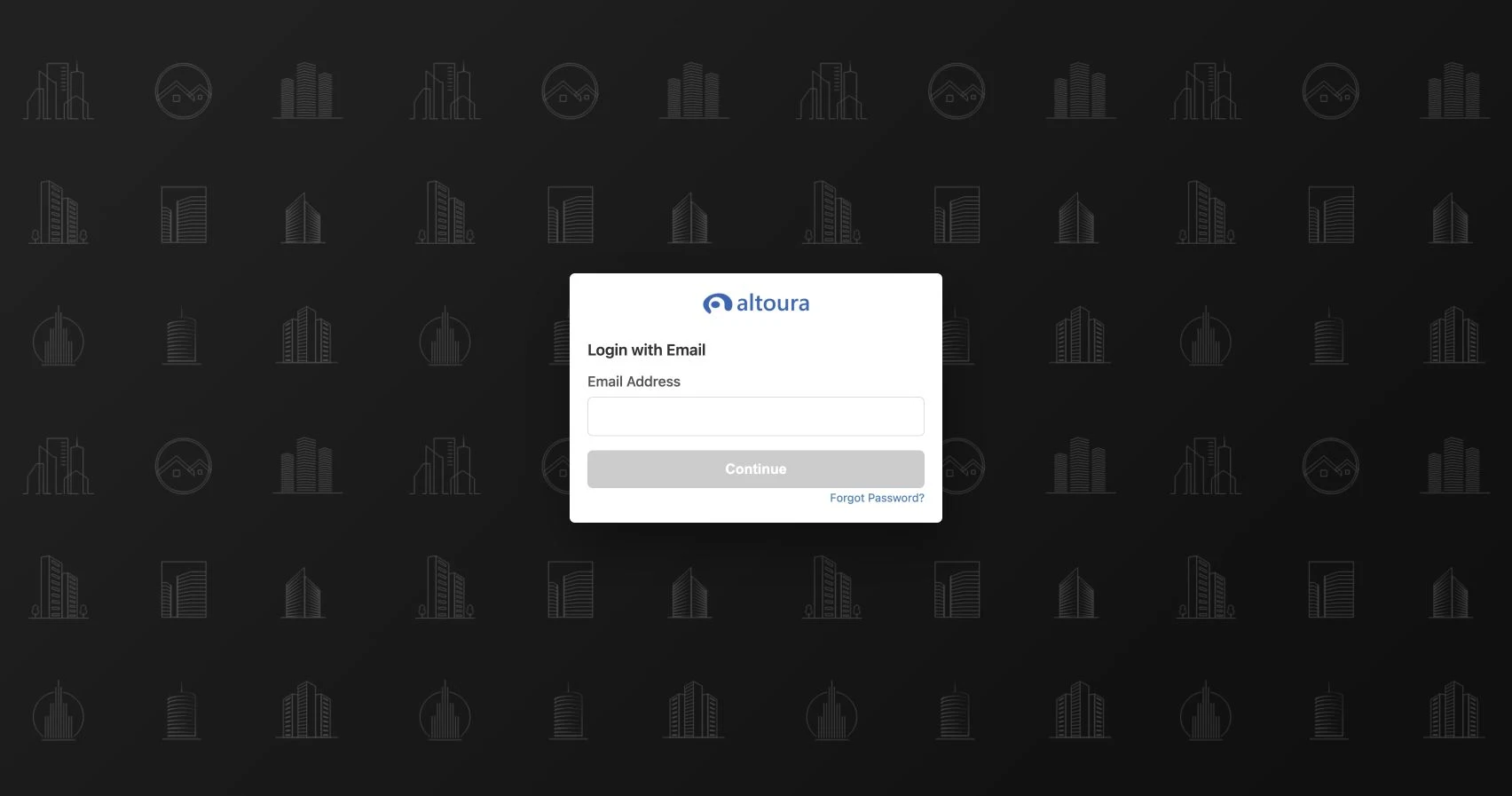
The Altoura sign-in page. Enter your email address and click Continue.
Choose an Organization
- Click the organization picker in the header.
- Type in Search organizations to filter the list.
- Select the organization.
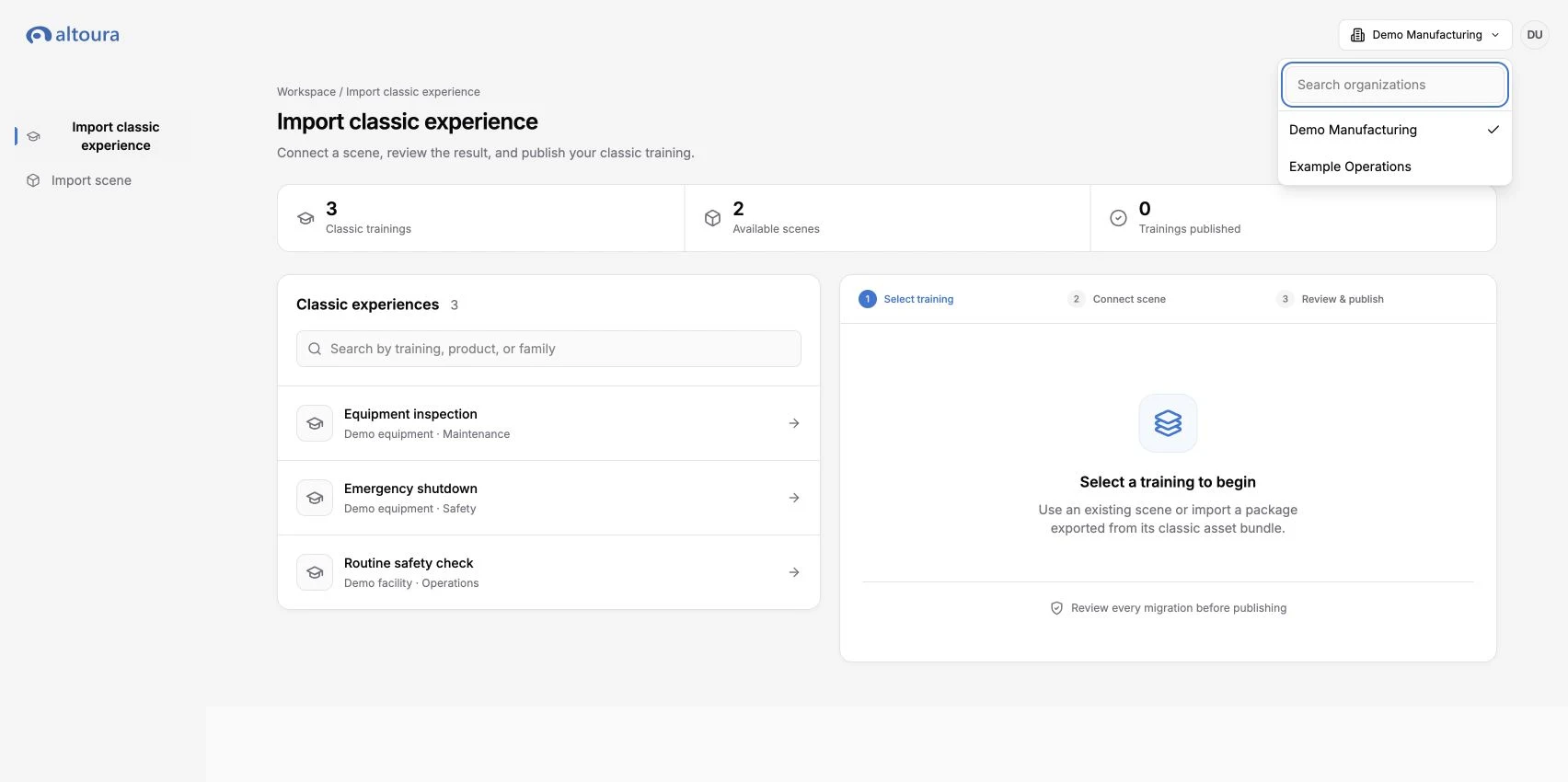
Choose the organization that will receive the imported content.
The picker lists organizations available to your account. Switching organizations clears the current training selection and loads that organization's content. Complete or review your current work before switching.
If the workspace says Select an organization to view its classic experiences, choose an organization in the header. If organizations could not be loaded, reload the page and try again.
Workspace Layout
| Area | What it contains |
|---|---|
| Header | Organization picker and profile avatar |
| Navigation | Import classic experience and Import scene |
| Classic experiences catalog | Search and the trainings available in the selected organization |
| Preparation / result panel | Training name, scene connection, migration progress, and the result |
| Import scene form | Package selection, scene name, import progress, and the success summary |
On a narrow screen, the two import sections appear as navigation buttons above the content.
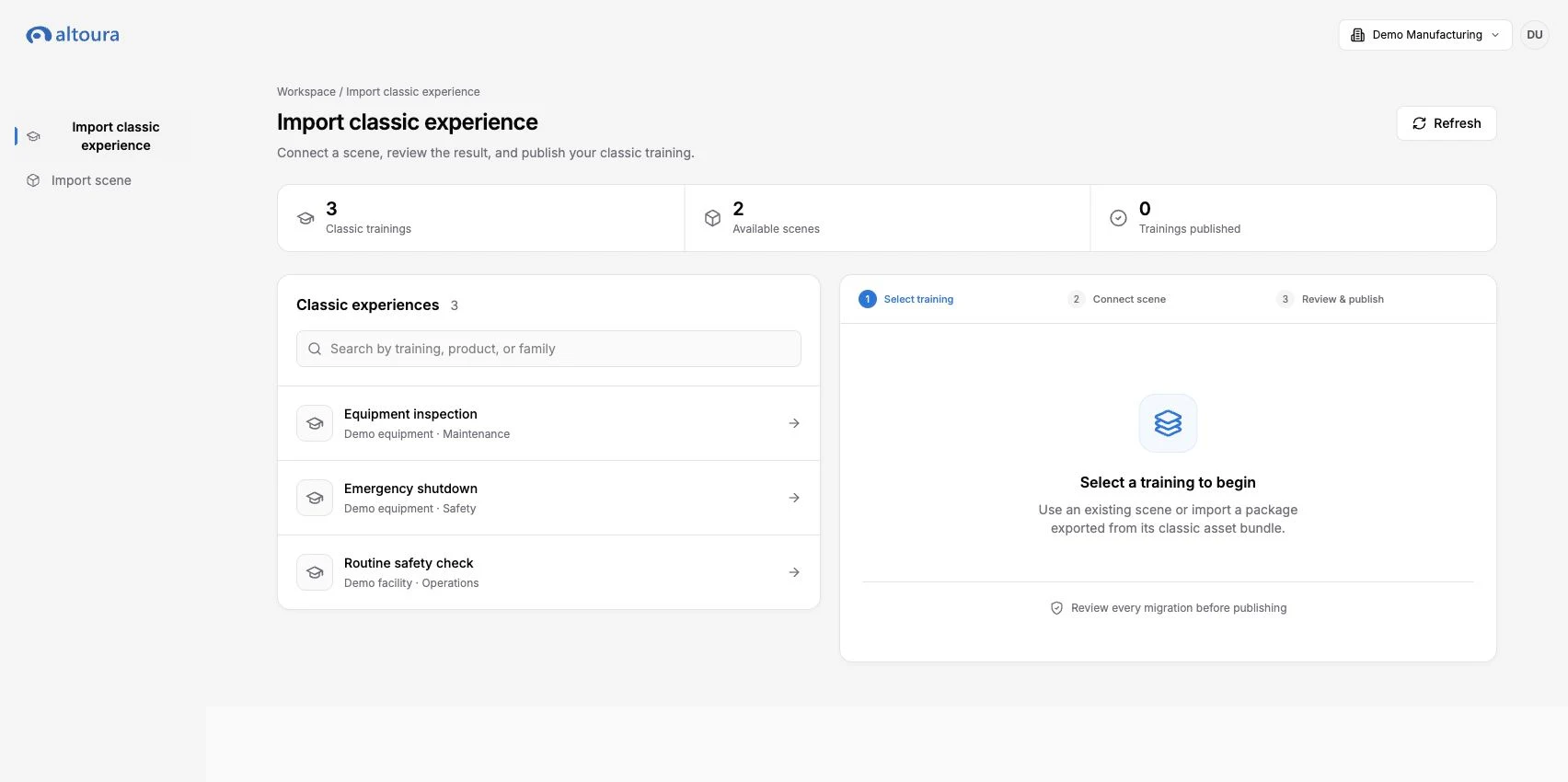
The catalog and preparation panel before selecting a training.
Classic Experience Overview
The Import classic experience page shows three counts:
- Classic trainings: the number of trainings loaded for this organization.
- Available scenes: the number of scenes loaded for this organization.
- Trainings published: the number of Classic trainings you have published through the Migration app.
A Published badge identifies a Classic training you have already published through this app. The badge does not open the previous migration result.
Use Refresh to reload the catalog, scenes, and migration status when no operation is running.
While an Operation Is Running
Keep the tab open while a package is uploading, a training is migrating, or publication is in progress. Organization switching, section switching, and Logout are unavailable during these operations. The browser may warn you if you try to reload or close the tab.
Progress messages identify the current stage. A package import shows a percentage; training migration and publication show status messages.
If the app loses contact with the migration service, it shows Progress will reconnect automatically and tries again. Keep the tab open. If the problem continues, see Troubleshooting.
Profile and Logout
- Click your profile avatar in the header.
- Click Logout.
Your session ends and the sign-in page opens. Logout is unavailable while an import or migration is running.
Next Step
Choose Import Classic Experience to convert a training, or Import Scene to create a scene independently.