

No Classic Experiences Are Listed
Check the organization in the header and clear the catalog search. Click Refresh.
No classic experiences found in this organization means the list is empty. Could not load classic experiences means the list could not be loaded. Click Refresh to try again.
If the problem persists, ask your administrator to verify your access to the Classic training system and to the source training.
The Target Scene Is Missing
Check the selected organization, clear Search scenes, and click Refresh. Confirm in the Dashboard that the scene exists and that your account can access it.
If you have only an exported package, choose Upload package during training preparation, or use Import Scene first.
Migrate Training or Import Scene Is Disabled
For a training migration, check that:
- A Classic training is selected.
- New training name contains text and is at most 100 characters.
- An existing scene is selected, or a valid package and a new scene name are provided.
- A new scene name is at most 50 characters.
- Name checks have finished successfully without conflicts.
- Initial catalog loading has finished.
- There is no unresolved earlier publication for the selected Classic training.
For a standalone scene import, choose a valid package, enter a scene name of at most 50 characters, and wait for a successful scene-name check.
The controls are also unavailable while an operation is running.
A Name Is Already in Use
Enter a different name. Changing capitalization or adding extra spaces does not make a name unique.
For a scene used in training migration, choose Existing scene if you intended to reuse the scene. Importing a package creates a new scene; it does not overwrite the existing one.
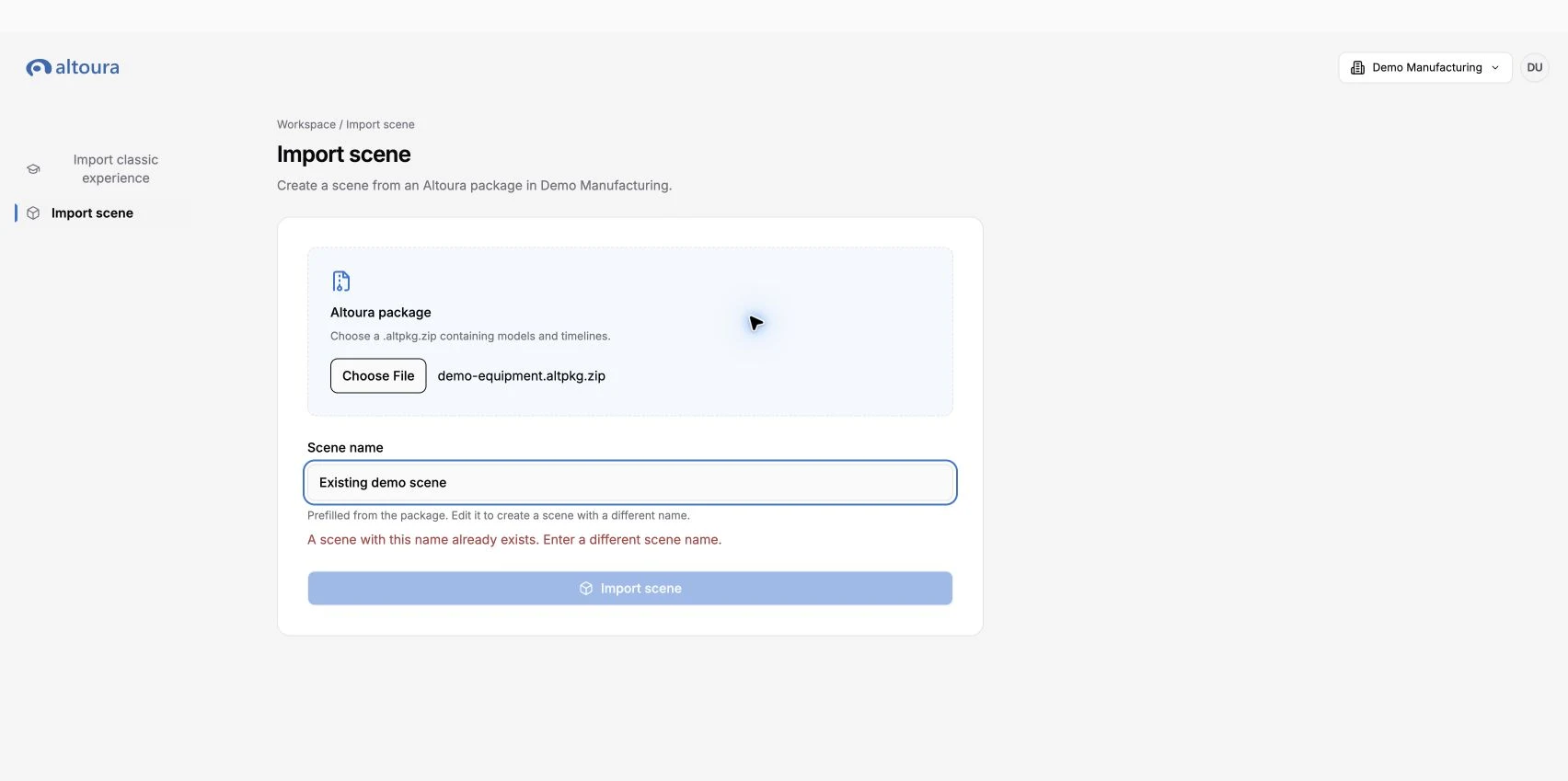
A duplicate scene name prevents import until you choose another name.
A name can still be rejected when the scene or training is saved. If this happens, choose another name.
The App Could Not Verify Names
Click Retry name check. If it continues to fail, verify your connection and ask your administrator to check catalog access.
Import stays disabled until the name check succeeds.
The Package Is Rejected
| Message or symptom | What to do |
|---|---|
Missing manifest.json | Use a valid Altoura Migration Export package with the manifest at the ZIP root. |
| Package manifest lists no models | Export a package containing at least one model. |
| A model file listed in the manifest was not found | Re-export the complete package so its model files match the manifest. |
| The ZIP cannot be read, or manifest data cannot be parsed | Use the original exported .altpkg.zip, or export it again. |
Use the Unity migration export tool to prepare the package. A raw asset bundle is not accepted as an exported package.
Scene Import Failed
Read the error before retrying.
If the error says Scene creation could not be confirmed, the scene may already have been saved. Check the selected organization's Scenes page in the Dashboard. Keep the scene identifier from the error for your administrator. The app keeps the imported models in case the scene was saved.
If the error says cleanup could not remove imported model assets, keep the listed asset identifiers. Ask your administrator to check these assets in the Dashboard before retrying. Keep any models used by a saved scene.
After a browser crash or forced tab closure, check Dashboard for created content before uploading the package again.
Scene Import Succeeded but Training Migration Failed
The imported scene remains available. The current preparation form keeps it selected as an existing scene after a successful package import.
Retry the migration using Existing scene. If you reloaded the app, select the same Classic training, enter the new training name, and choose the scene from the list. Re-uploading the package would create another scene and another set of model assets.
Progress Will Reconnect Automatically
If a migration progress request fails, keep the tab open while the app retries. A failed progress request does not mean the migration itself has failed.
If the service remains unavailable, record the training name, organization, last progress message, and error for your administrator. Check the destination catalog before restarting any publication.
Publish Training Is Disabled
If the result requires review, read the migration notes and select:
I have reviewed the migration issues and choose to publish with the reported differences.
The button is also disabled during an active operation. It is shown when the result is ready for publication.
Publication Could Not Be Confirmed
A previous publication may still be running, or it may have succeeded without a confirmed response. The app can block a fresh migration for that Classic training to prevent a duplicate.
- Check the selected organization's Dashboard Trainings page for the new training name.
- If the training exists, inspect it and record its identifiers.
- If the result is unclear, ask your administrator to check the publication status before retrying.
- Start another migration only after the earlier publication has been resolved.
A timeout can occur after the training has been created.
The Scene Has Missing Animation or Audio
Review the import's unmatched channels and audio channels skipped counts. Open the scene in Scene Editor and inspect its timelines.
Timeline audio, Unity-specific scene data, and particle effects are not imported. Missing or unreadable timeline files may not appear as a warning in the success summary, so compare the imported timeline list with the expected source content.
Frequently Asked Questions
Does Import scene create a training?
No. It creates a scene and model assets. To convert a Classic training, use Import classic experience and connect that scene.
Does Migrate training publish automatically?
No. Review the result and click Publish training separately. Uploading a package can create scene assets before this step.
Can I migrate without a scene?
No. This app requires an existing scene or a package that can create one.
Can I reopen an earlier report after reloading?
There is no history or resume screen. Download the document and complete your review before leaving the result. A Published badge does not reopen the report.
Does an empty report guarantee identical behavior?
No. Test the published training's content and interactions, and inspect imported scenes and timelines.
Can I leave the tab during import or publication?
Keep it open until the operation finishes. If you already closed it, check Dashboard and resolve any uncertain publication before retrying.
What should I provide when asking for help?
Provide the selected organization, Classic training name, new training or scene name, operation stage, exact error text, migration-note details, and any training, version, scene, or asset identifiers displayed. Include a screenshot of the relevant message if available.