

When migration finishes, the panel shows Migration result. Read the validation status and migration notes before clicking Publish training.
Read the Result
| Field | Meaning |
|---|---|
| Steps | Steps in the converted training |
| Transitions | Connections between steps |
| Actions | Actions in the converted training |
| Validation | Validation status reported by the migration |
| Migration notes | Findings about the conversion, with a severity, title, and expandable details |
Expand every migration note to read the details. If the report is empty, the app shows No migration issues reported.
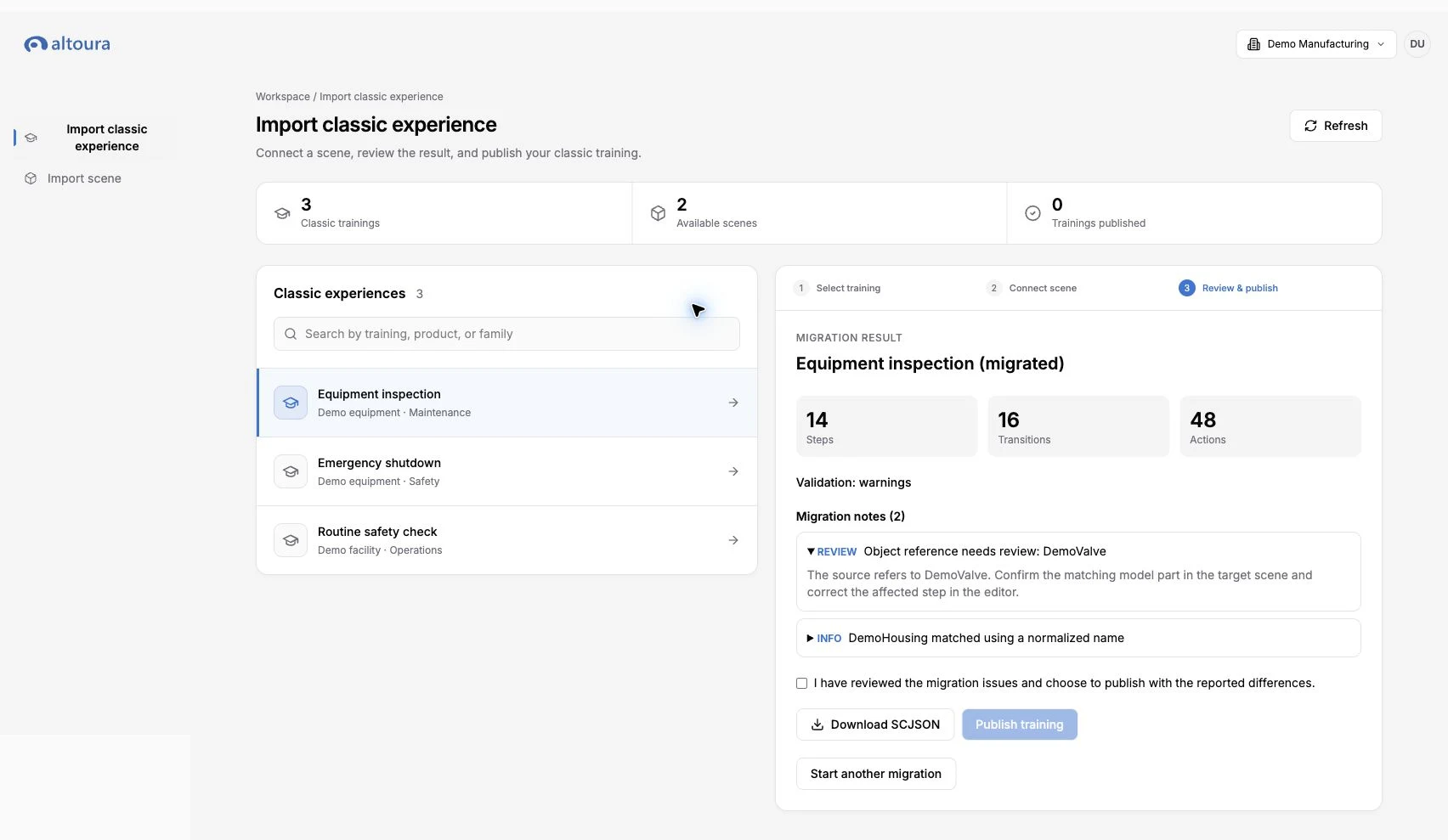
Expand each note and review the reported differences before publishing.
Understand Publication Requirements
You need to acknowledge the issues before publishing if validation is invalid, or if any note is marked blocker, error, or review.
In those cases, the result provides this checkbox:
I have reviewed the migration issues and choose to publish with the reported differences.
Select it only after reading the notes and deciding how to address the differences. Publish training remains disabled until you acknowledge them.
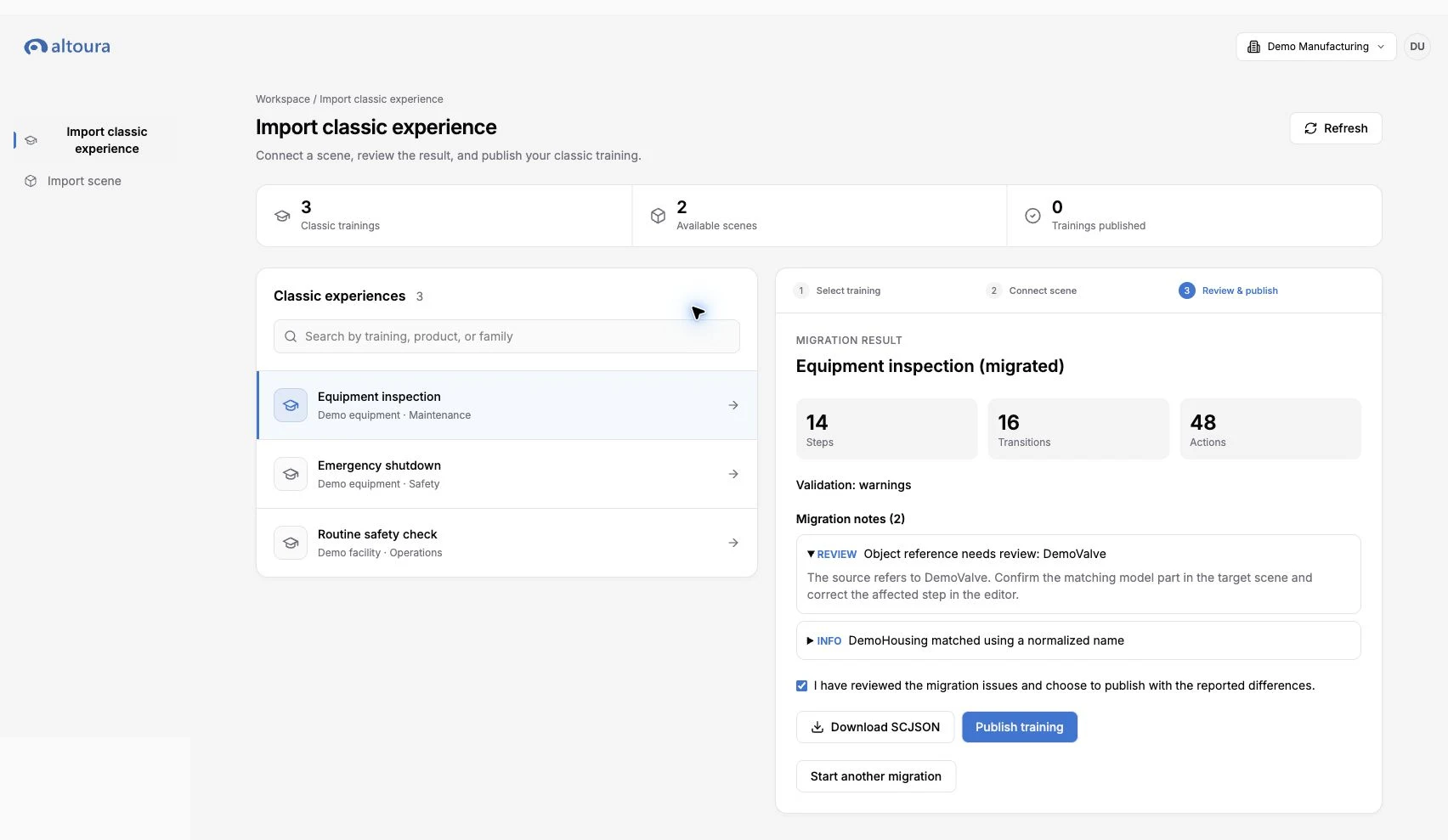
The acknowledgement box checked and Publish training available.
Read all notes, including those that do not require acknowledgement.
Review Content and Behavior
Use the report and your knowledge of the Classic training to check:
- Step order, instructions, and completion conditions.
- Choices and the destinations they lead to.
- References to equipment and individual model parts.
- Object movement, rotation, visibility, and animations.
- Images, video, and audio.
- Required behaviors that could not be converted.
For a package import, also inspect the scene and any reported unmatched or skipped audio channels. The scene import limitations apply even when the training conversion completes.
After publishing, use Creator to edit the training and a trainee app to test it. Validation and item counts do not confirm that every interaction works as expected.
Download SCJSON
Click Download SCJSON to save the converted training document as a .scjson.json file.
The file contains the training document only. Scene files, models, media, and the migration report are not included. Downloading does not publish the training.
Publish the Training
- Review the migration notes and any package-import warnings.
- Select the acknowledgement checkbox if it appears.
- Click Publish training.
- Keep the tab open while publication is in progress.
- Wait for Training published.
The success panel shows the new Training # and Version #. Record these identifiers if you need to identify the result in a support request.
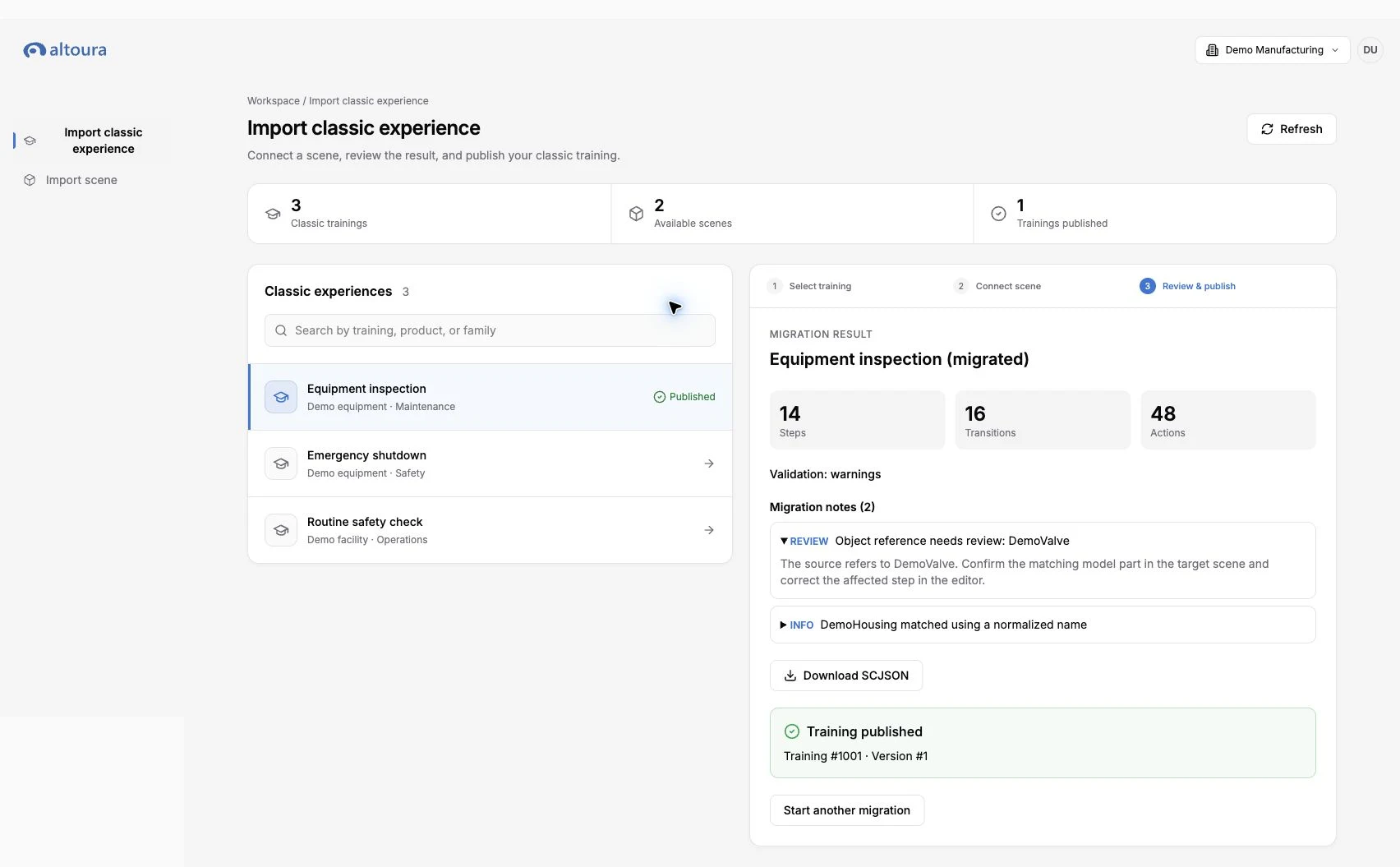
The published training and version identifiers.
After publication, find the new training in the Dashboard, open it in Creator, correct the reported differences, and test it in the appropriate trainee app.
Continue or Resolve a Failure
Click Start another migration to prepare another conversion when the current operation has finished.
If publication returns an error or cannot be confirmed, check whether the training already exists in the Dashboard before retrying. Follow Publication Could Not Be Confirmed to avoid creating a duplicate.