

The Workspace
Use the Steps list to select and organize steps. The center workspace provides three views:- Step Panel: Edit the selected step’s panel content.
- 3D view: Work with scene objects and preview their placement and interactions.
- Outline: Inspect steps and the transitions connecting them.
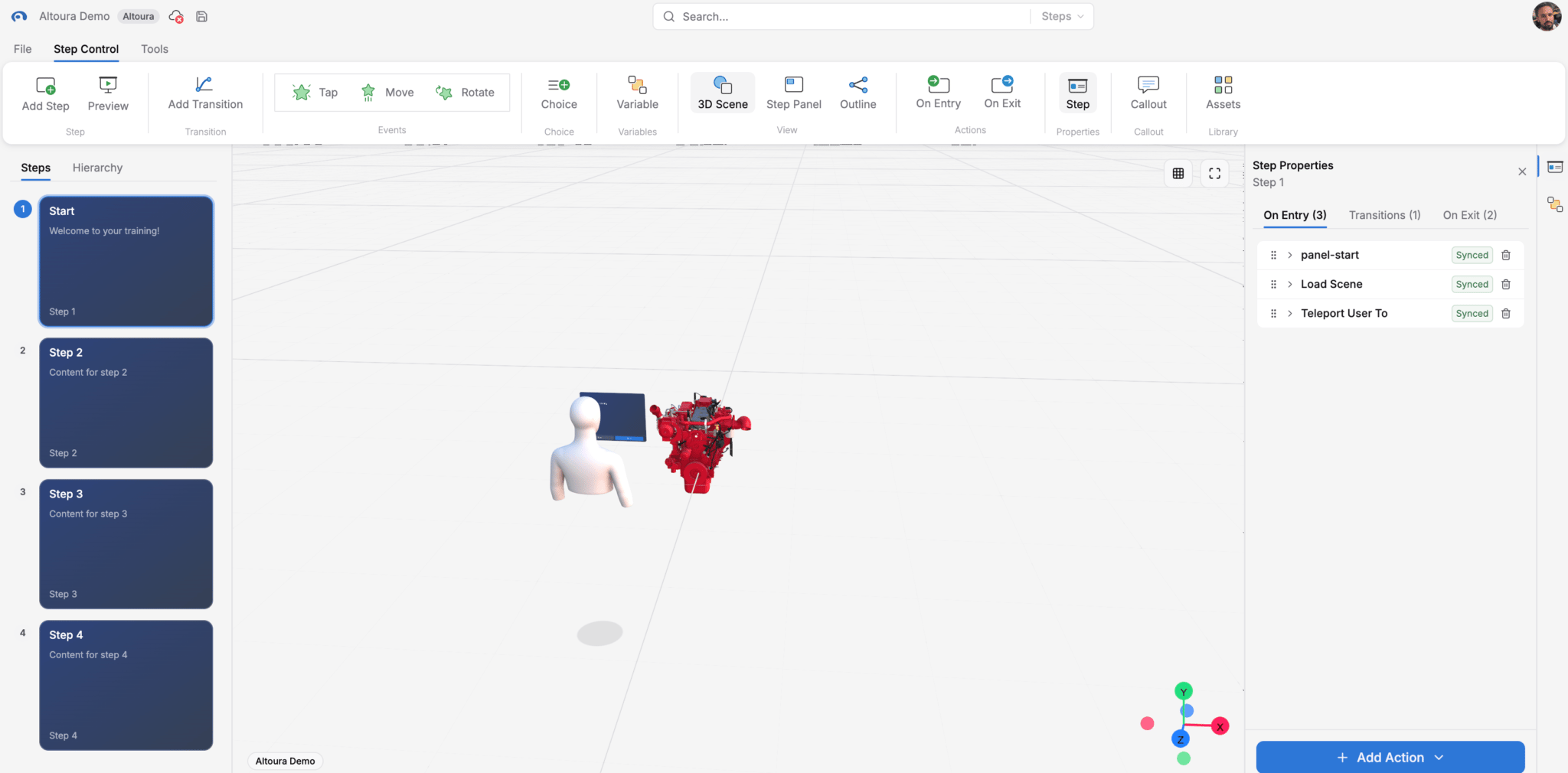
The Creator canvas with steps, 3D viewer, and properties panel
States (Nodes)
Appear as boxes in Outline. Each state represents a training step. Several states can share the same loaded 3D scene.
Transitions (Arrows)
Lines in Outline show transitions with destination steps. A transition can also run actions without leaving the current step.
- Properties Panel: Opens with Step Properties on the ribbon. Holds On Entry, Transitions, and On Exit tabs for the selected step.
- Add Action picker: Opens inside the Properties panel tabs when you add an action. Search or browse actions by category.
- Variables pane: Create and manage custom variables used in conditions, actions, and panel text.
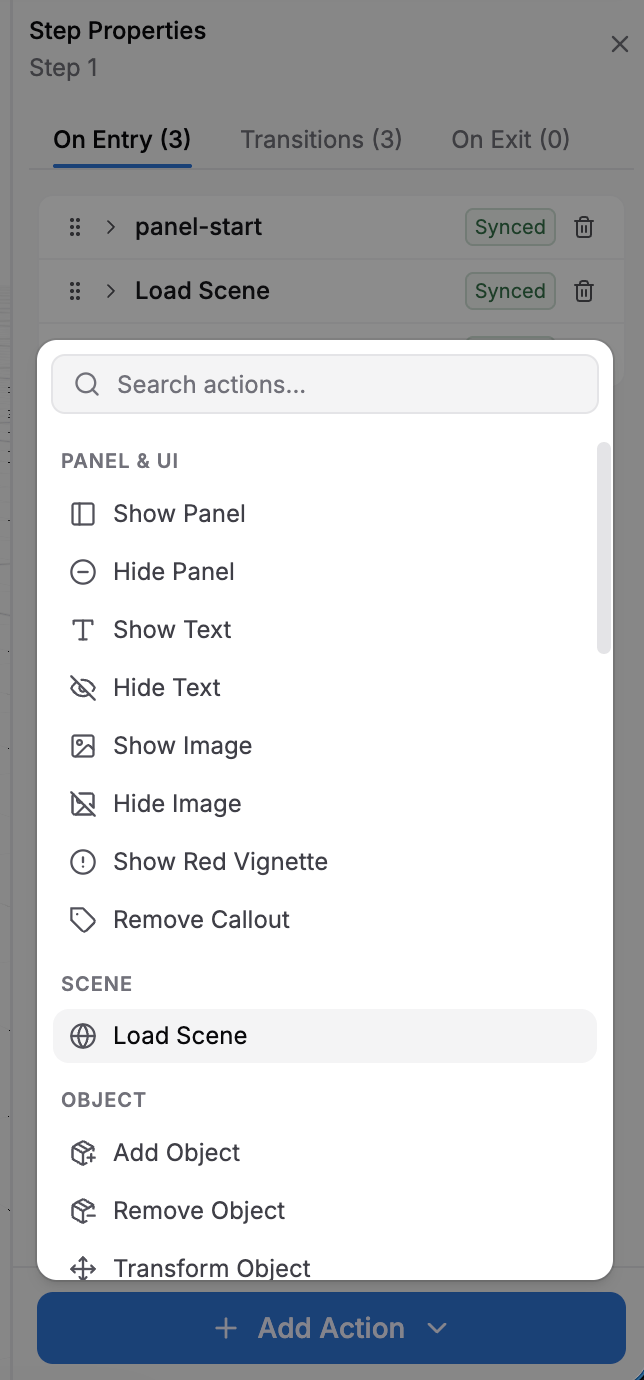
Add Action picker — browse or search actions by category
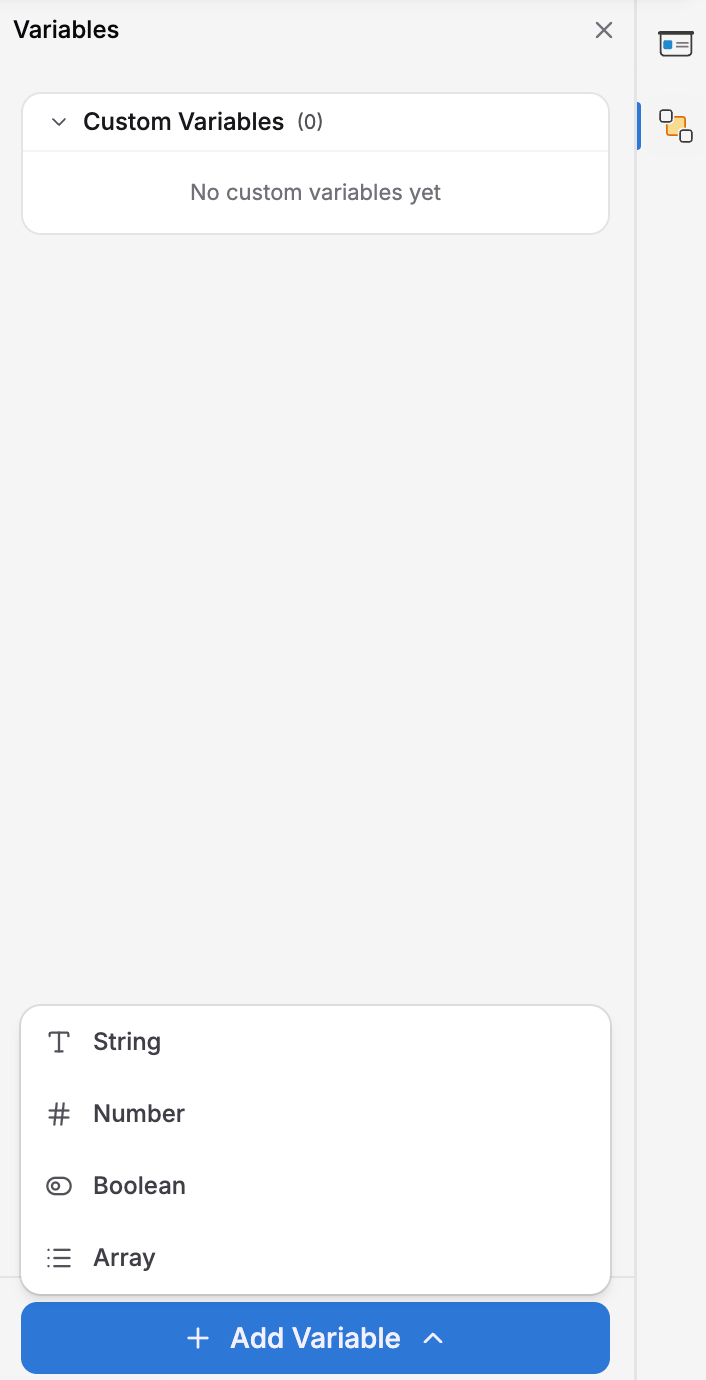
Variables pane — view and add custom variables
How Training Flows Through States
When training starts, it enters the first step and runs that step’s On Entry actions. These actions can load a scene, display instructions, and prepare objects for interaction. Later steps can reuse the loaded scene. For an event-driven transition to another step:- An event occurs, such as a tap, Move, Rotate, panel choice, or Next click.
- The training selects a matching transition whose optional condition is true. If none qualifies, the current step stays active and no transition actions run.
- The current step’s On Exit actions run.
- The selected transition’s Actions run.
- The destination step is entered and its On Entry actions run.
If the transition has no destination, only its Actions run and the current step stays active without repeating On Exit or On Entry.
Key Concepts at a Glance
States
Training steps with entry actions, transitions, and exit actions. Load a scene when needed and reuse it across steps.
Events
Interactions such as tapping an object, completing a Move or Rotate, choosing a panel option, or clicking Next.
Transitions
Rules that respond to events. They can include conditions, actions, and an optional destination step.
Conditions
Logical rules (e.g., “score >= 80”) that determine whether a transition fires.
Variables
Custom values of type String, Number, Boolean, or Array that can be read and updated across steps during training.
Actions
Things your training does: load a scene, play audio, show a panel, set a variable, or highlight an object.
Next Steps
Ready to dive deeper? Here’s what you’ll learn:States
Create and configure discrete moments in your training.
Events
Understand what triggers transitions: taps, moves, choices, and more.
Conditions
Build branching logic so your training responds to learner behavior.
Entry & Exit Actions
Learn what runs automatically when states start and stop.
Variables
Store and use data throughout your training.
Conditional Transitions
Combine events, conditions, and actions into powerful branching flows.