Installation from Store
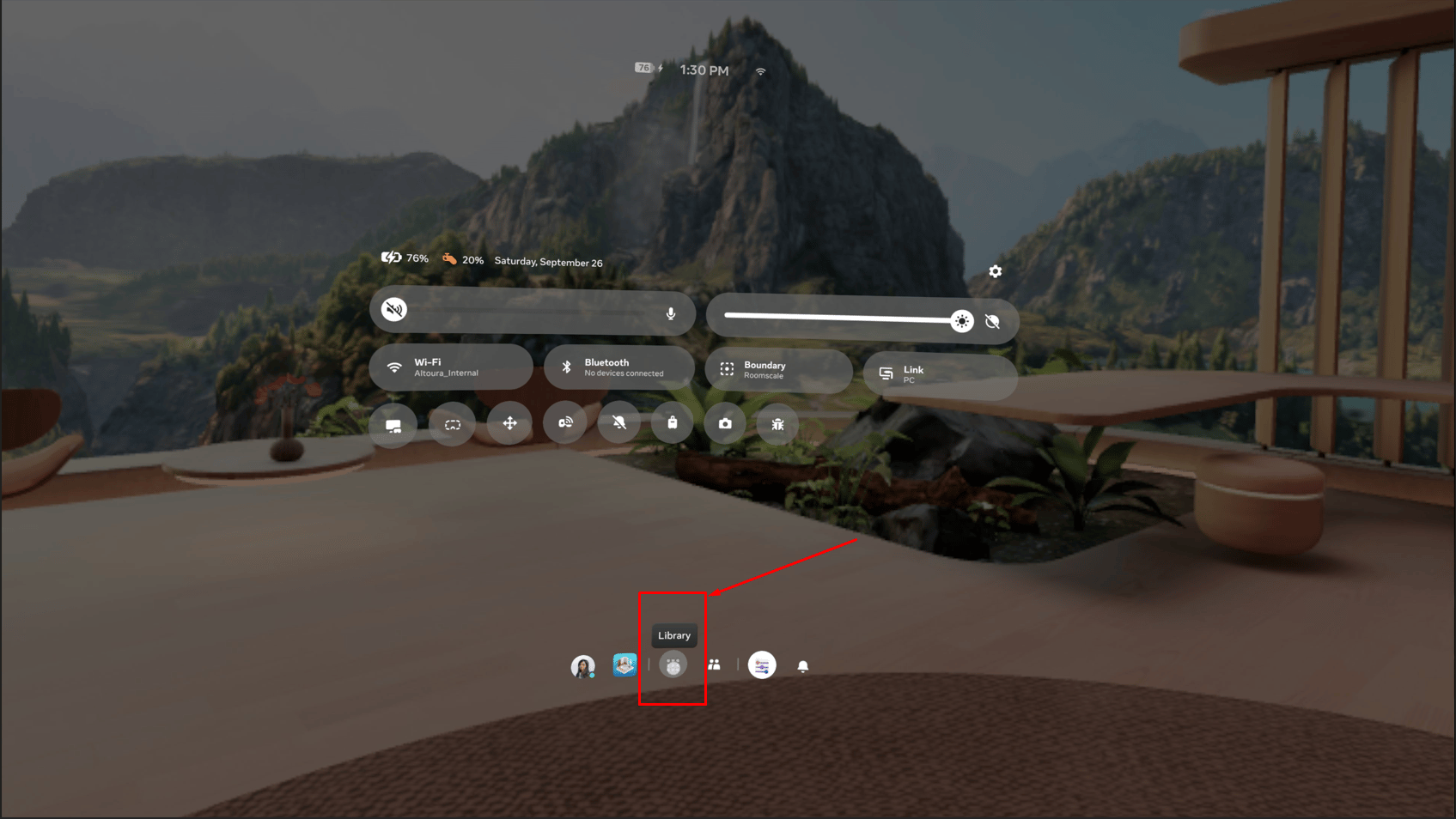
- In the quest universal menu, click on Library
-
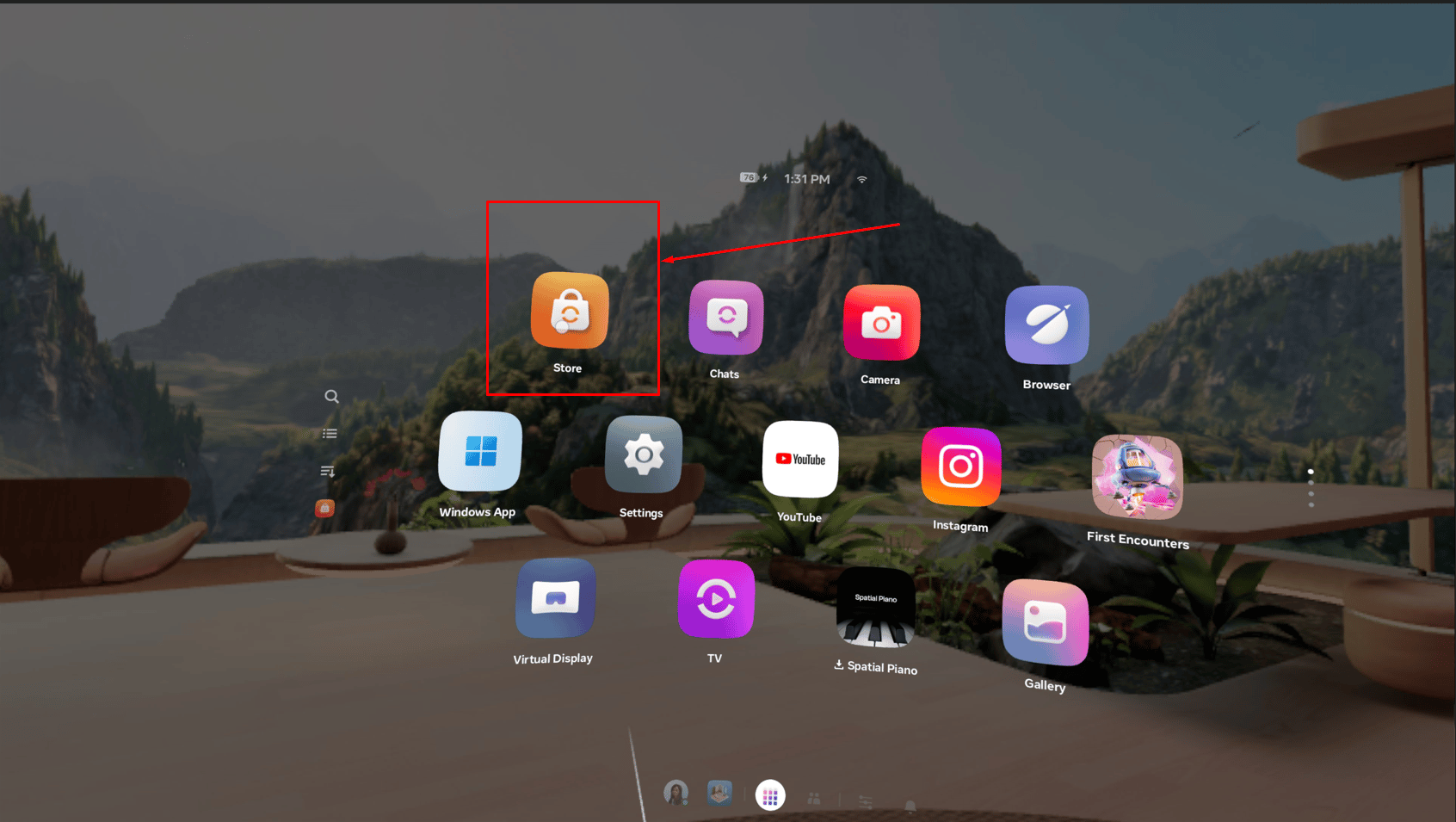
Select Microsoft Horizon Store
-
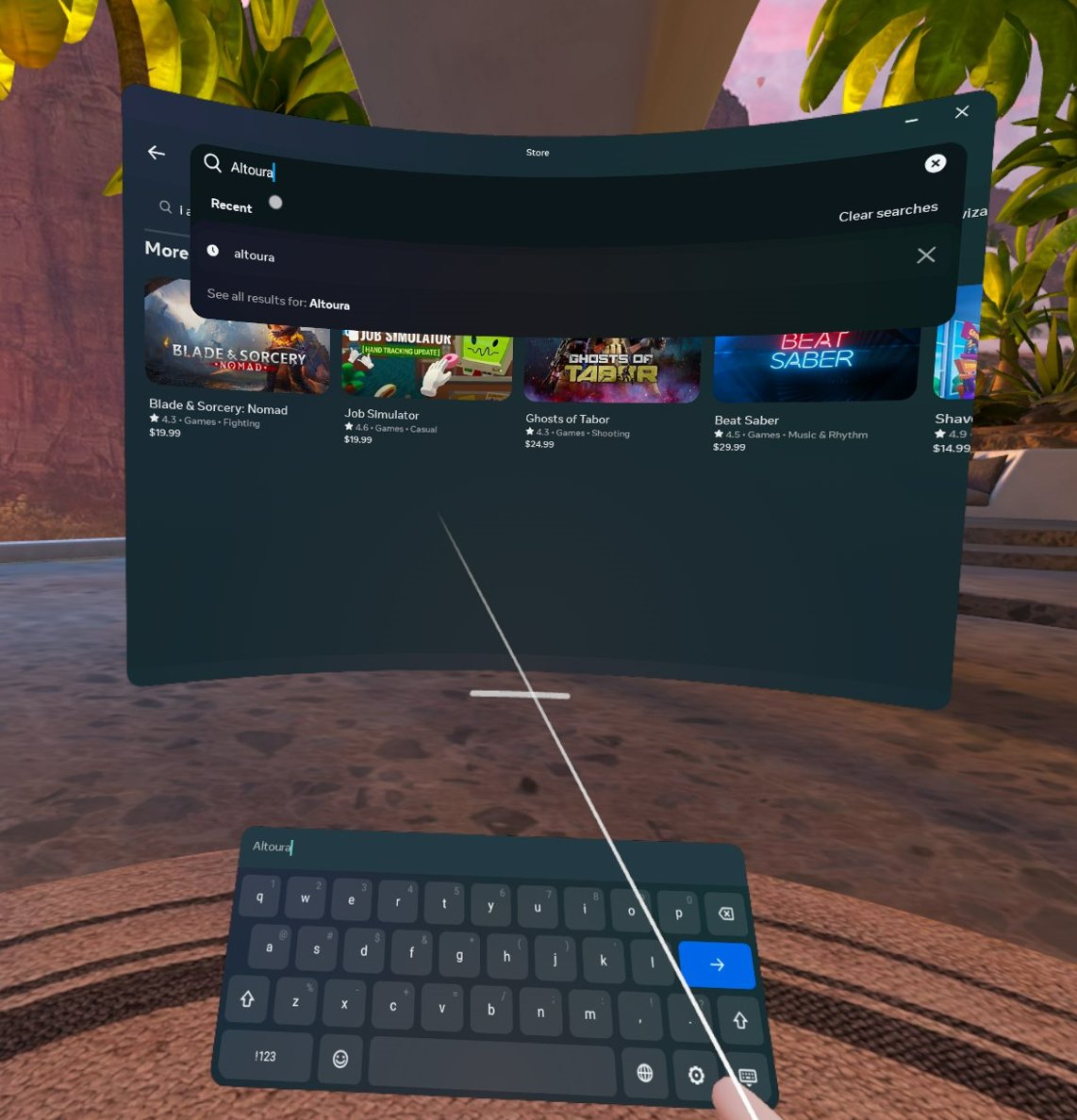
Search for Altoura and download
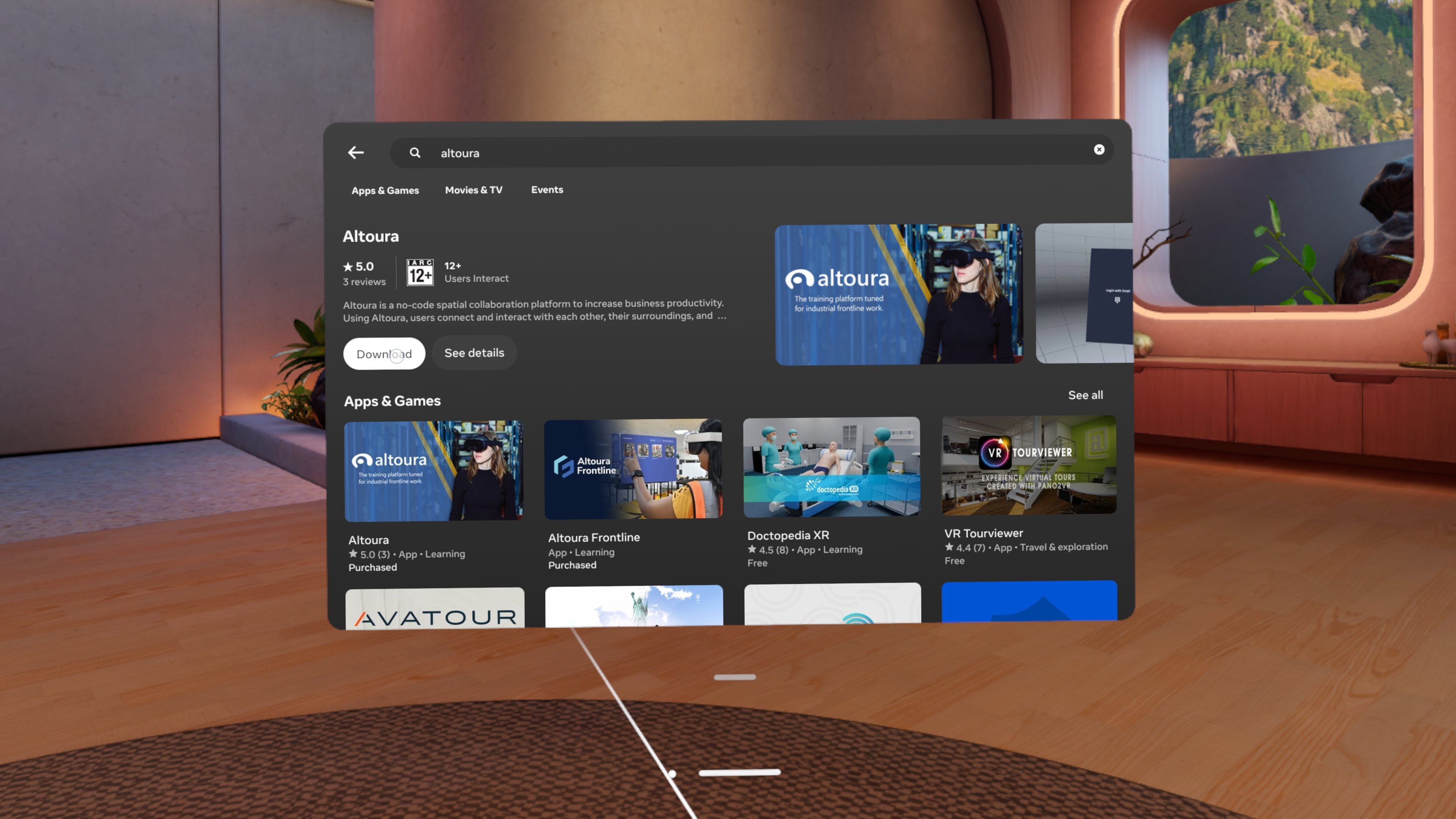
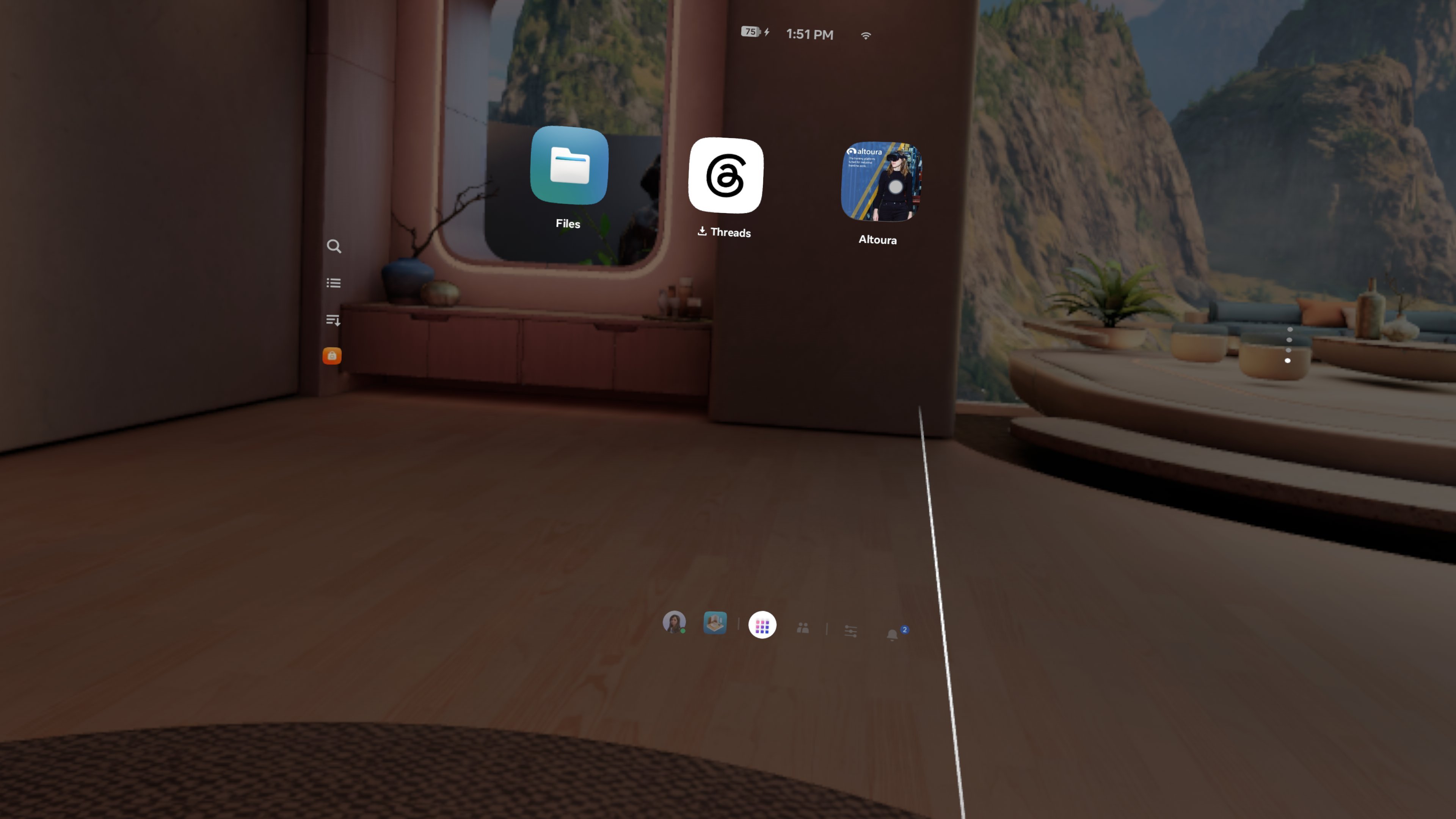
- Launch Altoura once downloaded. Altoura app will be visible in the library after the download.
SideLoading app from SideQuest
Prerequisites
- Oculus Quest.
- USB-C cable to connect your Oculus Quest to your computer.
- A PC or Mac with an internet connection.
- SideQuest installed on your computer.
- Oculus Developer Account – Required to enable developer mode.
-
Create a Developer Account:
- Go to the Oculus Developer Dashboard and sign in with your Meta (Oculus) account.
- Navigate to Manage Organizations and click Create New Organization.
- Enter an organization name and accept the Developer Agreement to create a developer account.
-
Enable Developer Mode:
-
Download meta horizon app on your smartphone and open it.
- Ensure your Oculus Quest is connected to the app. (A step by step instruction will be shown while setting up the quest for the first time within the quest itself)
-
In the app, go to Devices.
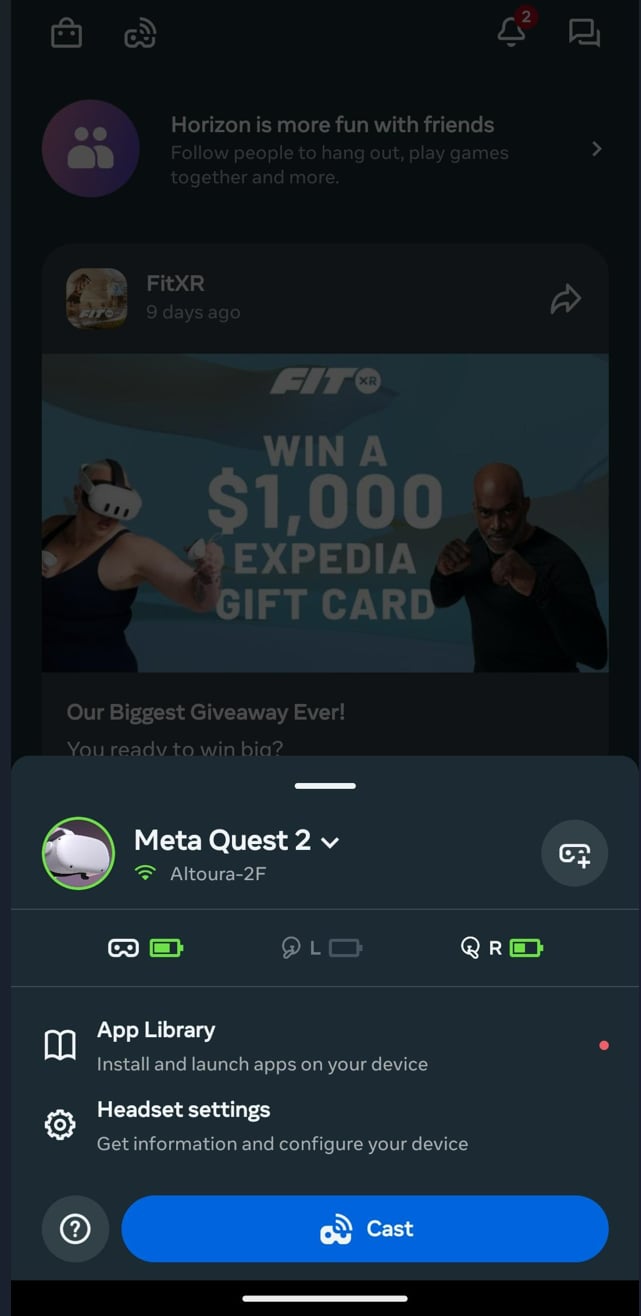
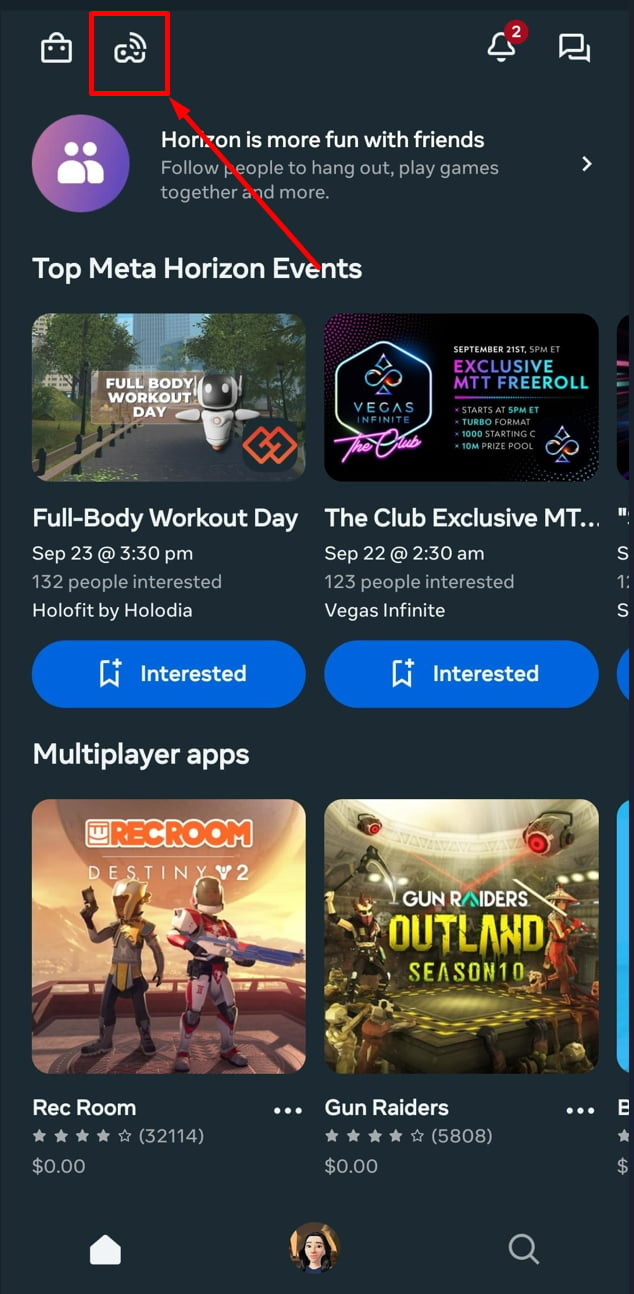
- Select your connected Oculus Quest.
-
Scroll down to the Developer Mode option and tap on it.
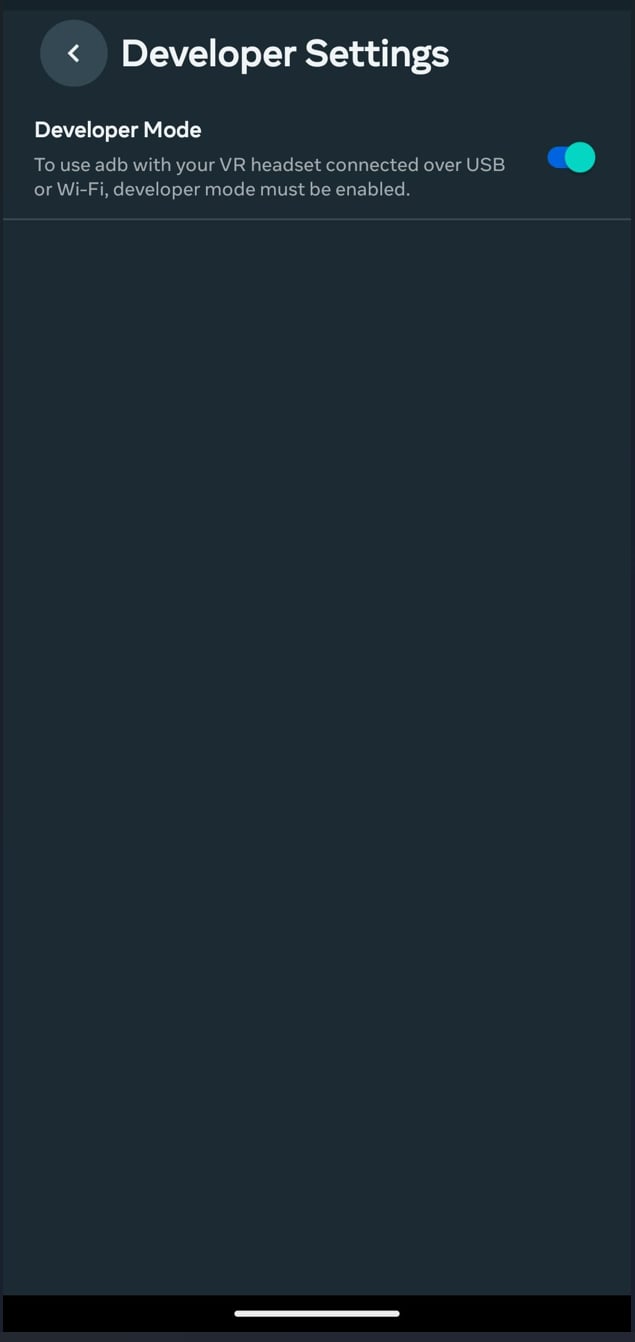
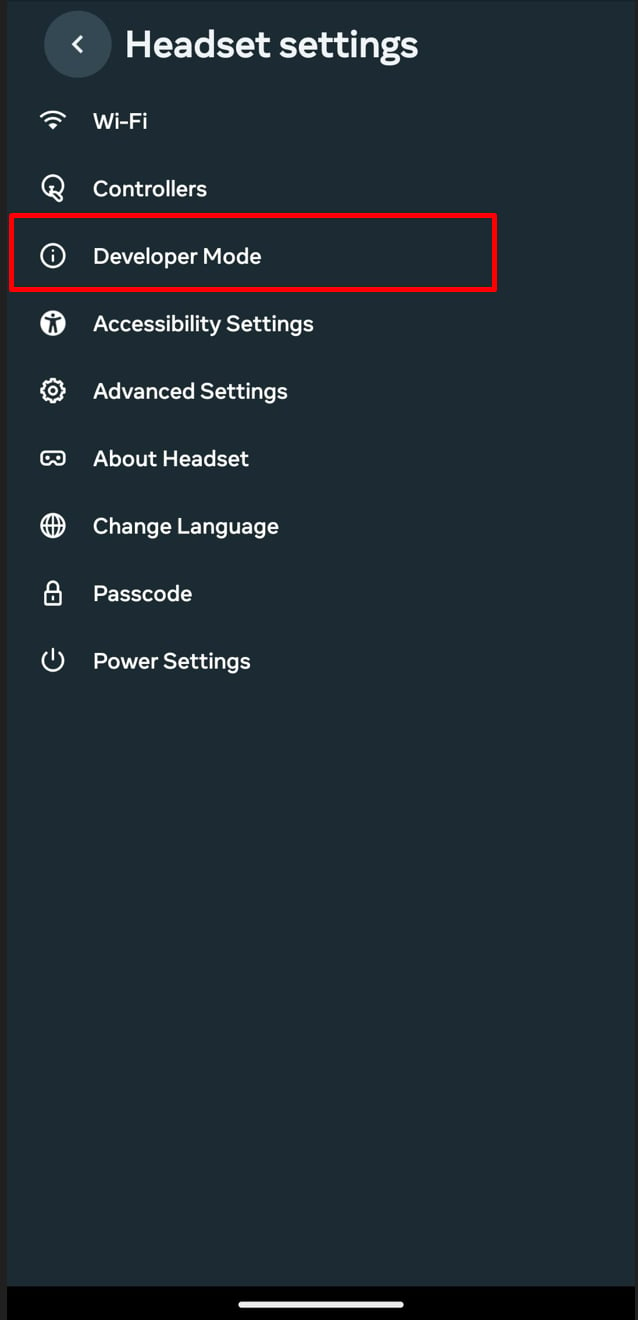
- Toggle Developer Mode to ON.
- Restart your Oculus Quest by holding down the power button and selecting Restart.
-
Download meta horizon app on your smartphone and open it.
- Go here to download SideQuest: https://sidequestvr.com/setup-howto
- Install SideQuest by following the installation steps for your OS.
- Once installed, launch SideQuest.
-
Connect your Oculus Quest to your computer using the USB-C cable.
- You may use the USB-C to USB-C or USB-C to USB-A cable, depending on your computer’s port.
- Put on your Oculus Quest headset. You will see a prompt asking you to Allow USB Debugging. Select Always allow from this computer and then tap OK.
-
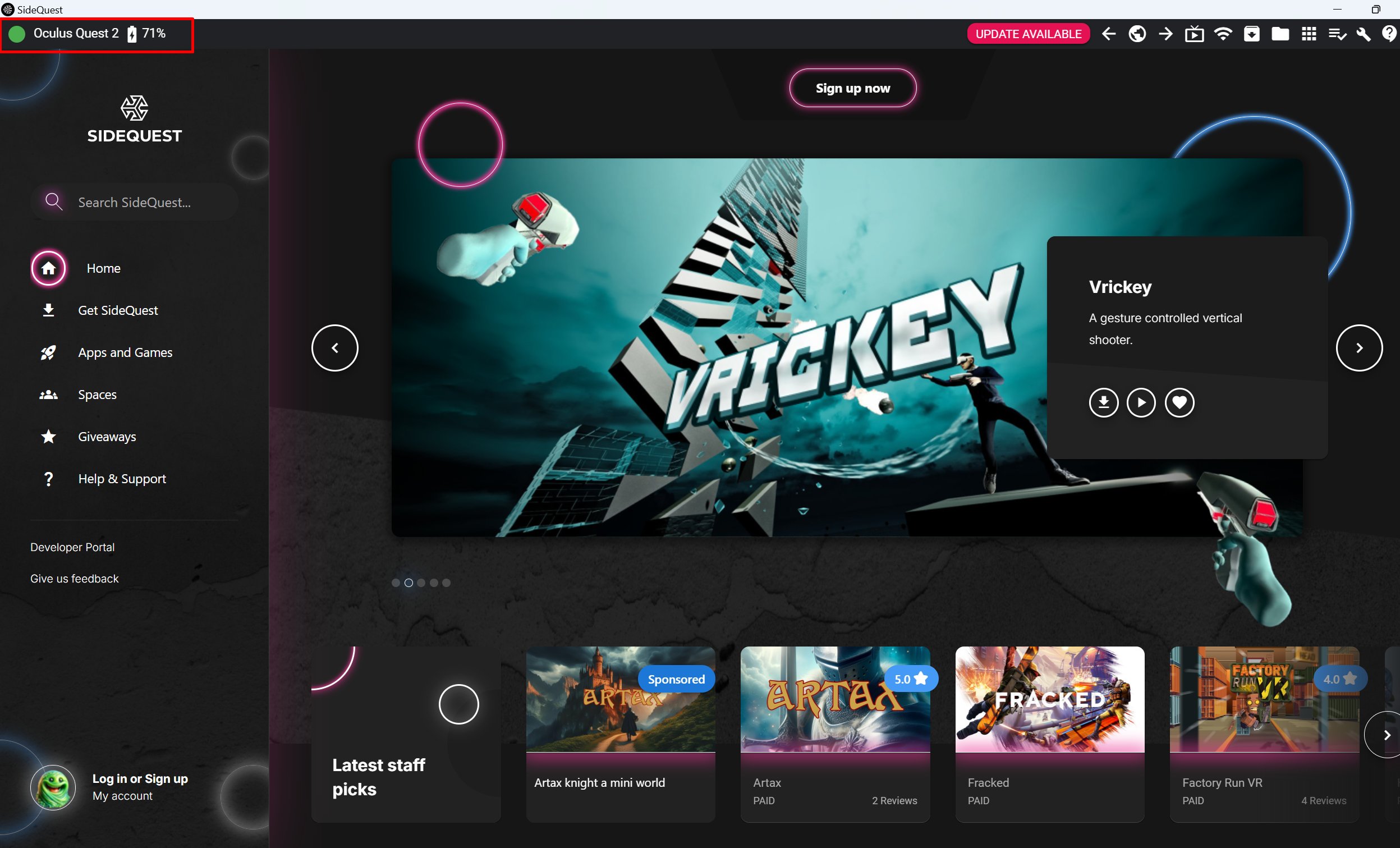
Once connected, SideQuest will automatically detect your device. You should see a green dot in the top-left corner of the SideQuest app, indicating that your Oculus Quest is connected and ready.
-
With SideQuest open and your Oculus Quest connected, you can now sideload apps.
-
Sideload an APK from Your Computer:
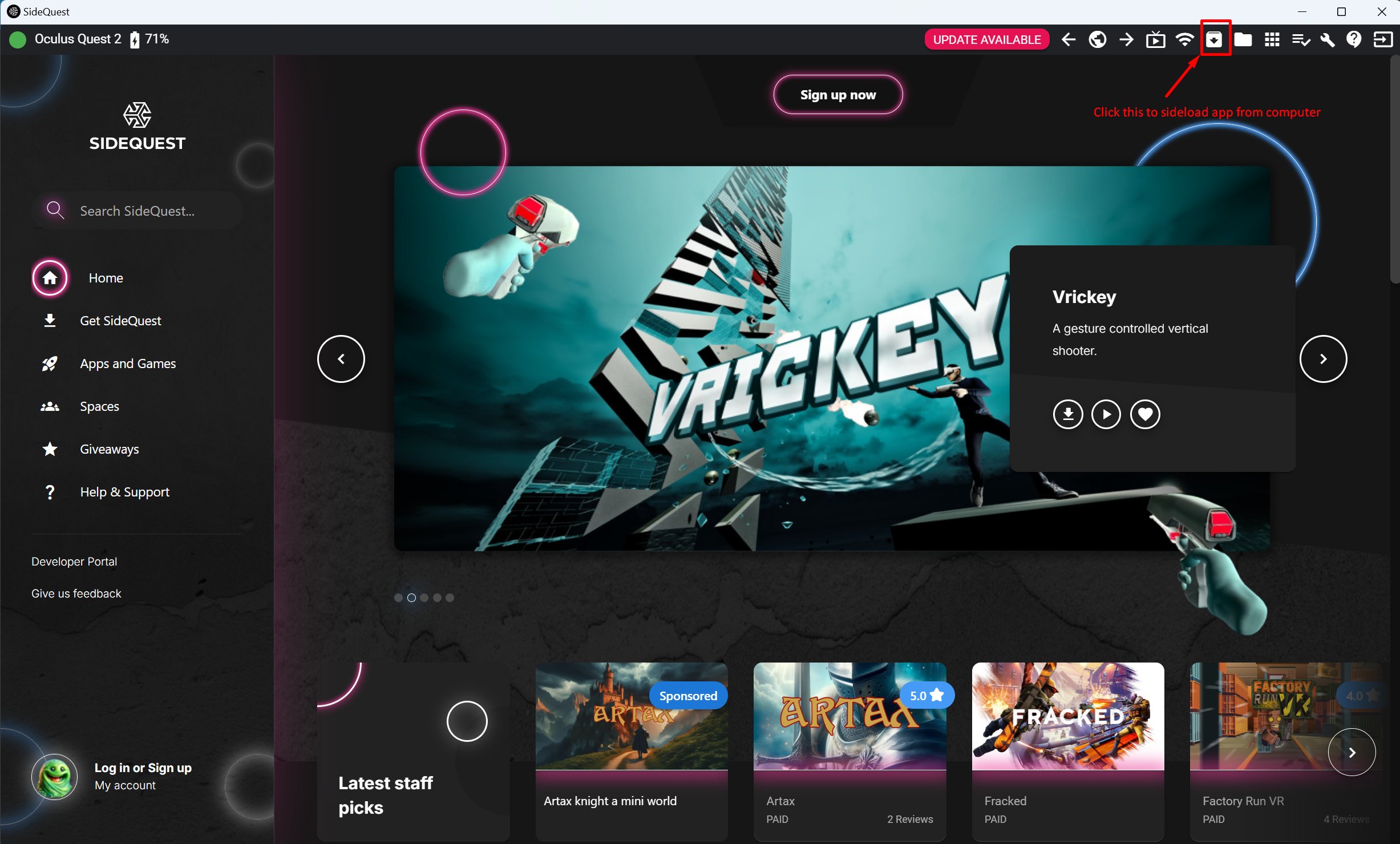
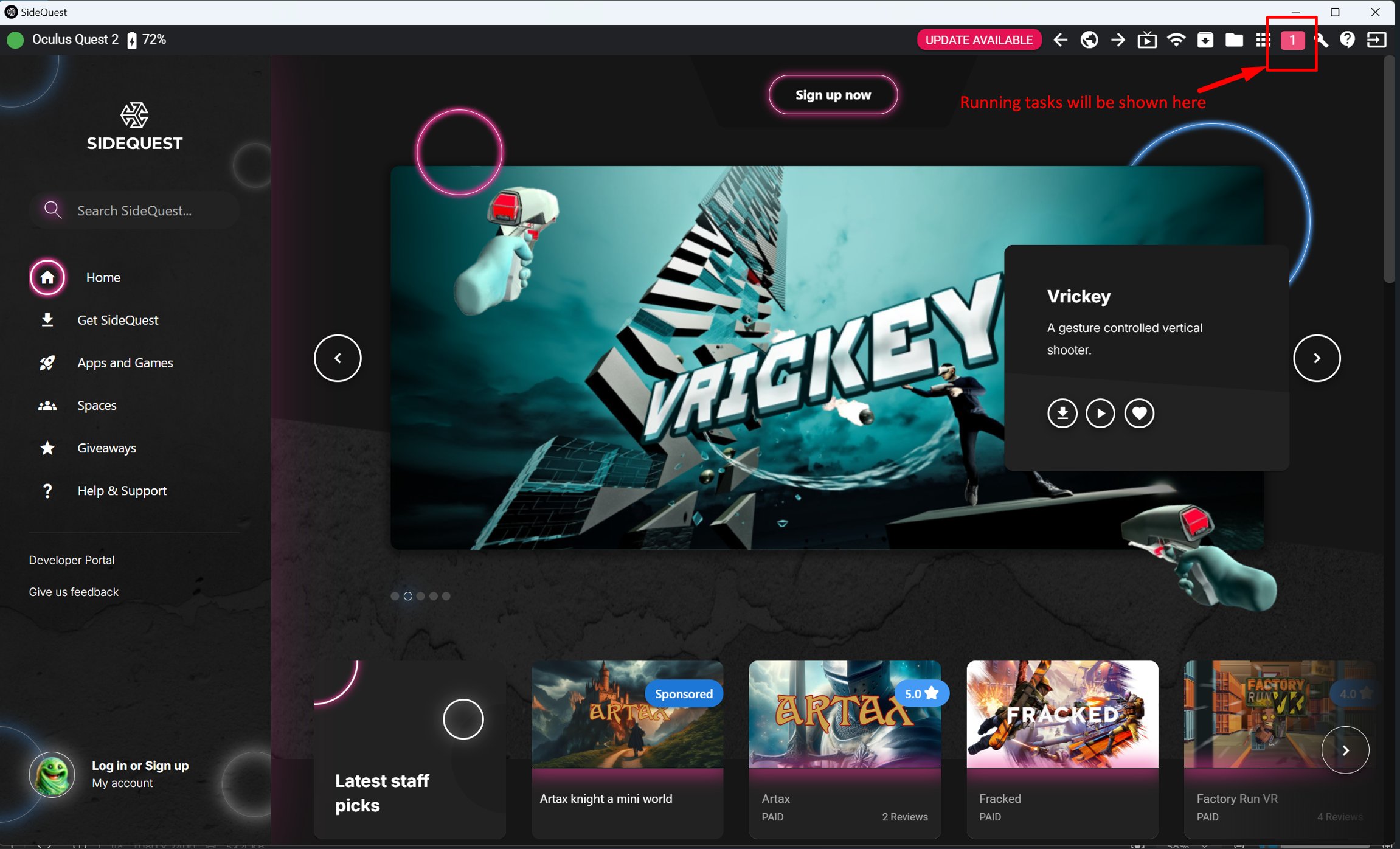
- If you have an APK file of an app you want to install, drag and drop the APK into SideQuest, or use the Install APK file from folder button in the top-right corner.
-
If you dont have APK download from here https://portal.altoura.com/download/quest
-
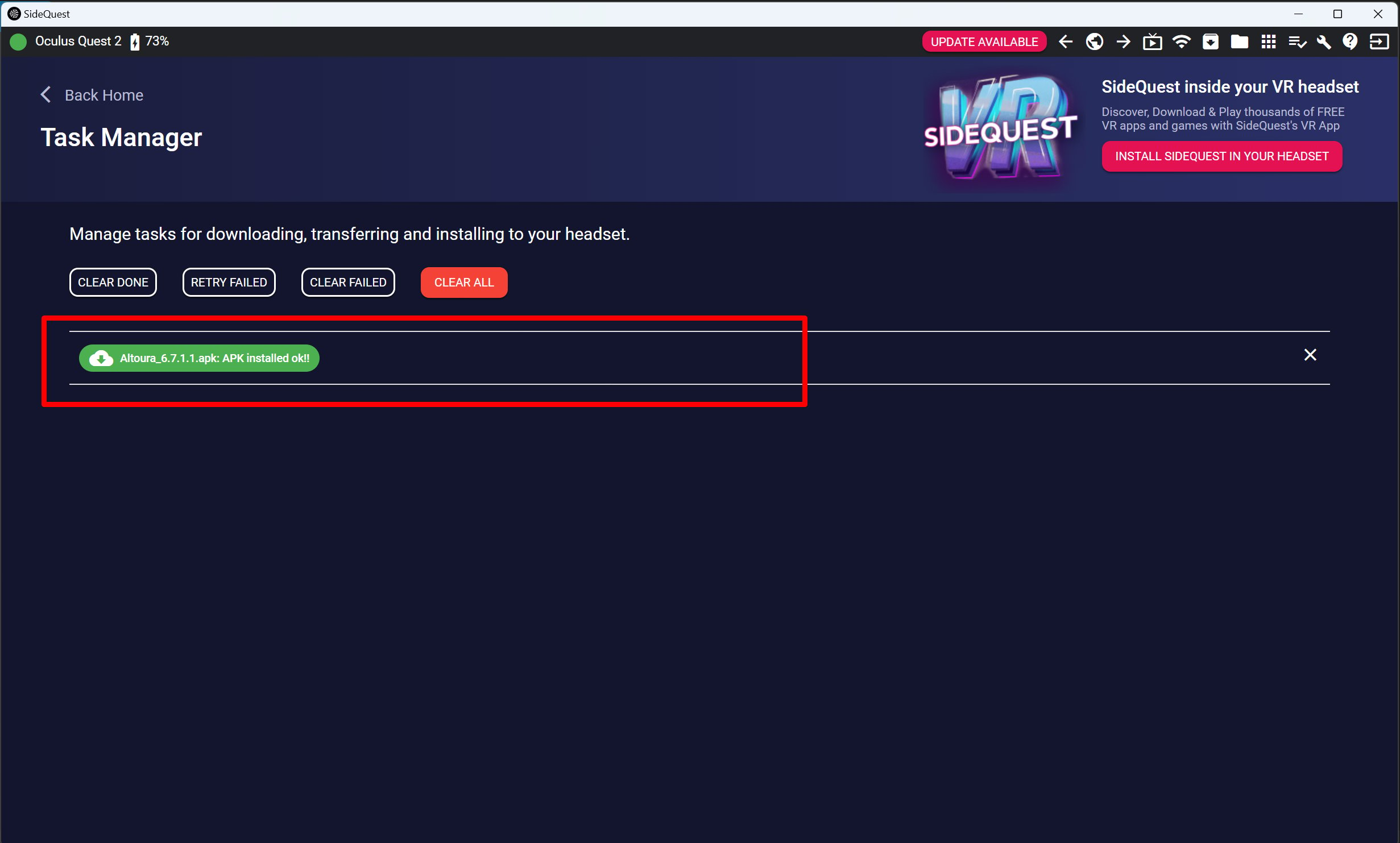
Once the file is installed, you will see a confirmation message.
-
Sideload an APK from Your Computer:
- Once the sideloading process is complete, put on your Oculus Quest.
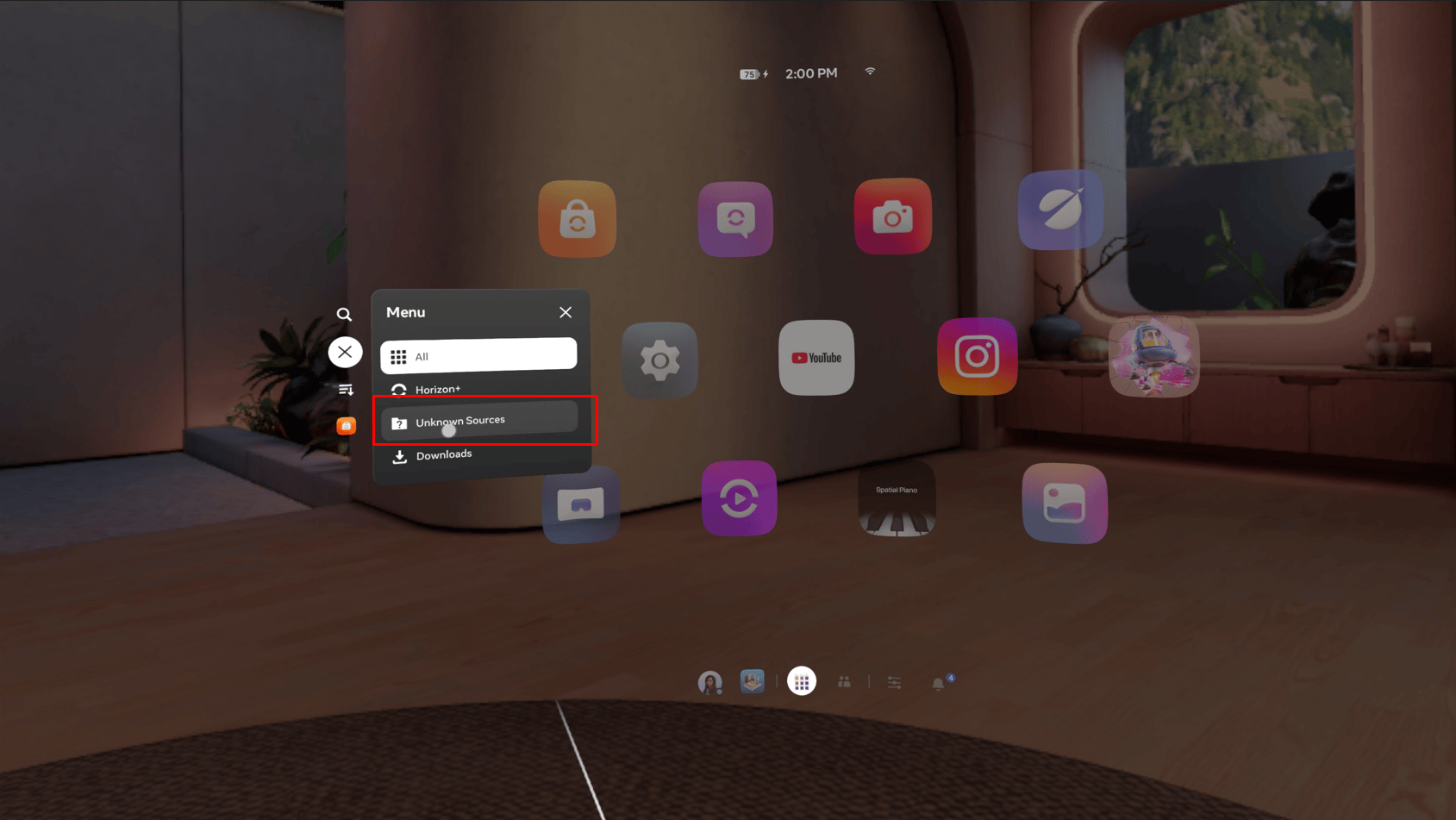
- Open the Apps section(Library) from your Quest’s home menu.
-
At the top-right corner, change the filter from All to Unknown Sources.
-
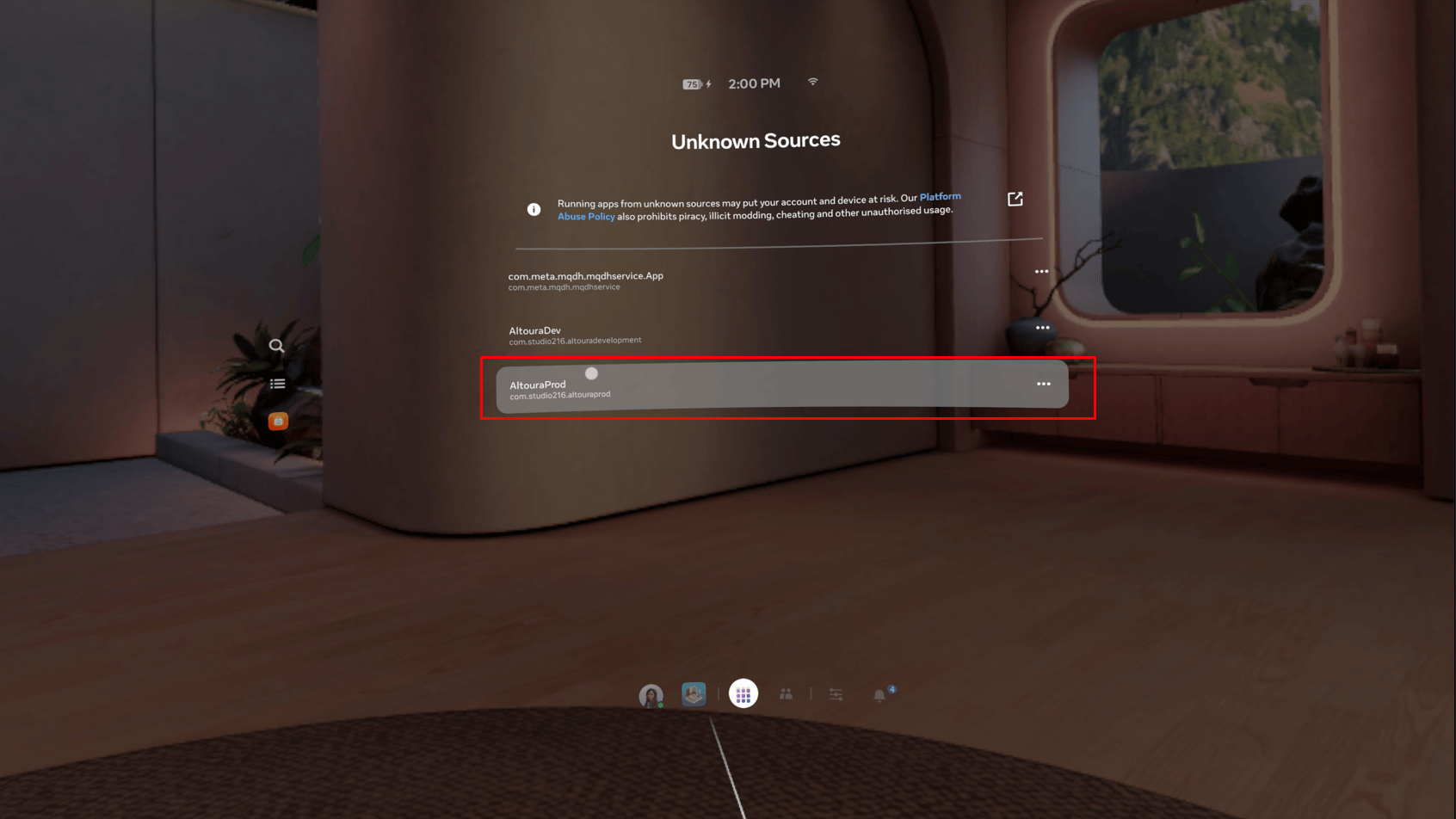
Here, you’ll find all the apps you’ve sideloaded via SideQuest.
- Open the Meta Quest app on your smartphone.
- Go to Menu > Devices > Manage Storage.
- Select the app you wish to remove and click Uninstall.
Logging in using Email
Tap on Login with Email.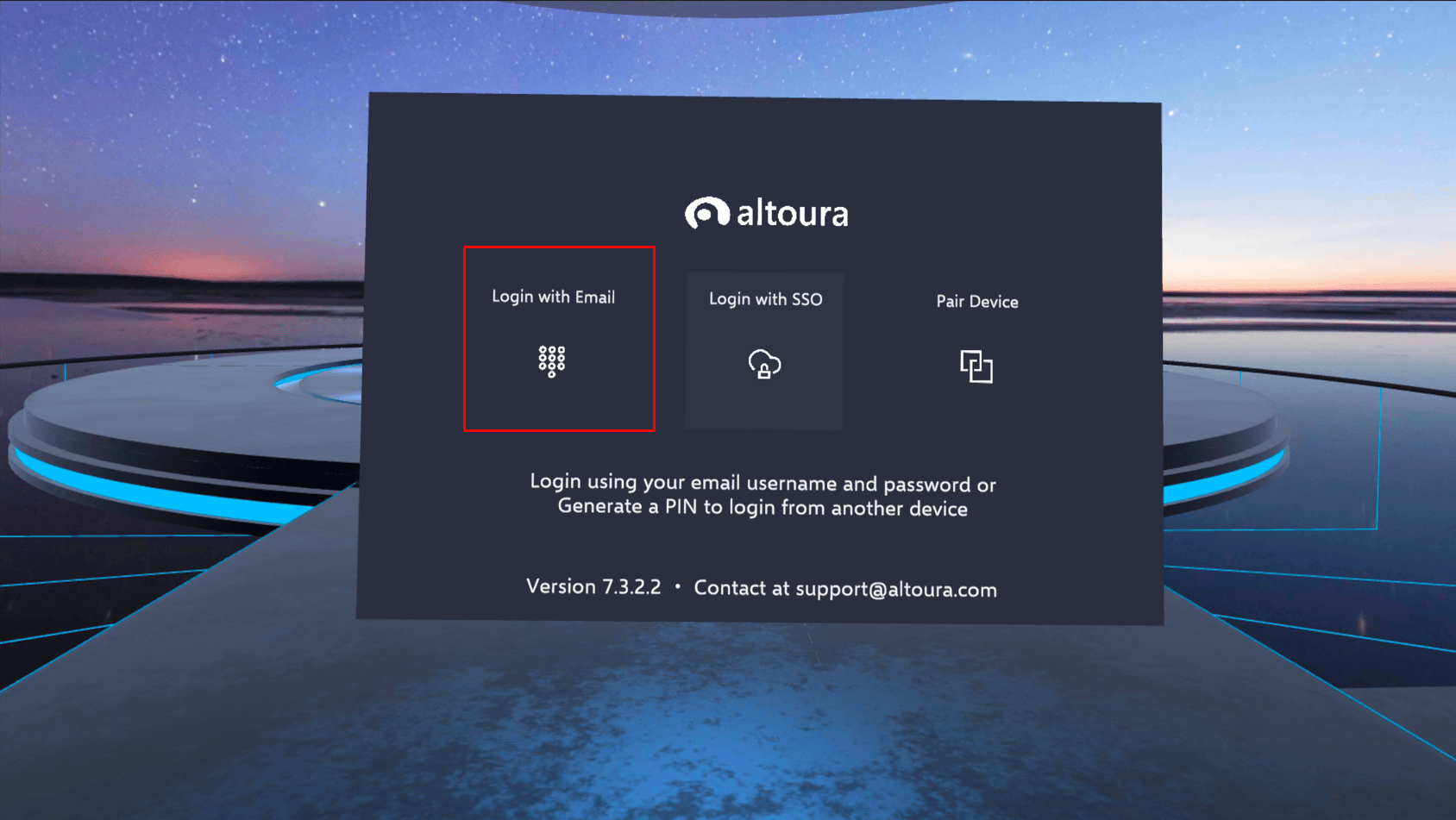
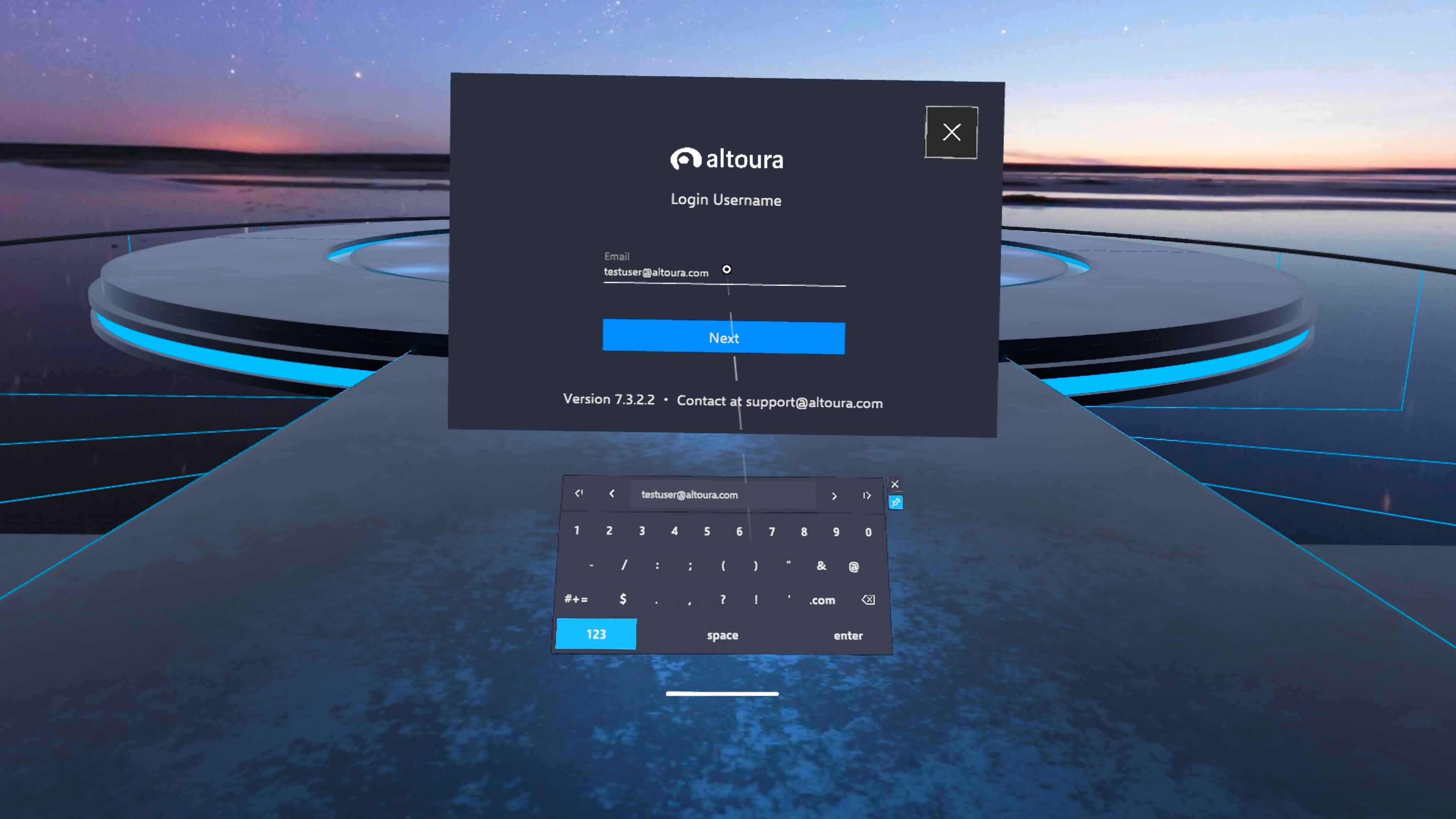
Logging in using a logged in device (pair device)
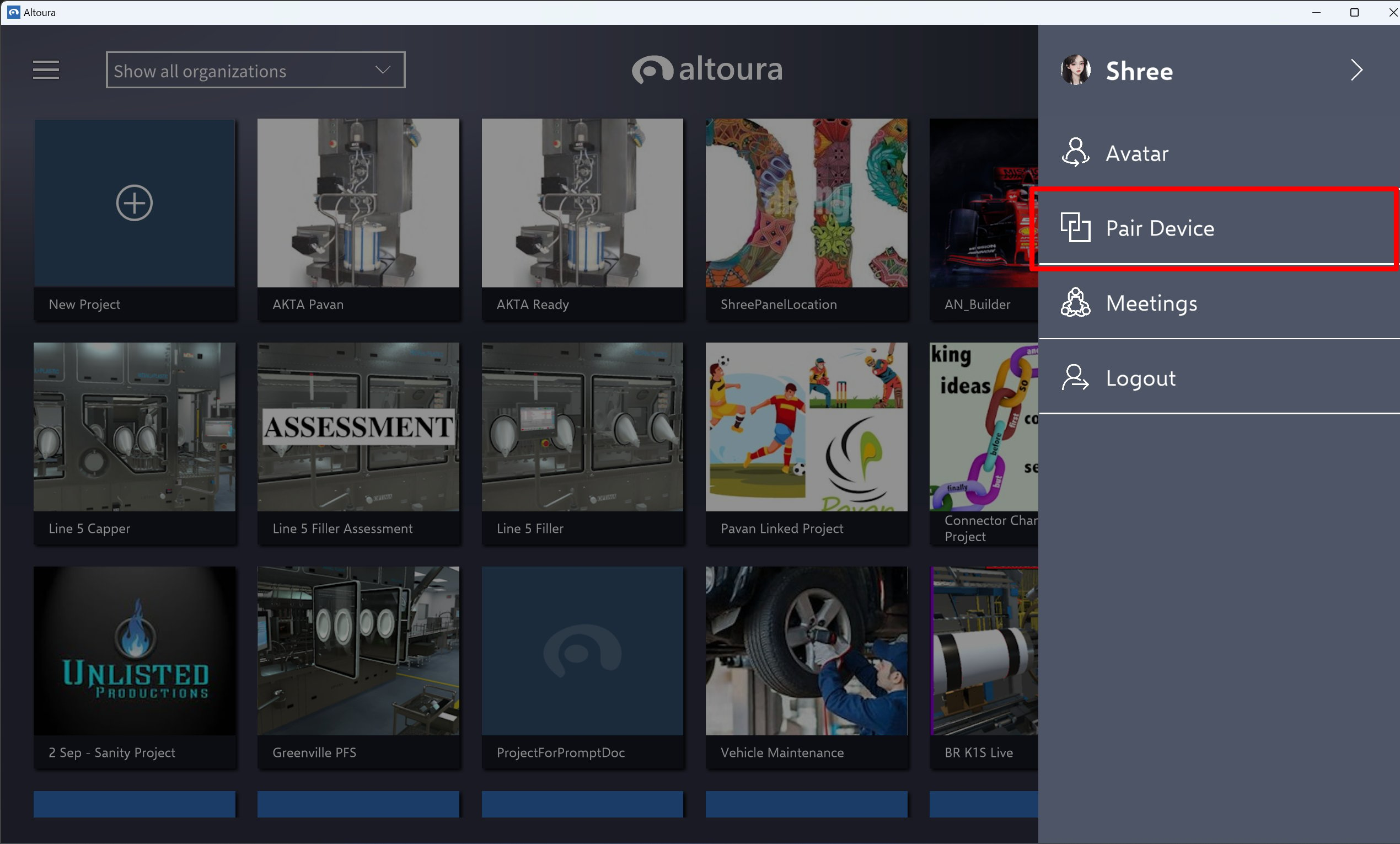
- Install Desktop App using https://portal.altoura.com/download/windows for windows and https://portal.altoura.com/download/mac for mac and log in using Altoura credentials.
- For mobile devices install the app through respected store.
-
Once logged in click on the user profile on right top corner and click on pair device
-
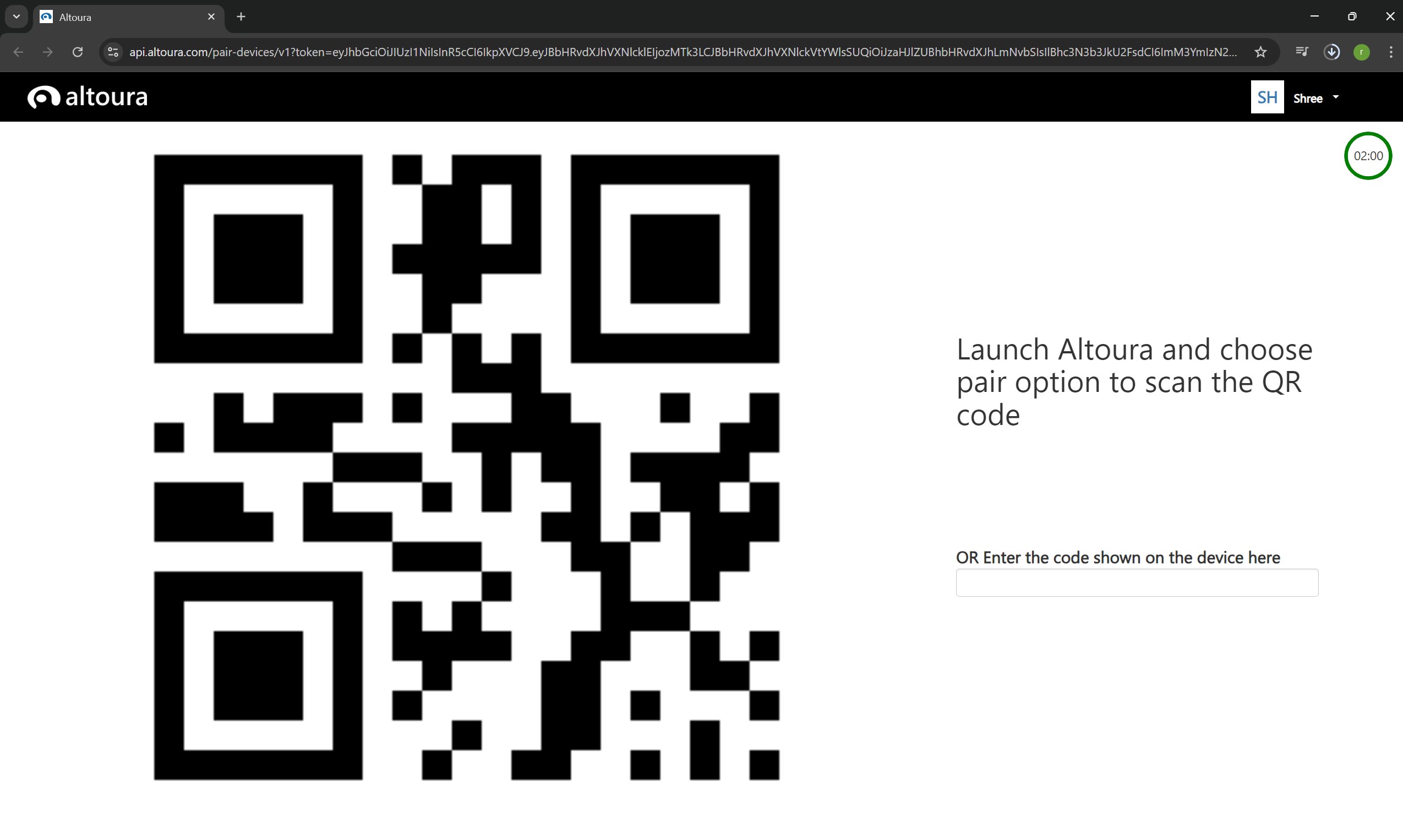
On click of pair device, a web page opens up
-
Meanwhile in quest click on pair device
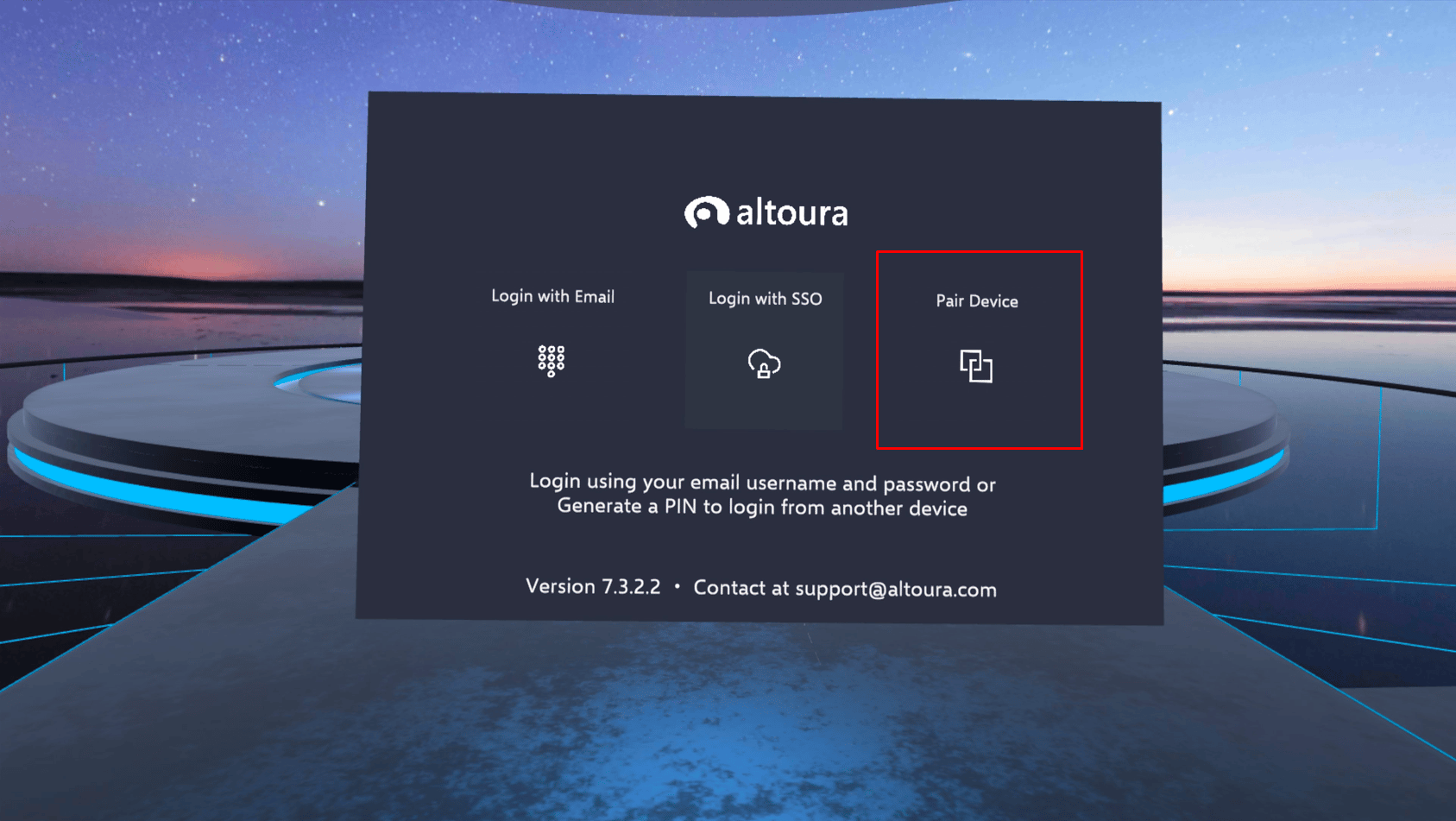
-
The system generates a six-digit PIN.
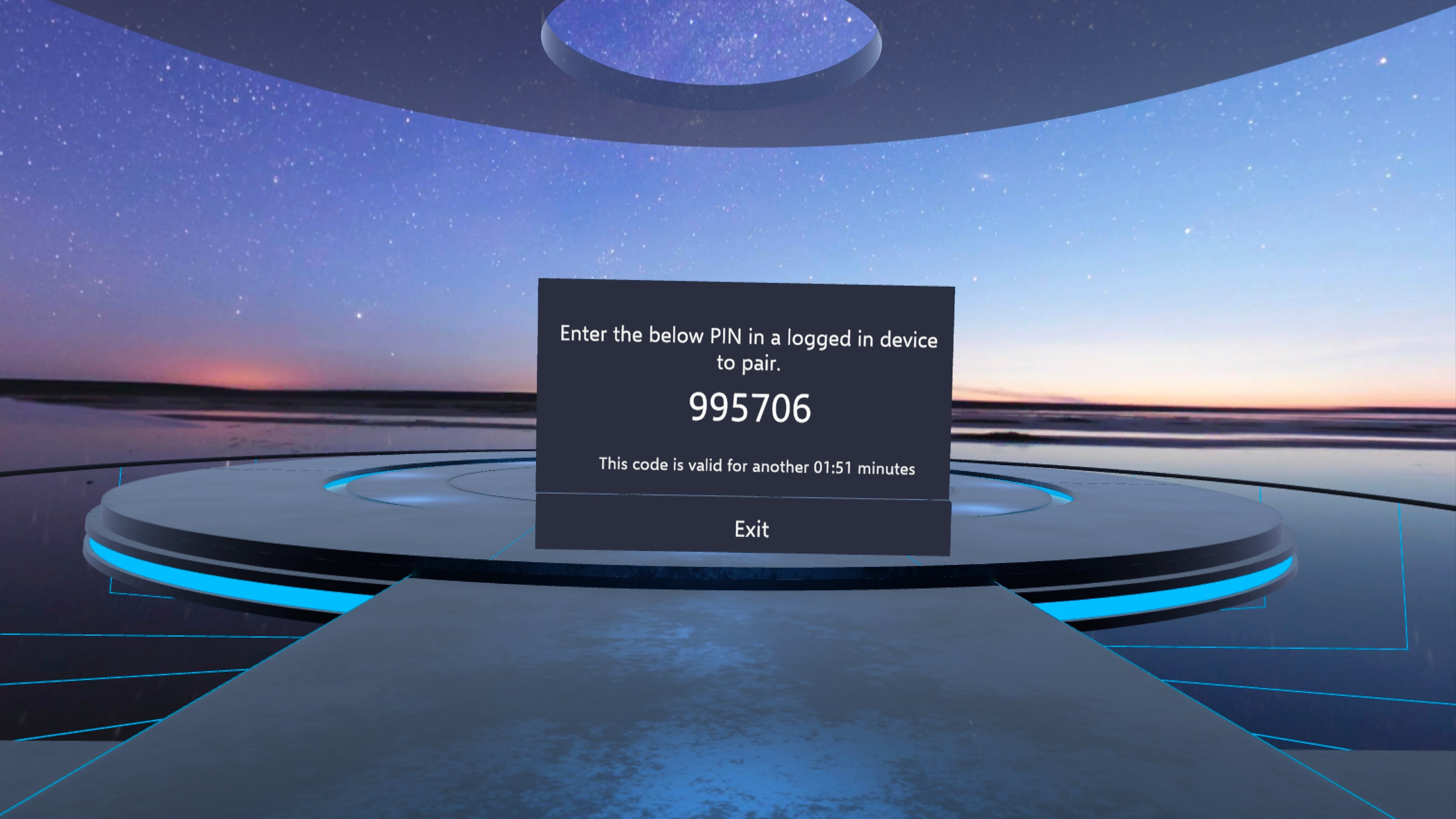
- The PIN expires in 2 minutes.
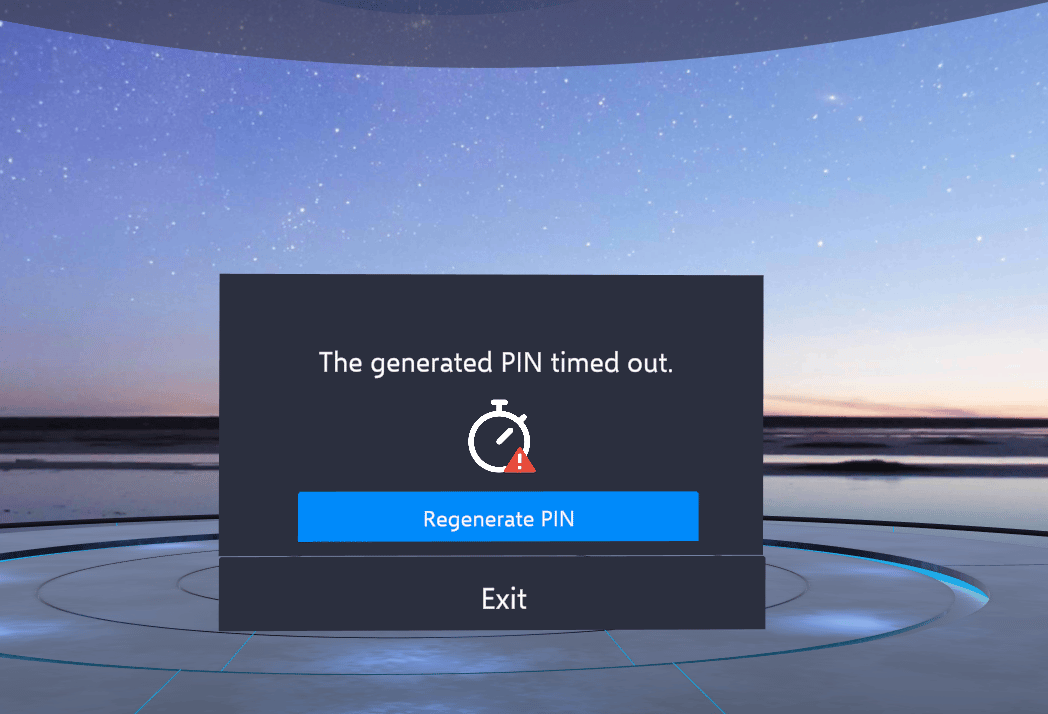
- Enter the PIN from your Head Mounted Device in the browser
-
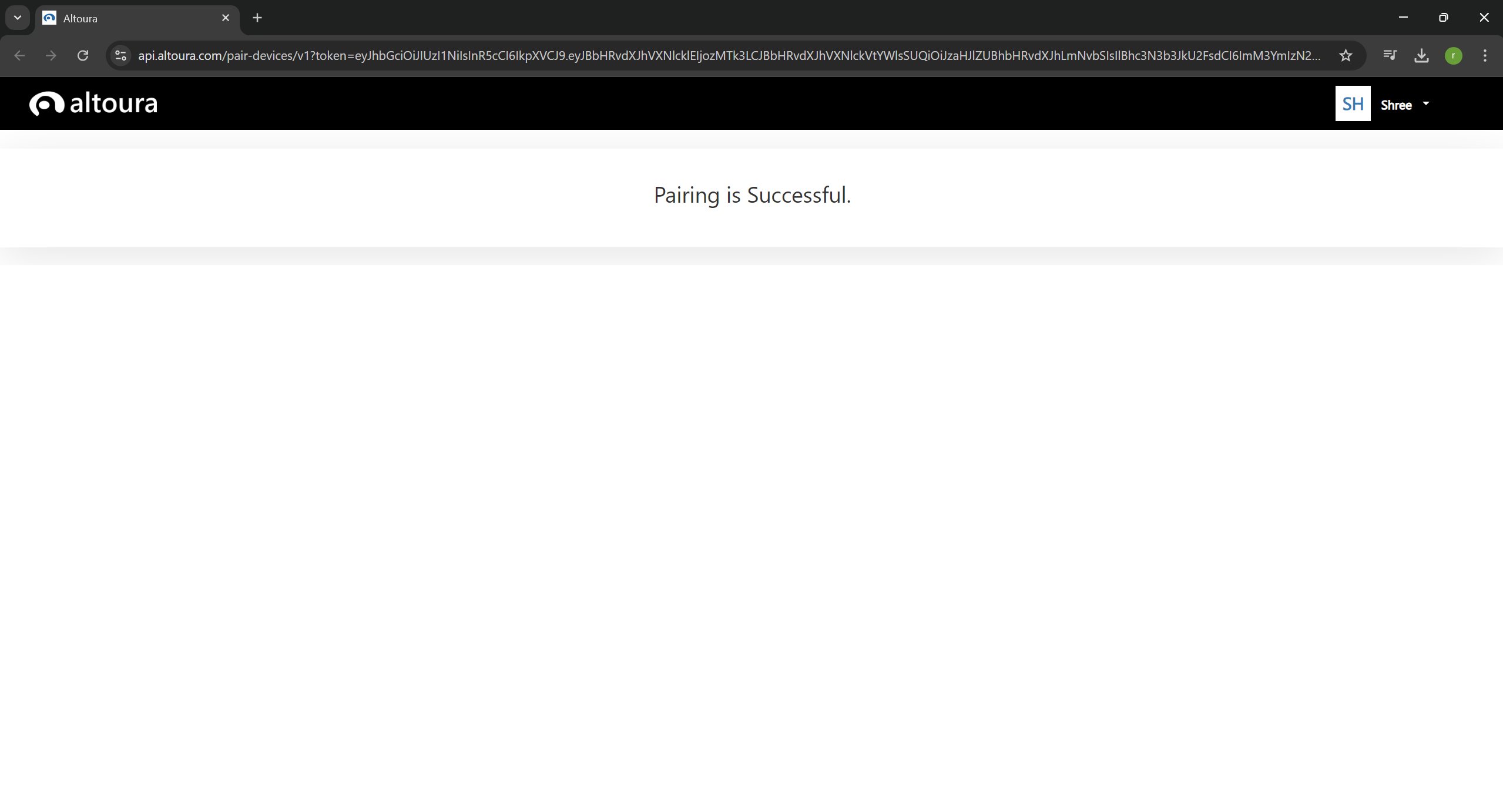
Your device is paired successfully.
Logout
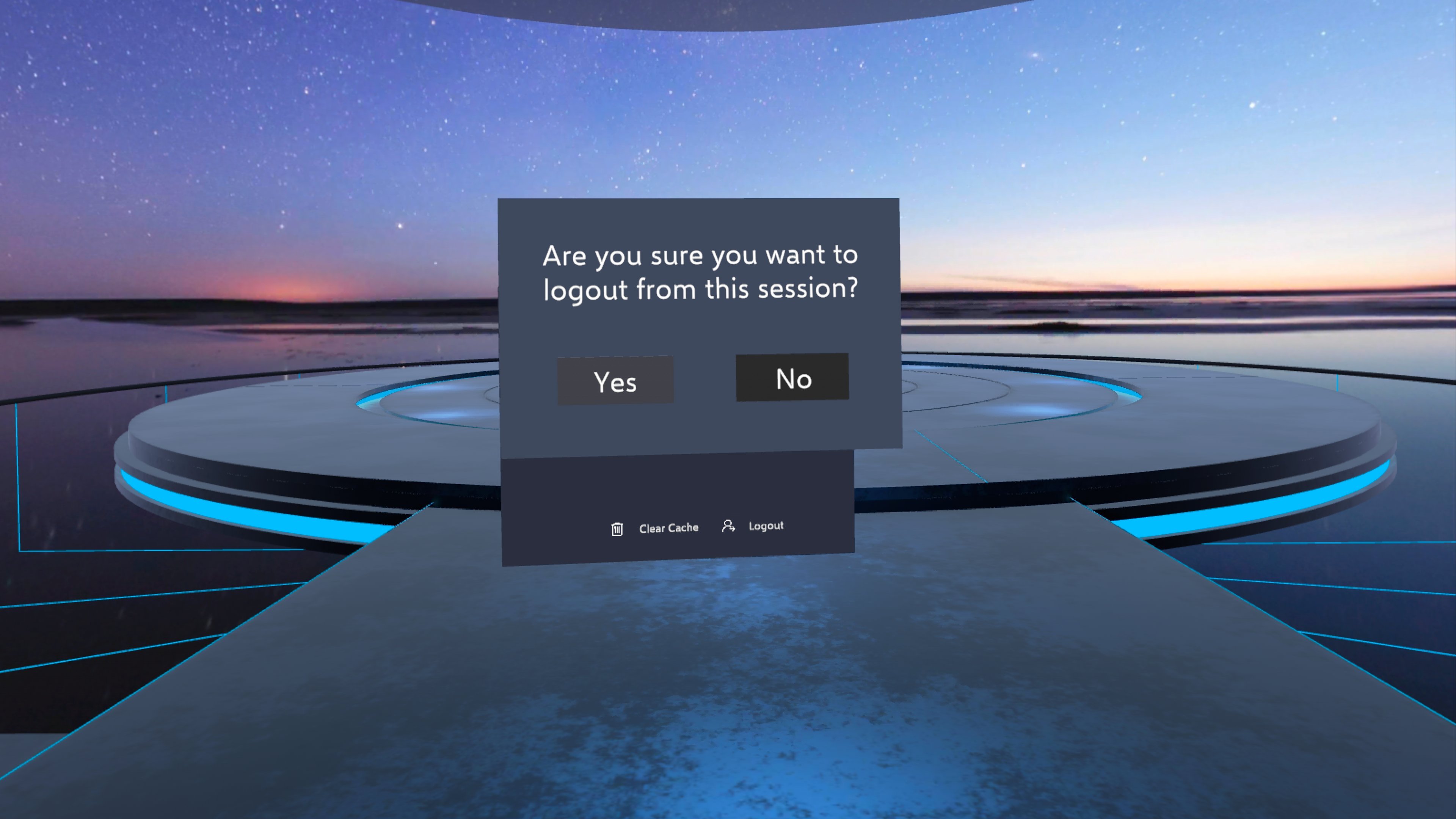
Tap on Logout from the button bar.