Module Selection

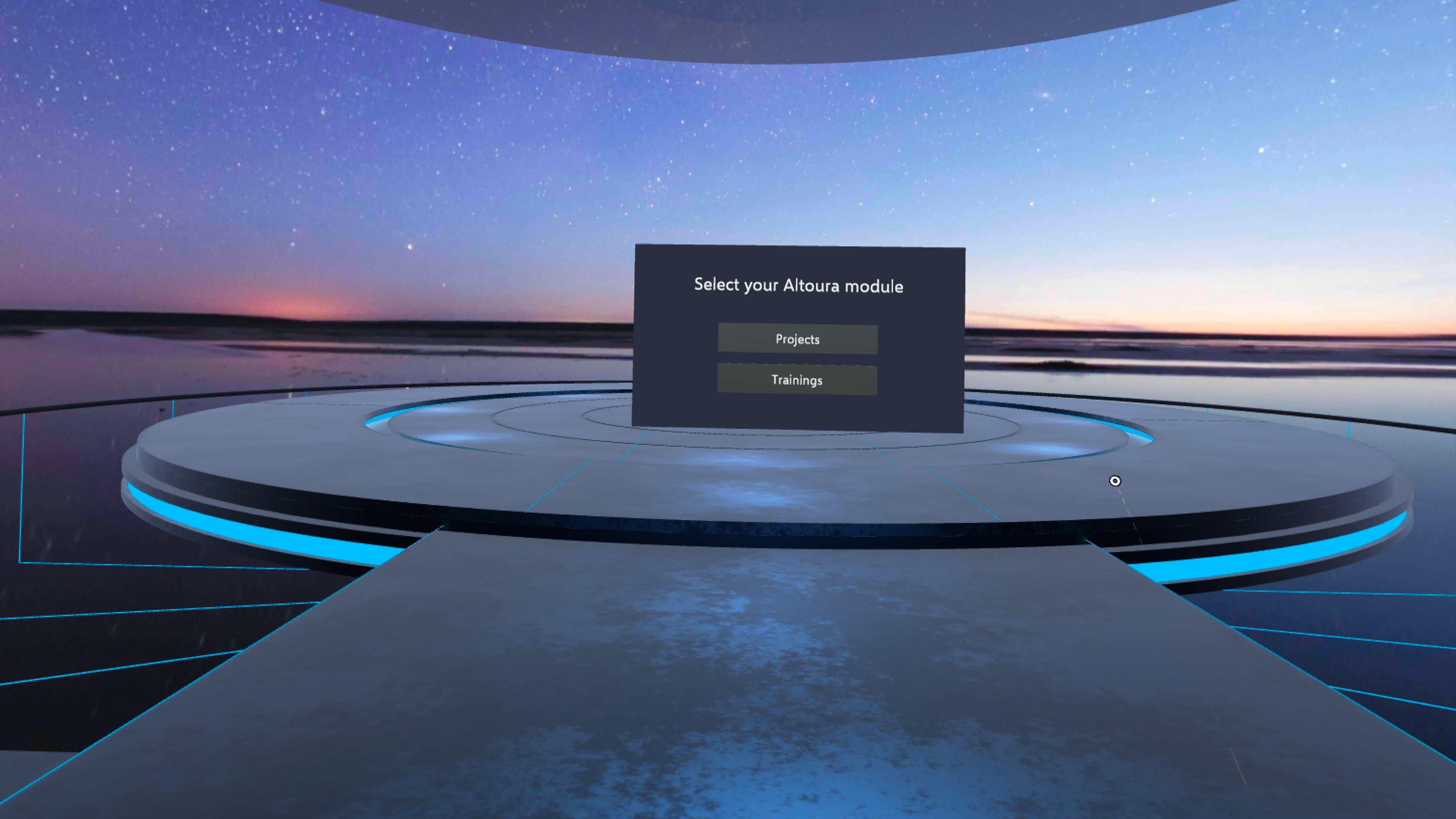
After you log in, the Module Selection screen appears if you have access to both Projects and Trainings. Tap Projects to open the Project screen. If you have access to only one module, the Module Selection screen is skipped and you go straight to that module’s list screen. 1024 Each list screen has its own Exit button (top right) that takes you back to the Module Selection screen, and its own user profile button.
Projects

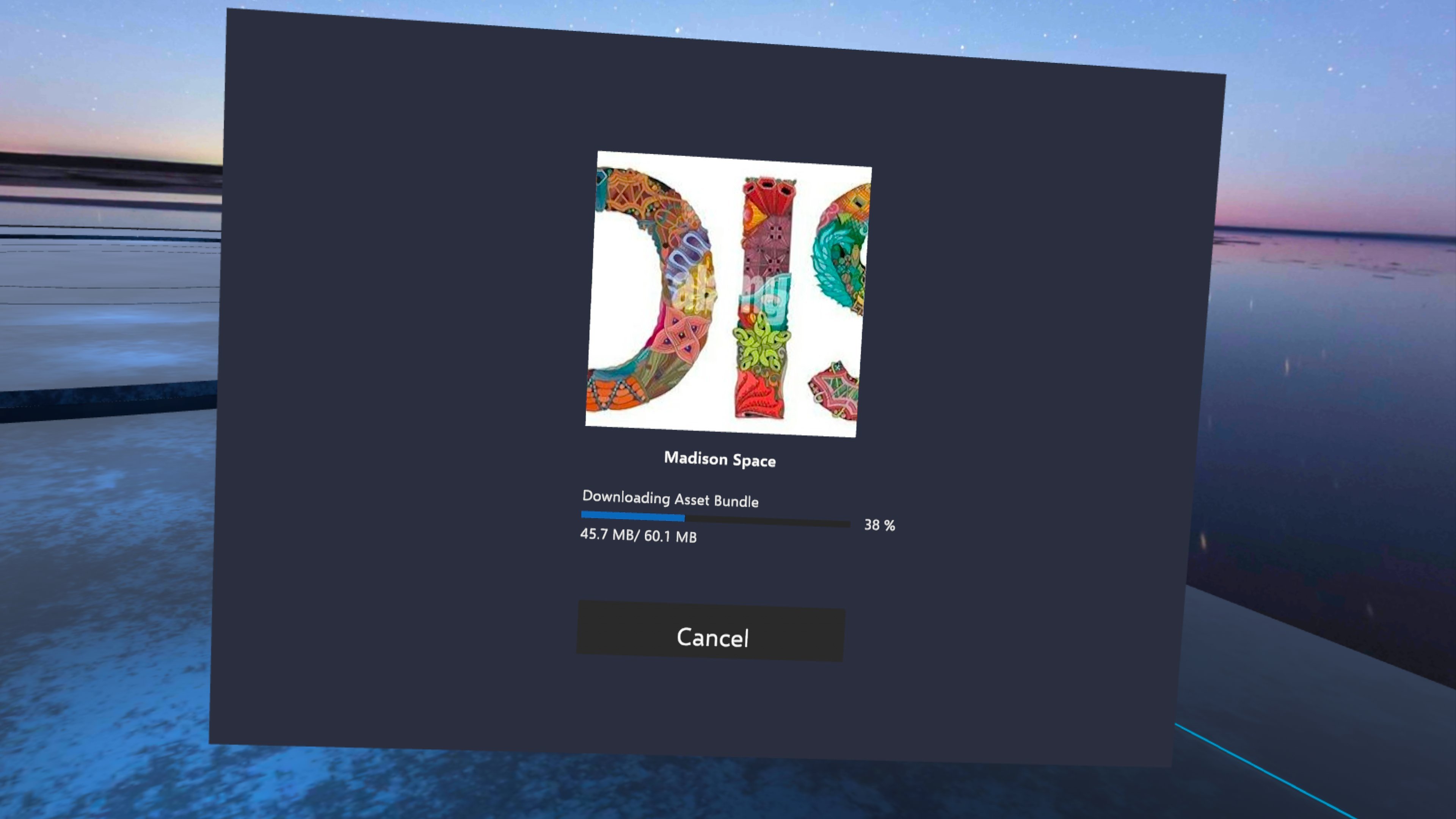
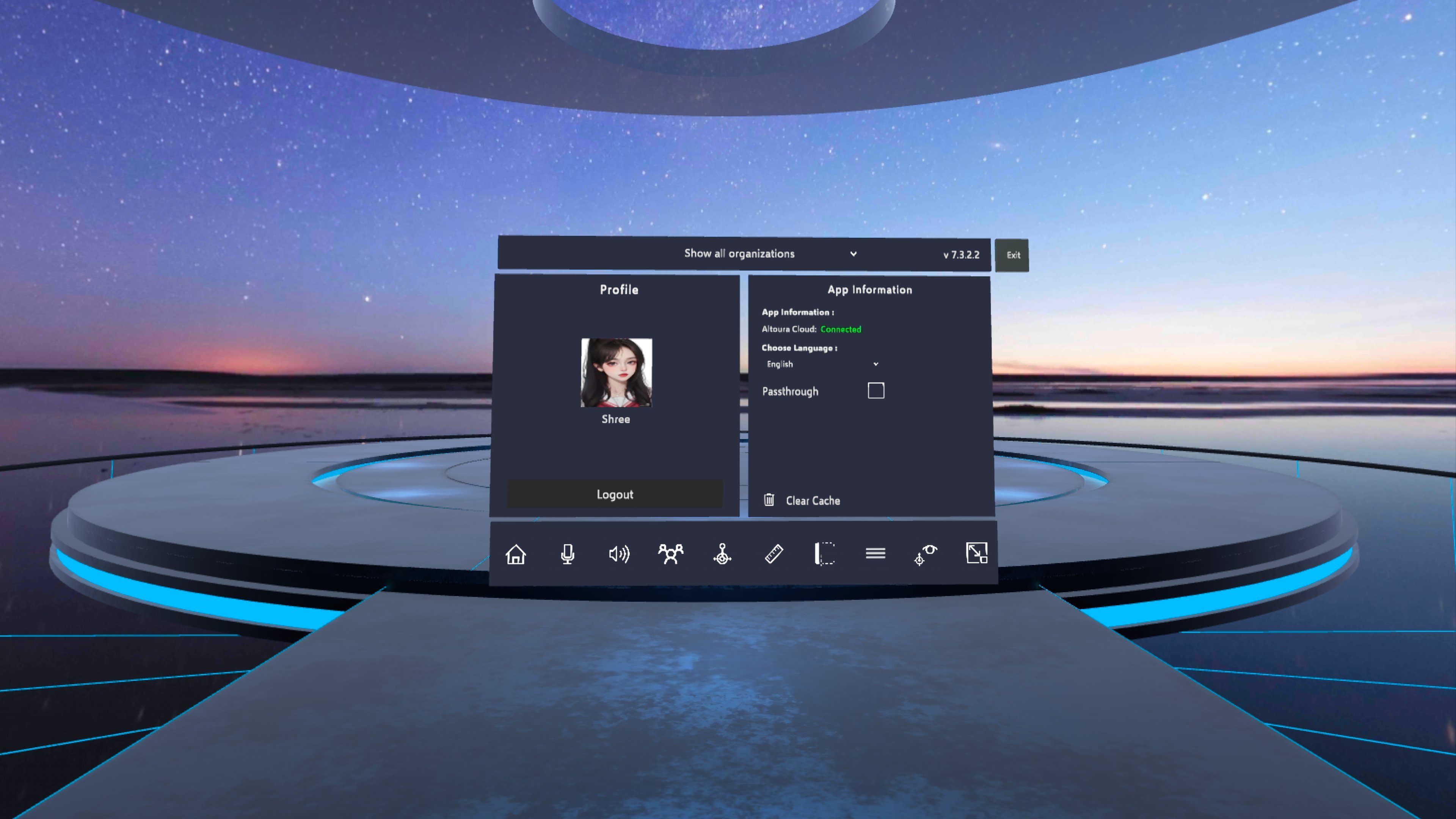
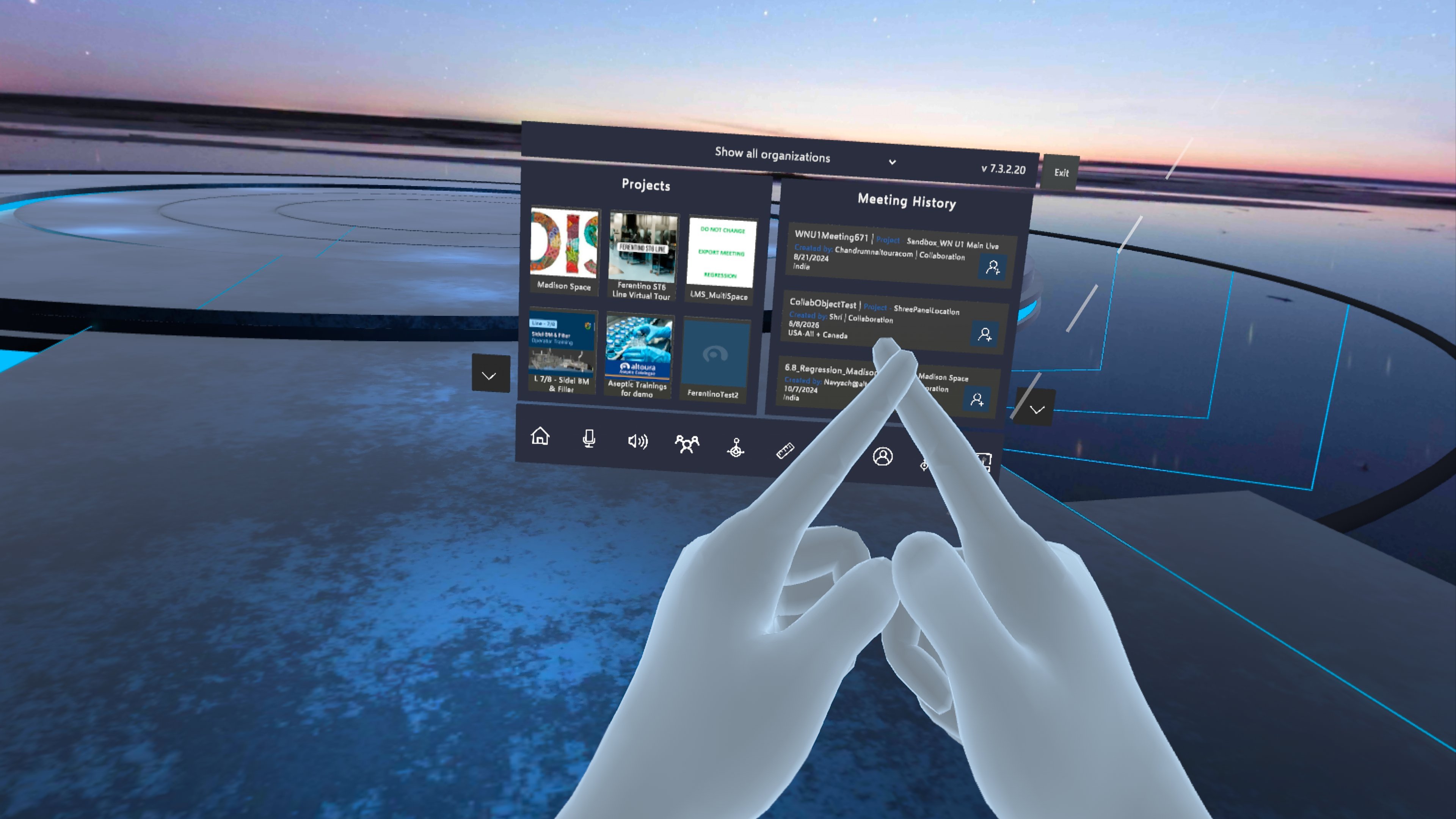
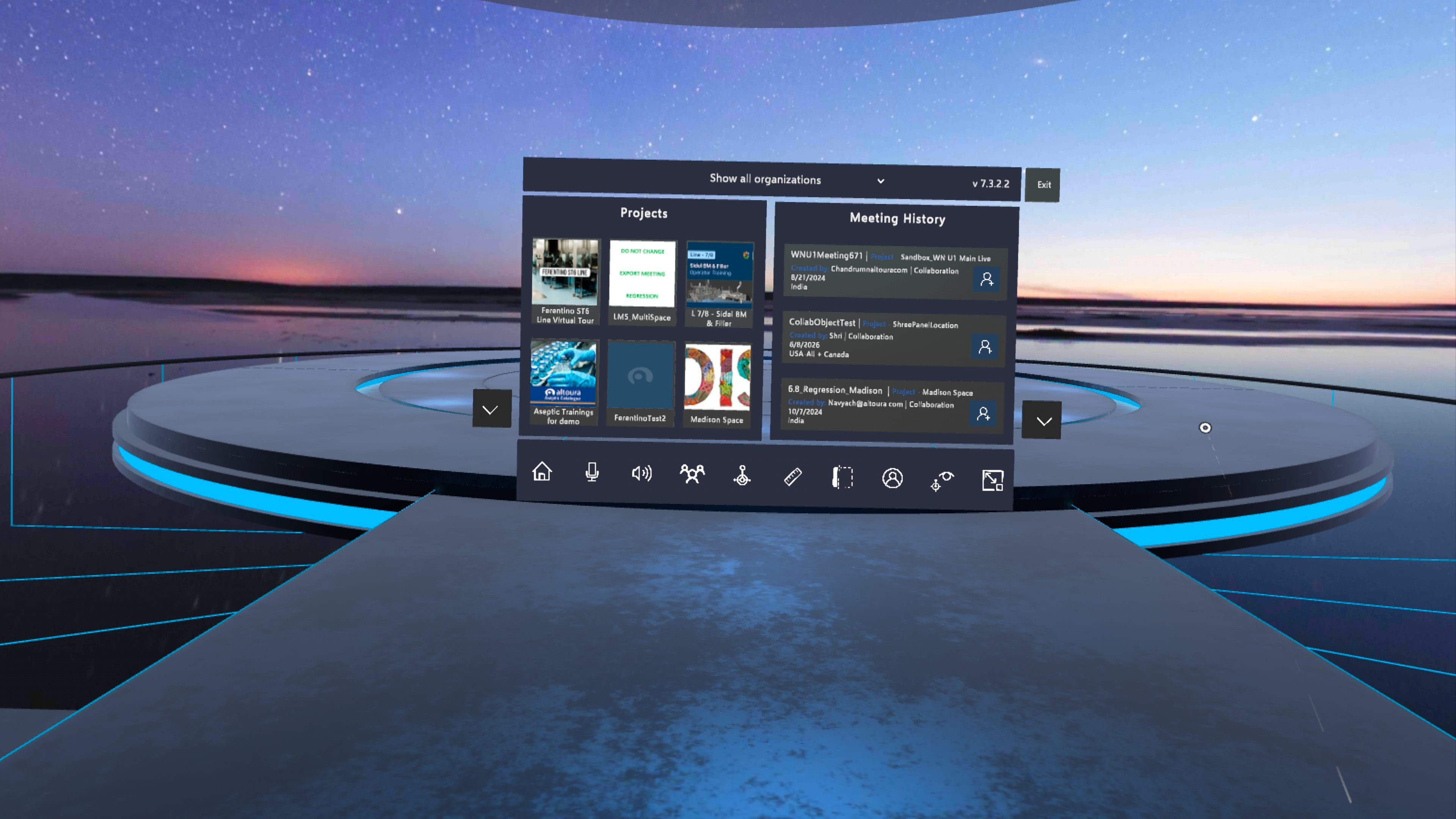
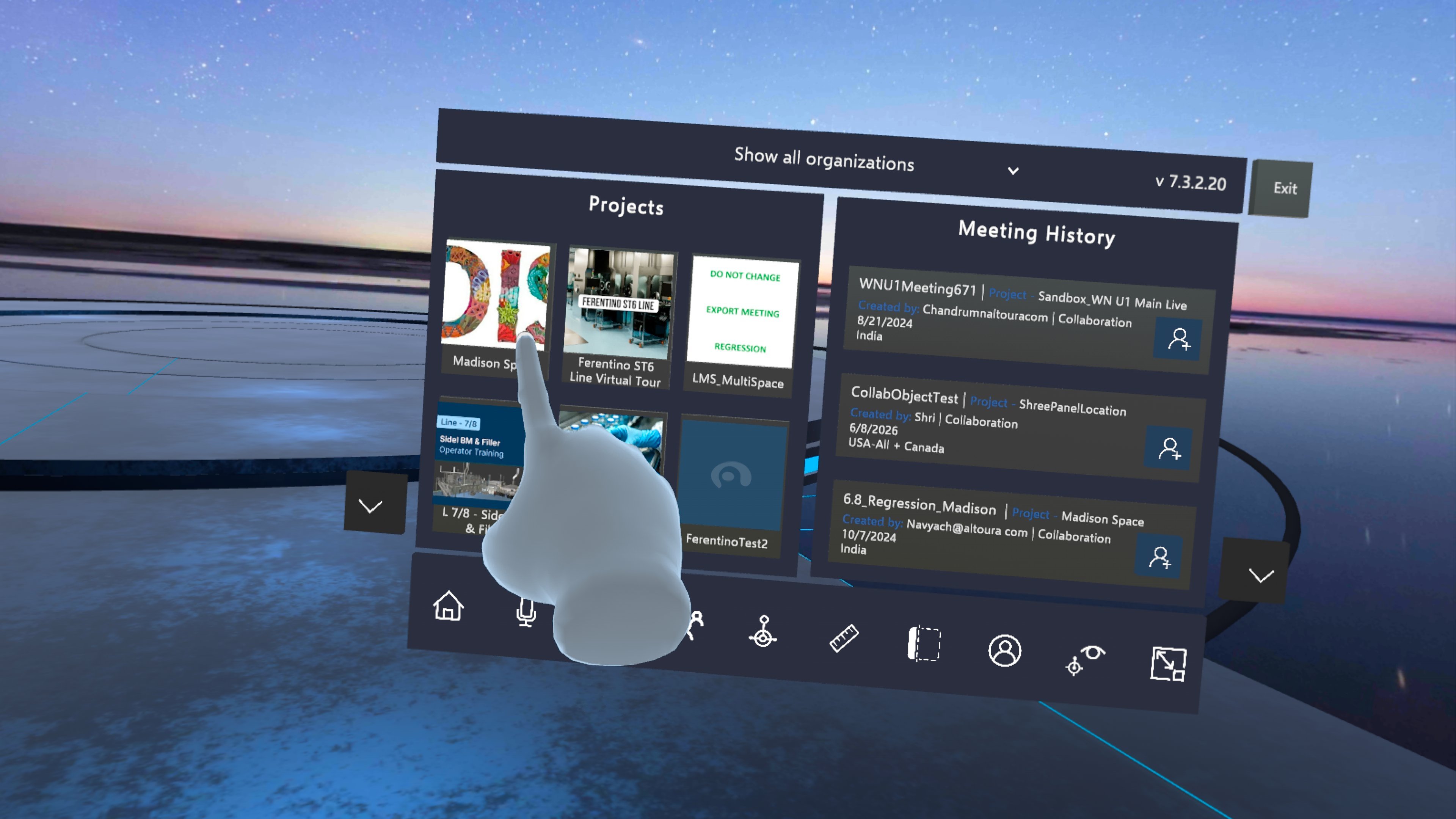
The Project screen shows your Projects on the left and your Meeting History on the right. Use the Show all organizations dropdown to filter the list by organization. 1024 Tapping on the Project will load the Project. You can join a Meeting by tapping the Meeting Name. 1024 Project Loading.. 1024 Tap the user profile button in the toolbar to open your Profile. From here you can log out, check the Altoura Cloud connection, choose a language, turn Passthrough on or off, and clear the cache. 1024 Tap Exit to return to the Module Selection screen.
Altoura Toolbox

Make an A with your fingers to bring up the Altoura Menu. 1024 Play the below video to see an example for hand gesture to bring menu front.