

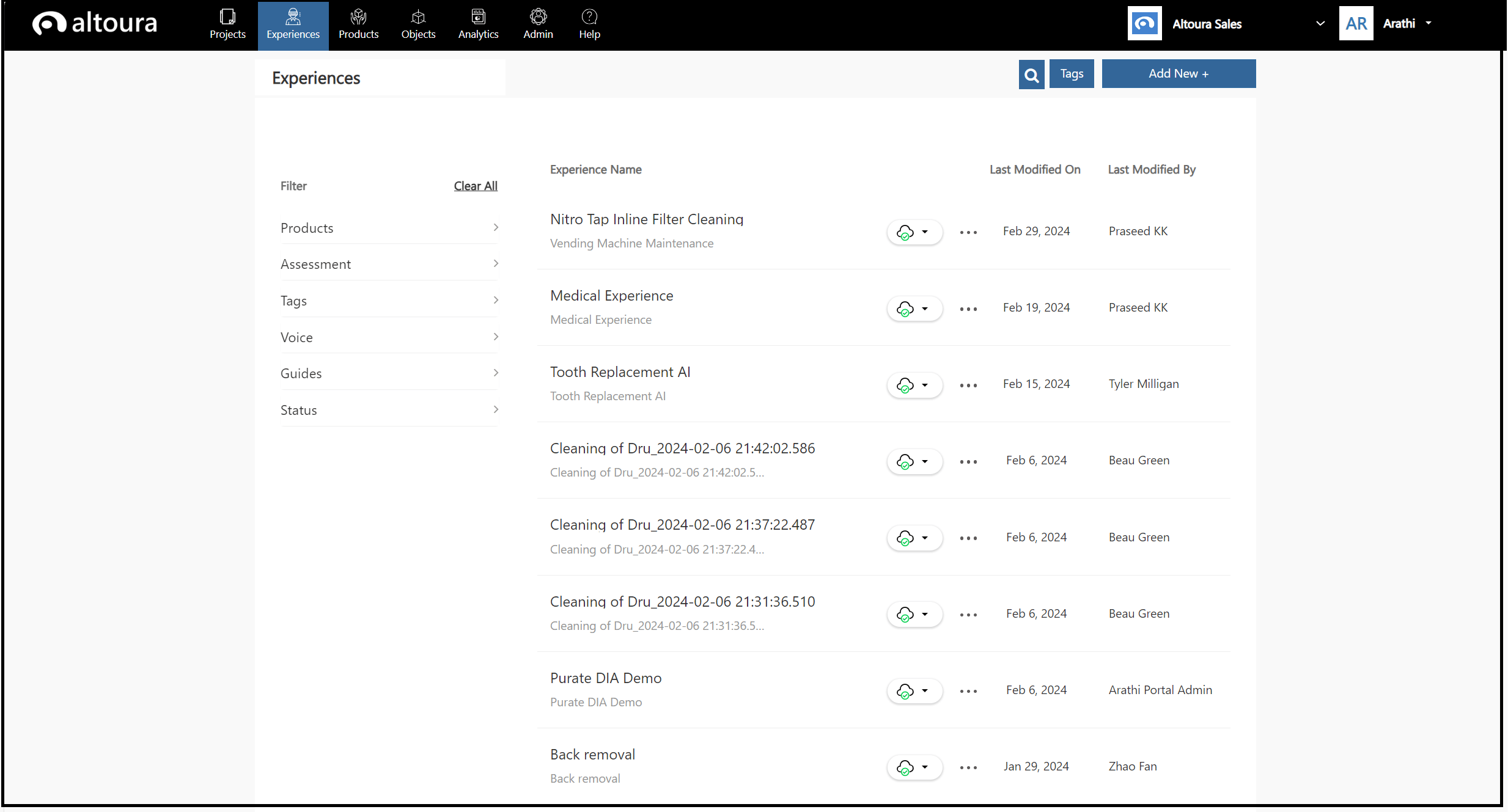
The list of Experiences displayed has the following details:
  • the current state of the experience in terms of Active/Inactive using the green and red cloud icons.
  • Last Modified On - the date on which the experience was last modified.
  • Last Modified By - the user that last modified the experience.
  • More Actions Icon - has a list of other actions that can be performed by the user.
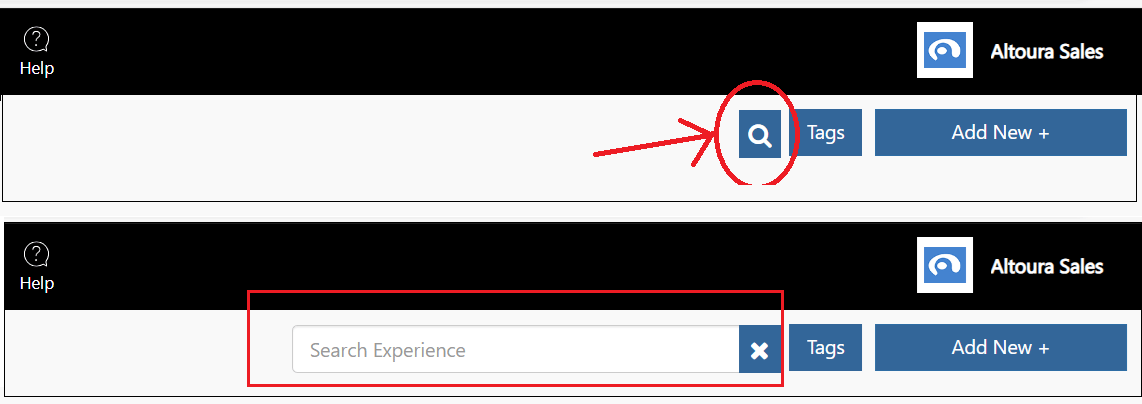
The list of experiences is sorted based on the most recent modification date by default. The top of the page has the Search option. Here, if you click on the Search icon, it expands to a search text wherein the user can search based on the following:
  • Experience Name
  • Product Name associated with the experience
  • Last Modified Date
  • User who last modified the experience
After the Search option, there is a Tags button which can be used to create the master list of Tags. Next to that is the Add New+ button using which the user can create New Experiences. The left section of the page has all the filters that can be applied to the list of experiences to narrow them down to a subset of experiences.