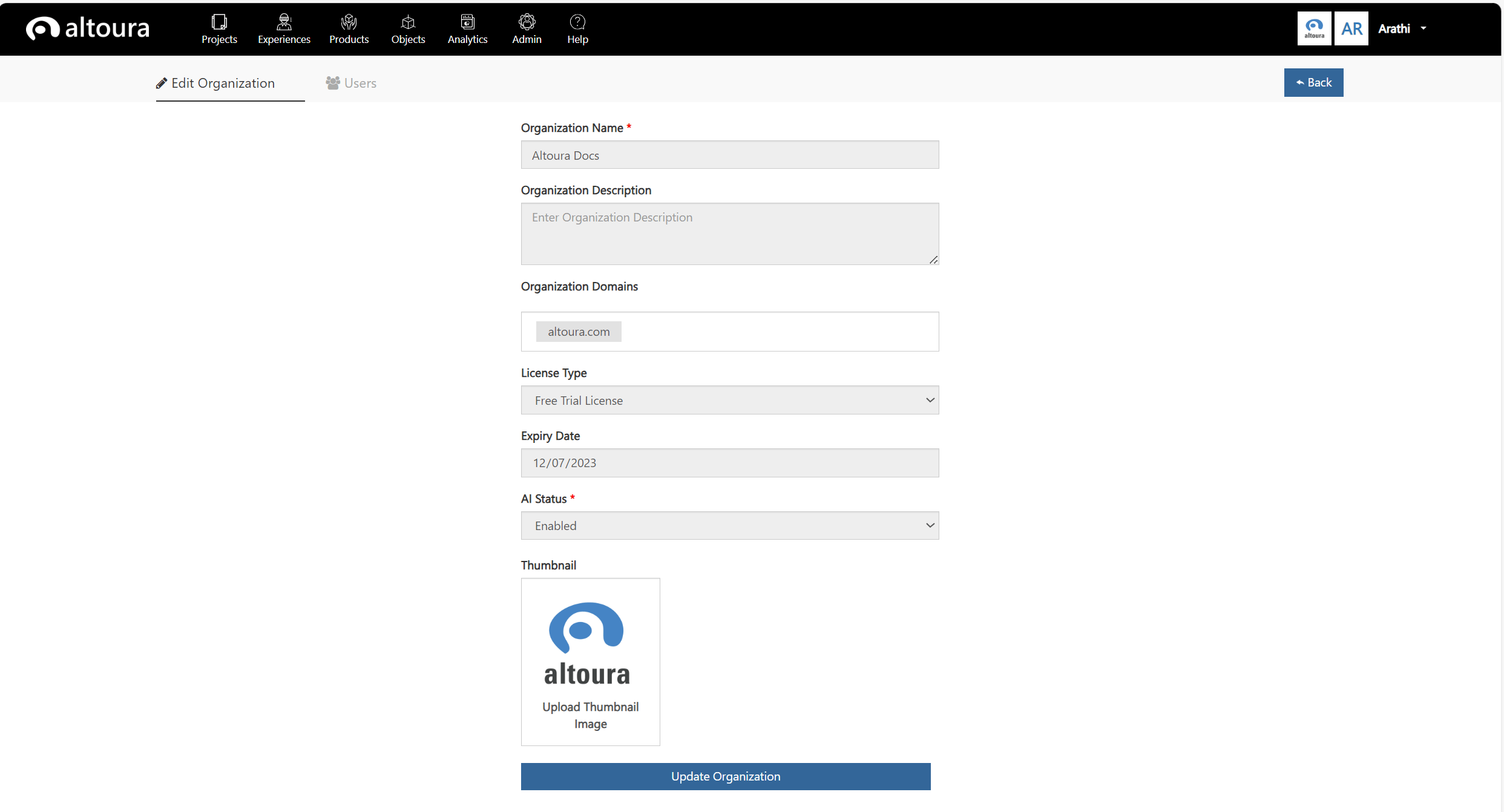
Admin Tab

Click on the Admin tab and the following page is displayed:
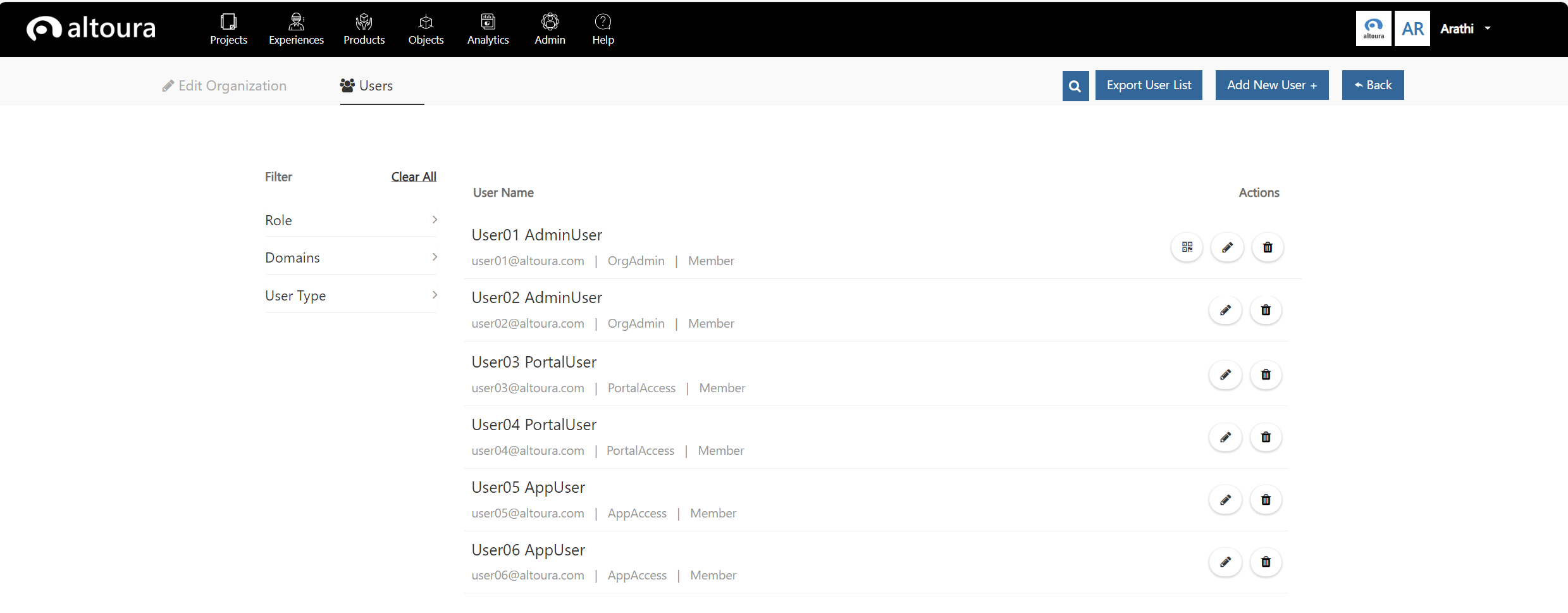
- add other users,
- assign roles,
- update users and roles and
- delete other users from the Organization.
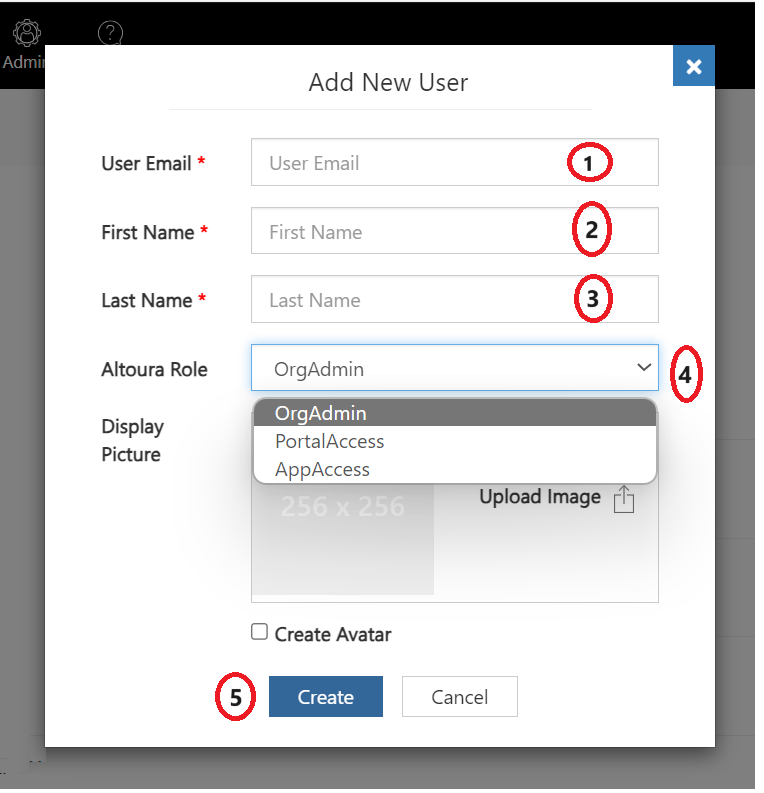
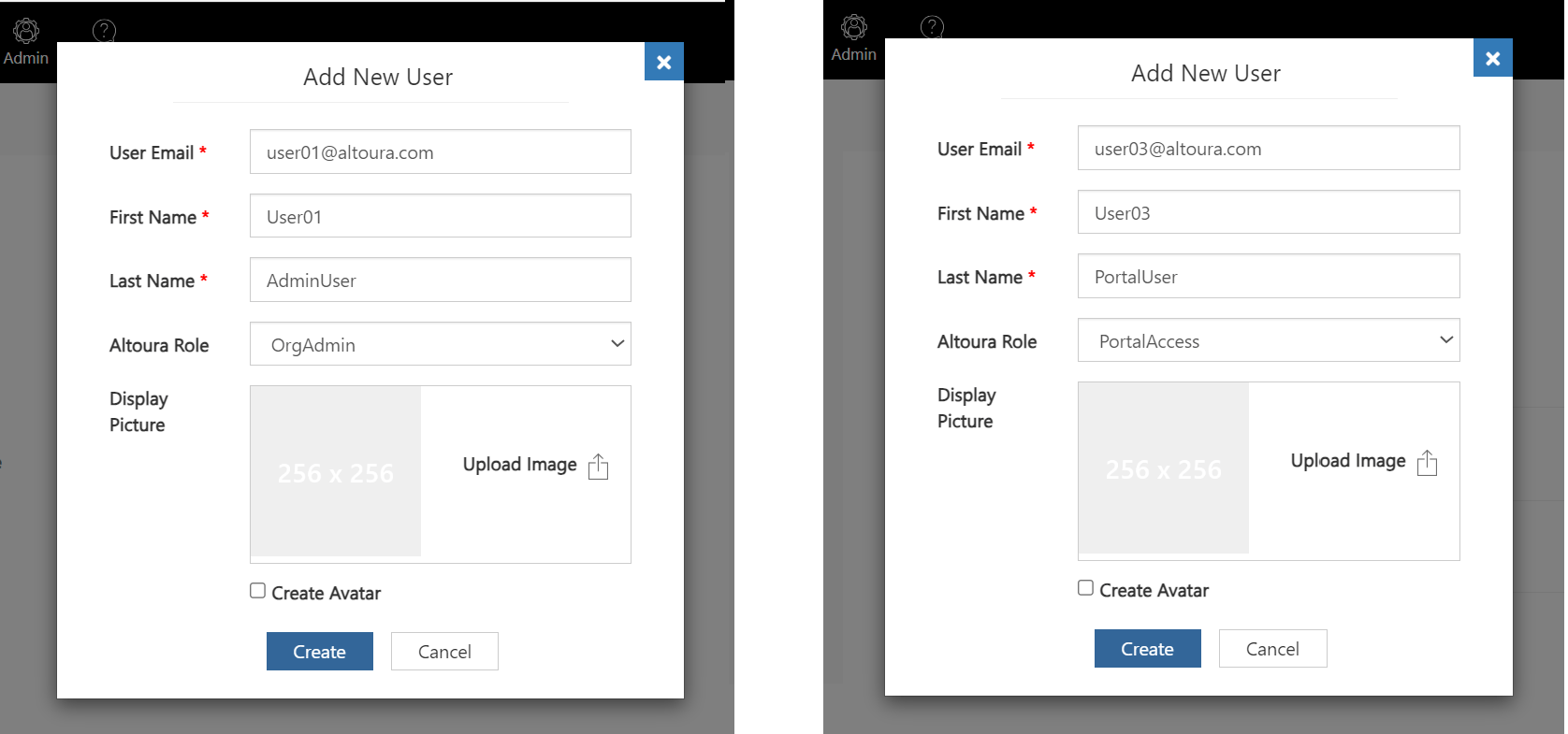
- Enter the email of the user, this will be the Altoura login id for the user. Here a valid email address has to be provided to create the user.
- Enter the First Name of the user. This will be displayed in the Altoura Portal and the Client and against the avatar of the user when he is in a meeting.
- Enter the Last Name of the user.
- Select the Altoura Role to be assigned to the user.
- Click on the Create button, the user will be added to the Organization and will be displayed in the User List page.
Edit and Delete Users
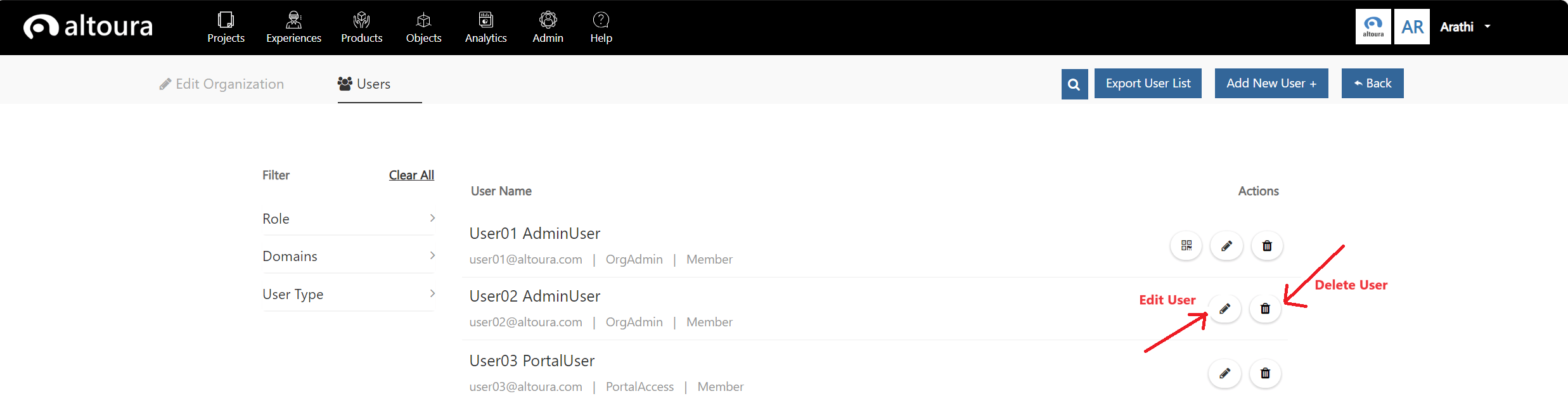
Edit User
Click on the Edit User icon, Edit User page is displayed as shown below: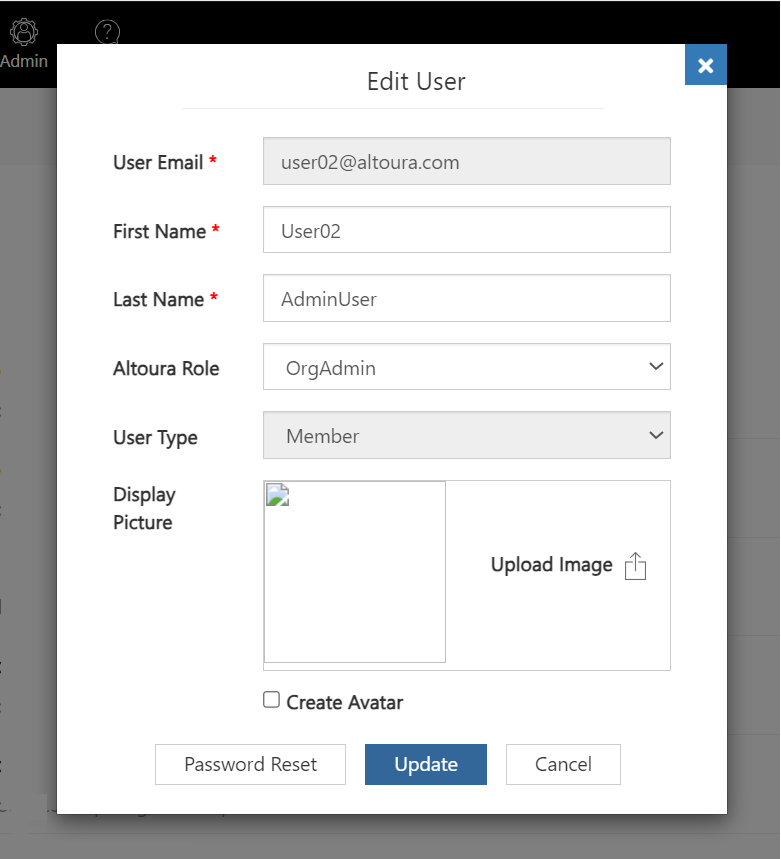
- Here, the user’s First Name, Last Name and the Altoura Role can be updated.
- User email cannot be updated.
- User Type is a display-only field. If the user email address is in the same domain as the Organization then the User Type will be “Member”. If not the User Type will be “Guest”.
- The OrgAdmin user can initiate a password reset for any user clicking on the Password Reset button. An email will be sent to the user with instructions to reset his password.
Delete User
Click on the Delete User icon in the User List page, a confirmation message will be displayed as shown.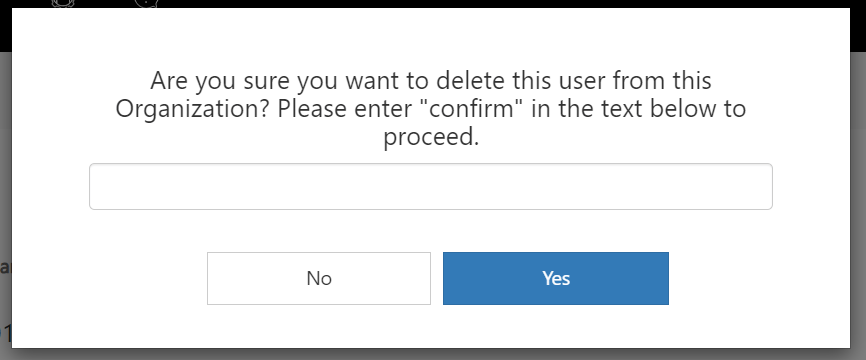
Export User List
Refer to the details hereFilters
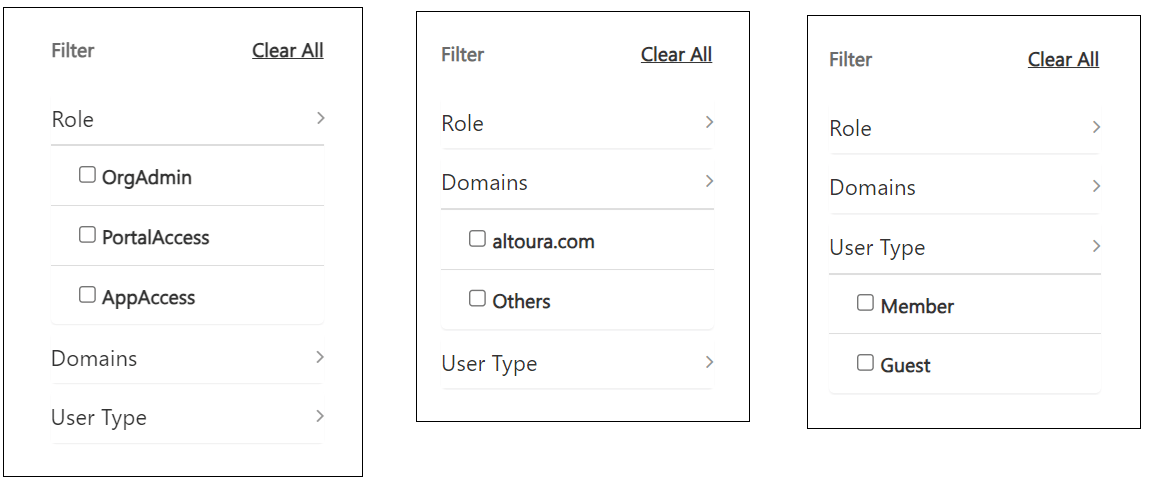
Filters available on the left pane of the User List page will help in filtering out the users based on Domain, User Type and roles assigned.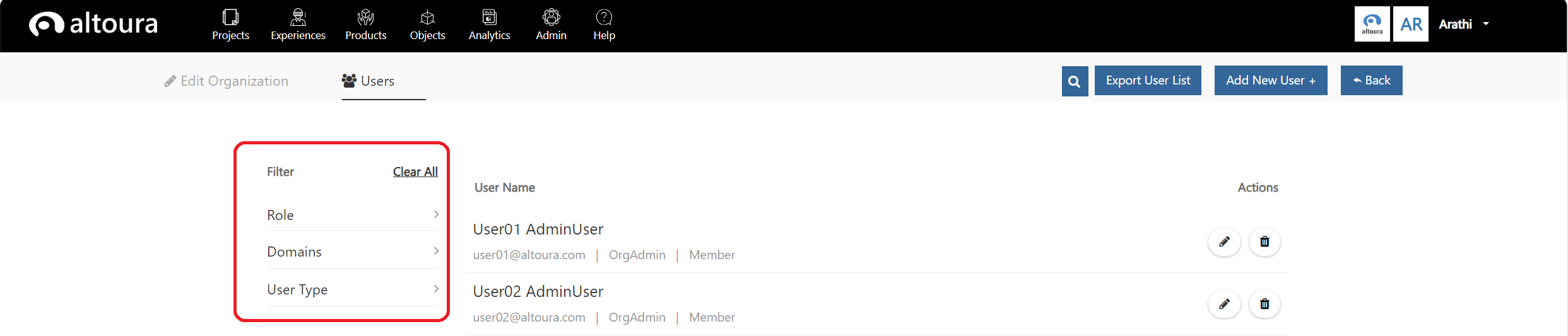
Search
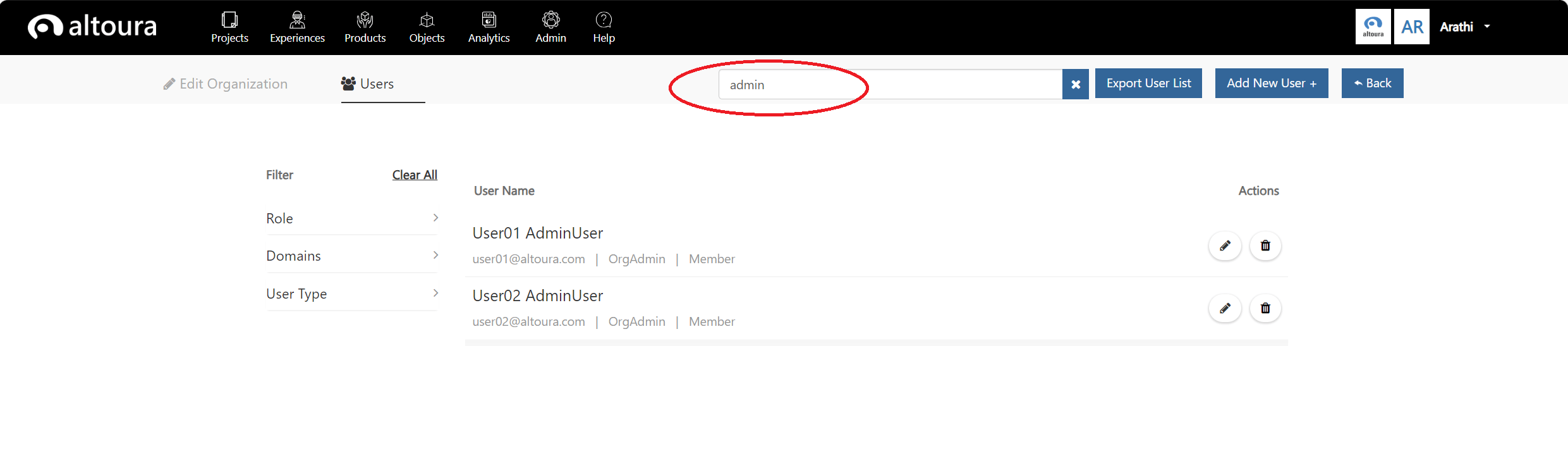
The User can also use the Seach icon to narrow down the user list based on a search string value.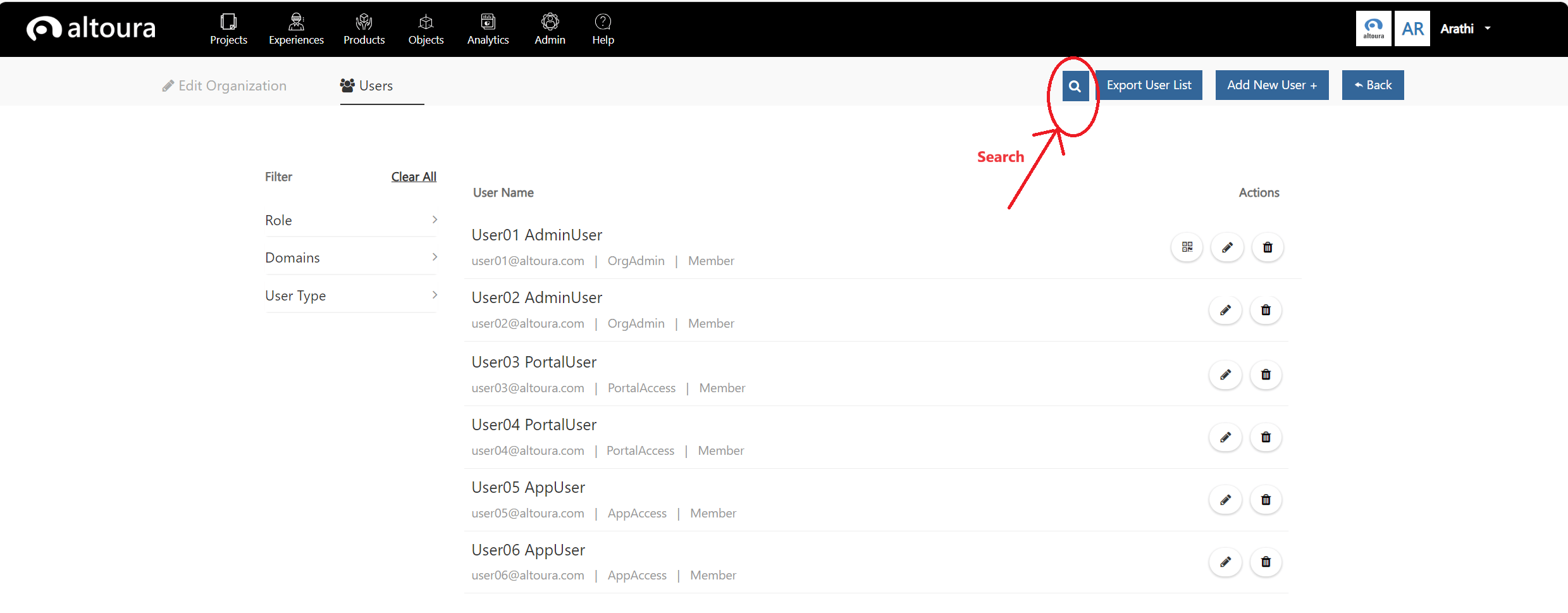
Edit Organization
Click on the Edit Organization tab and the following page is displayed.